Guide
Browzer Test
Overview
Browzer is an automation and browser extension platform that allows you to automate workflows and extend browser functionality. This workflow walks you through the platform's core features: accessing documentation to understand workflows, checking your automation status (enabled or disabled), reviewing extension configuration options, and verifying that your Browzer browser extension is installed and functioning correctly. Whether you're setting up Browzer for the first time or troubleshooting an existing installation, this workflow ensures all components are properly configured and documented.
Before you begin
- A valid Browzer account (accessible at trybrowzer.com)
- You must be logged into your Browzer account before starting
- Your browser must have internet connectivity to access trybrowzer.com
- Access to your account dashboard (no special permissions required for this workflow)
Step by step
Navigate to the Browzer platform by opening trybrowzer.com in your browser. This loads the main Browzer dashboard where you can access all platform features.
Workflow DocumentationClick the 'Workflow Documentation' link in the navigation menu. This takes you to the documentation section where you can learn about available automation workflows and best practices.
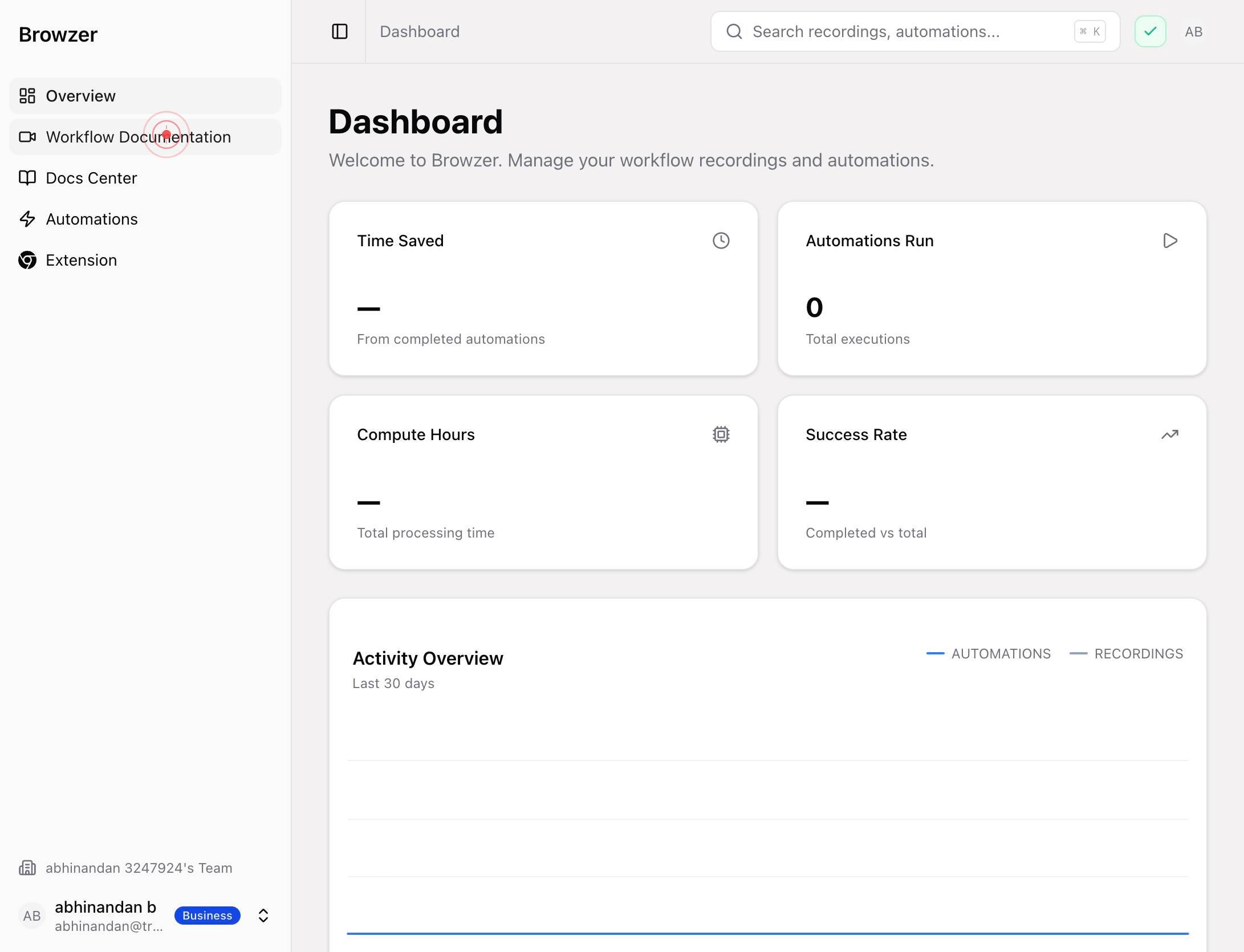
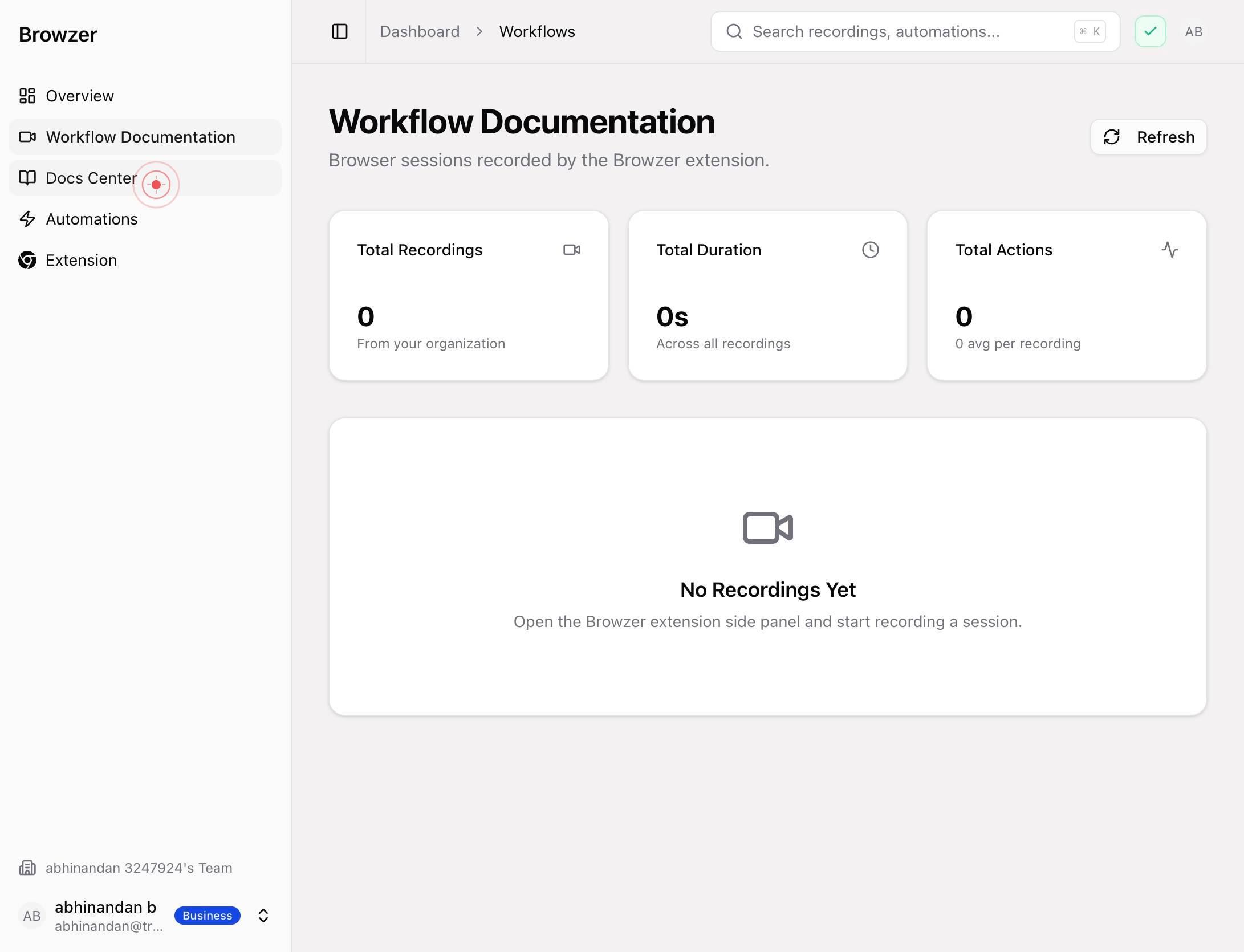
Docs CenterClick the 'Docs Center' link to access the centralized documentation hub. This section contains comprehensive guides for all Browzer features, including setup, configuration, and troubleshooting.
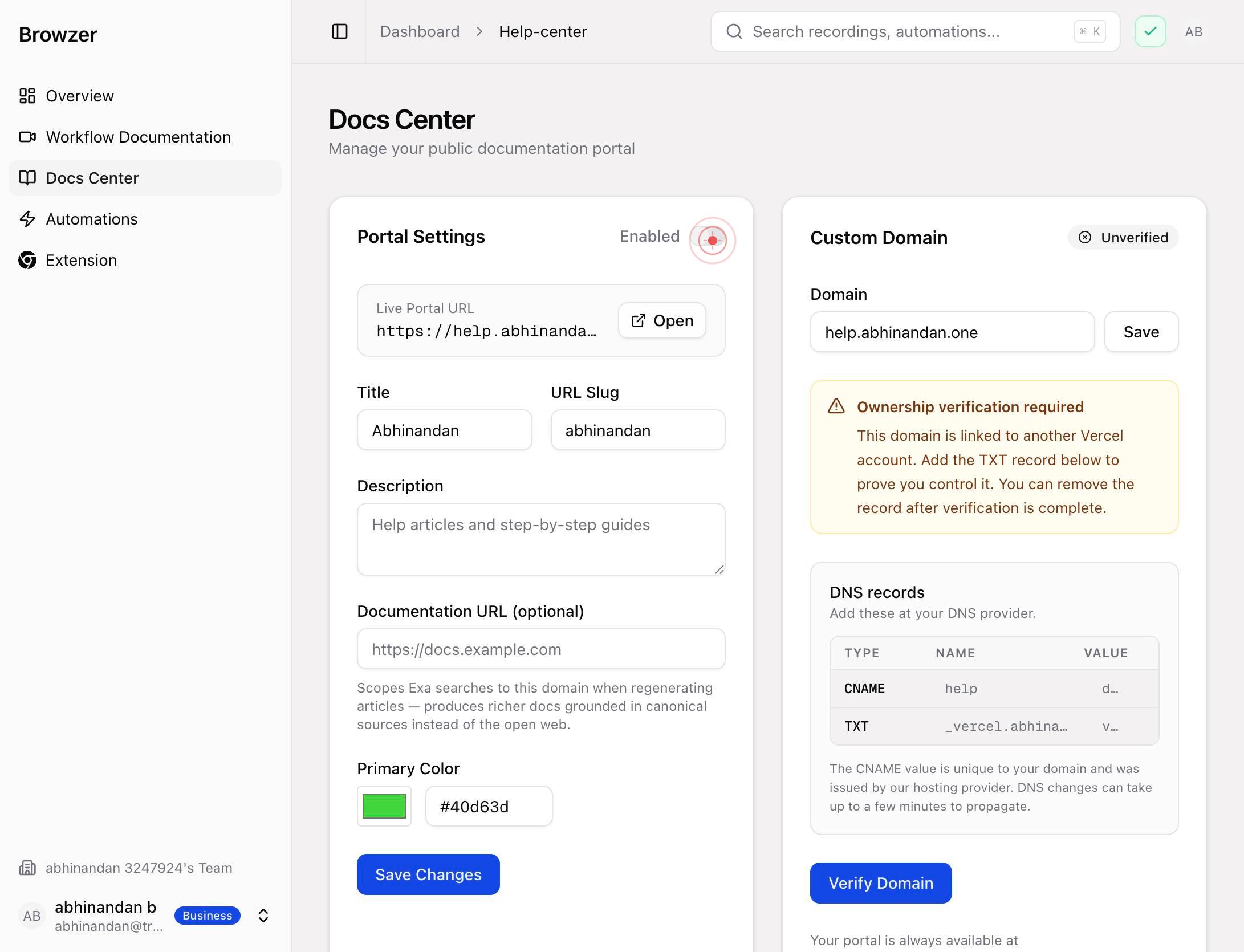
DisabledClick the 'Disabled' switch to disable your automations. This action turns off any active automation workflows and prevents them from running.
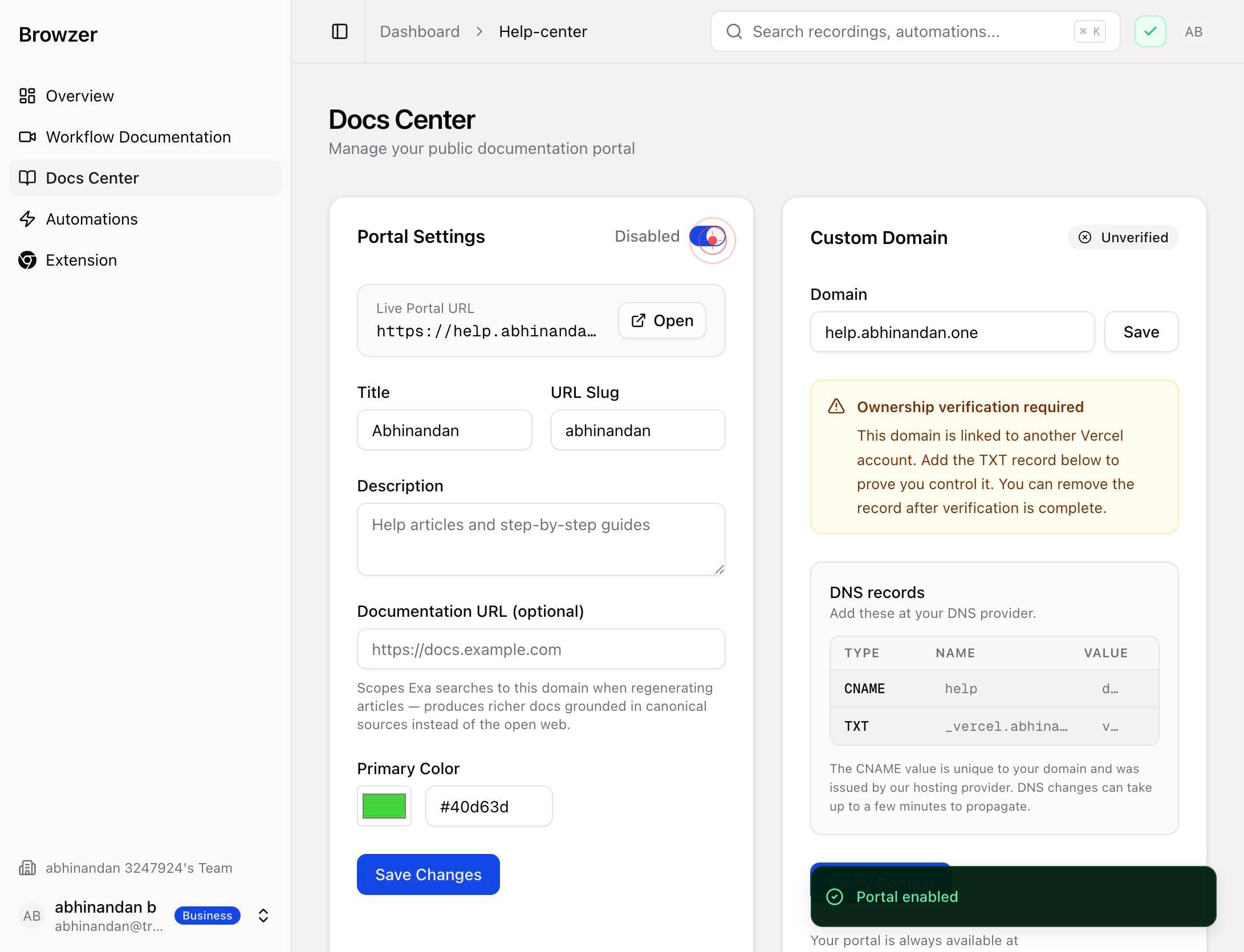
EnabledClick the 'Enabled' switch to re-enable your automations. This action activates your workflows and allows them to run according to their schedule or triggers.
AutomationsClick the 'Automations' link to navigate to the automations section. Here you can view, create, and manage all your workflow automations.
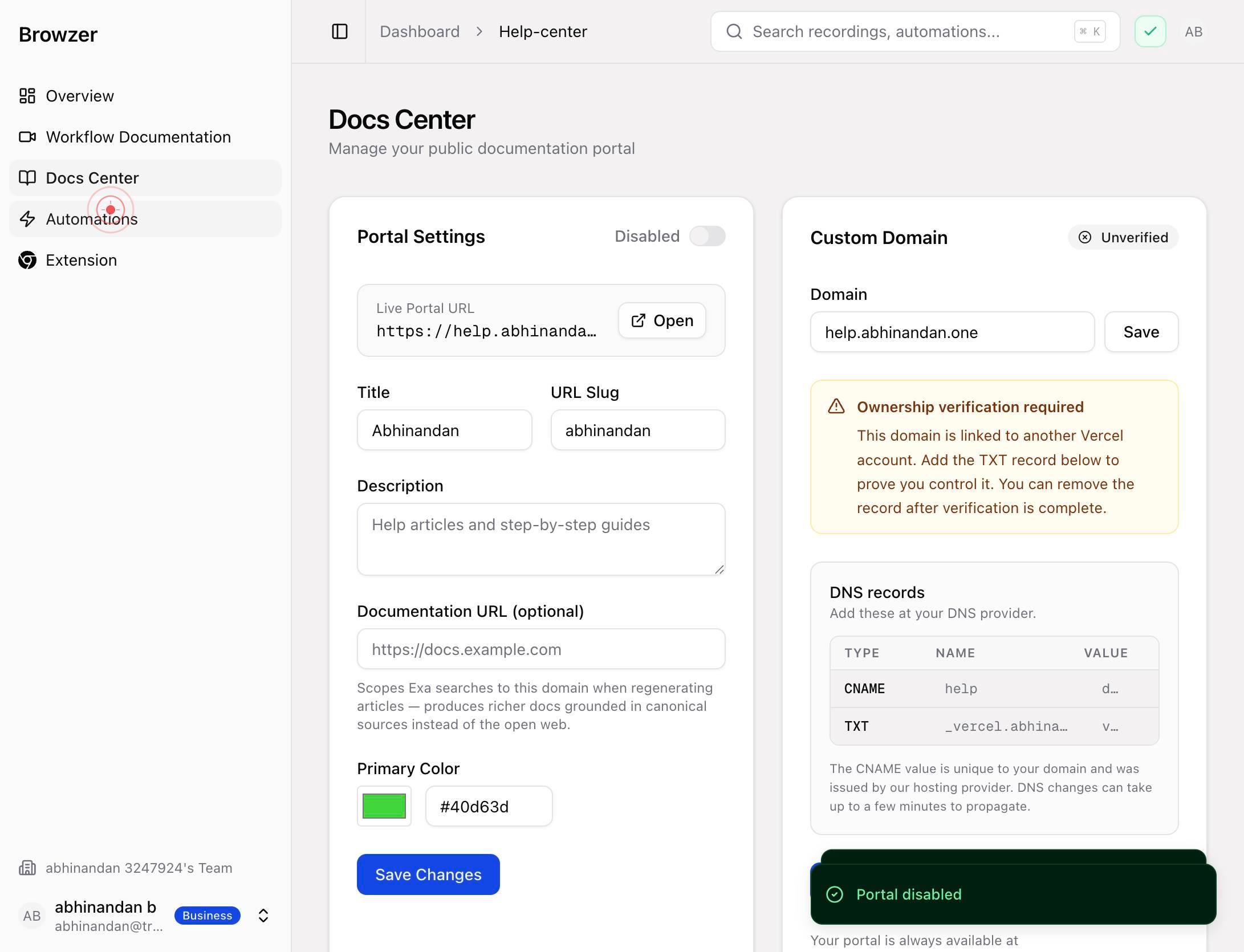
ExtensionClick the 'Extension' link to access the browser extension configuration page. This section shows your extension status, installation instructions, and configuration options.
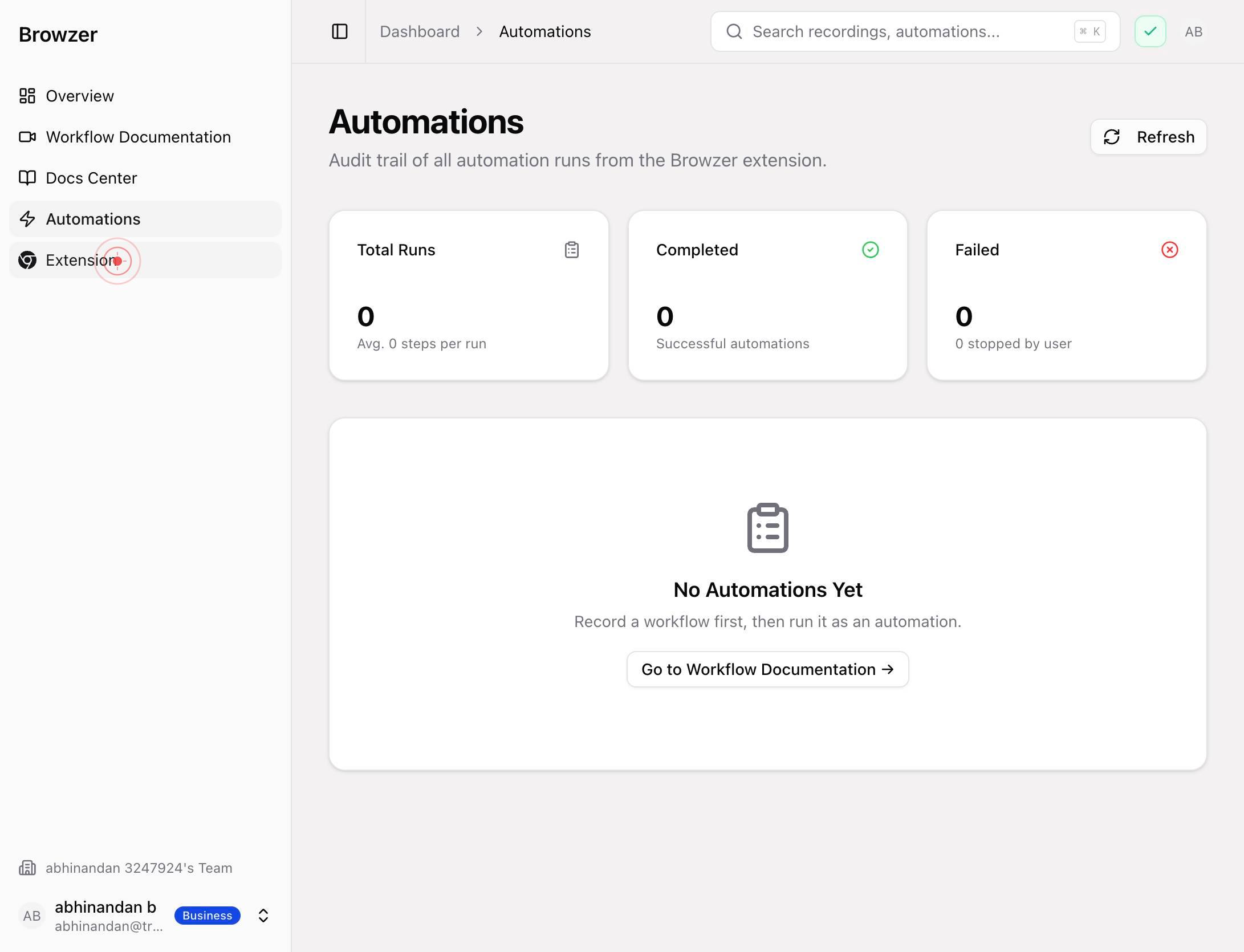
Re-checkClick the 'Re-check' button to manually verify your extension installation status. This prompts the platform to scan for the Browzer extension in your browser.
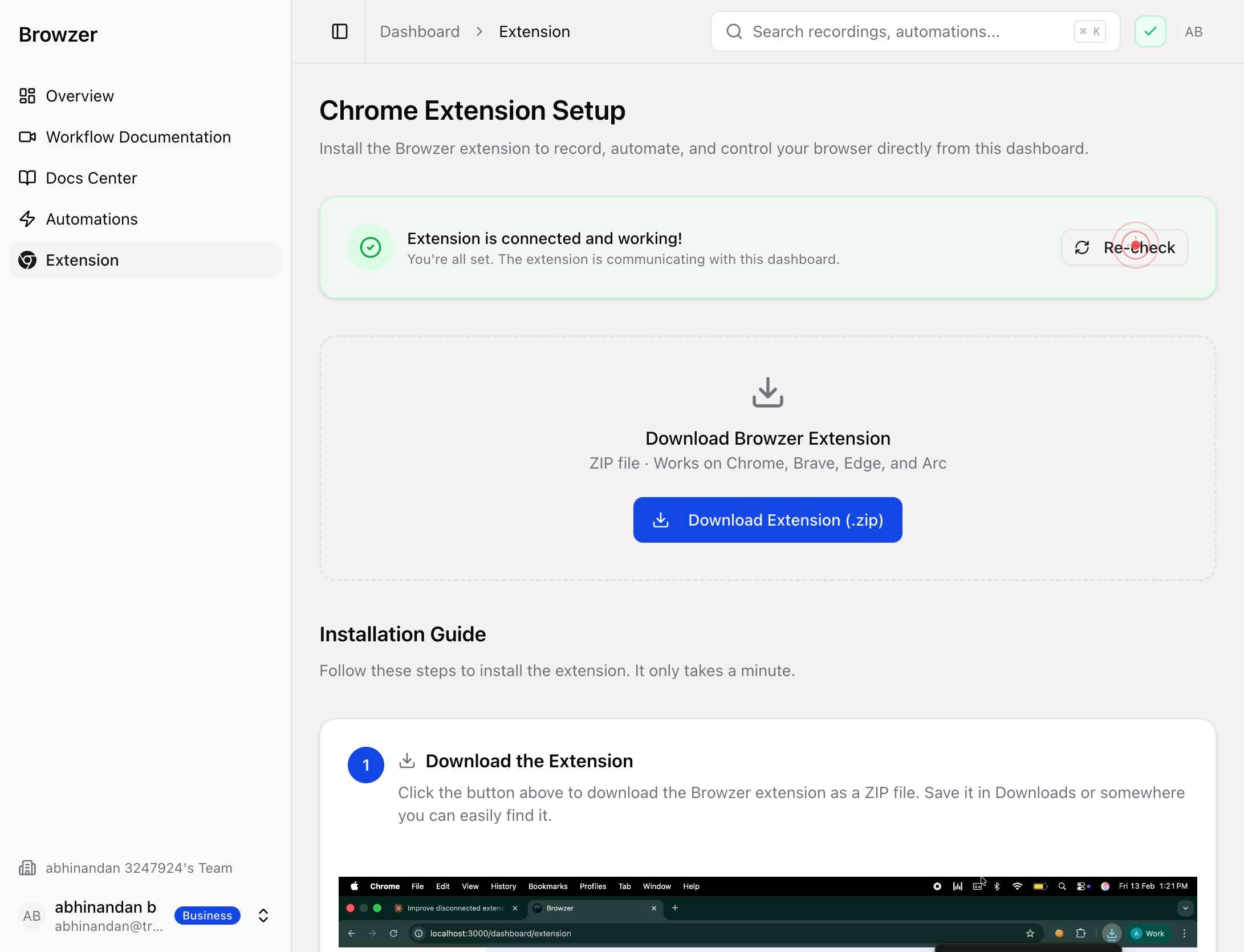
Extension statusClick the 'Extension status' button to view detailed information about your Browzer browser extension, including whether it is installed, enabled, and its current version.
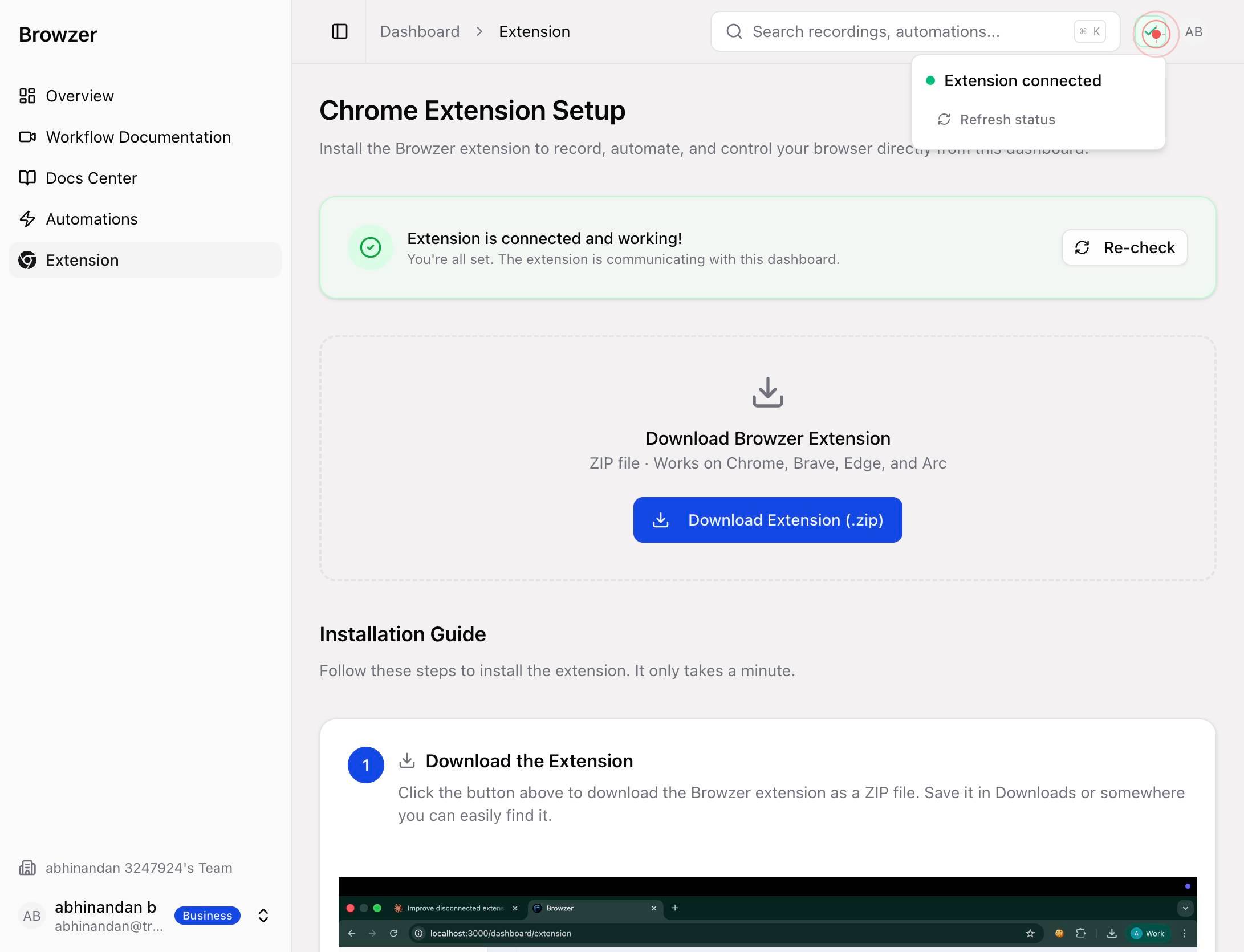
Refresh statusClick the 'Refresh status' button to update the extension status display with the latest information. This ensures you are viewing real-time data about your extension state.
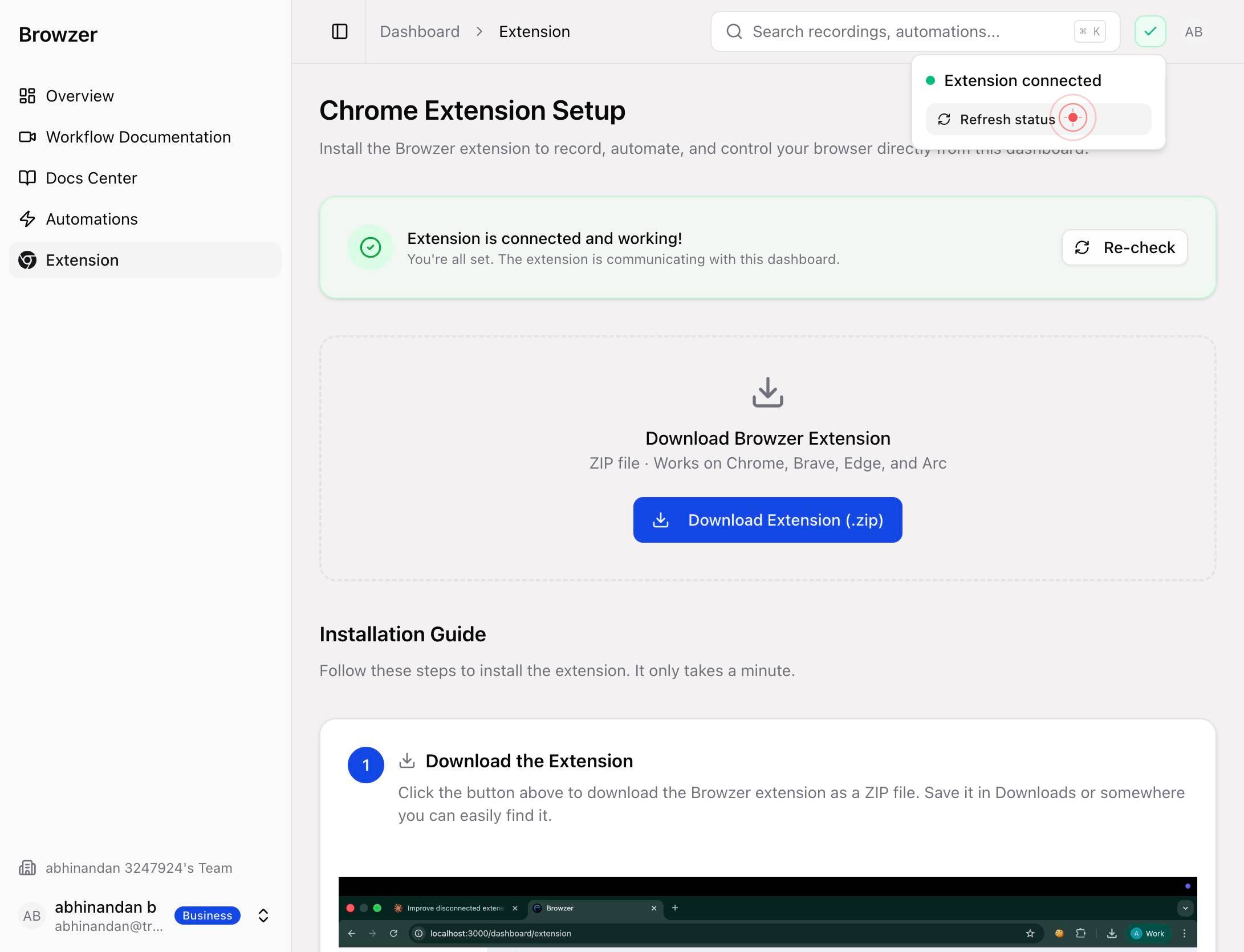
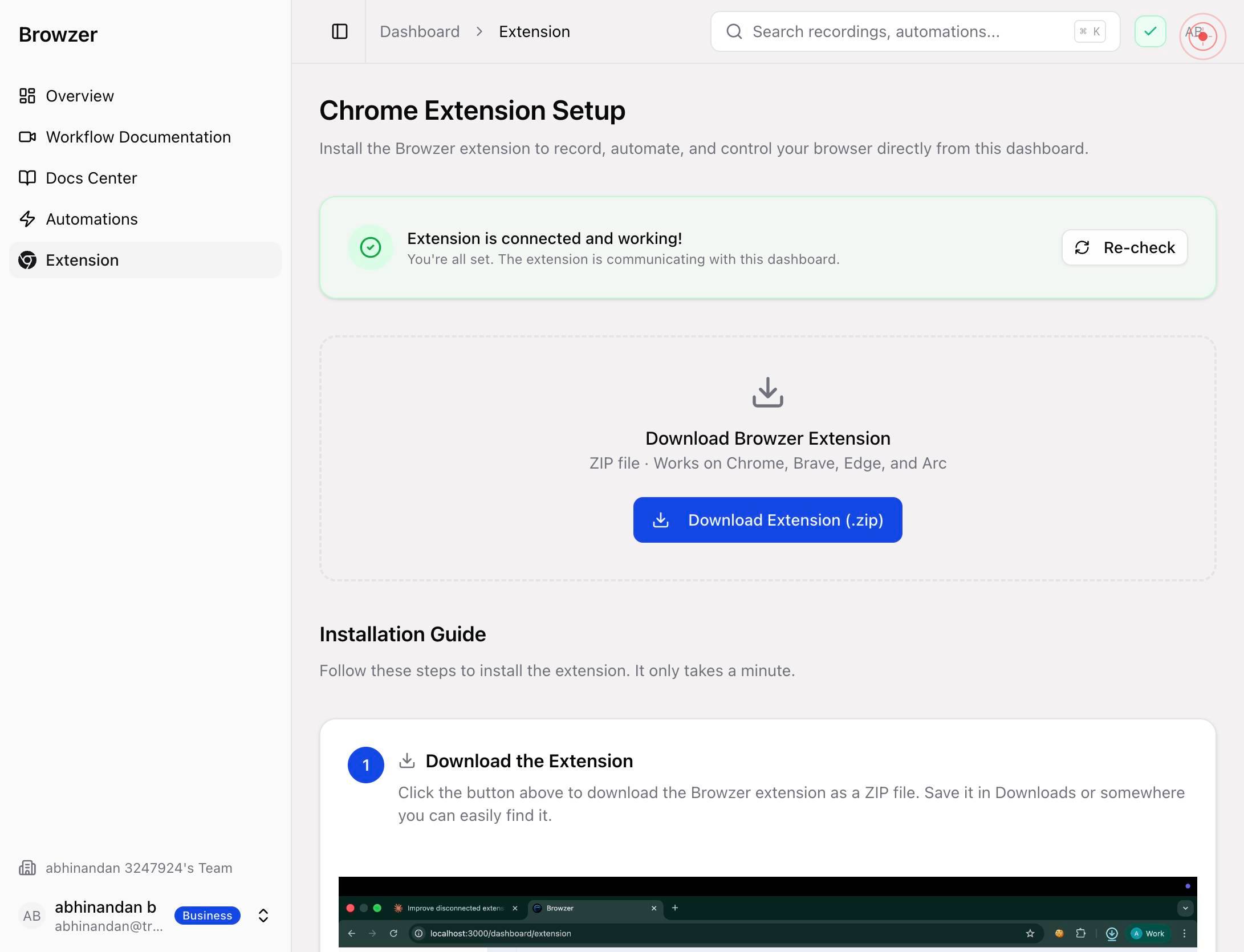
Browzer Overview Workflow Documentation Docs Center Automations Extension abhinandan 3247924's Team AB abhinandan b abhinandan@trybrowzer.com Business Toggle Sidebar Dashboard Extension ⌘ K AB Chrome Extension Setup Install the Browzer extension to rInteract with the main page content area that displays your Browzer workspace overview, including the navigation menu, your team information, and extension setup instructions. This is the central hub for accessing all platform features.
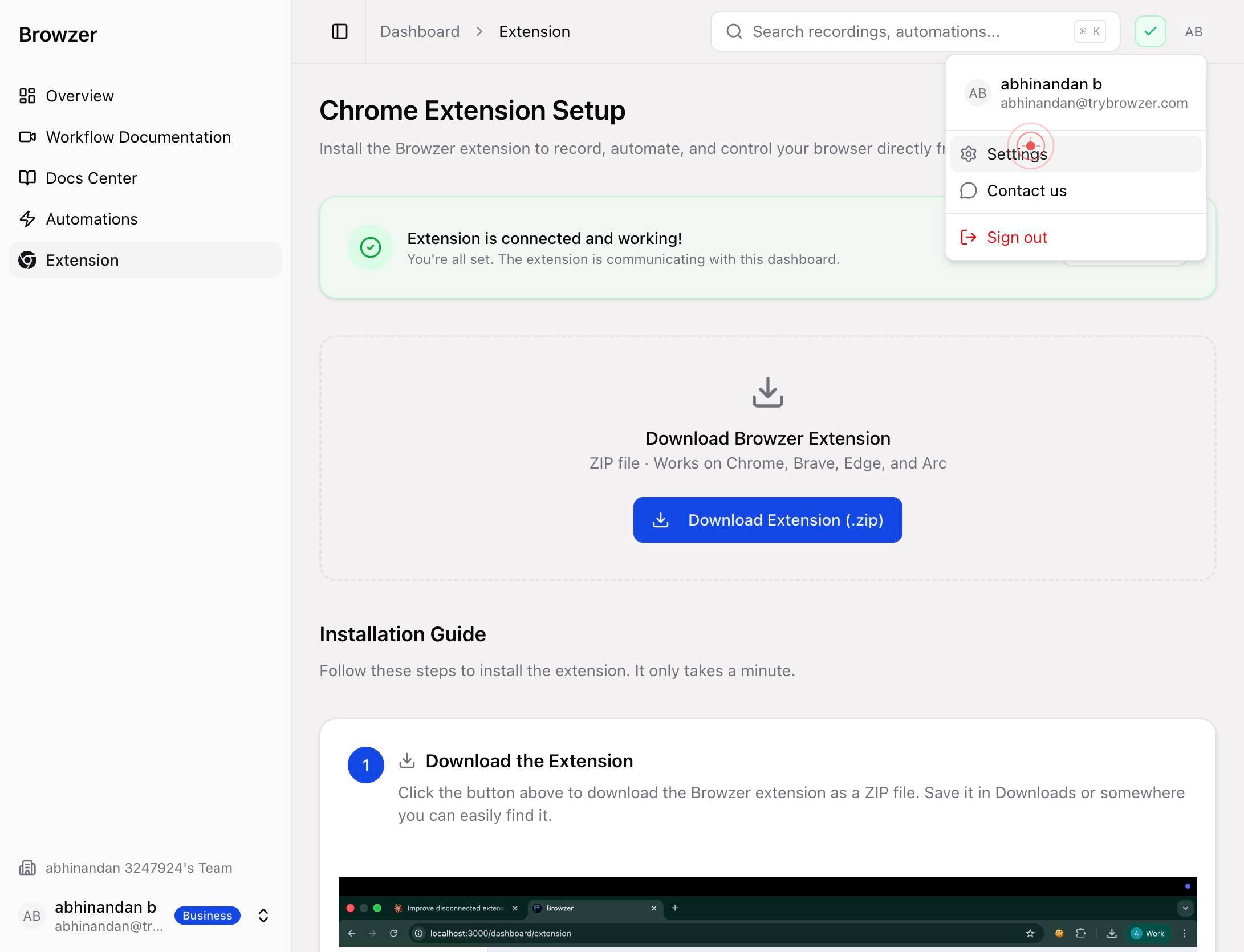
SettingsClick the 'Settings' menu item to access your account settings and preferences. Here you can configure user-level options, authentication, and other account-related settings.
Confirm it worked
- 1You can view the Workflow Documentation page within the Docs Center
- 2The Automations section displays your current automation status (enabled or disabled)
- 3The Extension section shows your extension configuration options and status
- 4After clicking 'Refresh status', the Extension status button confirms whether the Browzer extension is detected and active in your browser
Common issues
Keep reading
Build a Web Scraper in 10 Minutes with Browsaur — Browsaur · Browsaur
Build a Web Scraper in 10 Minutes with Browsaur — Browsaur · Browsaur tutorialsscrapingplaywright April 6, 2026 # Build a Web Scraper in 10 Minutes with Browsaur A hands-on tutorial: start a Brows
browsaur.devWhat Is Browser Workflow Automation? The Complete Guide (2026) | Browzer
What Is Browser Workflow Automation? The Complete Guide (2026) | Browzer ## Key Statistics - The average knowledge worker spends 3.6 hours per day on repetitive tasks (Asana Work Index, 2023) - Auto
trybrowzer.comQuickstart — Browsaur in 60 Seconds · Browsaur
Quickstart — Browsaur in 60 Seconds · Browsaur # Quickstart Zero to extracted data in 60 seconds. Pick how you want to run Browsaur, then follow the flow. ## How do I get started with Browsaur? Th
browsaur.dev