Guide
Delete Ardent API Key
Overview
Ardent AI allows you to create and manage API keys for programmatic access to your agents and extensions. Over time, you may need to delete API keys—whether for security hygiene (rotating credentials), decommissioning integrations, or revoking access after a team member departure. Deleting an API key immediately invalidates it, preventing any further authentication using that credential. This workflow walks you through locating and removing a specific API key from your Ardent account.
Before you begin
- An active Ardent account with access to app.tryardent.com
- Administrator or equivalent permissions on your Ardent workspace (ability to manage API keys)
- The specific API key you wish to delete identified and available for selection
Step by step
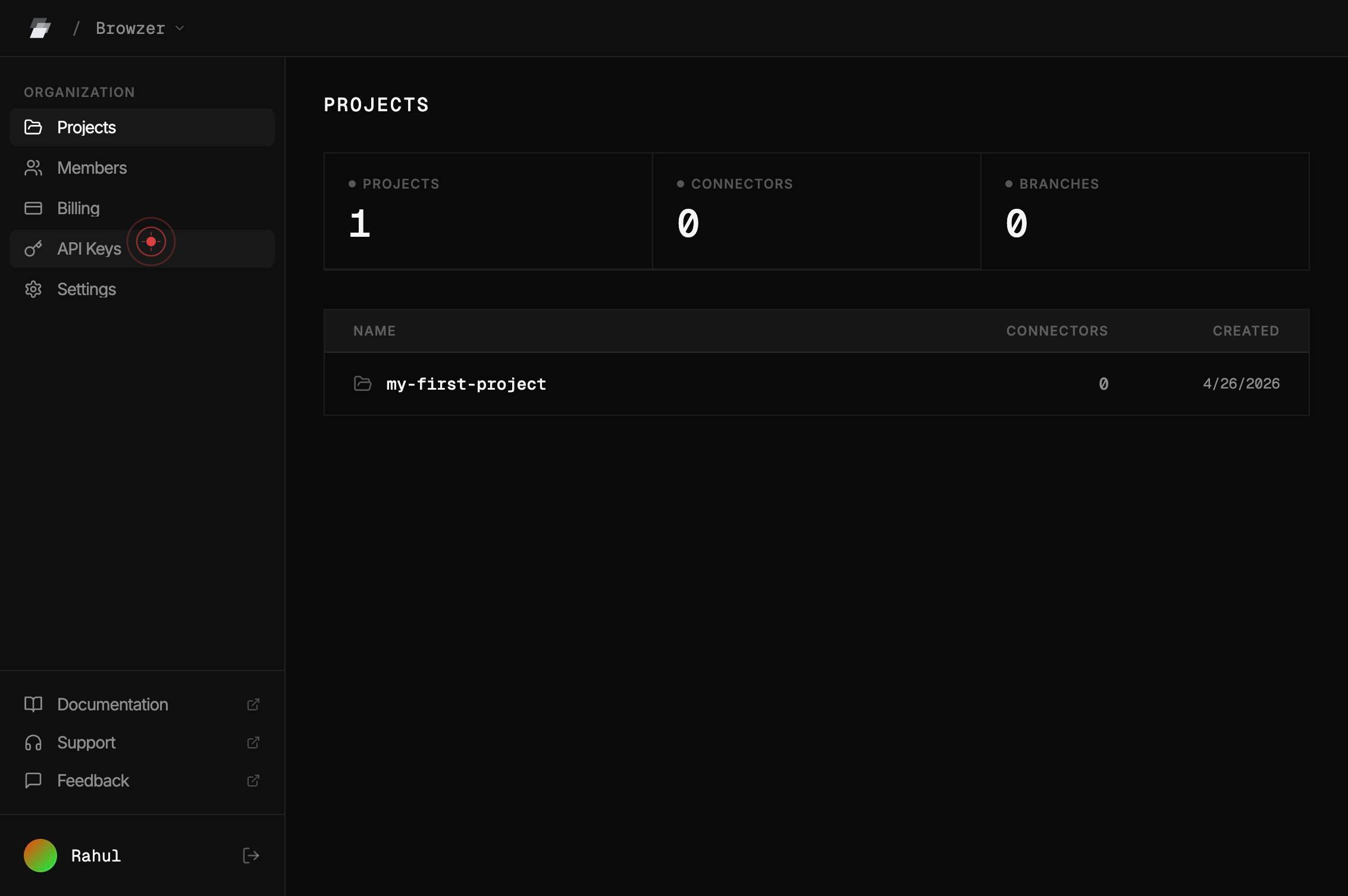
API KeysNavigate to the API Keys management section of your Ardent account by clicking the 'API Keys' button in the main navigation or settings menu. This displays a list of all API keys currently associated with your workspace.
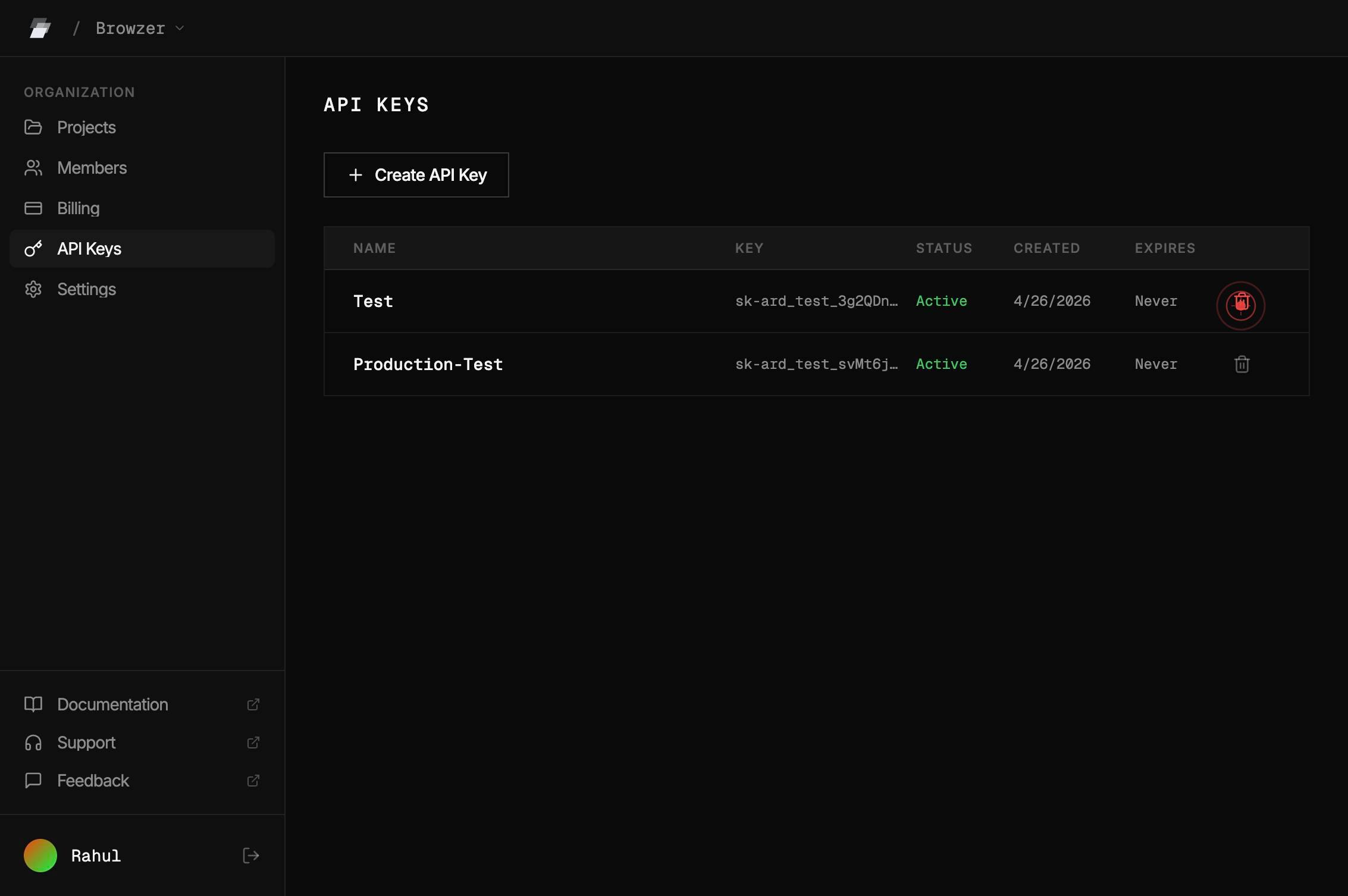
buttonClick the delete button (trash icon, remove option, or 'Delete' label) next to the API key you wish to remove. This action immediately revokes the credential and prevents any further authentication attempts using that key.
Confirm it worked
- 1The API Keys management page is displayed, showing your active API keys
- 2The deleted API key no longer appears in the list of active keys
- 3A confirmation message or success indicator appears (if shown by the interface)
Common issues
Keep reading
API Reference
API Reference #### Getting Started [Introduction](https://ardentai.io/docs/getting-started/introduction)[Quick Start Guide](https://ardentai.io/docs/getting-started/quick-start-guide)[FAQ](https://ard
ardentai.ioQuick start - Ardent AI
> Fetch the complete documentation index at: https://docs.ardent.ai/llms.txt > Use this file to discover all available pages before exploring further. > > ## Documentation Index # Quick start > Bui
docs.ardent.aiDelete an API key - Arize AX Docs
> ## Documentation Index > > Fetch the complete documentation index at: https://arize-ax.mintlify.dev/docs/llms.txt > Use this file to discover all available pages before exploring further. # Delete
arize-ax.mintlify.app