Guide
Get Project Details
Overview
PostHog projects are data silos within the PostHog platform—each project has its own distinct write-only token, configuration, and query scope. To manage your project effectively, you often need to review project details such as your API token, project name, organization affiliation, and data settings. This workflow uses PostHog's command palette (a rapid search and navigation tool) to quickly jump to the Settings section where all project details are centralized. This is particularly useful after initial setup, when configuring event capture, or when you need to retrieve tokens for SDK integration.
Before you begin
- Active PostHog account with access to us.posthog.com
- At least one project created in your PostHog organization
- Administrator or team member permissions for the project (to view and modify settings)
Step by step
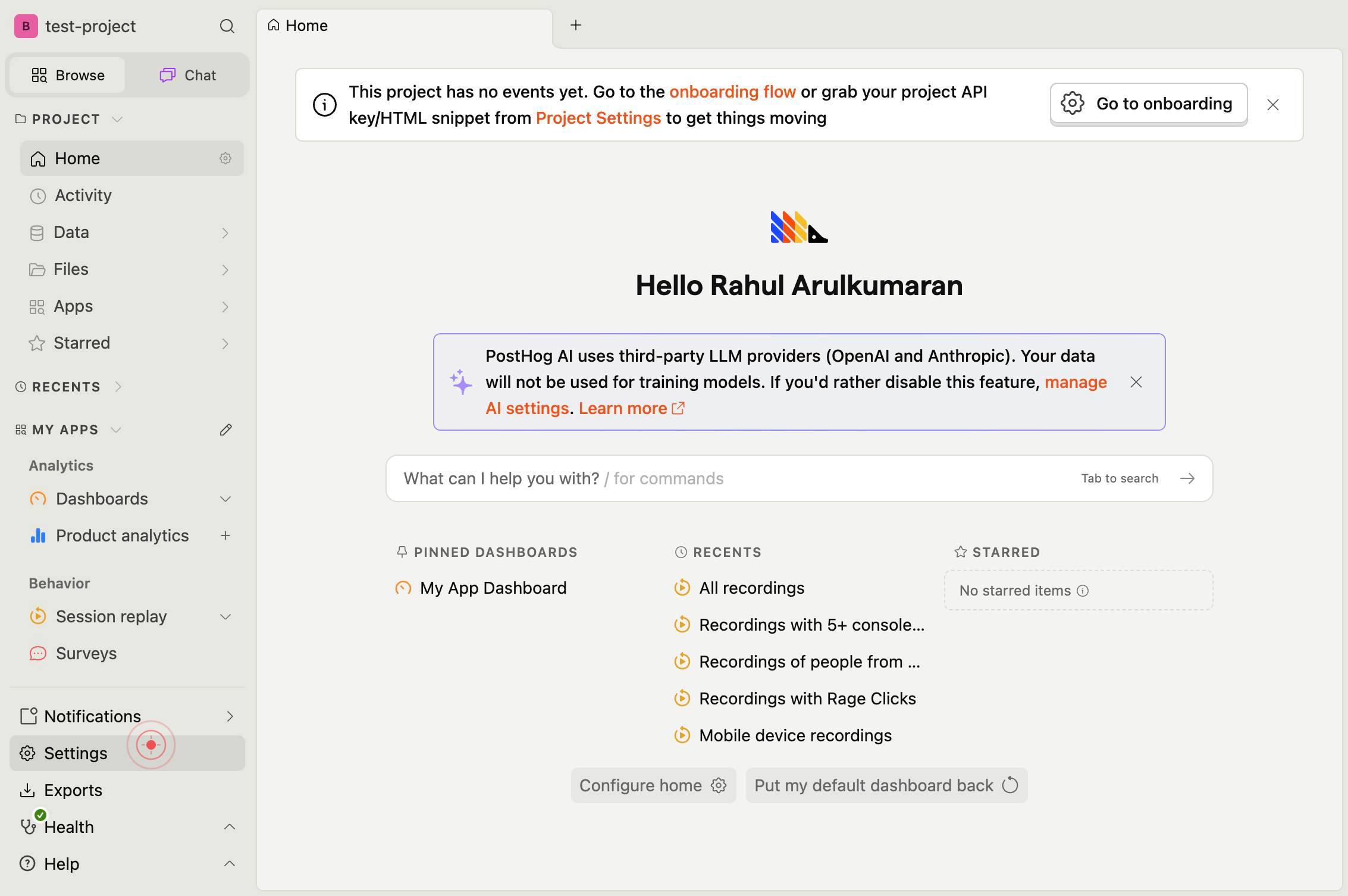
What can I help you with?/ for commandsTab to searchClick on the command palette search box labeled 'What can I help you with?' and type your search query to access PostHog's rapid navigation tool. This textbox allows you to search for commands, pages, and settings without manually navigating menus.
SettingsClick the 'Settings' link in the command palette results to navigate to the Settings section, where you can view and manage your project's configuration, tokens, and other essential details.
Confirm it worked
- 1The command palette (search box labeled 'What can I help you with?') appears and accepts text input
- 2After navigating, you are on the Settings page for your current project
- 3You can see project details including project name, write-only token, and organization information displayed on the Settings page
Common issues
Keep reading
Update General Project Information
Update General Project Information # Update General Project Information ## Things to Consider Required User Permissions: You need one of the following: 'Admin' level permissions on the Project le
v2.support.procore.comView Project Details from the Project Overview
View Project Details from the Project Overview - Procore [Skip to main content](#elm-main-content) [![](https://support.procore.com/@api/deki/site/logo.png?default=https://a.mtstatic.com/skins/common/
support.procore.comExtract MS Project Information in Aspose.Tasks | Aspose.Tasks .NET API
Extract MS Project Information in Aspose.Tasks | Aspose.Tasks .NET API English 1. Project Information 2. Project Management Integration 3. .NET 4. Aspose.Tasks 5. Tutorials # Extract MS Project Inf
reference.aspose.com