Guide
Update Project Name
Overview
PostHog is an all-in-one product analytics platform used by product engineers to track user behavior, run experiments, and build better products. Each PostHog workspace contains one or more projects, which act as isolated data containers with their own write tokens and configurations. Updating a project's name and time zone ensures that your analytics reflect your organization's identity and that event timestamps are accurately captured in your local time zone. The time zone setting is critical for interpreting session timestamps, cohort activity, and scheduled experiments correctly.
Before you begin
- A PostHog account with access to us.posthog.com
- Admin or editor permissions on the project you wish to update (project-level access control)
- Knowledge of your desired project name and time zone (e.g., 'America/New_York' or 'Europe/London')
Step by step
What can I help you with?/ for commandsTab to searchOpen the command palette or search box at the top of the PostHog dashboard by typing in the 'What can I help you with?' field. This allows you to quickly navigate to Settings or search for specific features.
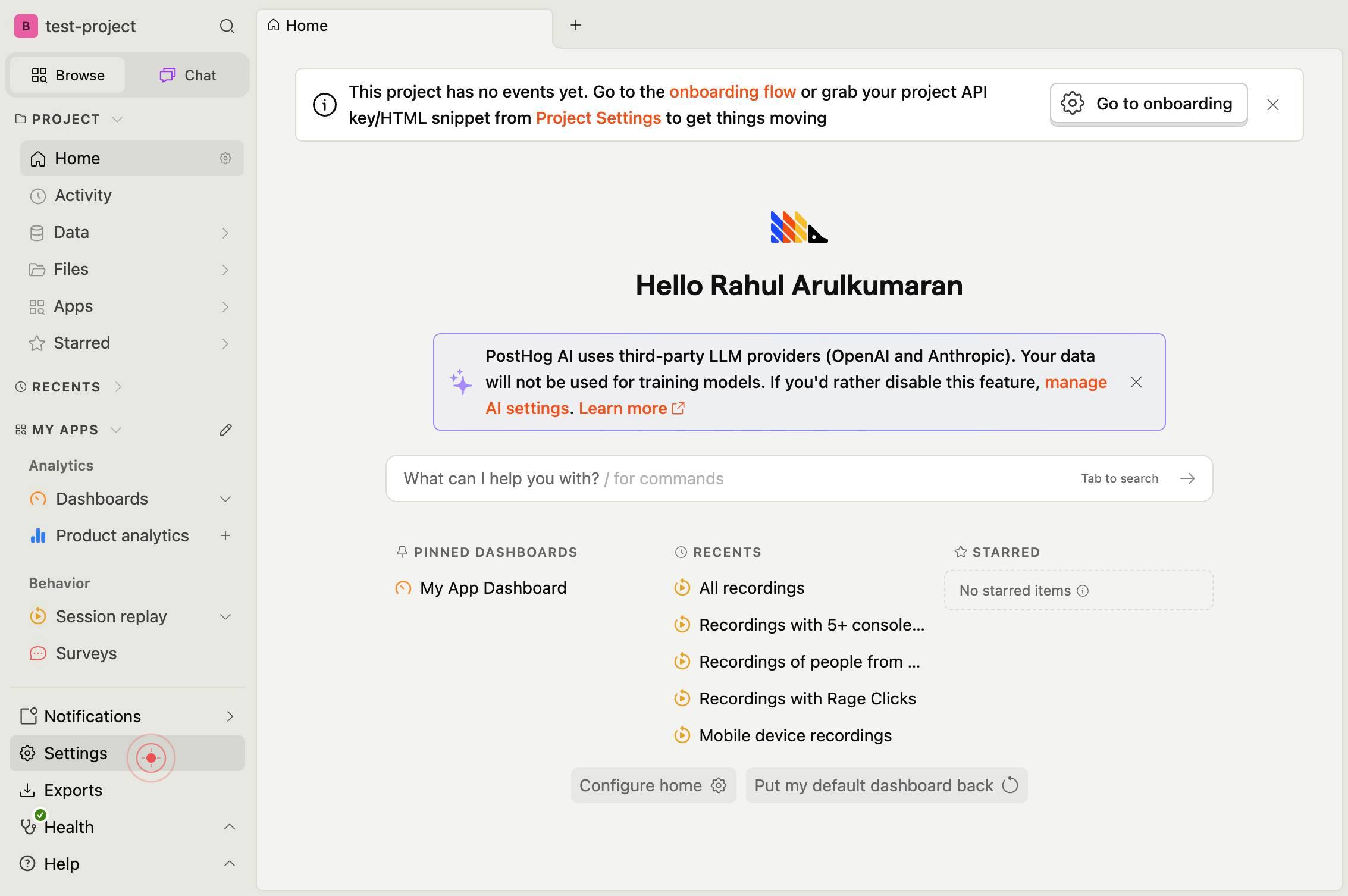
SettingsClick on the 'Settings' link in the navigation menu to access your project's configuration options.
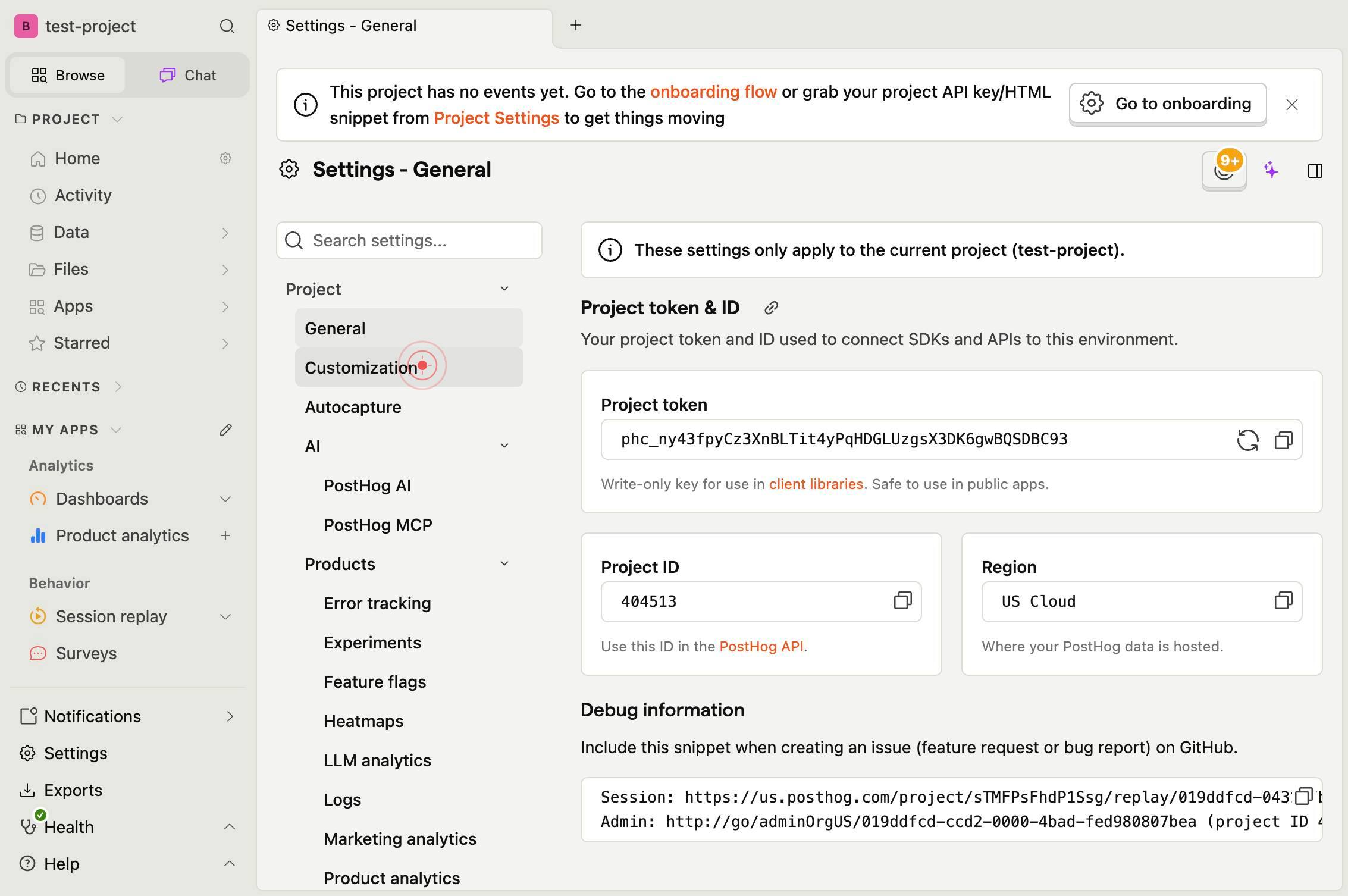
CustomizationClick on the 'Customization' link within Settings to access project-specific customization options, including time zone and project naming.
Time zoneClick on the 'Time zone' text field to open the time zone selector dropdown. This field determines the time zone used for all event timestamps and time-based cohort calculations in your project.
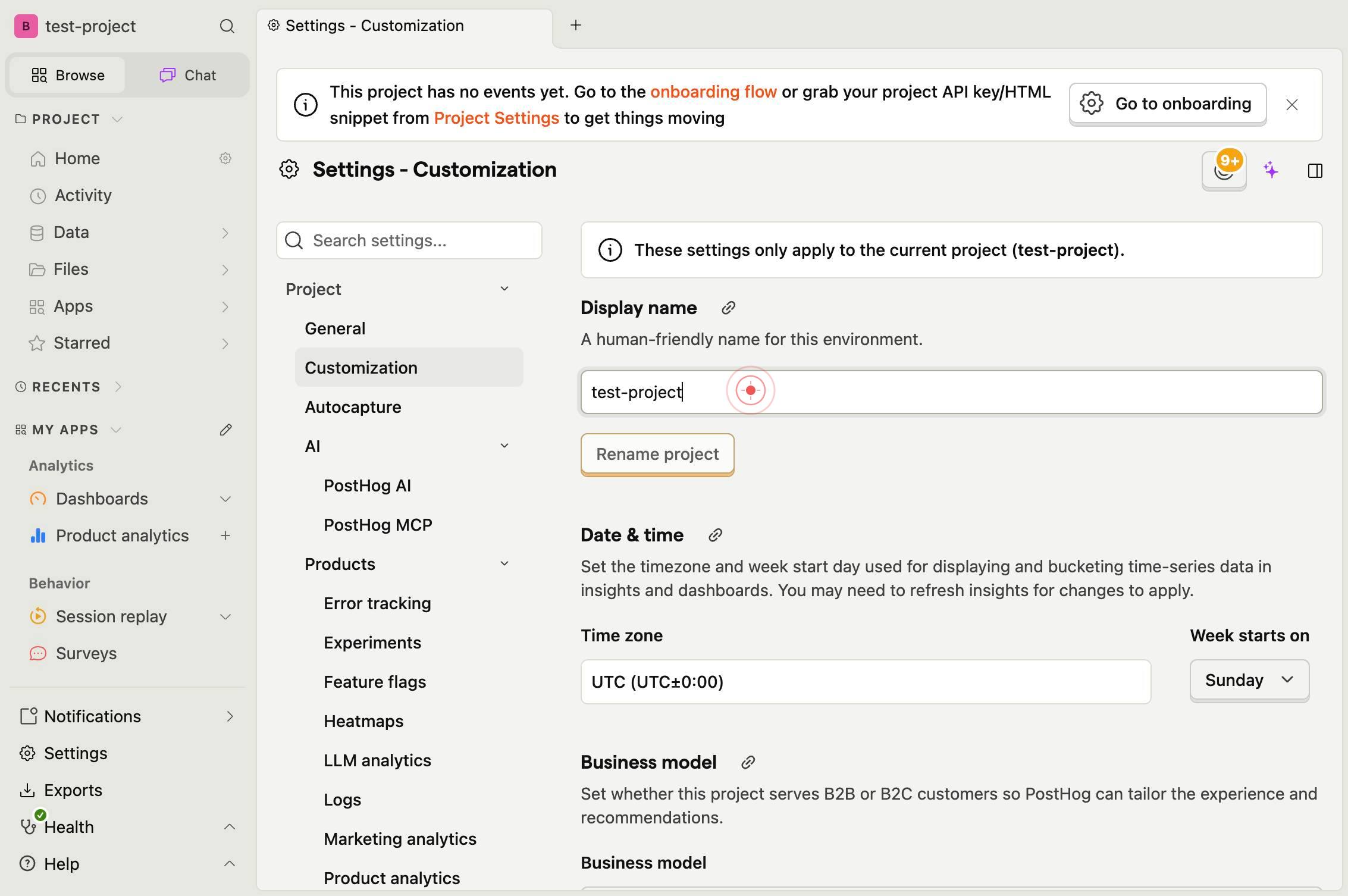
Time zoneType the name of your desired time zone in the 'Time zone' field to filter and select it from the dropdown. For example, type 'America/New_York' or 'Europe/London' to quickly find your region.
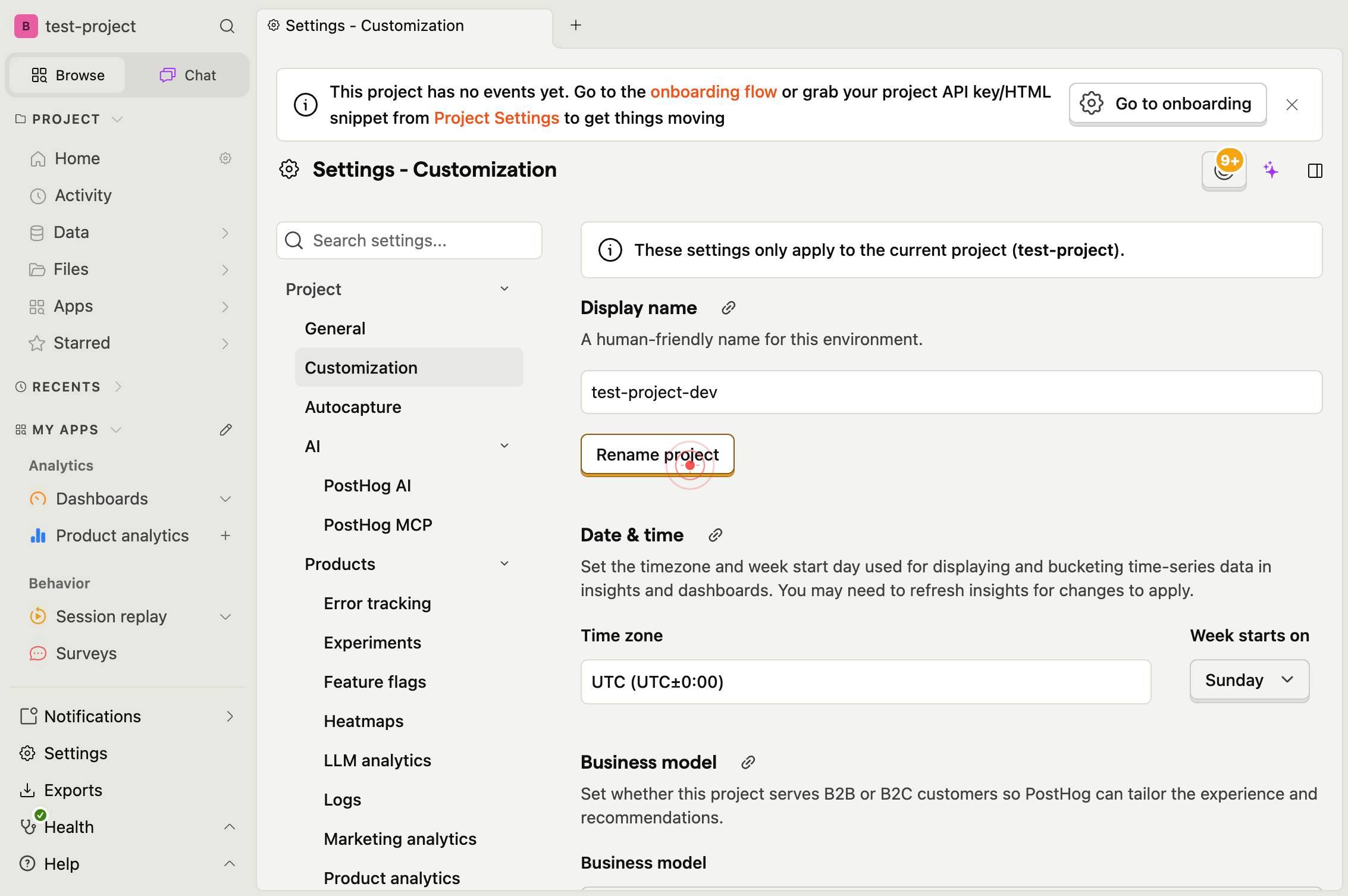
Rename projectClick the 'Rename project' button to proceed with renaming your project. This opens a dialog or inline editor where you can enter the new project name.
Confirm it worked
- 1The project name displayed in the top navigation and project dashboard matches your new name
- 2The time zone setting in Customization settings shows your selected time zone
- 3Event timestamps in the analytics dashboard reflect the updated time zone offset
- 4Project members see the updated name across all PostHog pages and dashboards
Common issues
Keep reading
Safely Renaming Your Xcode Project
Safely Renaming Your Xcode Project It always begins like this (or at least for me): a new idea, a quick prototype, or simply experimenting with a new framework. You quickly type a random project nam
createwithswift.comRename a project in Project desktop
Rename a project in Project desktop - Microsoft Support [Skip to main content](javascript:void(0)) [Mi
support.microsoft.comHow to Rename a Project: The Ultimate Guide (2026)
How to Rename a Project: The Ultimate Guide (2026) Renaming a project is a straightforward task in most software, typically done in the project’s settings by clicking the current name and entering a
eathealthy365.com