Guide
Enable Email Drafting
Overview
LIAM is an AI-powered email assistant that drafts responses matching your communication style. The Email Drafting feature, when enabled, allows LIAM to generate draft replies that you can review, edit, and send—saving time on routine email composition while maintaining your voice.
Enabling Email Drafting for a user like Liam involves navigating to their profile settings, activating the feature toggle, and optionally providing guidance on how LIAM should optimize draft generation (e.g., tone preferences, brevity requirements, or formality level). This ensures the drafts align with the user's email practices from day one.
Before you begin
- You have admin or account owner access to doitliam.com
- Liam's account exists in the LIAM system
- You are logged into doitliam.com with appropriate credentials
- You have identified any specific optimization guidance you want LIAM to follow when drafting emails (optional, but recommended for best results)
Step by step
ProfileNavigate to Liam's account profile by clicking the Profile link in the top navigation. This opens the settings page where all user preferences, including Email Drafting, are configured.
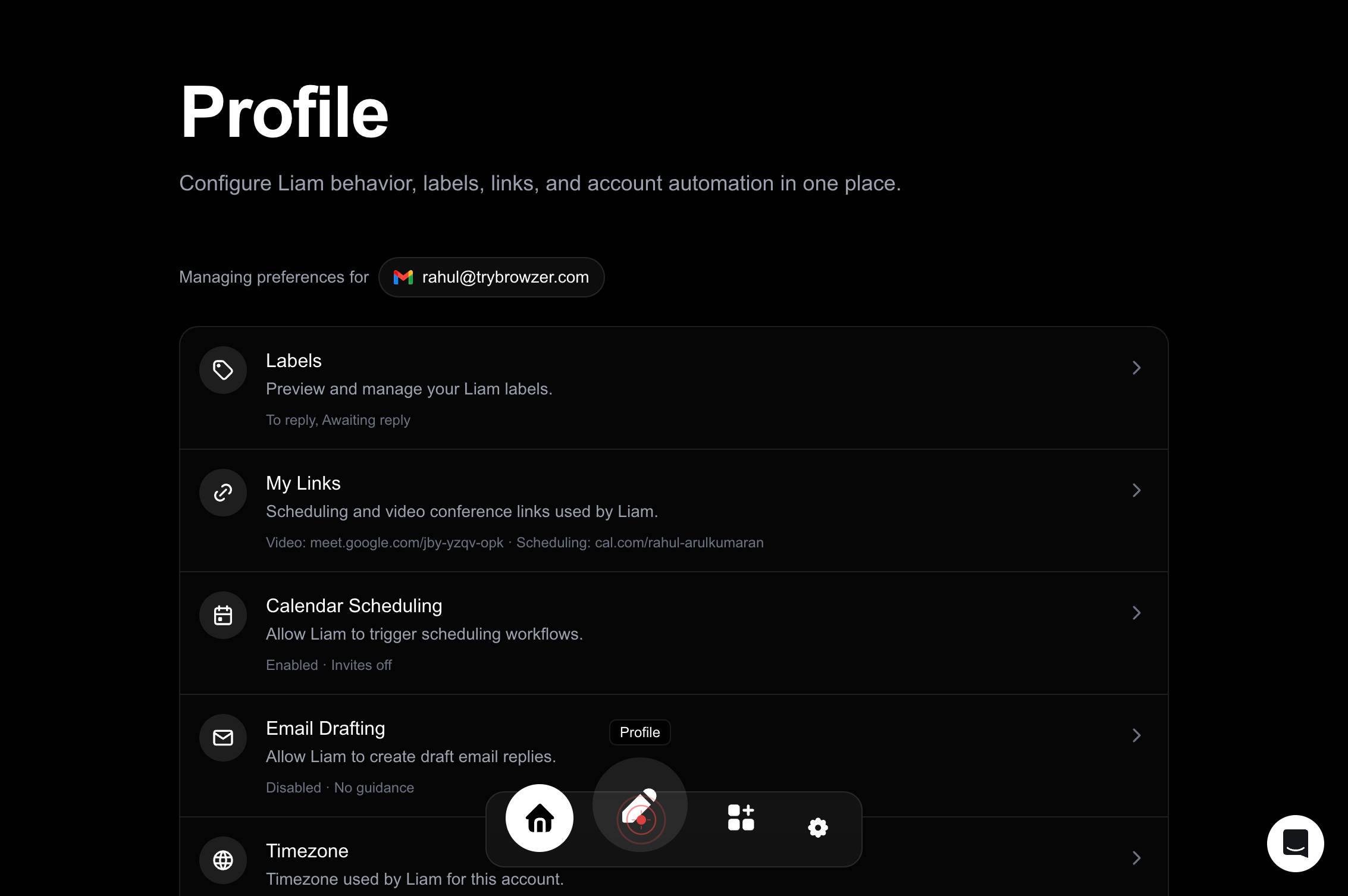
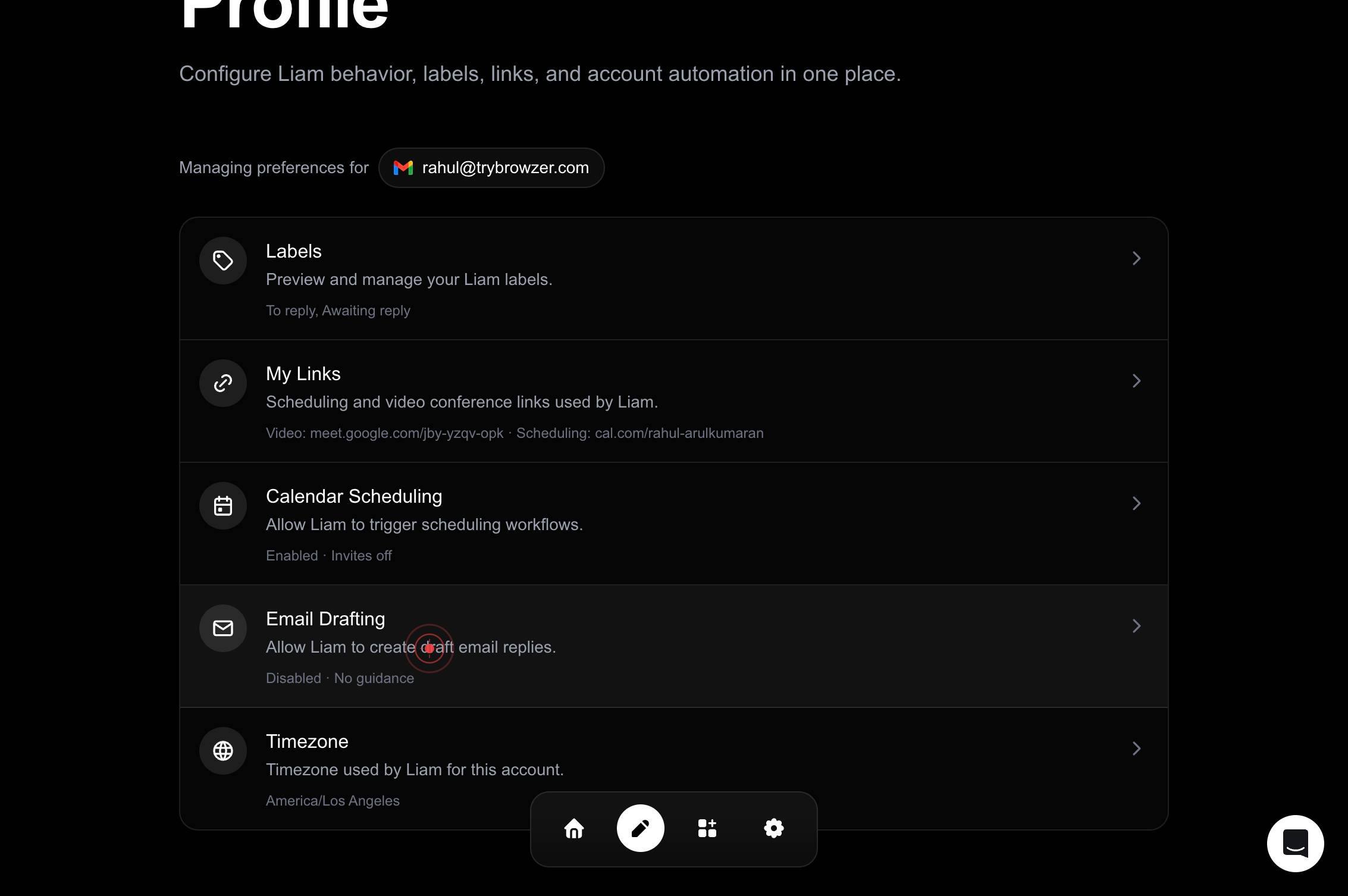
Email Drafting Allow Liam to create draft email replies. Disabled · No guidanceLocate the Email Drafting feature card on the Profile page. It displays the label 'Allow Liam to create draft email replies' along with the current status 'Disabled · No guidance'. Click this card to open the Email Drafting configuration panel.
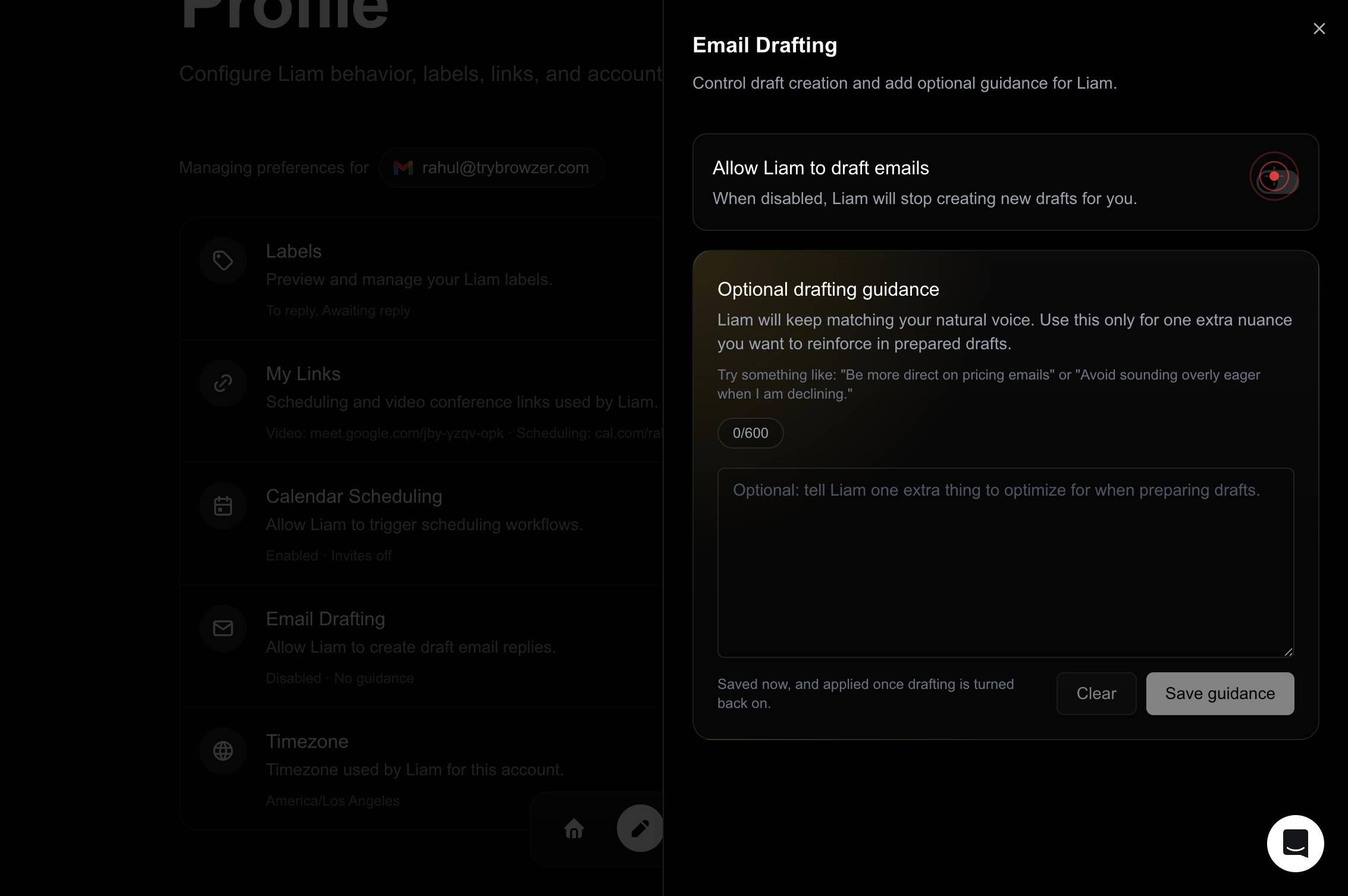
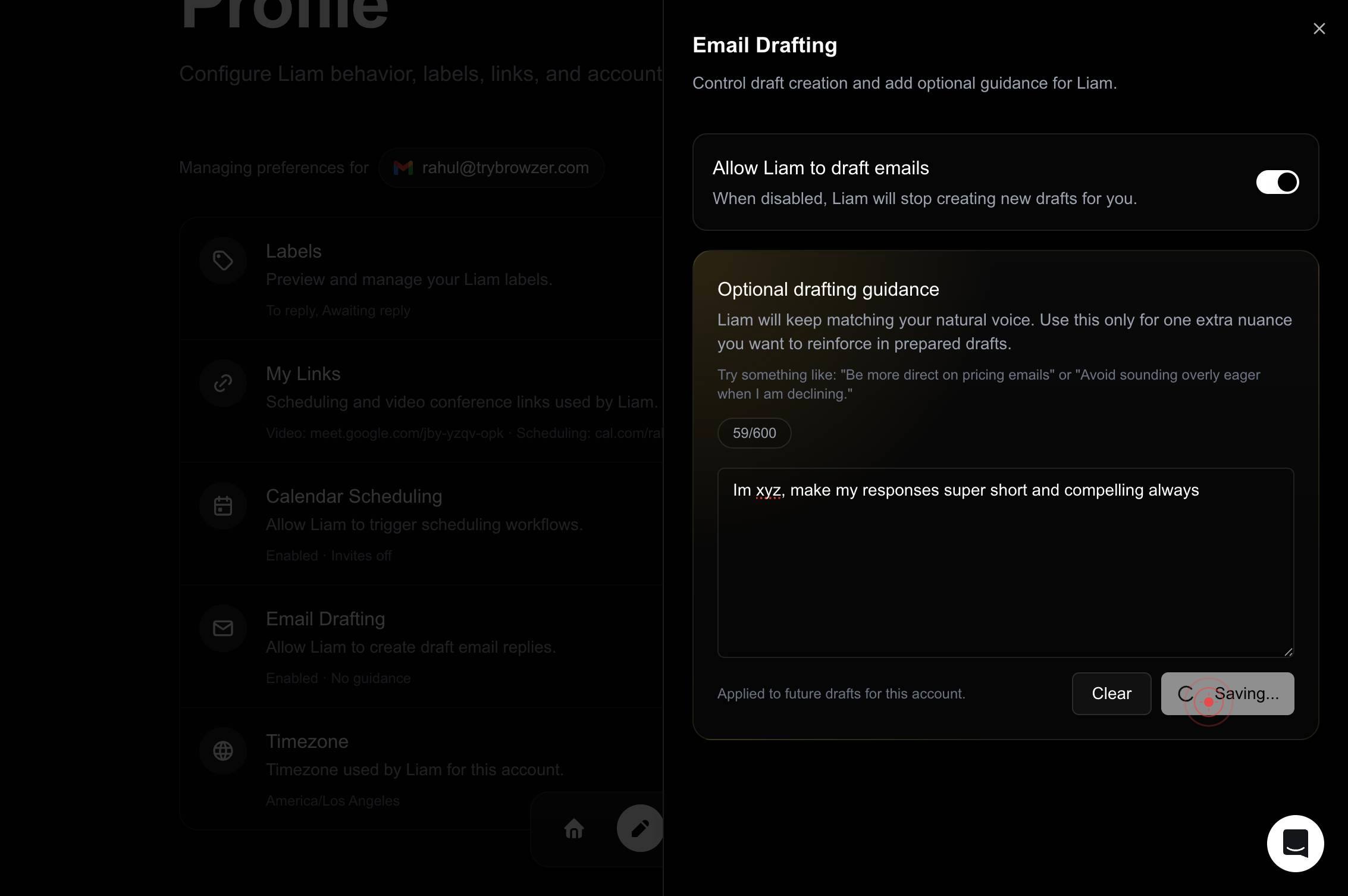
onActivate the Email Drafting feature by clicking the toggle switch to the 'on' position. This enables LIAM to begin generating draft email replies for Liam.
Optional: tell Liam one extra thing to optimize for when preparing drafts.Click into the optimization guidance textbox labeled 'Optional: tell Liam one extra thing to optimize for when preparing drafts.' This field allows you to provide specific instructions on how LIAM should tailor draft generation—for example, 'Keep replies under 3 sentences' or 'Match formal tone in all business emails'.
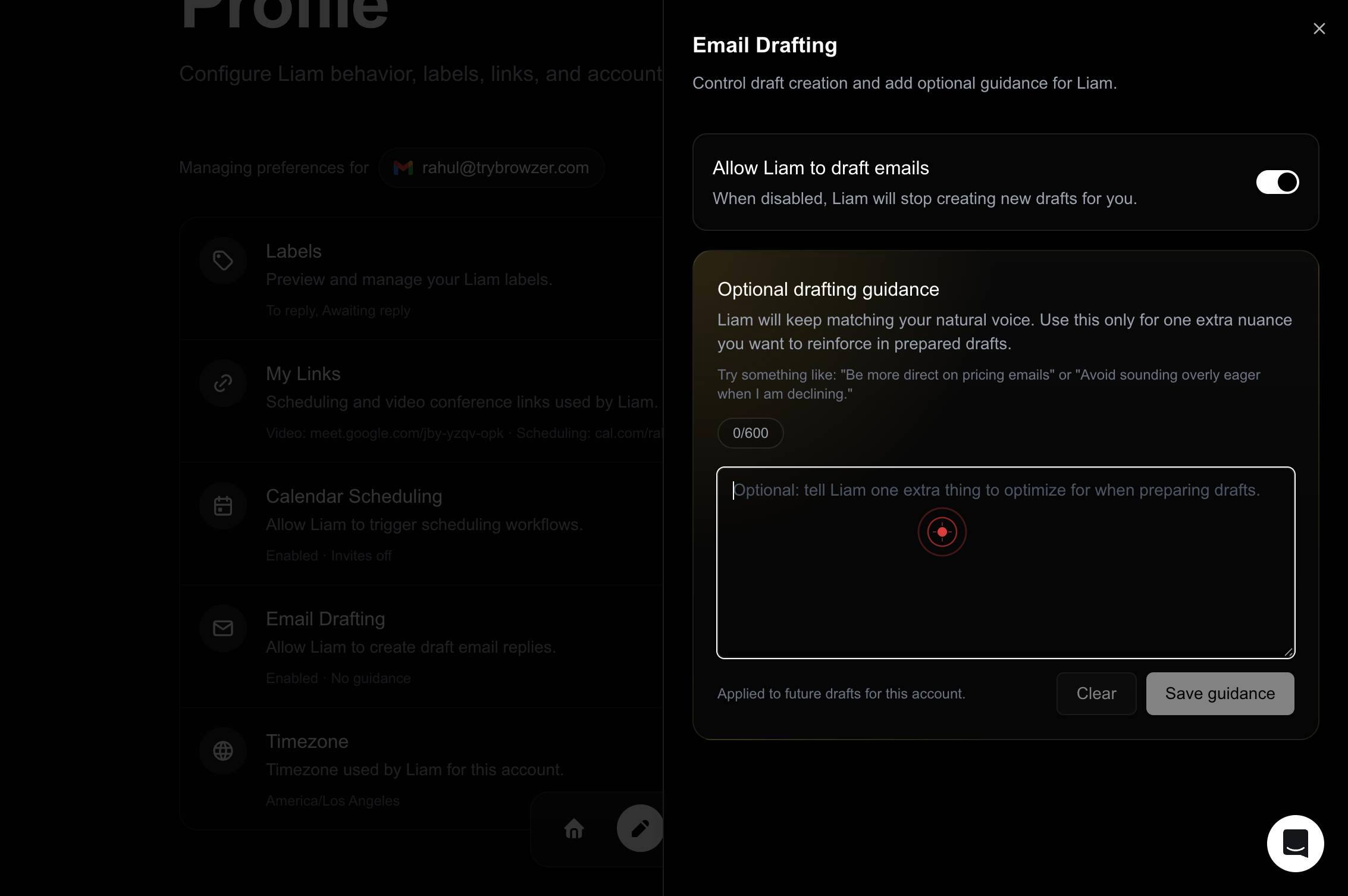
Optional: tell Liam one extra thing to optimize for when preparing drafts.Type your optimization guidance into the textbox. Be concise and specific—focus on one key behavior or principle that will help LIAM generate more accurate drafts. Examples: 'Optimize for brevity and actionable items', 'Use conversational tone, avoid jargon', or 'Keep professional but warm'.
Save guidanceSave your settings by clicking the 'Save guidance' button. This persists the Email Drafting toggle state and any optimization guidance you entered, making them active for Liam's account immediately.
Confirm it worked
- 1The Email Drafting toggle switch displays as 'on' (enabled) in the feature settings
- 2Any optimization guidance you entered appears in the guidance text field without errors
- 3A confirmation message or status update appears after clicking 'Save guidance', indicating settings were persisted
- 4Returning to the Profile page shows Email Drafting as 'Enabled' with your guidance saved
Common issues
Keep reading
Save draft emails in Mail on Mac - Apple Support
Save draft emails in Mail on Mac - Apple Support [macOS Sequoia 15](https://support.apple.com/guide/mail/mlhlp1002/16.0/mac/15.0) [macOS Sonoma 14](https://support.apple.com/guide/mail/mlhlp1002/16.
support.apple.comMail User Guide for Mac - Apple Support
Mail User Guide for Mac - Apple Support ## Get Started with Mail Set up Mail and start sending, receiving, and managing all your email accounts from one app. [How to get started with Mail](https://
support.apple.comSave a draft in Mail on iPhone - Apple Support
Save a draft in Mail on iPhone - Apple Support Select version: iOS 26 iOS 18 iOS 17 iOS 16 iOS 15 iOS 14 iOS 13 iOS 12 Modifying this control will update this page automatically Search this guide
support.apple.com