Guide
Update Timezone
Overview
LIAM uses your account timezone to schedule email drafts and coordinate task timing across your account. When you travel or relocate to a different timezone, updating this setting ensures that scheduled messages and task timestamps reflect the correct local time. This is especially important if you rely on LIAM's email drafting features for time-sensitive communication or business scheduling.
Before you begin
- You have an active LIAM account on doitliam.com and are logged in
- You have access to your Profile settings (available on the web-based platform)
- You know the target timezone you want to set (e.g., America/New York, America/Chicago, etc.)
Step by step
ProfileNavigate to your account settings by clicking the Profile link in the top navigation. This opens your profile page where account-level settings, including timezone, are managed.

Timezone Timezone used by Liam for this account. America/Los AngelesClick the Timezone button to open the timezone settings panel. This button displays your current timezone (America/Los Angeles) and allows you to modify it.
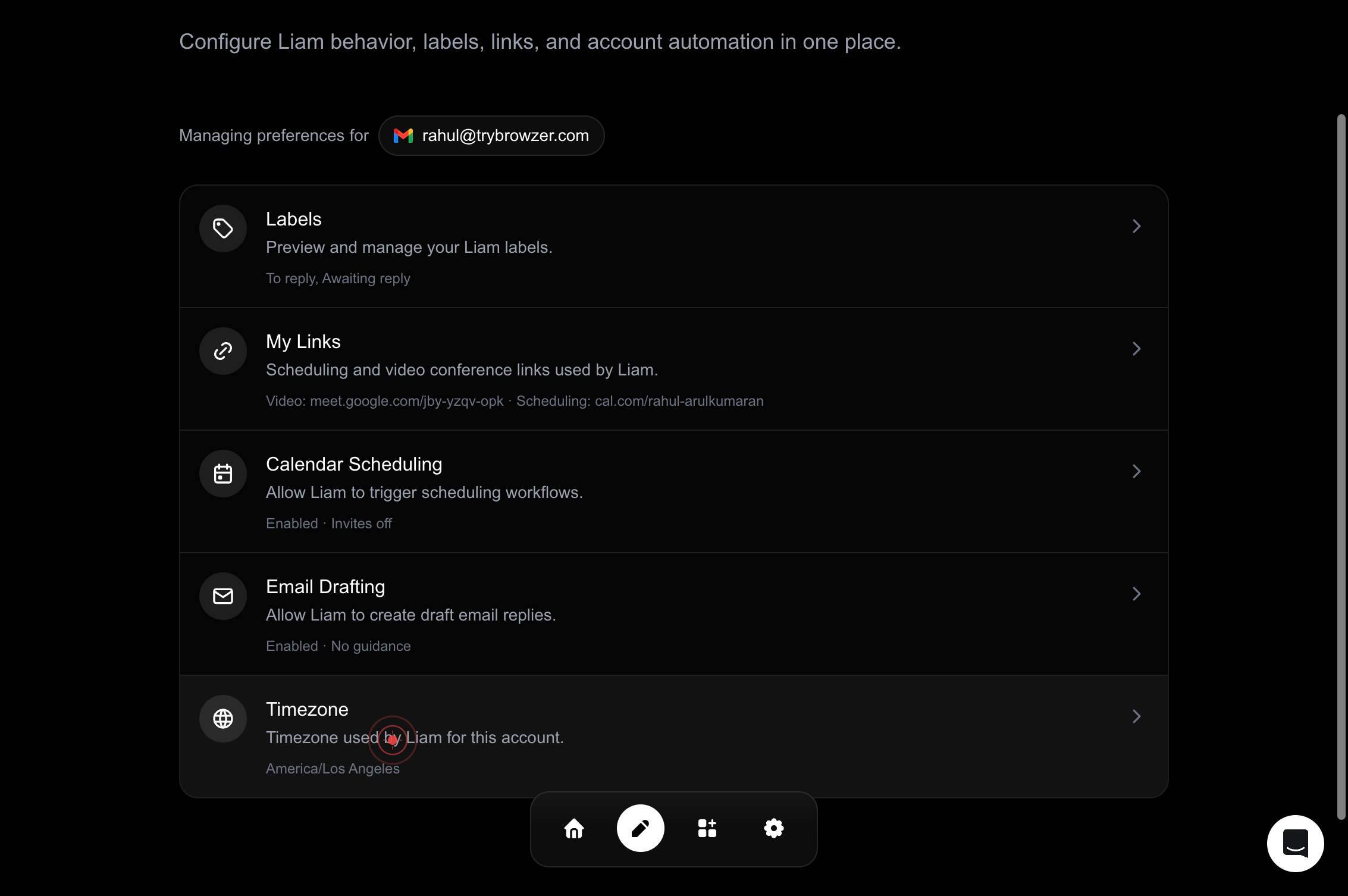
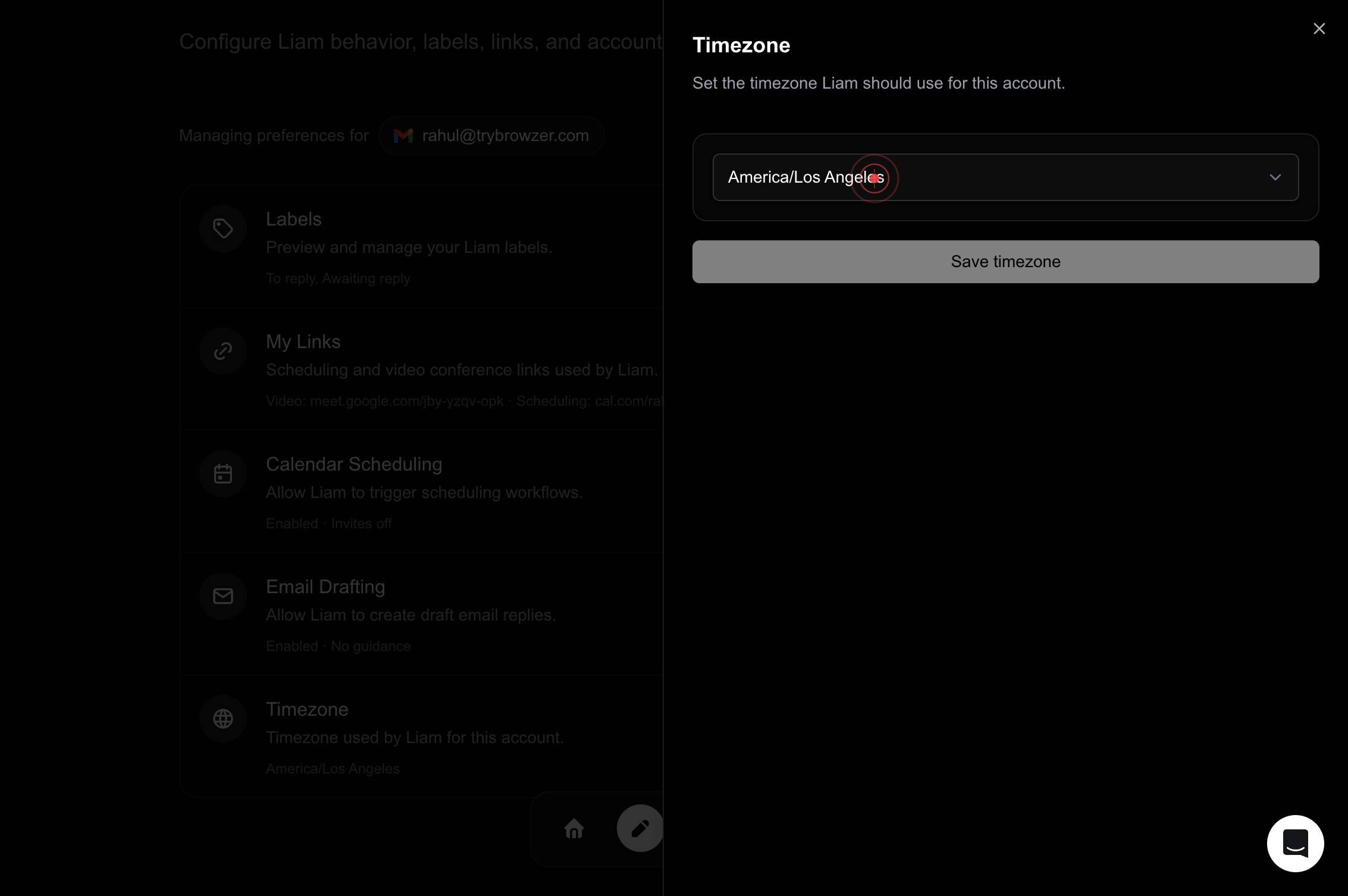
America/Los AngelesClick on the America/Los Angeles option in the timezone dropdown to open the full list of available timezones. This displays all supported timezone choices you can select from.
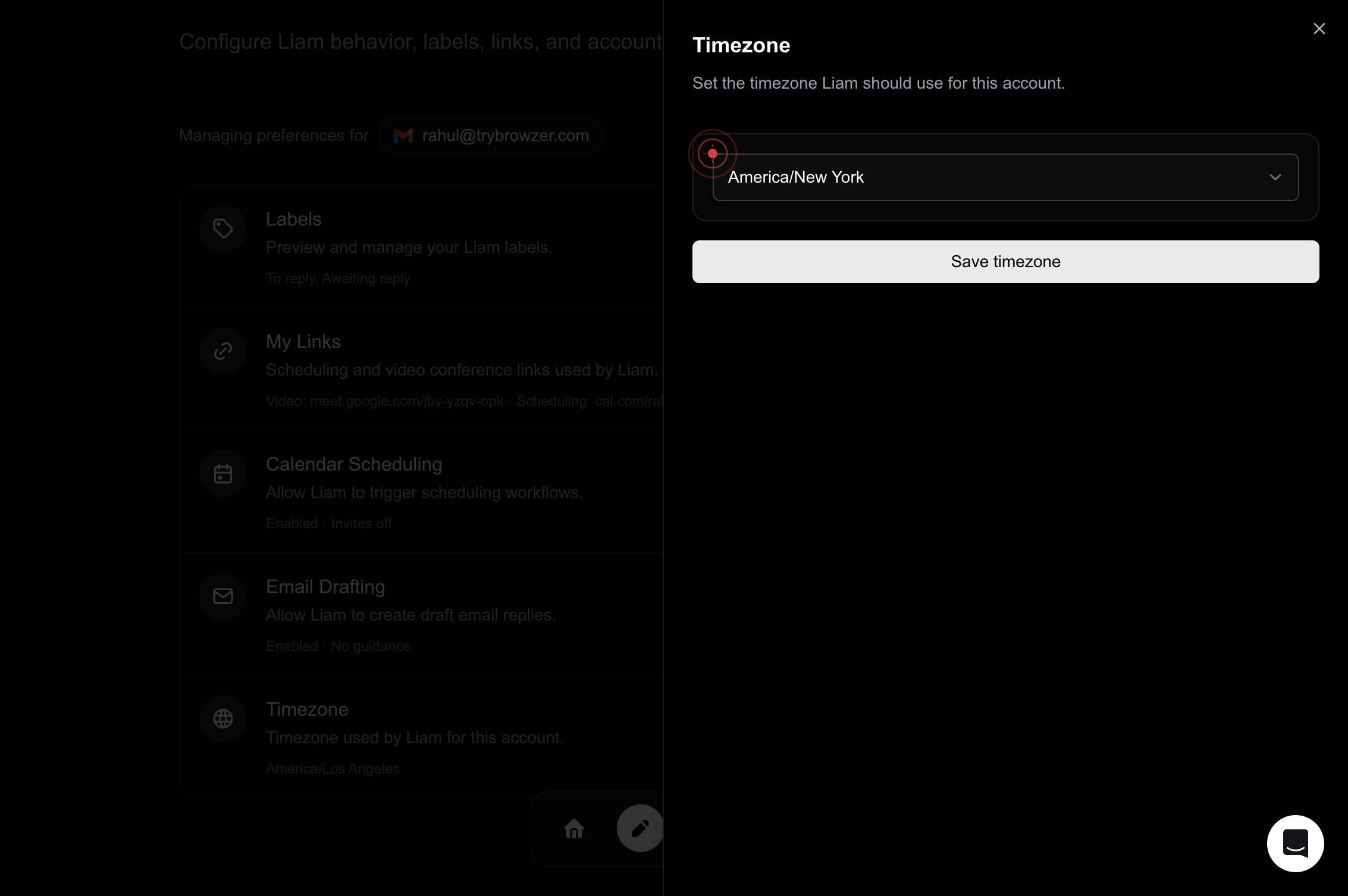
America/New YorkSelect America/New York from the dropdown list. This sets your new timezone for the account.
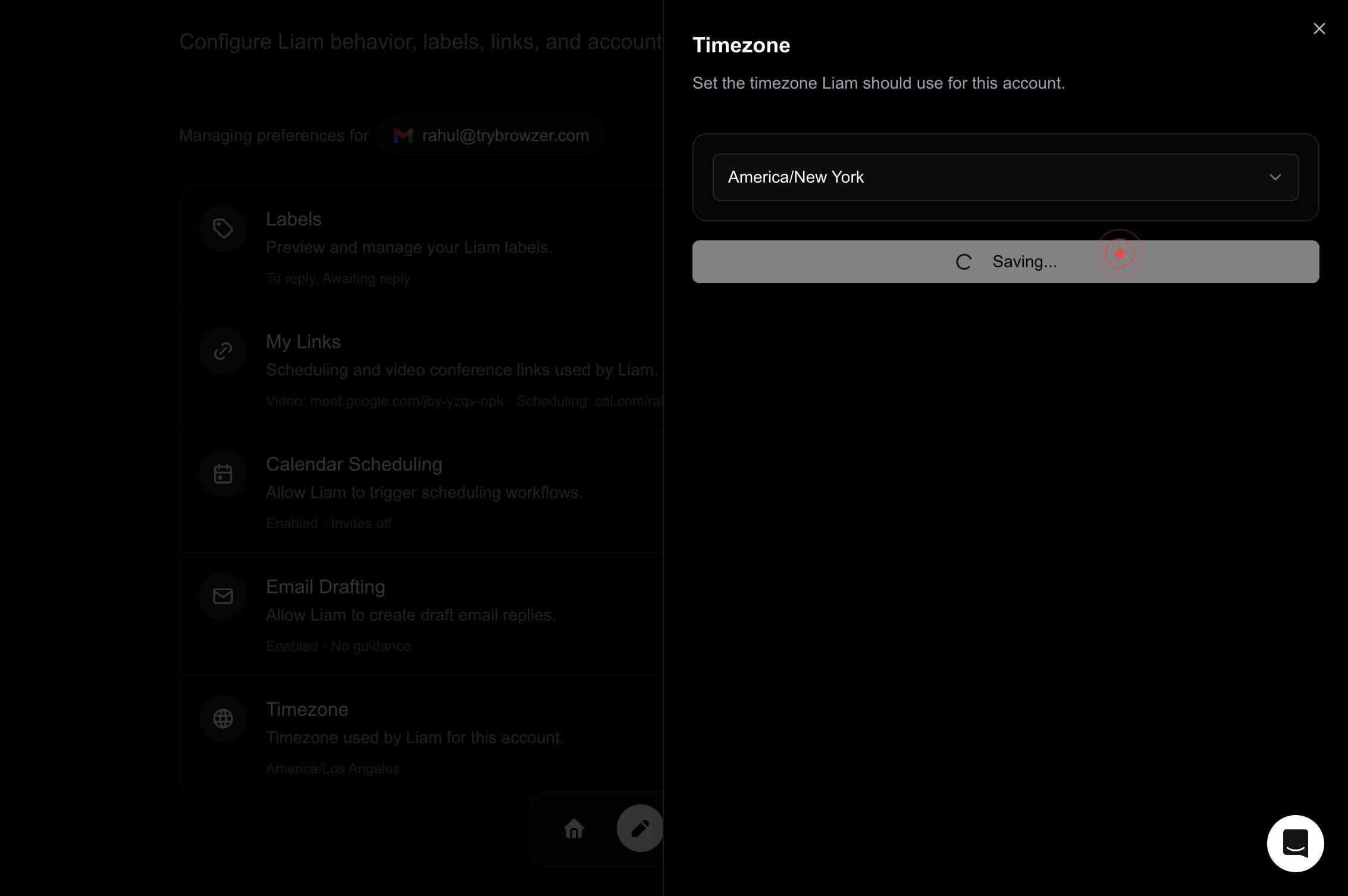
Save timezoneClick the Save timezone button to persist your timezone change to your LIAM account. This action finalizes the update and applies the new timezone to all email scheduling and task timing.
Confirm it worked
- 1You are returned to your Profile page after clicking Save timezone
- 2The Timezone setting now displays 'America/New York' instead of 'America/Los Angeles'
- 3No error message appears after saving
- 4Your task and email timestamps are now calculated relative to the America/New York timezone
Common issues
Keep reading
How To Change Time Zone In Windows 11: Step-by-Step Guide
How To Change Time Zone In Windows 11: Step-by-Step Guide Changing your time zone in Windows 11 is quick and simple. Open Settings, go to Time & language, and pick Date & time. Turn off Set time zon
solveyourtech.comChange your timezone
Change your timezone # Ubuntu Documentation # Change your timezone Open the [Activities](https://help.ubuntu.com/stable/ubuntu-help/shell-introduction.html.en#activities) overview and start typing
help.ubuntu.comSet time, date, and time zone settings in Windows - Microsoft Support
Set time, date, and time zone settings in Windows - Microsoft Support Related topics [×](javascript:) Sign in with Microsoft Sign in or create an account. Hello, Select a different account. You
support.microsoft.com