Guide
Add Integration
Overview
Hyperspell Connect allows you to securely link external accounts and data sources to Hyperspell, expanding the data available for AI-powered search and analysis. Adding a Gmail Email integration specifically enables Hyperspell to index your Gmail mailbox, making your email content searchable and accessible within the platform. This is particularly useful for teams that want to leverage email communications in AI workflows, knowledge retrieval, or automated data processing. The integration process involves navigating to your integrations dashboard and selecting Gmail as your data source.
Before you begin
- You must have an active Hyperspell account with access to app.hyperspell.com
- You must have a Gmail account (personal or Google Workspace) that you wish to connect
- You must have permission to manage integrations in your Hyperspell workspace (typically Admin or Integration Manager role)
- Your browser must allow popups and third-party authentication (Gmail's OAuth consent screen will appear)
Step by step
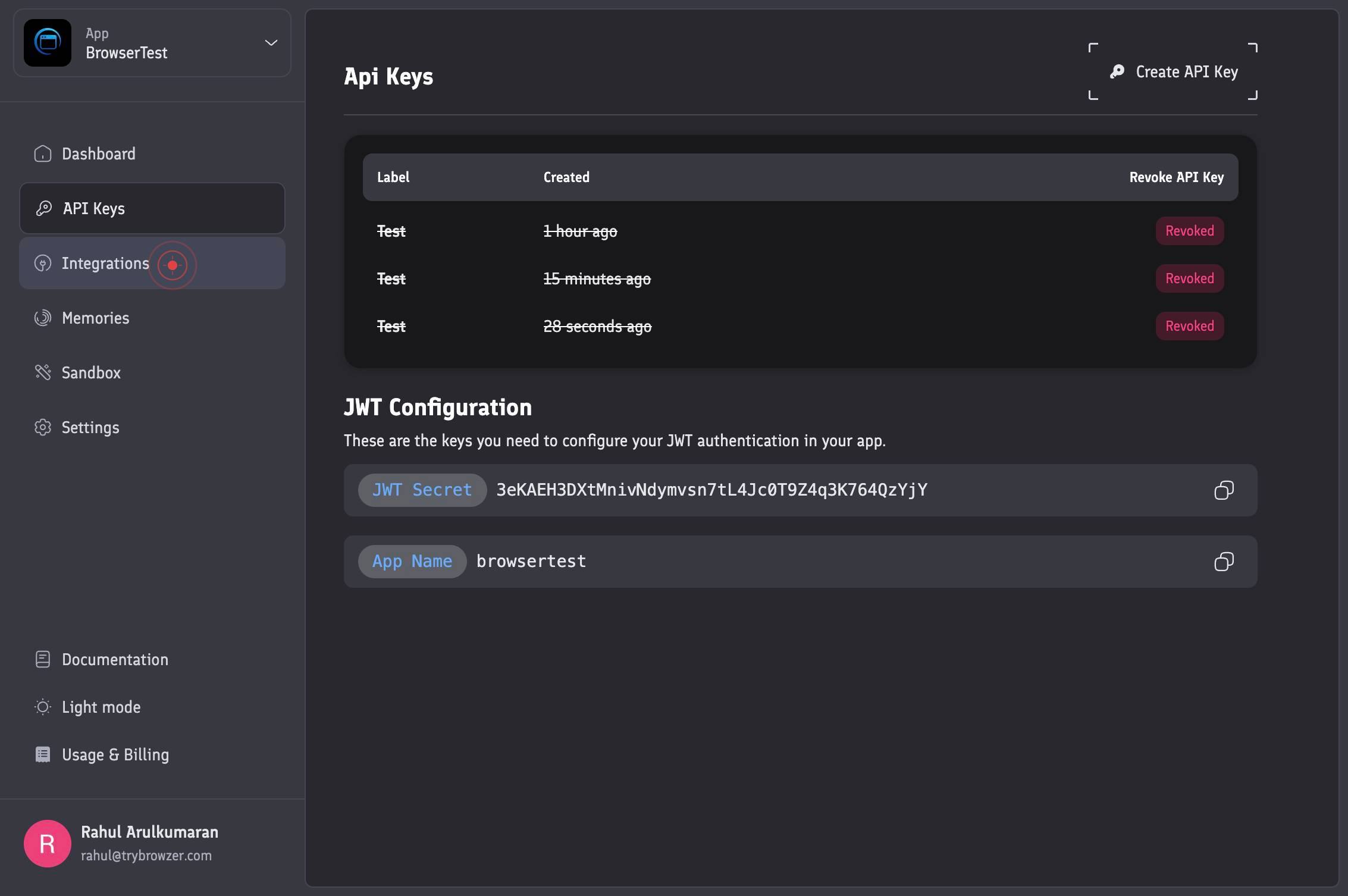
IntegrationsNavigate to the Integrations section of your Hyperspell account by clicking the Integrations option from the main menu. This is where you manage all external data source connections.
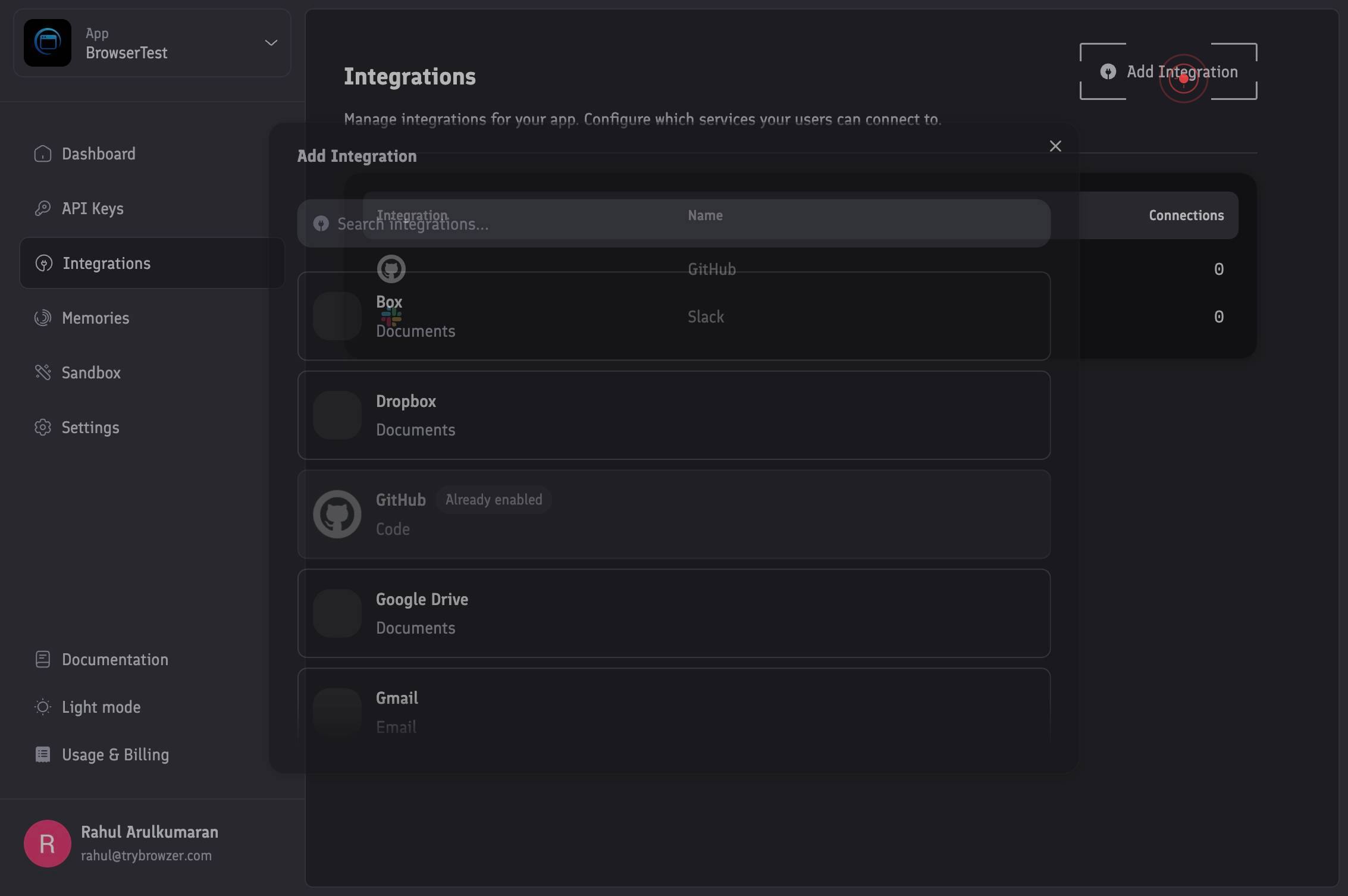
Add IntegrationClick the Add Integration button to begin the process of connecting a new data source to Hyperspell.
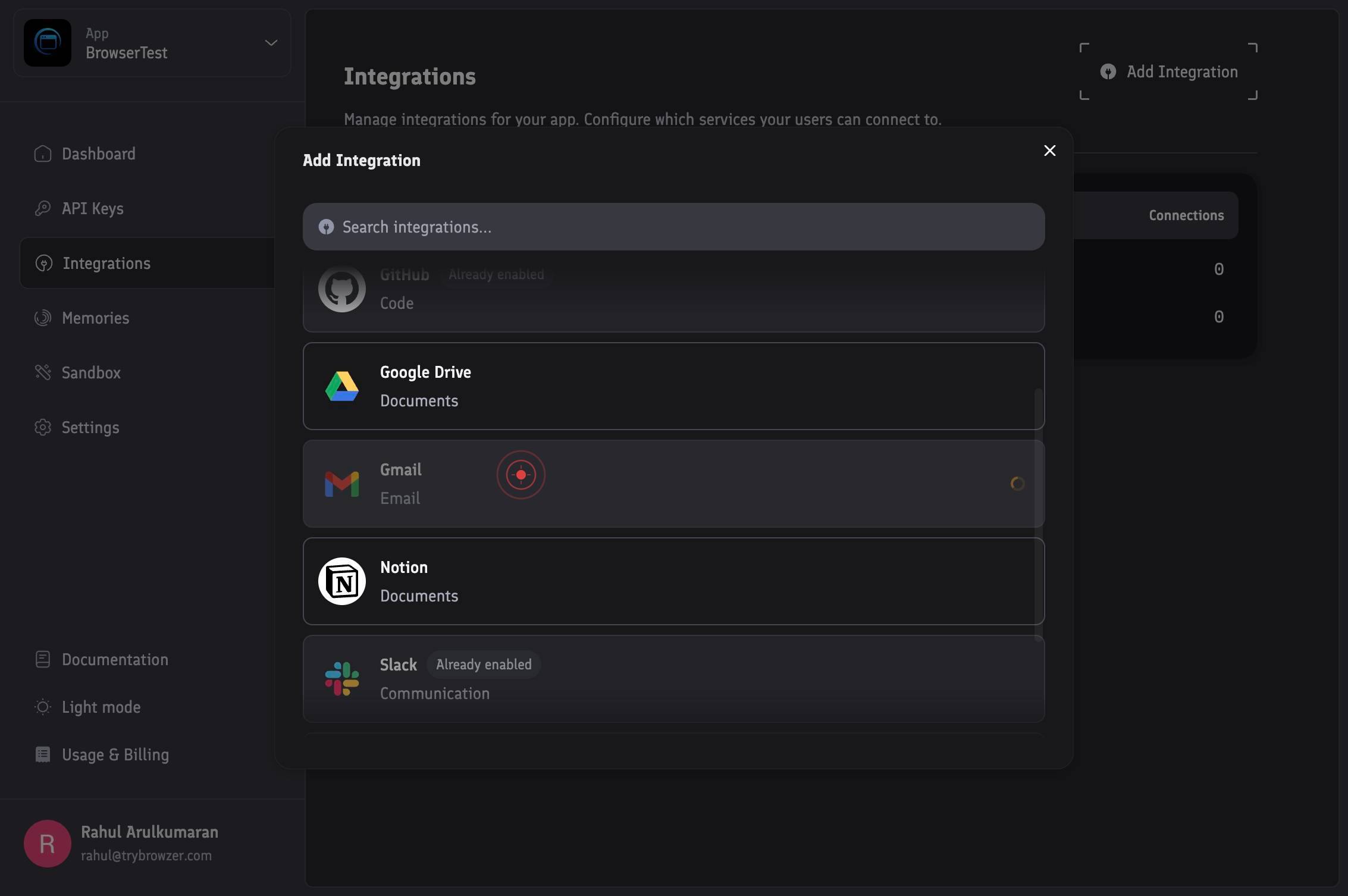
Gmail EmailSelect Gmail Email from the list of available integrations. This tells Hyperspell that you want to connect your Gmail account.
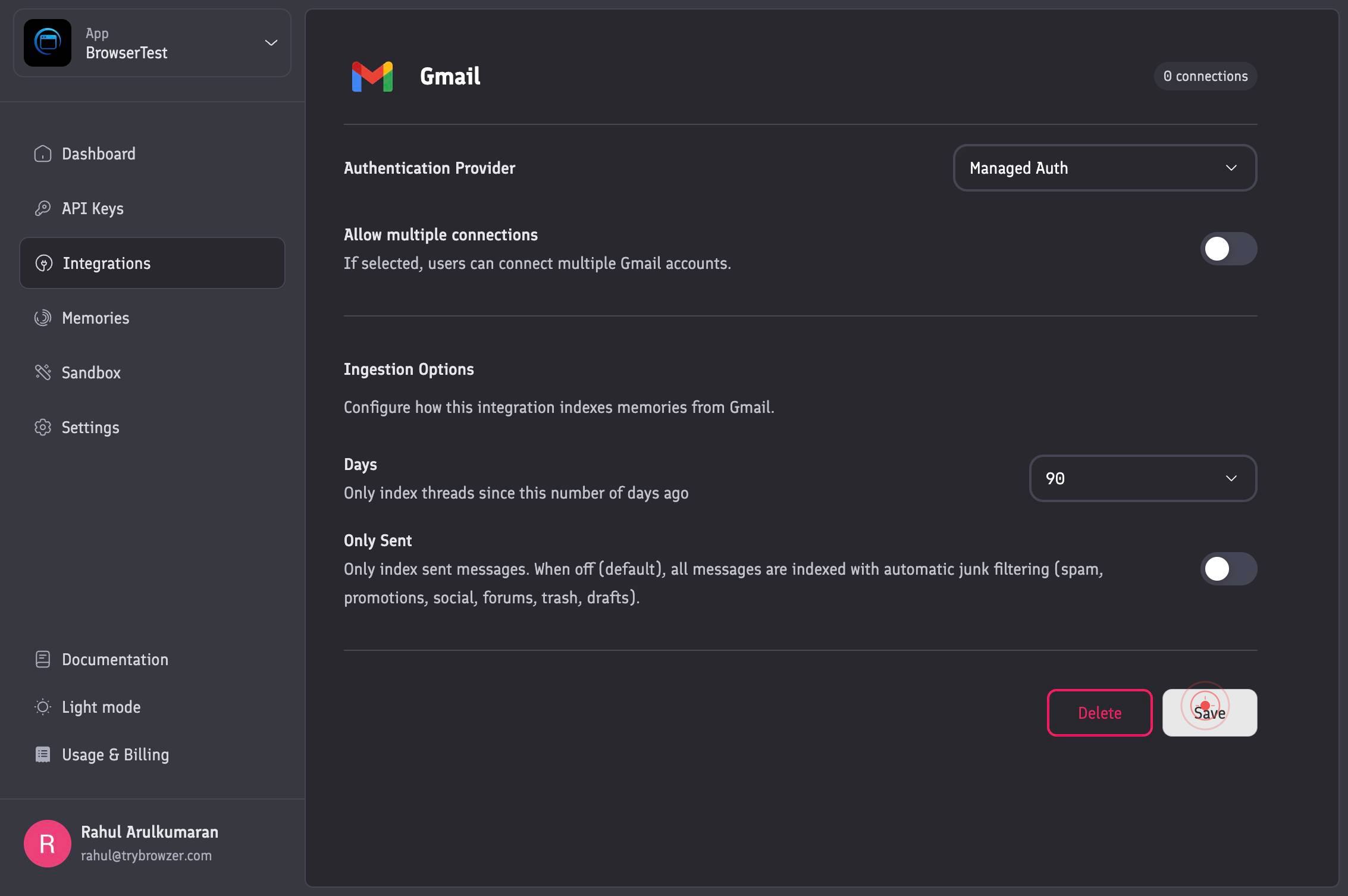
SaveClick the Save button to finalize the integration. This will prompt you to authenticate with your Gmail account via Google's OAuth authorization screen, granting Hyperspell permission to access your email data.
Confirm it worked
- 1After clicking Save, you should see a confirmation message or be redirected to an OAuth authorization screen from Google
- 2Once authorization is complete, the Gmail Email integration should appear in your Integrations list with a status of 'Connected' or 'Active'
- 3You should be able to see Gmail as a selectable data source in subsequent workflows or search configurations within Hyperspell
Common issues
Keep reading
Adding integrations - Home Assistant
On this page - [Prerequisites](https://www.home-assistant.io/getting-started/integration/#prerequisites) - [Adding integrations](https://www.home-assistant.io/getting-started/integration/#adding-inte
home-assistant.ioAdding integrations - Home Assistant
On this page - [Prerequisites](https://next.home-assistant.io/getting-started/integration/#prerequisites) - [Adding integrations](https://next.home-assistant.io/getting-started/integration/#adding-in
next.home-assistant.ioAdding integrations - Home Assistant
# On this page - [Prerequisites](https://rc.home-assistant.io/getting-started/integration/#prerequisites) - [Adding integrations](https://rc.home-assistant.io/getting-started/integration/#adding-inte
rc.home-assistant.io