Guide
Generate API Key
Overview
API keys are your primary credential for programmatically accessing Hyperspell's AI services. Whether you're building a custom integration, testing the API in development, or deploying an application to production, you'll need a valid API key. Hyperspell allows you to generate and manage multiple API keys from your Developer Resources dashboard, each with a descriptive label to help you track which key is used for which purpose. This workflow walks you through creating a new key and preparing it for immediate use.
Before you begin
- An active Hyperspell account with login credentials
- Access to app.hyperspell.com
- Permission to create API keys (typically available to all account owners and developers with appropriate roles)
Step by step
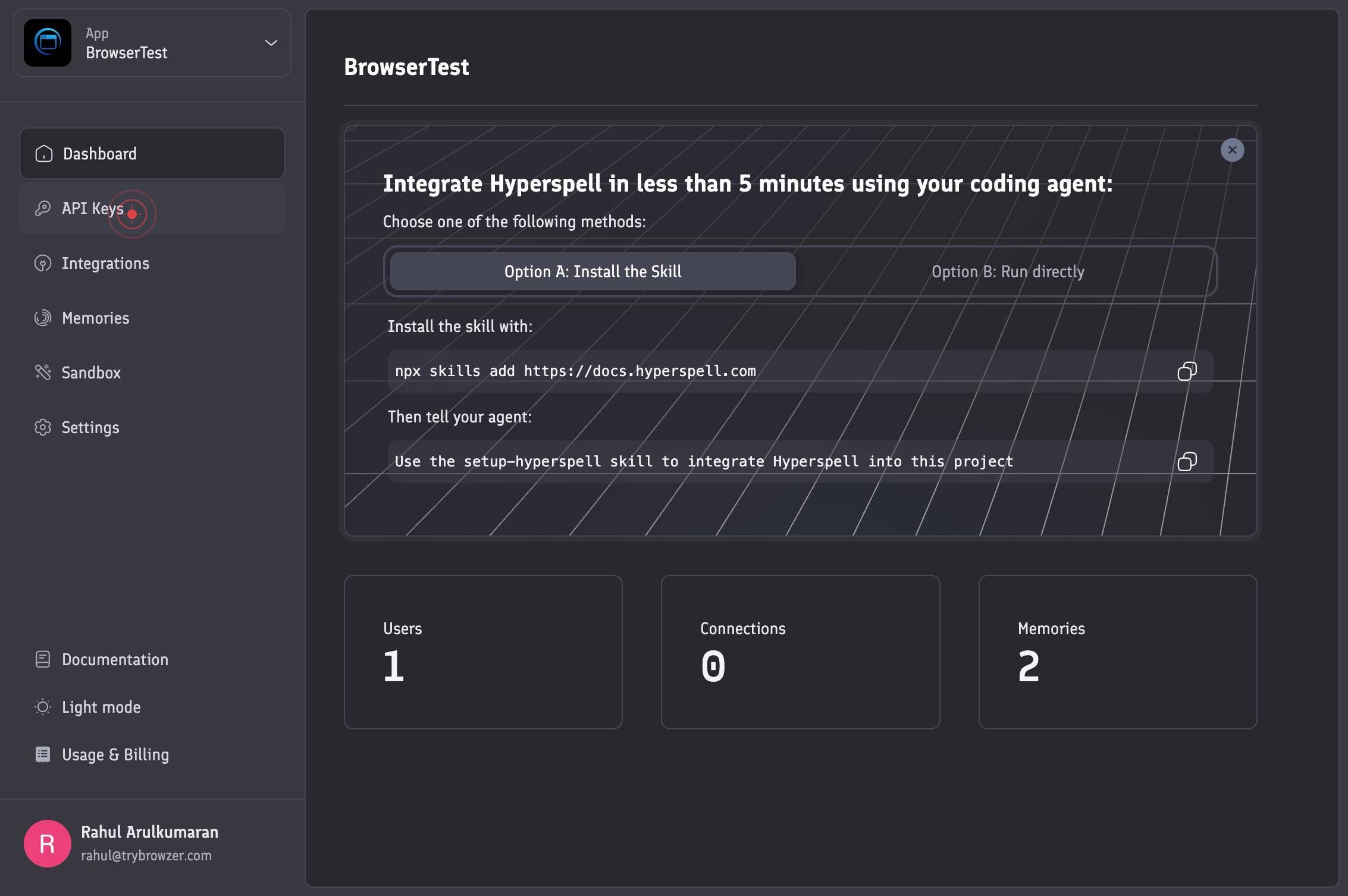
API KeysNavigate to the API Keys section by clicking the 'API Keys' option in the menu or navigation panel. This opens your API key management dashboard where you can view and create new keys.
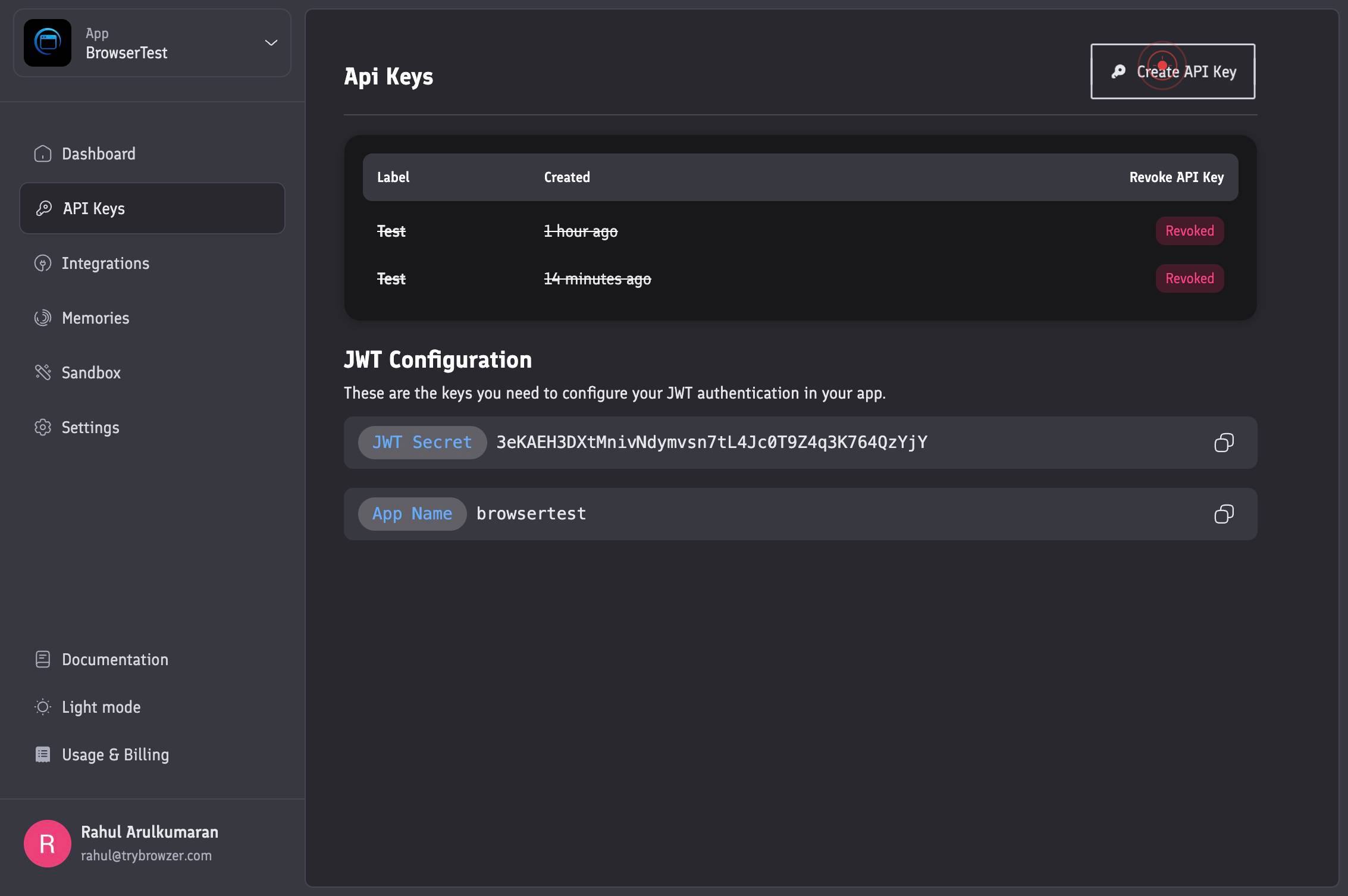
Create API KeyClick the 'Create API Key' button to initiate the key generation workflow. This opens a form or modal where you'll configure the new key.
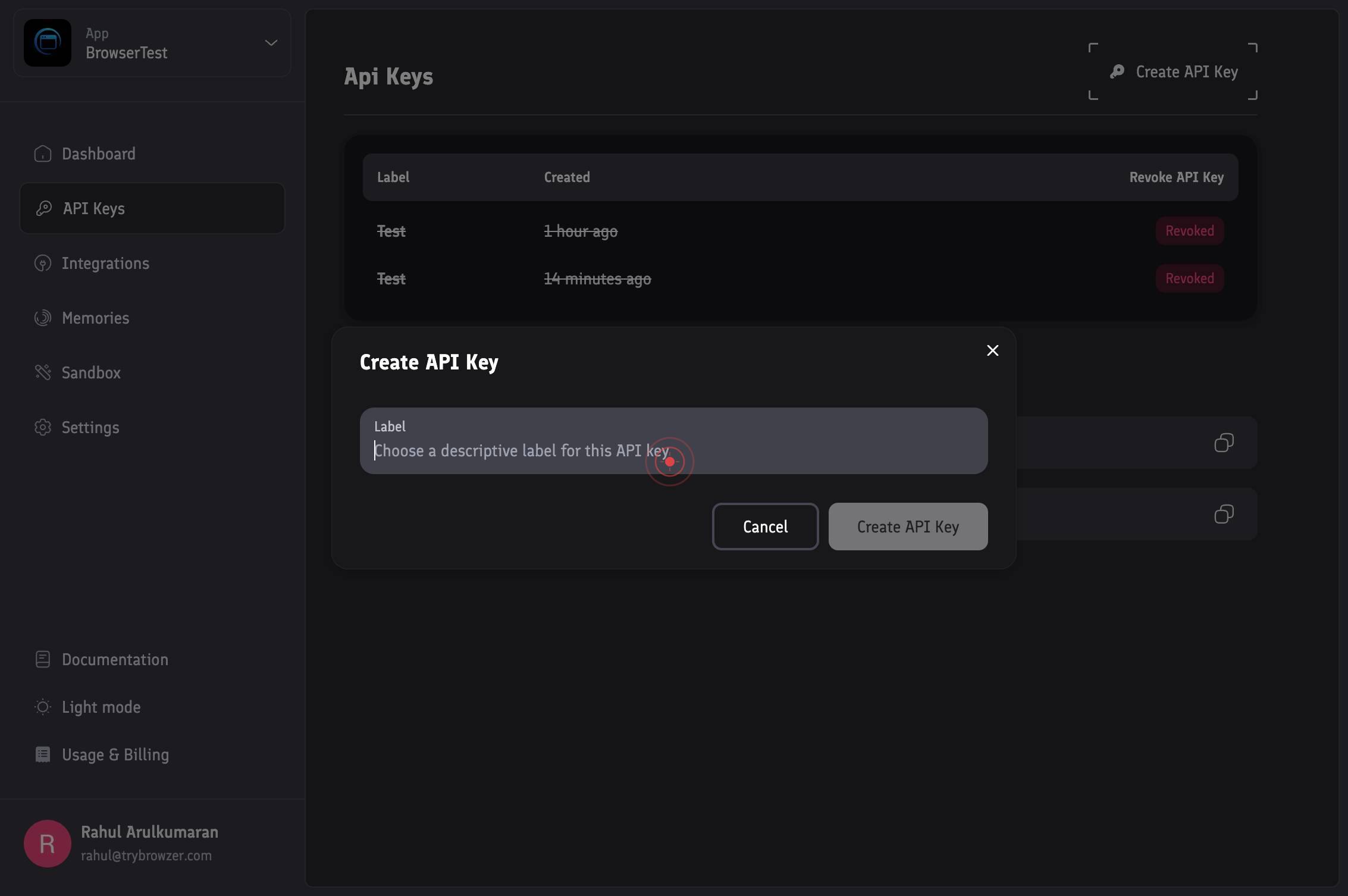
genericClick on the label input field to activate it and prepare to enter a custom name for your API key. This generic click ensures the form is focused and ready for text input.
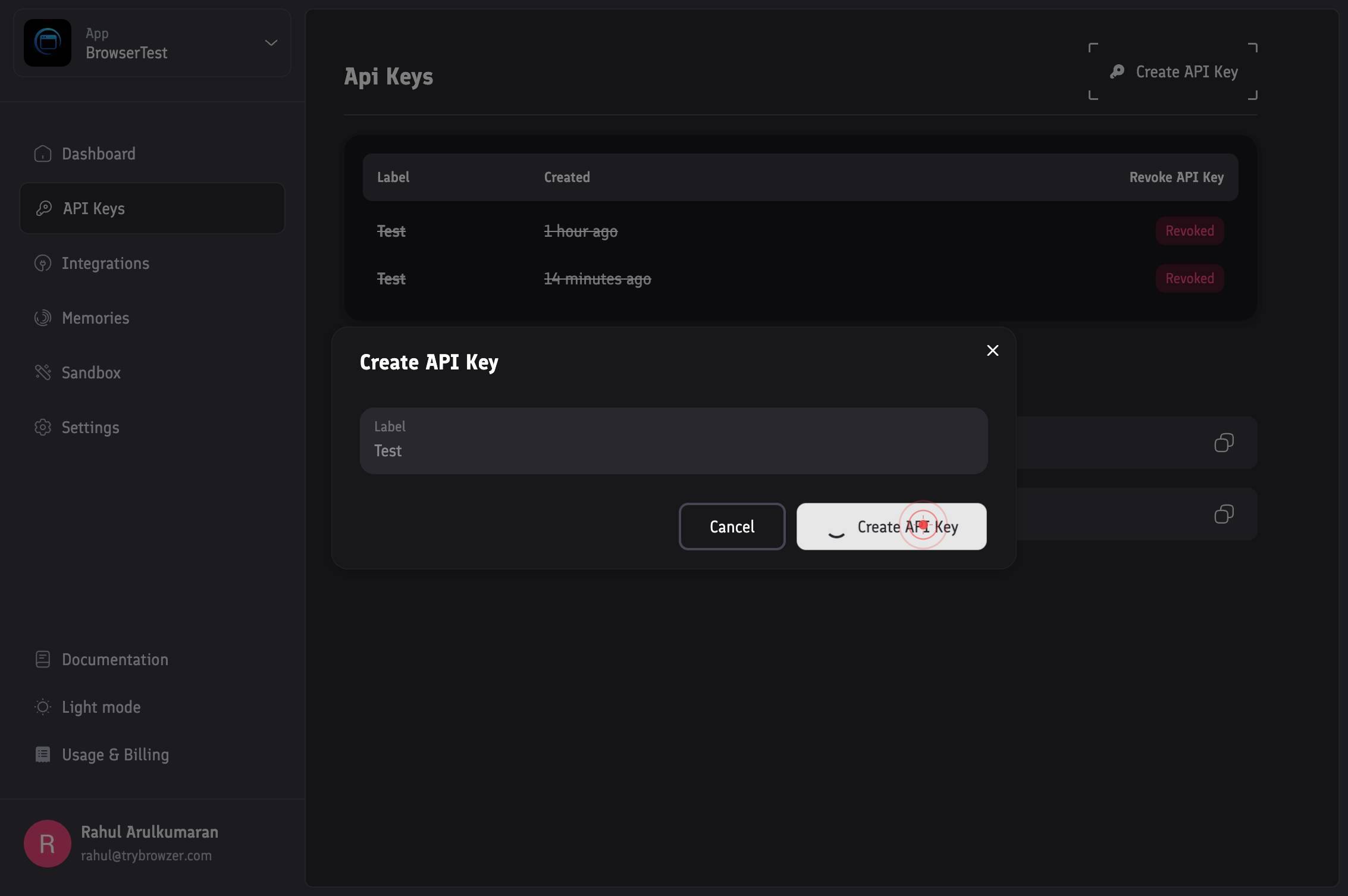
LabelType a descriptive label for your API key in the 'Label' text field. Use a clear name that indicates the key's purpose or associated application (e.g., 'Mobile App v2' or 'Staging Environment').
Create API KeyClick the 'Create API Key' button to finalize the key generation. Hyperspell will create the key and display it in a confirmation window, typically showing the full secret value only this one time.
Copy to clipboardClick the 'Copy to clipboard' button to copy the newly generated API key to your system clipboard. You can then paste it into your application configuration, environment variables, or secure credential storage.
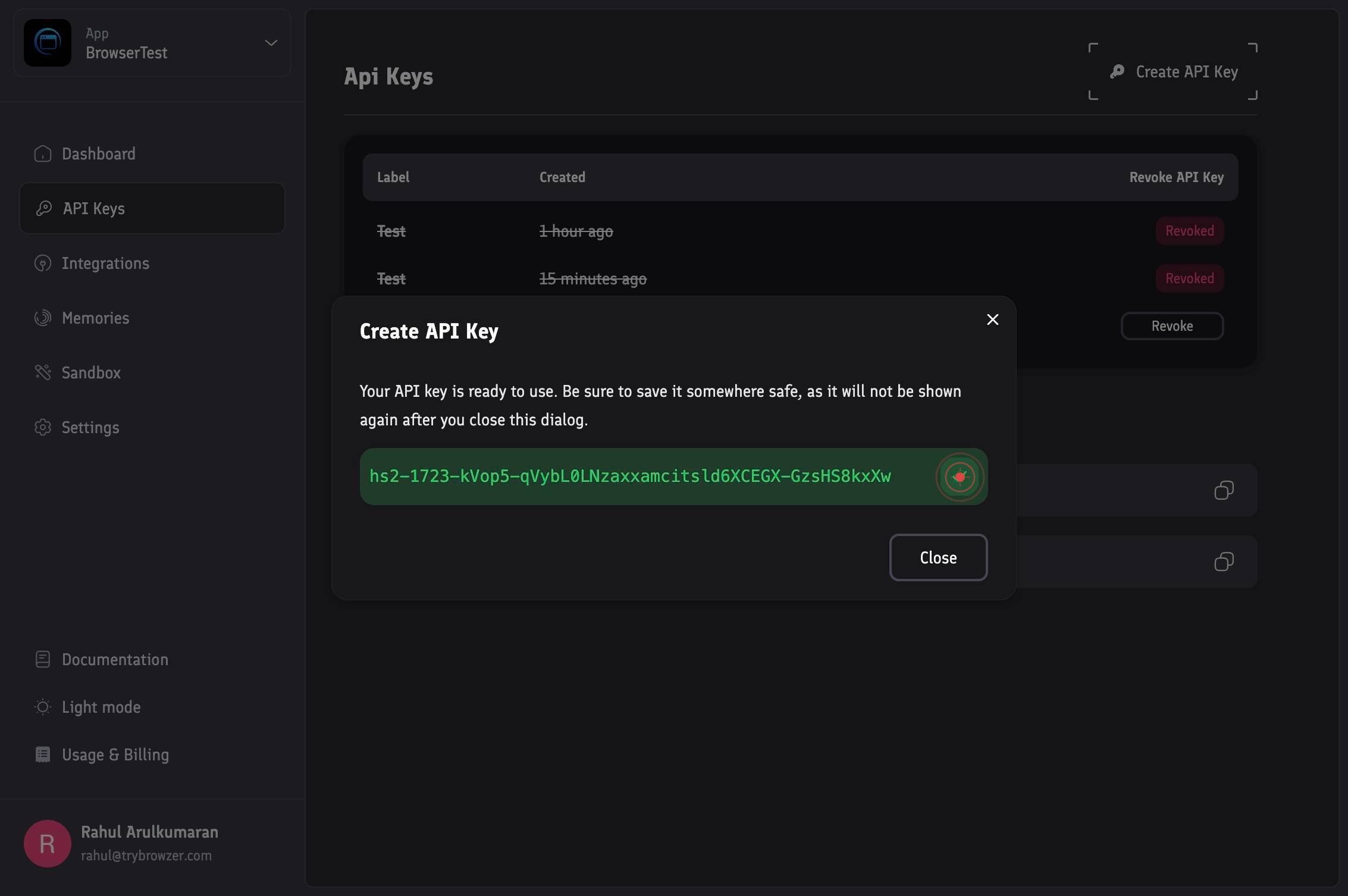
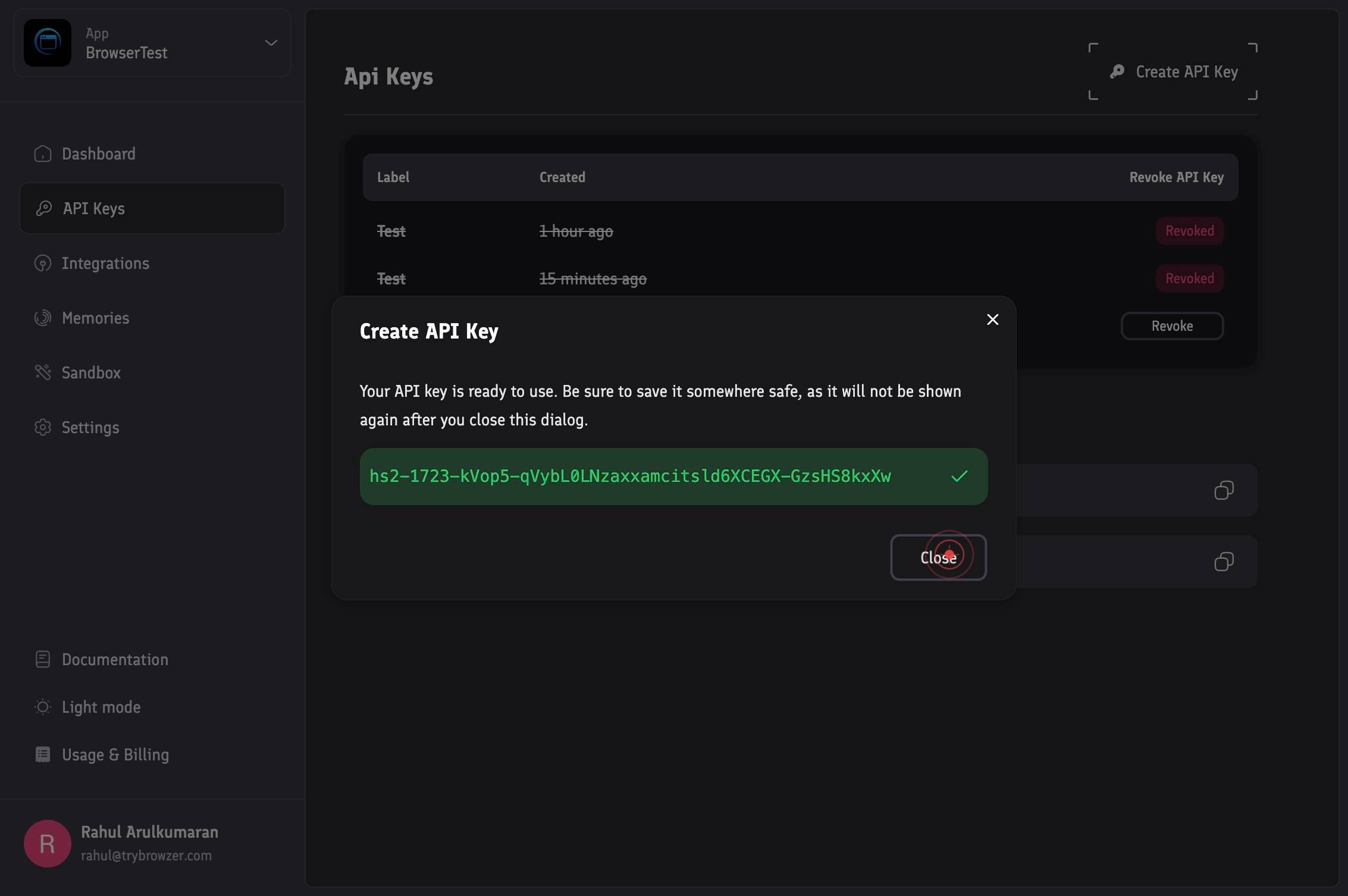
CloseClick the 'Close' button to dismiss the key confirmation modal and return to the API Keys dashboard. Your newly created key will now appear in the list of active keys.
Confirm it worked
- 1The API Keys section is displayed on app.hyperspell.com showing your list of existing keys
- 2A new API key is generated and displayed in a modal or confirmation dialog with the label you specified
- 3The API key string is copied to your clipboard (you can paste it in a text editor to confirm)
- 4The confirmation modal closes and you return to the API Keys list, where the new key appears in the inventory
Common issues
Keep reading
Creating and managing API keys | API Keys API Documentation | Google Cloud Documentation
Creating and managing API keys | API Keys API Documentation | Google Cloud Documentation # Creating and managing API keys This page explains how to create and manage API keys using the API Keys API.
cloud.google.comCreating and managing API keys | API Keys API Documentation | Google Cloud Documentation
Creating and managing API keys | API Keys API Documentation | Google Cloud Documentation # Creating and managing API keys This page explains how to create and manage API keys using the API Keys API.
docs.cloud.google.comCreating an API Key
Creating an API Key ### Oracle Cloud Infrastructure Documentation --- All Pages Was this article helpful? Updated 2026-01-22 Skip to main content Updated 2026-01-22 # Creating an API Key Crea
docs.oracle.com