Guide
Add Memory
Overview
Hyperspell allows you to build AI applications that can reference and learn from your own data. Memories are the core mechanism for storing and indexing documents within a Sandbox—a dedicated workspace for developing and testing AI features. By adding memories, you expand the knowledge base that your AI models can access and reason over. This workflow guides you through creating a single memory entry, which can be any form of text content relevant to your use case.
Before you begin
- You must have an active Hyperspell account and be logged in to app.hyperspell.com
- You must have access to at least one Sandbox environment (created during initial account setup)
- You should have the content ready that you want to store as a memory (e.g., a document, transcript, or text snippet)
Step by step
SandboxSelect the Sandbox workspace where you want to add the memory by clicking on the Sandbox option from the available list. This ensures your memory is stored in the correct project environment.
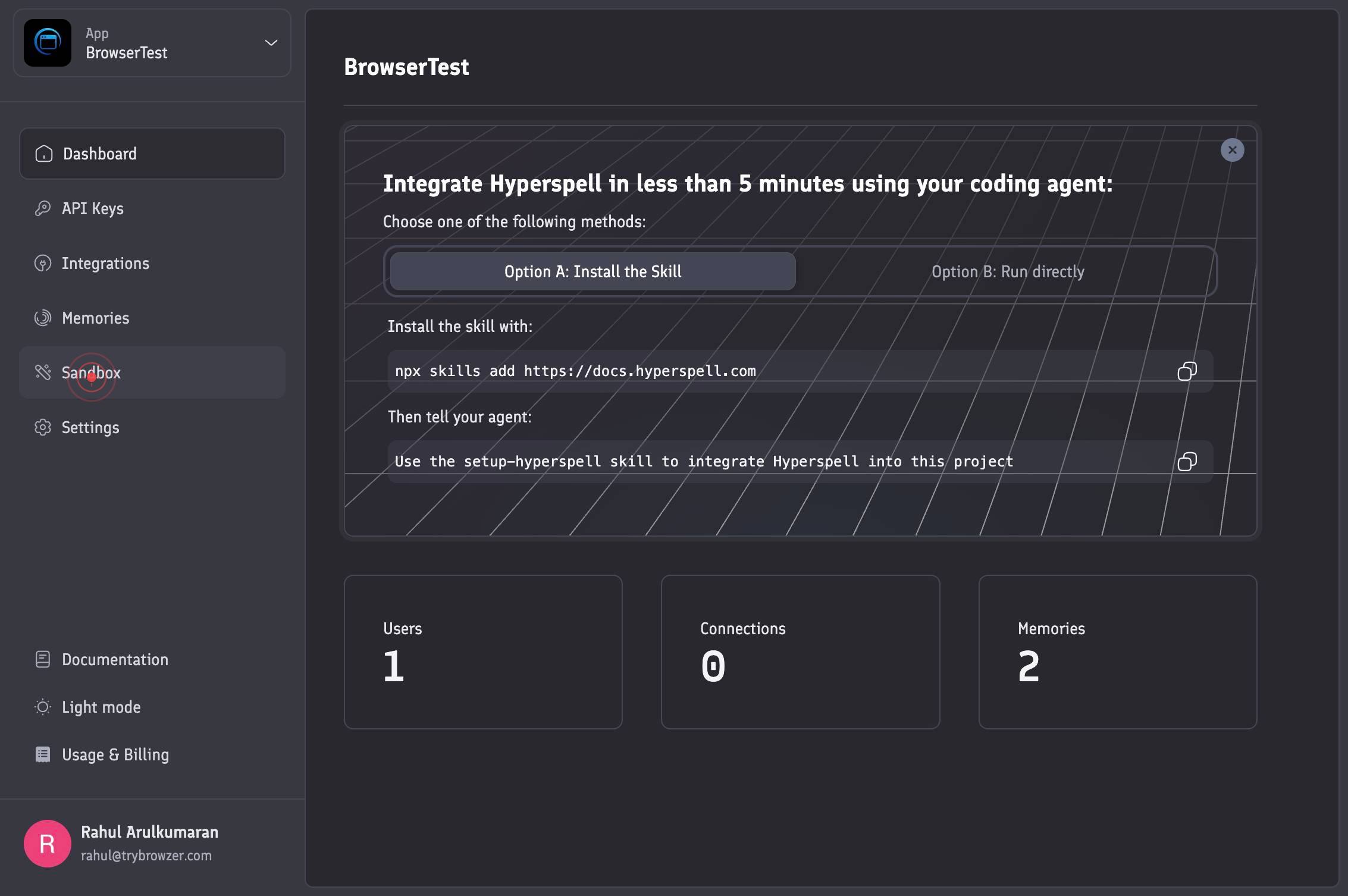
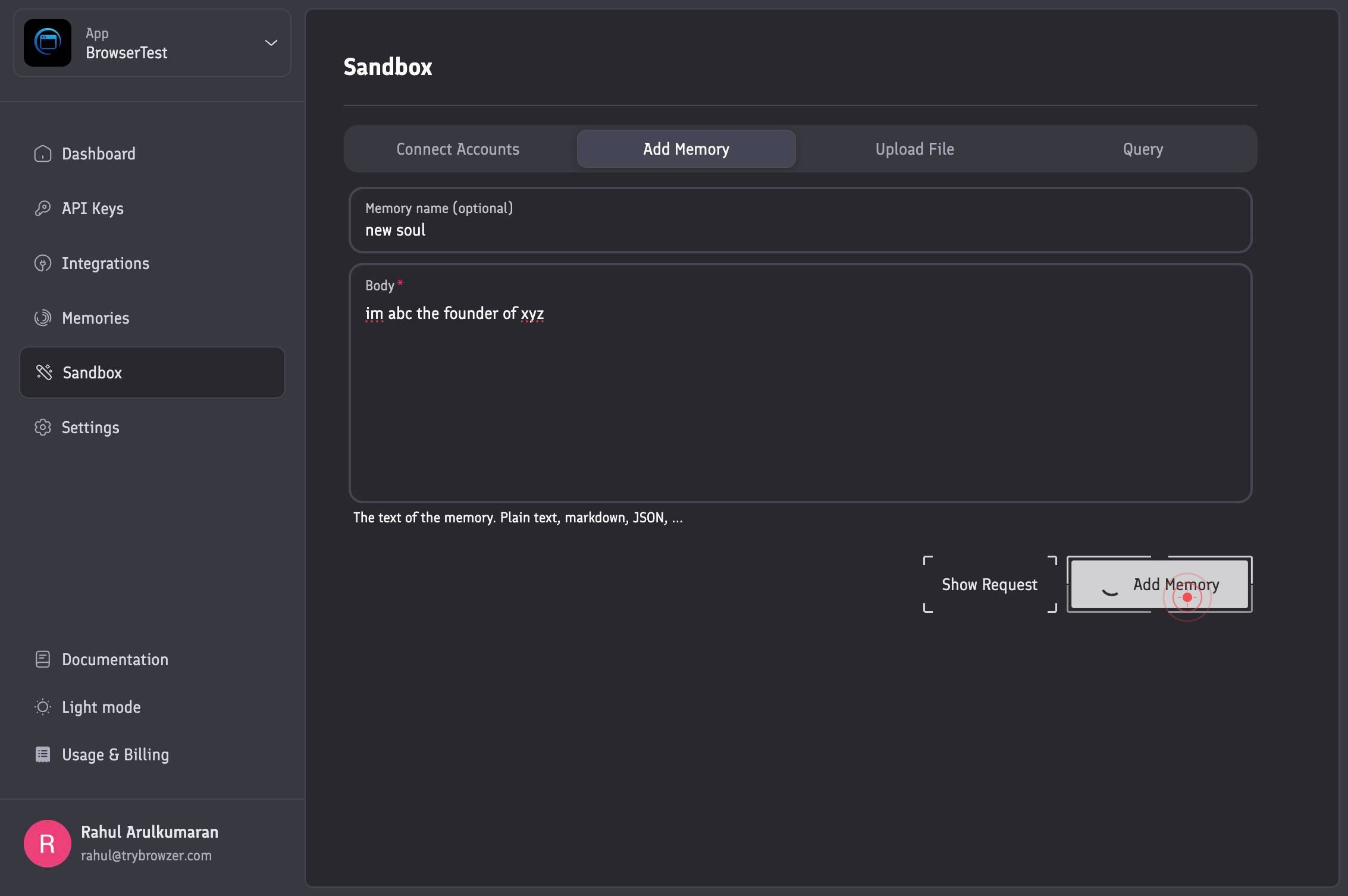
Add MemoryNavigate to the 'Add Memory' tab to open the memory creation interface. This tab contains the form where you will enter your memory details.
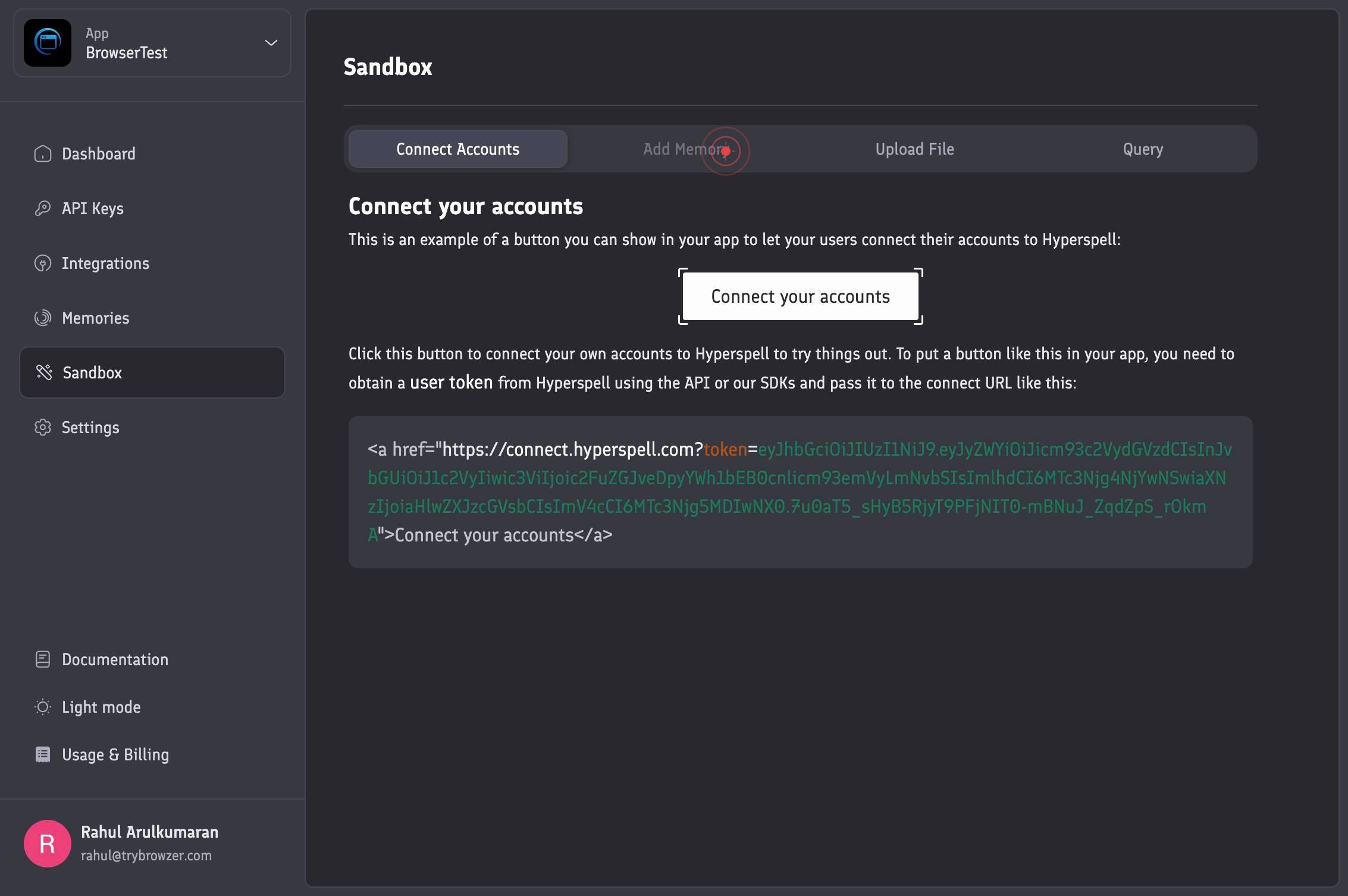
genericClick on the generic element (the form area) to activate the memory entry form and prepare it for input. This ensures the form is ready to receive your data.
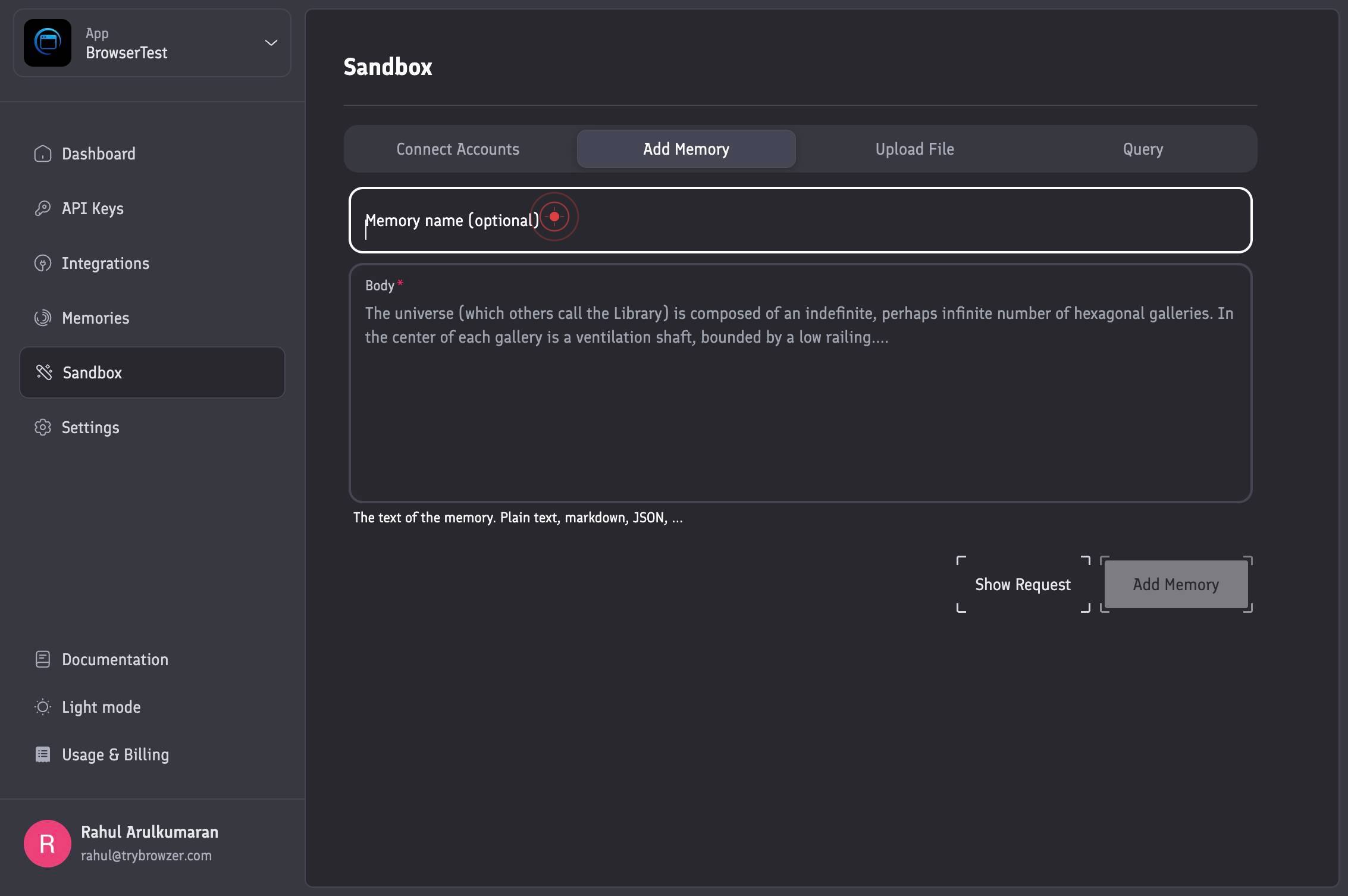
Memory name (optional)Enter a name for your memory in the 'Memory name (optional)' field. While optional, a descriptive name helps you identify and organize memories later (e.g., 'Q3 Sales Call', 'Customer Feedback Summary').
BodyClick on the 'Body' text field to focus it, which prepares the field to receive your main content. This is where you'll paste or type the actual document or text you want to store.
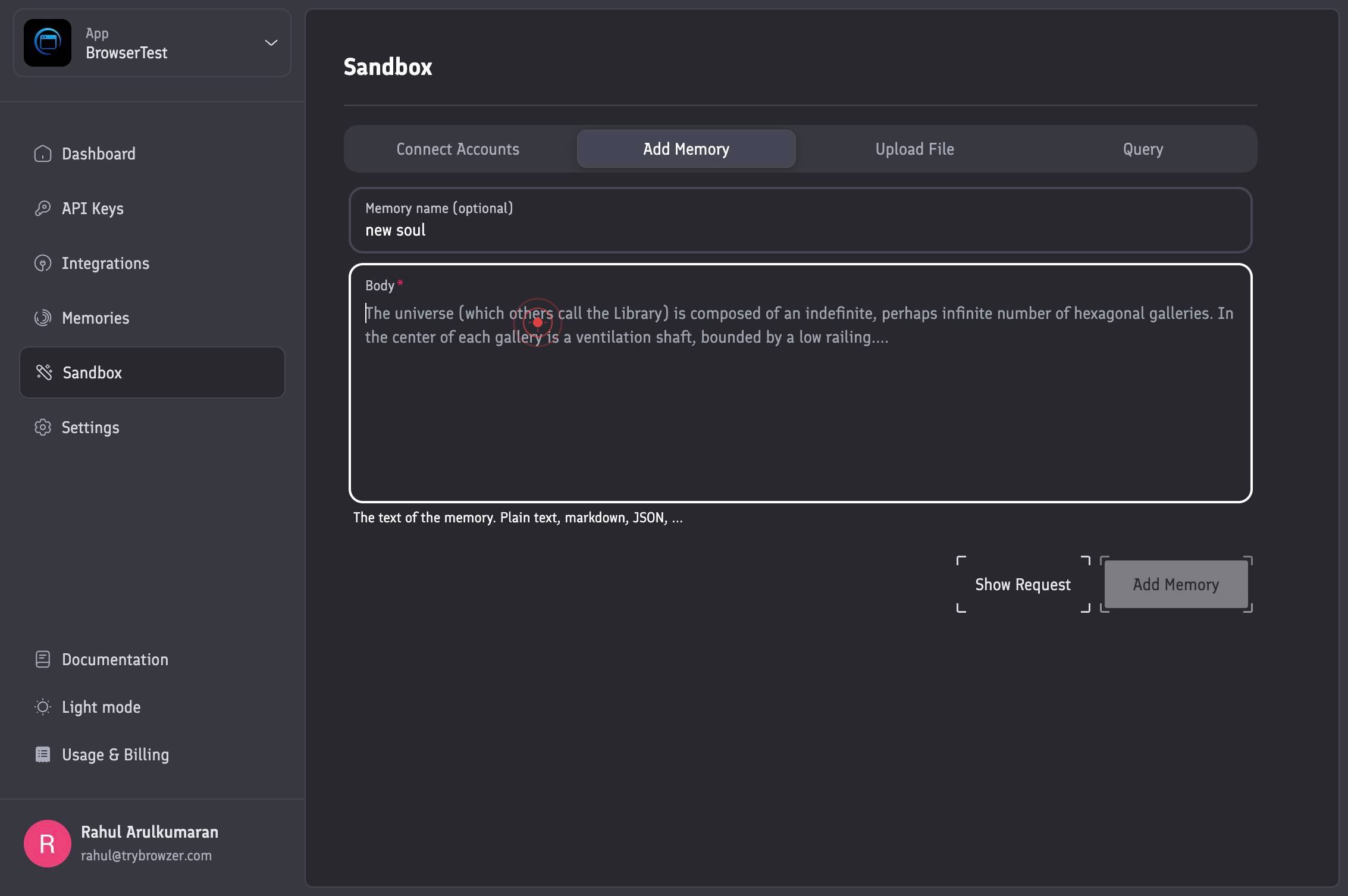
BodyType or paste the full content of your memory into the 'Body' field. This can be any text content such as call transcripts, emails, documents, notes, or structured data that you want your AI applications to reference.
Add MemoryClick the 'Add Memory' button to save and index your memory within the Sandbox. This action commits the memory to your workspace and makes it available for use by your AI applications.
Confirm it worked
- 1After clicking 'Add Memory' button, the new memory appears in your Sandbox's memory list
- 2The memory displays with the name and body content you entered
- 3You can see the memory indexed and available for use by AI applications within that Sandbox
Common issues
Keep reading
Adding Memory - Oracle® VM Server for SPARC 3.1 Administration Guide
Adding Memory - Oracle® VM Server for SPARC 3.1 Administration Guide » ... [Oracle VM Server for SPARC](https://docs.oracle.com/cd/E38405_01/)» [Oracle® VM Server for SPARC 3.1 ...](https://docs.ora
docs.oracle.comAdding memory
Adding memory - IBM Documentation DocumentationMy IBMLog in Dark mode Linux on IBM Systems Close table of contents Show full table of contents Filter on titles * * [Linux information for IBM systems](
ibm.comHow to Add Extra Memory to Your Computer
How to Add Extra Memory to Your Computer: 4 Steps (with Pictures) Skip to Content [](#)[](https://www.wikihow.tech/Main-Page) Subscribe * [EXPLORE](#) [Random Article](https://www.wikihow.tech/Special
wikihow.tech