Guide
Add Memory via File Upload
Overview
Hyperspell's Sandbox feature allows you to test and develop AI applications with your own data by uploading memory files. Memory files serve as a knowledge base or context that your AI models can reference during interactions. By uploading a file through the Sandbox, you can quickly populate your application with structured data—such as customer lists, product catalogs, or documentation—without manual entry. This is essential for setting up a working environment before deploying to production.
Before you begin
- An active Hyperspell account with access to app.hyperspell.com
- A CSV or supported memory file prepared and saved locally (e.g., companies-list.csv)
- Permission to access the Sandbox feature within your Hyperspell account
Step by step
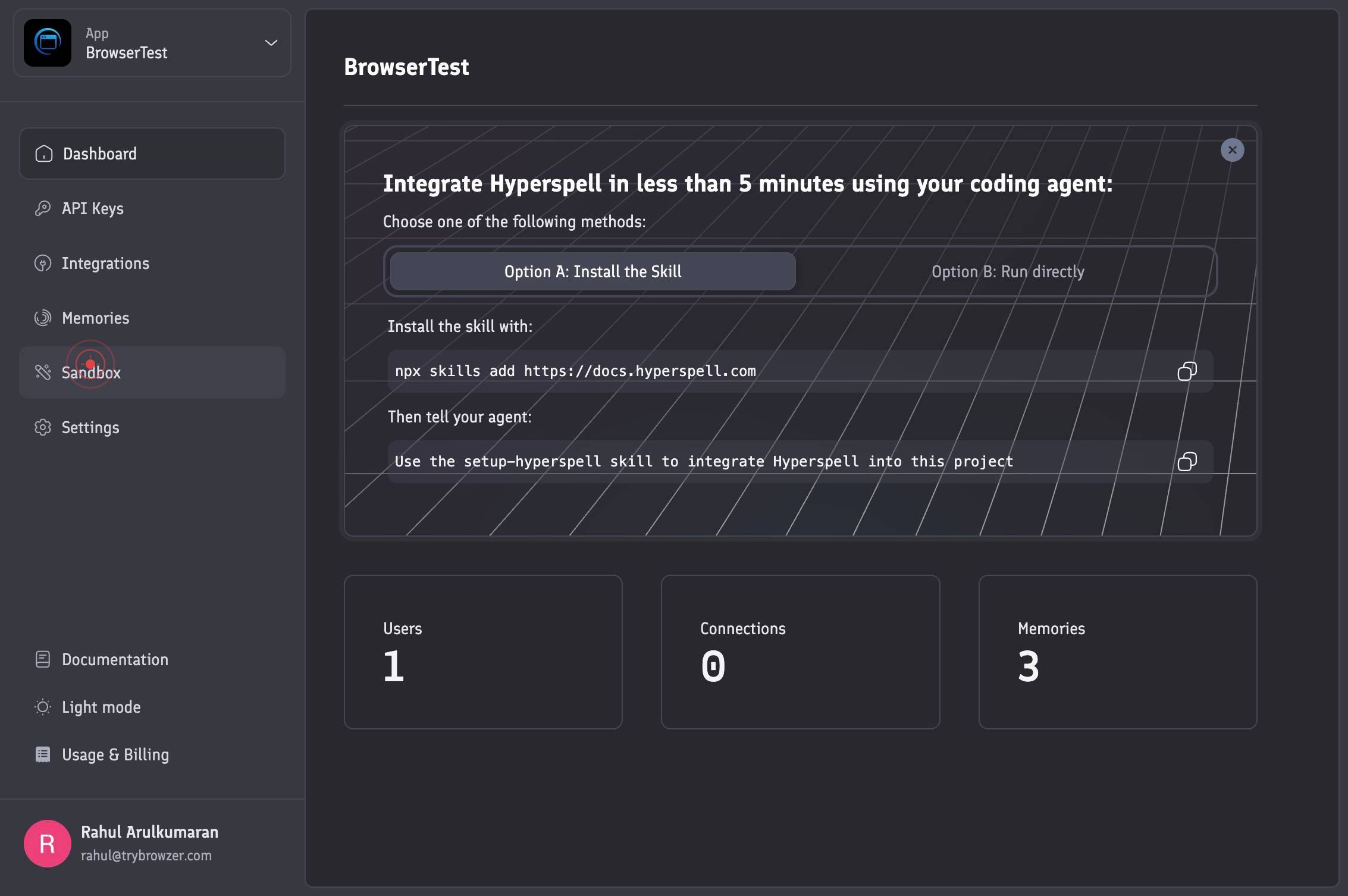
SandboxSelect the Sandbox environment by clicking on the Sandbox option. The Sandbox is where you test and develop AI applications with your own data in an isolated, non-production setting.
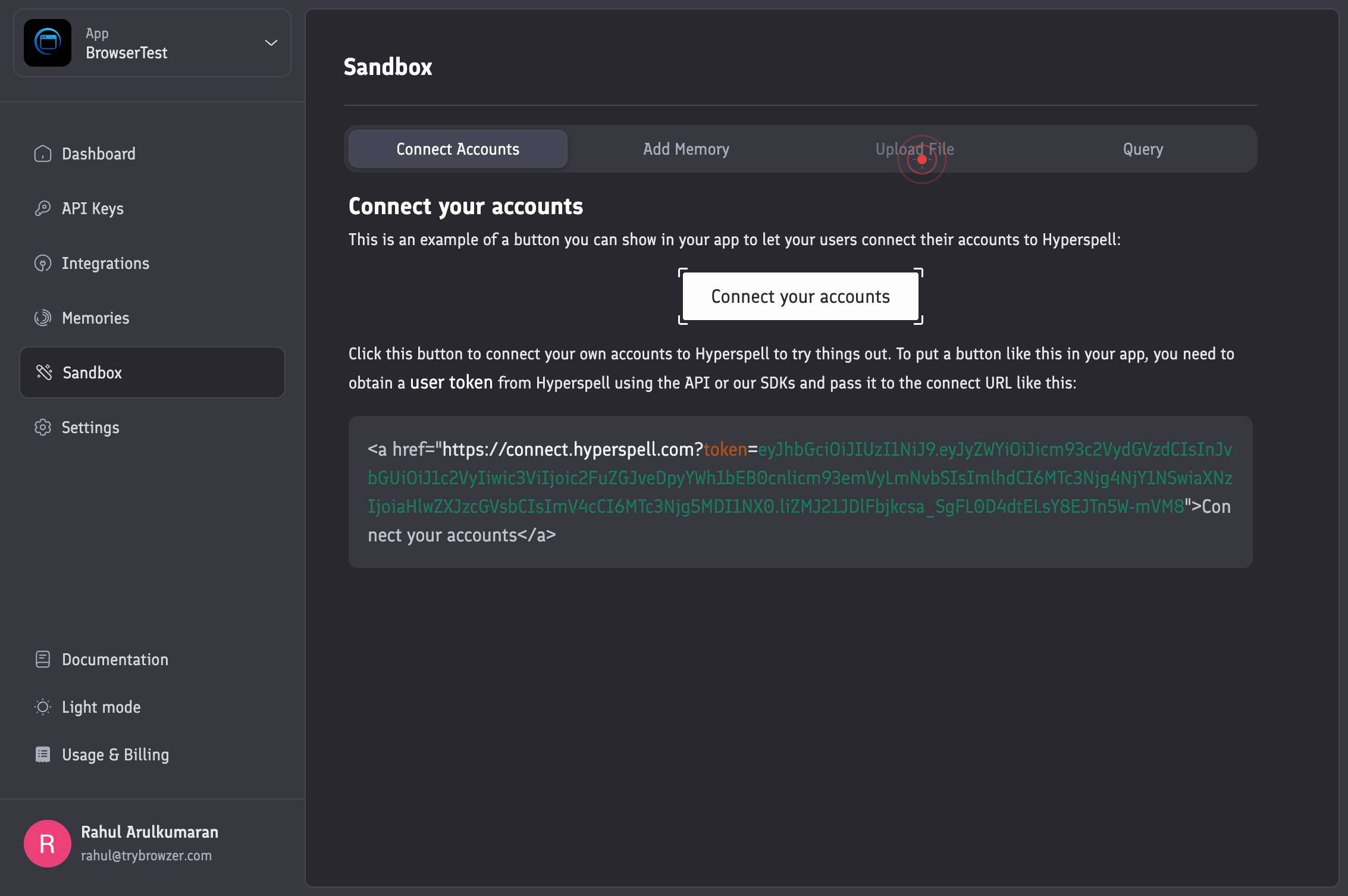
Upload FileClick on the Upload File tab to access the file upload interface. This tab switches your view to the file upload panel where you can select and prepare your memory file.
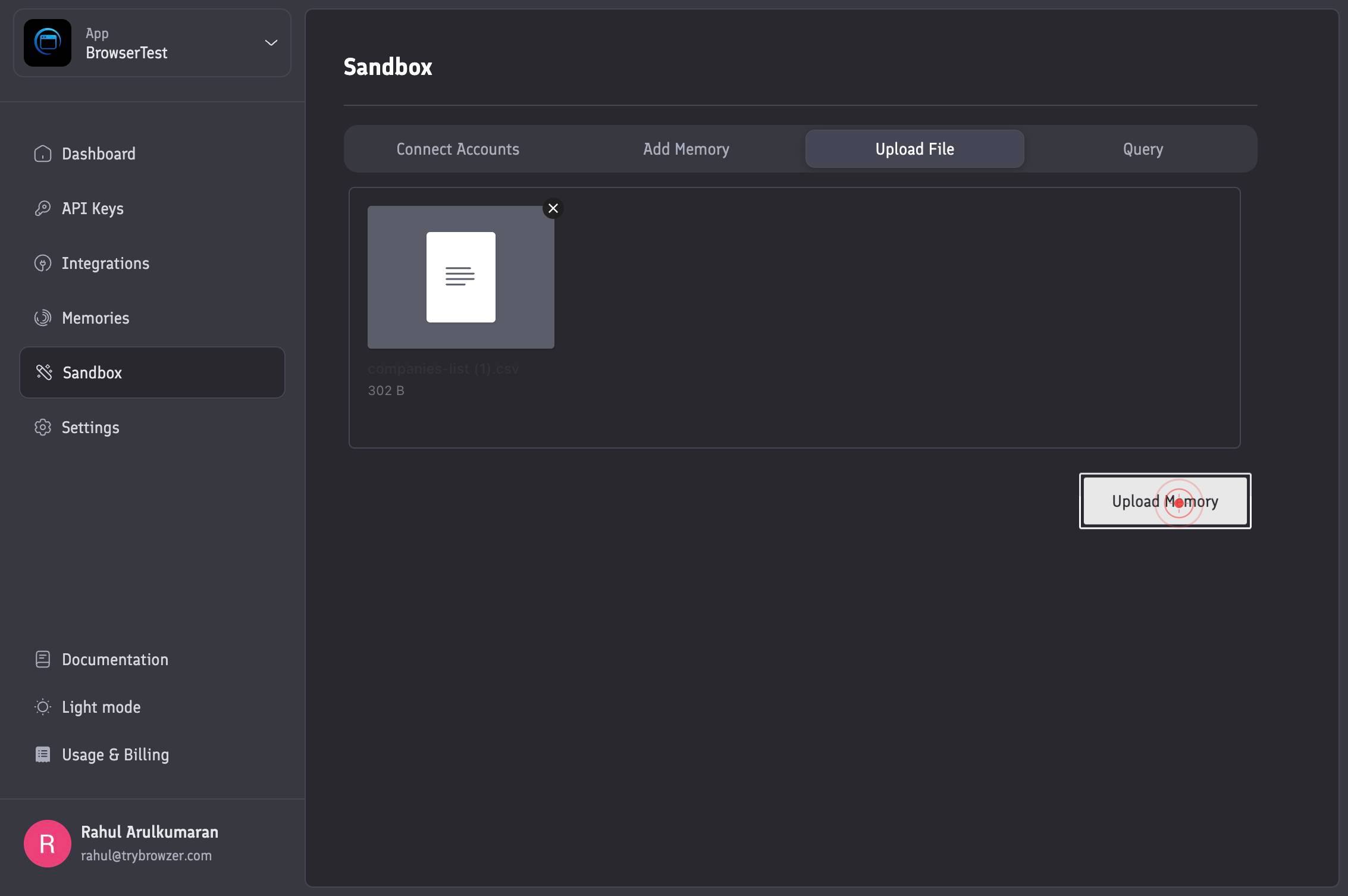
Select and upload your memory file (companies-list.csv in this example) by clicking the upload field and choosing the file from your local system. This file will be sent to Hyperspell's index and processed to create a resource that your AI can reference.
Upload MemoryClick the Upload Memory button to finalize and submit your file for processing. Hyperspell will process the file, assign it a resource_id, and make it available for use in your Sandbox application.
Confirm it worked
- 1The Sandbox option is selected in the interface and visible in the current context
- 2The Upload File tab is displayed and active, ready to accept file input
- 3The file (companies-list.csv) appears in the upload field or file picker
- 4An Upload Memory button is present and clickable, and upon clicking it, you receive confirmation that the file has been successfully processed and assigned a resource_id
Common issues
Keep reading
Uploading and Maintaining Memory Files - LILT
> ## Documentation Index > > Fetch the complete documentation index at: https://support.lilt.com/llms.txt > Use this file to discover all available pages before exploring further. # Uploading and Ma
support.lilt.comHow to Upload Large Files with Additional Data Using Python Requests Without MemoryError: A Complete Guide
How to Upload Large Files with Additional Data Using Python Requests Without MemoryError: A Complete Guide ## Table of Contents# Advanced Tips for Reliable Uploads - Timeouts, Retries, and Error Ha
py4u.orgIngesting context to supermemory - supermemory | Memory API for the AI era
> ## Documentation Index > > Fetch the complete documentation index at: https://supermemory.ai/docs/llms.txt > Use this file to discover all available pages before exploring further. IMPORTANT: thes
supermemory.ai