Guide
Delete Integration
Overview
Hyperspell allows you to integrate external services like Gmail to power AI-driven workflows. Over time, you may need to remove an integration for security, account management, or workflow restructuring reasons. Deleting an integration revokes Hyperspell's access to that provider and permanently removes all stored credentials and indexed data from that source. This action is irreversible—once deleted, you will need to reconnect and re-index the service if you want to use it with Hyperspell again.
Before you begin
- You must have a Hyperspell account with active integrations already configured.
- You must be logged into app.hyperspell.com.
- The Gmail integration must already exist in your Integrations list.
- You must have administrative or account-level permissions to modify integrations (typically the account owner or an admin user).
Step by step
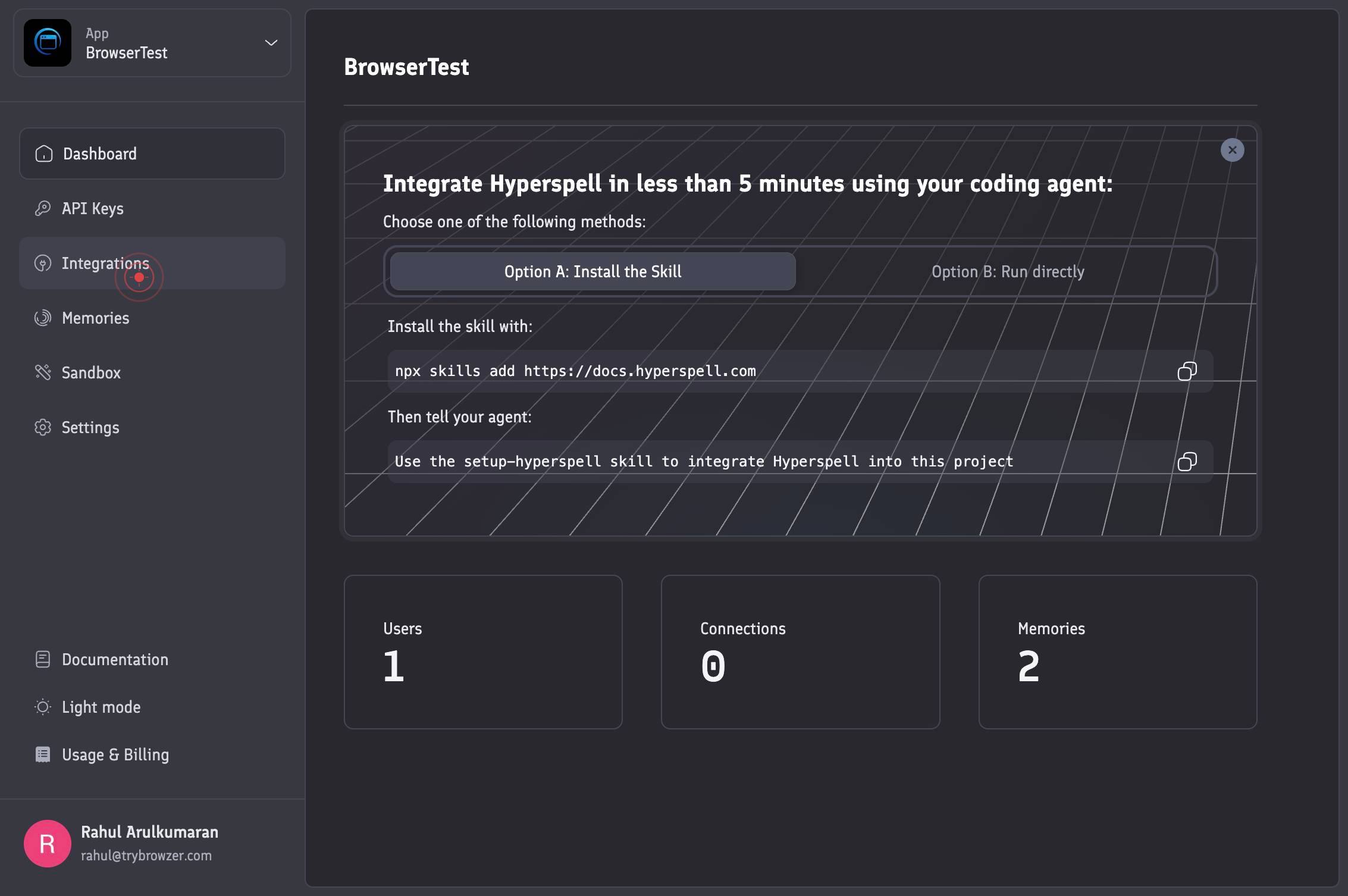
IntegrationsNavigate to the Integrations section of Hyperspell by clicking on the Integrations option in the left sidebar or main navigation menu. This displays all currently connected third-party services and providers linked to your Hyperspell account.
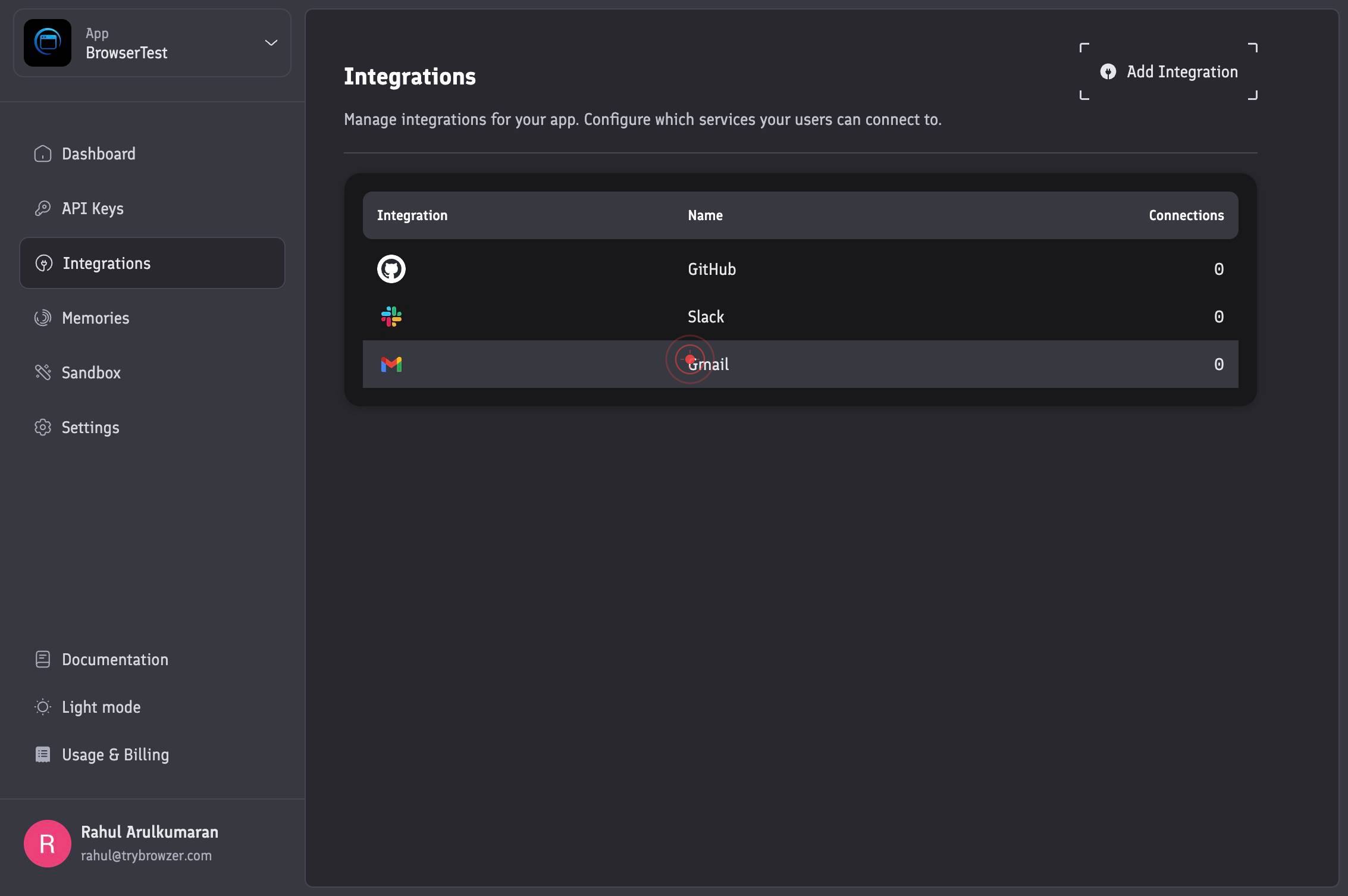
GmailLocate and click on the Gmail integration row in the integrations grid or list. This selects the Gmail integration and opens its details or management options.
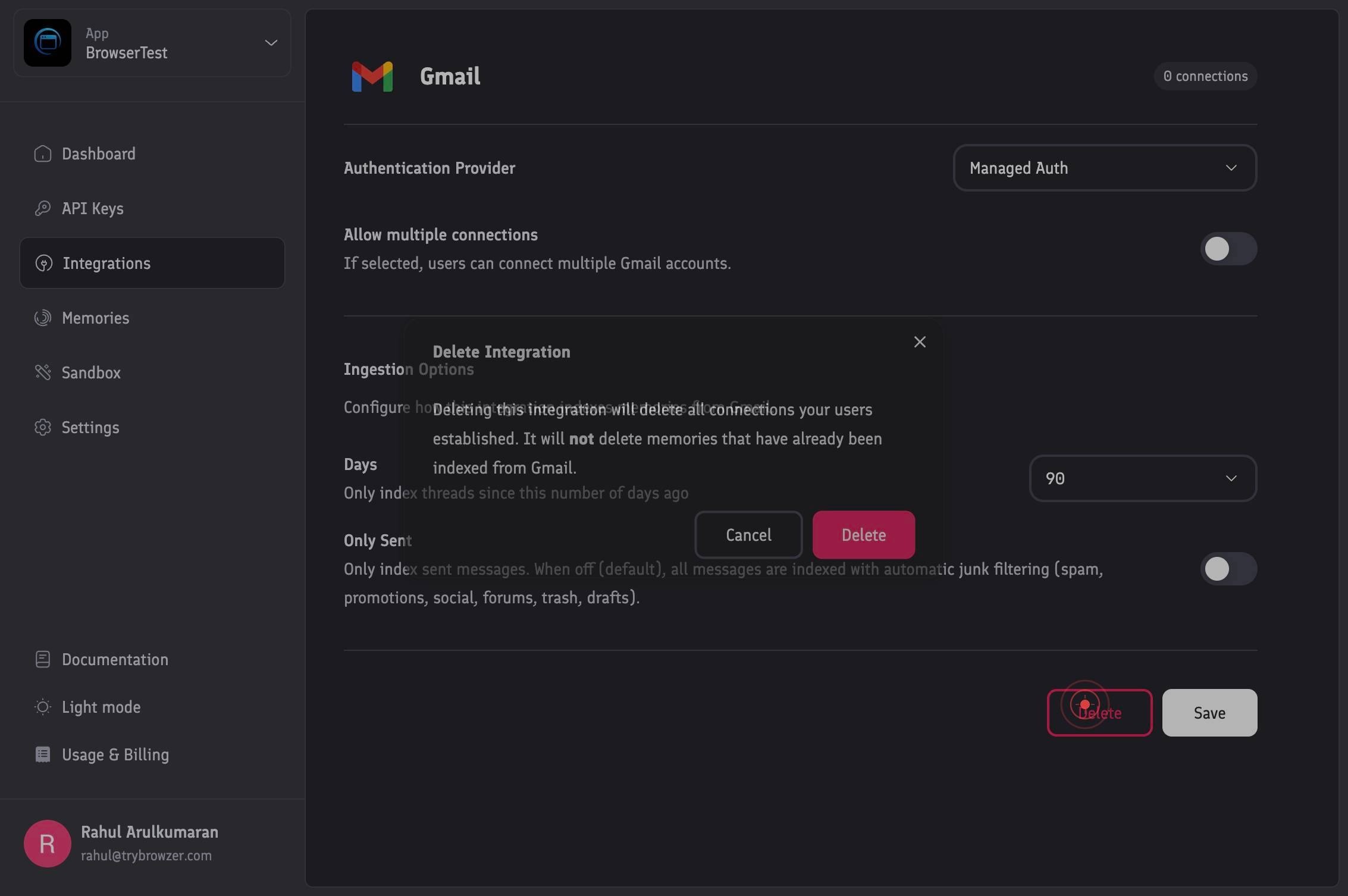
DeleteClick the Delete button that appears in the Gmail integration details or action menu. This initiates the deletion process and typically opens a confirmation dialog to prevent accidental removal.
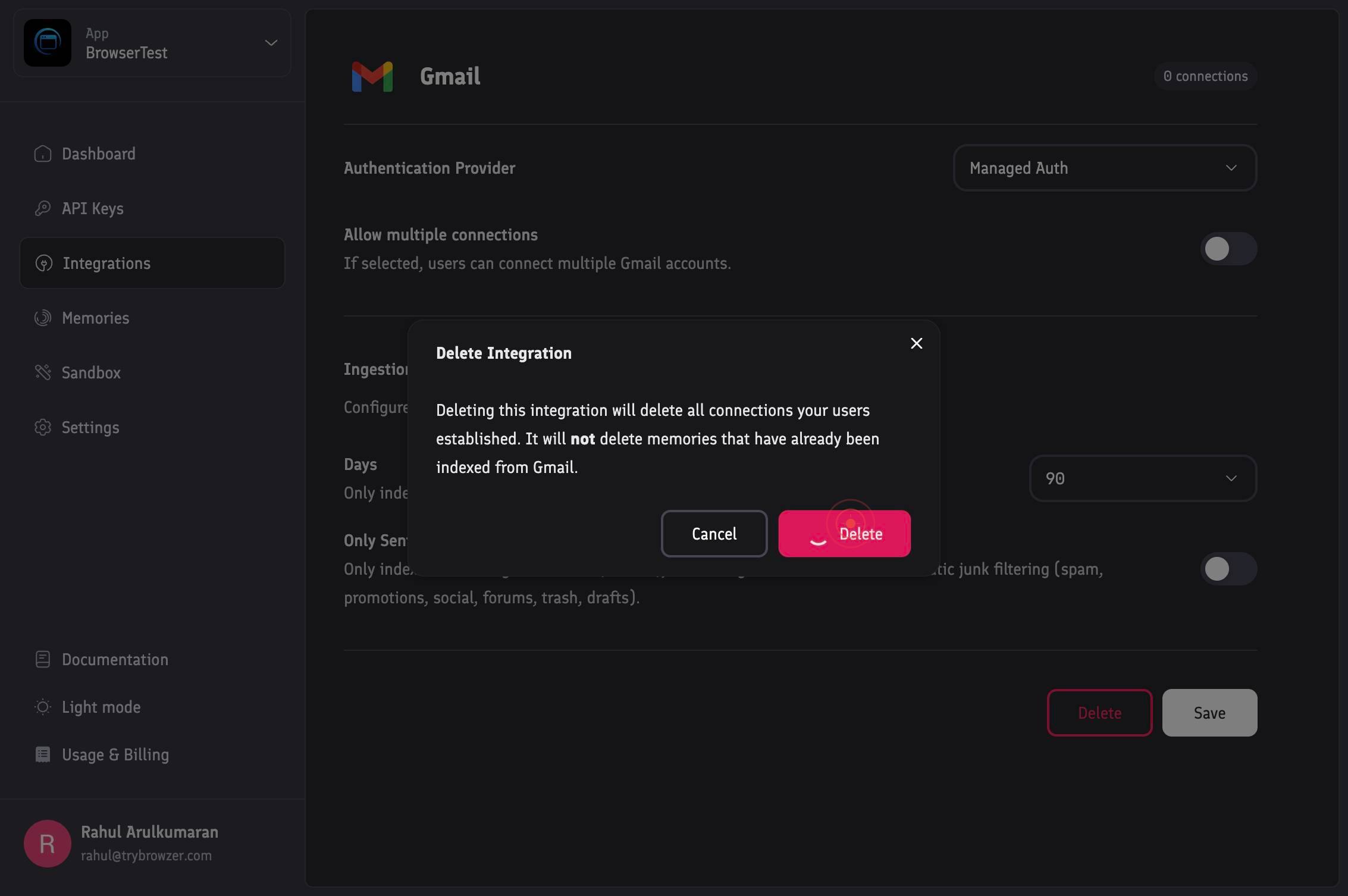
DeleteClick the Delete button again in the confirmation dialog to finalize the removal of the Gmail integration. This second confirmation ensures you intentionally want to proceed with the deletion.
Confirm it worked
- 1The Gmail integration no longer appears in the Integrations list after both delete confirmations are completed.
- 2No Gmail-related data or indexed content appears in Hyperspell workflows or settings.
- 3The integration history or audit log (if available) shows a record of the Gmail integration being removed.
Common issues
Keep reading
Delete an Integration
Delete an Integration [Previous](create-draft-integration.html)[Next](recover-unsaved-integration-changes.html)JavaScript must be enabled to correctly display this content ## Delete an Integration You
docs.oracle.comDelete an Integration
Delete an Integration [Previous](create-draft-integration.html)[Next](recover-unsaved-integration-changes.html)JavaScript must be enabled to correctly display this content 1. [Using Integrations in Or
docs.oracle.comDelete an existing integration
Delete an existing integration [Jump to Content](#content) [](https://developers.spot.ai/reference) [**Home](https://de
developers.spot.ai