Guide
Lead Request - Advanced Settings
Overview
LeadPoet's advanced settings allow you to refine lead generation campaigns with precision targeting parameters. By setting a maximum lead cap, selecting specific geographic regions, and filtering by company size, you reduce wasted outreach on unqualified prospects and improve your sales team's conversion rates. This workflow is essential when launching a new campaign or adjusting an existing one to match your ideal customer profile—particularly when targeting mid-market companies in specific regions.
Before you begin
- Access to a LeadPoet account with campaign creation or editing permissions
- An active lead generation campaign in draft or editable state
- Knowledge of your target maximum lead volume for this campaign
- Clarity on your ideal customer profile, including target company size (50–500 employees in this example)
Step by step
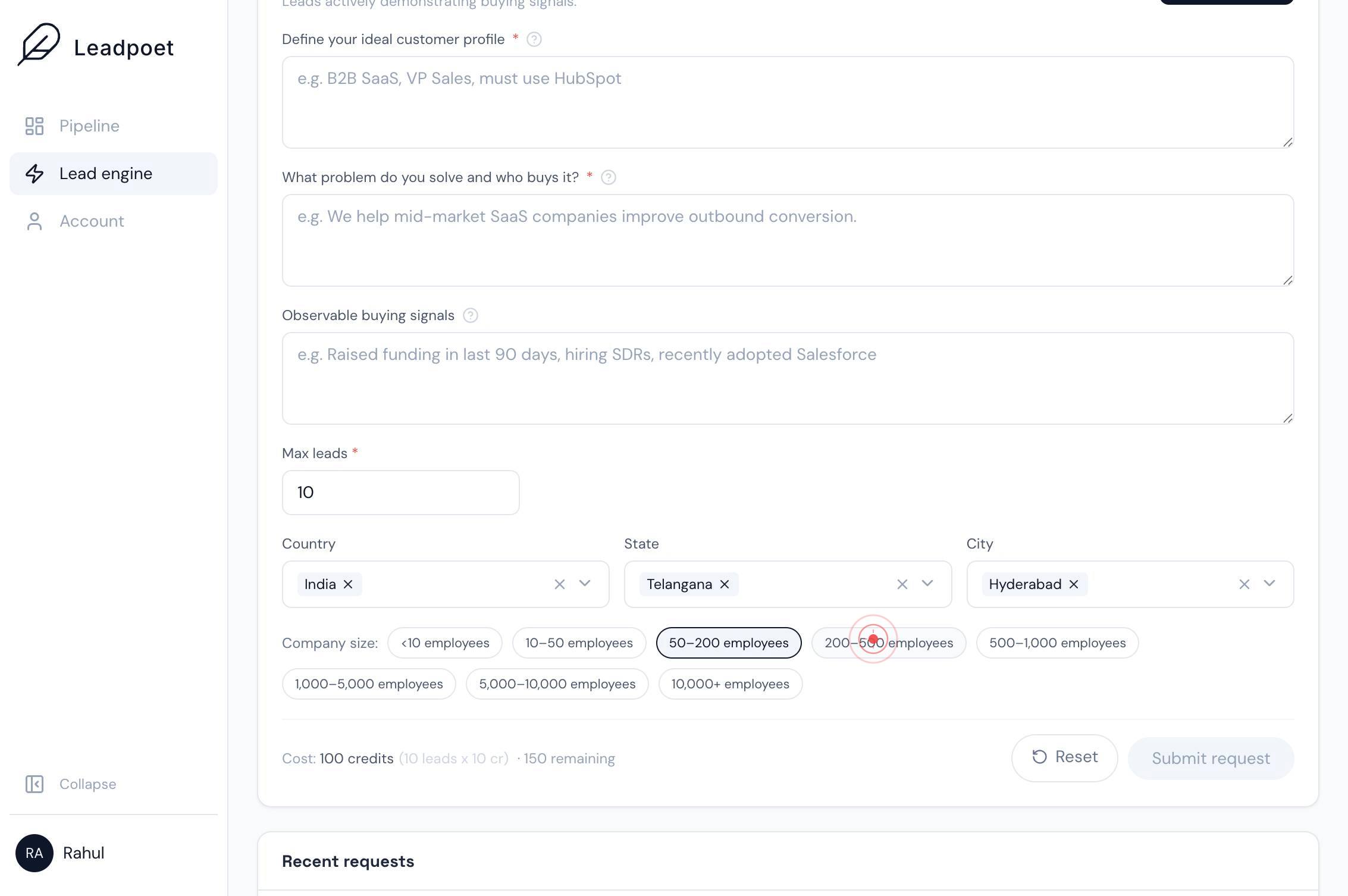
Max leads *Click on the 'Max leads' text field to activate it for input. This field controls the maximum number of leads your campaign will request, preventing over-allocation of resources.
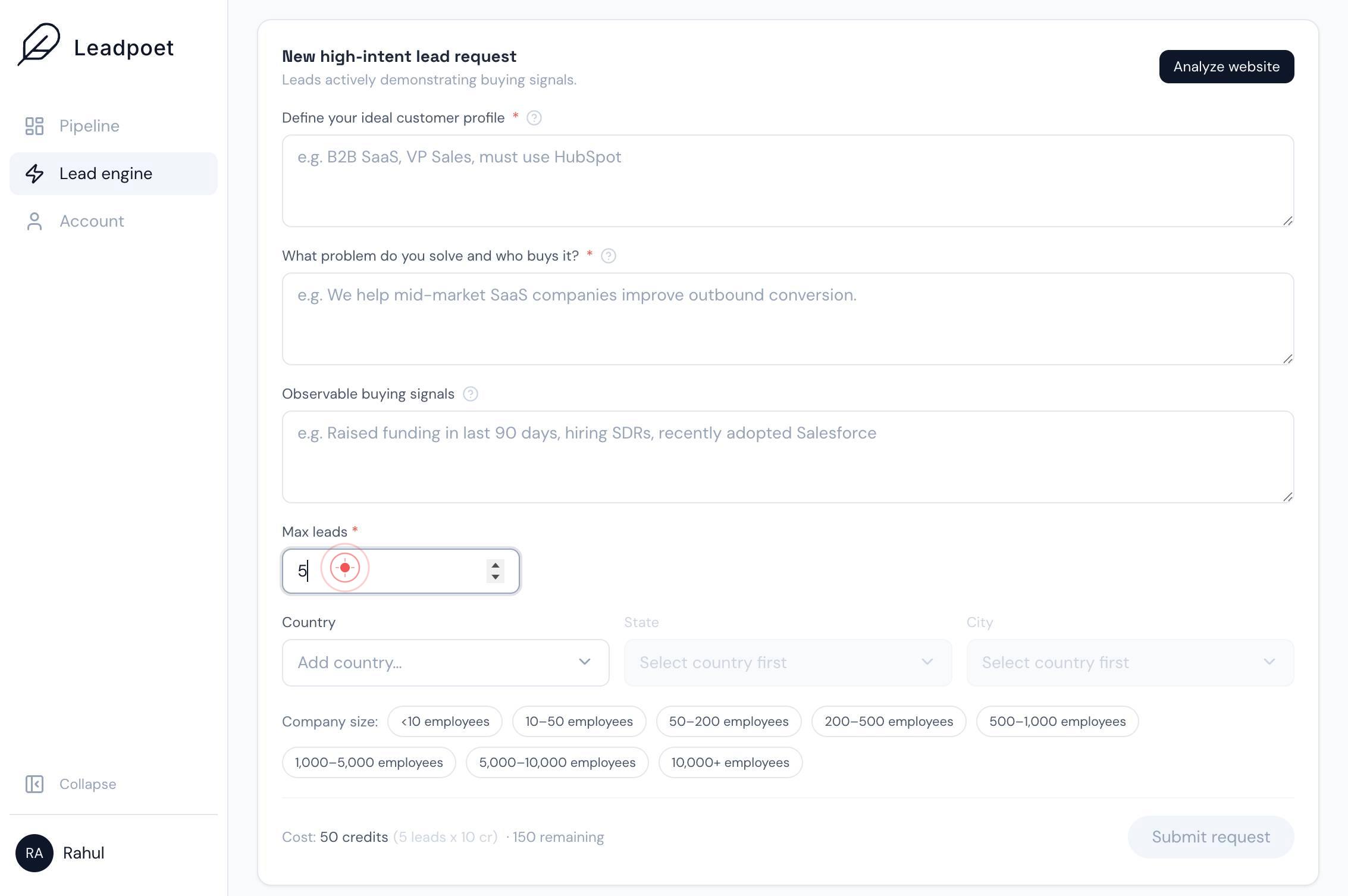
Max leads *Type your desired maximum lead volume into the 'Max leads' field. This number represents the upper limit of prospects LeadPoet will source for your campaign.
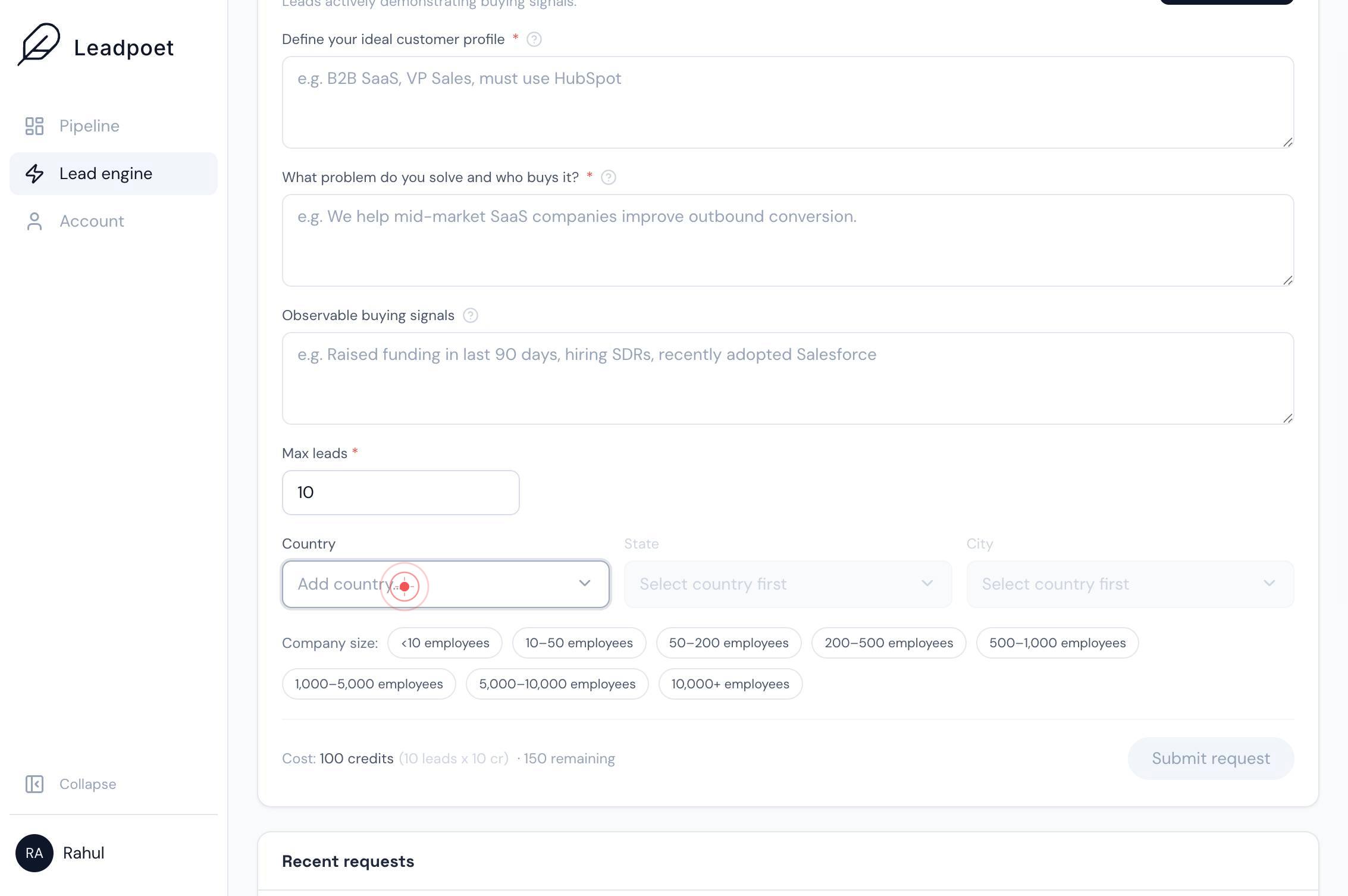
CountryClick on the 'Country' dropdown (combobox) to expand the list of available countries. This allows you to geographically target your lead request.
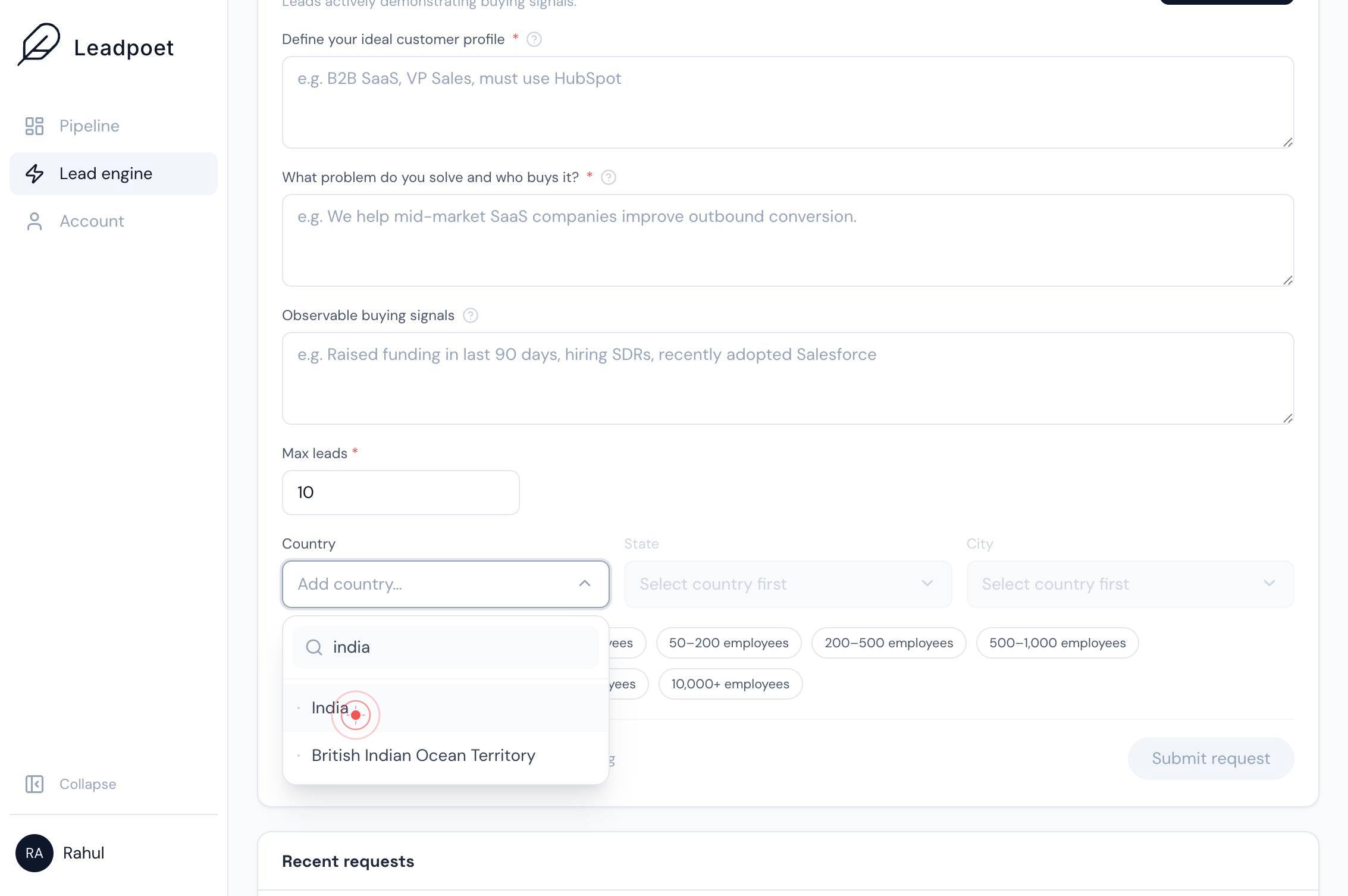
Search…Type 'India' in the search field to filter the country list and locate India quickly.
IndiaClick on 'India' in the dropdown options to select it as your target country. This confirms your geographic focus at the country level.
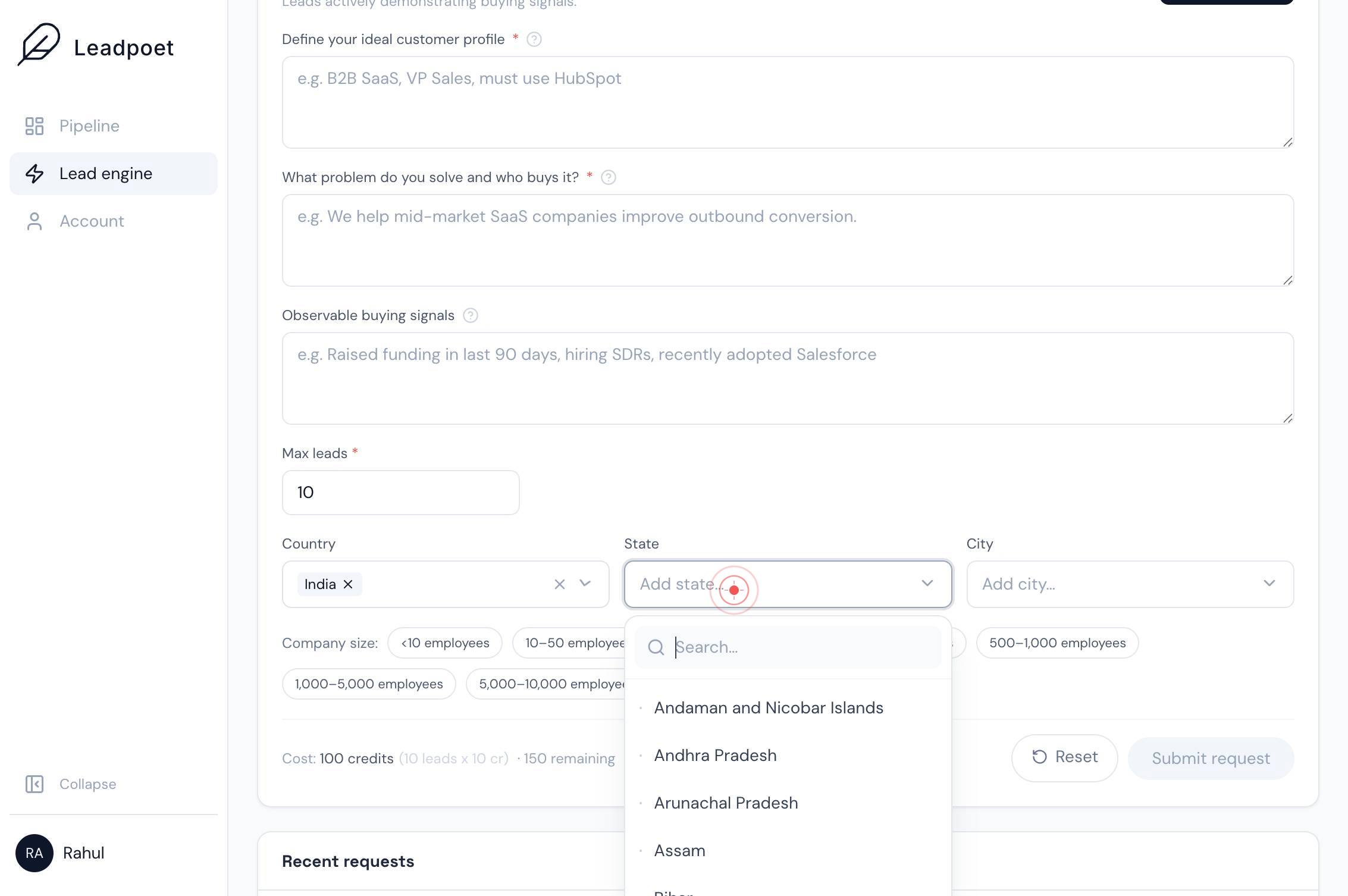
StateClick on the 'State' dropdown to expand the list of states within India. Selecting a state narrows your target territory further.
Search…Type 'Telangana' in the search field to filter the state list and quickly locate Telangana.
TelanganaClick on 'Telangana' in the dropdown options to select it as your target state.
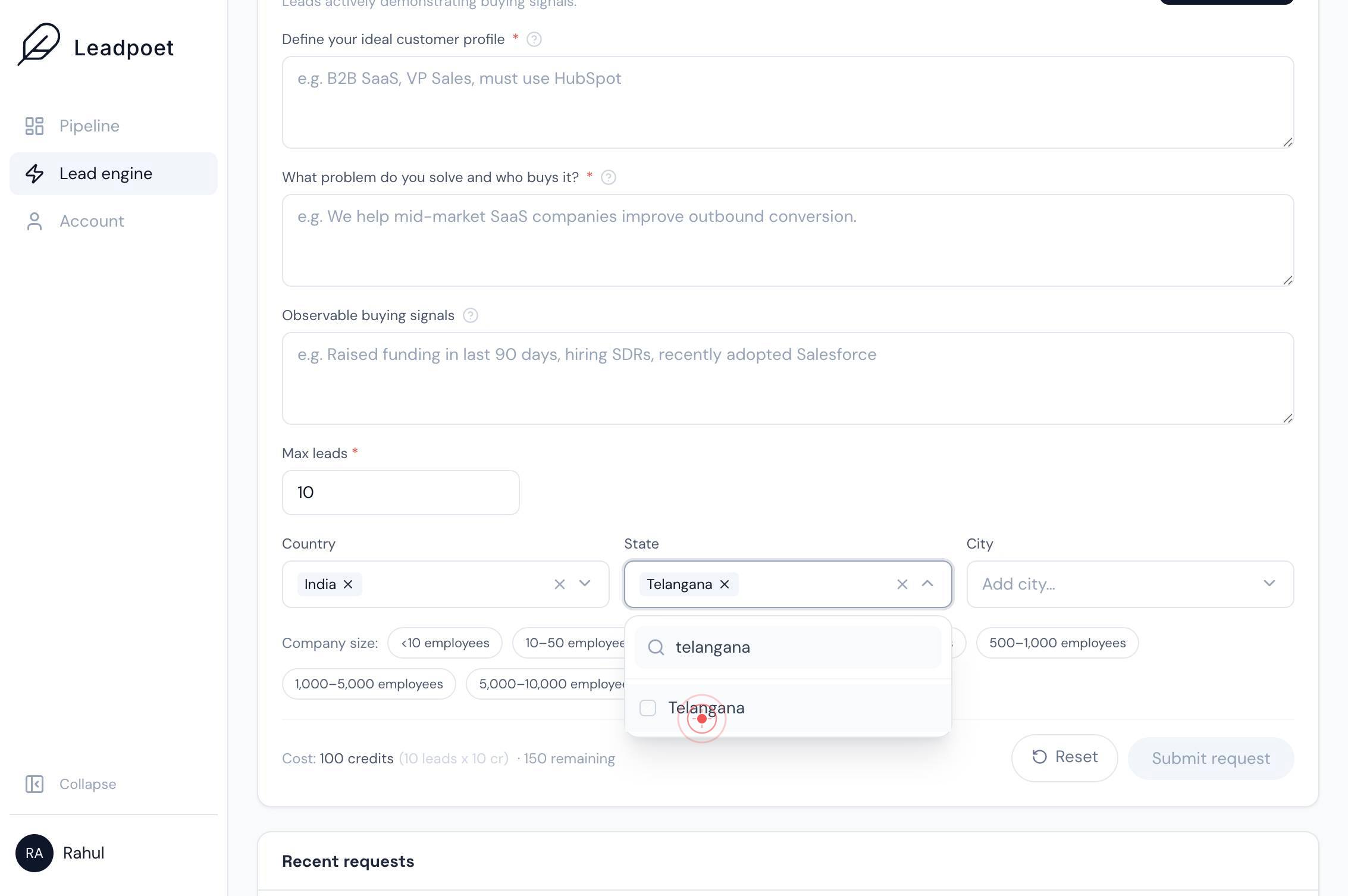
CityClick on the 'City' dropdown to expand the list of cities within Telangana. Selecting a city provides the most granular geographic targeting.
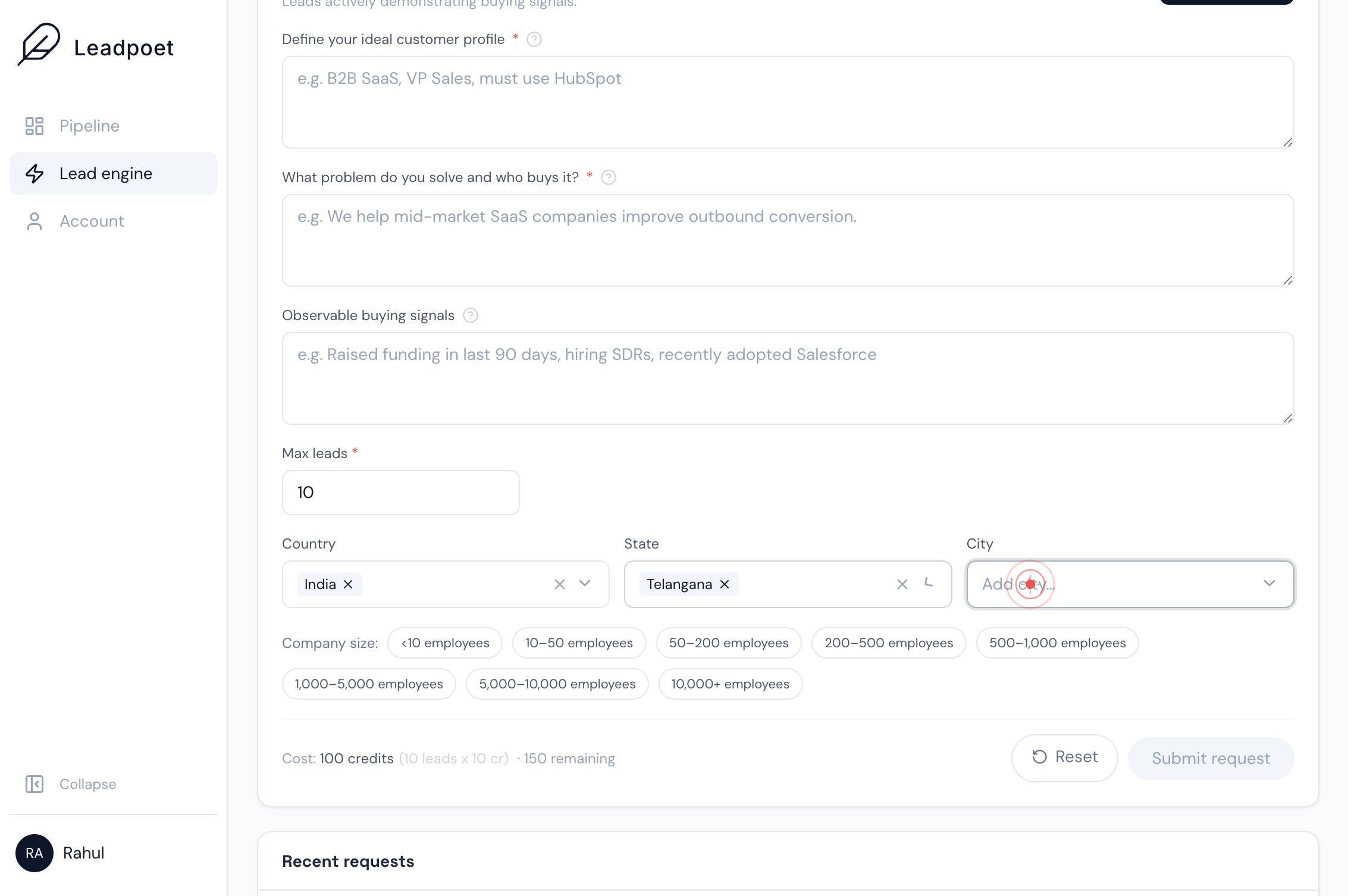
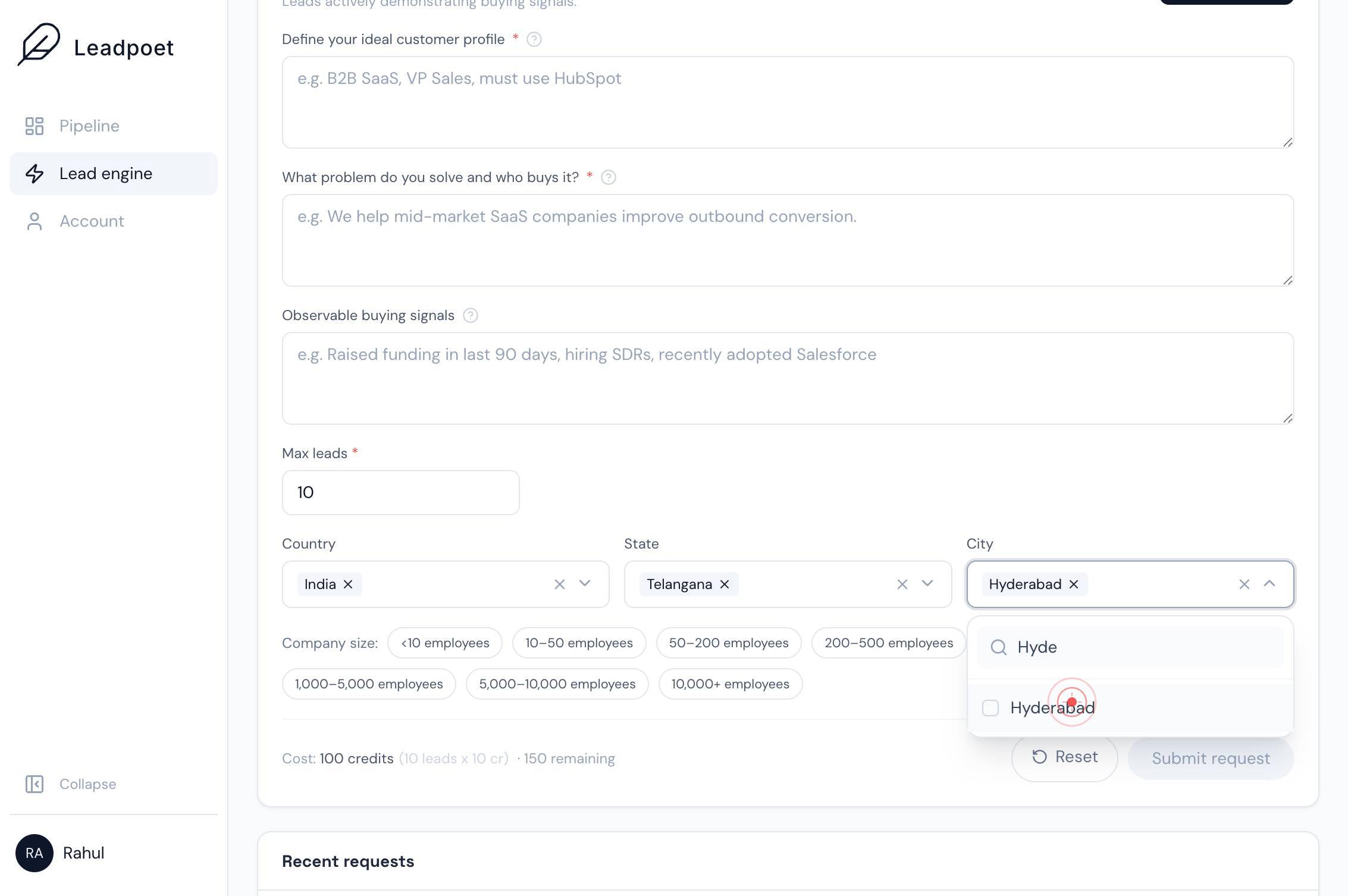
Search…Type 'Hyderabad' in the search field to filter the city list and locate Hyderabad.
HyderabadClick on 'Hyderabad' in the dropdown options to select it as your target city. This completes your geographic targeting from country → state → city.
50–200 employeesClick on the '50–200 employees' button to select companies in this size range. This filter ensures your leads come from mid-market organizations with the resources to purchase your solution.
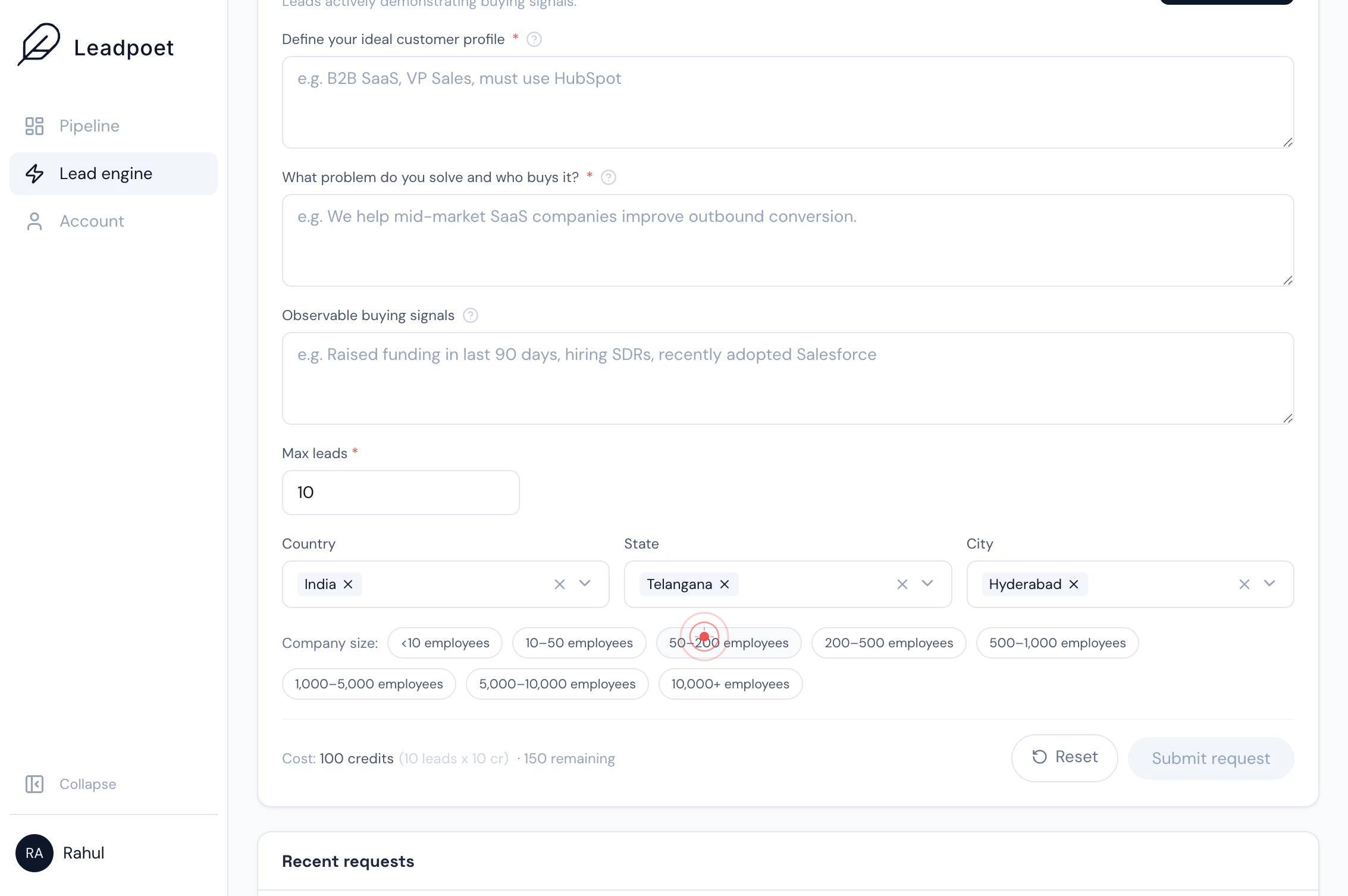
200–500 employeesClick on the '200–500 employees' button to also select companies in this size range. Together with the previous step, this extends your target to include all companies between 50–500 employees.
Confirm it worked
- 1The 'Max leads' field displays your entered numeric value without error
- 2The Country dropdown shows 'India' as the selected value
- 3The State dropdown shows 'Telangana' as the selected value
- 4The City dropdown shows 'Hyderabad' as the selected value
- 5Both company size filters ('50–200 employees' and '200–500 employees') appear highlighted or marked as active
- 6Campaign preview or summary page reflects all selected filters applied to the lead pool estimate
Common issues
Keep reading
Web Lead Campaigns: Advanced Settings | LeadExec Help Center
Web Lead Campaigns: Advanced Settings | LeadExec Help Center Table of contents Web Lead Campaigns: Advanced Settings | LeadExec Help Center [Skip to main content](#main-content) [![LeadExec Help Cen
leadexechelp.clickpointsoftware.comOrganization Settings - Advanced Configuration - Help & Support
Organization Settings - Advanced Configuration - Help & Support ## 1. Feature Overview The advanced configuration page enables you to manage settings related to key features for your organization. O
help.leadsquared.comAdvanced Settings – Bluebird Documentation
Advanced Settings – Bluebird Documentation - Advanced Settings More topics... ### Managing a Reach Structure ### Lead Map ### Operating Hours ### Setting Up Reach ### Spam and Filtering ### Za
gobluebird.io