Guide
Update Team Name
Overview
LeadPoet is a done-for-you email lead generation platform that helps you build and manage your sales pipeline. Your team name is a key identifier within your LeadPoet account and is visible to all team members and in your account communications. Updating your team name ensures your account reflects your current organizational structure and branding. This straightforward process allows account administrators to modify the team name and immediately apply the change across the platform.
Before you begin
- You must have a LeadPoet account with administrative or account owner permissions
- You must be logged into your LeadPoet account at leadpoet.com
- You must know the new team name you want to set
Step by step
AccountClick the Account button in the main navigation to access your LeadPoet account settings and configuration options.
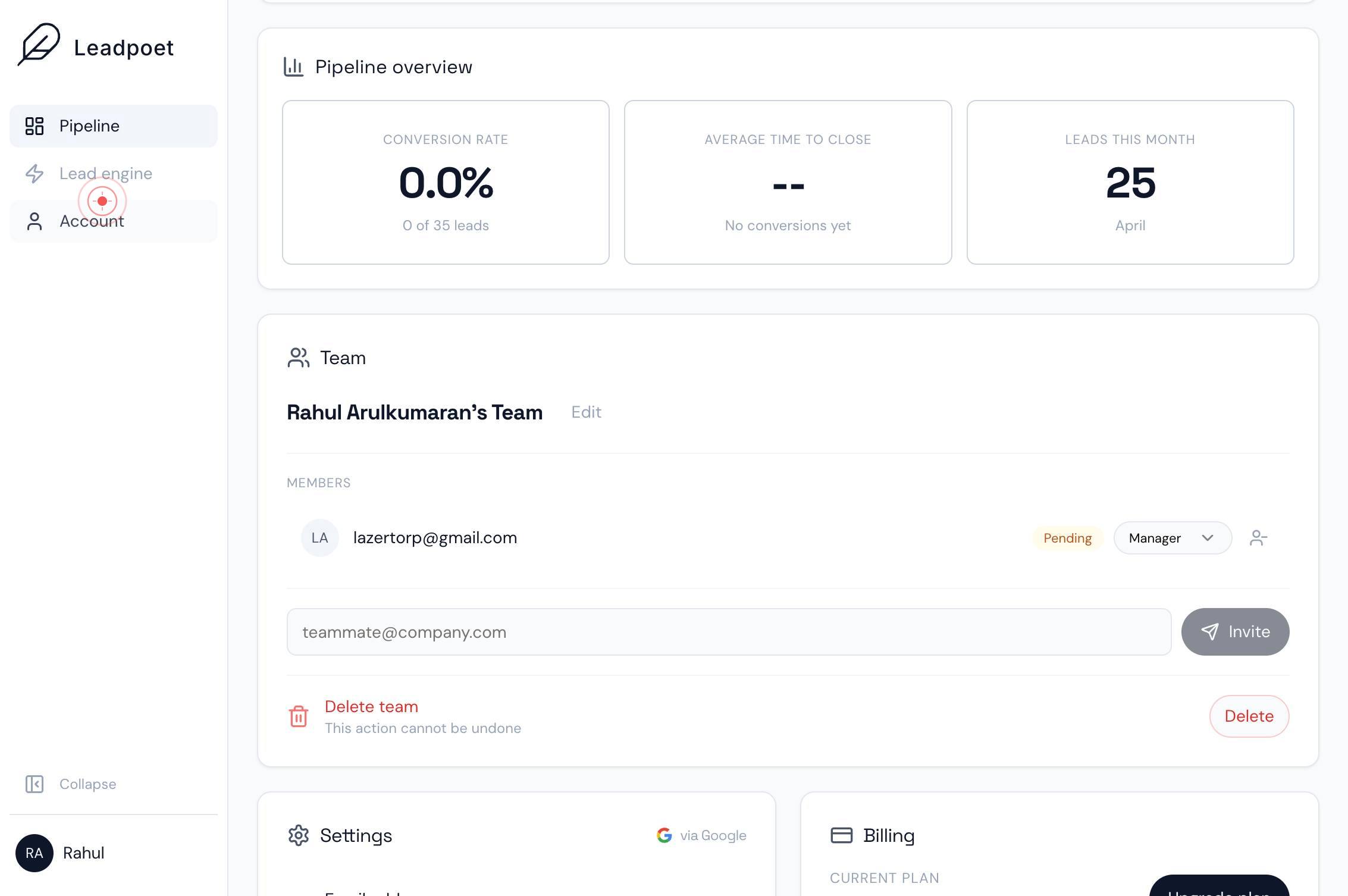
EditClick the Edit button next to your team name to enter edit mode and unlock the team name field for modification.
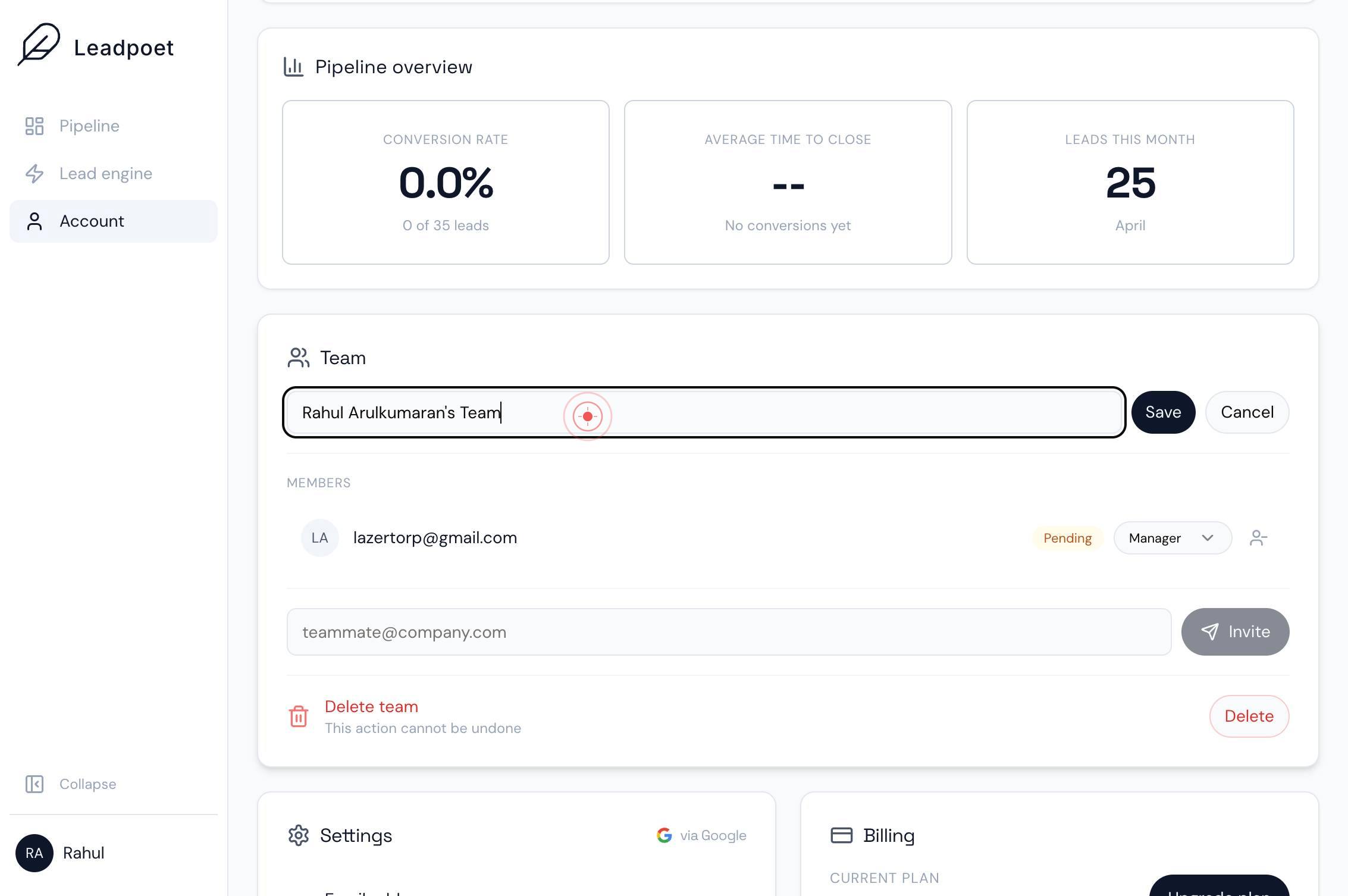
textboxClick on the team name text field to place your cursor and prepare the field for input.
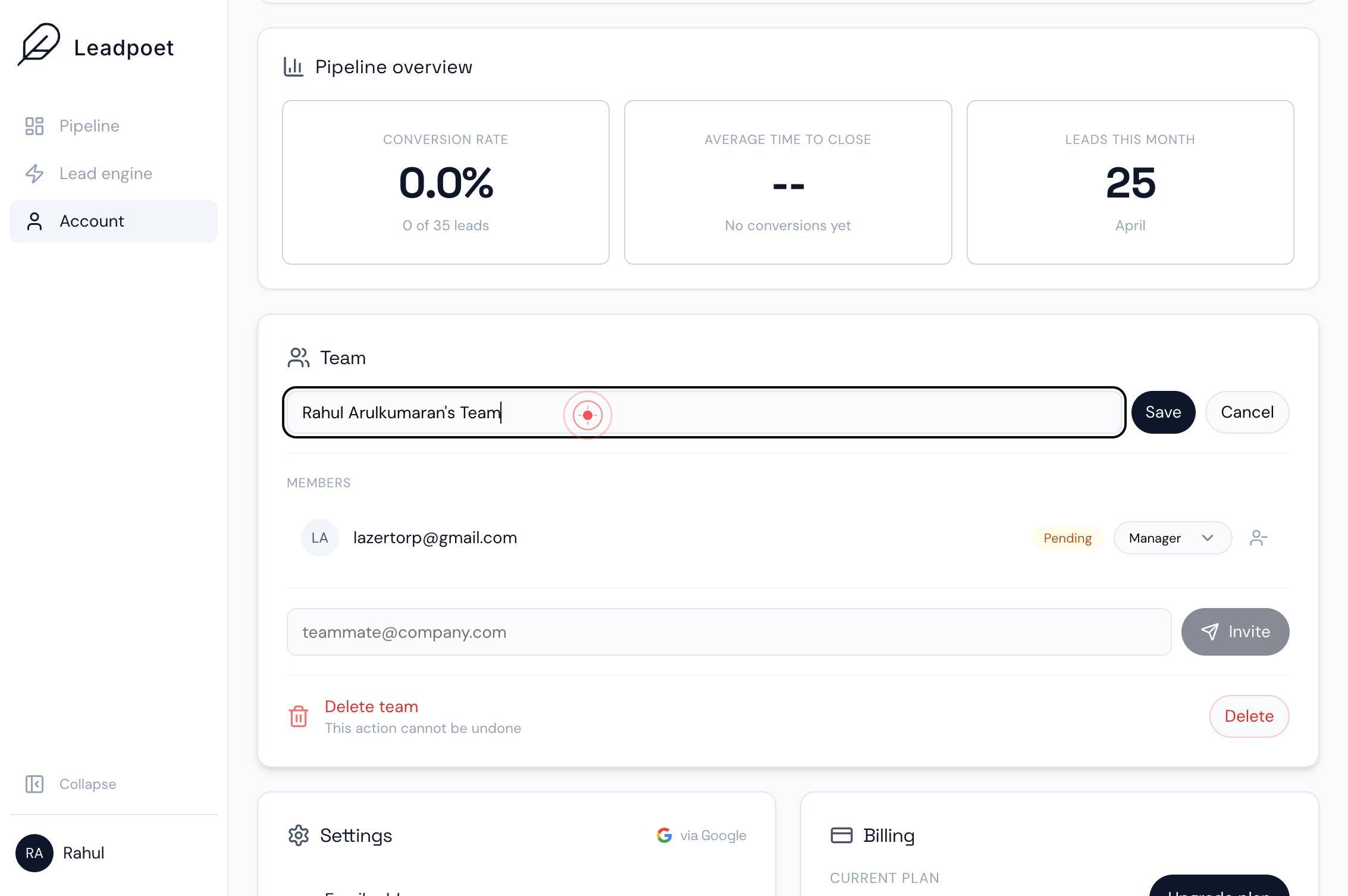
textboxType the new team name into the text field, replacing the current name with your desired name.
SaveClick the Save button to apply and persist your team name change to your LeadPoet account.
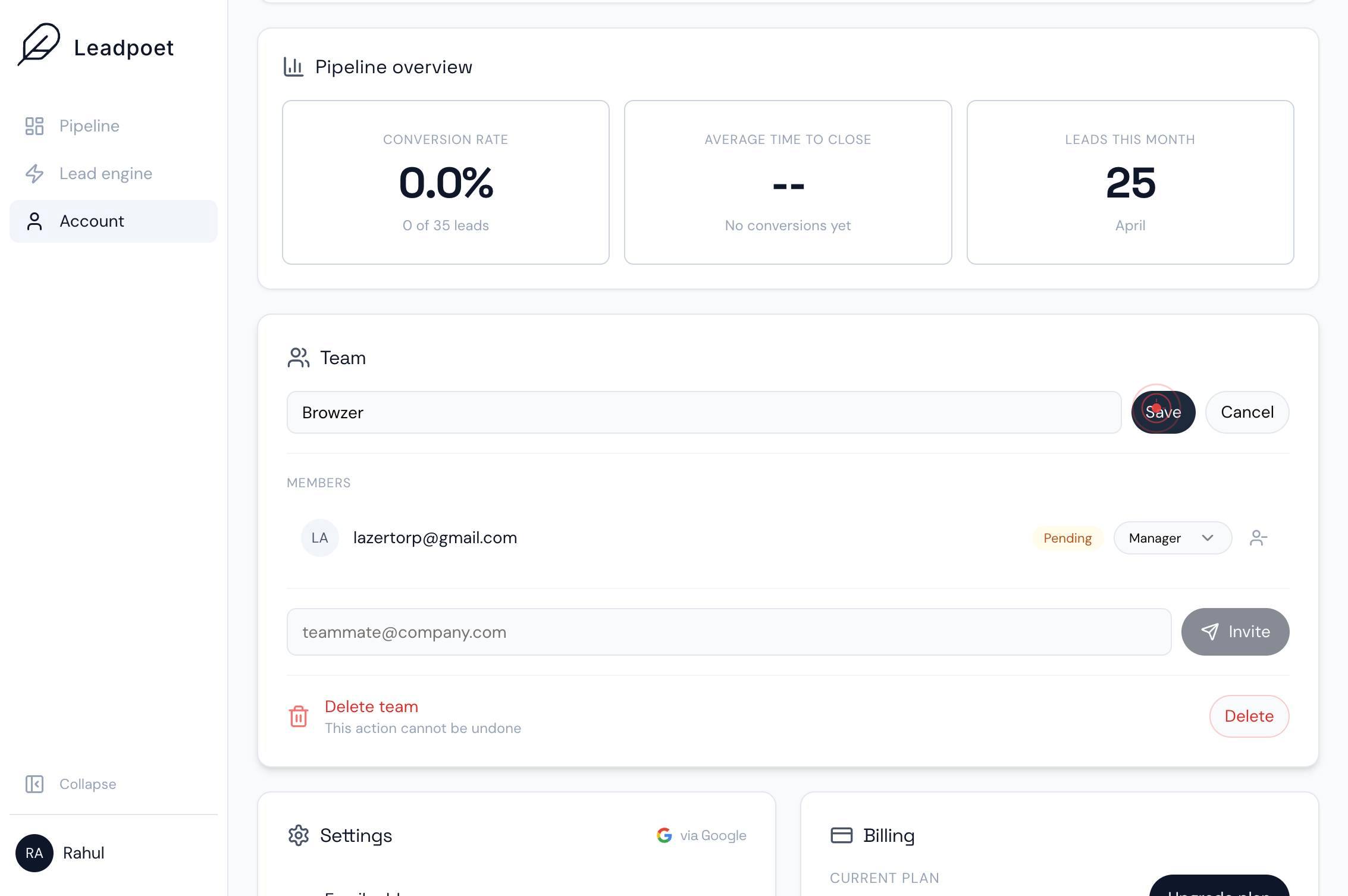
Confirm it worked
- 1After clicking Save, you should see a success confirmation message or return to the Account settings page
- 2The team name field should display the new name you entered
- 3The updated team name should appear in your account profile and team settings
Common issues
Keep reading
Renaming a team - GitHub Docs
# Renaming a team Team maintainers and organization owners can edit the name and description of a team. 1. In the upper-right corner of GitHub, click your profile picture, then click ** Organization
docs.github.comFIRST Inspires
FIRST Inspires Loading ×Sorry to interrupt CSS Error [Refresh](?)
help.firstinspires.orgGive Your Fantasy Squad a Fresh Identity: How to Change Your ESPN Team Name - Oreate AI Blog
Give Your Fantasy Squad a Fresh Identity: How to Change Your ESPN Team Name - Oreate AI Blog You've drafted your team, maybe even made a few savvy free-agent pickups, and now you're staring at your r
oreateai.com