Guide
Add Integrations by Search
Overview
Integrations in Sprinto enable continuous monitoring and data flow from third-party financial and operational systems into your compliance platform. By adding Mercury Finance as an integration, you establish a secure connection that allows Sprinto to pull real-time financial data for audit trails, regulatory compliance checks, and evidence documentation. Mercury Finance integration is particularly valuable for organizations that use Mercury for banking and cash management, as it bridges your financial transactions directly into Sprinto's monitoring framework. This guide walks you through discovering and activating the Mercury Finance integration.
Before you begin
- Active Sprinto account with administrative access to the integrations management area
- Mercury Finance account or business banking relationship (to authenticate after adding the integration)
- Appropriate permissions in your Sprinto workspace to add new integrations
Step by step
SearchClick on the Search field in the integrations marketplace to open the search interface. This field allows you to filter the available integrations by name.
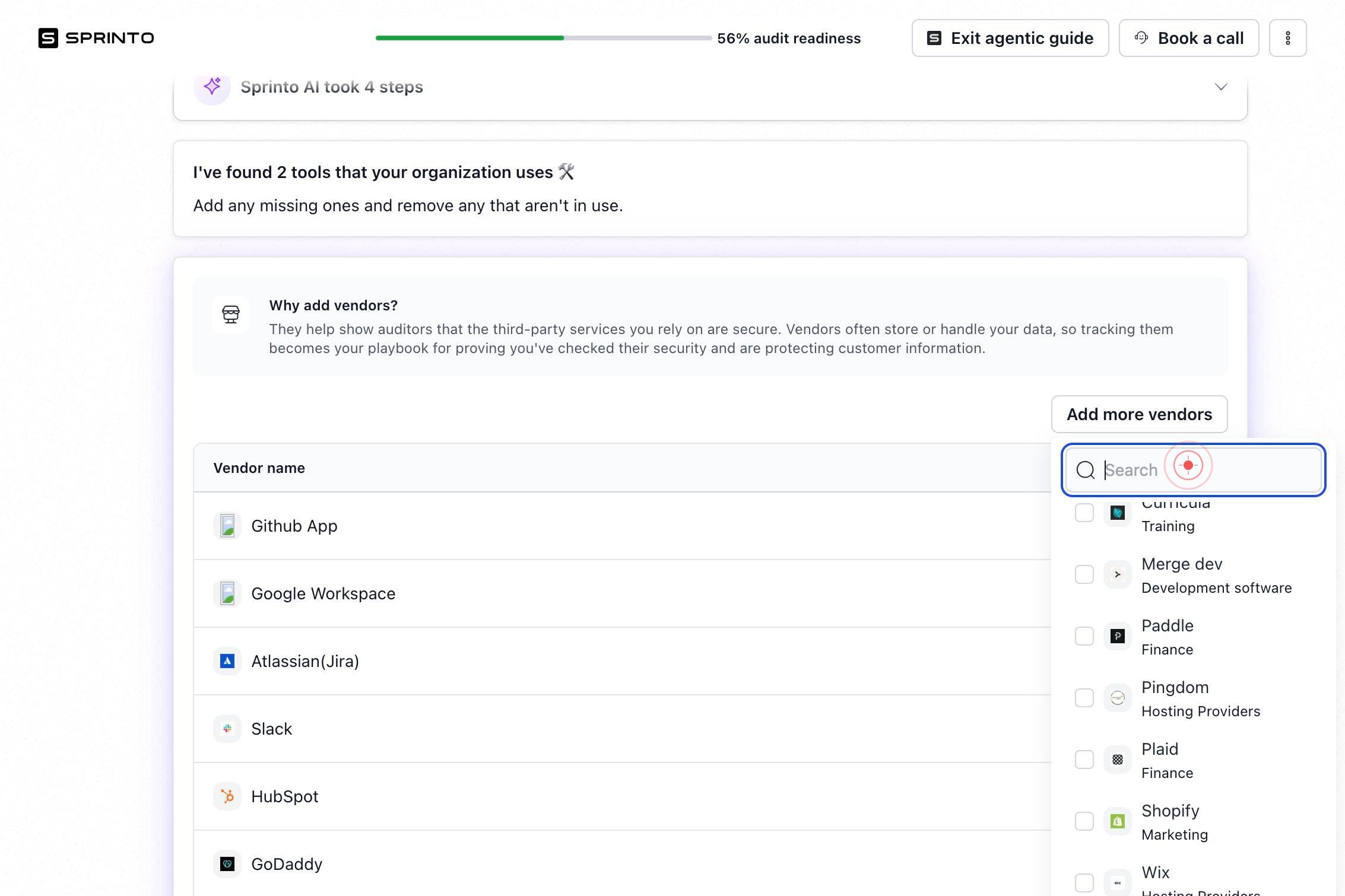
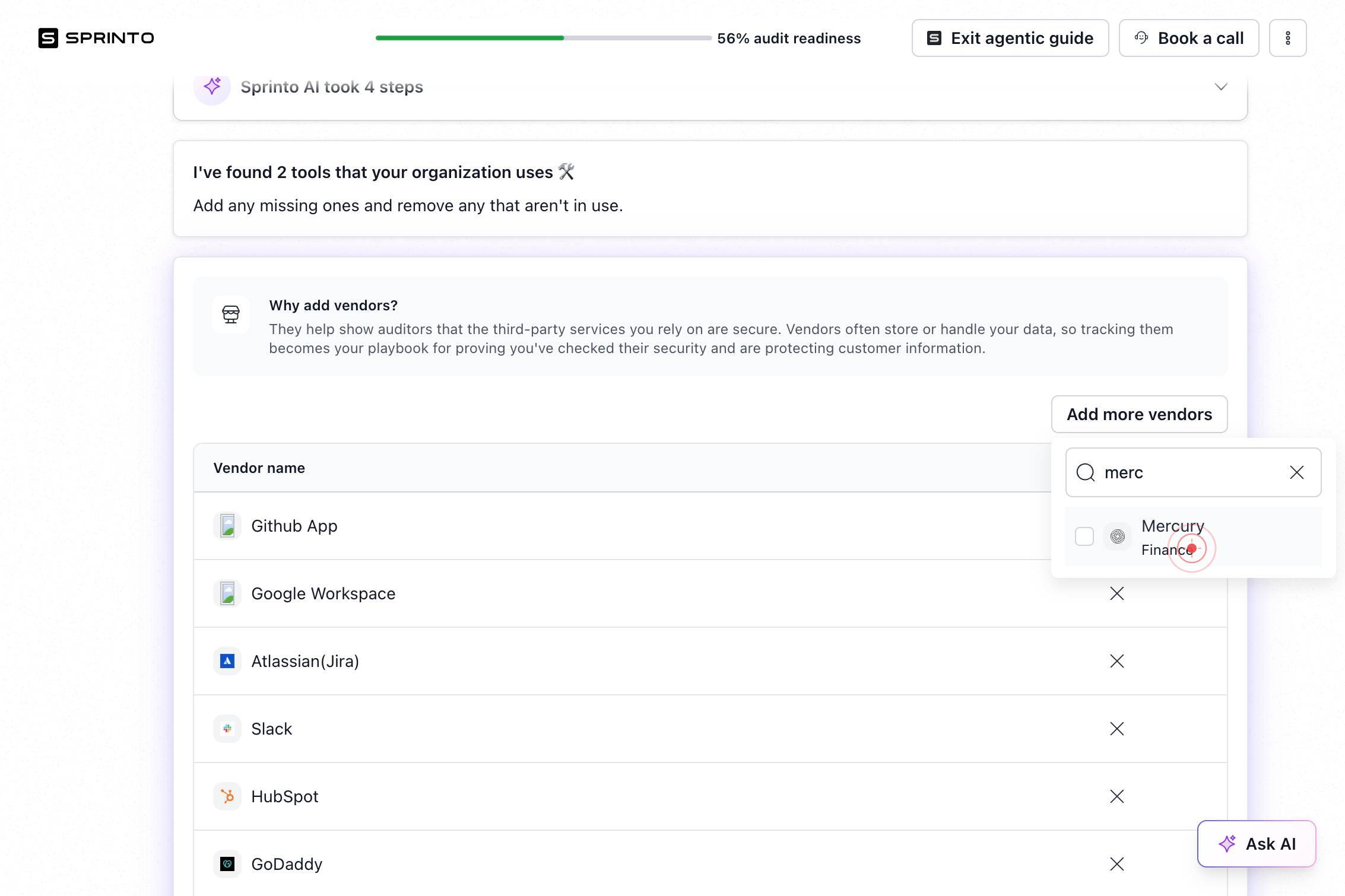
SearchType 'Mercury Finance' into the search field to filter the integration catalog. Sprinto will display matching integrations as you type.
Mercury FinanceClick on the 'Mercury Finance' option that appears in the search results dropdown to select and add it as an integration. This action initiates the integration setup process.
Confirm it worked
- 1Mercury Finance appears in your Active Integrations list on the Integrations dashboard
- 2Integration status shows as 'Connected' or 'Ready to Authenticate' (depending on whether credentials were provided during setup)
- 3You can see Mercury Finance data starting to flow into Sprinto's monitoring and evidence collection (verification may take a few minutes after authentication)
Common issues
Keep reading
Quick Install - AddSearch
Quick Install - AddSearch Introducing AI Conversations: Add ChatGPT-style answers to your website. Try now → ⚠️ If you’re having issues with Cloudflare blocking our crawlers, read the troubleshootin
www-dev.addsearch.comAdd a search or create action - Zapier
> ## Documentation Index > > Fetch the complete documentation index at: https://docs.zapier.com/llms.txt > Use this file to discover all available pages before exploring further. # Add a search or c
docs.zapier.comInstalling AddSearch AI Search & Discovery App
Installing AddSearch AI Search & Discovery App - AddSearch[Skip to content](#content) [![AddSearch Logo](https://www.addsearch.com/wp-content/themes/hello-elementor-child/src/assets/img/add_search_log
addsearch.com