Guide
Invite User to Sprinto
Overview
Sprinto is a collaborative platform that allows teams to manage projects, sprints, and organizational workflows. To enable team collaboration, you need to invite members to your Sprinto organization. The member invitation feature, found in your account settings, lets you add users by their email address and control who has access to your organization's data and projects. This is essential for onboarding new team members and managing your workspace permissions.
Before you begin
- You must be logged into your Sprinto account at app.sprinto.com
- You must have admin or owner-level permissions in your Sprinto organization to access the member invitation feature
- You must have the email address of the user you want to invite
- The user's email address should be valid and actively monitored (they will receive an invitation email)
Step by step
More optionsClick the 'More options' button (typically a three-dot menu icon) in the top navigation or account menu to reveal additional account and organization management features.
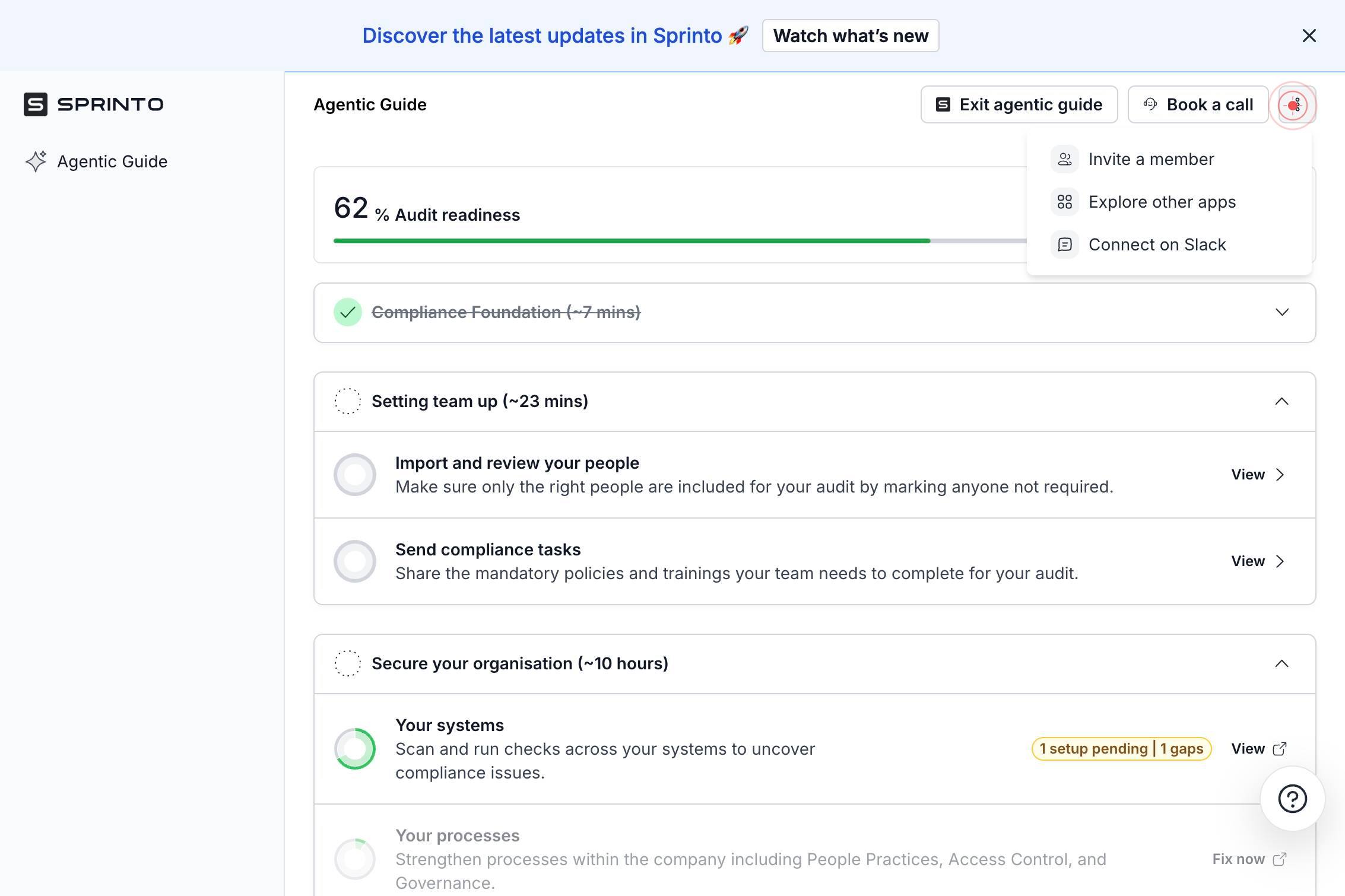
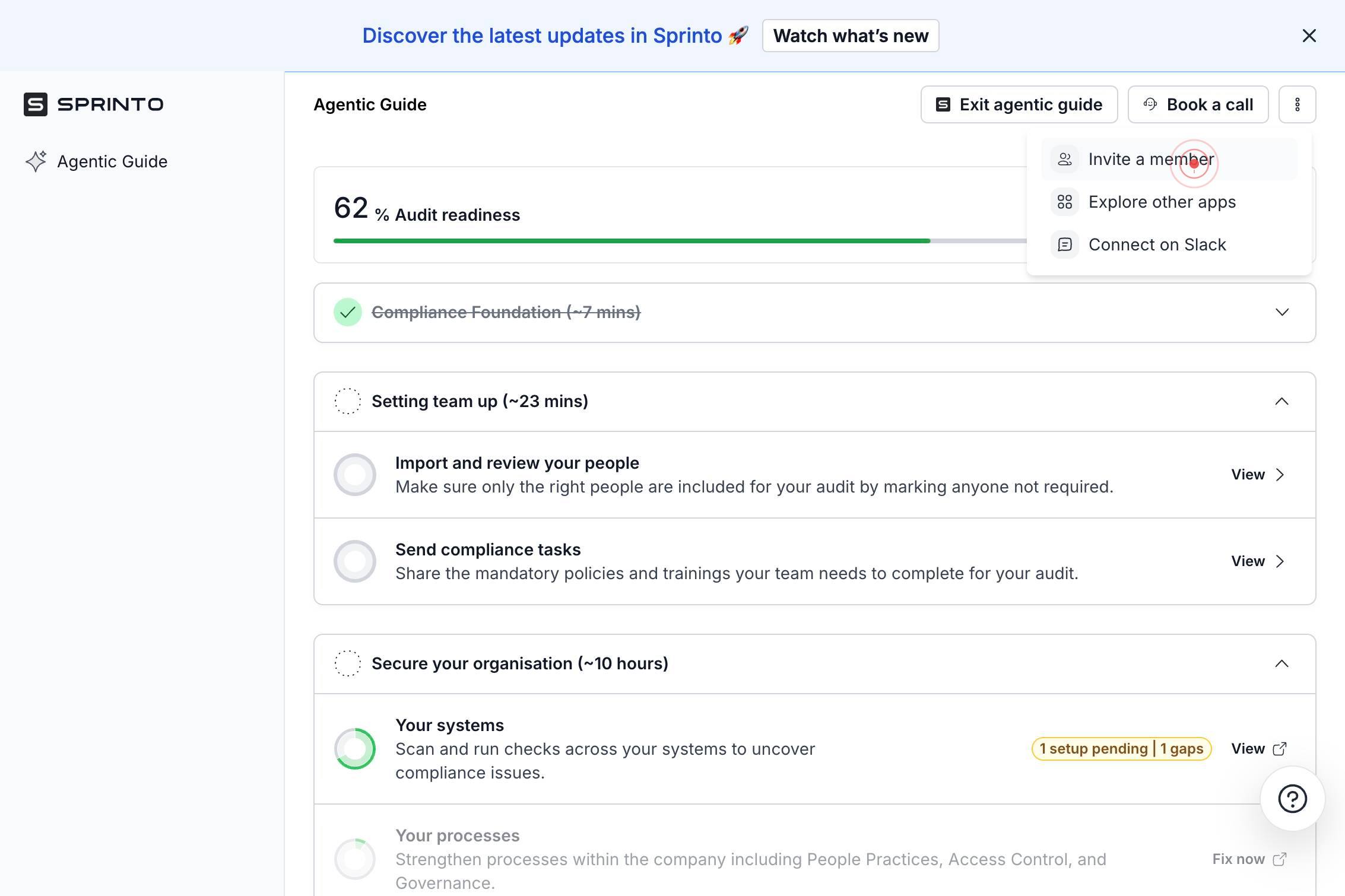
Invite a memberClick 'Invite a member' from the dropdown menu to open the member invitation dialog.
Enter emailClick the 'Enter email' text field to activate the input box where you will type the email address of the user you want to invite.
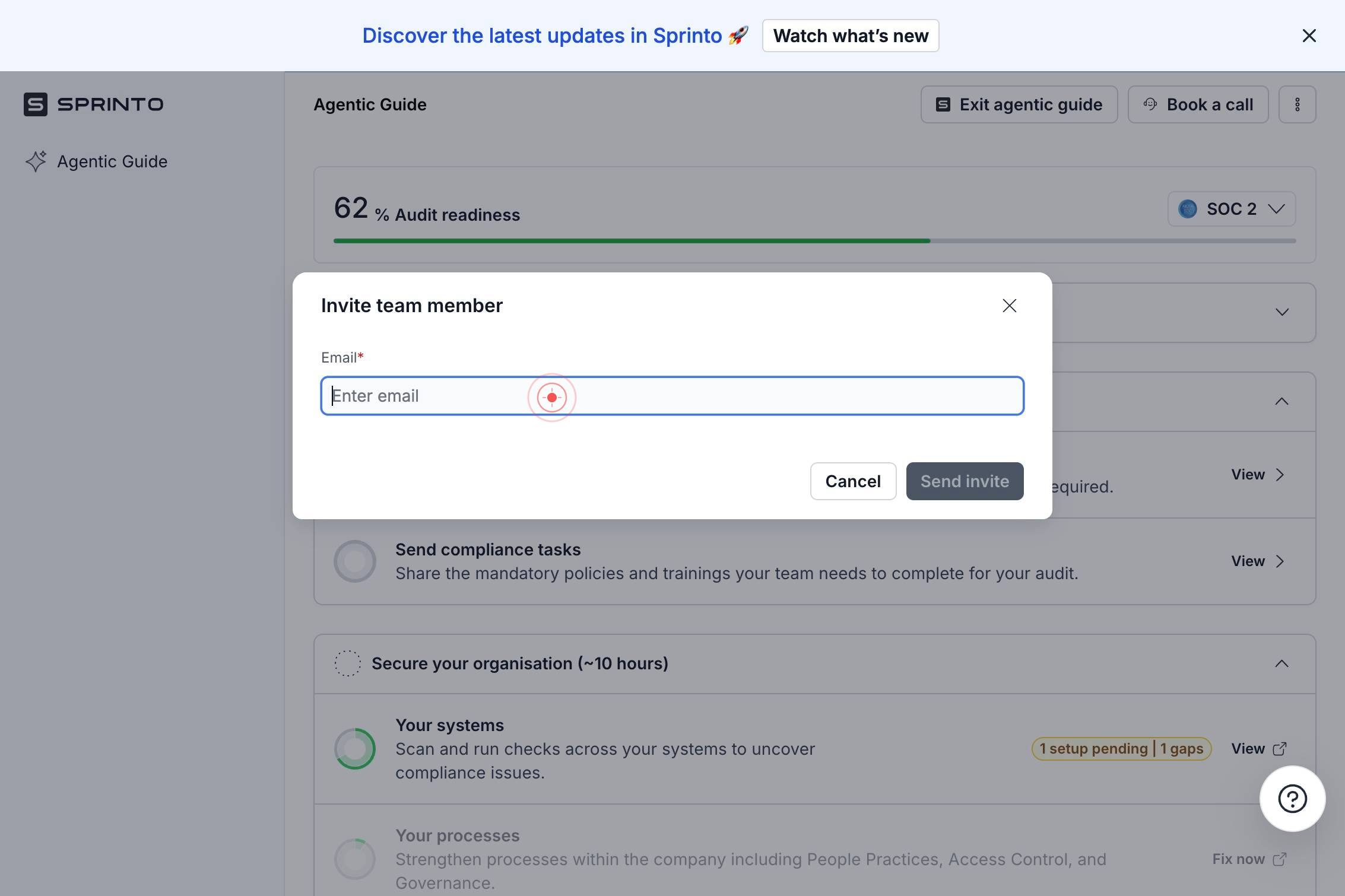
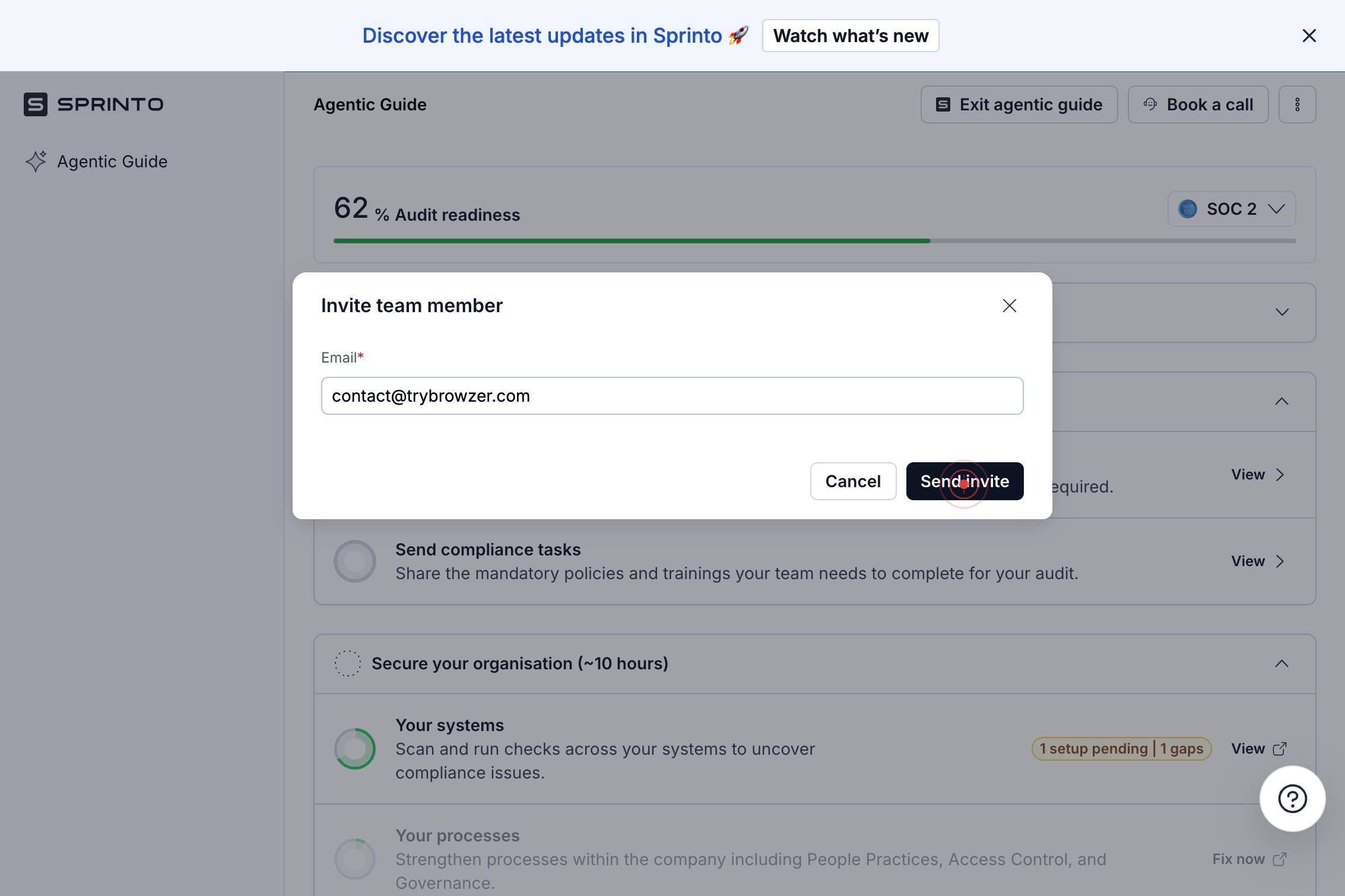
Enter emailType the email address of the user you wish to invite into the 'Enter email' field. Ensure the email address is spelled correctly and is the address the user actively monitors.
Send inviteClick the 'Send invite' button to dispatch the invitation email to the entered email address. The user will receive an email with a link to join your Sprinto organization.
Confirm it worked
- 1After sending the invite, you should see a confirmation message or notification indicating the invitation was sent successfully
- 2The invited user's email address should now appear in your Members list (found in Settings > Members) with a status showing 'Invited' or 'Pending'
- 3The invited user will receive an email from Sprinto with an invitation link to join your organization
Common issues
Keep reading
Invite Sprinto
Invite Sprinto - Sprinto # Invite Sprinto ## Inviting Sprinto ## Method 1[#](#method-1) ![Image](https://sprintobot.com/images/sprint-add-app_hu09ea521577a41cf28e20e6ada053bd33_
sprintobot.comMembers | Sprinto Docs
# Members The Members section in Sprinto, located under Settings, allows you to view, add, edit, and remove users who have access to your organisation’s Sprinto account. This section also enables you
docs.sprinto.comSetting up Sprinto - Sprinto
Setting up Sprinto - Sprinto # Setting up Sprinto ## Optional steps Once you’ve Invited Sprinto to your Discord Server, you can start sprinting right away. However, there’s many optional steps you
sprintobot.com