Guide
Connect Google Workspace
Overview
Sprinto is a compliance and access management platform that integrates with Google Workspace to automate access reviews and enforce group-based compliance policies. By connecting Google Workspace, you enable Sprinto to read employee group data and group membership information, which is essential for managing identity governance and conducting automated compliance checks. This integration bridges your Google Workspace instance with Sprinto's compliance workflows, allowing you to maintain accurate employee records and streamline access provisioning across your organization.
Before you begin
- A Google Workspace account with administrator or workspace owner privileges
- Access to the Sprinto app at app.sprinto.com (ensure you are logged in)
- The email address associated with your Google Workspace account (e.g., rahul@trybrowzer.com)
Step by step
ConnectClick the 'Connect' button in the Sprinto app to begin the Google Workspace connection process. This initiates the authorization workflow and prepares the app to request access to your Google account.
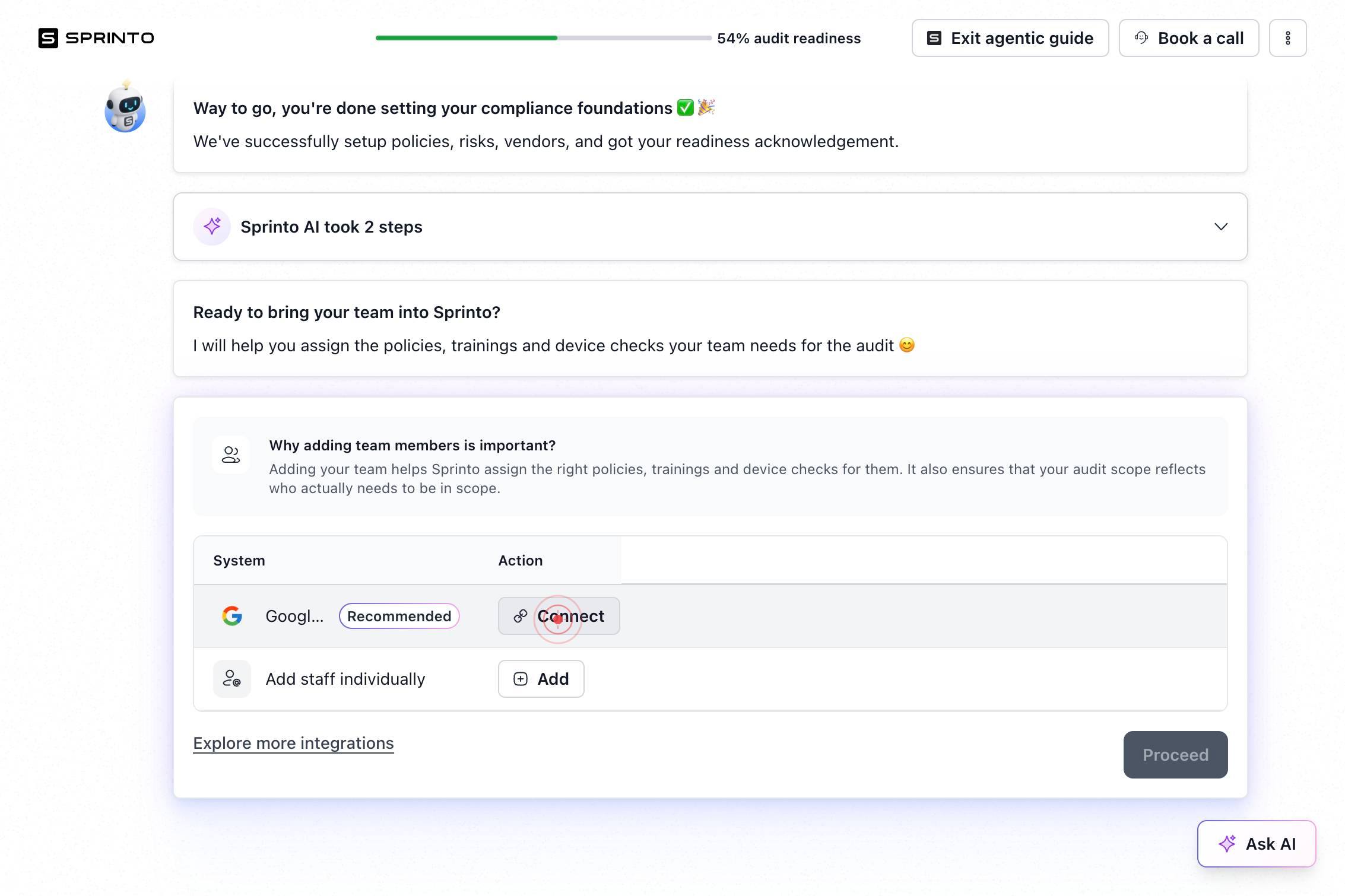
The system switches to a new browser tab to complete the Google authentication and permission flow. Your original Sprinto tab will remain open in the background and will be returned to once authorization is complete.
Connect Google WorkspaceClick the 'Connect Google Workspace' button on the Sprinto authorization dialog. This button explicitly initiates the Google Workspace connection flow and redirects you to Google's login and permissions page.
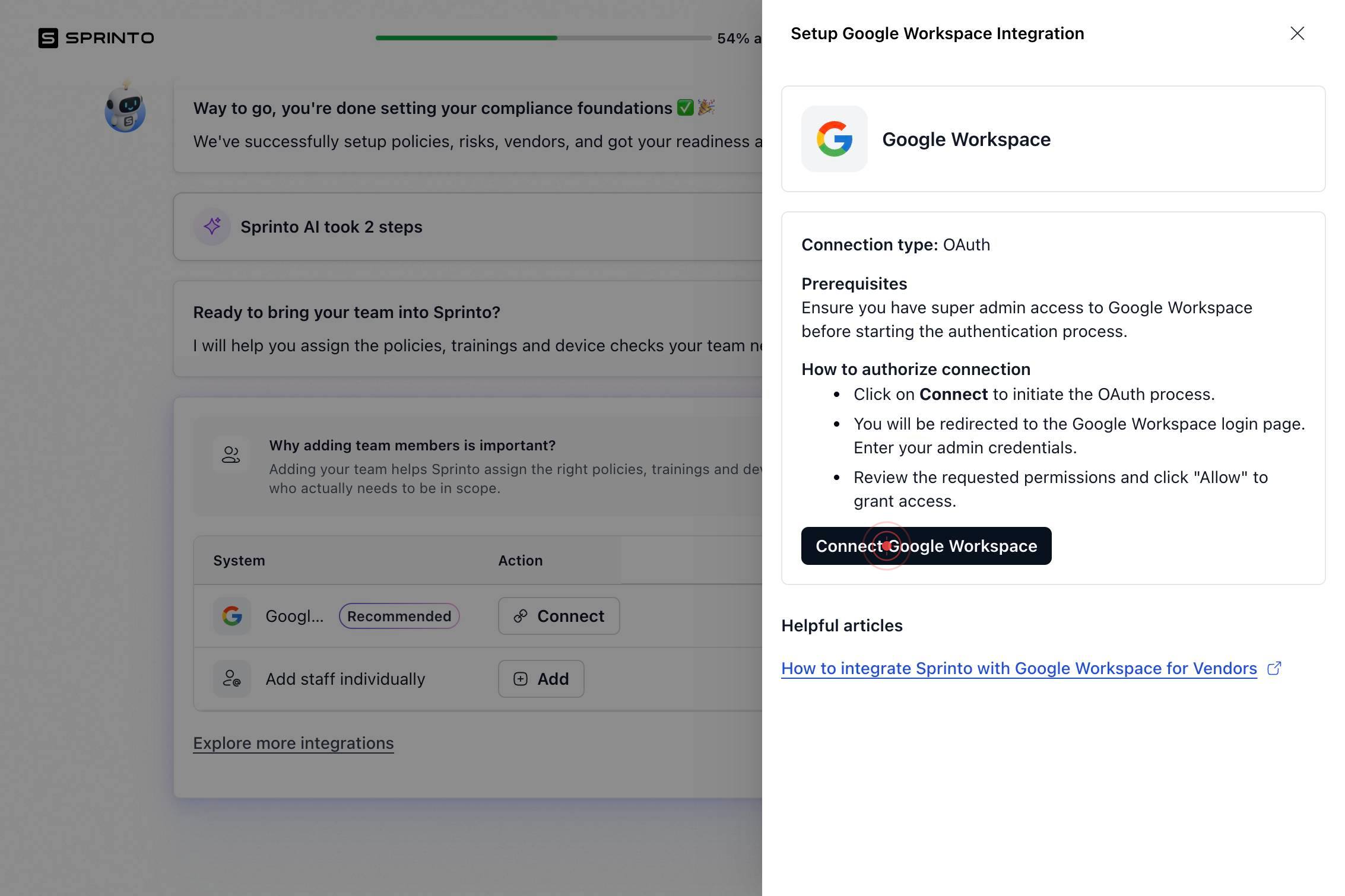
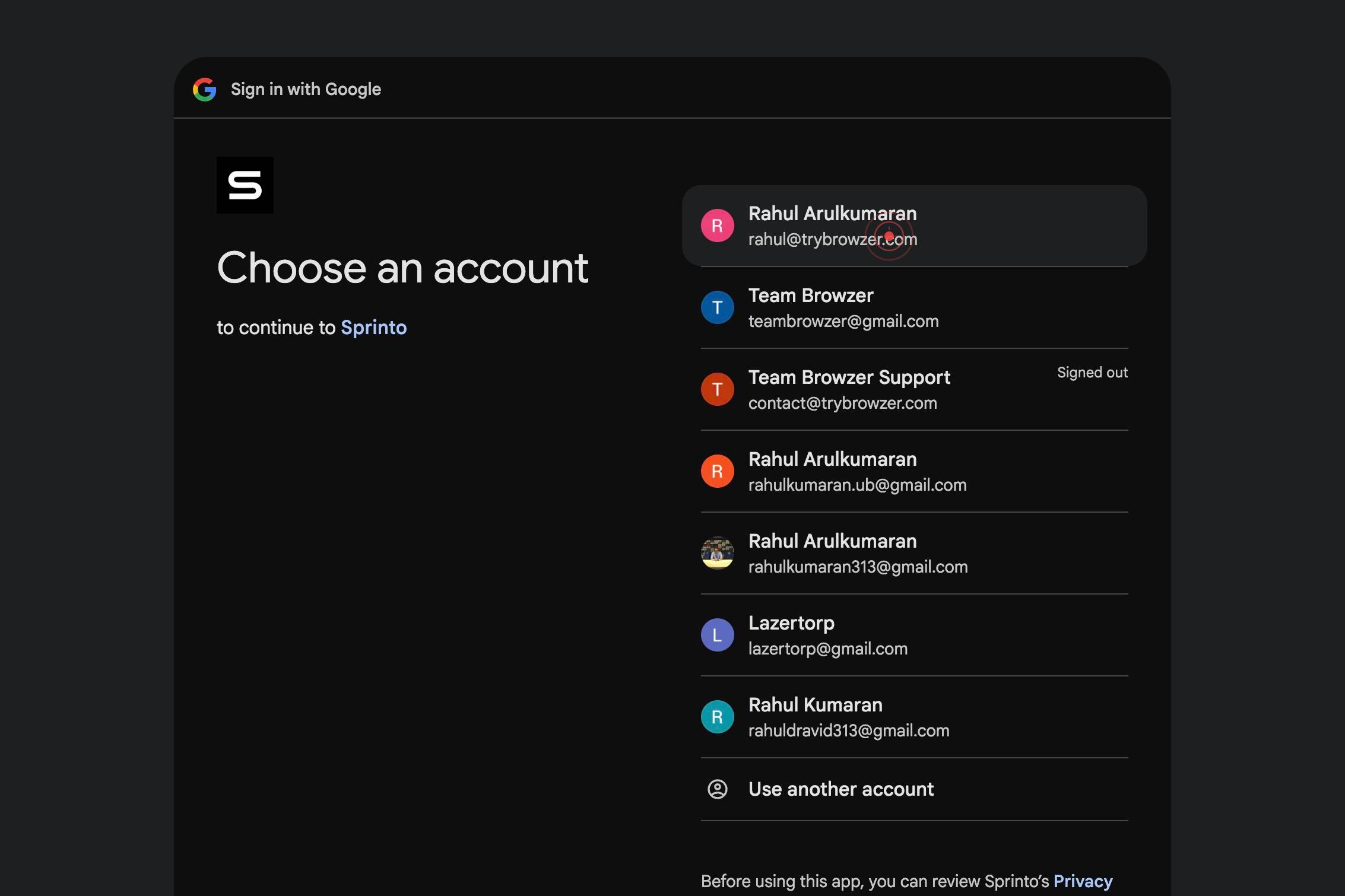
The browser navigates to Google's account authentication page (accounts.google.com). This is Google's official login portal where you will authenticate with your Google Workspace credentials.
Rahul Arulkumaran rahul@trybrowzer.comClick on your Google Workspace email address (shown as 'Rahul Arulkumaran rahul@trybrowzer.com') to select and authenticate with that account. If you are already logged in to Google, this confirms which account you are authorizing.
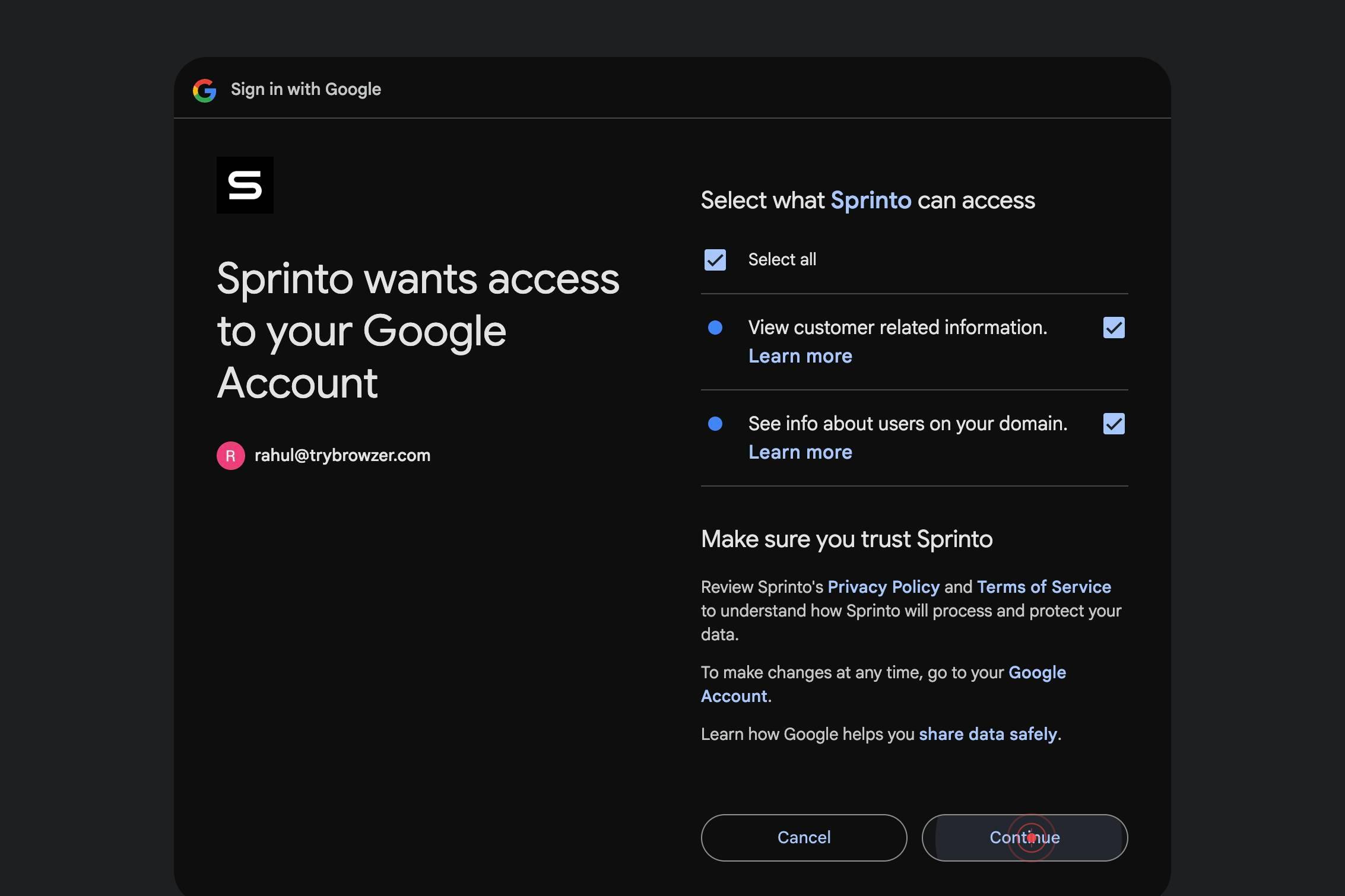
The page refreshes on accounts.google.com to display the permission and scope consent screen. This shows all the permissions that Sprinto is requesting from your Google Workspace account.
Select allClick the 'Select all' checkbox to grant Sprinto all requested permissions. This ensures that Sprinto has full access to read employee group data, group memberships, and other required information for compliance automation.
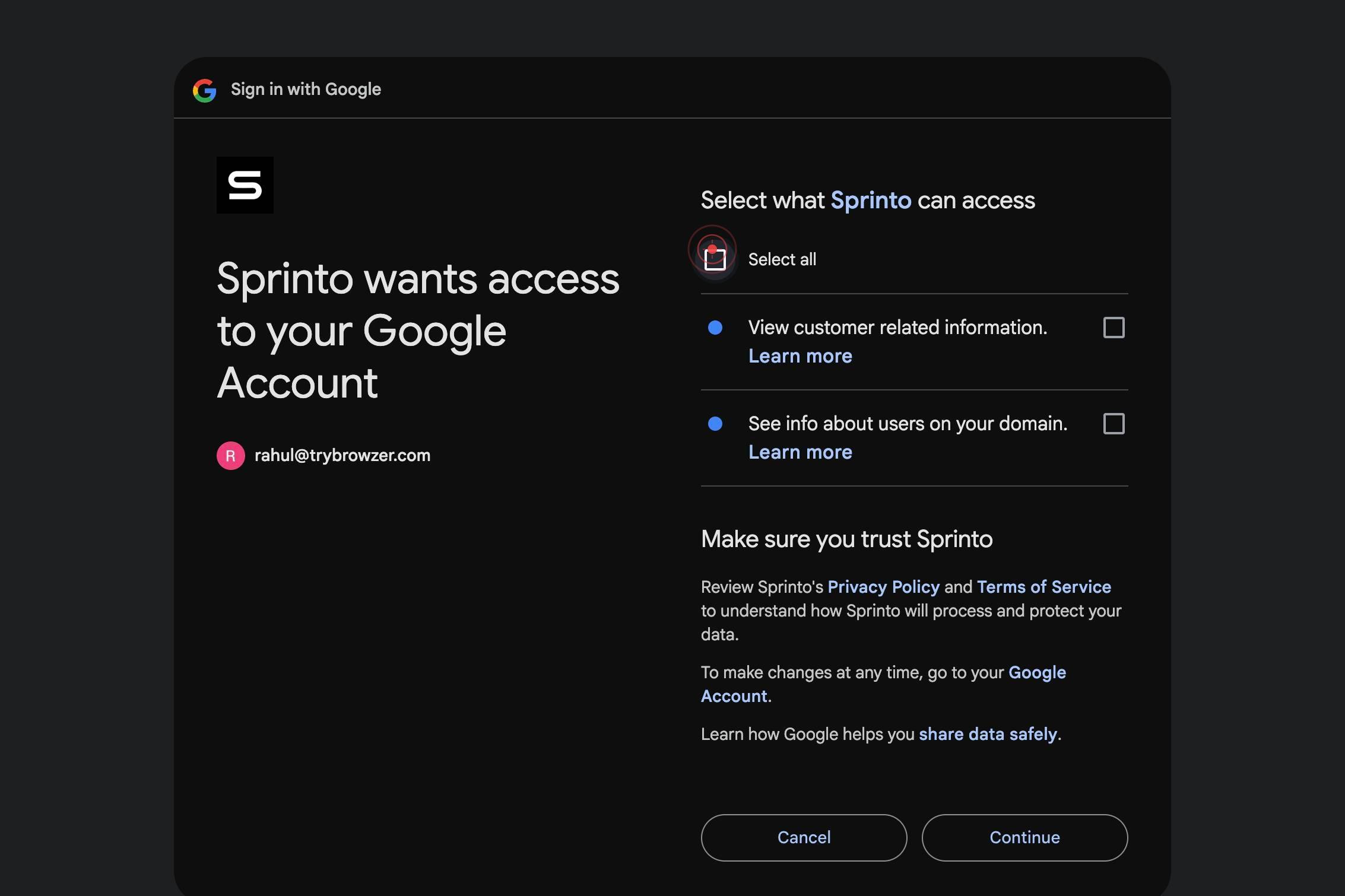
ContinueClick the 'Continue' button to confirm and submit your permission grant to Google. This action authorizes Sprinto to access your Google Workspace account with all selected permissions.
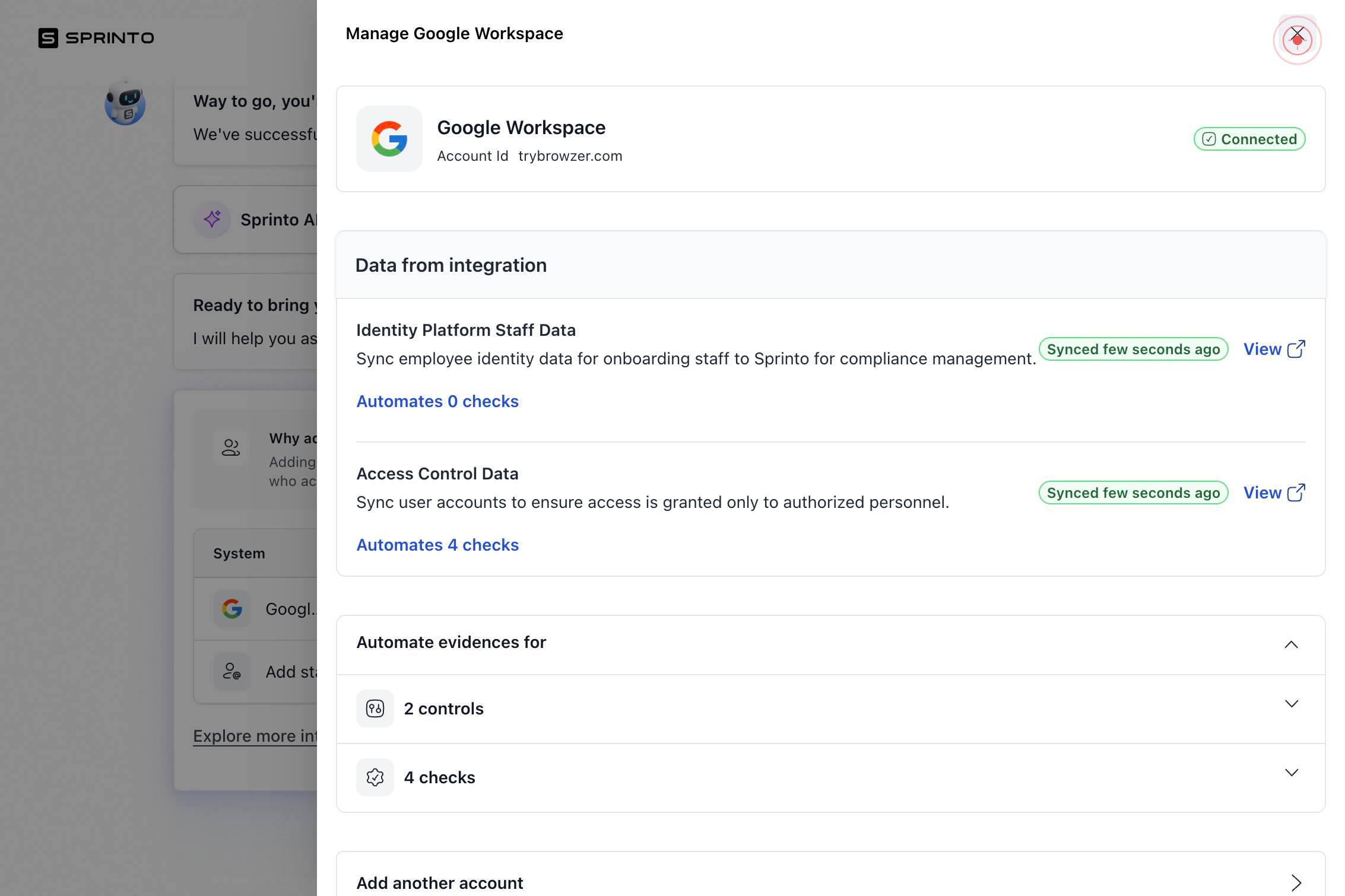
The browser navigates back to app.sprinto.com, completing the authorization flow. Sprinto has now been granted access to your Google Workspace account, and the integration is being finalized.
MClick the 'M' button (likely a user profile or menu button) on the Sprinto app interface. This may be a confirmation or navigation step to access your account settings or integration status.
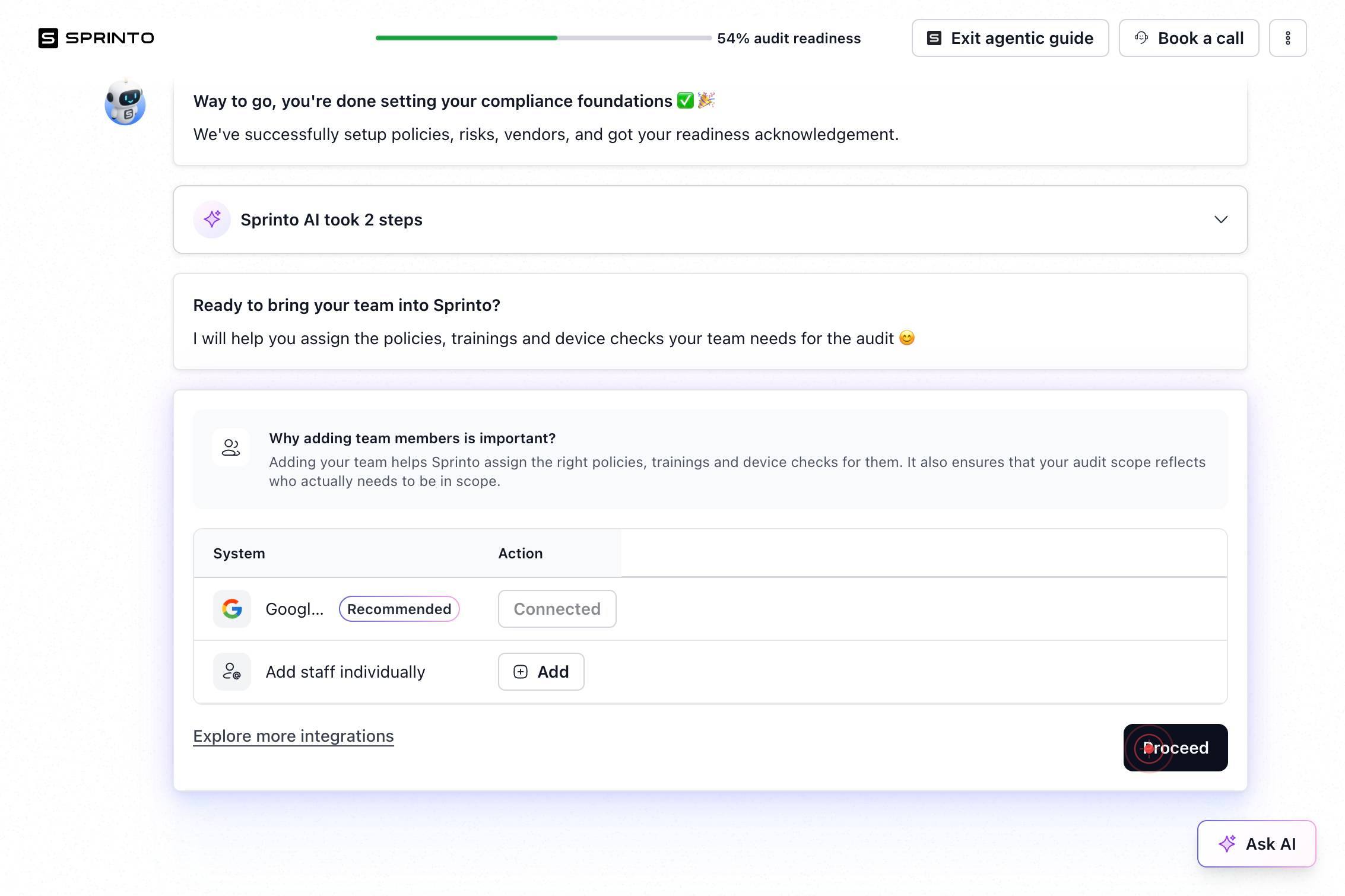
ProceedClick the 'Proceed' button to finalize the Google Workspace connection and return to the main Sprinto interface. This confirms the integration and completes the setup process.
Confirm it worked
- 1After completing the workflow, you should be redirected back to app.sprinto.com with a confirmation or status screen
- 2The Google Workspace integration should appear as 'connected' or 'active' in Sprinto's integrations or settings page
- 3You should see confirmation that Sprinto now has access to read Google Workspace employee groups and membership data
- 4Any subsequent access review or compliance check workflows in Sprinto should be able to pull data from your Google Workspace account
Common issues
Keep reading
Google workspace v2
Redirecting to https://www.conductorone.com/docs/baton/google-workspace-v2
conductorone.comMicrosoft Exchange connector | Integration Connectors | Google Cloud Documentation
Microsoft Exchange connector | Integration Connectors | Google Cloud Documentation # Microsoft Exchange connector The Microsoft Exchange connector lets you perform insert, delete, update, and read o
docs.cloud.google.comGoogle Workspace - Connectors
The Google Workspace connector facilitates automation of tasks across various Google services, enabling efficient workflow management and data processing. Google Workspace, formerly known as G Suite,
docs.swimlane.com