Guide
Add Connector - Hubspot
Overview
Airbyte is a data integration platform that allows you to move data from various sources (like HubSpot) to your data warehouse, lake, or other destinations. To enable Airbyte to access your HubSpot data in real-time, you must first authenticate your HubSpot account through a secure OAuth flow. This workflow walks you through adding a HubSpot connector to Airbyte by completing the OAuth handshake between the two platforms and storing your credentials securely. Once configured, you'll be able to create data pipelines that pull customer, deal, and other HubSpot data into your analytics infrastructure.
Before you begin
- An active Airbyte account with access to app.airbyte.ai
- A HubSpot account (Professional, Enterprise, or equivalent tier) with administrative or integration permissions
- User permissions in HubSpot to authorize third-party applications (verify your user role allows OAuth app connections)
- Web browser with cookies and popups enabled for OAuth redirect handling
Step by step
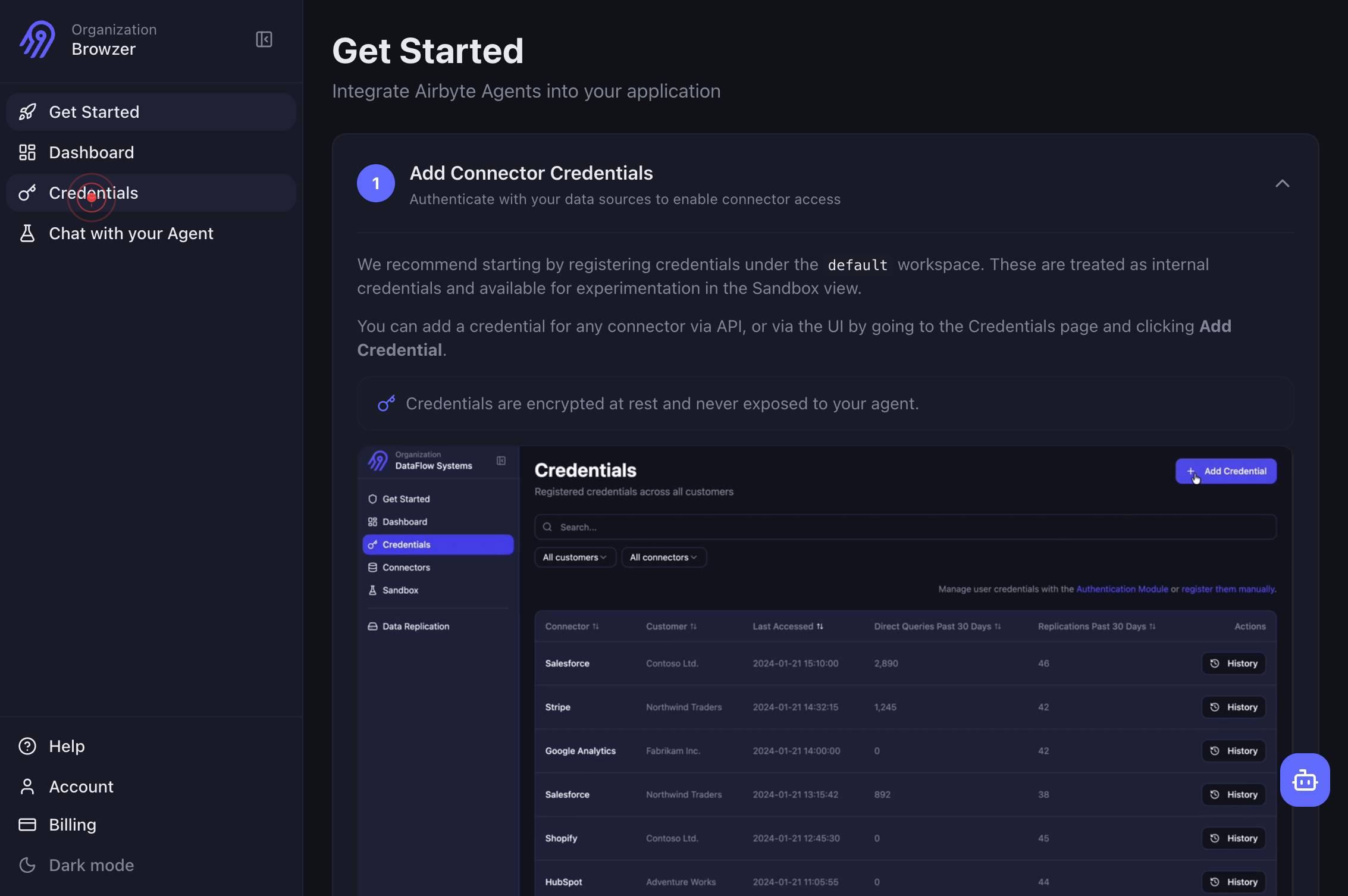
CredentialsNavigate to the Credentials section in Airbyte by clicking the Credentials link in the main navigation. This is where you manage all authentication credentials for your data connectors.
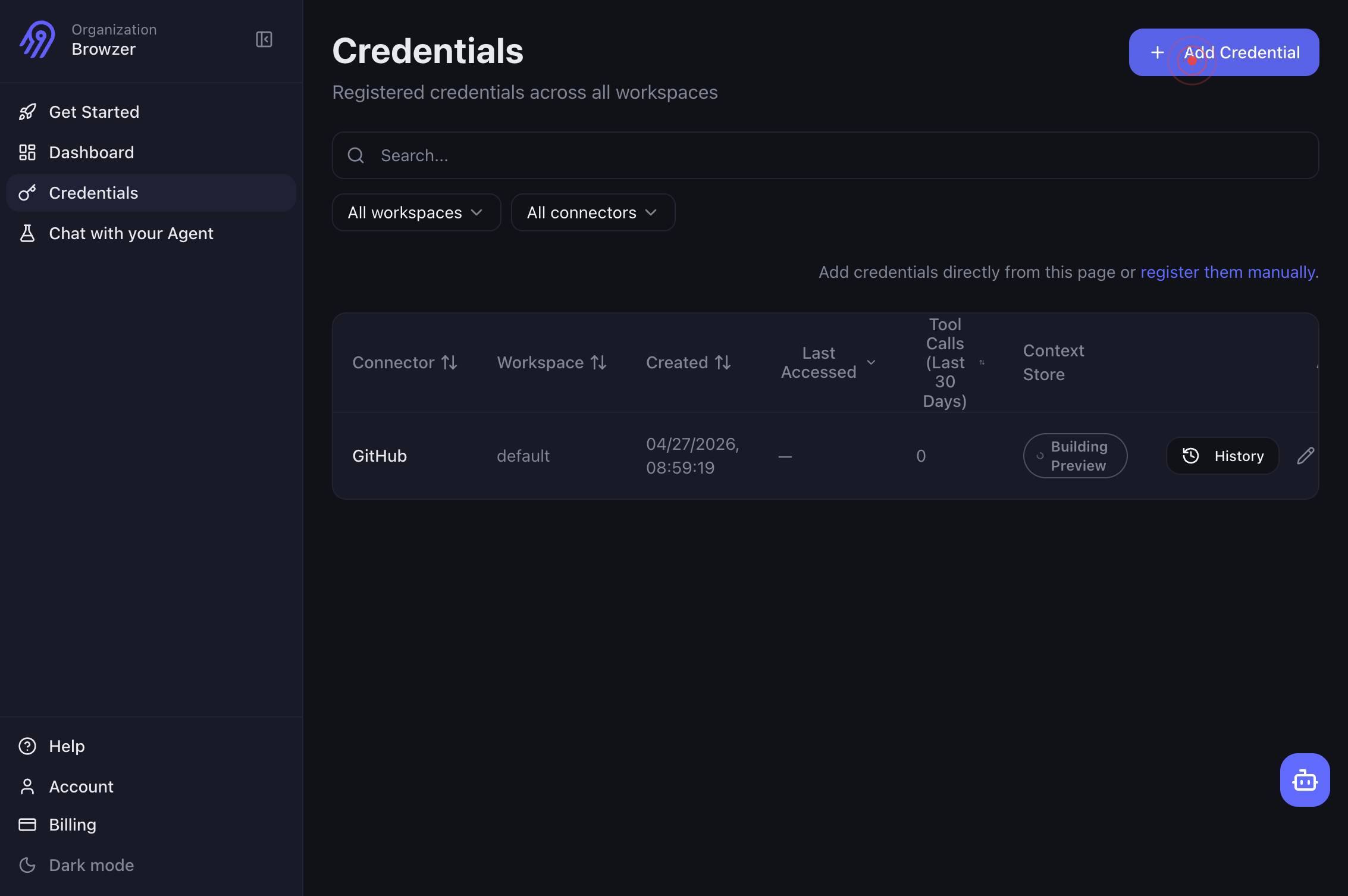
Add CredentialClick the 'Add Credential' button to begin the process of adding a new data source authentication.
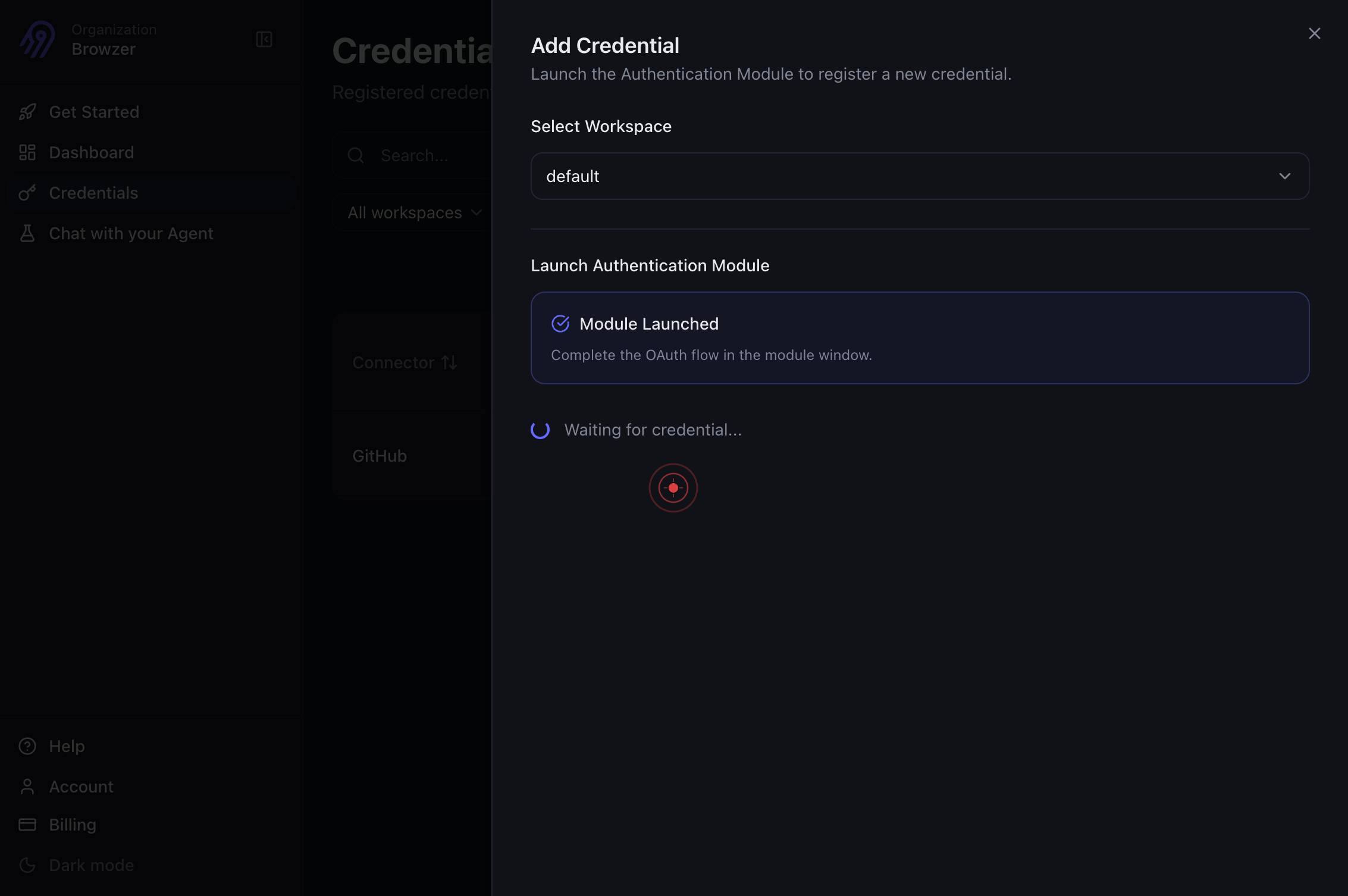
HubSpotSelect HubSpot from the list of available connector types. This tells Airbyte you want to authenticate a HubSpot account.
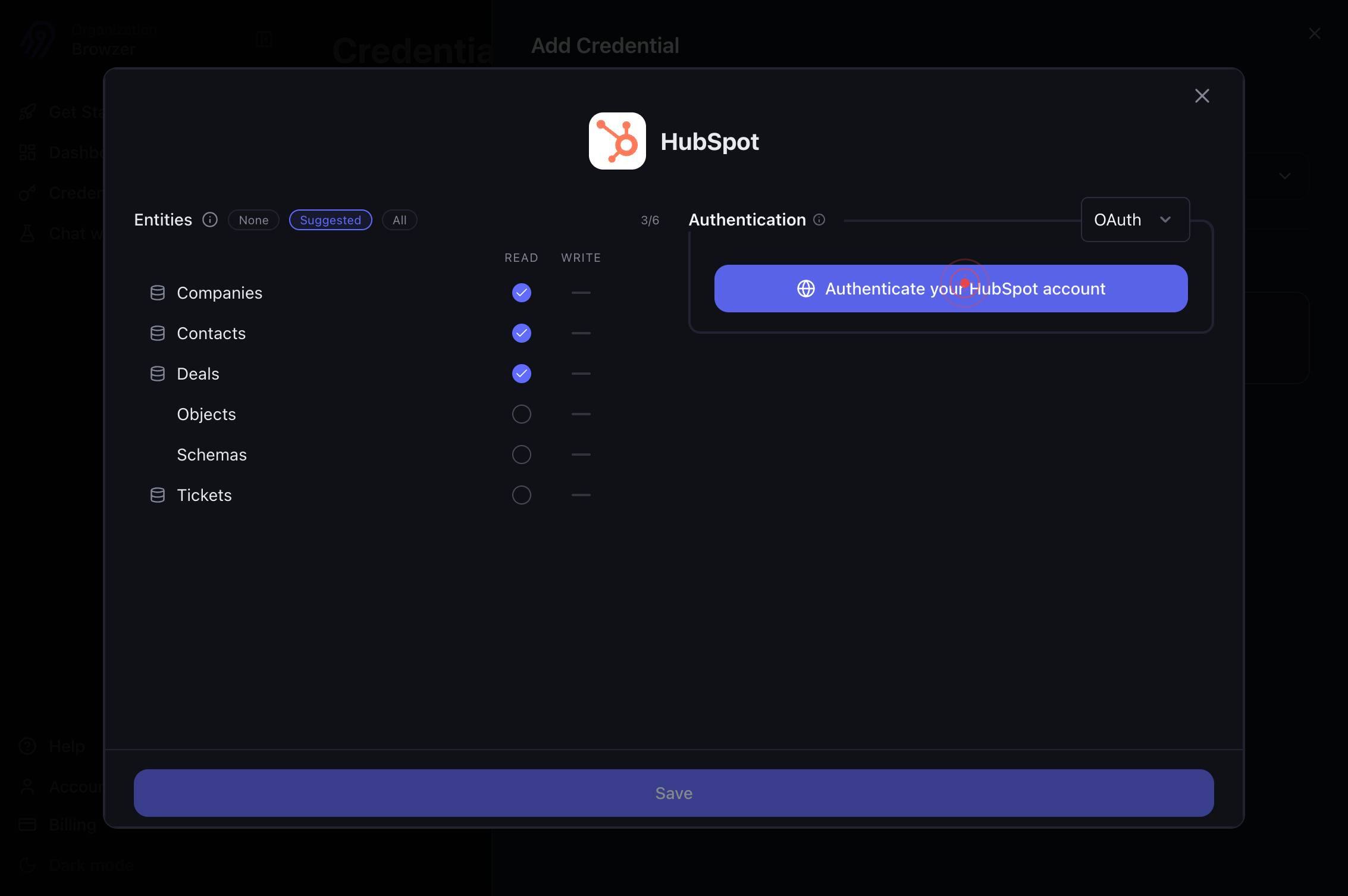
Authenticate your HubSpot accountClick the 'Authenticate your HubSpot account' button to initiate the OAuth authentication flow. This will redirect you to HubSpot's login page.
Switch to the newly opened HubSpot authentication tab that appears in your browser. The OAuth process has opened a separate window for you to log in to HubSpot.
You are now on the HubSpot login page (app.hubspot.com). Enter your HubSpot account credentials here to proceed with the OAuth handshake.
BrowzerSelect the 'Browzer' option (or your preferred authentication method) on the HubSpot login screen to choose how you want to authenticate.
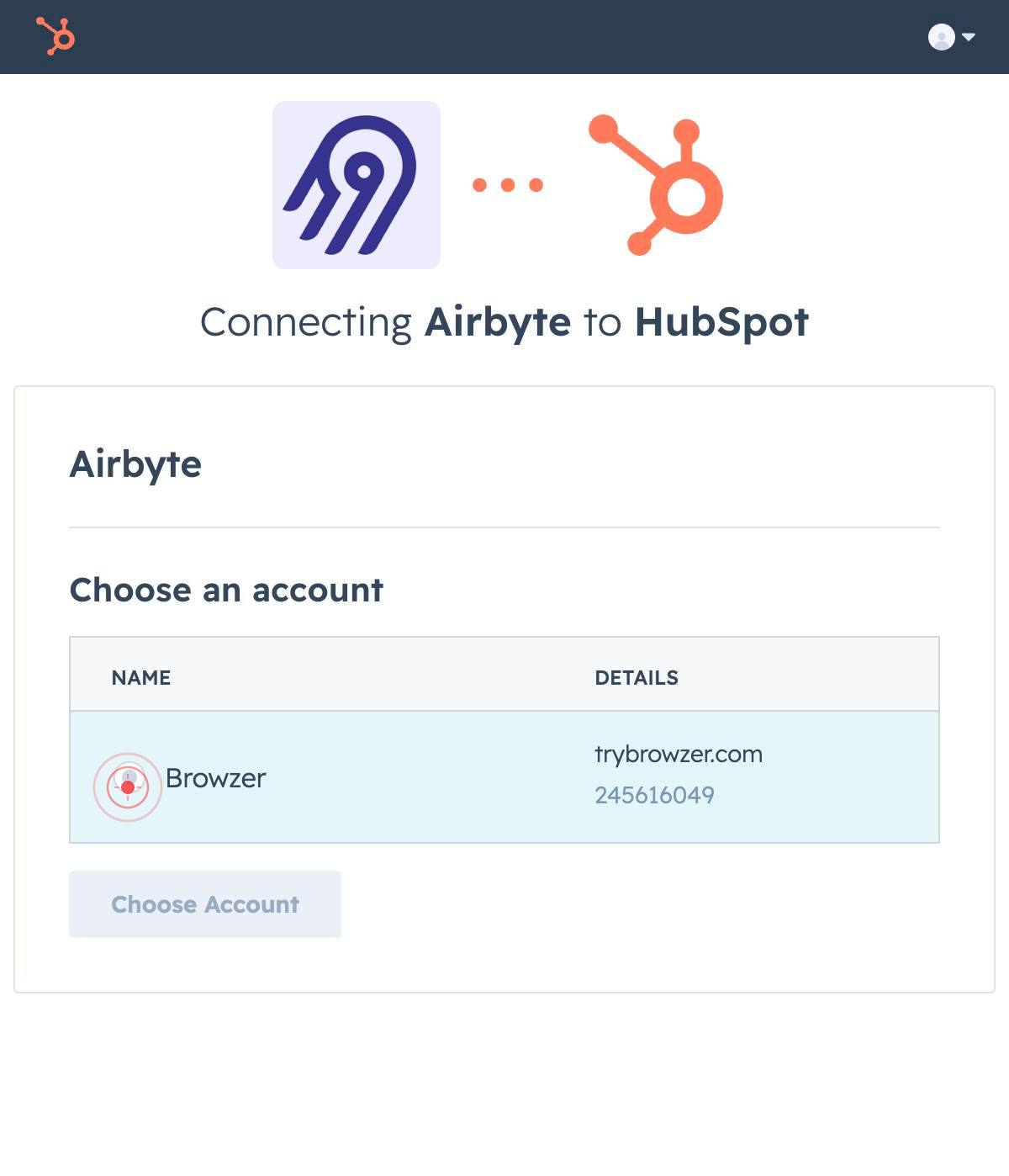
genericClick on the interactive element to proceed with the selected authentication method.
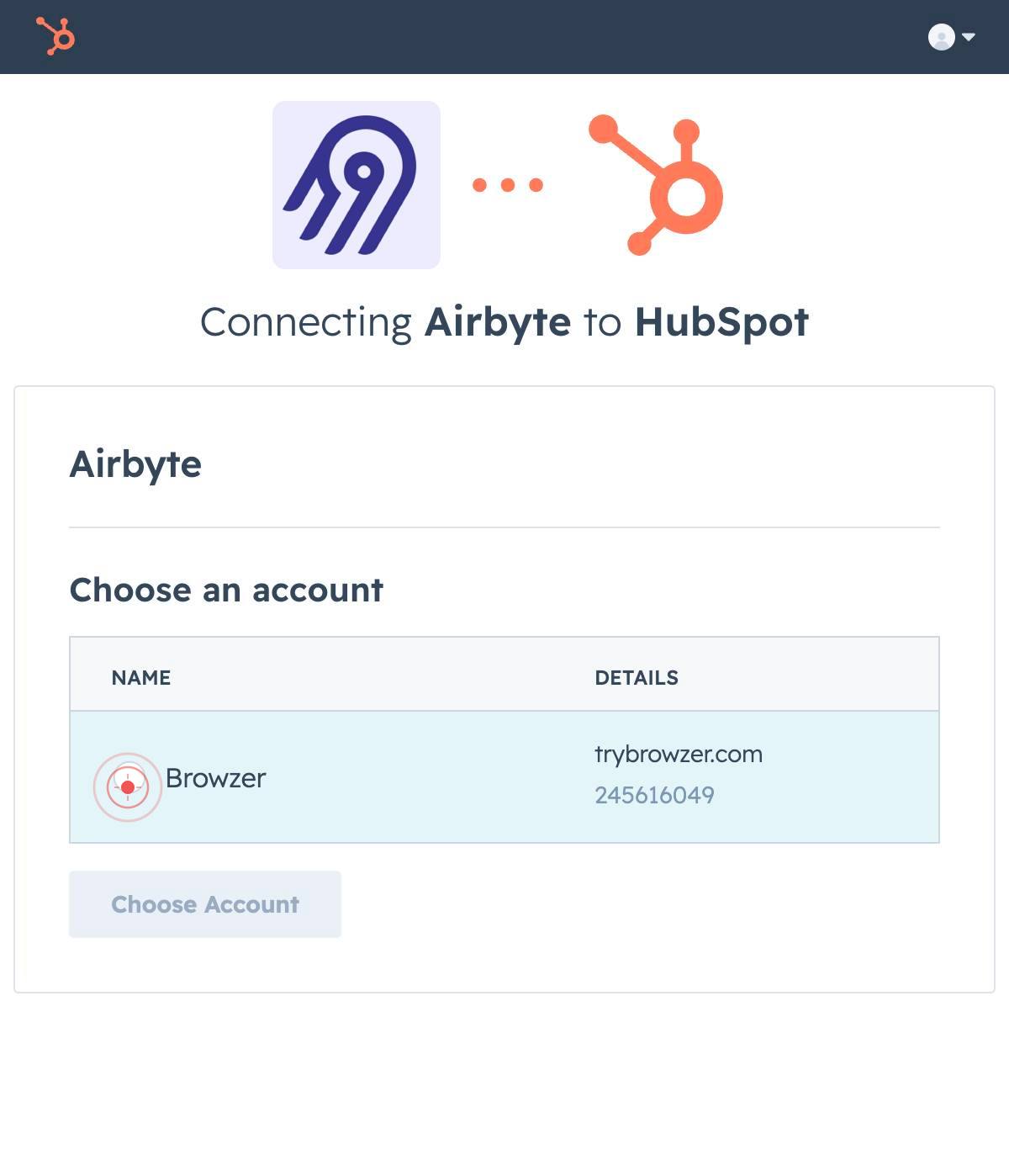
Choose AccountClick the 'Choose Account' button if you have multiple HubSpot accounts. This allows you to select the specific HubSpot workspace you want to connect to Airbyte.
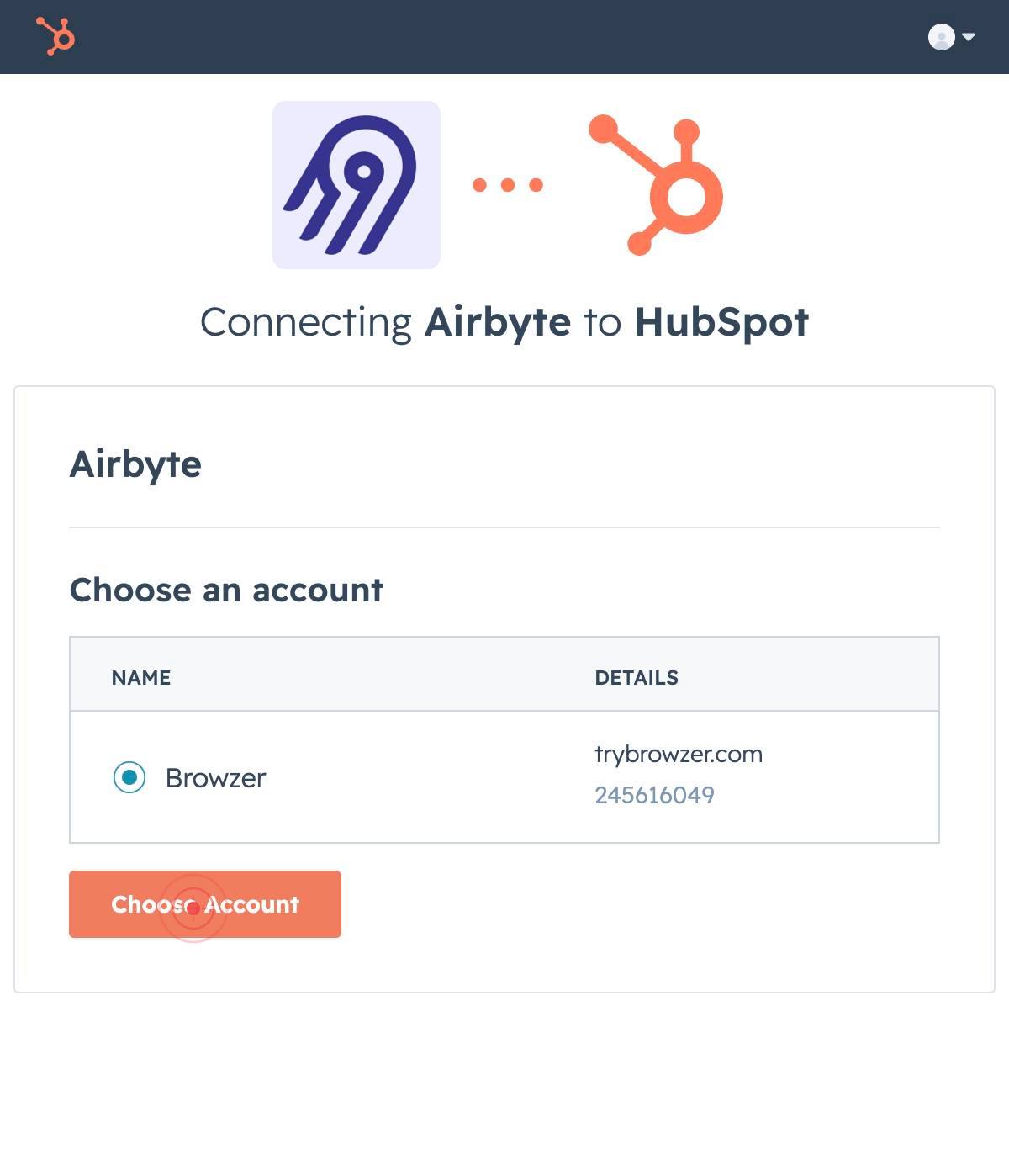
You are now redirected to the HubSpot app authorization page (app-na2.hubspot.com) where you grant Airbyte permission to access your HubSpot data.
genericClick on the interactive authorization prompt to review or accept the permissions that Airbyte is requesting.
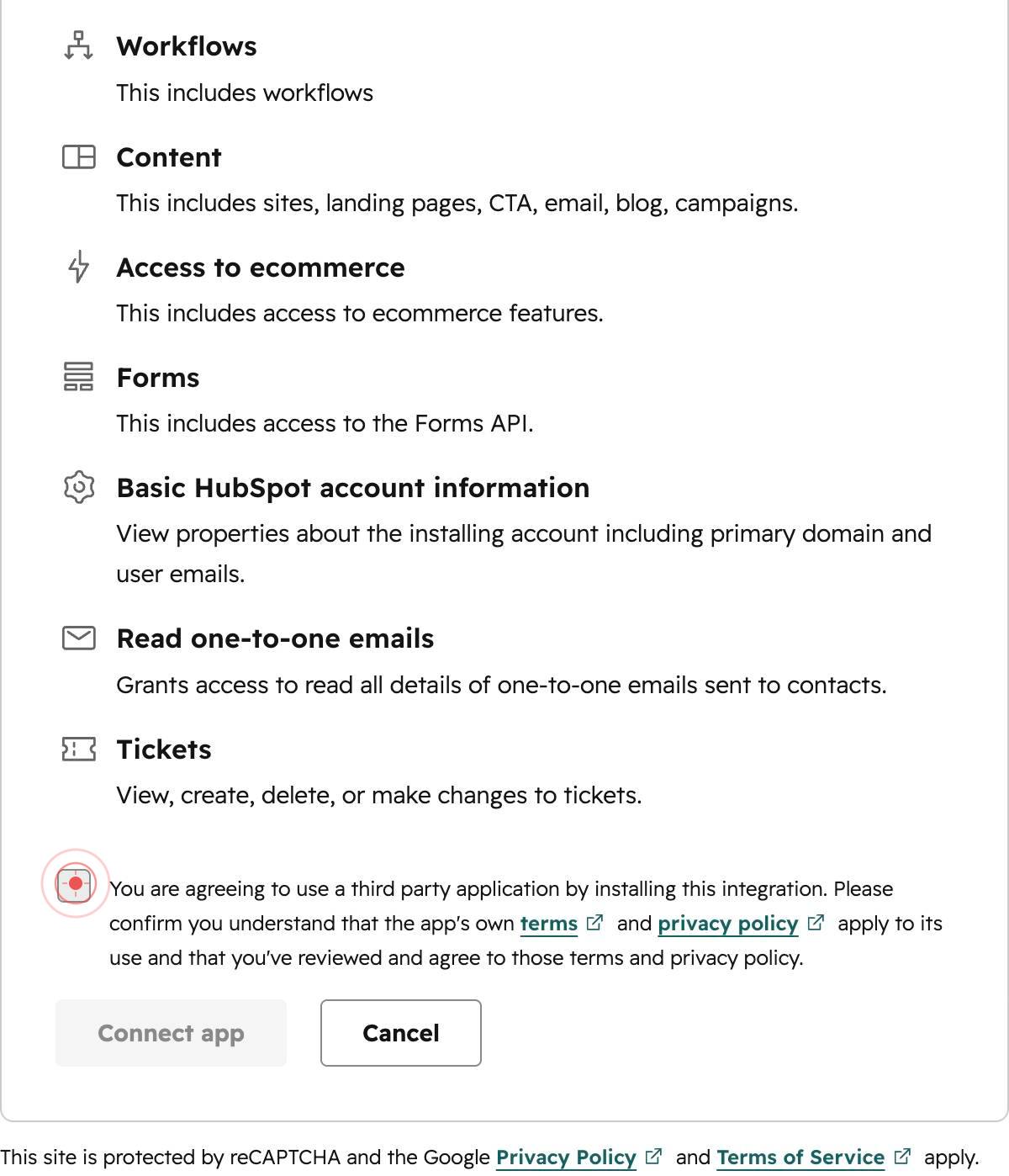
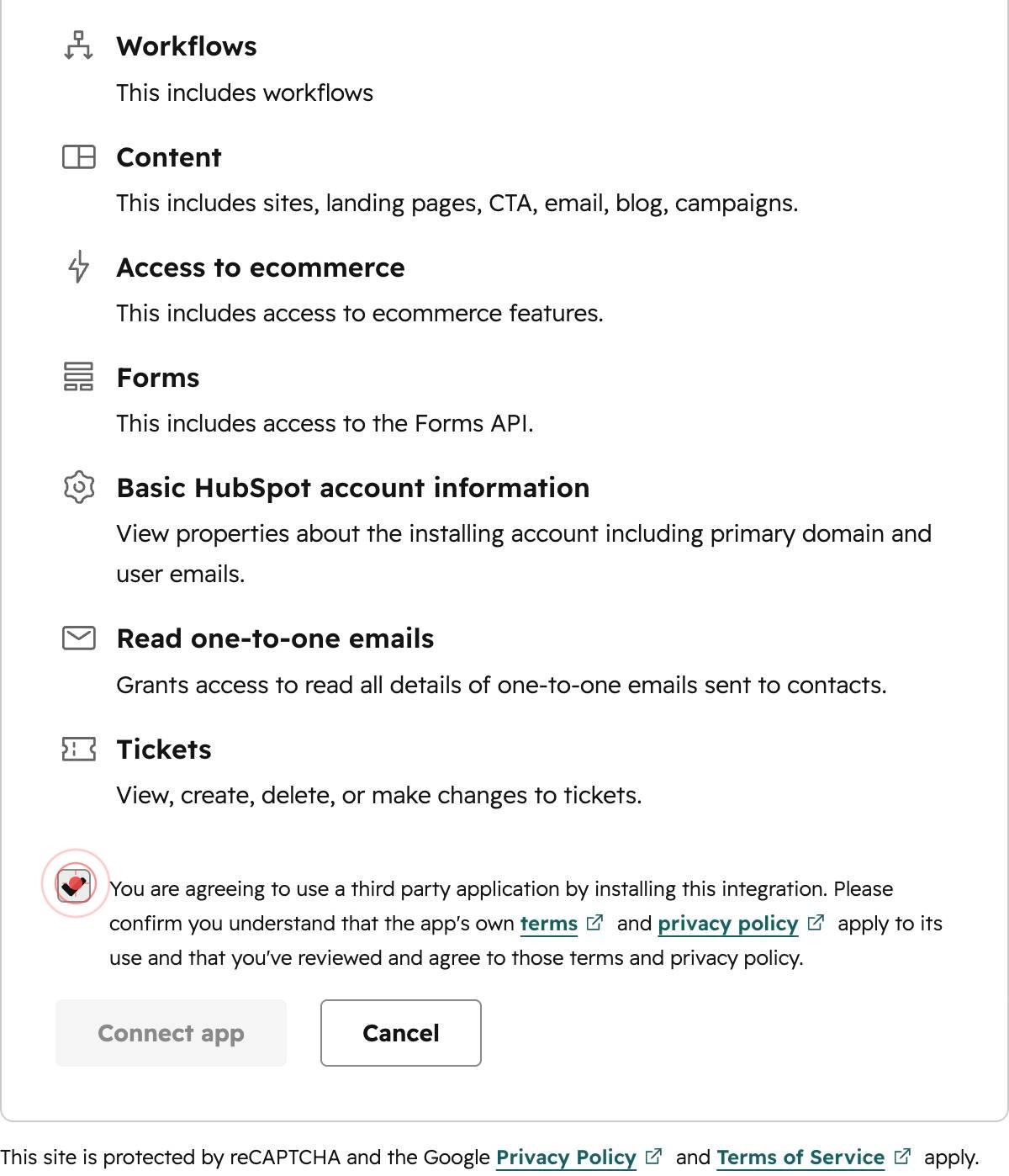
You are agreeing to use a third party application by installing this integration. Please confirm you understand that the app's own terms and privacy policy apply to its use and that you've reviewed and agree to those terms and privacy policy.Check the confirmation checkbox that states you agree to HubSpot's terms and the third-party app's terms and privacy policy. This acknowledges that you understand and accept the integration's conditions.
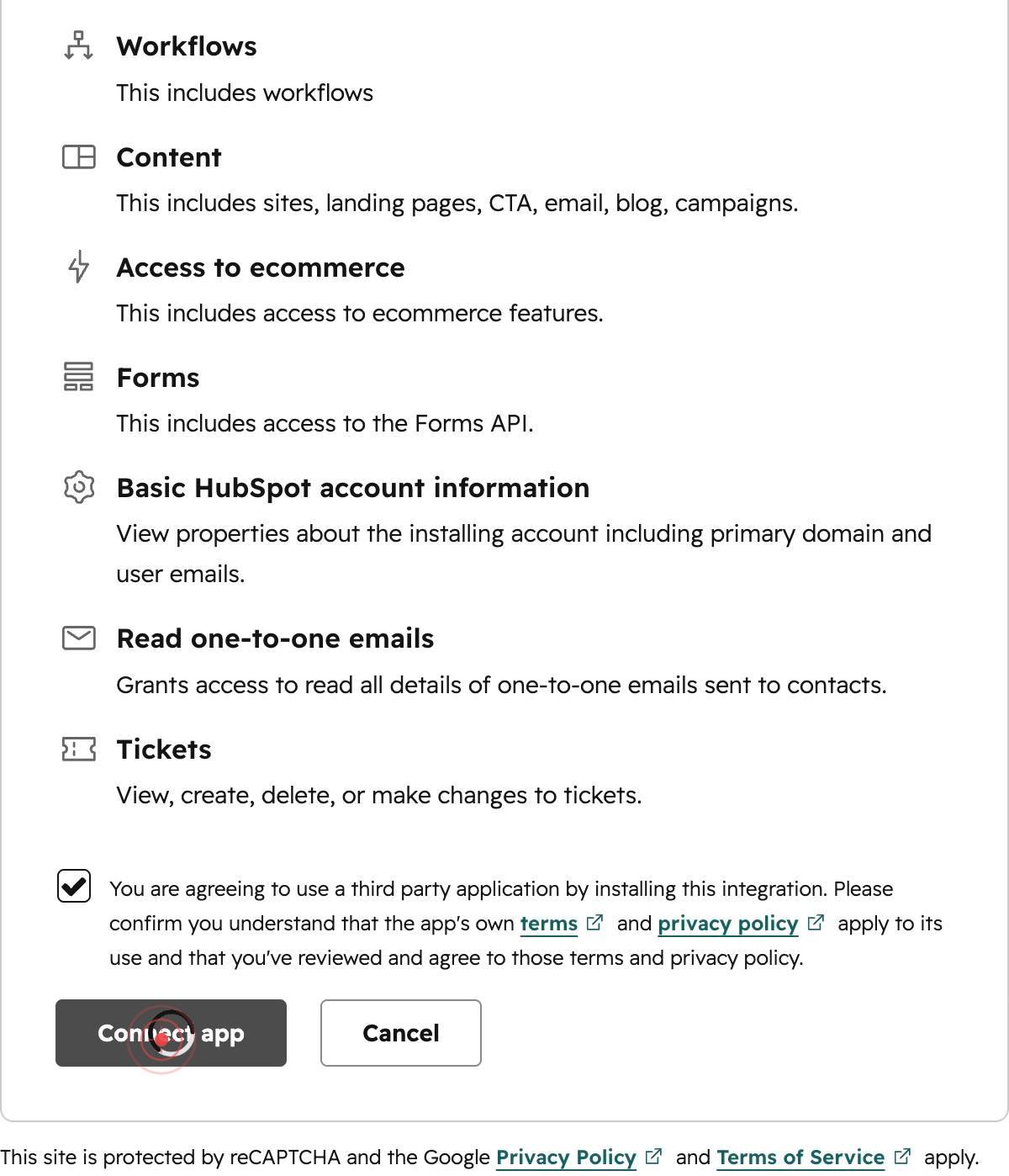
Connect appClick the 'Connect app' button to complete the HubSpot OAuth authorization and grant Airbyte access to your account.
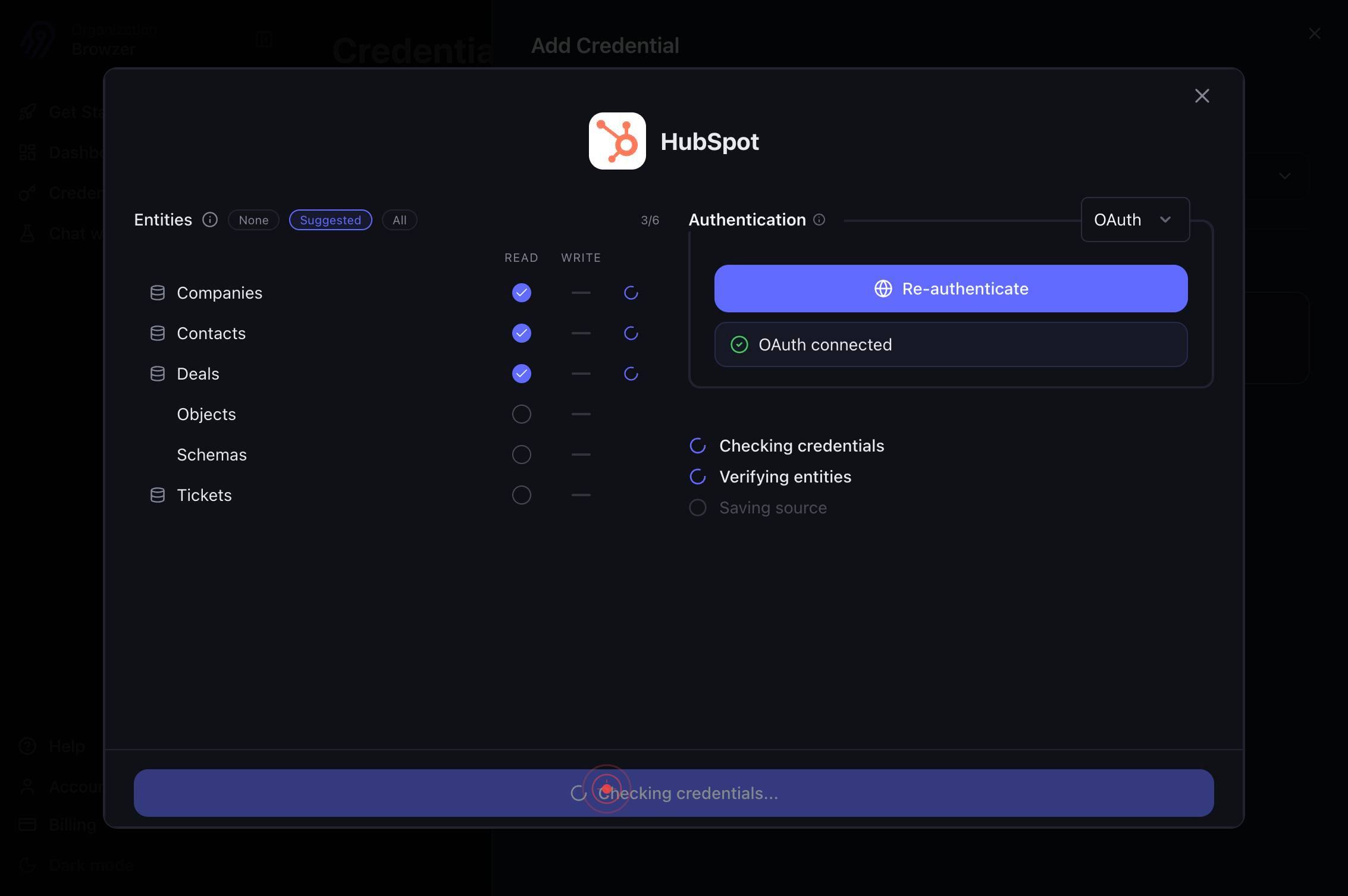
You are automatically redirected back to Airbyte (app.airbyte.ai) with your OAuth token. The system will display your authenticated HubSpot credentials on the credentials form.
SaveClick the 'Save' button to persist your HubSpot credentials in Airbyte. This finalizes the connector setup and makes it available for use in data sync configurations.
Confirm it worked
- 1After clicking 'Save' on the Airbyte credentials screen, you should see a success confirmation message indicating the HubSpot credential has been created
- 2The HubSpot connector should appear in your Airbyte Credentials list with a 'Connected' or 'Active' status
- 3You should be able to use this credential to create a new HubSpot source connection without re-authenticating
Common issues
Keep reading
Set up and use the HubSpot connector for Google Sheets
Set up and use the HubSpot connector for Google Sheets Skip to content Home Documentation - Knowledge Base Setup, how-to, and troubleshooting guides - Developer Documentation Reference for API & C
knowledge.hubspot.comSet up and use the HubSpot connector for ChatGPT
Set up and use the HubSpot connector for ChatGPT Skip to content Home Documentation - Knowledge Base Setup, how-to, and troubleshooting guides - Developer Documentation Reference for API & CMS dev
knowledge.hubspot.comHubSpot | Integration Connectors | Google Cloud Documentation
HubSpot | Integration Connectors | Google Cloud Documentation # HubSpot The HubSpot connector lets you perform insert, delete, update, and read operations on HubSpot datasets. ## Supported versions
cloud.google.com