Guide
Add Connector - Stripe
Overview
Airbyte is a data integration platform that lets you connect third-party services like Stripe to your data warehouse or lakehouse. By adding a Stripe connector, you enable real-time synchronization of your Stripe payment data—including transactions, balance information, and customer details—into your analytics or operational systems. This workflow walks you through configuring the connector with your Stripe API credentials and optional settings to control which data Airbyte fetches during each sync.
Before you begin
- Access to your Airbyte workspace (app.airbyte.ai) with permission to add connectors
- Active Stripe account with API access enabled
- Stripe Secret Key (obtained from your Stripe Dashboard under Developers > API Keys)
- Stripe Account ID (your 10-character numeric account identifier, e.g., acct_1A1a1a1a1a)
Step by step
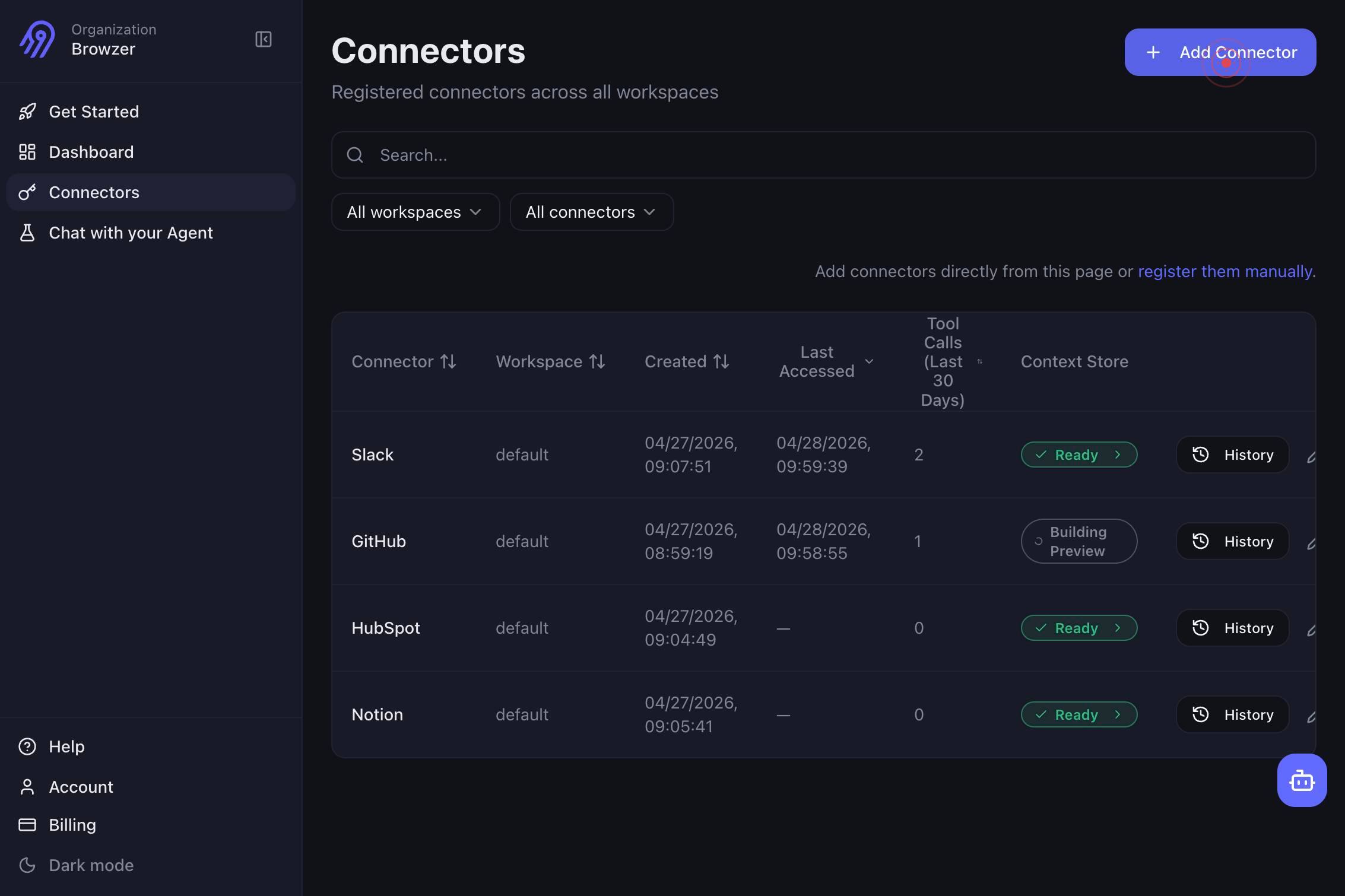
Add ConnectorNavigate to the Connectors section in Airbyte and click the 'Add Connector' button to begin the setup process.
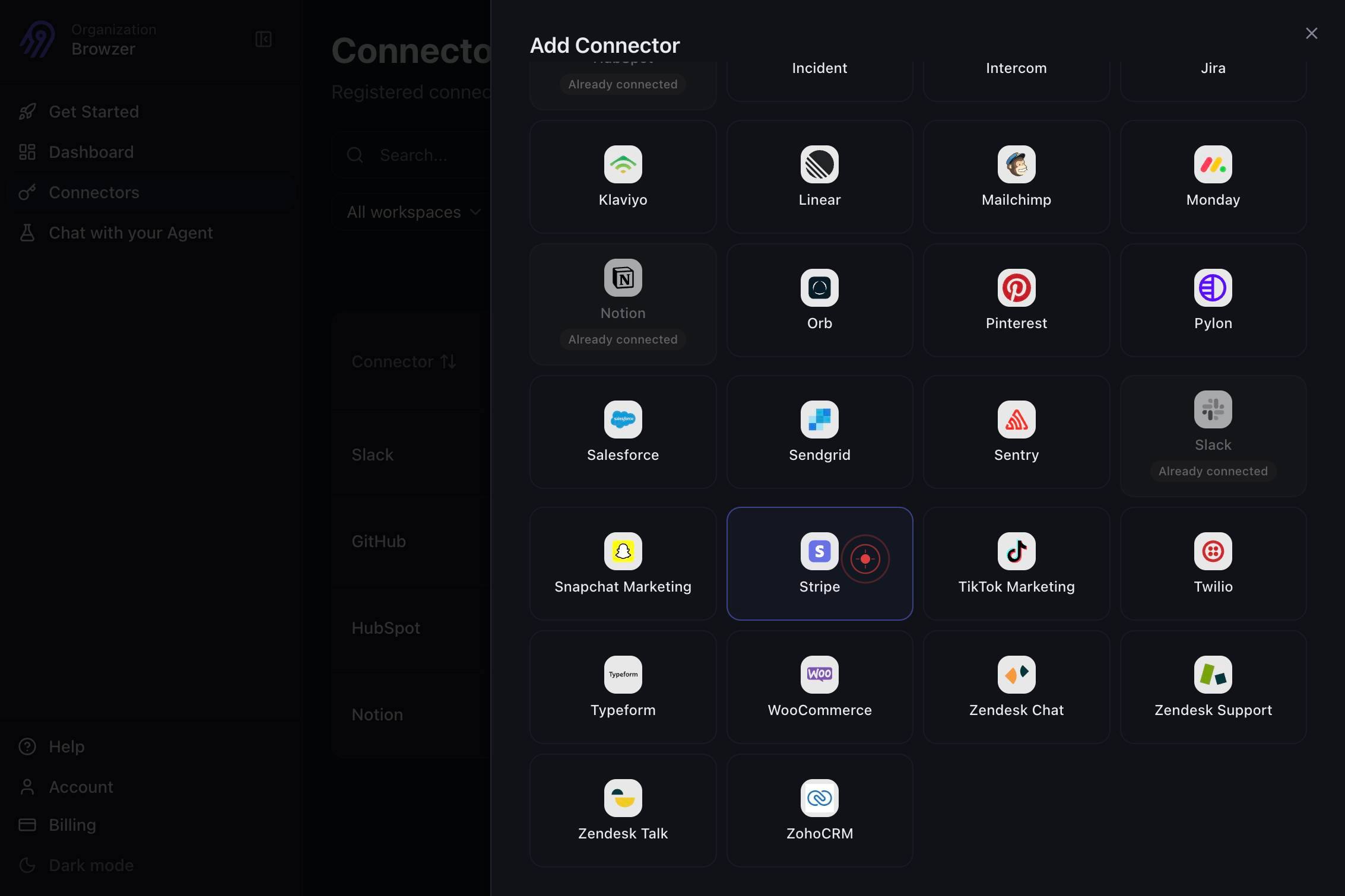
StripeSelect 'Stripe' from the list of available source connectors. Airbyte will open the Stripe connector configuration form.
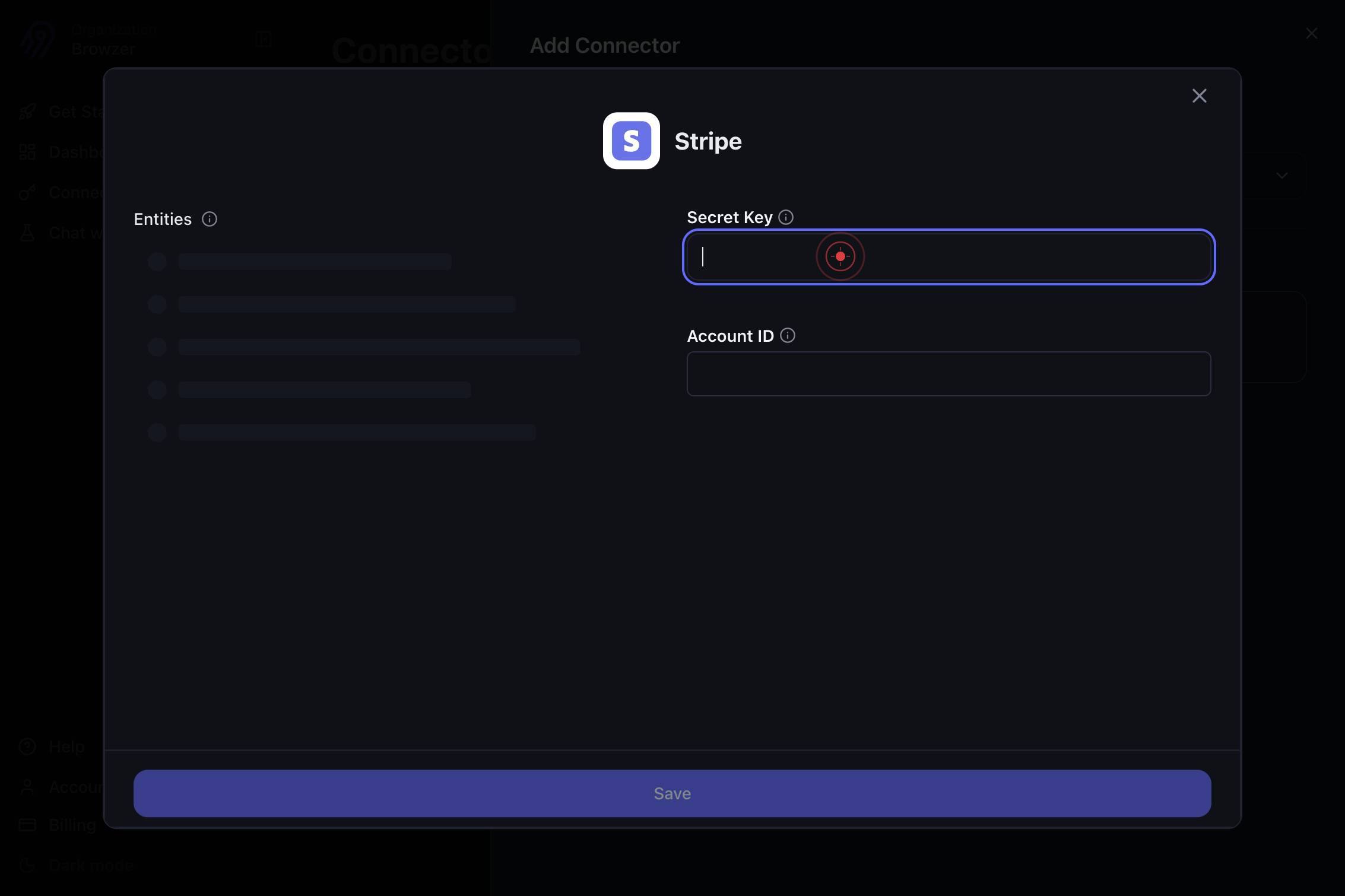
Secret KeyClick on the 'Secret Key' field to activate the text input box where you will paste your Stripe API credentials.
Secret KeyEnter your Stripe Secret Key into the field. Obtain this key from your Stripe Dashboard under Developers > API Keys (the key beginning with 'sk_').
Account IDClick on the 'Account ID' field to activate the text input box where you will enter your Stripe account identifier.
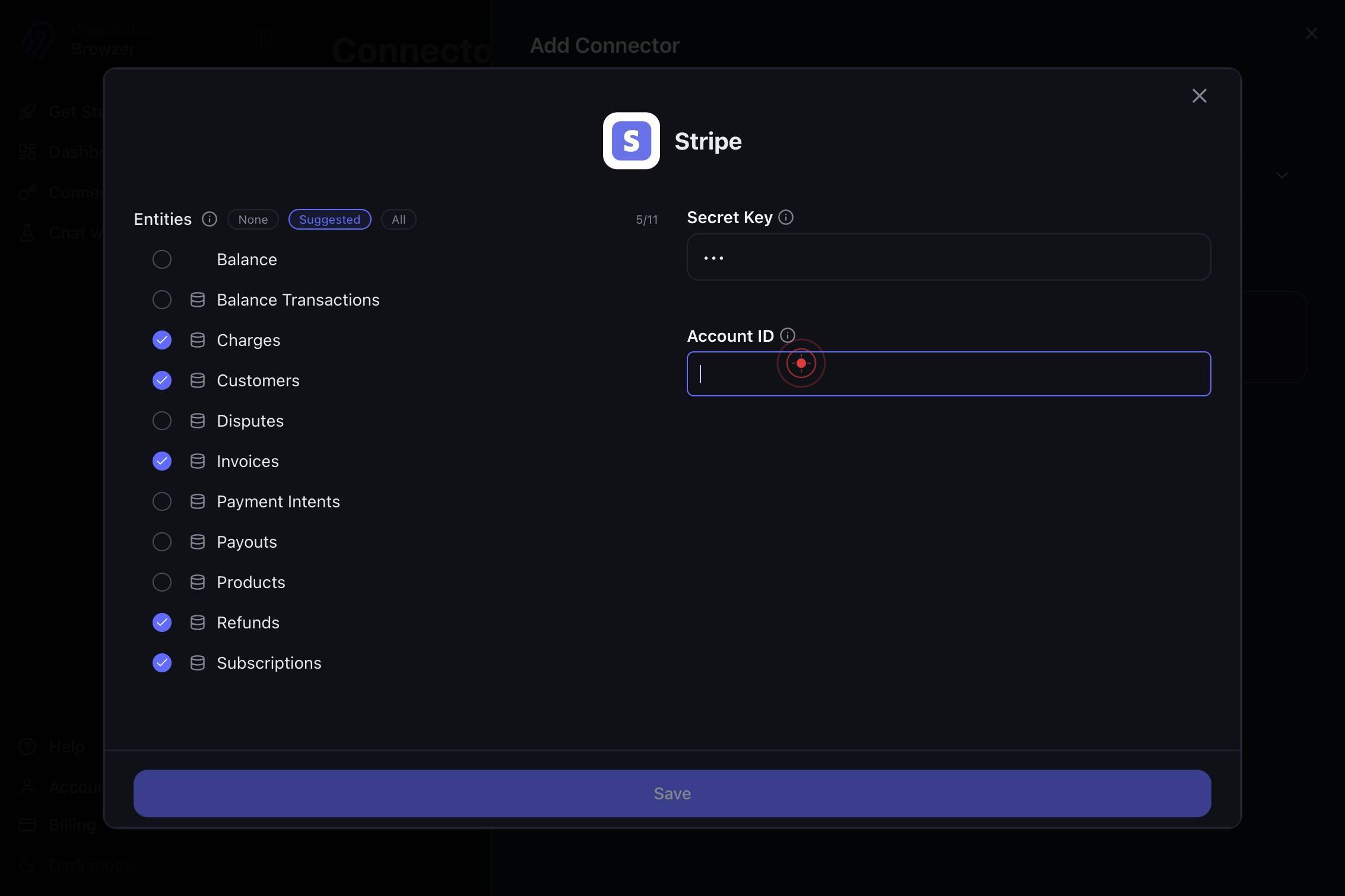
Account IDEnter your Stripe Account ID into the field. This is typically a 10-character identifier starting with 'acct_' (e.g., acct_1A1a1a1a1a), found in your Stripe Dashboard account settings.
genericClick in a neutral area of the form (such as the background) to confirm your Account ID entry and prepare to configure optional settings.
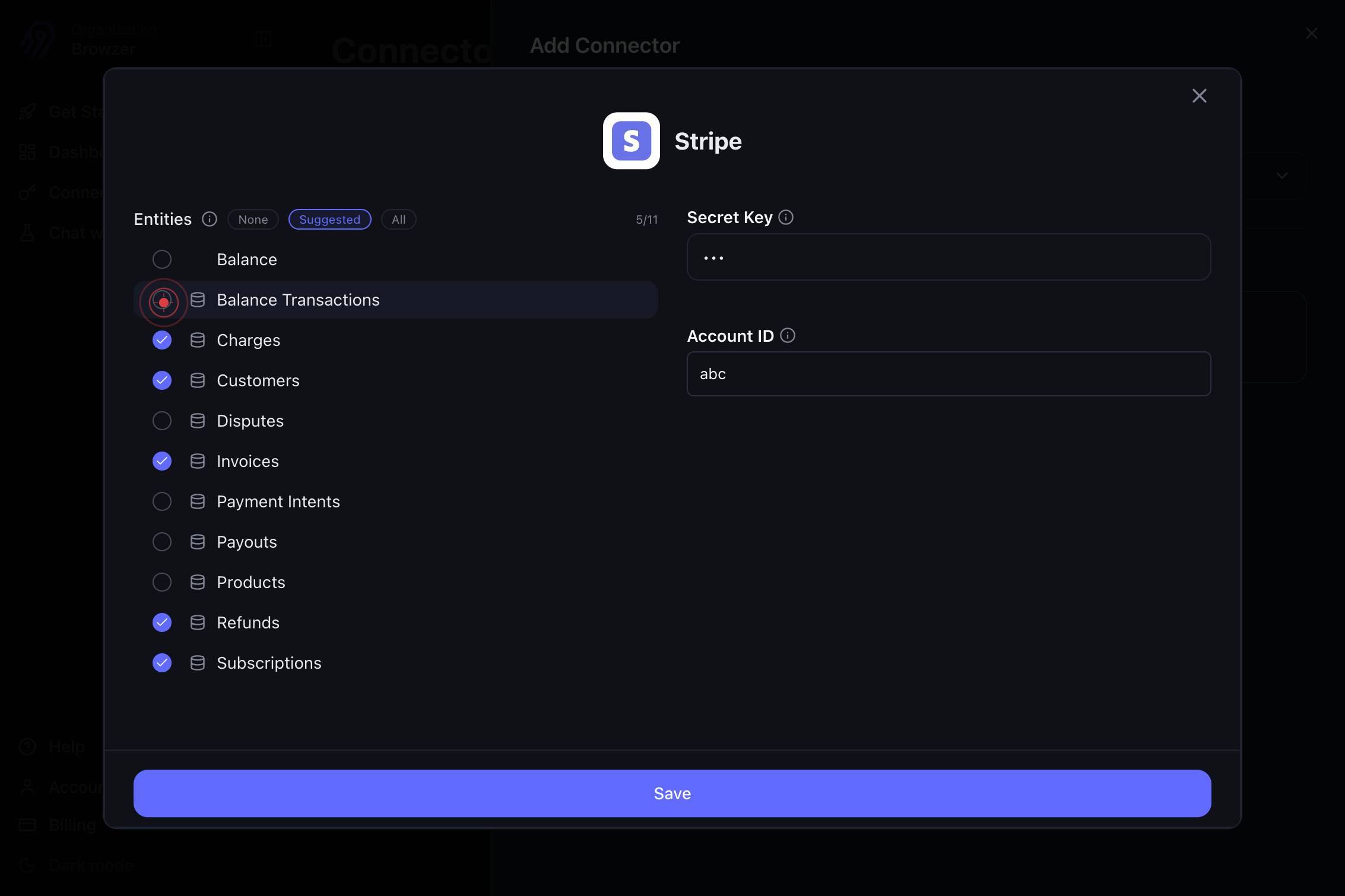
Include Balance TransactionsEnable the 'Include Balance Transactions' checkbox if you want Airbyte to sync detailed transaction history from your Stripe account. Leave unchecked if you only need summary data.
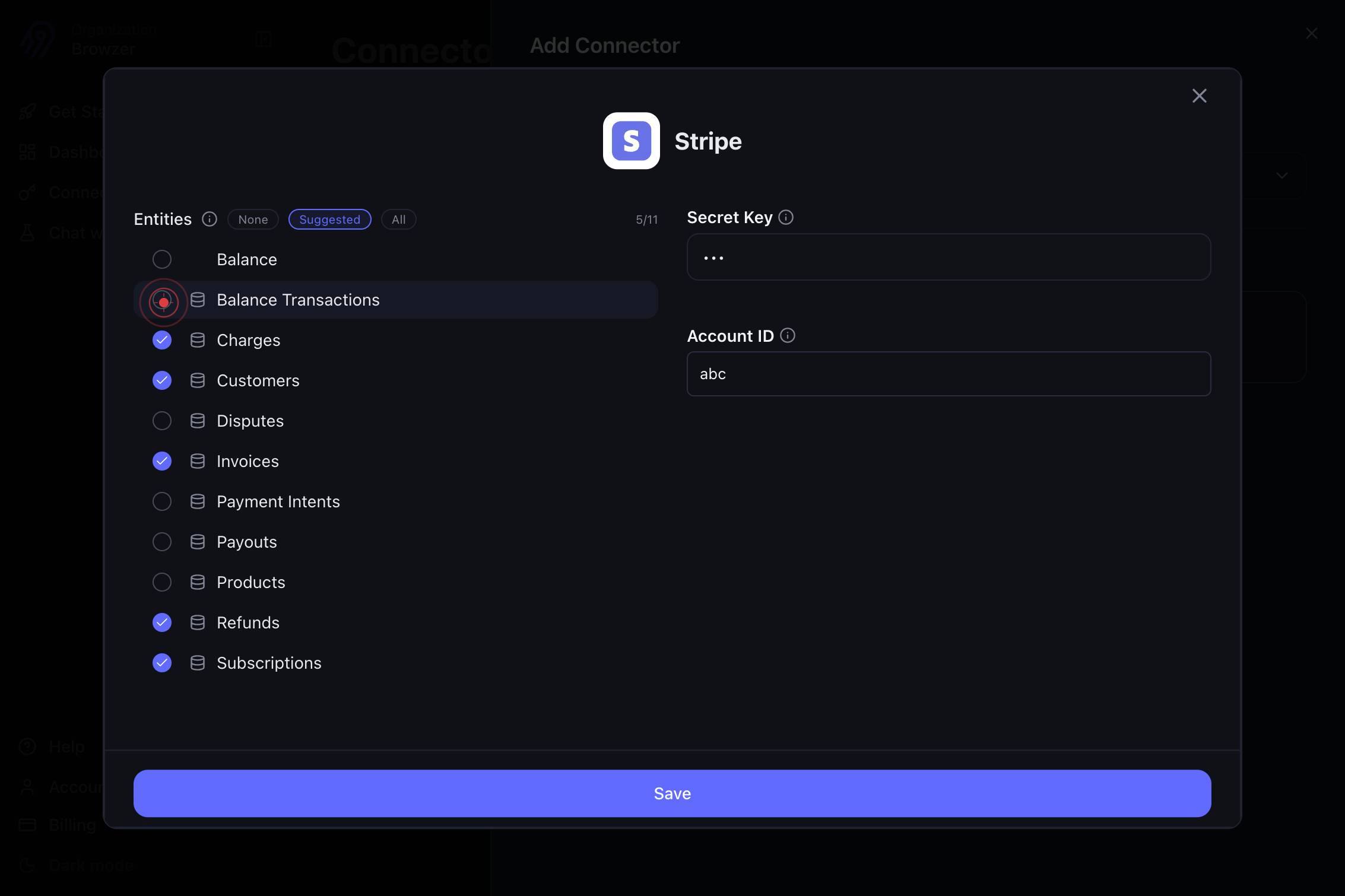
genericClick in a neutral area of the form again to confirm the balance transactions setting and proceed to the next optional configuration.
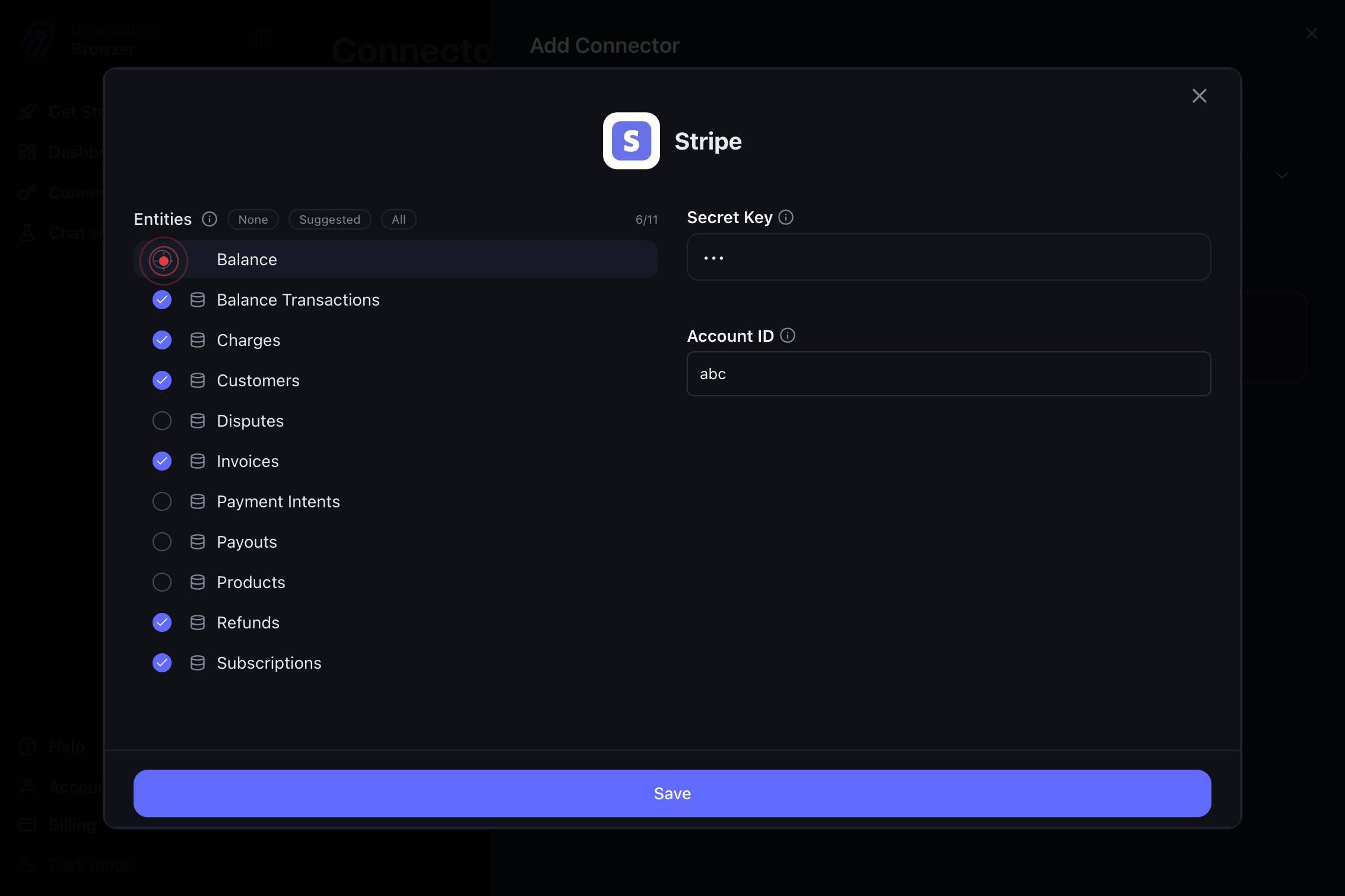
Include BalanceEnable the 'Include Balance' checkbox if you want Airbyte to fetch your current account balance information during syncs. Leave unchecked if balance data is not needed.
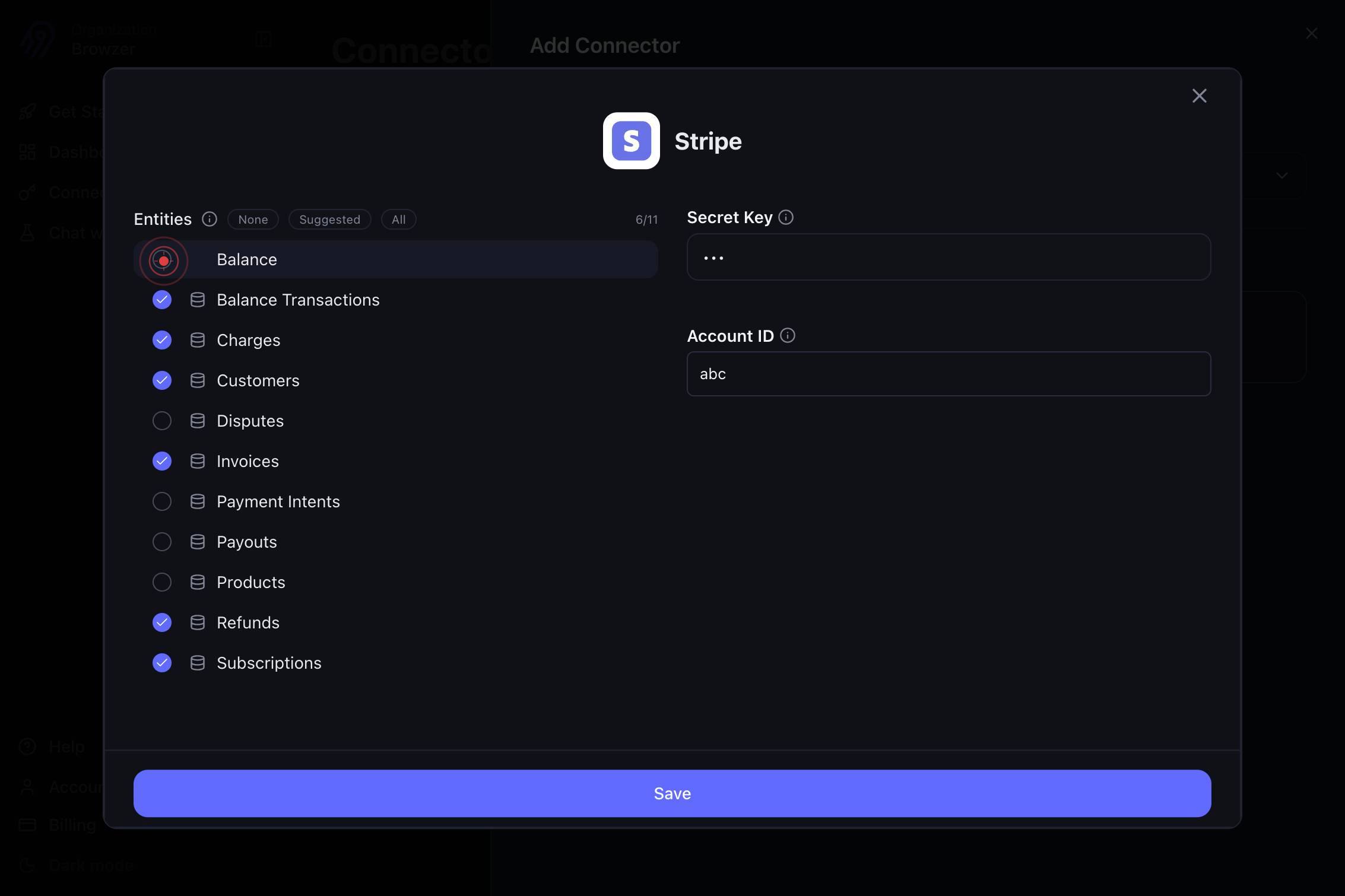
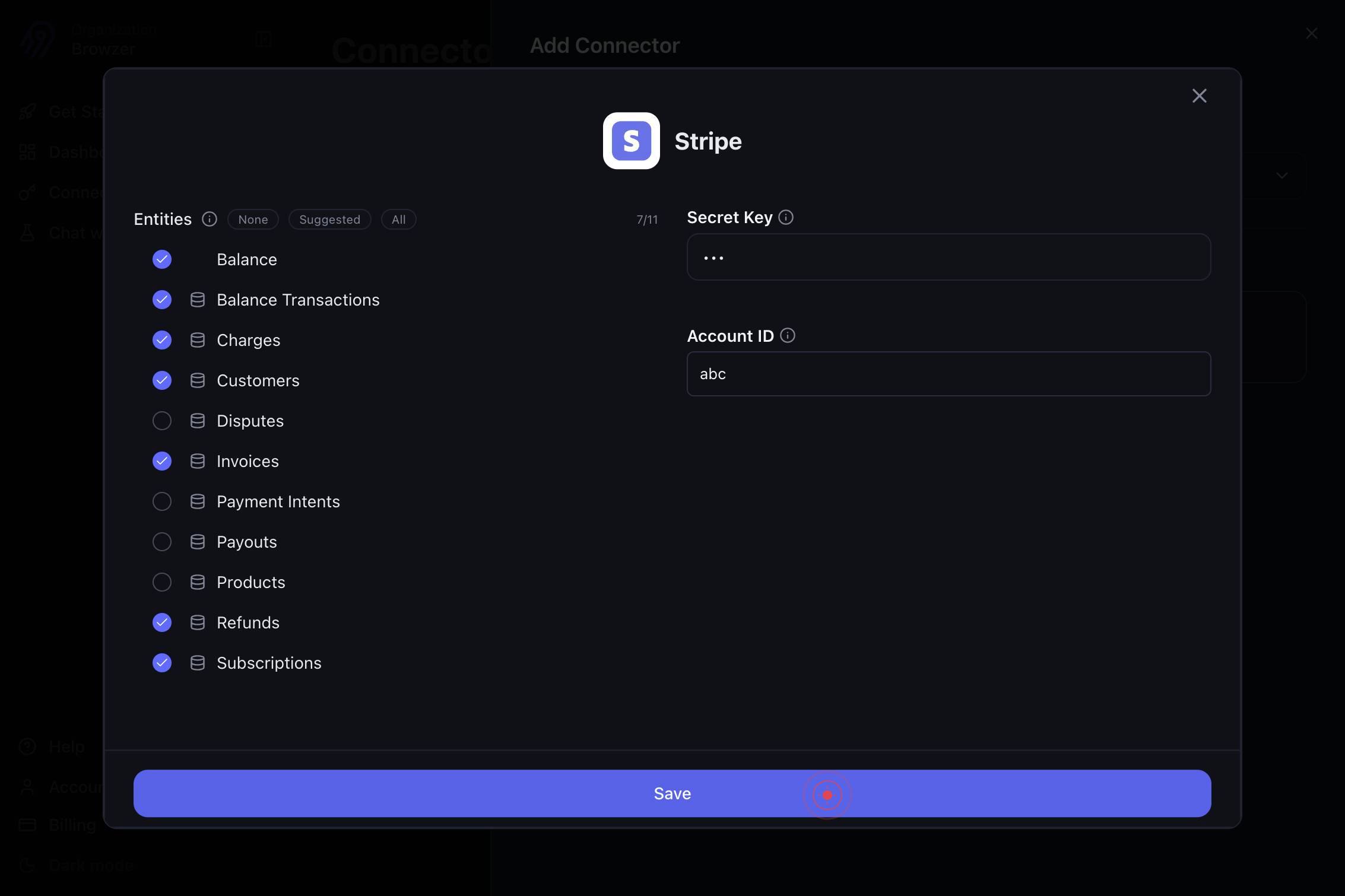
SaveClick the 'Save' button to finalize and save the Stripe connector configuration. Airbyte will validate your credentials and create the connector.
Confirm it worked
- 1The Stripe connector appears in your list of configured connectors with a green checkmark or "Connected" status
- 2You see a confirmation message stating the connector was successfully saved
- 3The connector detail page displays your Account ID and shows the balance transaction and balance inclusion settings you configured
- 4You can create a new connection using this Stripe connector in the Connections tab
Common issues
Keep reading
Stripe | Integration Connectors | Google Cloud Documentation
Stripe | Integration Connectors | Google Cloud Documentation # Stripe The Stripe connector lets you perform insert, delete, update, and read operations on Stripe dataset. ## Before you begin Befor
cloud.google.comStripe | Data Connector
Stripe | Data Connector ## How do I import Stripe data to Google Sheets?# Stripe is one of the largest payment processors for the web. Stripe’s products power payments for online and in-person retai
dataconnector.appInstall and configure the Stripe Connector Add-ons bundle | Stripe Documentation
# Install and configure the Stripe Connector Add-ons bundle Learn about the prerequisite configuration steps for all features in the Add-ons bundle. > Log in to your Stripe account to view personali
docs.stripe.com