Guide
Advanced Search
Overview
Exa.ai is a research platform that provides live web data integration for AI applications. The advanced search feature lets you move beyond basic keyword queries to craft highly targeted searches that leverage AI-powered page summaries, domain restrictions, date range filtering, and geographic localization. This is particularly useful when building AI workflows that depend on current, relevant, and geographically-specific web content. By configuring these advanced options before executing your search, you ensure that the results returned are pre-filtered to match your exact requirements, reducing downstream processing and improving the quality of data fed into your AI application.
Before you begin
- An active Exa.ai account with access to dashboard.exa.ai
- An API key configured in your Exa account (required for production use)
- Knowledge of the specific domains or websites you want to include or exclude
- Familiarity with your custom prompt requirements if you plan to use AI page summaries
Step by step
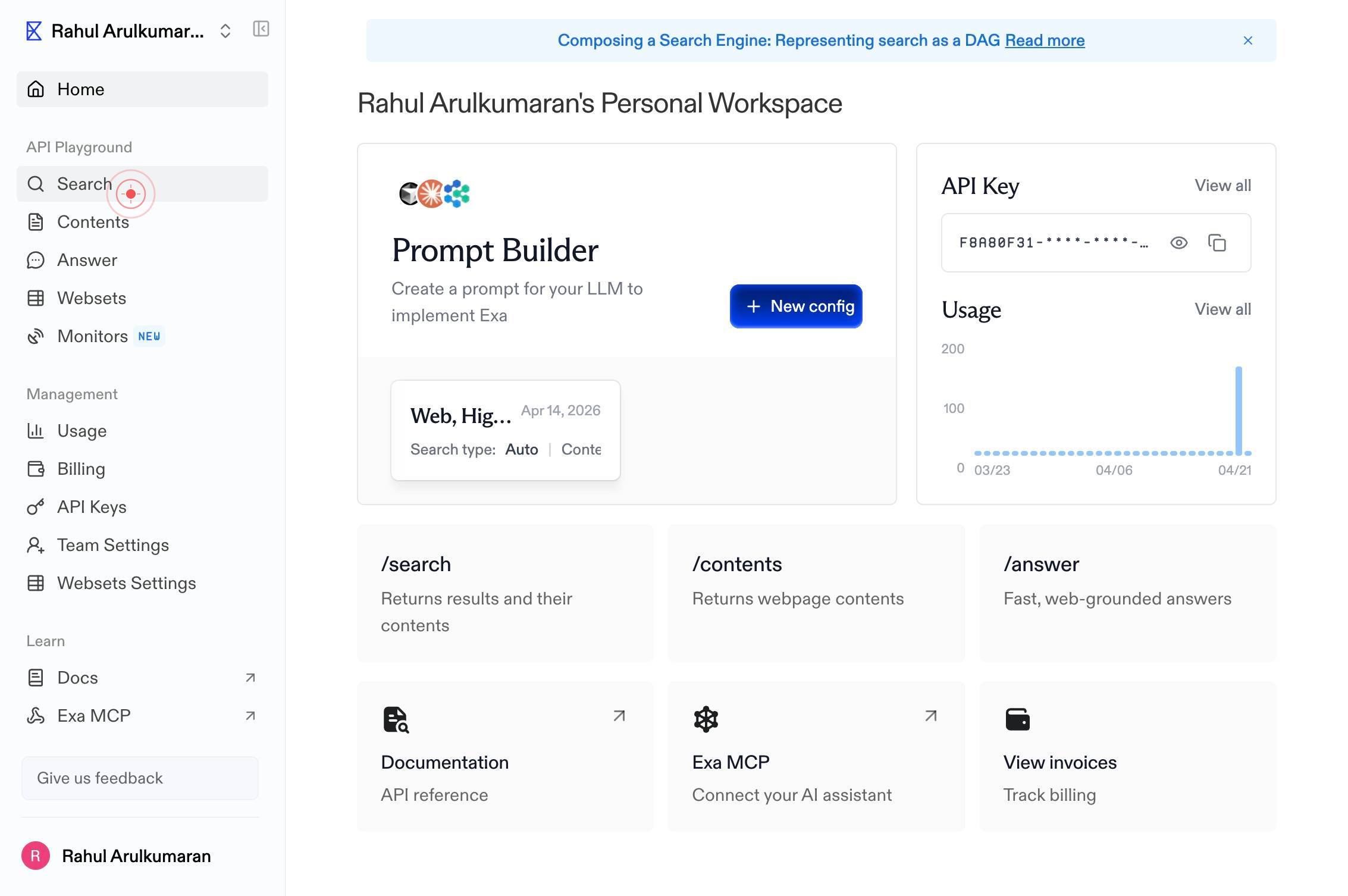
SearchClick the Search link in the top navigation of the Exa.ai dashboard to navigate to the search interface where you can enter queries and configure advanced options.
Enter a query, or try an exampleType your search query into the textbox labeled 'Enter a query, or try an example'. This is your primary search term that will be used to find relevant web content.
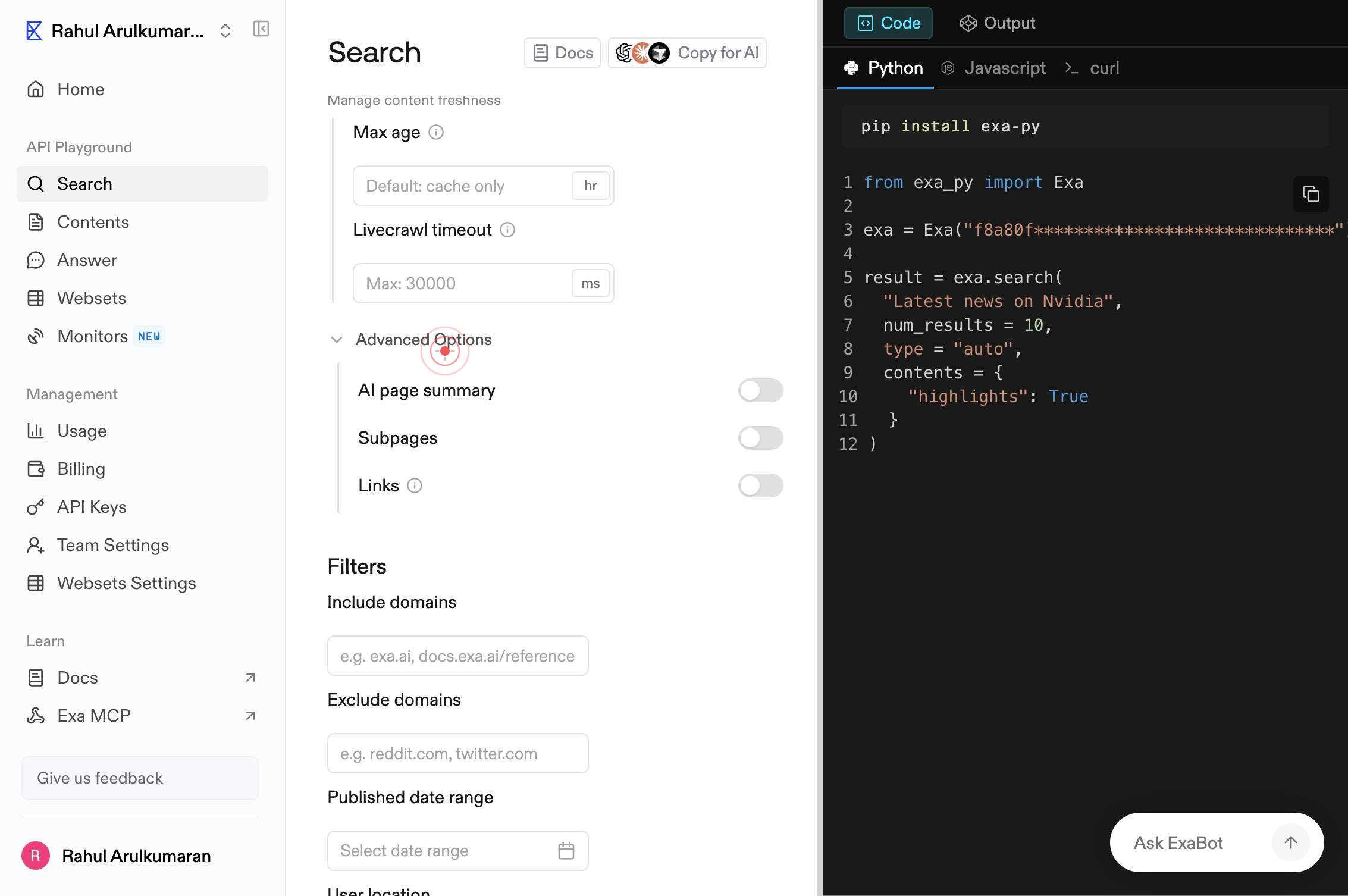
Advanced OptionsClick the Advanced Options button to expand the full set of filtering and configuration controls below the search field.
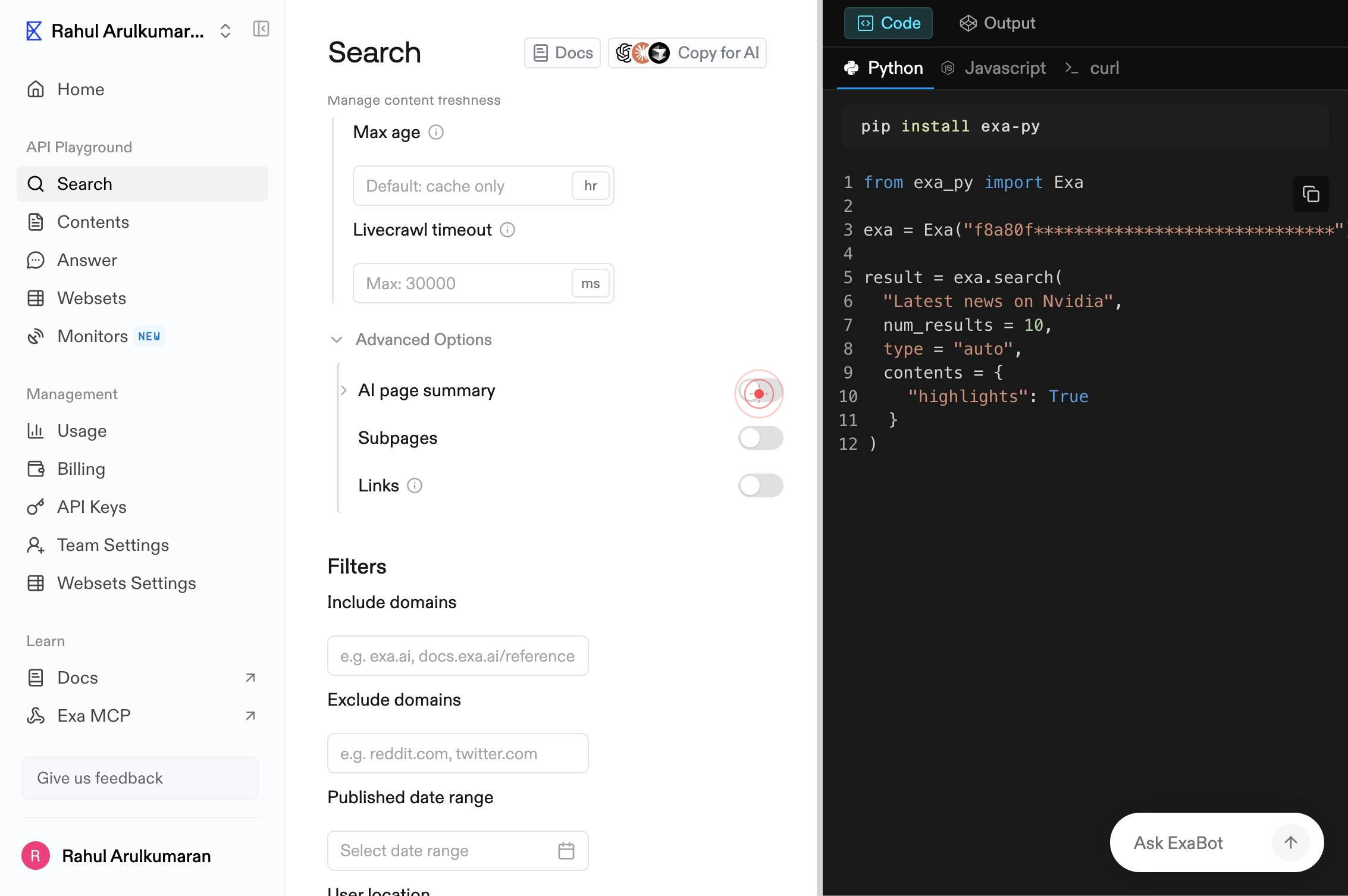
AI page summaryClick the AI page summary toggle switch to enable the generation of AI-powered summaries for each search result using Exa's summarization engine.
Enter custom promptClick into the custom prompt textbox labeled 'Enter custom prompt' to focus the input field, preparing it for your custom summarization instructions.
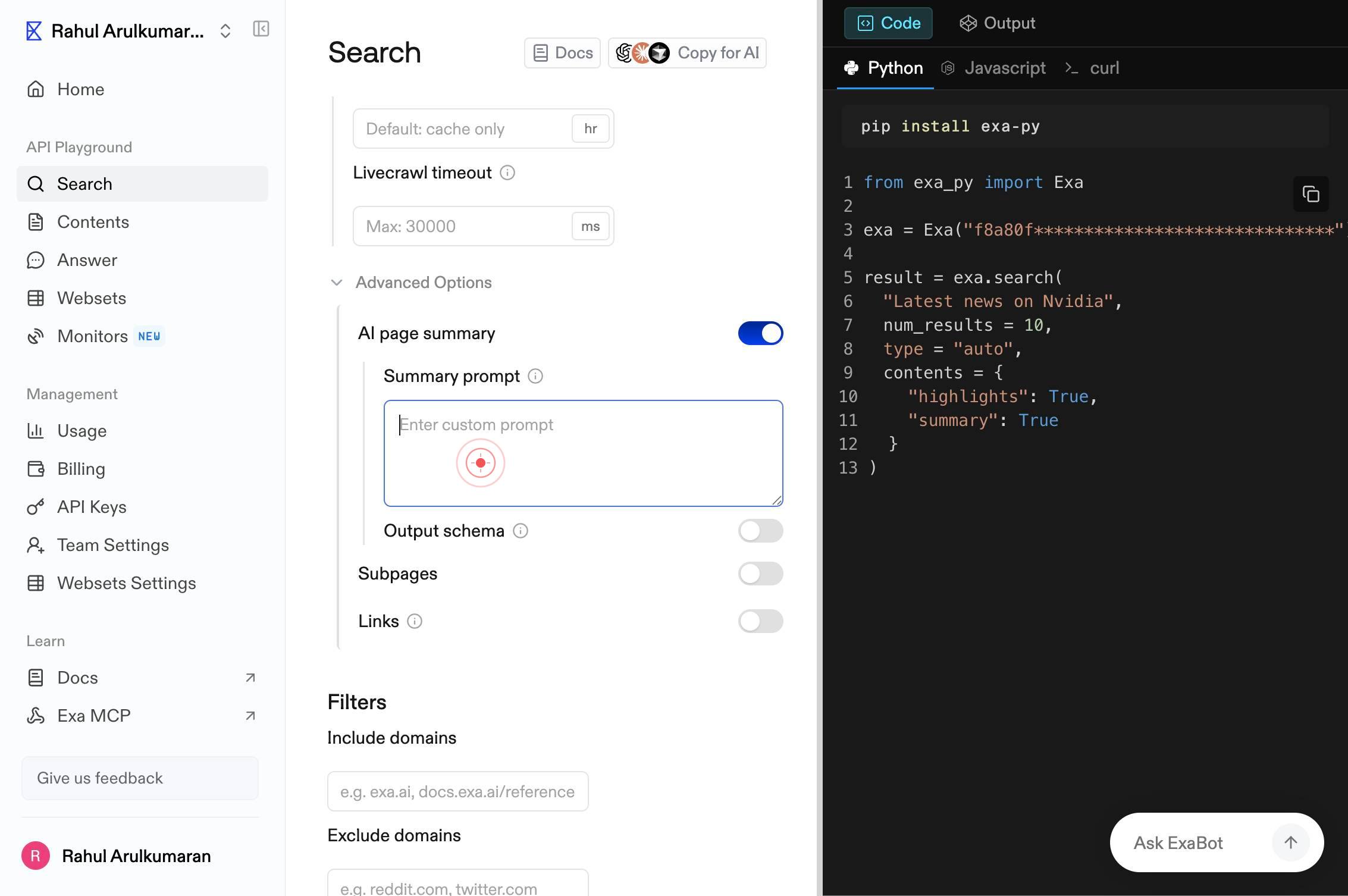
Enter custom promptType your custom prompt into the field. This prompt instructs Exa's AI how to summarize each page result. For example, you might specify 'Summarize the key findings and data points' or 'Extract pricing information and features'.
LinksClick the Links toggle switch to configure whether the search results should include direct links to the source pages. This is typically left enabled so users can access the full original content.
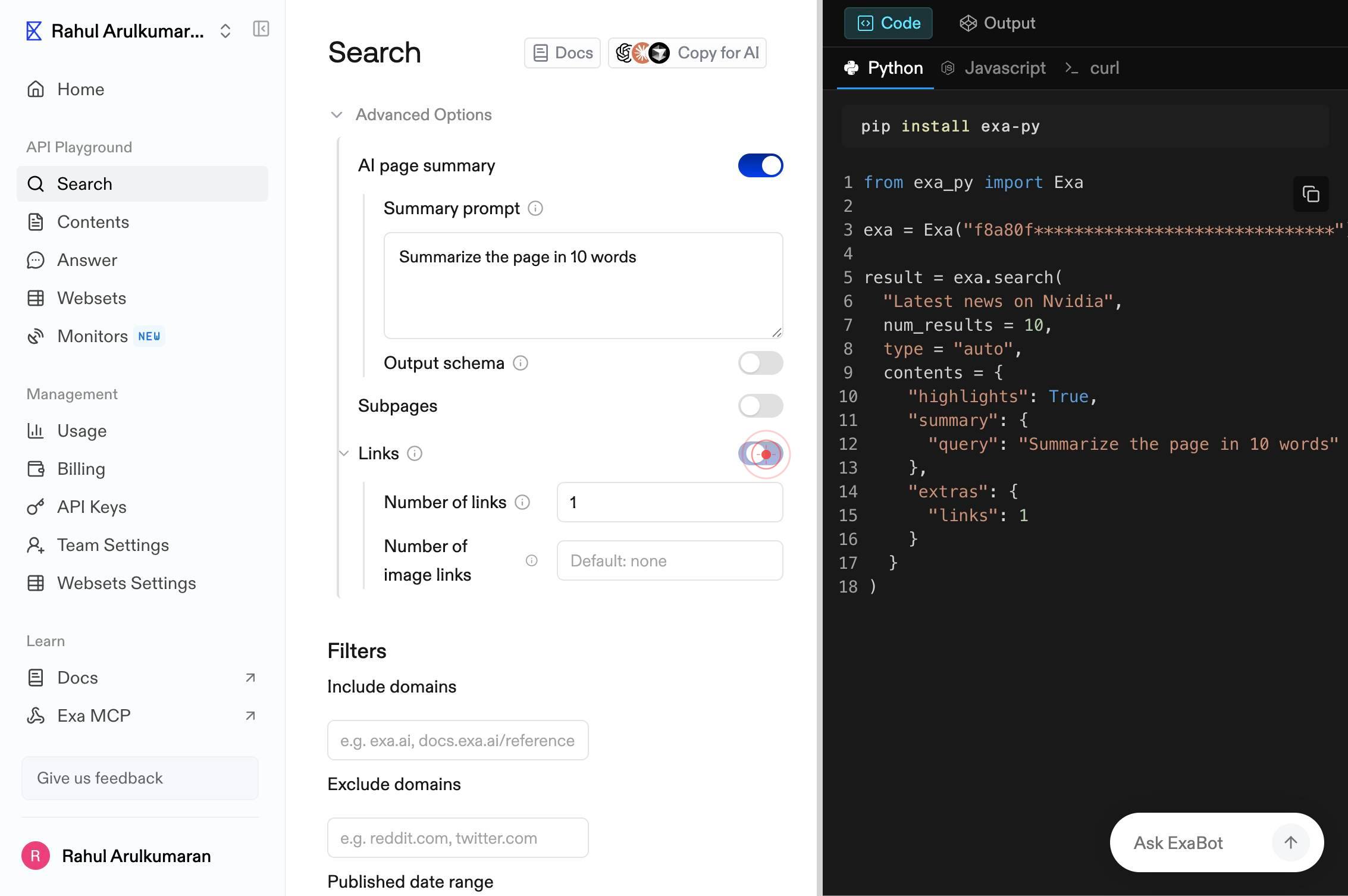
Default: 1Click into the result limit textbox labeled 'Default: 1' to focus the field, preparing it to accept a new value for the maximum number of search results to return.
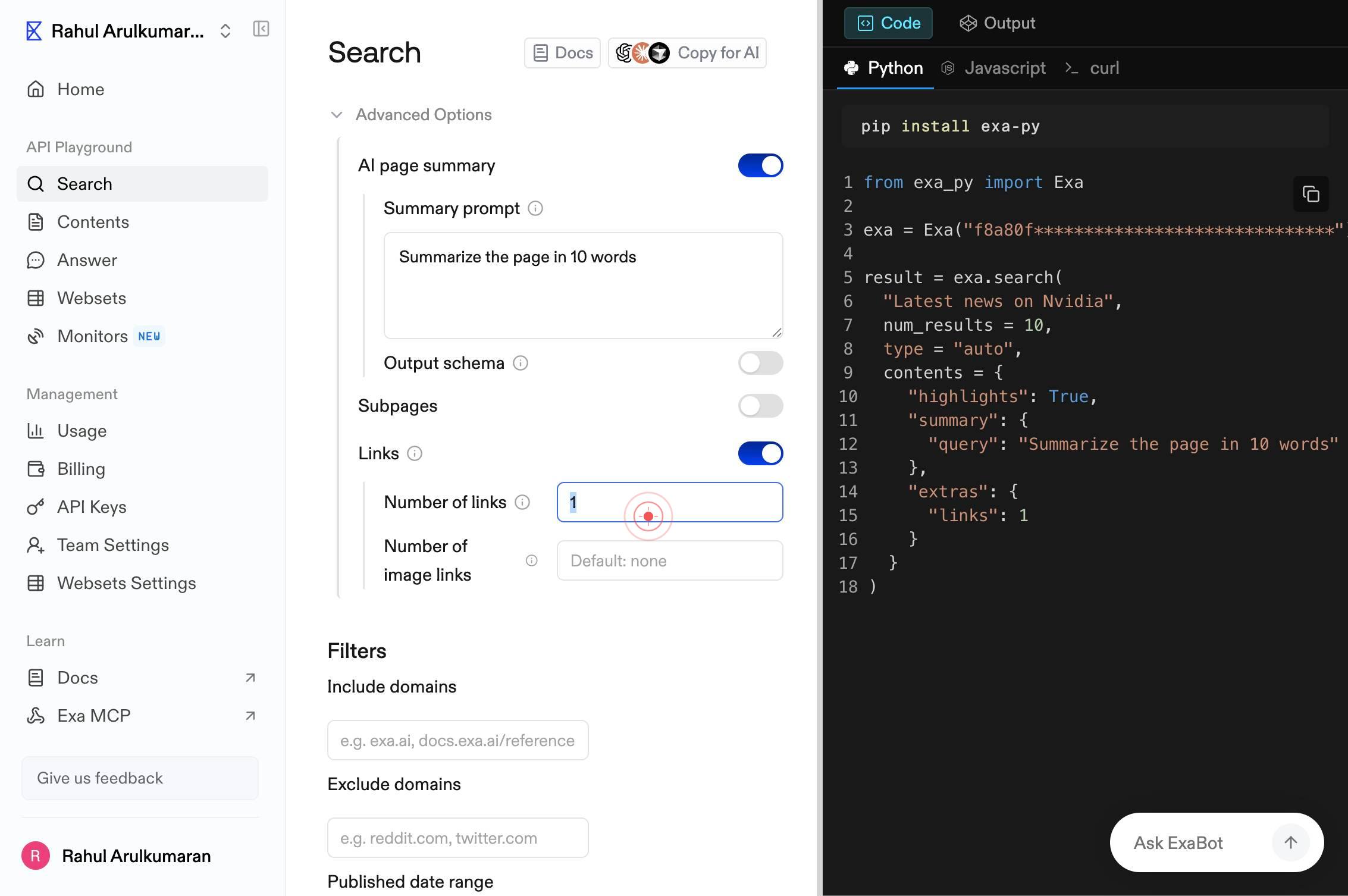
Default: 1Type a number into the result limit field to specify how many search results should be returned. For example, enter '10' to get up to 10 results, or '50' for larger result sets.
Select date rangeClick the 'Select date range' button to open the date range picker, which lets you limit results to content published within a specific timeframe.
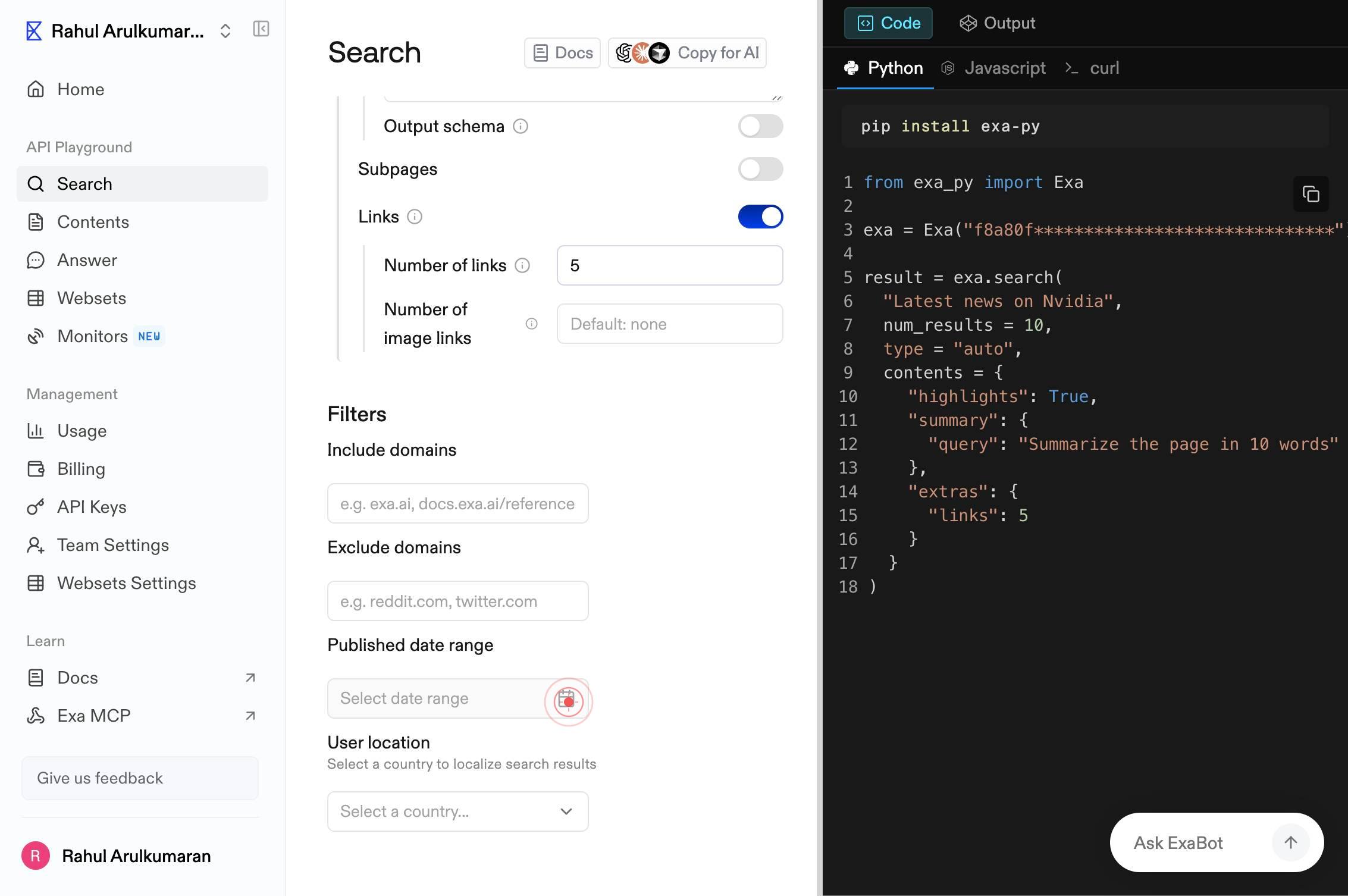
Last 7 daysClick the 'Last 7 days' button to filter search results to only content published in the past week. This ensures your results are current and recent.
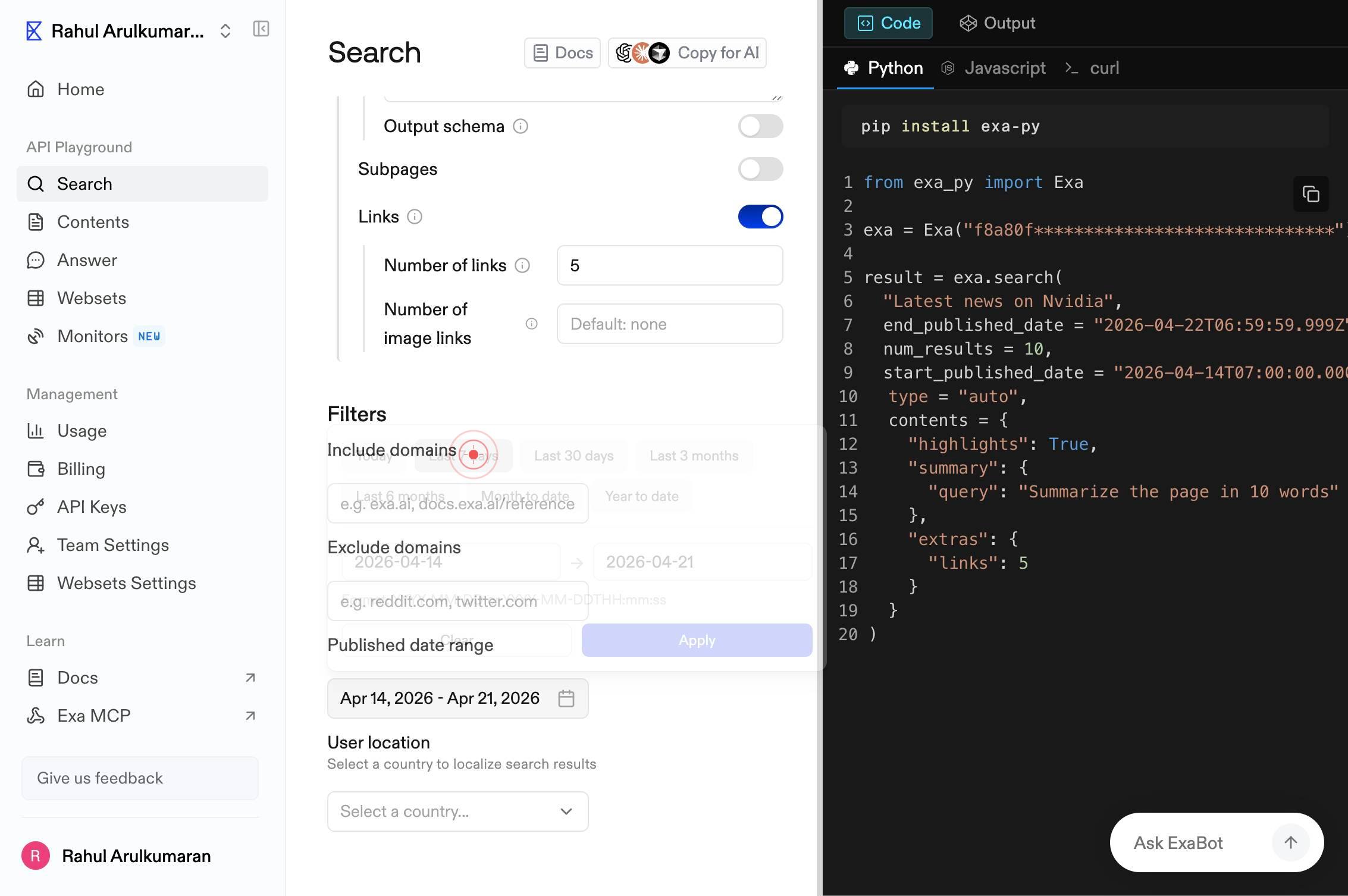
e.g. reddit.com, twitter.comClick into the domains textbox labeled 'e.g. reddit.com, twitter.com' to focus the field, preparing it to accept a list of domains to include or filter in your results.
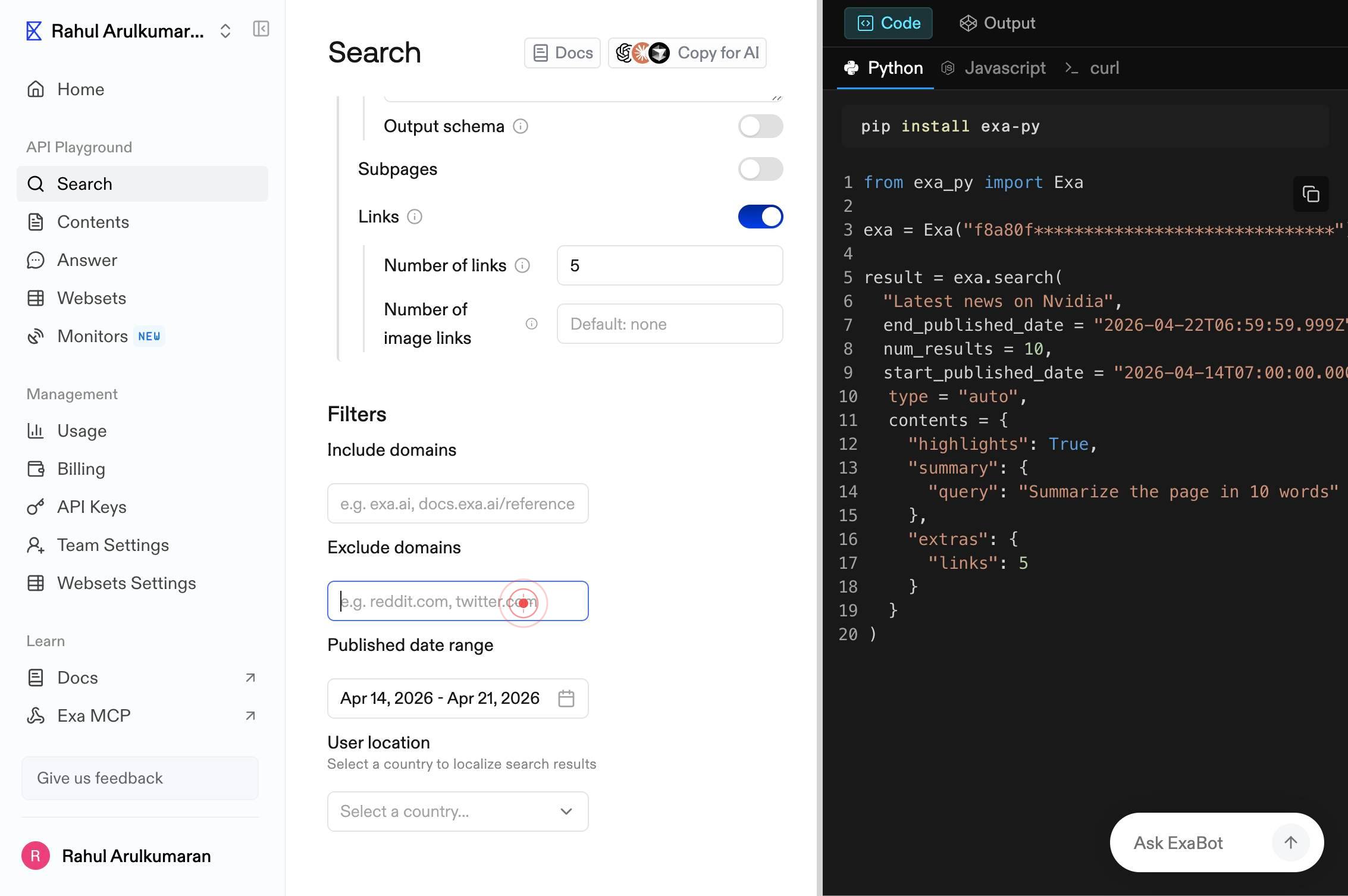
e.g. reddit.com, twitter.comType one or more domain names into the field, separated by commas (e.g., 'reddit.com, twitter.com, github.com'). Only results from these specified domains will be included in your search results.
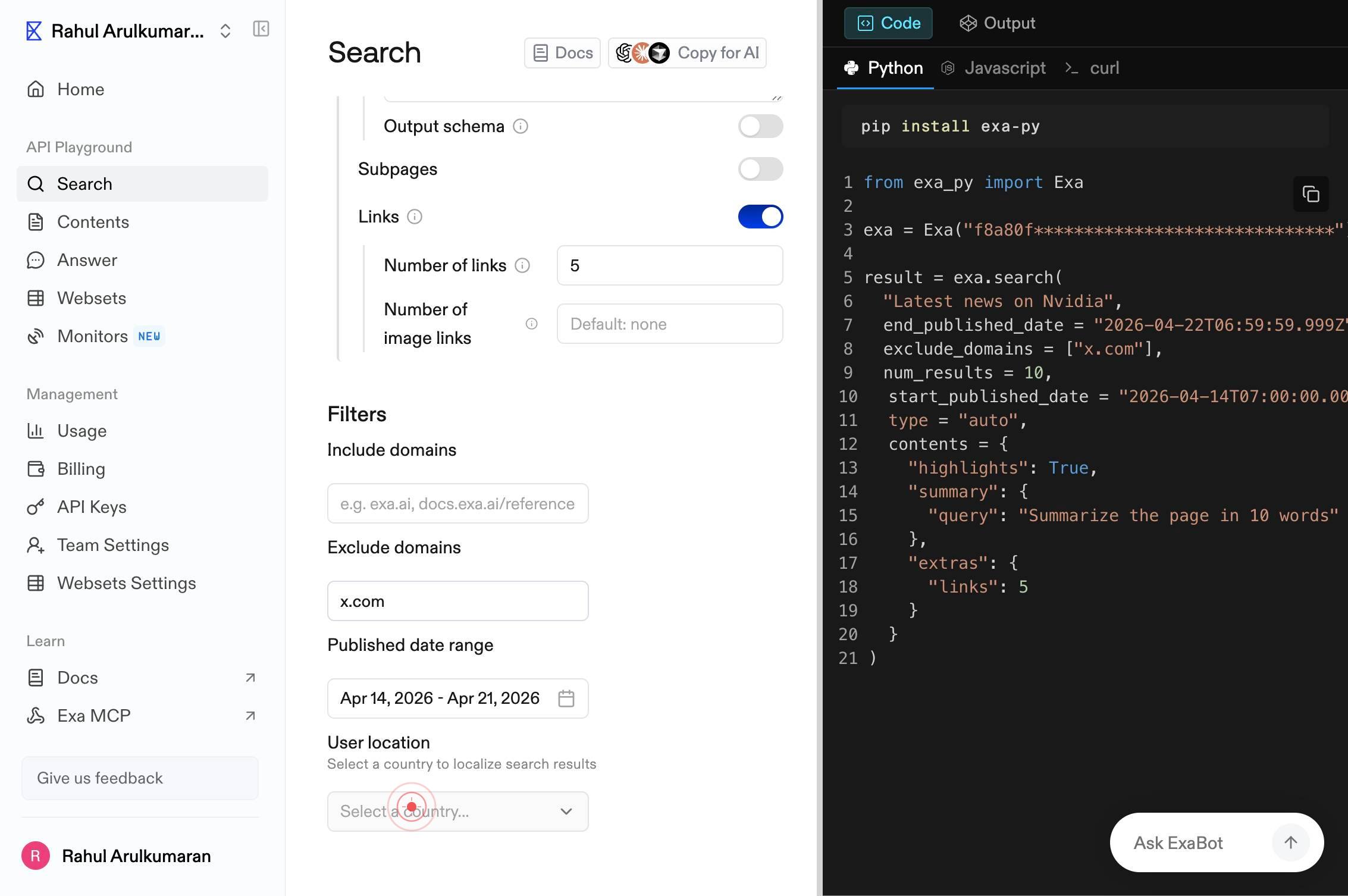
Select a country...Click the 'Select a country...' dropdown button to open the country selection menu, allowing you to geographically target your search results to a specific location.
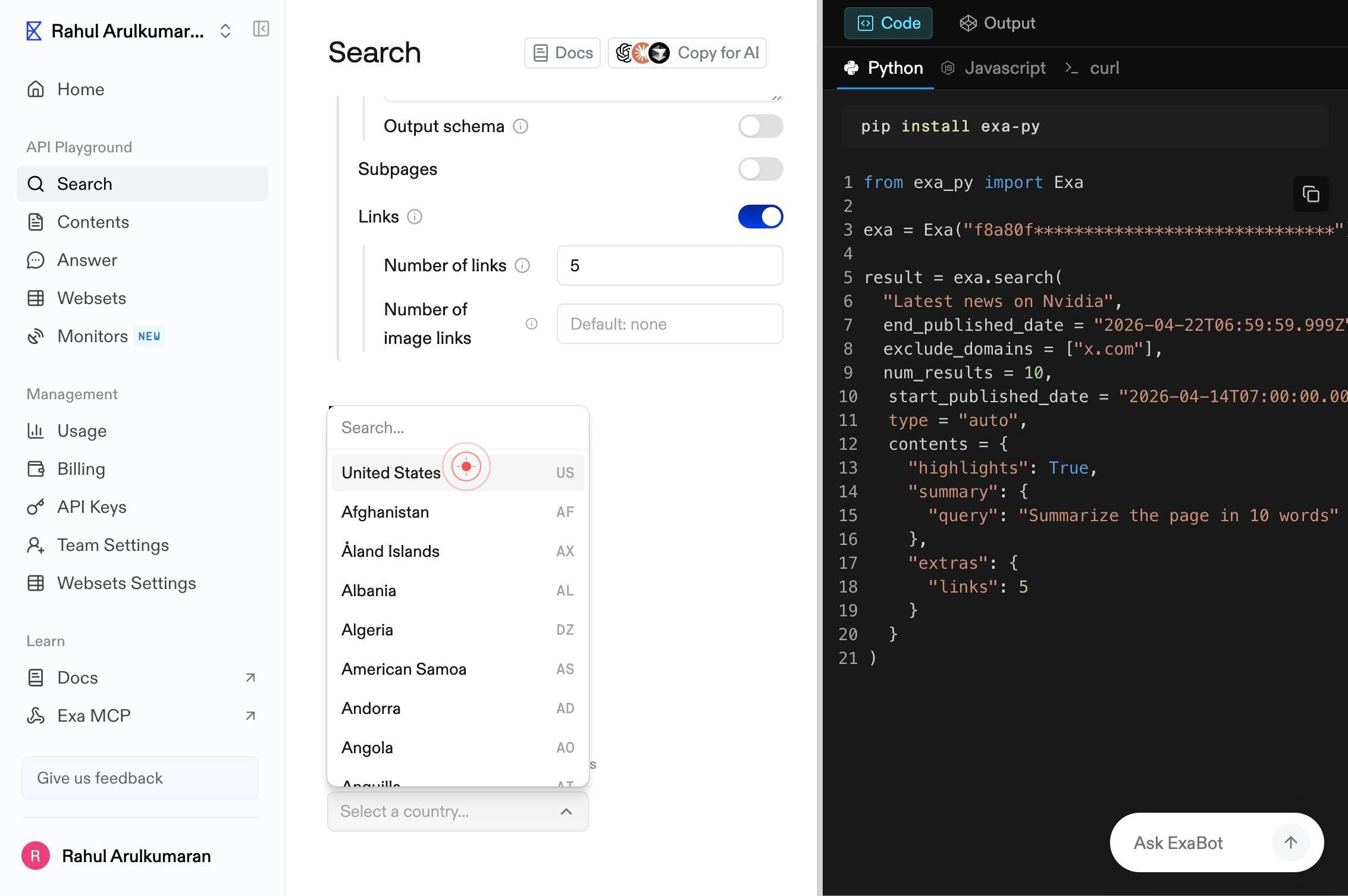
Search...Type 'United States' into the 'Search...' field that appears within the country dropdown. This filters the available country options to help you quickly locate and select the United States.
United StatesUSClick the 'United StatesUS' button that appears in the dropdown list to set the United States as your search location. Results will now be geographically targeted to the United States.
Confirm it worked
- 1The Advanced Options panel is visible and expanded on the search interface, showing all configuration fields (AI page summary toggle, custom prompt input, result limits, date range, domains, and country selection)
- 2All your configured settings are displayed in the expanded options panel with your entered values (custom prompt text, number of results, selected date range, specified domains, and United States as the location)
- 3After clicking to execute the search, results appear filtered by the United States location, include only content from the last 7 days, and AI-generated summaries are displayed using your custom prompt
Common issues
Keep reading
Do an Advanced Search on Google - Computer - Google Search Help
Do an Advanced Search on Google - Computer - Google Search Help # Do an Advanced Search on Google You can narrow results for complex searches with Advanced Search. For example, you can find sites in
support.google.comDo an Advanced Search on Google - Computer - Google Search Help
Do an Advanced Search on Google - Computer - Google Search Help # Do an Advanced Search on Google You can narrow results for complex searches with Advanced Search. For example, you can find sites in
support.google.comDo an Advanced Search on Google - Computer - Google Search Help
Do an Advanced Search on Google - Computer - Google Search Help # Do an Advanced Search on Google You can narrow results for complex searches with Advanced Search. For example, you can find sites in
support.google.com