Guide
Basic Search
Overview
Exa is a live web data search API that enables developers and companies to integrate current web information into AI applications. The Exa dashboard provides an interactive interface for exploring search capabilities before implementing them in code. This workflow walks you through a foundational search operation: composing a query, controlling result volume, applying category filters to focus on specific business domains, and toggling structured output mode to receive results in a format optimized for programmatic processing. Understanding these core search parameters is essential for both testing queries and configuring API calls in production.
Before you begin
- You have an active Exa account and are signed in to dashboard.exa.ai
- You are viewing the Exa dashboard home page or search interface
- You have a search query in mind (or are prepared to use an example from the dashboard)
Step by step
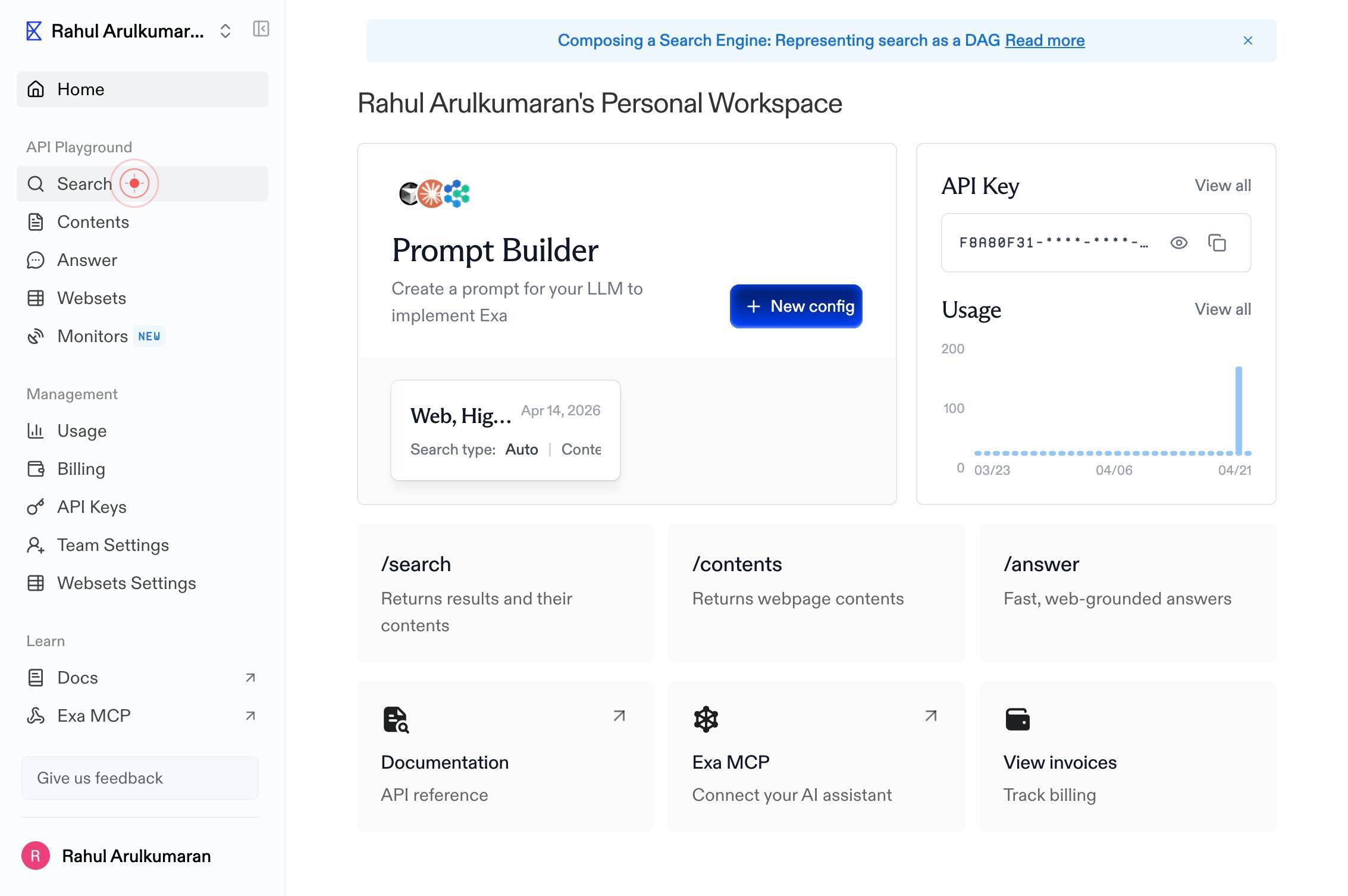
SearchNavigate to the search interface by clicking the Search link in the top navigation of the Exa dashboard.
Enter a query, or try an exampleClick on the query input field labeled 'Enter a query, or try an example' to activate it and prepare to enter your search terms.
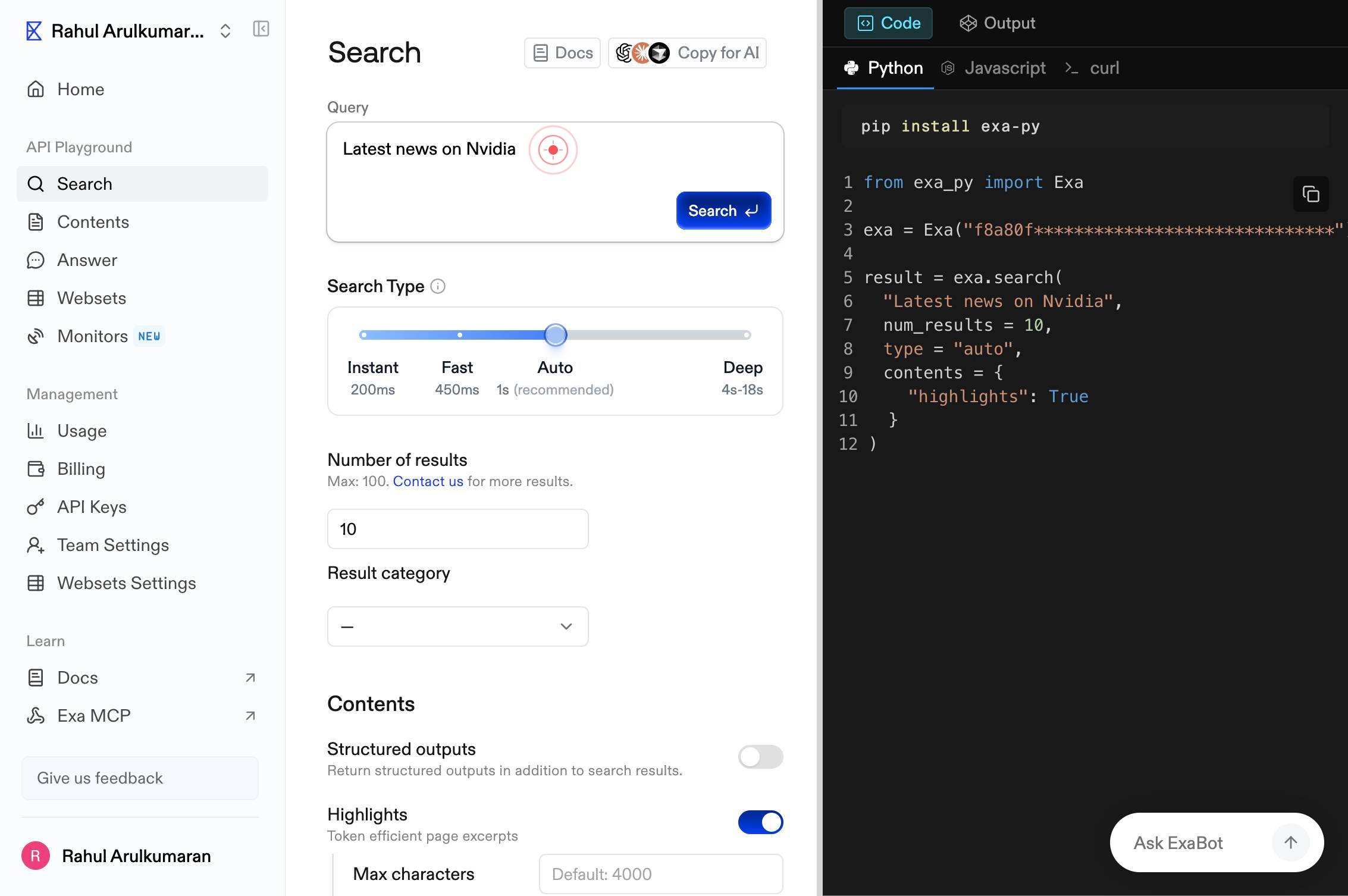
Enter a query, or try an exampleType your search query into the active text field. This can be a keyword, phrase, or natural language question relevant to your research or application.
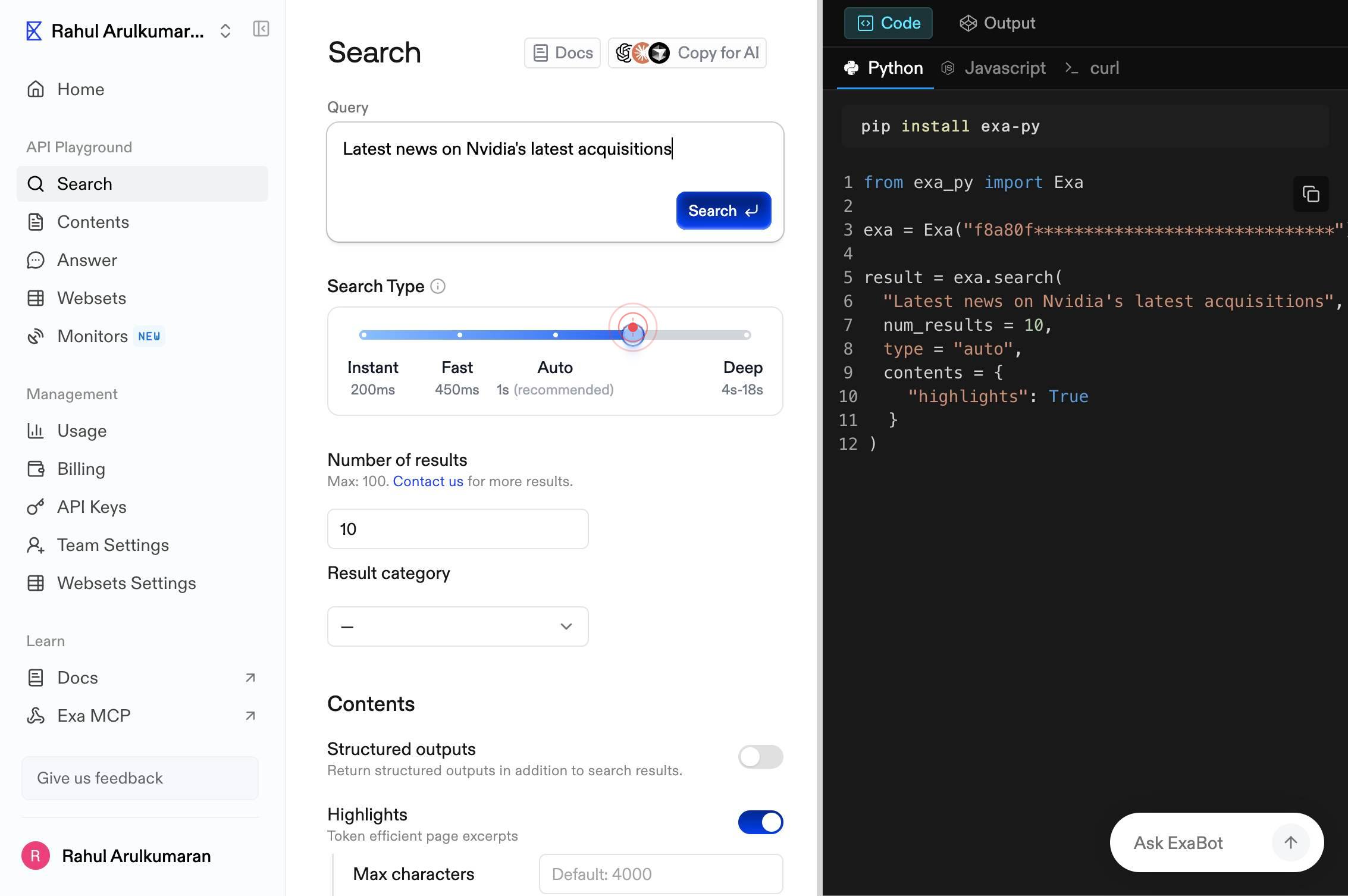
genericClick elsewhere on the page or press Enter to submit your query and retrieve initial results.
Default: 10Click on the results count field (labeled 'Default: 10') to open the input for customizing how many search results to display.
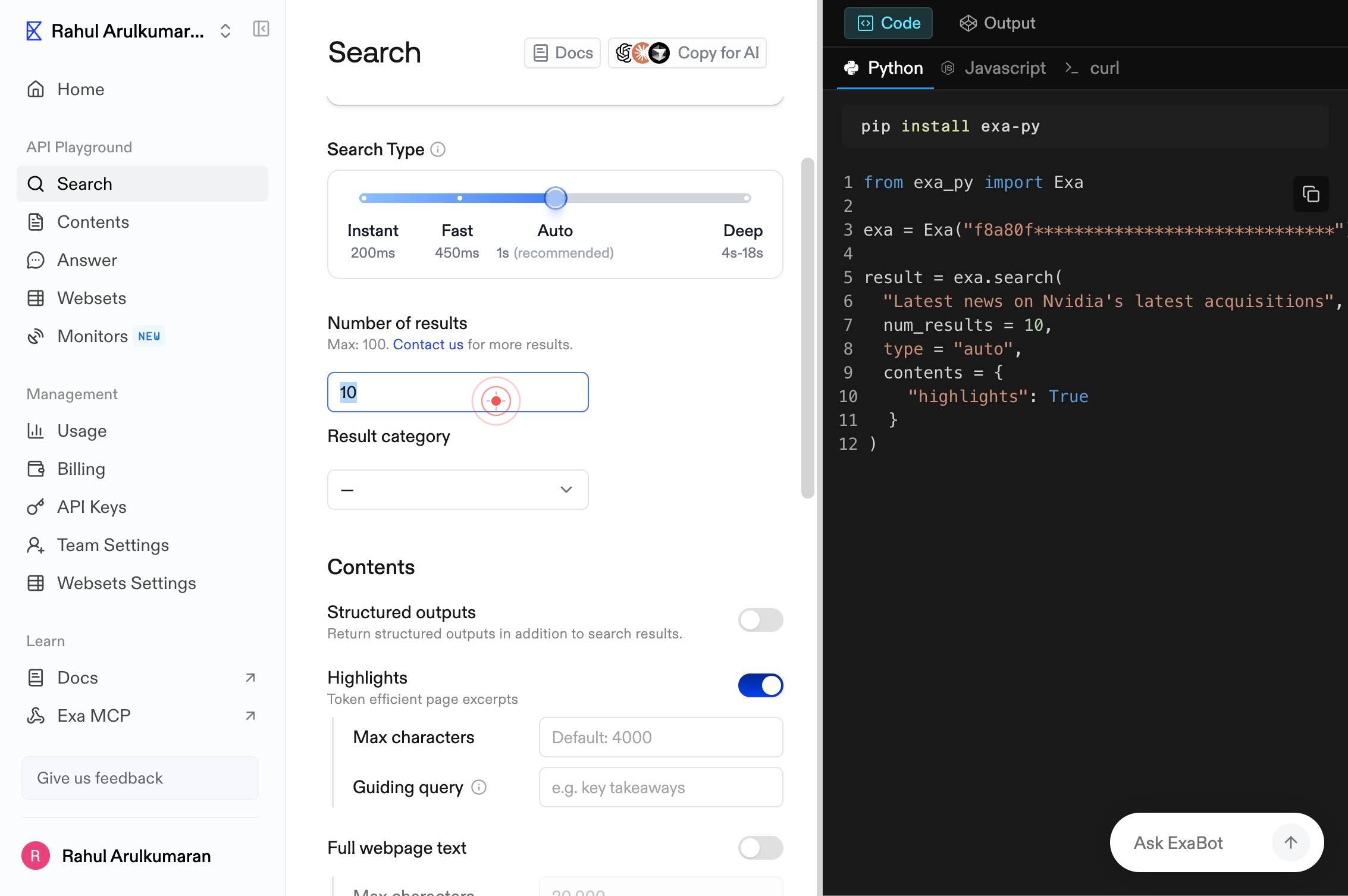
Default: 10Enter the desired number of results (for example, 20, 50, or another value) and confirm your entry.
—Click the collapse or expand button (represented by '—') to reveal additional filter options.
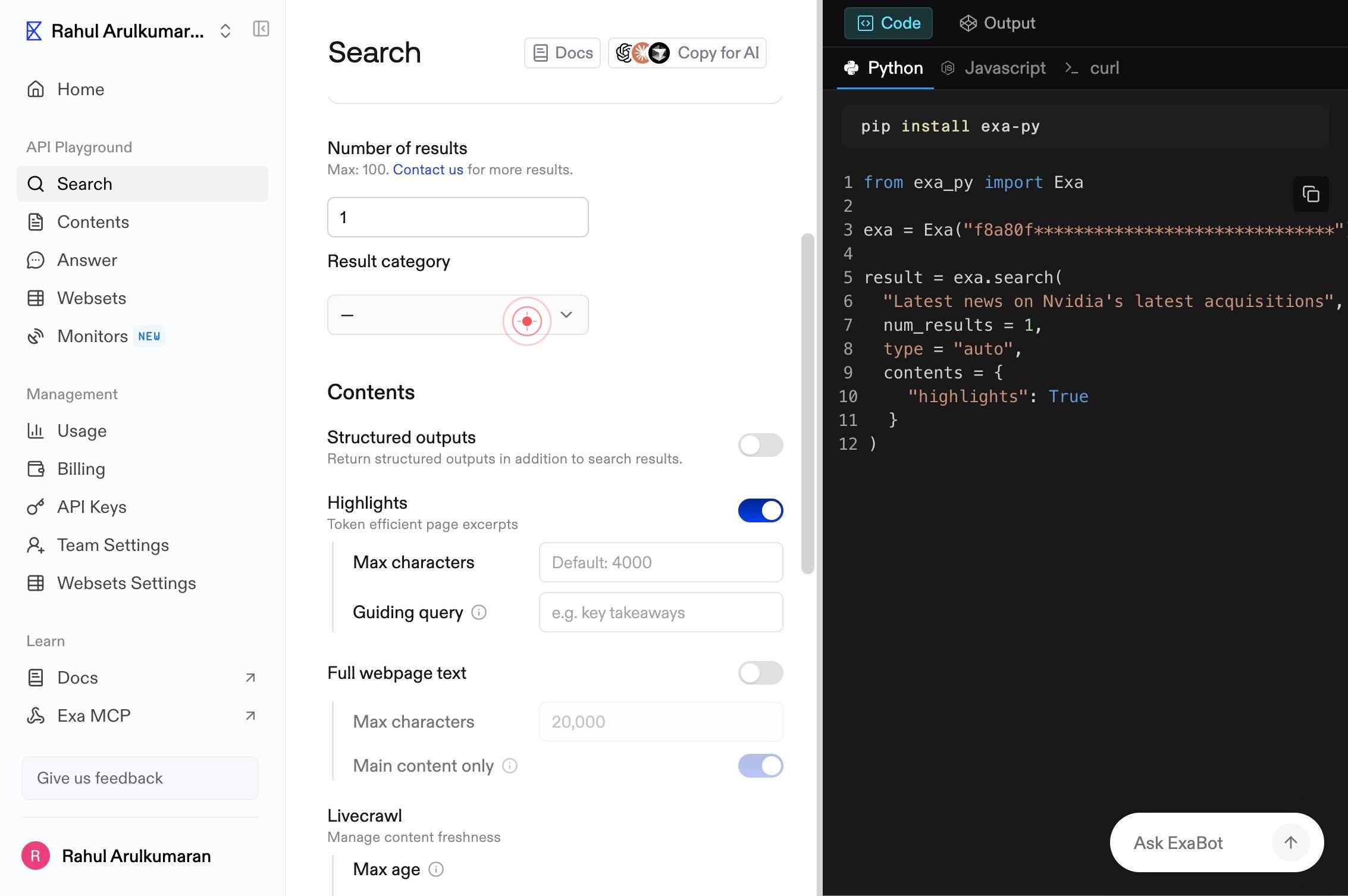
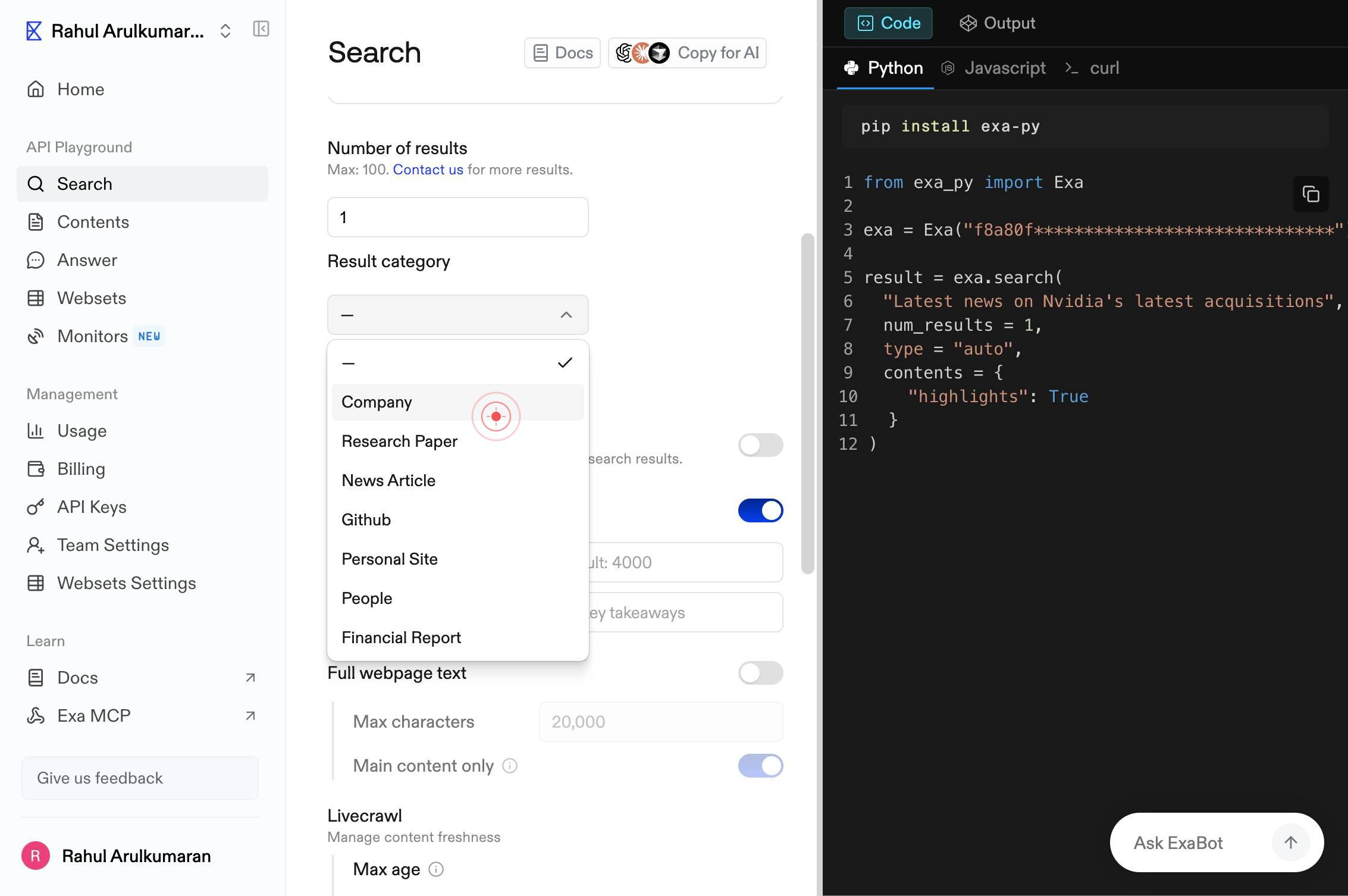
CompanyClick the 'Company' filter button to restrict search results to entries categorized as company-related content. This narrows results to business-focused sources and profiles.
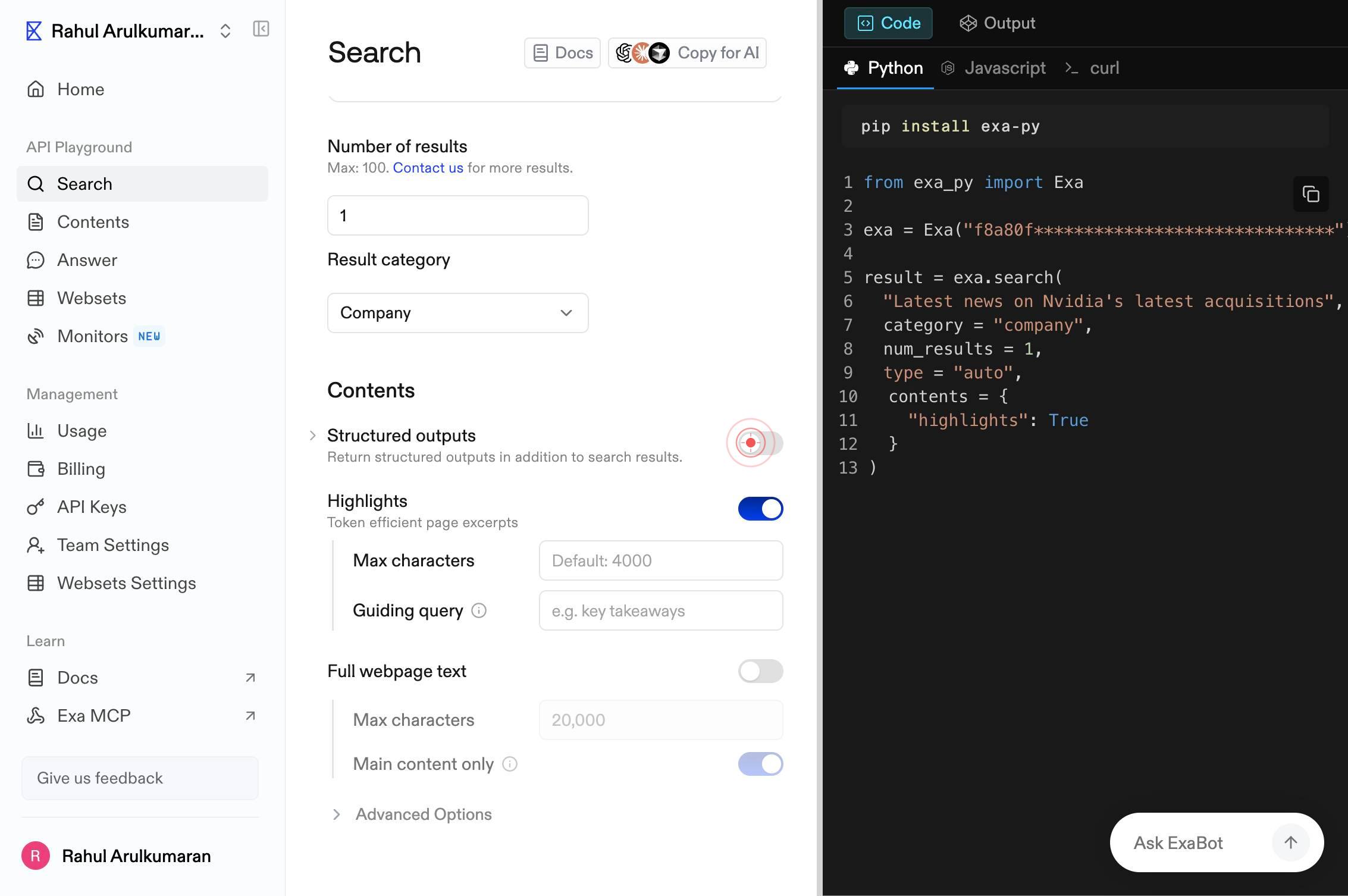
Structured outputsReturn structured outputs in addition to search results.Enable the 'Structured outputs' toggle switch to activate structured data formatting. This returns results in a machine-readable format (such as JSON) in addition to human-readable summaries.
Confirm it worked
- 1Search results appear on the page after entering your query and adjusting filters
- 2The results panel displays the number of results you specified (e.g., 10, 20, etc.)
- 3Results are filtered to show only entries from the 'Company' category
- 4Structured outputs are enabled—results display in a formatted, machine-readable layout (JSON or similar format)
Common issues
Keep reading
Searching Basics - Searching 101 - LibGuides at Milwaukee School of Engineering
Searching Basics - Searching 101 - LibGuides at Milwaukee School of Engineering Skip to Main Content Search # Searching 101 ### Basic Search Steps Basic searching uses the first 3 steps of the sea
libguides.msoe.eduInternet Basics -
Internet Basics: Using Search Engines [](https://edu.gcfglobal.org/en/)*close**search*![](https://media.gcflearnfree.org/ass
edu.gcfglobal.orgLearn search tips & how results relate to your search on Google - Google Search Help
Learn search tips & how results relate to your search on Google - Google Search Help # Learn search tips & how results relate to your search on Google Here are a few tips and tricks to help you easi
support.google.com