Guide
Pause Monitor
Overview
Exa's monitoring feature allows you to set up automated news monitors that continuously track live web data based on your search criteria. The 'Latest News On XAI' monitor is actively collecting data on a scheduled basis (in this case, every hour). Pausing a monitor is useful when you want to temporarily stop data ingestion—for example, during maintenance, when you've reached your data quota, or when you need to redirect monitoring resources—while preserving the monitor's configuration for future reactivation. This workflow guides you through navigating to your monitors and pausing a specific active monitor from the Exa dashboard.
Before you begin
- An active Exa account with access to dashboard.exa.ai
- An existing monitor named 'Latest News On XAI' that is currently running (status: active)
- Browser access to https://dashboard.exa.ai
Step by step
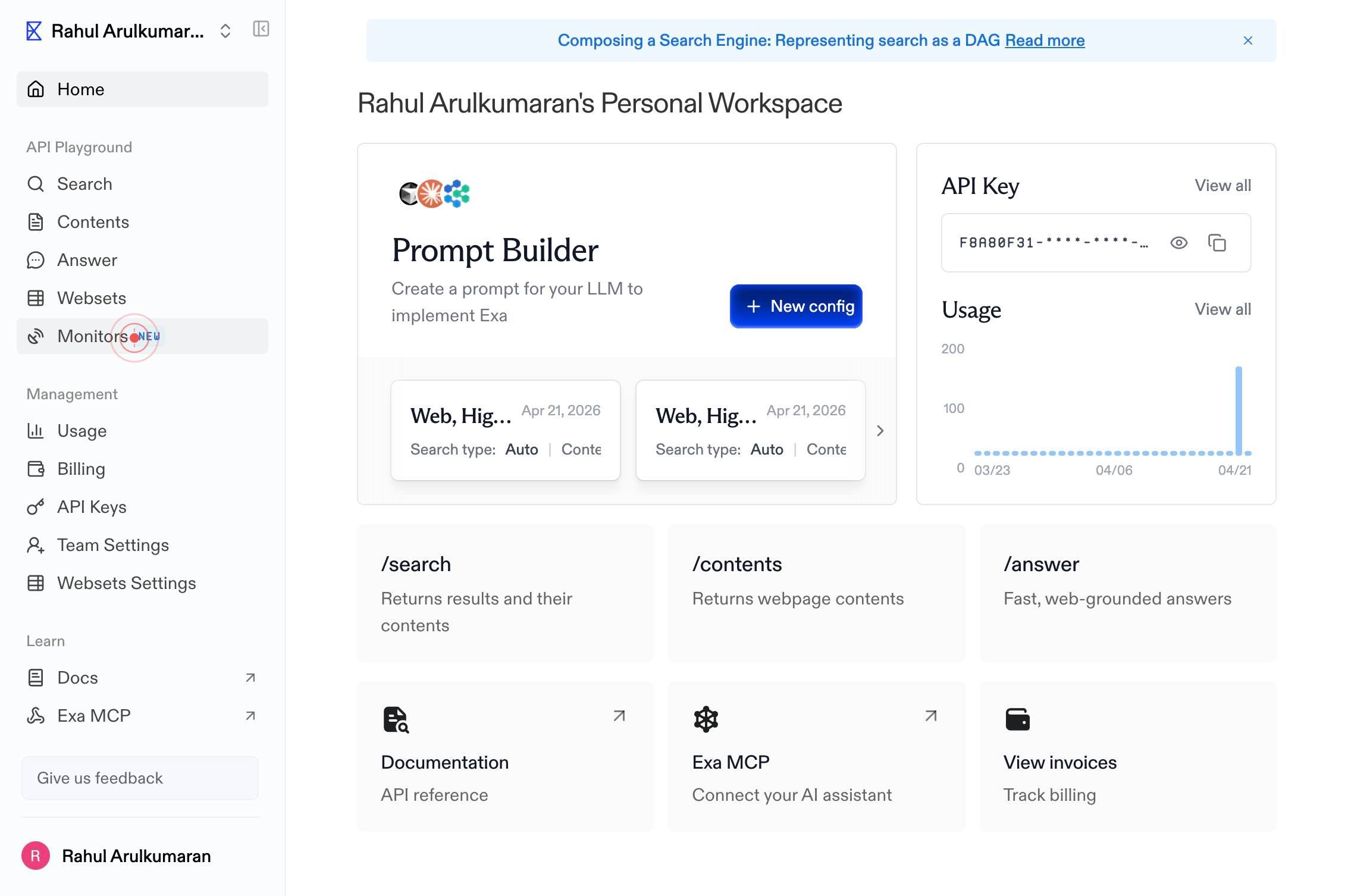
Monitors NEWNavigate to the Monitors section of your Exa dashboard by clicking the 'Monitors NEW' link in the top navigation. This displays your list of all active and inactive monitors.
Enter a search query for the monitor...Type 'Latest News On XAI' into the search textbox labeled 'Enter a search query for the monitor...' to filter your monitors and quickly locate the specific monitor you want to pause.
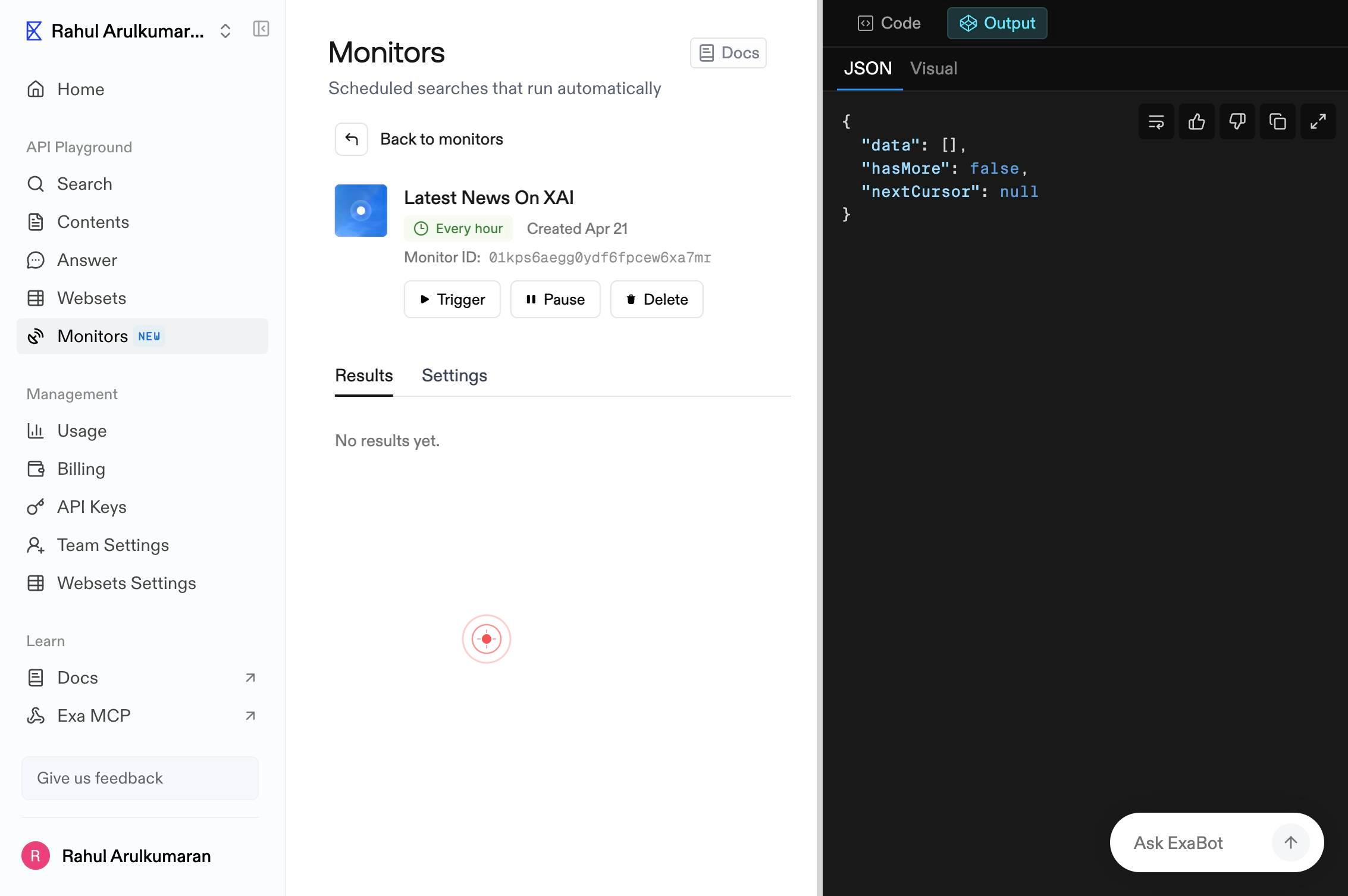
Latest News On XAI Every hourClick on the 'Latest News On XAI Every hour' button to select and open the monitor details. This action displays the full configuration and current status of the monitor you wish to manage.
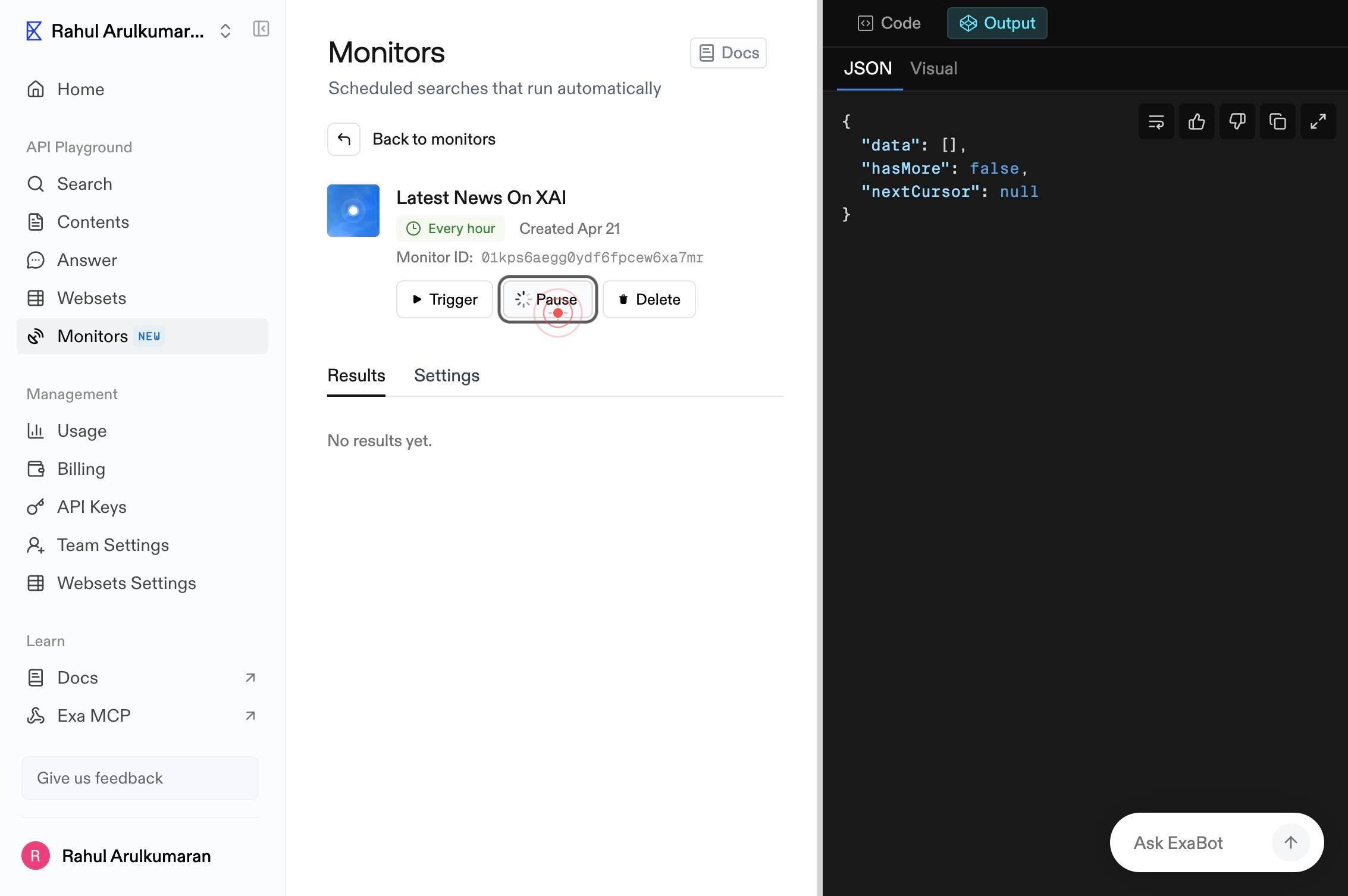
PauseClick the 'Pause' button to pause the active monitor. This stops the monitor from collecting new data on its scheduled interval while preserving all monitor settings and collected data.
Confirm it worked
- 1The monitor status changes from 'active' or 'Every hour' to 'Paused' in the monitor list
- 2The Pause button is no longer visible or is replaced with a 'Resume' button for that monitor
- 3No new data collection occurs for the 'Latest News On XAI' monitor while paused
Common issues
Keep reading
How to "Pause" a monitor - ITmanager.net
How to "Pause" a monitor - ITmanager.net [Home](https://www3.itmanager.net/)› [Support](https://www3.itmanager.net/support/)› [Server Monitoring](https://www3.itmanager.net/support-category/server-mo
www3.itmanager.netHow to "Pause" a monitor - ITmanager.net
How to "Pause" a monitor - ITmanager.net [Home](https://itmanager.net/)› [Support](https://itmanager.net/support/)› [Server Monitoring](https://itmanager.net/support-category/server-monitoring/)› How
itmanager.netPause
Pause # Pause --- Monitoring in dbWatch have two “levels” of pause. You can pause the monitoring on an instance altogether, meaning that the monitoring jobs will not execute. Or you can pause the a
wiki.dbwatch.com