Guide
Delete Monitor
Overview
Monitors in Exa are automated data collection tasks that fetch and index live web data at scheduled intervals. Deleting a monitor stops its scheduled runs and removes it from your dashboard, freeing up resources and reducing data ingestion. This action is permanent—once deleted, the monitor configuration cannot be recovered, though any previously collected data may remain in your system depending on your retention policy. You should delete monitors that are no longer relevant to your AI applications or data pipelines.
Before you begin
- An active Exa account with dashboard access at dashboard.exa.ai
- An existing monitor named "Latest News On XAI Every hour" (or the monitor you wish to delete)
- Appropriate permissions to manage monitors in your Exa organization
Step by step
Monitors NEWNavigate to the Monitors section of your Exa dashboard by clicking the "Monitors NEW" link in the left navigation menu. This displays all active monitors in your account.
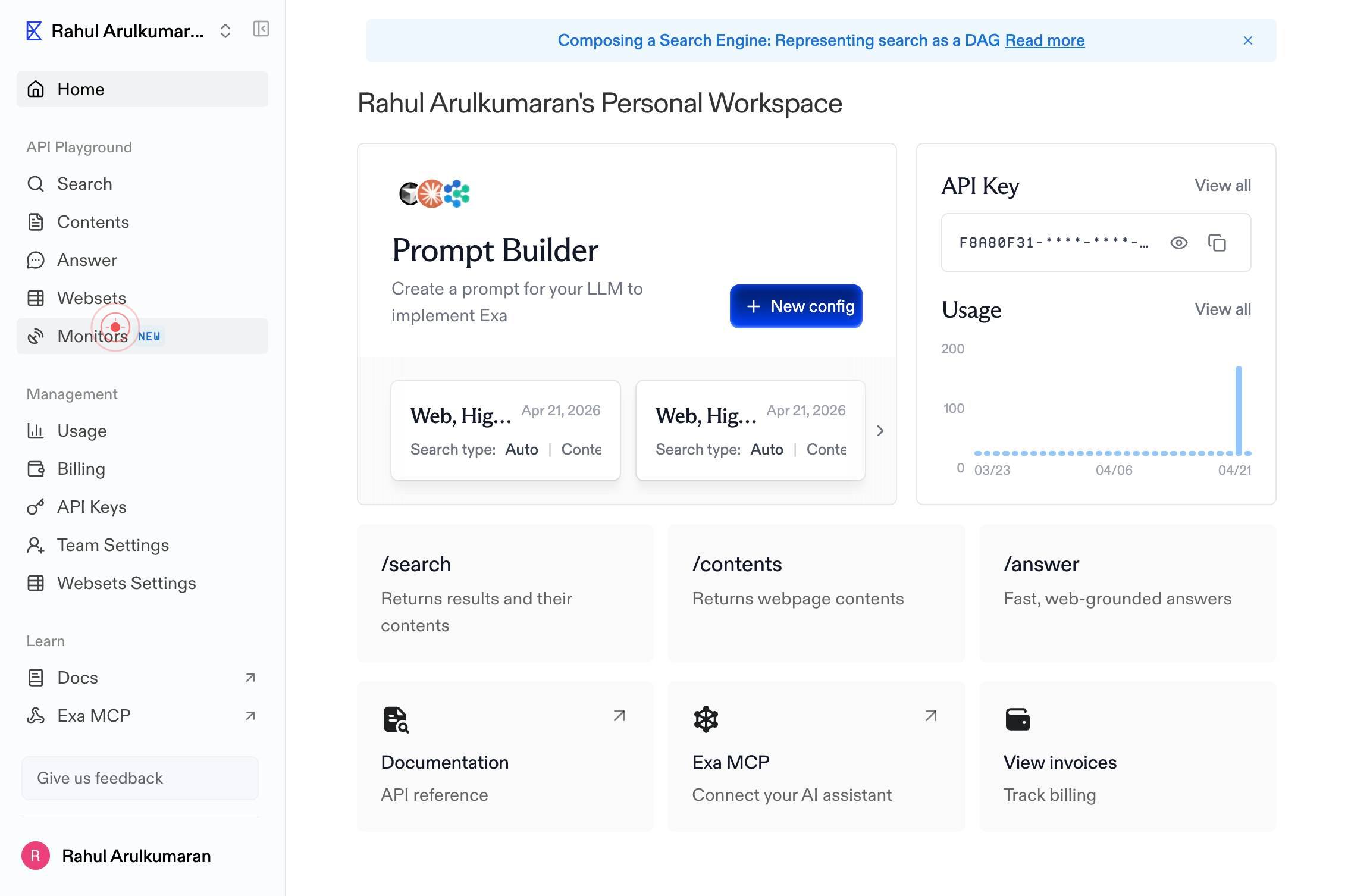
Enter a search query for the monitor...Enter the name of the monitor you want to delete in the search textbox labeled "Enter a search query for the monitor...". This filters the monitor list to show only matching results.
Latest News On XAI Every hourClick on the monitor named "Latest News On XAI Every hour" from the filtered results to select it and open its detail view.
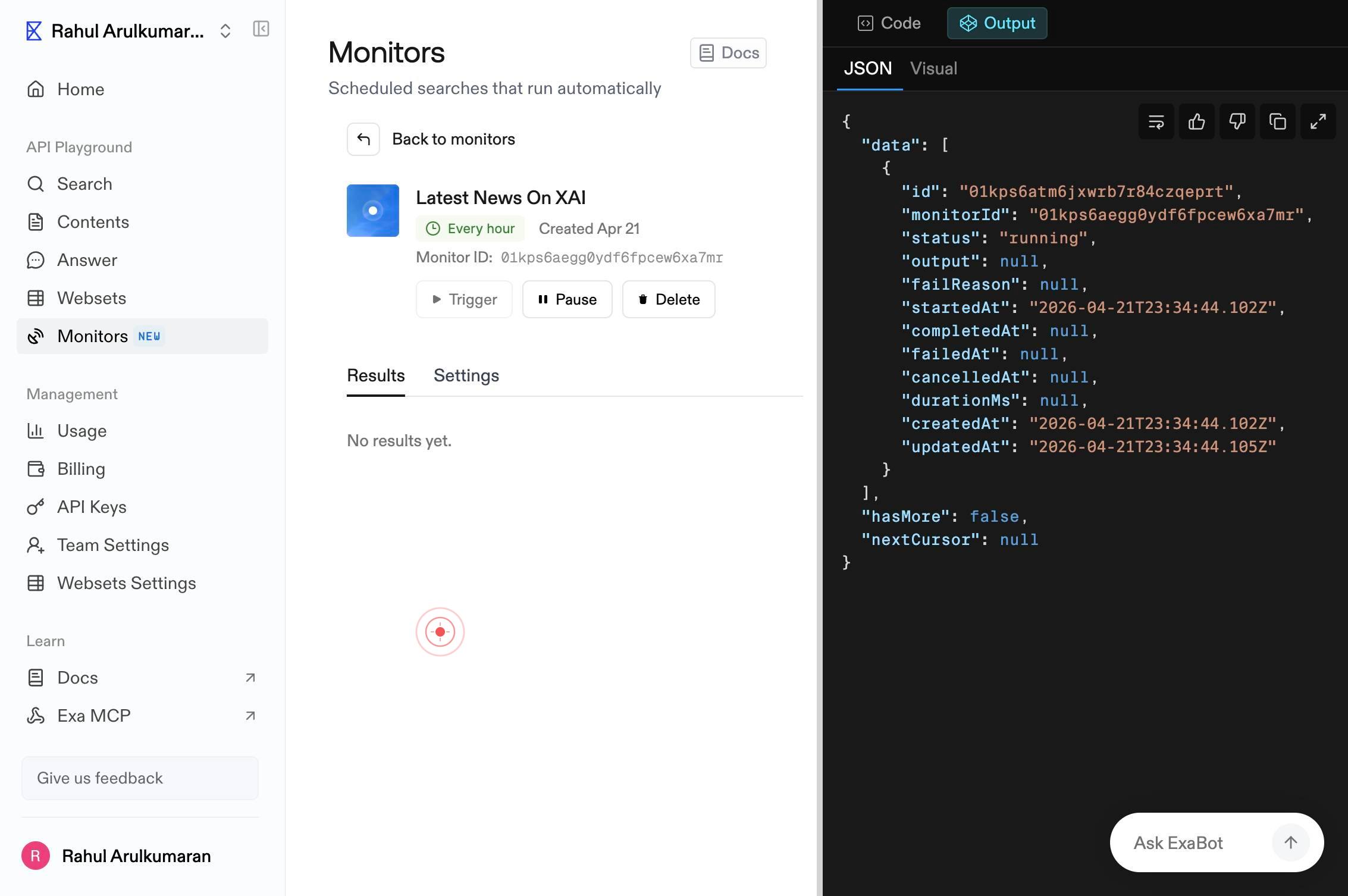
DeleteClick the "Delete" button to initiate the deletion process. A confirmation dialog should appear to prevent accidental deletion.
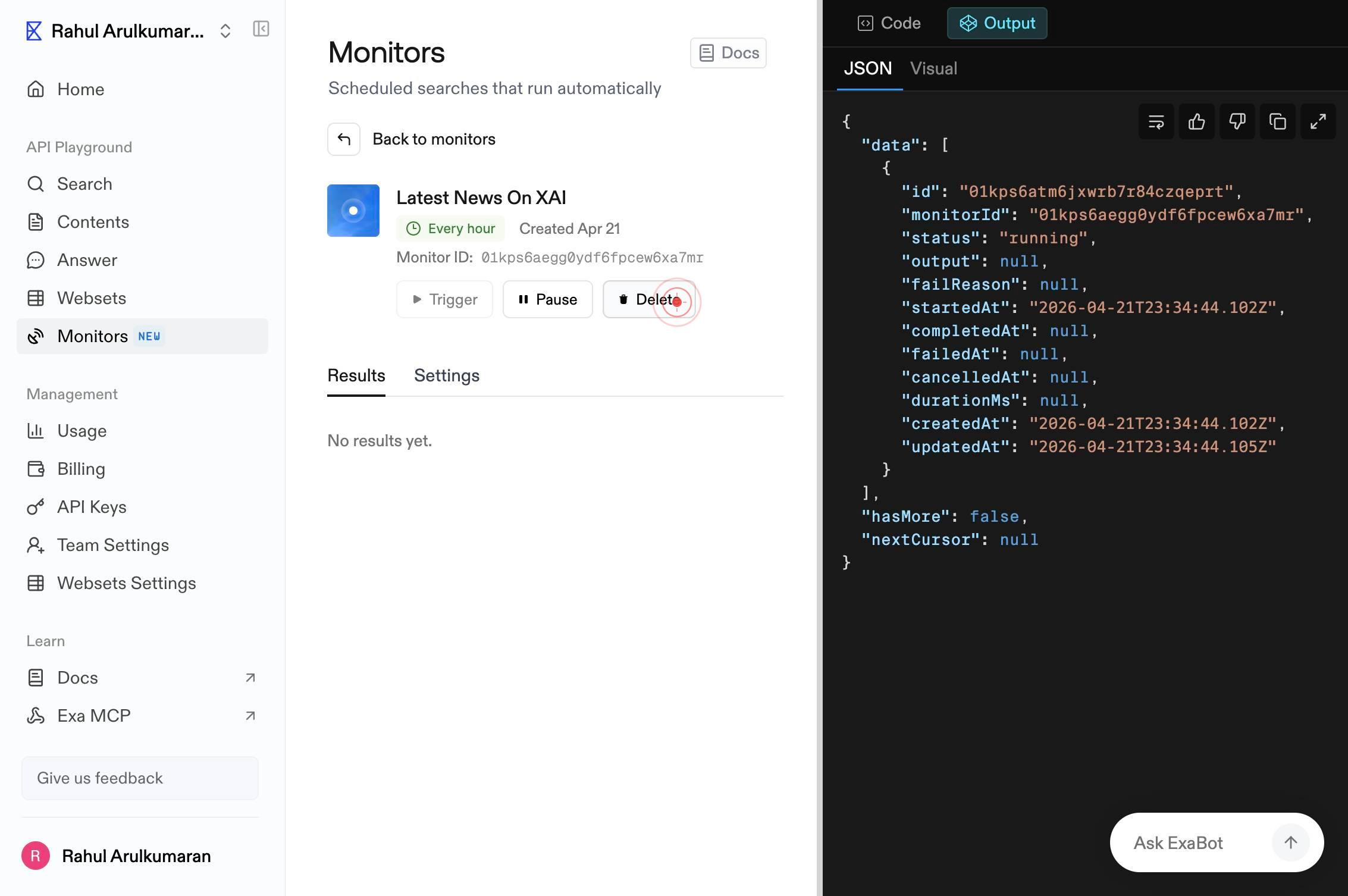
DeleteClick the "Delete" button again in the confirmation dialog to finalize the deletion of the monitor.
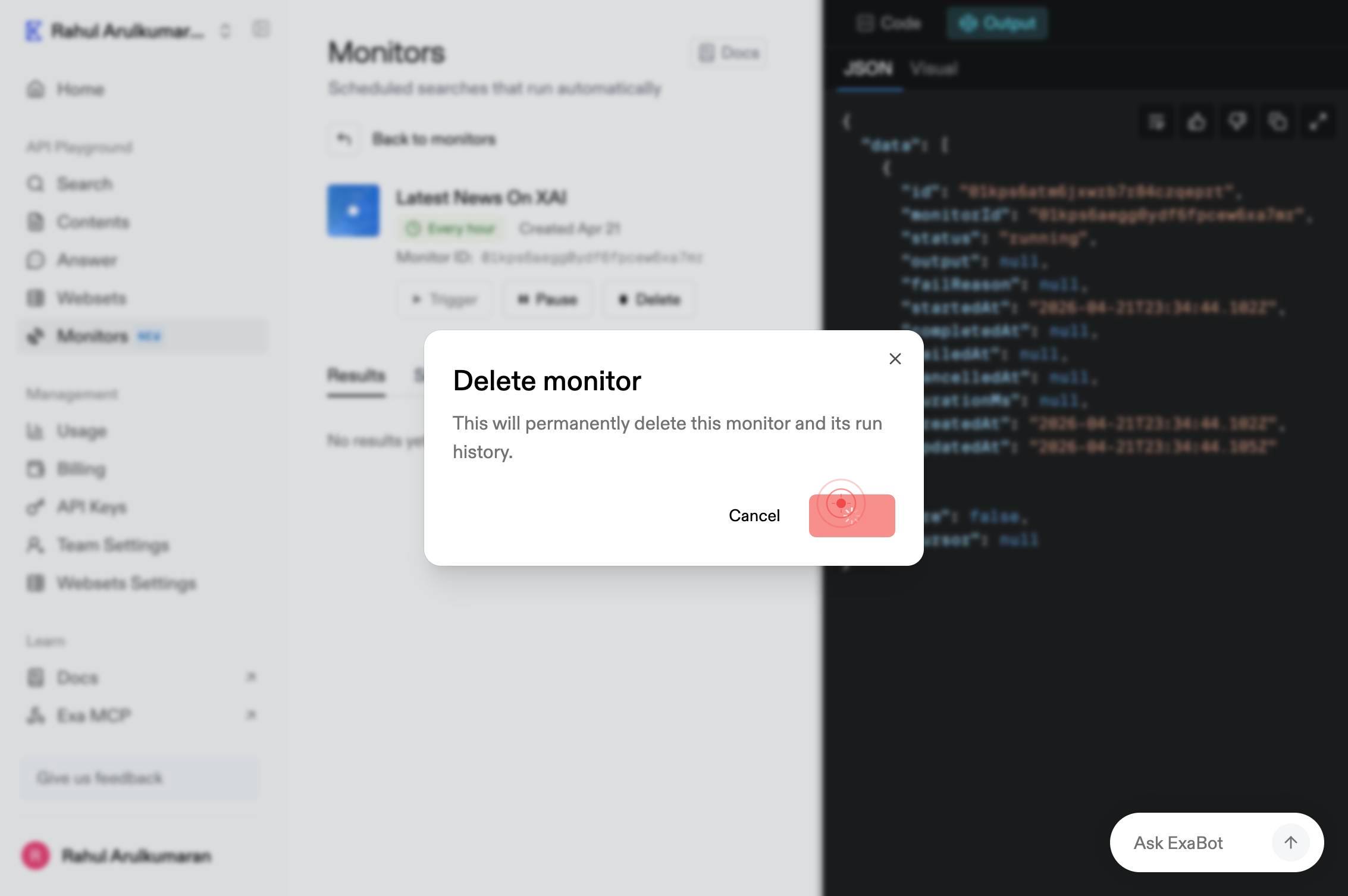
Confirm it worked
- 1The monitor "Latest News On XAI Every hour" no longer appears in the Monitors list after deletion
- 2A confirmation message appears indicating the monitor has been successfully deleted
- 3The dashboard refreshes and the monitor count decreases by one
Common issues
Keep reading
Deleting Monitors | MonSpark Docs
# Deleting Monitors Delete monitors that are no longer needed. You can easily delete your desired monitors either one by one or in bulk. ### Deleting a single monitor {% @arcade/embed flowId="txE3X
docs.monspark.comDelete a monitor in Internet Monitor
Delete a monitor in Internet Monitor - Amazon CloudWatch Delete a monitor in Internet Monitor - Amazon CloudWatch # Delete a monitor in Internet Monitor Using the Action menu, you can delete a moni
docs.aws.amazon.comDelete a Monitor - Pulsetic Knowledge Base
Delete a Monitor - Pulsetic Knowledge Base # Delete a Monitor Deleting a monitor in Pulsetic is a permanent action. Once a monitor is deleted, Pulsetic will immediately stop checking your website, s
help.pulsetic.com