Guide
Index Connected Integration
Overview
Nia's Integrations section allows you to manage external data source connectors (such as Confluence, GitHub, Slack, and others) that feed content into your search and retrieval system. Indexing is the process that pulls raw data from these connected sources, chunks it into searchable units, embeds it into vectors, and stores it in Nia's index. This workflow walks you through accessing the Integrations panel and triggering a bulk indexing operation across all 14 of your connected channels. Indexing is essential before you can search across your integrated data sources—without it, newly connected sources or updated content will not be available to your agents and search queries.
Before you begin
- Active Nia account with admin or connector management access at app.trynia.ai.
- At least 14 data source connectors already installed and configured (e.g., Confluence, GitHub, Slack, etc.).
- Valid API credentials stored for each connected integration (OAuth tokens, API keys, or other authentication required by each connector type).
- Sufficient workspace quota and indexing capacity available for simultaneous indexing of all 14 channels.
Step by step
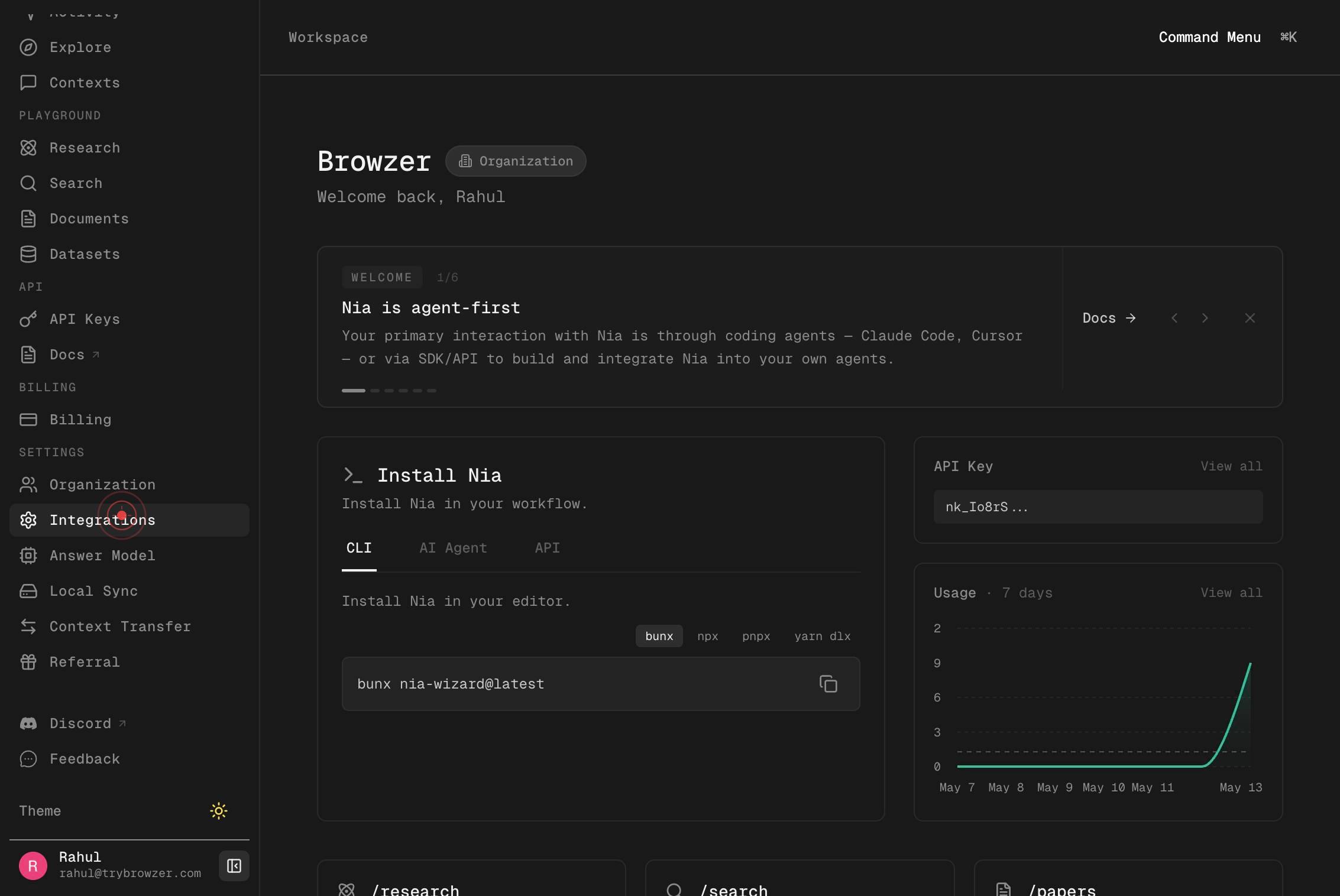
IntegrationsNavigate to the Integrations section by clicking the 'Integrations' link in the main navigation or sidebar. This page displays all of your currently installed and connected data source integrations (such as Confluence, GitHub, Slack, etc.), their connection status, and available actions.
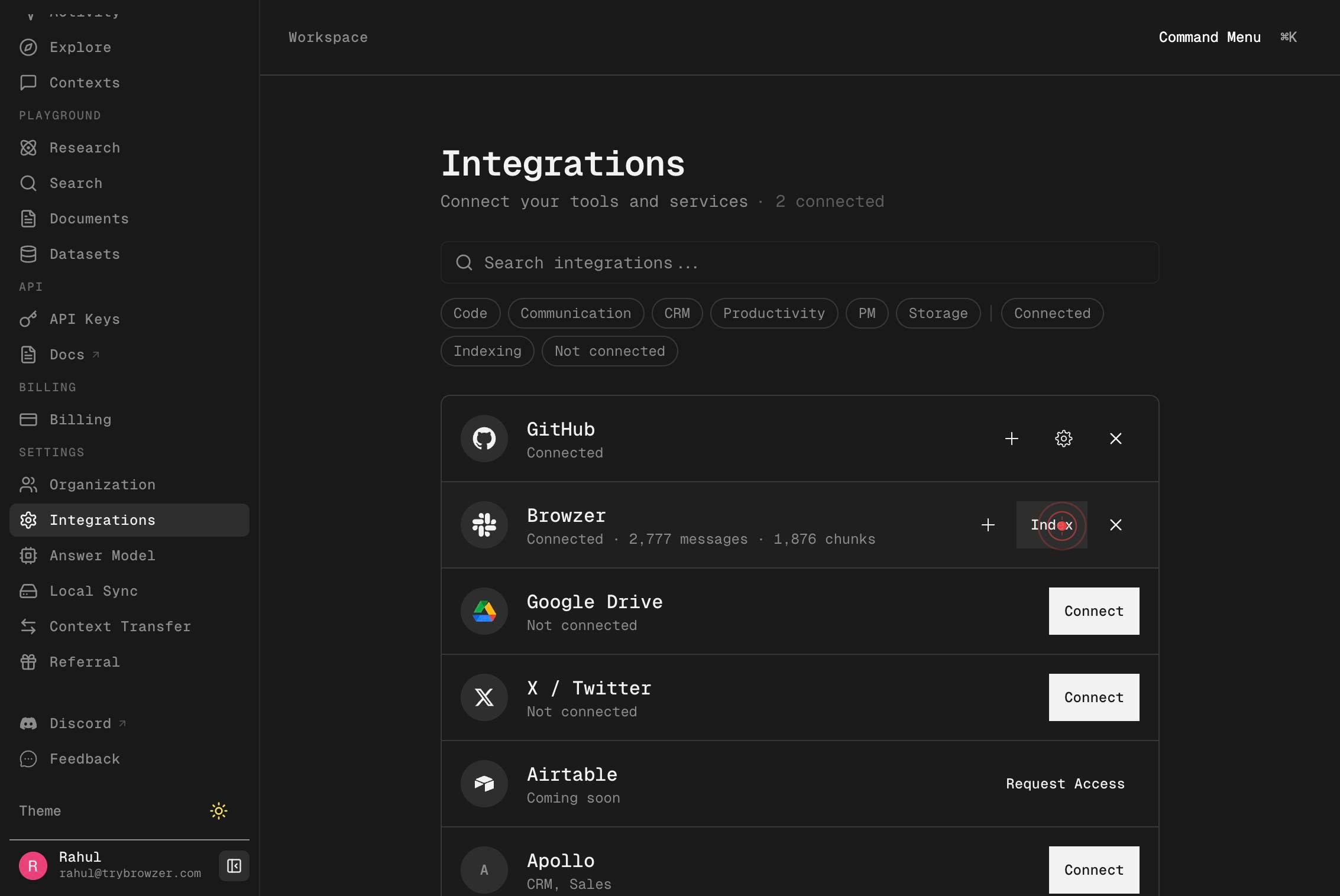
IndexClick the 'Index' button to access the indexing controls. This button opens a panel or modal where you can choose which connectors to index or proceed with indexing all available connected channels.
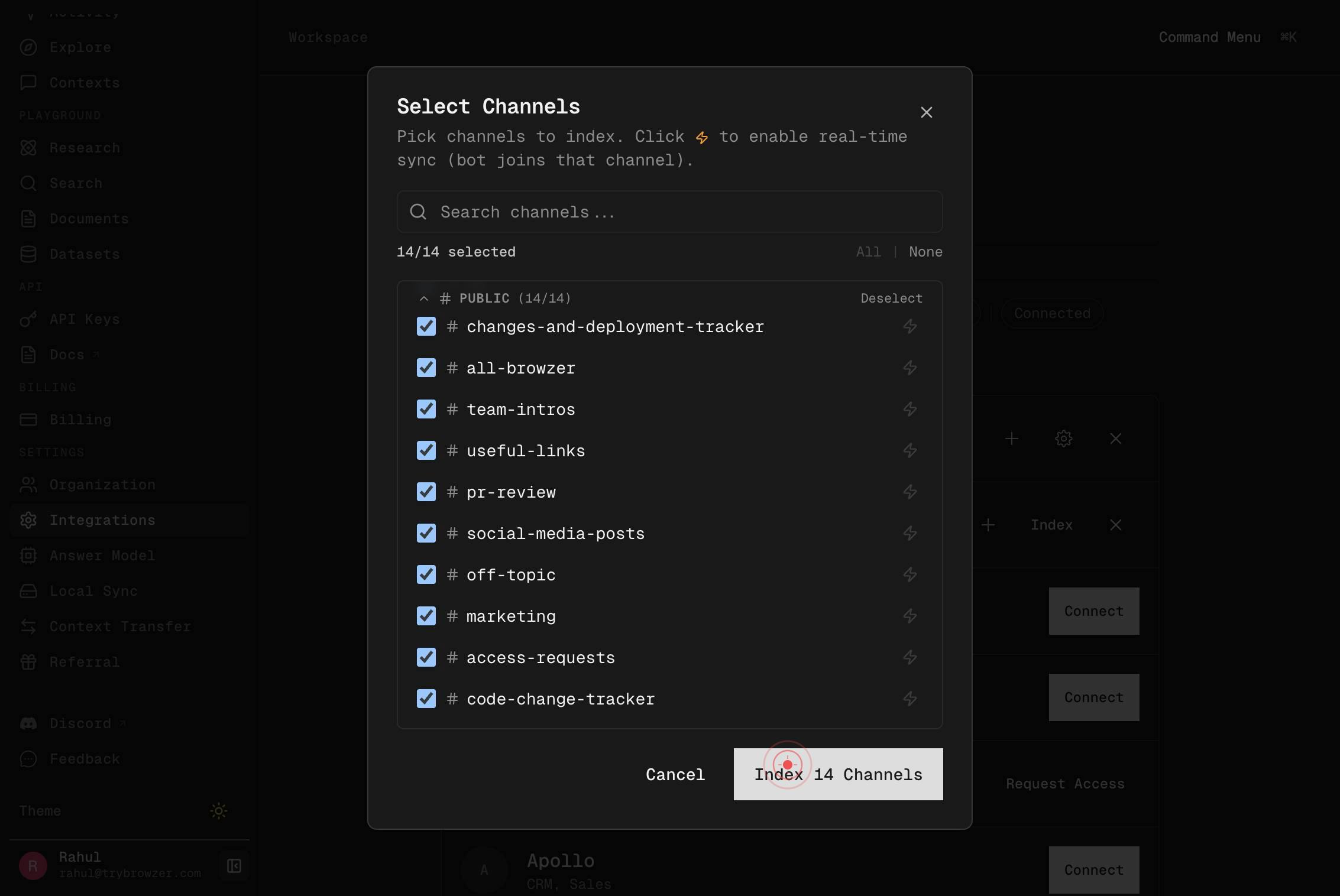
Index 14 ChannelsClick the 'Index 14 Channels' button to initiate a bulk indexing job across all 14 connected integrations. This action begins pulling data from each source, chunking it, embedding it into vectors, and storing it in Nia's search index. The process runs asynchronously; you can monitor progress and status from the Integrations page.
Confirm it worked
- 1The Integrations page loads and displays all 14 connected channels with their current sync status.
- 2An indexing job is initiated; the UI shows each channel's status transitioning from 'idle' to 'processing'.
- 3Each channel displays a progress indicator (e.g., 'Indexing pages (230/342)') and incremental document/chunk counts as indexing proceeds.
- 4After completion, each channel shows a 'completed' status with final indexed document and chunk counts, and a 'last_sync_at' timestamp.
Common issues
Keep reading
Connectors - Nia AI Documentation
> A generic framework for integrating external data sources into Nia — discover, install, configure, index, and search. [...] Connectors provide a unified way to bring external data sources into Nia. Instead of building custom integrations for every service, connectors follow a common lifecycle: discover available types, install one with credentials, configure sync settings, trigger indexing, and search the results alongside all your other Nia sources. [...] Trigger indexing to pull data from the external source, chunk it, embed it, and store it in Nia's vector index. [...] ## Indexing [...] | | --- | --- | --- | [...] | `/v2/ [...] | `POST [...] | `/v2/ [...] type}/oauth/callback [...] | `GET` | `/v2/connect [...] /installations [...] | `DELETE [...] /installations/{id [...] POST` | `/v2/connectors/installations/{id}/index [...] 2/connectors/installations/{id}/schedule [...] schedule | | [...] 2/connectors/installations/{id}/status [...] sync status |
docs.trynia.aiIndex Installation - Nia AI Documentation
# Index Installation [...] > Trigger indexing for a connector installation. [...] ```yaml /openapi-docs.yaml post /connectors/installations/{installation_id}/index [...] info: [...] paths: /connectors/installations/{installation_id}/index: post: tags: - Usage summary: Index Installation description: Trigger indexing for a connector installation. operationId: >- index_installation_v2_connectors_installations__installation_id__index_post parameters: - name: installation_id in: path required: true schema: type: string title: Installation Id responses: '200': description: Successful Response content: application/json: schema: {} '422': description: Validation Error content: application/json: schema: $ref: '#/components/schemas/HTTPValidationError'
docs.trynia.ai