Guide
Query Indexed Document
Overview
Trynia AI's document querying capability allows you to leverage indexed PDF files as knowledge sources. Instead of manually searching through documents, you can ask natural language questions and receive answers extracted directly from the PDF content. This workflow is useful when you have project documentation, technical specifications, research papers, or reference materials indexed in your workspace and need to find specific information quickly. The query interface uses semantic search to match your question against the document's content, making it easier to locate answers without reading the entire file.
Before you begin
- Active Trynia AI account with access to app.trynia.ai
- At least one PDF file already indexed in your workspace (see indexing documentation if you need to add a new PDF)
- Browser access to the Trynia AI web application
- The specific PDF filename or topic you wish to query
Step by step
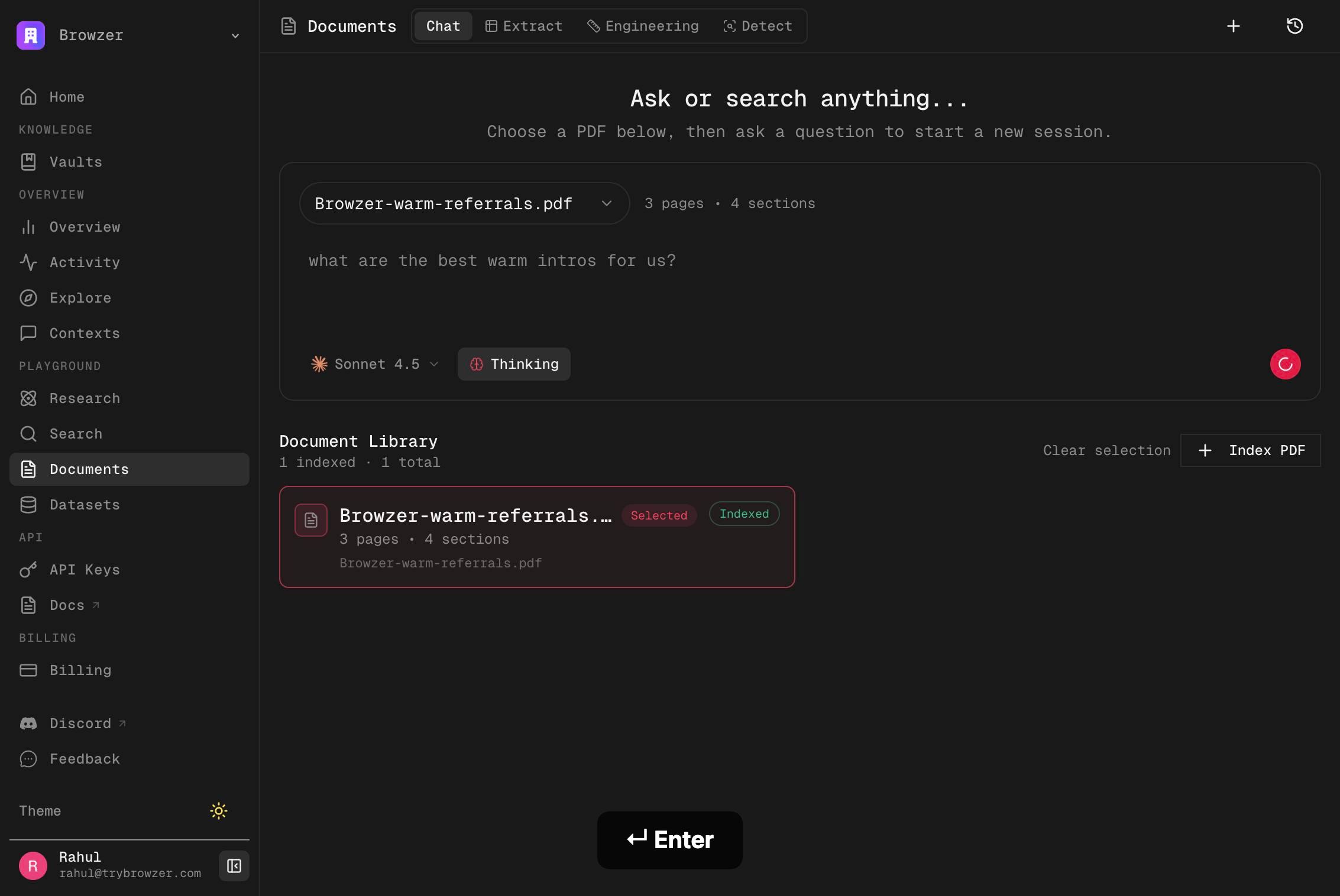
DocumentsNavigate to the Documents section of Trynia AI by clicking the Documents link in the left sidebar or main navigation. This opens the document management interface where all your indexed PDFs are available.
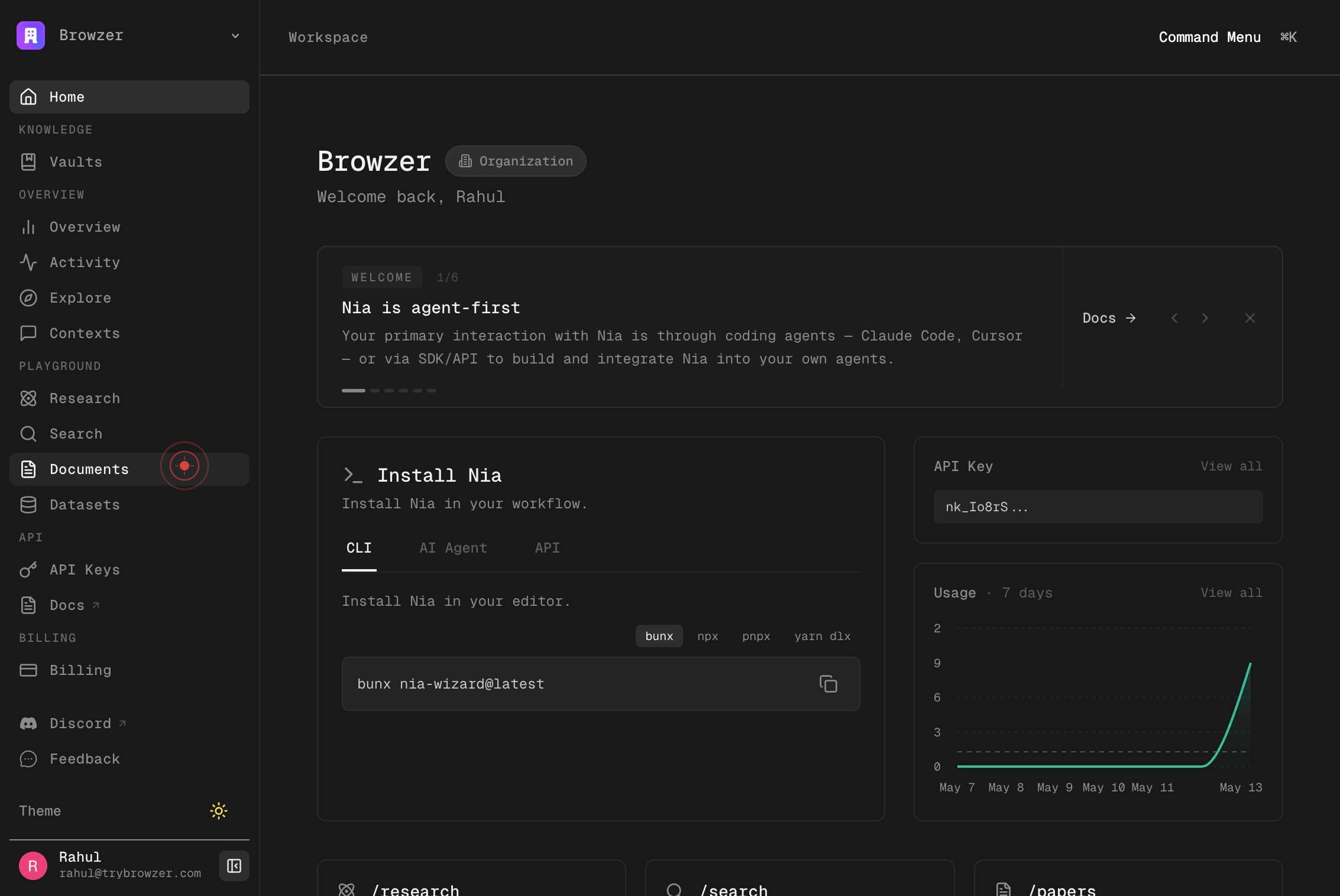
Select a PDFClick the 'Select a PDF' button to open the file selection dropdown. This button initiates the process of choosing which indexed PDF document you want to query.
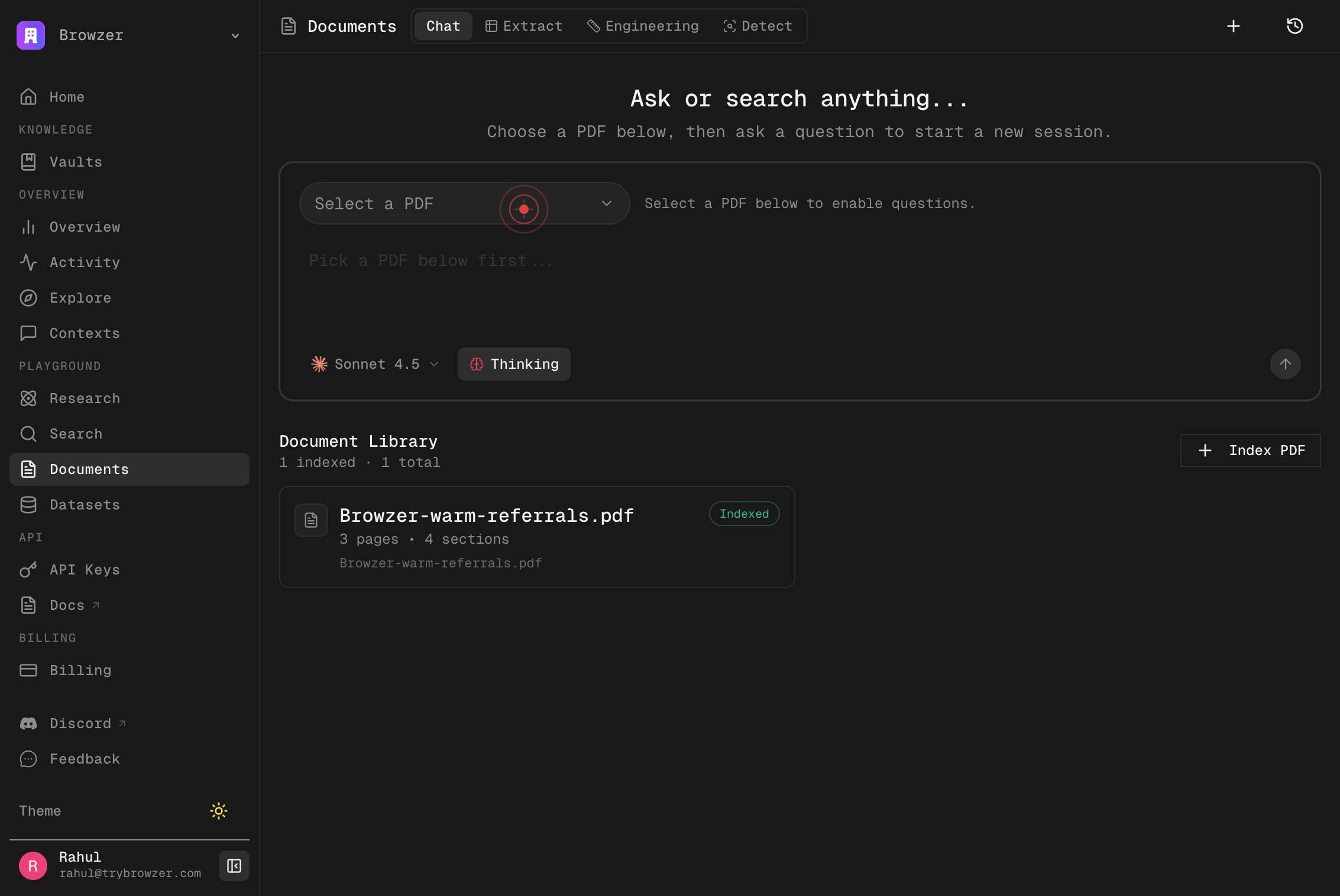
comboboxBegin typing in the file selection field to search for your desired PDF by name. The search will filter available documents as you type, making it easier to locate files in a large workspace.
Browzer-warm-referrals.pdf 3pClick on the PDF file from the dropdown results to select it for querying. The file name and page count will appear in the selection field (e.g., 'Browzer-warm-referrals.pdf 3p').
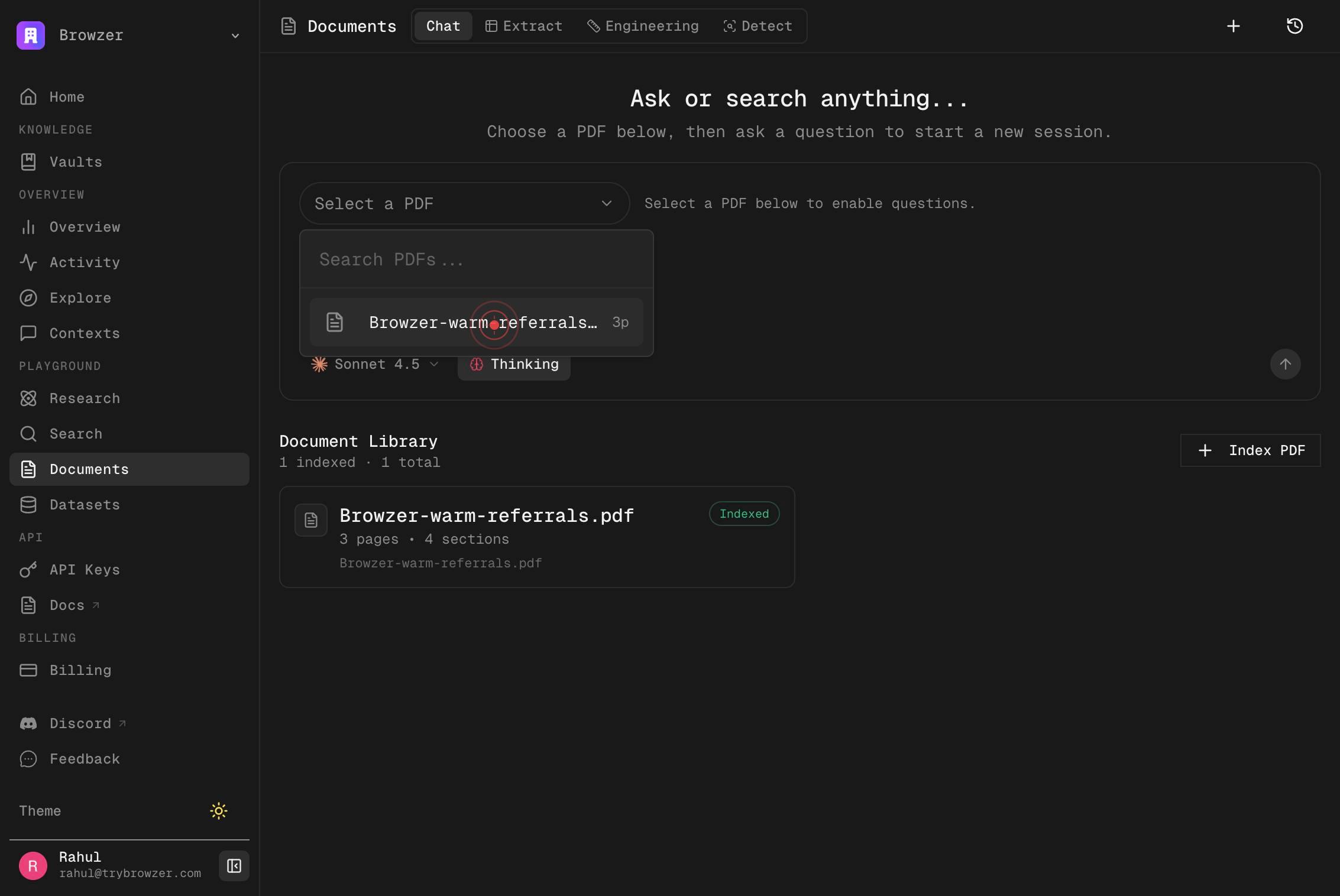
Ask anything about this PDF...Click in the text input field labeled 'Ask anything about this PDF...' to focus the query box and prepare it for your question.
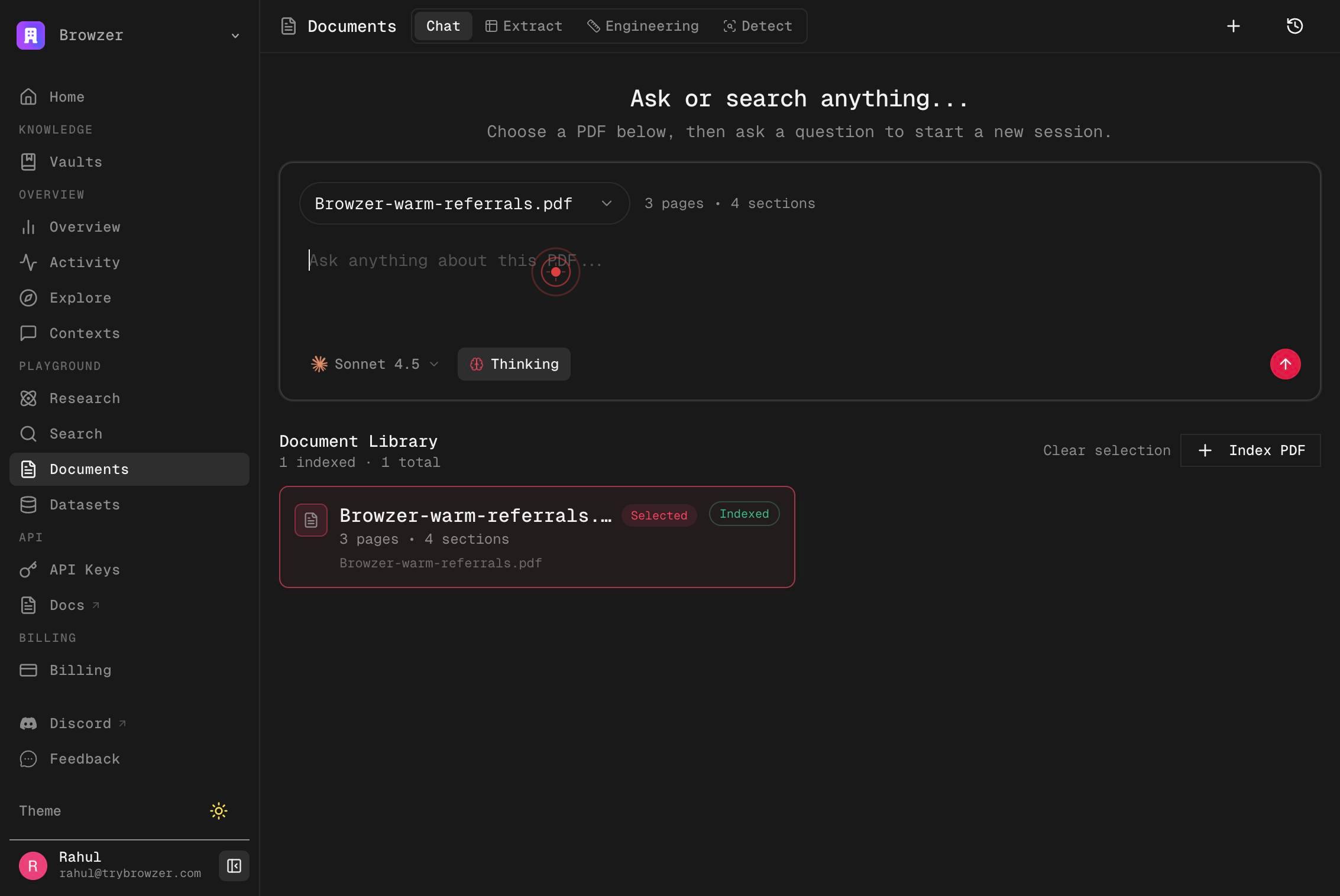
Ask anything about this PDF...Type your natural language question about the PDF content. Ask specific questions to retrieve relevant information—for example, 'What are the main benefits of warm referrals?' or 'List the referral process steps.'
Press Enter to submit your query and search the selected PDF document. The application will process your question and return relevant excerpts or answers extracted from the document content.
Confirm it worked
- 1The Documents section displays without errors and shows available indexed files
- 2The PDF file you selected appears in the query interface (e.g., 'Browzer-warm-referrals.pdf 3p')
- 3After pressing Enter, the application displays search results or an answer extracted from the PDF content
- 4The response includes relevant excerpts or a summary addressing your question
Common issues
Keep reading
Unified search - Nia AI Documentation
paths: /search: post: tags: - Search summary: Unified search description: Single search endpoint with a mode discriminator. operationId: unified_search_v2_v2_search_post requestBody: content: application/json: schema: oneOf: - $ref: '#/components/schemas/QuerySearchRequest [...] Filter local folder results by classification category (e.g., 'Work', 'Personal') local_source_filters: anyOf: - $ref: '#/components/schemas/LocalSourceFilters' - type: 'null' description: Filters for local/personal sources (messages, contacts, etc.) source_trust_filter: anyOf: - $ref: '#/components/schemas/SourceTrustFilter' - type: 'null' description: Optional trust-aware filtering for curated source results [...] : unified [...] title [...] only) [...] )
docs.trynia.aiQuery document(s) with an AI agent - Nia AI Documentation - trynia.ai
# Query document(s) with an AI agent [...] > Run the full document agent against one or more indexed PDFs or documents. The agent uses tools (search, read sections, read pages) to research the document(s) and produce a comprehensive answer with citations. Supports optional structured output via json_schema. [...] paths: [...] page_number [...] anyOf [...] : Page Number
docs.trynia.ai