Guide
Update Answer Model
Overview
Nia's Answer Model setting determines which large language model powers your search and analysis responses. Claude Opus 4.7 is Nia's most advanced reasoning model, designed to handle complex, multi-step analysis and provide more nuanced answers compared to standard models. Upgrading to this model enhances the quality of cited answers you receive when searching across indexed sources. This change applies globally to all Answer API calls and chat sessions under your workspace account and requires an active Pro plan to access.
Before you begin
- An active Nia account with access to app.trynia.ai (you must be logged in)
- An active Pro plan subscription (Claude Opus 4.7 is not available on free or starter plans)
- Access to workspace settings (typically available to workspace admins or account owners)
Step by step
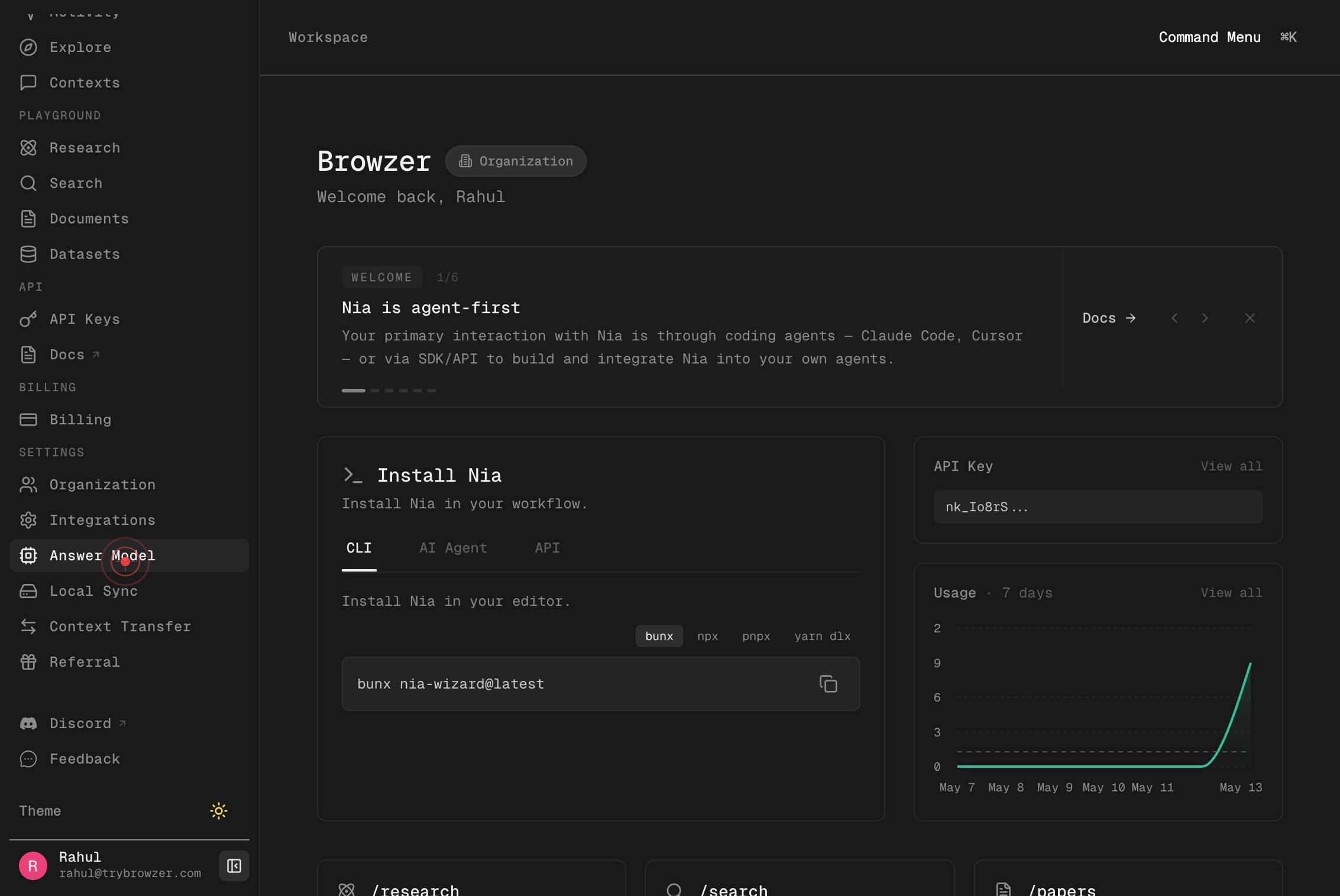
Answer ModelNavigate to the Answer Model configuration page by clicking the 'Answer Model' link in your workspace settings. This opens the model selection interface where you can review all available AI models and their capabilities.
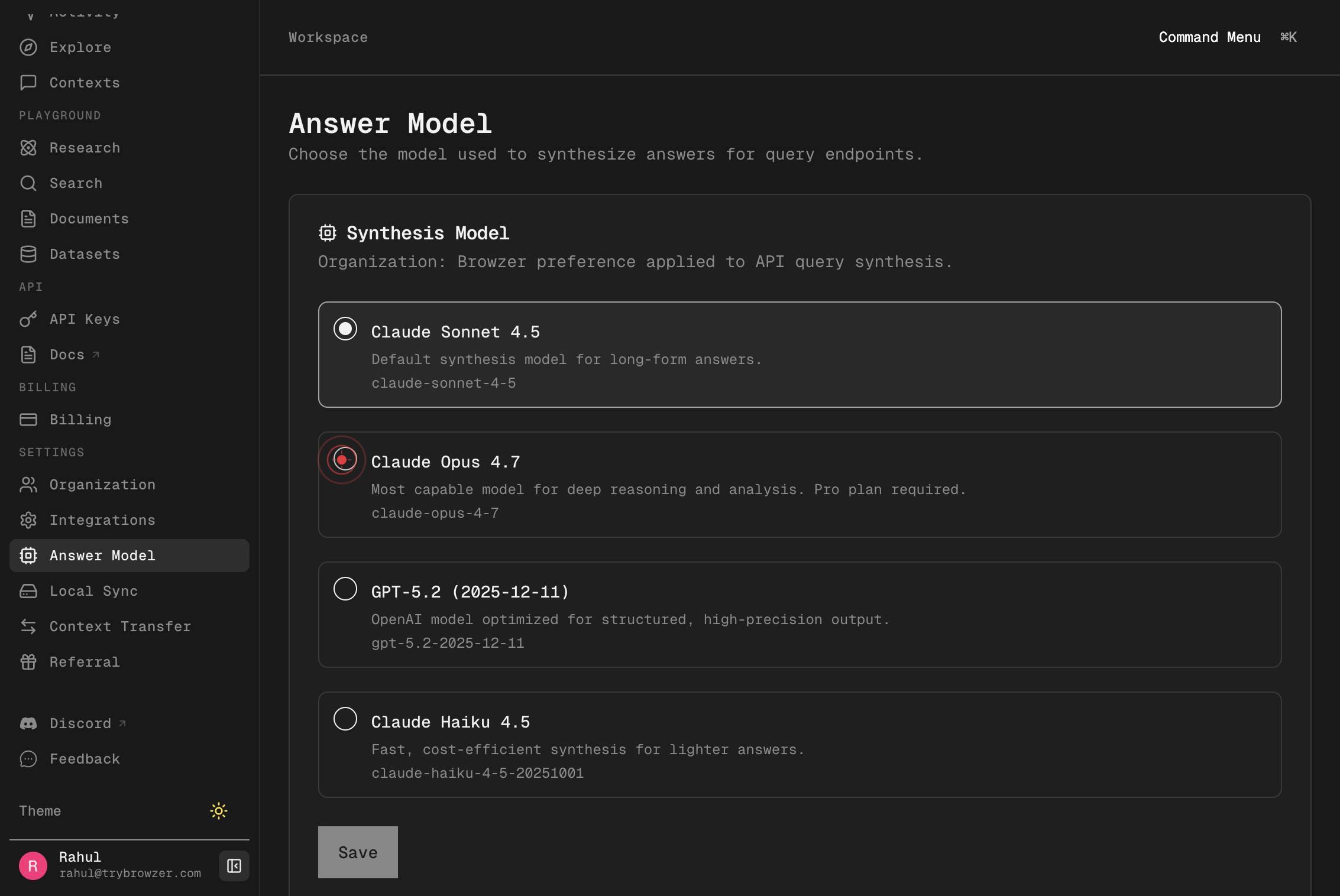
Claude Opus 4.7Most capable model for deep reasoning and analysis. Pro plan required.claude-opus-4-7Select Claude Opus 4.7 as your Answer Model by clicking the radio button next to its name. This model is described as 'Most capable model for deep reasoning and analysis' and is the premium option requiring a Pro plan.
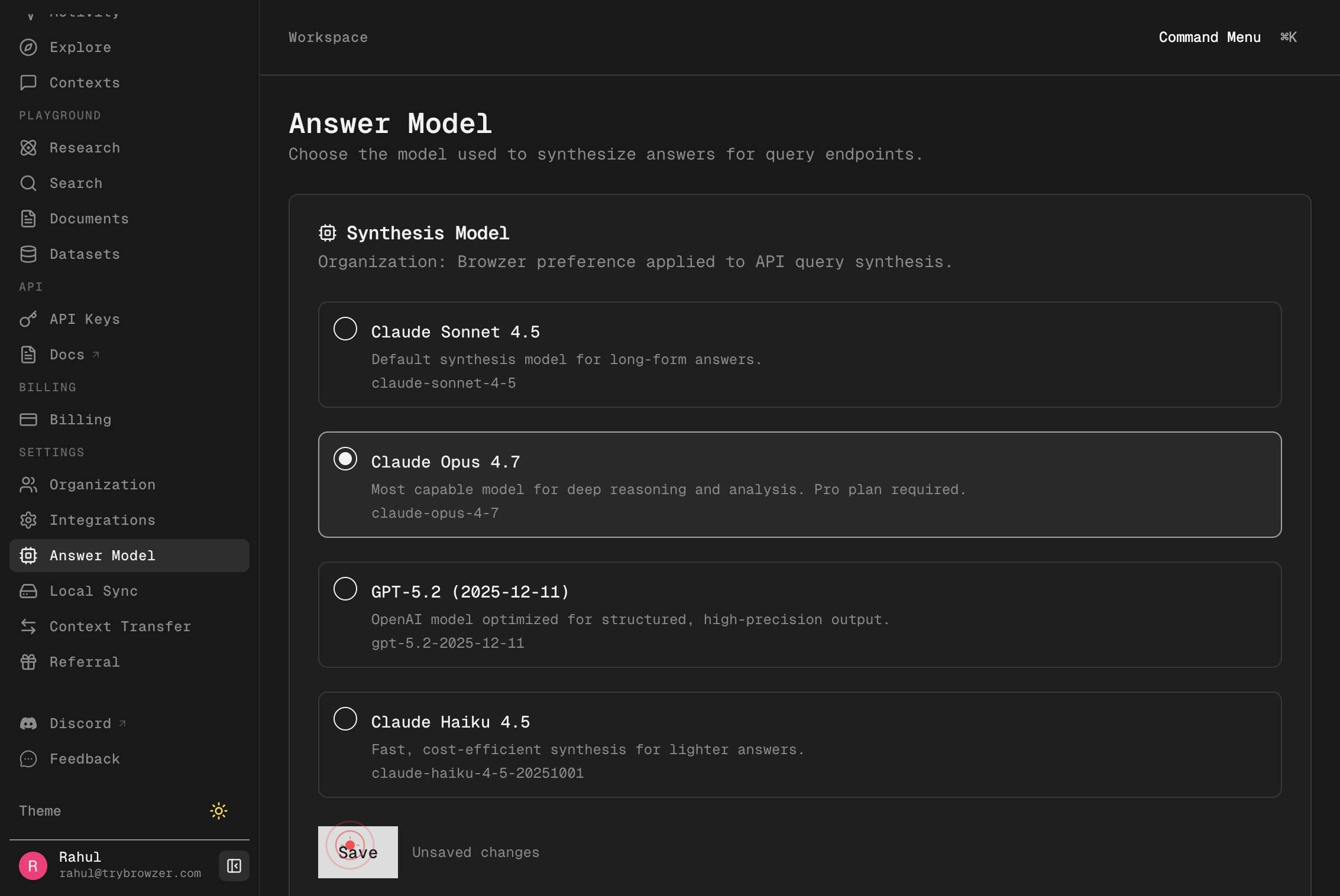
SaveSave your model selection by clicking the 'Save' button. This applies Claude Opus 4.7 as the Answer Model for all future responses in your workspace.
Confirm it worked
- 1After clicking Save, you should see a confirmation message or the settings page should remain open with no error toast notification
- 2Return to the Answer Model settings page and confirm that 'Claude Opus 4.7' is now selected with a filled radio button
- 3Make a test query through the Explore Chat or MCP search tool and verify that responses are generated (which may take slightly longer due to the more capable model's processing)
Common issues
Keep reading
Tracer - Nia AI Documentation
Tracer is an autonomous agent that searches code [...] handling search, reading, [...] analysis in parallel — [...] Tracer supports two modes: Fast (powered by Claude Haiku for quick lookups) and Deep (powered by Claude Opus with 1M context window for thorough investigations). [...] | Mode | API Value | Model | Best For | | --- | --- | --- | --- | | Fast | `tracer-fast` | Claude Haiku | Quick lookups, simple questions, rapid iteration | | Deep | `tracer-deep` | Claude Opus (1M context) | Thorough investigations, complex codebases, multi-file analysis | [...] | Parameter | Type | Required | Description | | --- | --- | --- | --- | | `query` | string | Yes | Your research question | | `repositories` | string[] | No | Repositories to search (owner/repo format) | | `context` | string | No | Additional context to guide the agent's focus | | `mode` | string | No | `"tracer-fast"` (Haiku) or `"tracer-deep"` (Opus with 1M context). Defaults to `"tracer-deep"` |
docs.trynia.aiExplore & Chat - Nia AI Documentation
Ask questions across thousands of indexed repositories, documentation sites, and research papers — all from one interface. [...] 1. Go to app.trynia.ai/explore 2. Start asking questions about any technology, framework, or paper 3. Nia searches across all pre-indexed sources and responds with accurate, cited answers [...] Search across all pre-indexed sources at once. Ask about React, FastAPI, LangChain, or any indexed framework without subscribing first. [...] ## Cited Responses [...] Every answer includes source citations. Click through to see the exact code or documentation referenced. [...] Answers stream in real-time. No waiting for the full response to generate. [...] Be specific — Instead of "how does React work?", try "how does React's reconciliation algorithm handle list updates?" [...] — Follow-up questions remember the conversation. Ask "can you show me an example?" after an explanation.
docs.trynia.ai