Guide
Add Extension to Chrome
Overview
Supermemory is a universal memory API that helps you capture and organize information across your workflow. Installing the Supermemory Chrome extension extends this functionality to your browser, allowing you to save web pages, research, and notes directly without leaving your browsing context. This is particularly valuable if you use Supermemory for research, documentation, or knowledge management — the extension bridges your browser activity with your centralized memory system. The installation process is straightforward: you'll access the extension setup from within your Supermemory account and complete the installation via the Chrome Web Store.
Before you begin
- An active Supermemory account (log in at app.supermemory.ai)
- Google Chrome browser installed and up to date on your desktop
- Administrator or standard user permissions on your Chrome profile (not in Incognito mode or Guest mode, as extensions cannot be installed in these modes)
Step by step
Rahul's supermemory Nova Spaces Grid Graph Integrations Add memory C K Feedback All (4) Notes (3) Files (1) Save note Enter powered by supermemory Browzer's Vision You're building Browzer, a workflow documentation & automation tool. How does its currLog in to your Supermemory account by navigating to app.supermemory.ai (or clicking on your workspace if already logged in). This ensures you are authenticated and have access to your account settings.

SettingsClick the 'Settings' menu item in the navigation menu to access your account settings and configuration options.

Integrations Save, sync and search memories across toolsClick the 'Integrations' button to open the integrations panel, where you can enable tools and extensions that sync with Supermemory. This is where the Chrome extension installation is initiated.
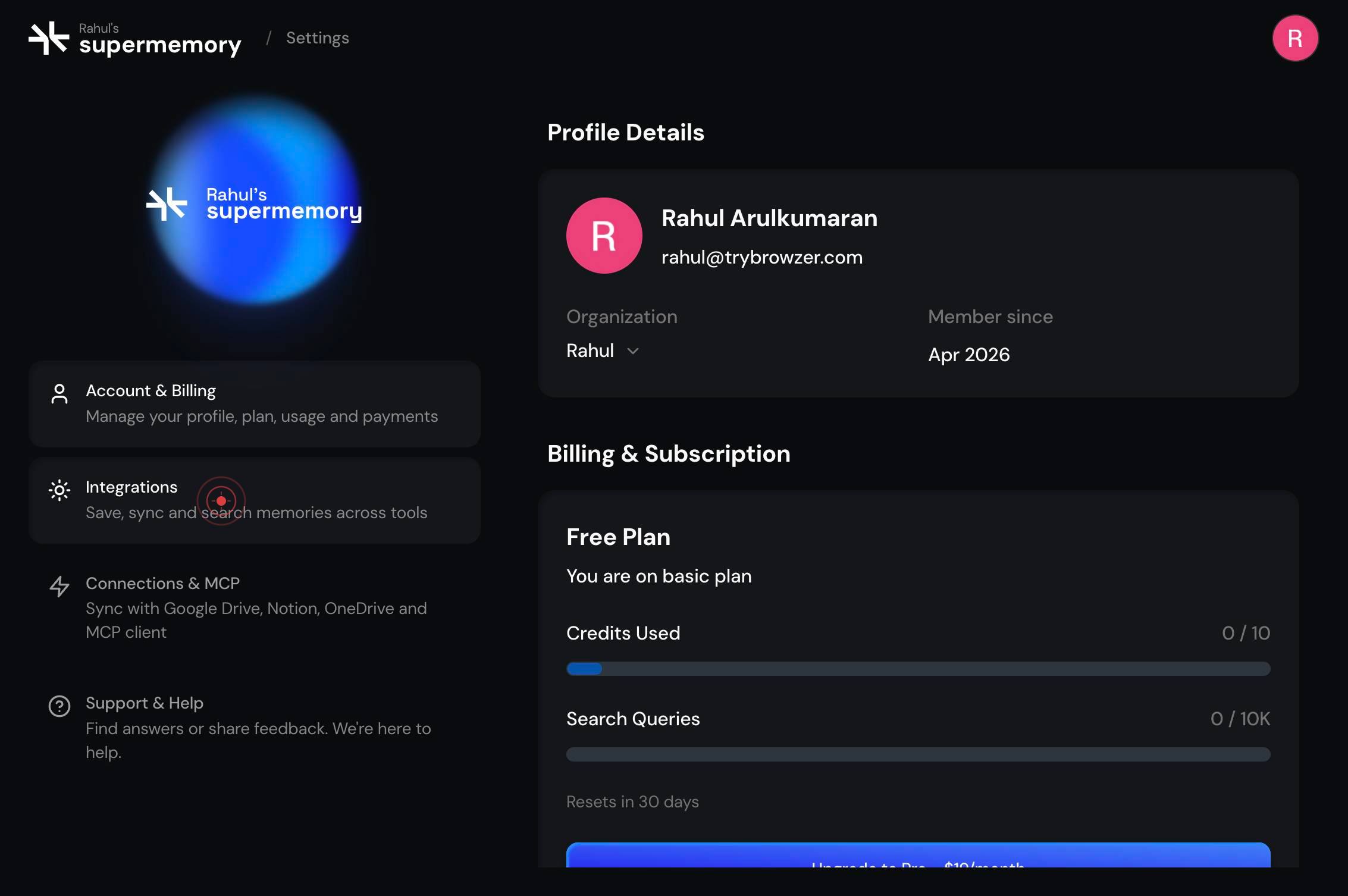
Your browser will open a new tab, preparing to navigate to the Chrome Web Store. No action is required on your part for this step — it happens automatically.
Add to ChromeClick the 'Add to Chrome' button in the Supermemory Integrations panel. This initiates the official Chrome Web Store installation process for the Supermemory extension.
You are automatically redirected to the Chrome Web Store, where the Supermemory extension listing is displayed. This confirms the extension is available for installation. Chrome will prompt you to complete the installation by clicking a final confirmation button on the store page.
Once the extension installation is complete, your browser returns to the Supermemory app tab. The installation is now finished, and the Supermemory extension is active in your Chrome browser.
Confirm it worked
- 1The Supermemory extension appears in your Chrome toolbar (top-right corner) with the Supermemory icon visible
- 2Clicking the extension icon opens the Supermemory popup, confirming it is active and connected to your account
- 3You can right-click on any webpage and see a 'Save to Supermemory' context menu option
- 4The extension status in Chrome's extension manager (chrome://extensions) shows 'Enabled' next to Supermemory
Common issues
Keep reading
Install and manage extensions - Google Chrome Help
Install and manage extensions - Google Chrome Help # Install and manage extensions You can customize Chrome on your desktop by adding extensions from the Chrome Web Store. ## Install an extension
support.google.comHow to Add Extensions in Chrome: A Step-by-Step Guide
How to Add Extensions in Chrome: A Step-by-Step Guide Skip to Content - About wikiHow - Support wikiHow - Explore More - Happiness Hub - Courses - Forums - Learn Something New - Dating Simulator - F
wikihow.comHow to Add and Install Extensions in Google Chrome (2025 Guide) - GeeksforGeeks
How to Add and Install Extensions in Google Chrome (2025 Guide) - GeeksforGeeks Courses Tutorials Interview Prep - DevOps - Linux - Courses - Machine Learning - Data Science - JavaScript - Python
geeksforgeeks.org