Guide
Personal App - Onboarding
Overview
Supermemory is a universal memory API designed to enhance AI applications with persistent, contextual user information. During onboarding, you establish your digital presence within Supermemory by connecting your social profiles, listing relevant websites and tools, and describing your interests and expertise. This foundational profile data enables Supermemory's AI capabilities to deliver more personalized and contextually relevant assistance. The onboarding workflow takes just a few minutes and is essential for unlocking the full potential of your Supermemory experience.
Before you begin
- Active Supermemory account (sign up at app.supermemory.ai if needed)
- Your X/Twitter handle or profile URL
- Your LinkedIn profile URL
- At least one website, GitHub profile, Notion workspace, or similar tool URL you want to connect
- A brief description of your role, skills, and interests ready to paste or type
Step by step
X/TwitterClick the X/Twitter input field to focus it, preparing to enter your X/Twitter handle or profile URL.
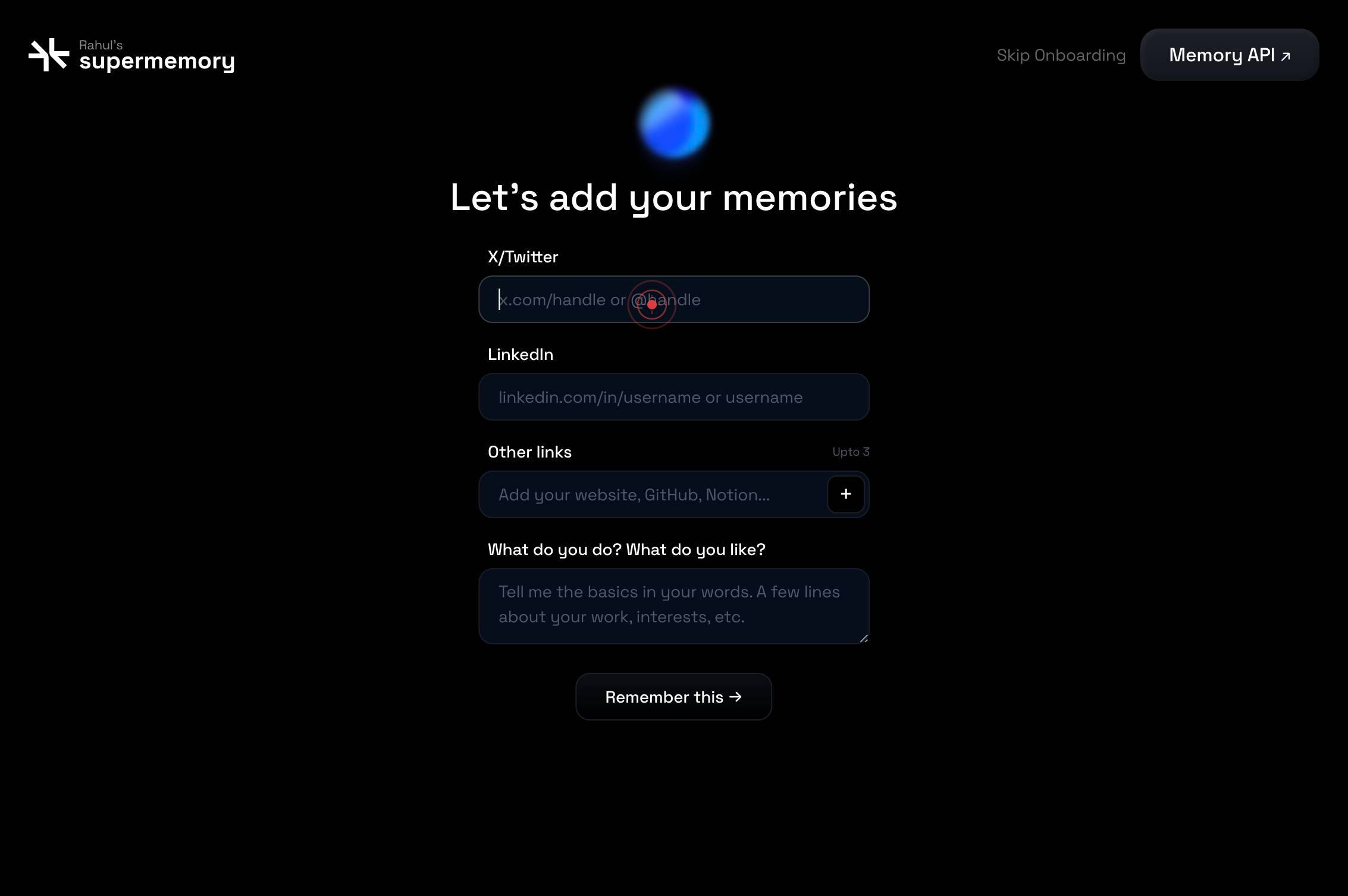
X/TwitterType your X/Twitter handle (e.g., '@yourhandle') or full profile URL into the field. This connects your social presence to your Supermemory profile.
LinkedInClick the LinkedIn input field to focus it, preparing to enter your LinkedIn profile information.
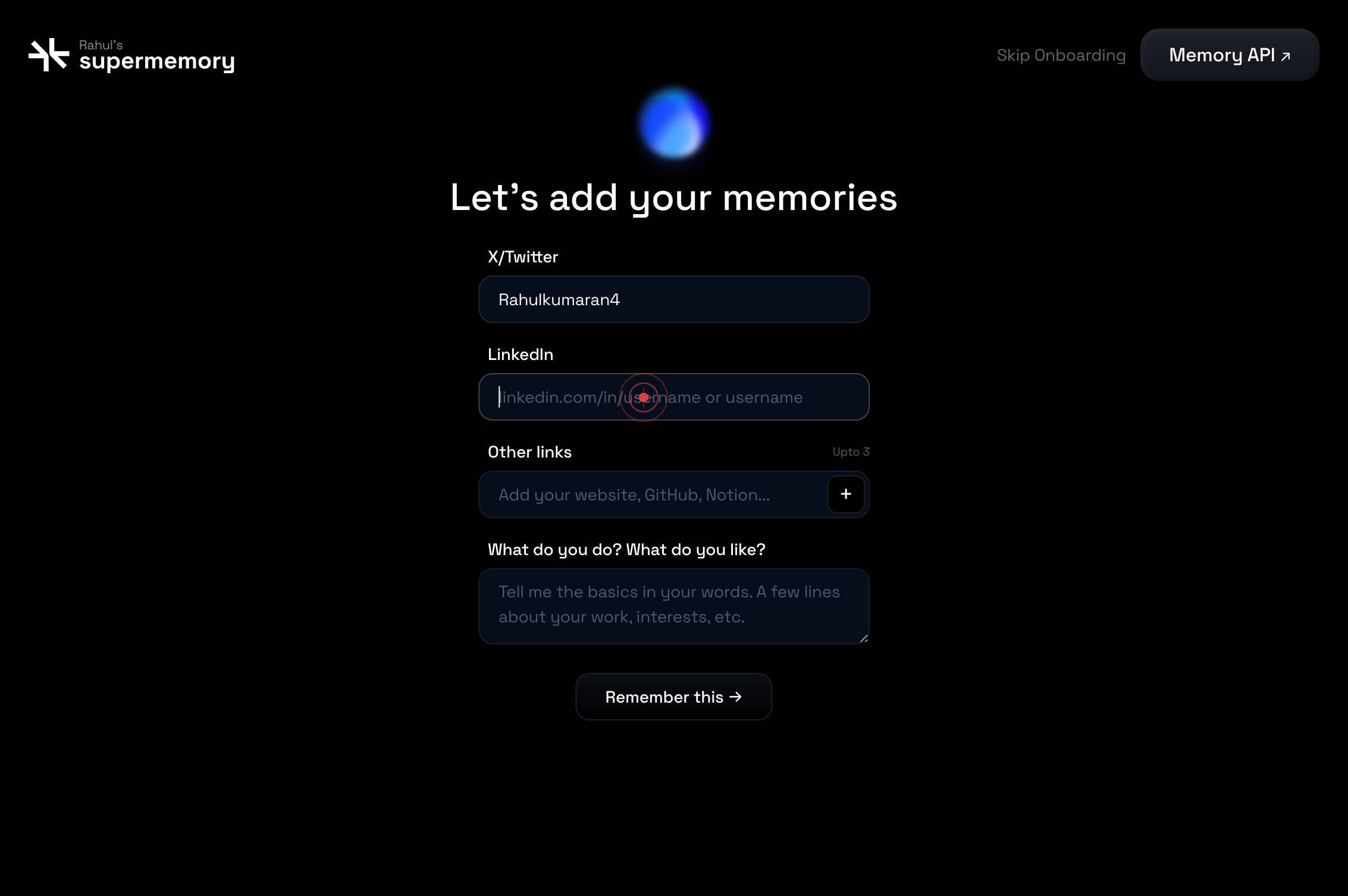
LinkedInType your LinkedIn profile URL or handle into the field. This connects your professional network identity to Supermemory.
Add your website, GitHub, Notion...Click the 'Add your website, GitHub, Notion...' input field to focus it. This field is where you'll enter the first of your website, tool, or resource links.
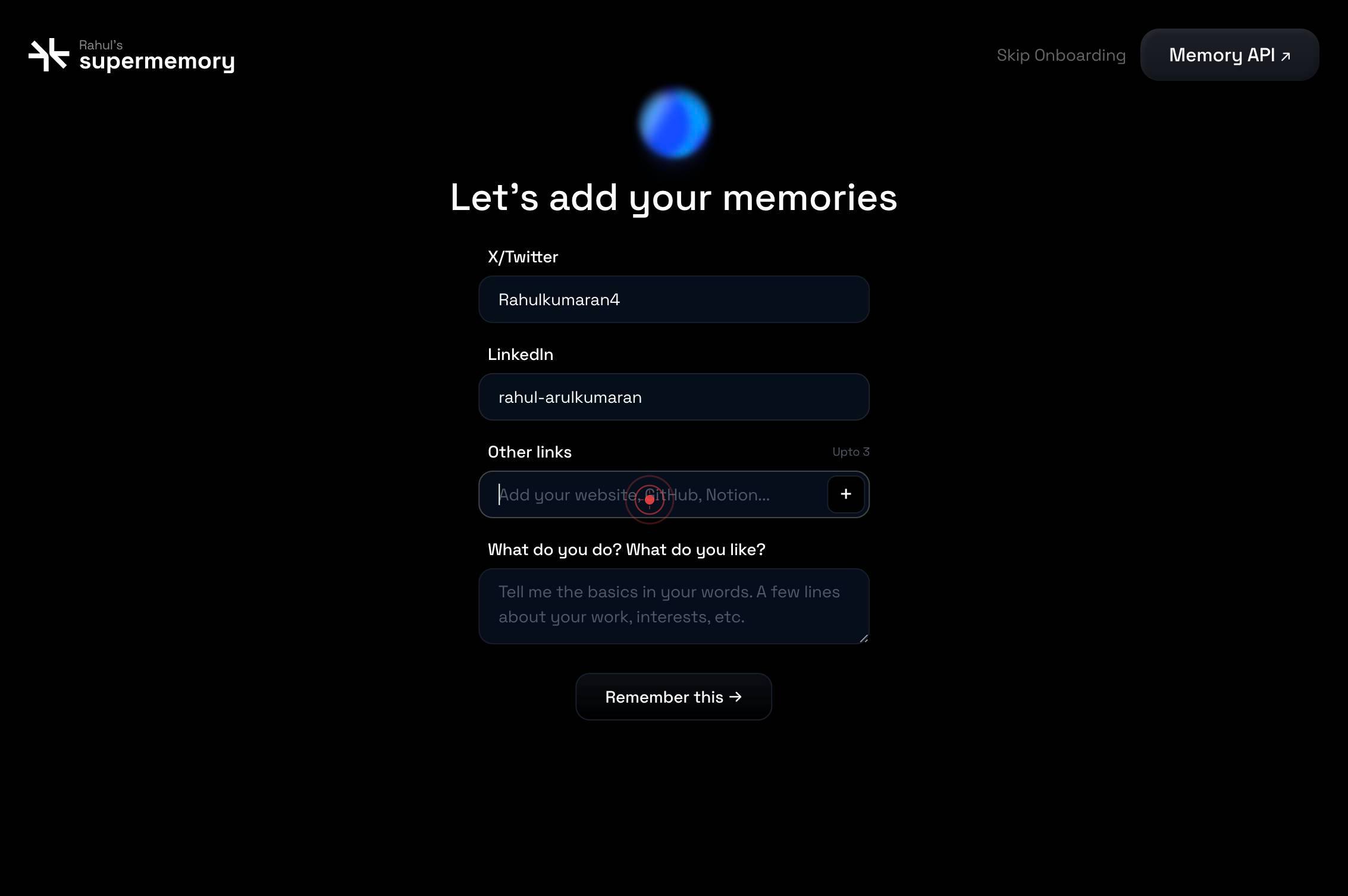
Add your website, GitHub, Notion...Type the URL of your first website, GitHub repository, Notion workspace, or other digital tool you want to link to your profile.
+Click the '+' button to add an additional website/tool link field. This allows you to connect multiple tools to your profile in one onboarding session.
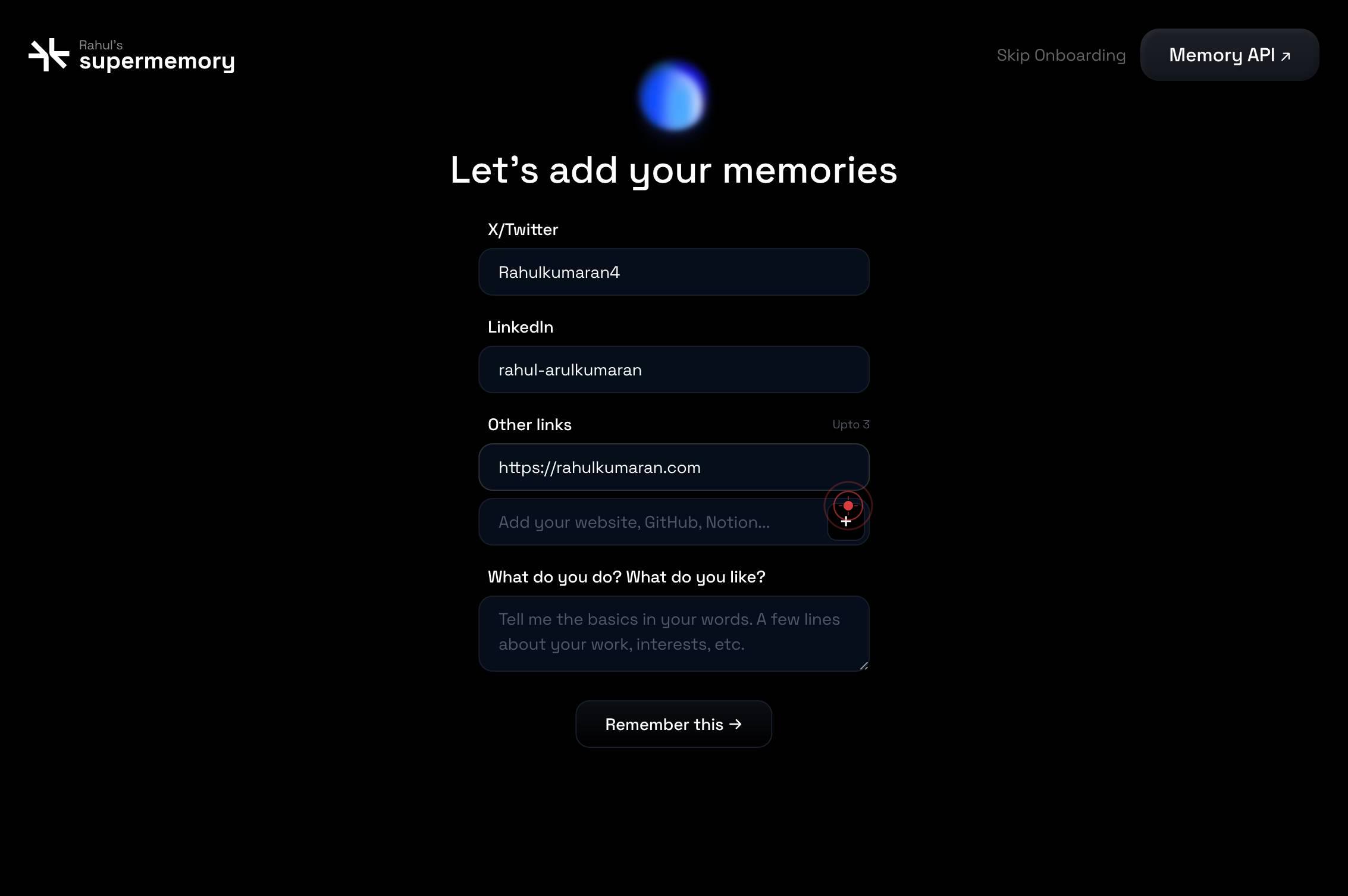
Add your website, GitHub, Notion...Click the newly added 'Add your website, GitHub, Notion...' input field to focus it, preparing to enter your second tool or website URL.
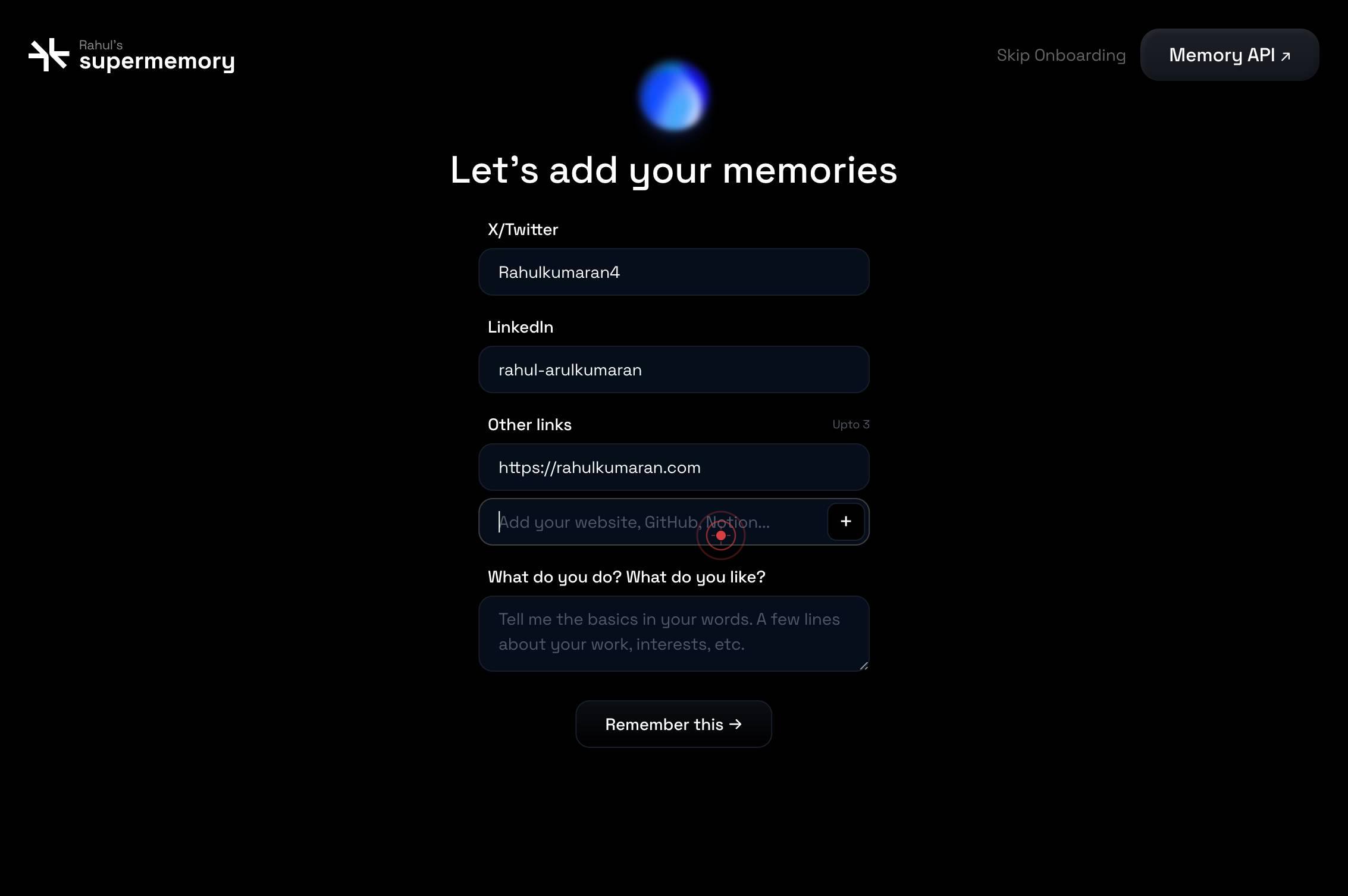
Add your website, GitHub, Notion...Type the URL of your second website, tool, or resource. This can be another GitHub repo, a portfolio site, a Notion workspace, or any other relevant link.
What do you do? What do you like?Click the 'What do you do? What do you like?' input field to focus it. This open-ended field is where you'll describe your role, expertise, and interests.
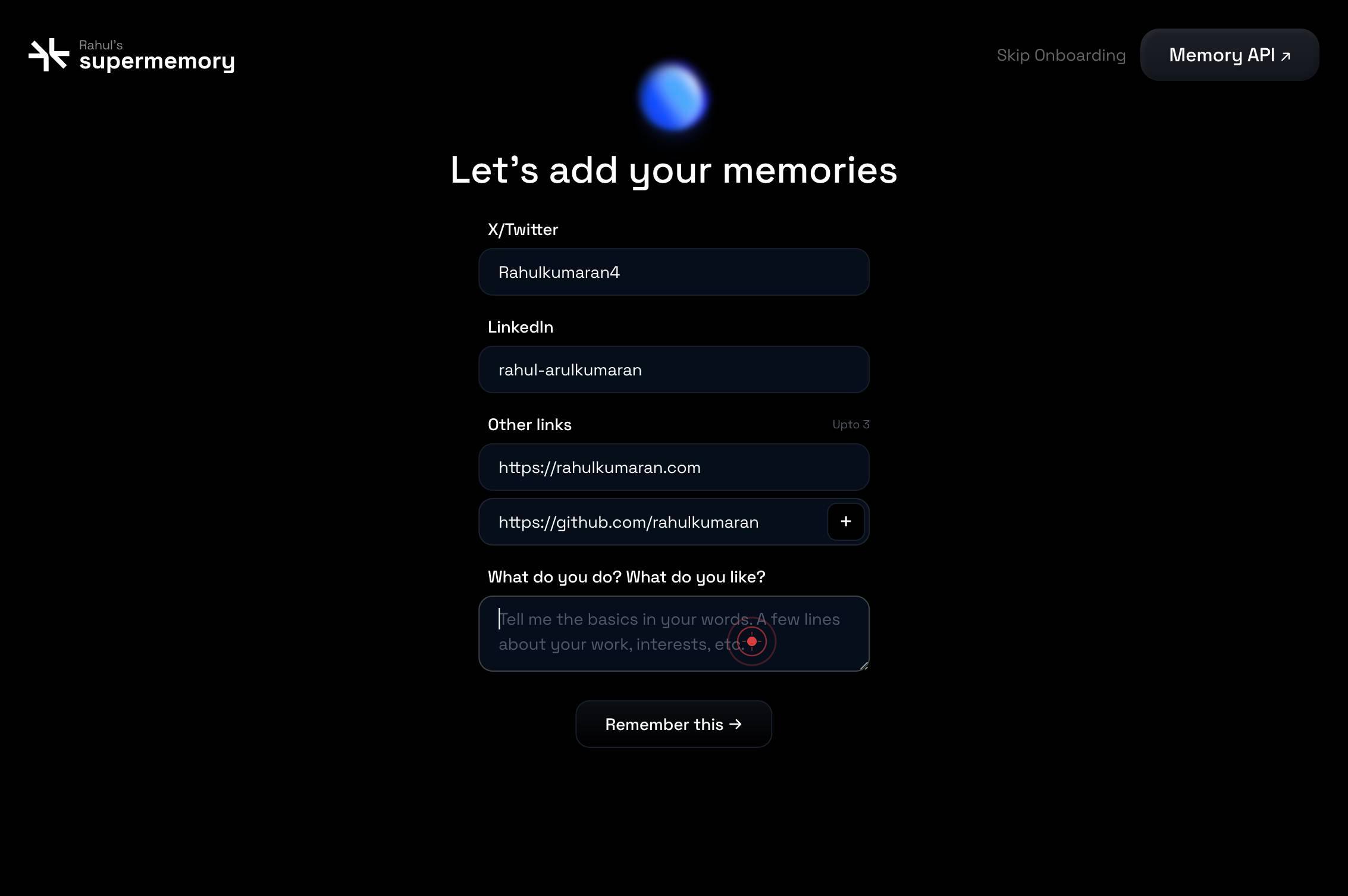
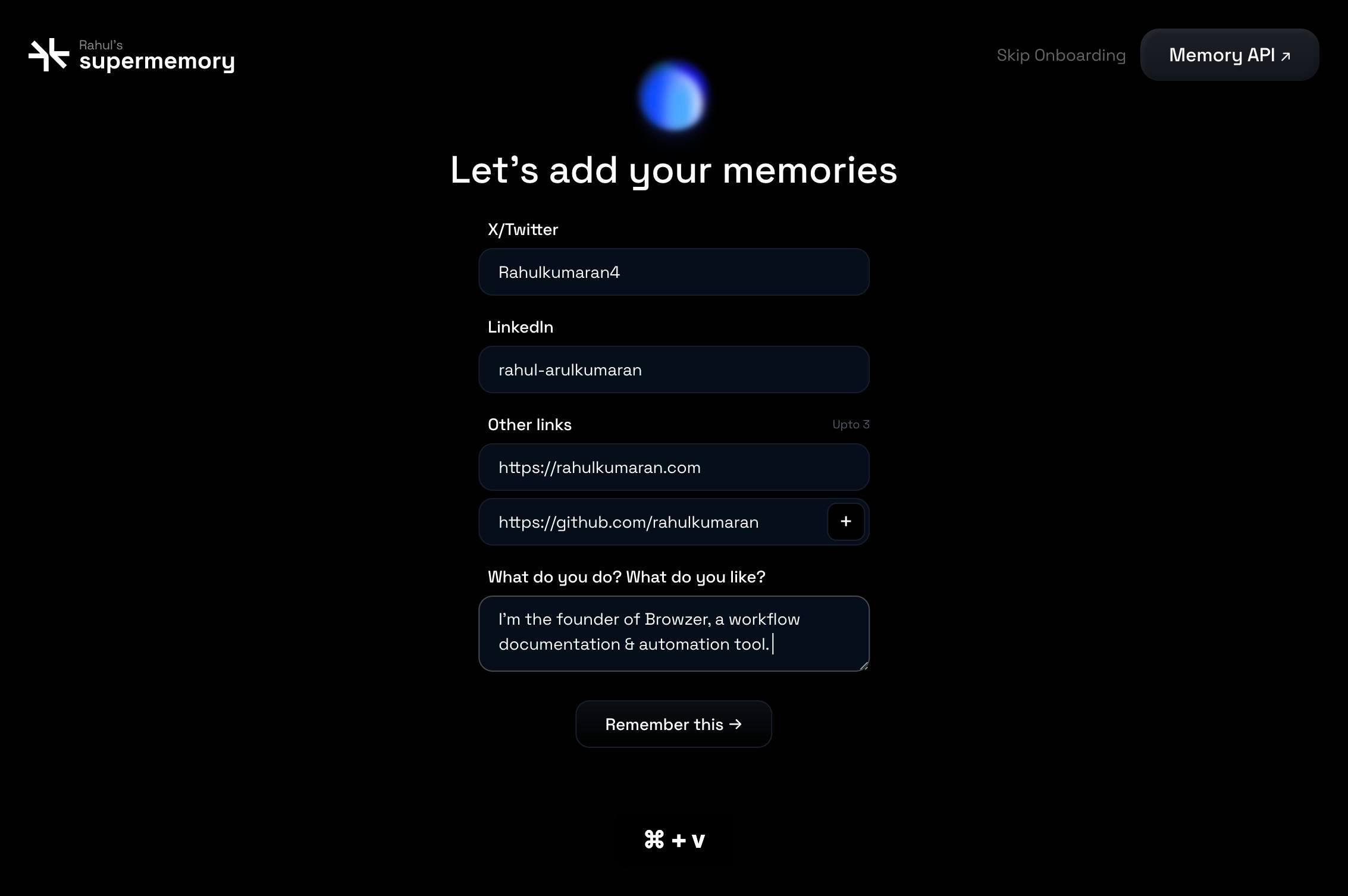
What do you do? What do you like?Type a brief description of your professional role, skills, and personal interests. This helps Supermemory understand your context and tailor its assistance.
Press Cmd+V (or Ctrl+V on Windows/Linux) to paste pre-written text into the interests field. Use this if you have a prepared bio or description in your clipboard.
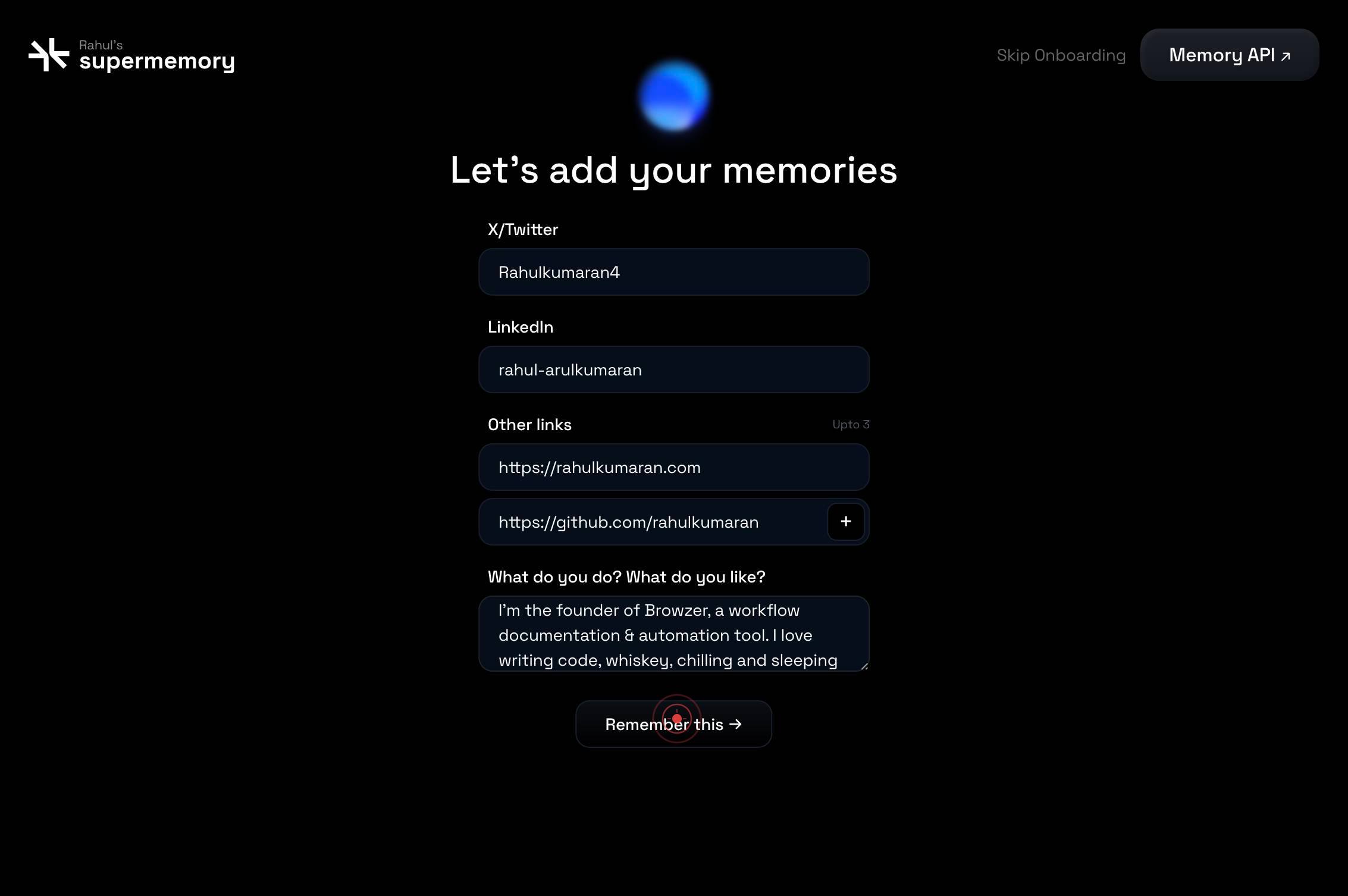
Remember this →Click the 'Remember this →' button to save and submit your profile information. This completes the onboarding process and activates your Supermemory profile with all the data you've entered.
Confirm it worked
- 1Both X/Twitter and LinkedIn fields display your entered handles/URLs
- 2At least two website/tool links appear in the links section
- 3Your personal interests and description are visible in the 'What do you do? What do you like?' field
- 4The 'Remember this →' button is clickable and, when pressed, displays a success confirmation
Common issues
Keep reading
Introduction - Personal AI Documentation
> ## Documentation Index > > Fetch the complete documentation index at: https://docs.personal.ai/llms.txt > Use this file to discover all available pages before exploring further. # Introduction >
docs.personal.aiIntegrate: Personal AI apps (Web, iOS, Android)
Integrate: Personal AI apps (Web, iOS, Android) Back to All Modules Fundamentals ChatGPT, LLMs and general AI Organize your expertise with a Persona Gather data to train your AI Draft suggestion
personal.aiHow To Create an AI Version of Yourself with Your Personal AI | Personal AI
How To Create an AI Version of Yourself with Your Personal AI | Personal AI Sitemap Open in app Sign up Sign in Medium Logo Get app Write Search Sign up Sign in ## Personal AI Follow publi
blog.personal.ai