Guide
Revoke Supermemory API Key
Overview
Supermemory is a memory layer platform for AI agents that powers enterprise APIs, developer plugins, and personal applications. API keys are the primary authentication method for accessing Supermemory's services. Revoking an API key immediately terminates all active sessions and API calls using that key, making it essential for security when a key is compromised, no longer needed, or when you want to rotate credentials. This workflow guides you through safely revoking an API key from the Supermemory console.
Before you begin
- You must have an active Supermemory account with access to console.supermemory.ai
- You must have permission to manage API keys (typically account owner or admin role)
- You must know which API key you intend to revoke
- You should have identified all applications or services currently using the key and have a plan to update them with a new key to avoid service interruption
Step by step
Search... ⌘K Overview Documents Container Tags Memory Graph Requests ANALYTICS User Insights DATA Connectors Import DEVELOPER API Keys Agents Plugins ORGANIZATION Team Billing Settings RAHUL PRO DOCS SUPPORT RA API Keys CREATE KEY NAME KEY SCOPE CREANavigate to the API Keys section in the Supermemory console by clicking on 'API Keys' in the left sidebar menu under the DEVELOPER section. This takes you to the management dashboard where all your active and inactive API keys are listed.
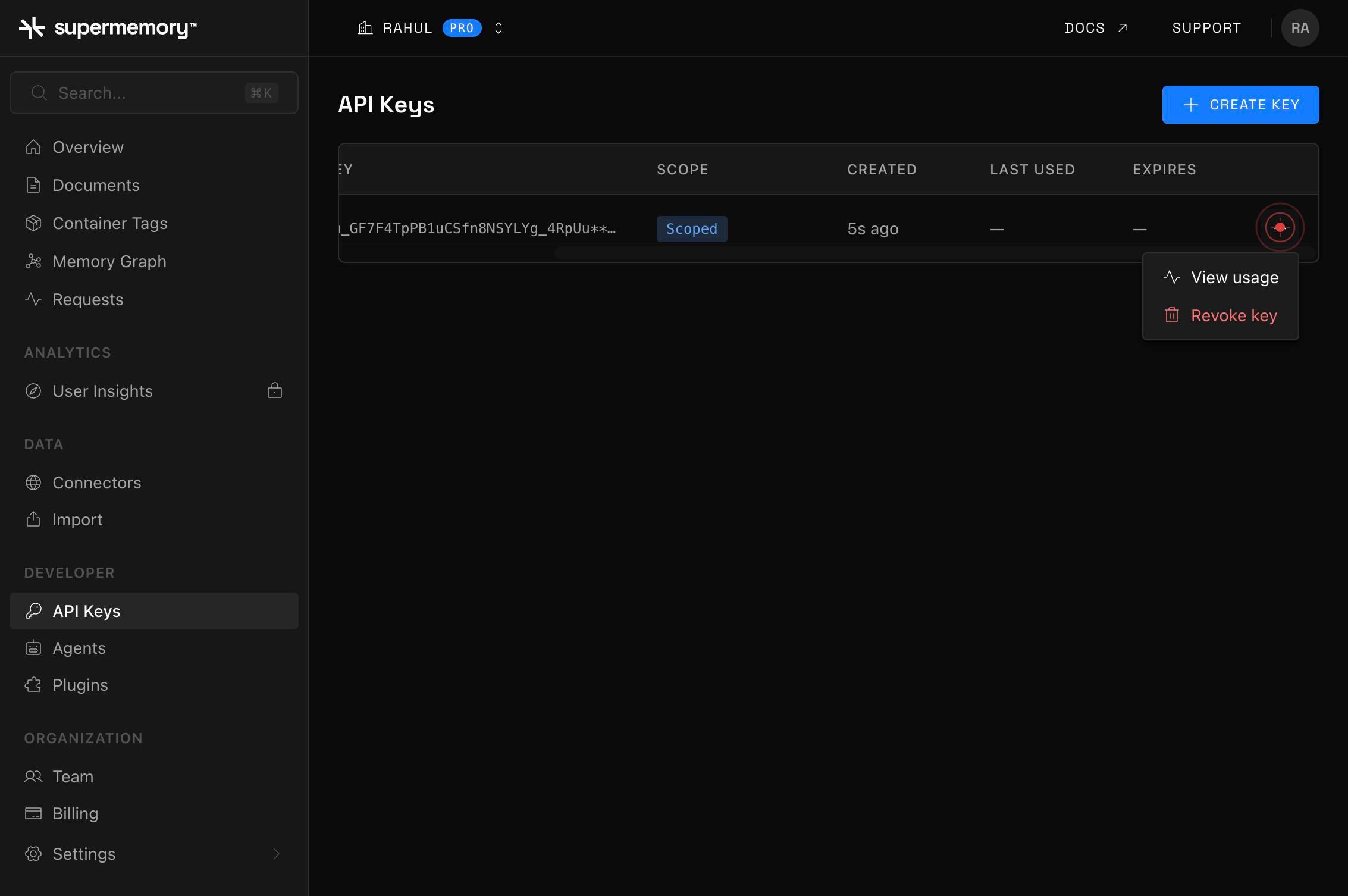
Revoke keyClick on the 'Revoke key' option from the context menu or action menu associated with the API key you want to disable. This opens a confirmation dialog to ensure you intend to revoke the key.
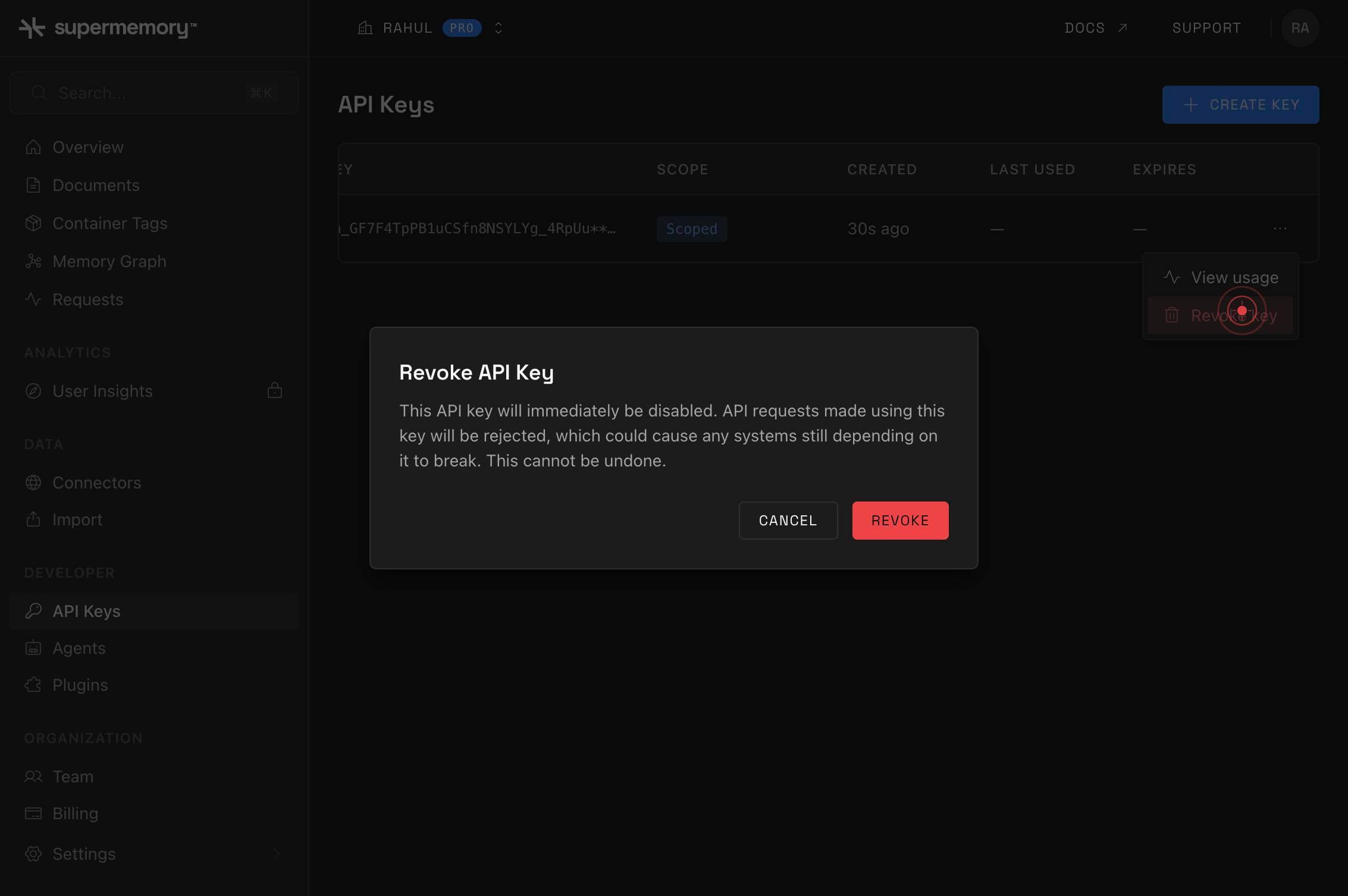
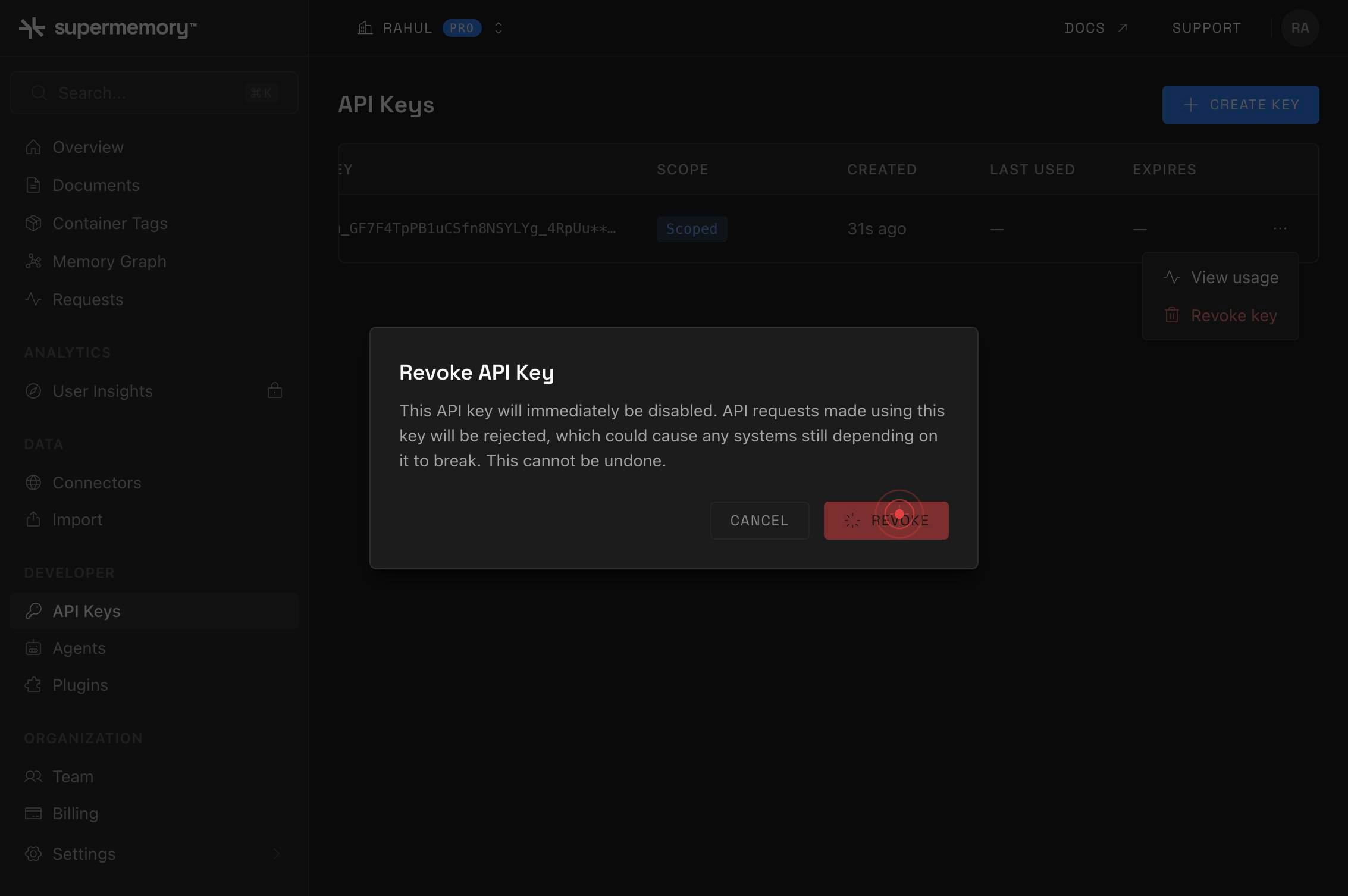
REVOKEClick the 'REVOKE' button in the confirmation dialog to finalize the revocation. This permanently disables the API key immediately, and all applications using this key will lose access.
Confirm it worked
- 1The revoked API key no longer appears in the active API Keys list, or is marked as 'Revoked' or 'Inactive'
- 2Any application attempting to use the revoked key receives an authentication error (401 Unauthorized or similar)
- 3The confirmation dialog closes and you return to the API Keys management screen
Common issues
Keep reading
Authentication - supermemory | Memory API for the AI era
> ## Documentation Index > > Fetch the complete documentation index at: https://supermemory.ai/docs/llms.txt > Use this file to discover all available pages before exploring further. # Authenticatio
supermemory.mintlify.devGetting Started with Model Enhancement - supermemory | Memory API for the AI era
> ## Documentation Index > > Fetch the complete documentation index at: https://supermemory.ai/docs/llms.txt > Use this file to discover all available pages before exploring further. # Getting Start
docs.supermemory.aiForget a memory - supermemory | Memory API for the AI era
> ## Documentation Index > > Fetch the complete documentation index at: https://supermemory.ai/docs/llms.txt > Use this file to discover all available pages before exploring further. # Forget a memo
supermemory.ai