Guide
Login to Chrome Extension
Overview
Supermemory is a universal memory API for AI applications that lets you save, organize, and retrieve information with intelligent search and context. To use the Supermemory Chrome extension, you must first authenticate with your Google account through the web application. This login process links your browser extension to your Supermemory account, allowing you to capture web content and access your saved memories directly from any webpage. Authentication is a one-time setup that grants the extension permission to store and manage your data.
Before you begin
- Google Chrome browser installed and the Supermemory extension already added to Chrome (available from the Chrome Web Store)
- A valid Google account (Gmail) that you intend to use for Supermemory
- Active internet connection
Step by step
Switch to or open a Chrome browser tab to prepare for the authentication workflow.
Navigate to app.supermemory.ai in your browser to access the Supermemory web application authentication portal.
Navigate to app.supermemory.ai again to ensure the page is fully loaded and ready for the next step.
GoogleContinue with GoogleClick the 'Continue with Google' button to initiate Google OAuth authentication and be redirected to Google's login service.
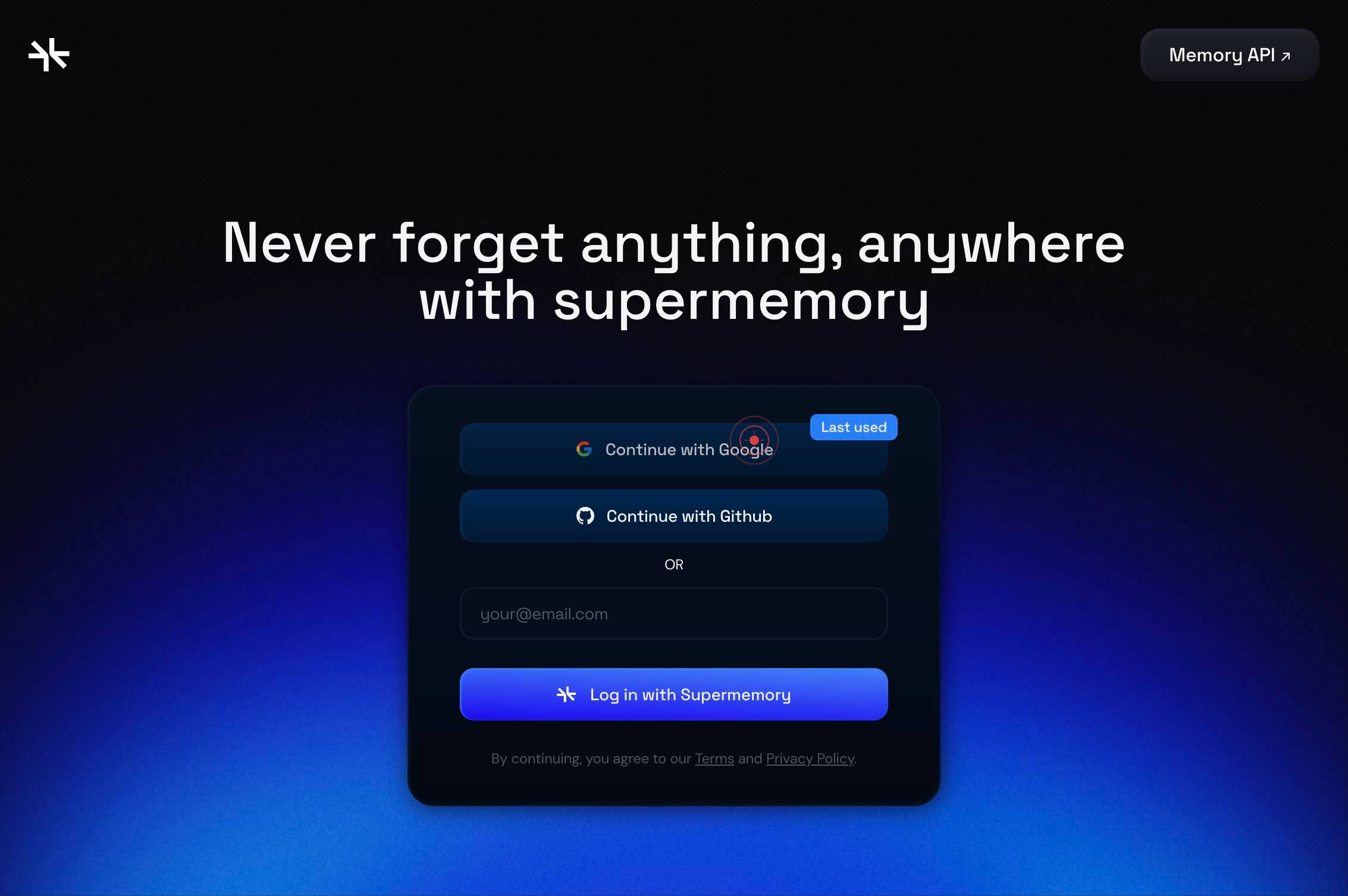
You will be automatically redirected to accounts.google.com where Google's login and account selection interface appears.
Rahul Arulkumaran rahul@trybrowzer.comClick on the Google account link showing 'Rahul Arulkumaram rahul@trybrowzer.com' (or your intended Gmail account) to select it and grant Supermemory permission to access your account.
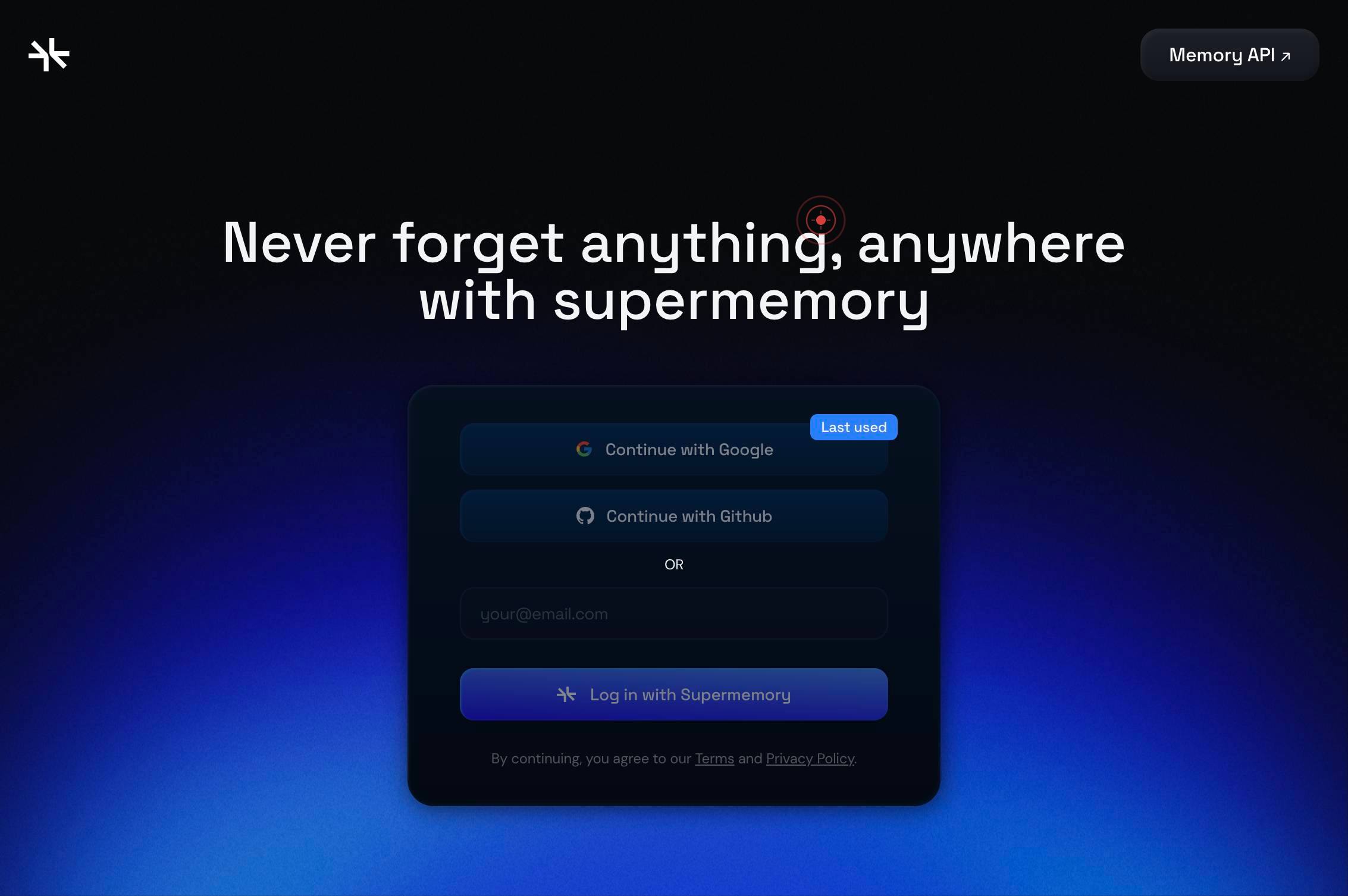
You will be automatically redirected back to app.supermemory.ai after successful Google authentication, completing the web-based login.
Switch to your Supermemory Chrome extension tab (chrome-extension://afpgkkipfdpeaflnpoaffkcankadgjfc/welcome.html) to confirm authentication is complete and the extension welcome screen is now active.
Confirm it worked
- 1You are redirected to the Supermemory welcome page at chrome-extension://afpgkkipfdpeaflnpoaffkcankadgjfc/welcome.html after final redirect
- 2No authentication errors or 'Failed to login' messages appear on screen
- 3The extension interface displays user profile information or a dashboard confirming successful login
Common issues
Keep reading
Quick Start | ExtensionLogin
Quick Start | ExtensionLogin # Quick Start Get ExtensionLogin working in your Chrome extension in 5 minutes. ## Prerequisites - A Chrome extension (Manifest V3 recommended) -
extensionlogin.comHow to Add 1Password Extension to Chrome
How to Add 1Password Extension to Chrome -- UP - Ola-Hassan Bolaji - Published on 05.12.2025 tutorial Adding the 1Password extension to Chrome gives you faster logins, easier password management, a
digitalcitizen.lifeAuthentication Flow | ExtensionLogin
Authentication Flow | ExtensionLogin # Authentication Flow Understanding how ExtensionLogin handles user authentication in your Chrome extension. ## How It Works ExtensionLog
extensionlogin.com