Guide
Connect Google Drive
Overview
Supermemory acts as a Universal Memory API for AI applications, allowing you to build a searchable knowledge base from your documents. By connecting Google Drive, you enable Supermemory to access and ingest your Drive documents, making them available as context for AI-powered features and API calls. This integration is essential if you want to sync corporate documents, research files, or any content stored in Google Drive into your Supermemory workspace. The connection process securely authenticates via Google's OAuth system, ensuring your credentials are never shared directly with Supermemory.
Before you begin
- An active Supermemory account and access to app.supermemory.ai
- A Google account with at least one Google Drive document you wish to sync
- Permission to authorize third-party applications to access your Google Drive
Step by step
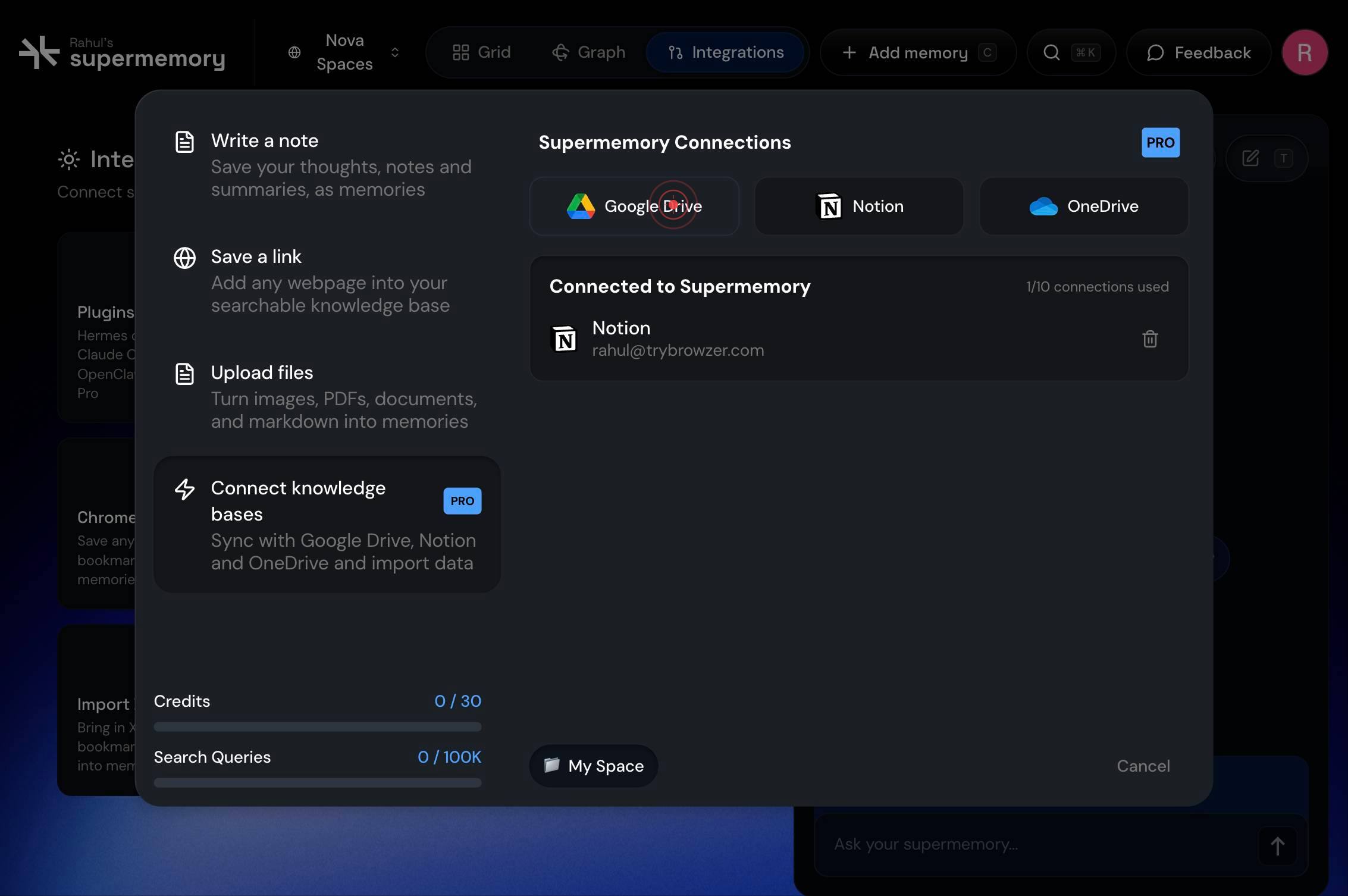
Google DriveInitiate the Google Drive connection workflow by clicking the 'Google Drive' button in the Supermemory app. This tells Supermemory you want to set up a new Google Drive integration.
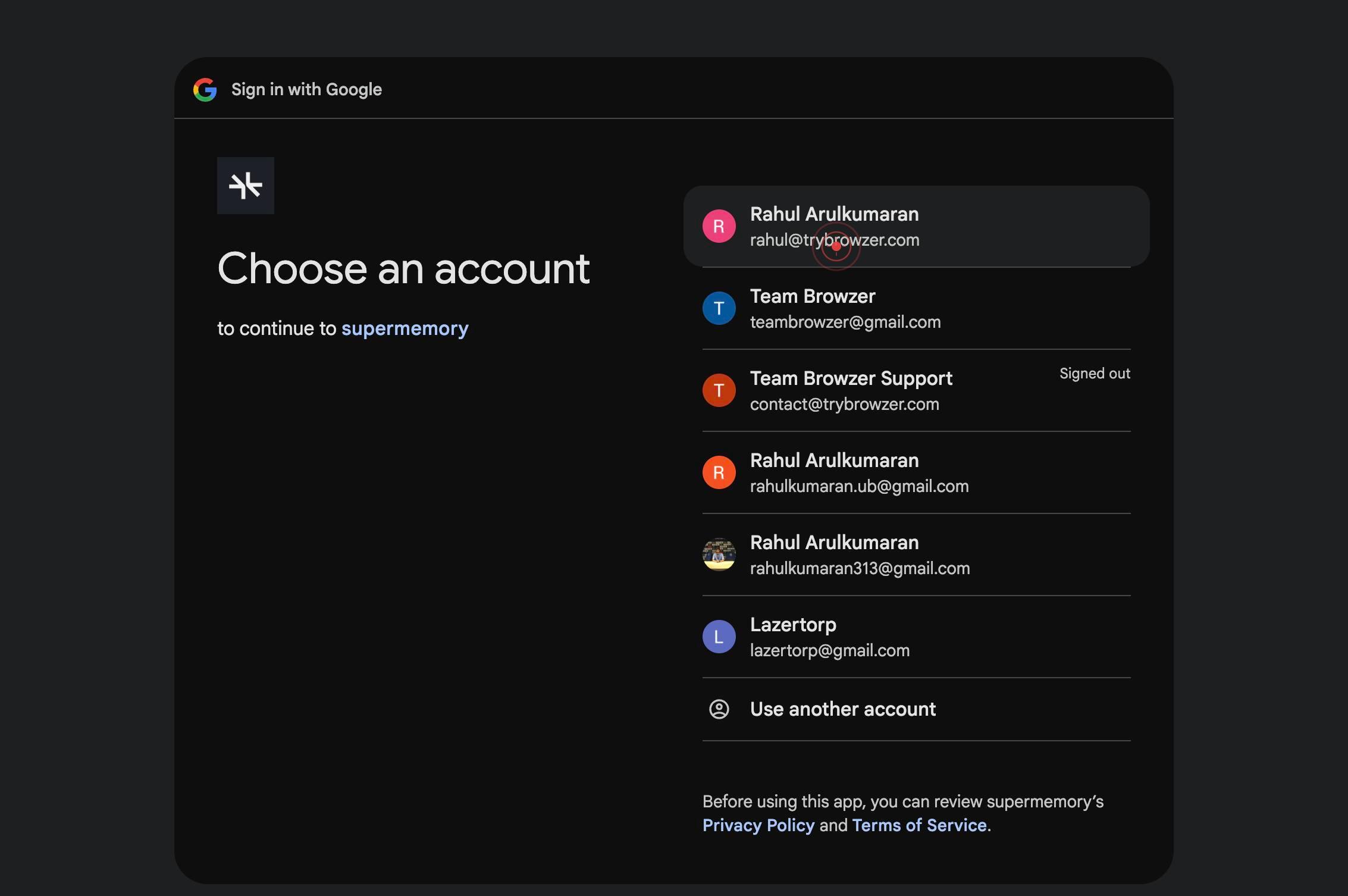
You will be automatically redirected to Google's authentication portal (accounts.google.com). This is the secure login gateway where Google verifies your identity before granting Supermemory access.
Rahul Arulkumaran rahul@trybrowzer.comSelect your Google account from the list of available accounts. In this example, 'Rahul Arulkumaran rahul@trybrowzer.com' is selected. If you see only one account, click it; if multiple accounts appear, choose the one whose Google Drive you want to sync.
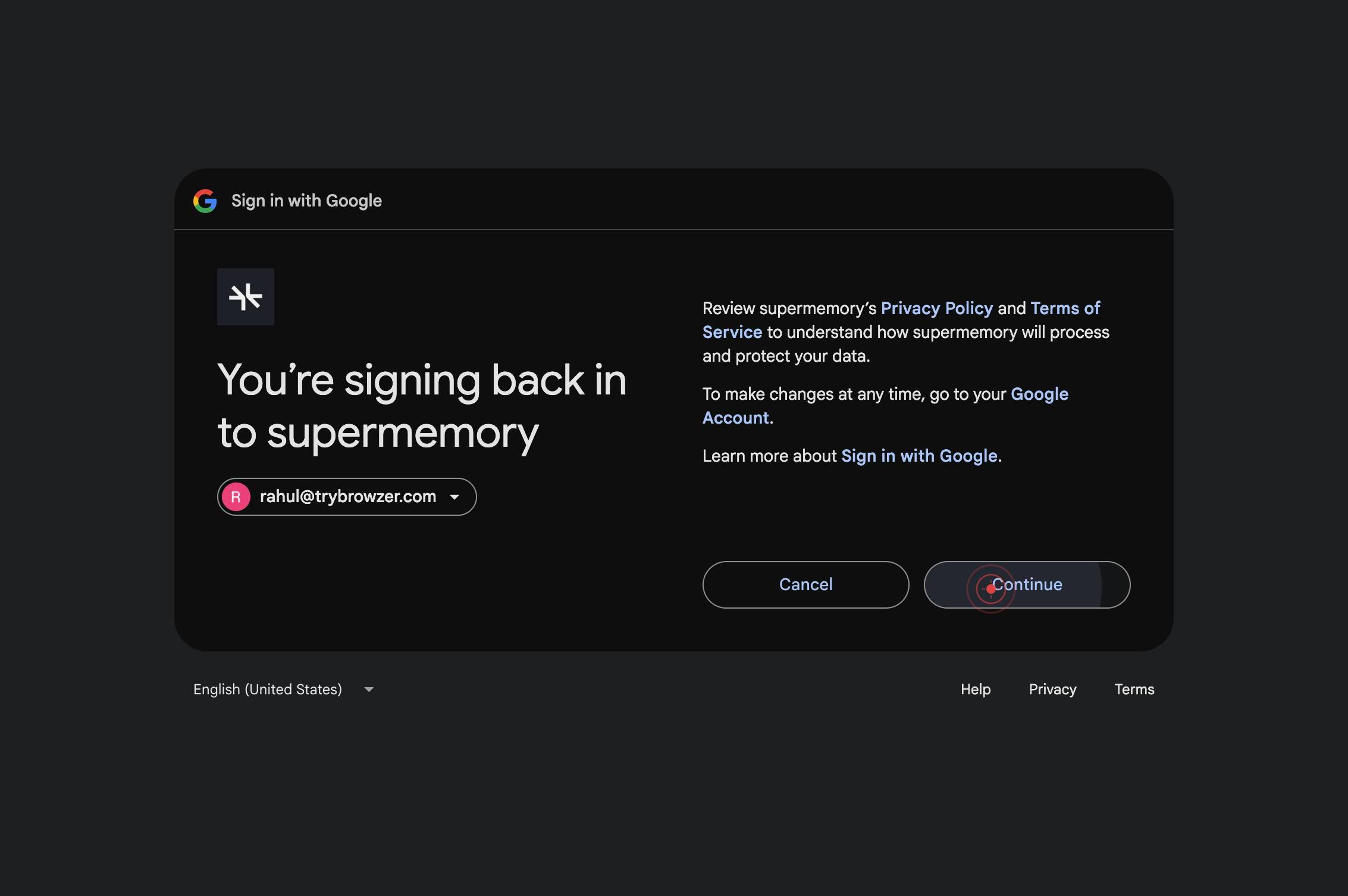
Google will redirect you to a confirmation page to verify your selection. This is a normal part of the authentication flow.
ContinueClick the 'Continue' button to proceed to the permissions screen. This confirms your account choice and moves you forward in the authorization process.
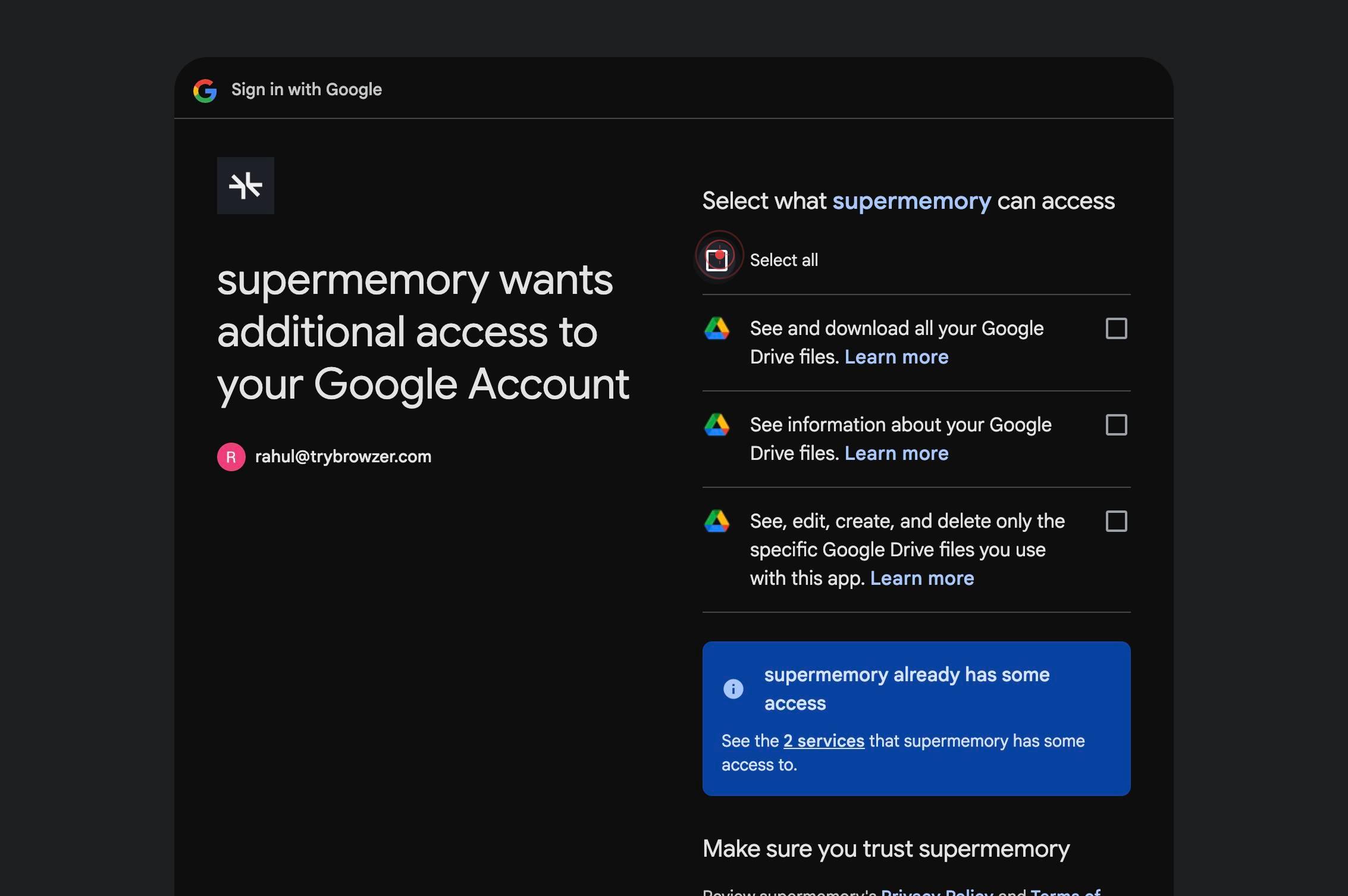
Google redirects you to the permissions consent screen, where it displays what data and capabilities Supermemory is requesting. Review the permissions being requested before proceeding.
Select allClick the 'Select all' checkbox to grant Supermemory broad access to your Google Drive files. This allows Supermemory to read and sync all the documents you choose in the next steps.
ContinueClick 'Continue' to confirm the permission grant. This action tells Google that you authorize Supermemory to access your Google Drive on your behalf.
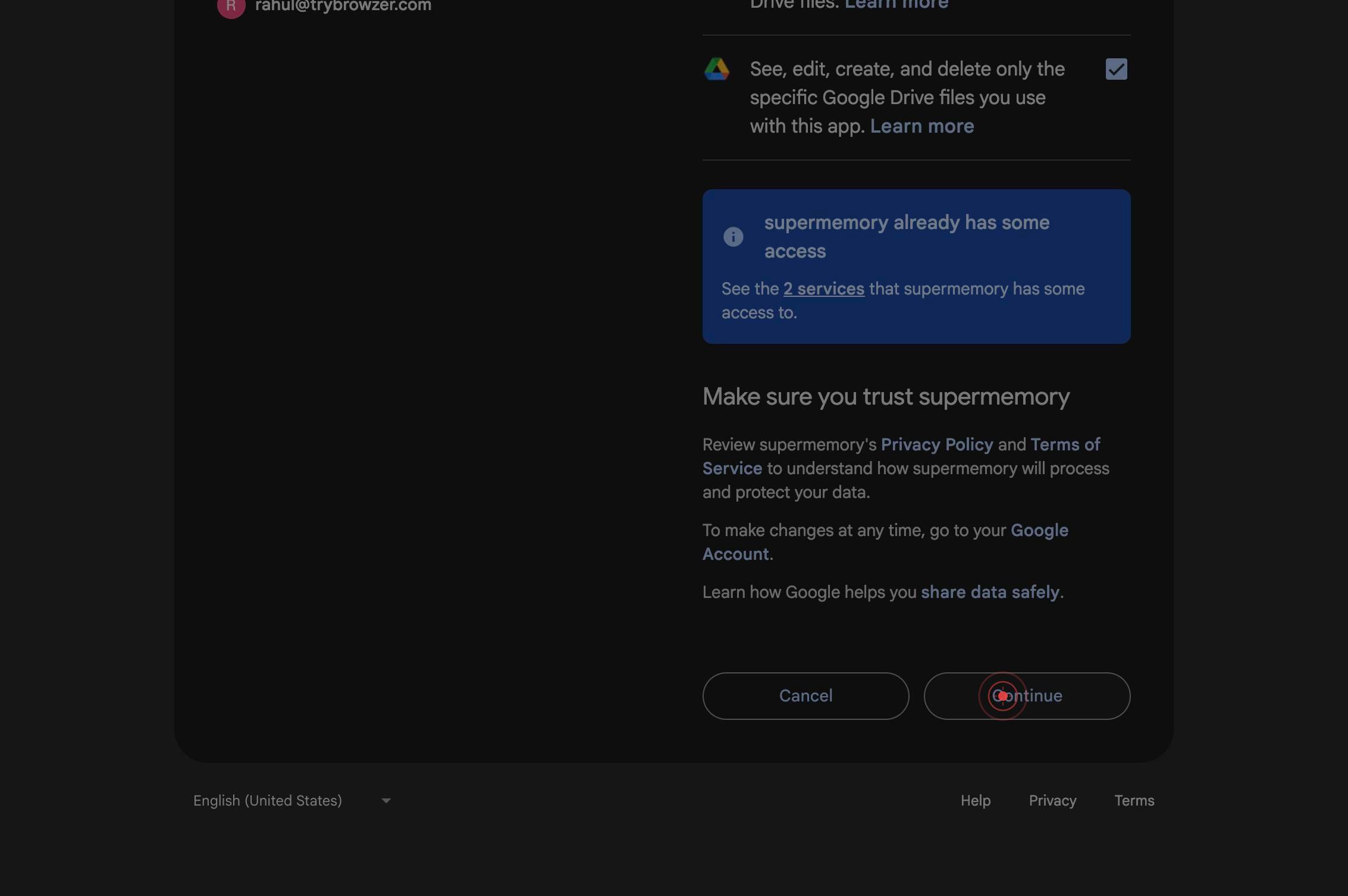
The system processes your authorization and redirects to the Supermemory API backend (api.supermemory.ai). This is an internal transition step where Supermemory receives the authorization token from Google.
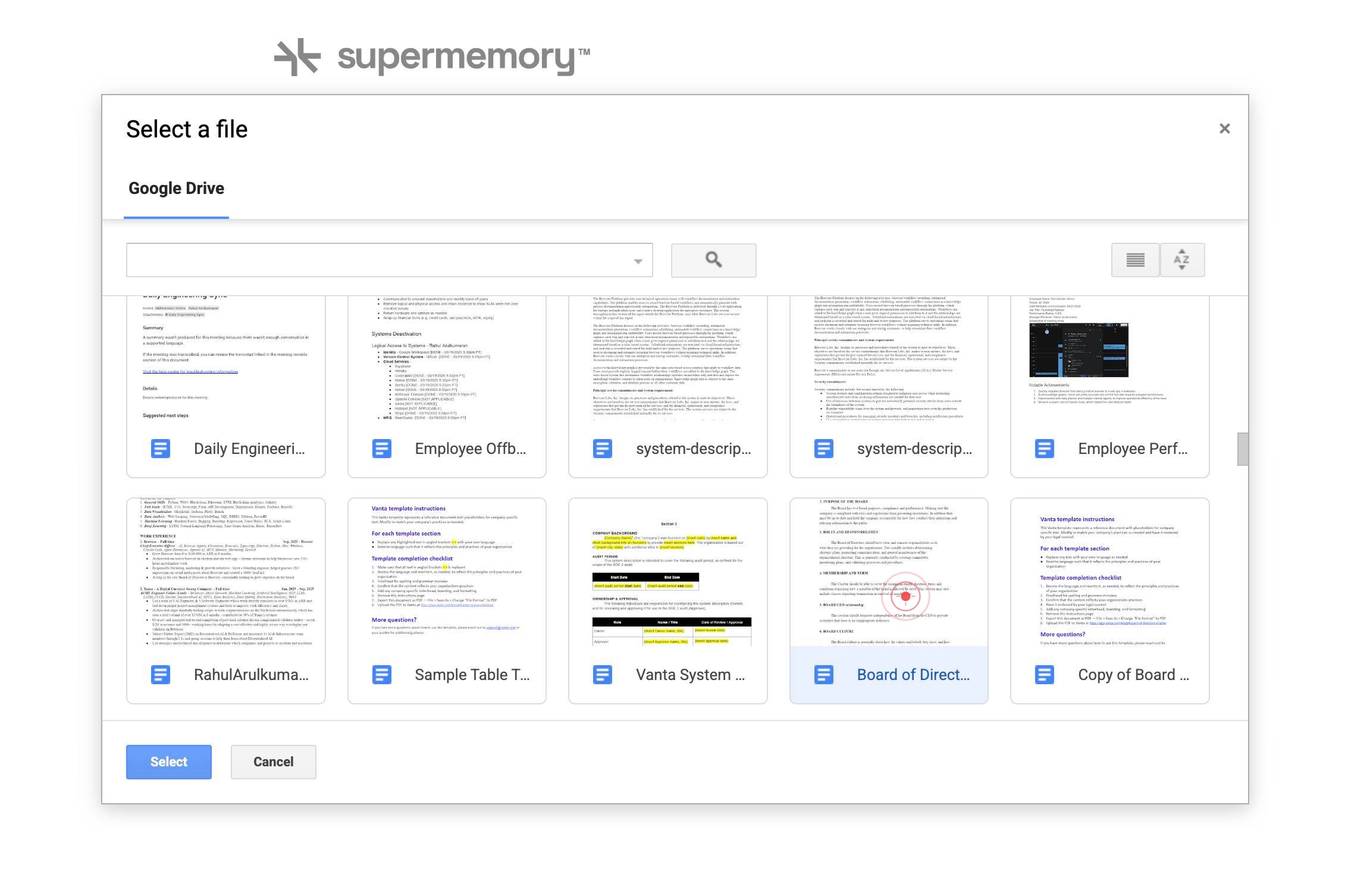
Board of Directors' Charter - Browzer Labs, Inc.A document picker appears showing your available Google Drive files. Click on 'Board of Directors' Charter - Browzer Labs, Inc.' to select this document for syncing into your Supermemory knowledge base.
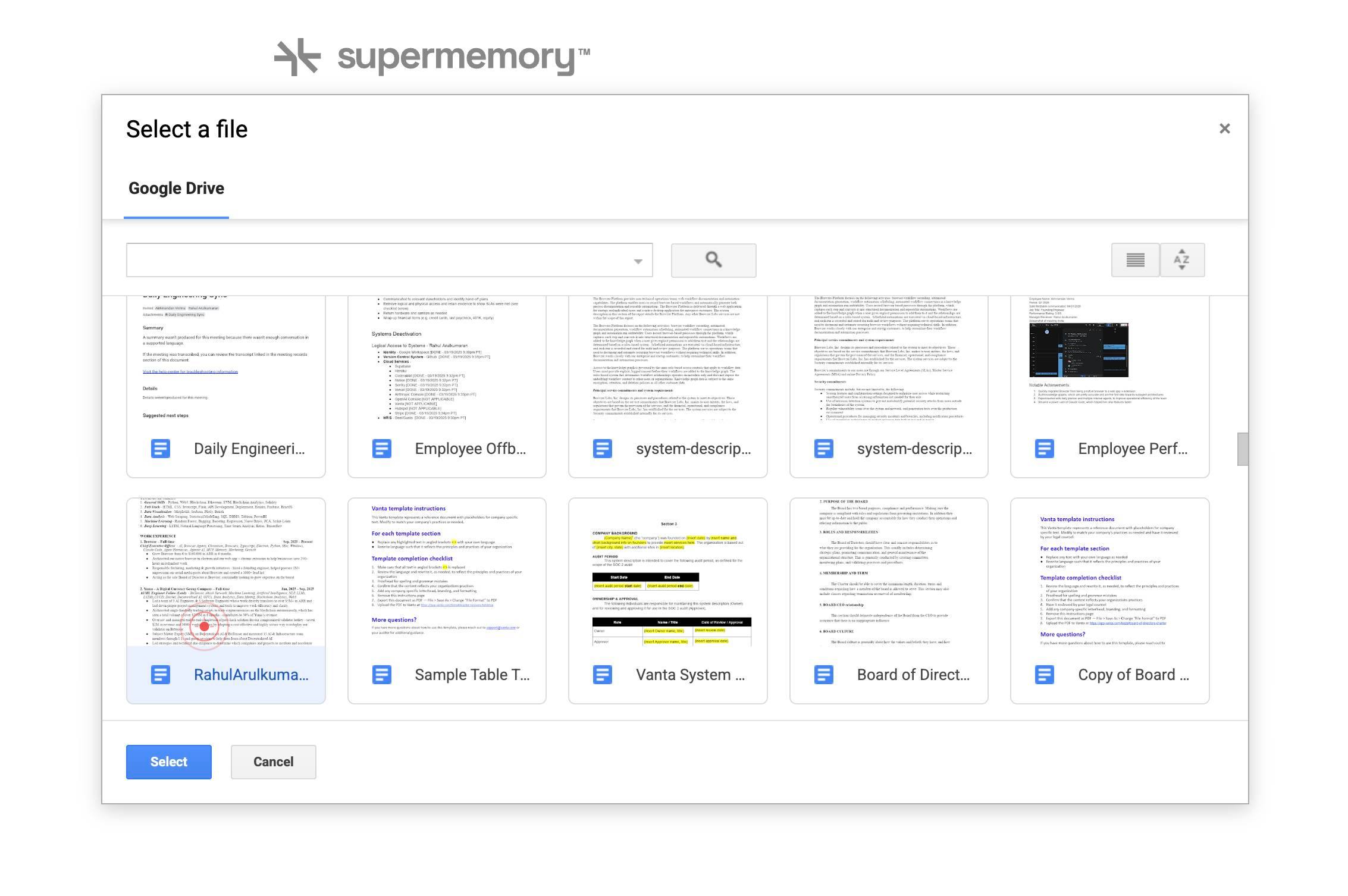
RahulArulkumaran_Browzer_CEOClick on the second document, 'RahulArulkumaran_Browzer_CEO', to add it to your selection. Multiple documents can be imported in a single sync batch.
SelectClick the 'Select' button to confirm your document choices. This finalizes which Google Drive files will be synced into your Supermemory knowledge base.
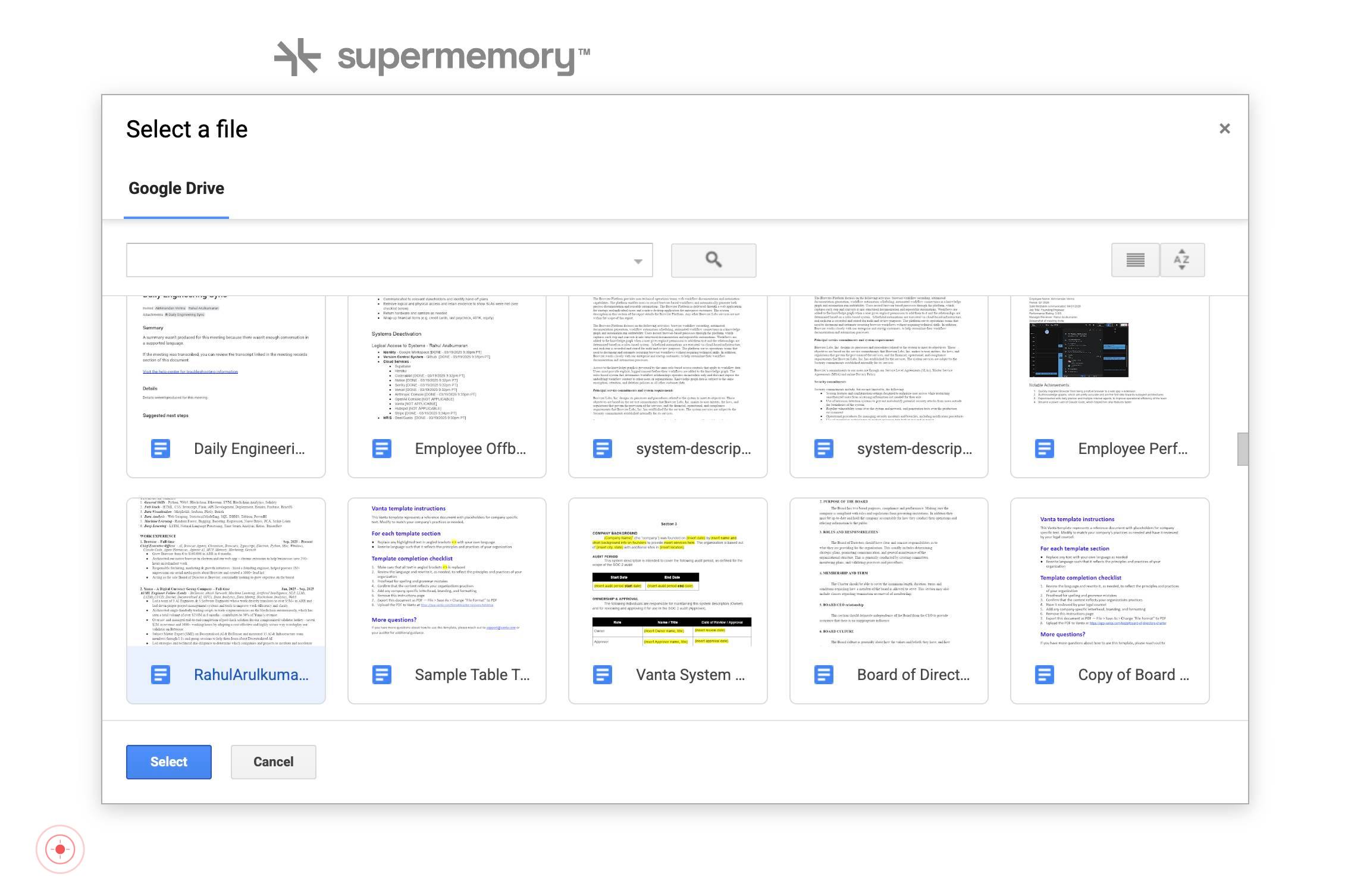
You are redirected back to the Supermemory app (app.supermemory.ai), completing the connection workflow. Your selected Google Drive documents will now begin syncing into your knowledge base.
Confirm it worked
- 1After completing the workflow, you are redirected back to app.supermemory.ai
- 2The Google Drive connector status shows as 'connected' in your integrations settings
- 3Selected Google Drive documents appear in your Supermemory knowledge base ready for sync
- 4You can view the list of synced documents from Google Drive in your Supermemory dashboard
Common issues
Keep reading
Create and configure a Google Drive connection | Integration Connectors | Google Cloud Documentation
Create and configure a Google Drive connection | Integration Connectors | Google Cloud Documentation # Create and configure a Google Drive connection The page describes how to create and configure a
docs.cloud.google.comGoogle Drive - Connect AI
Google Drive - Connect AI # Google Drive --- Authentication Methods - Oauth - Oauth JWT # Google Drive --- ## Setup Guide Follow these steps to connect Google Drive to your Connect AI account:
cloud.cdata.comOverview | Gemini Enterprise | Google Cloud Documentation
Overview | Gemini Enterprise | Google Cloud Documentation # Overview The Google Drive data store for Gemini Enterprise lets you search and perform actions on your Google Drive data, including files
docs.cloud.google.com