Guide
Delete Memory
Overview
Supermemory is a universal memory API designed to augment AI applications with persistent, scalable memory storage. Over time, your memory database may accumulate documents or entries that are outdated, incorrect, or no longer relevant to your use case. This workflow guides you through removing a specific memory from your Supermemory instance. The deletion process requires two confirmations to prevent accidental data loss—first selecting the document, then confirming the permanent removal.
Before you begin
- You have an active Supermemory account and are logged into app.supermemory.ai
- You have at least one saved memory or document in your Supermemory instance
- You know which memory or document you want to delete
Step by step
.file 2026-04-24T14:47:58.843925+00:00 app[web.1]: INFO HTTP Request: GET _client.py:1740 2026-04-24T14:47:58.843927+00:00 app[web.1]: https://api.trybrowzer.com/auth/v1/ 2026-04-24T14:47:58.843927+00:00 app[web.1]: user "HTTP/2 403 Forbidden" 2026-0Select the file or memory you wish to delete by clicking on it in the memory list. This highlights the document and prepares it for deletion.

Delete documentClick the 'Delete document' button that appears in the action menu. This initiates the deletion process and triggers a confirmation dialog.
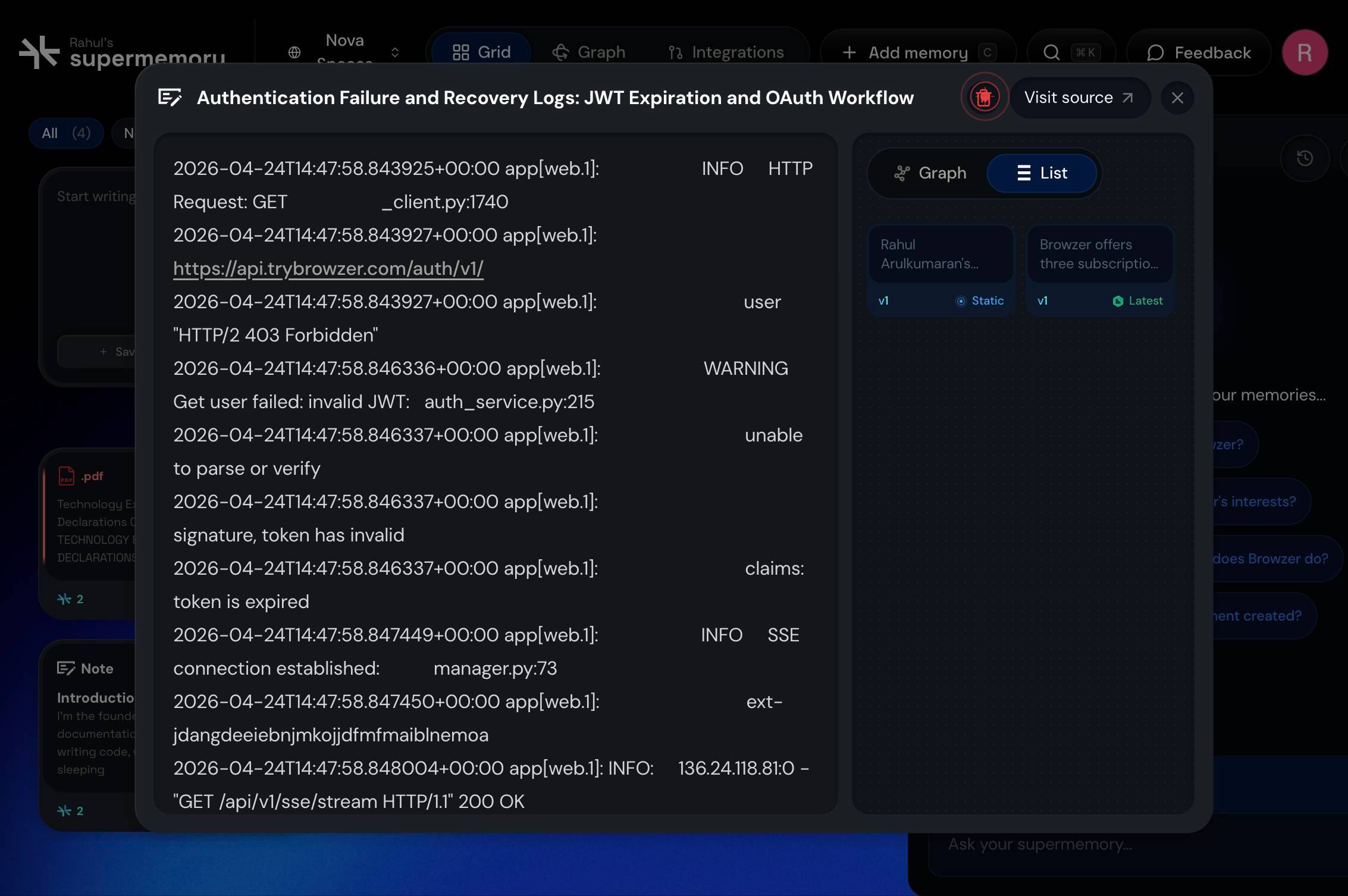
Confirm deleteClick the 'Confirm delete' button in the confirmation dialog to permanently remove the memory from your Supermemory account.
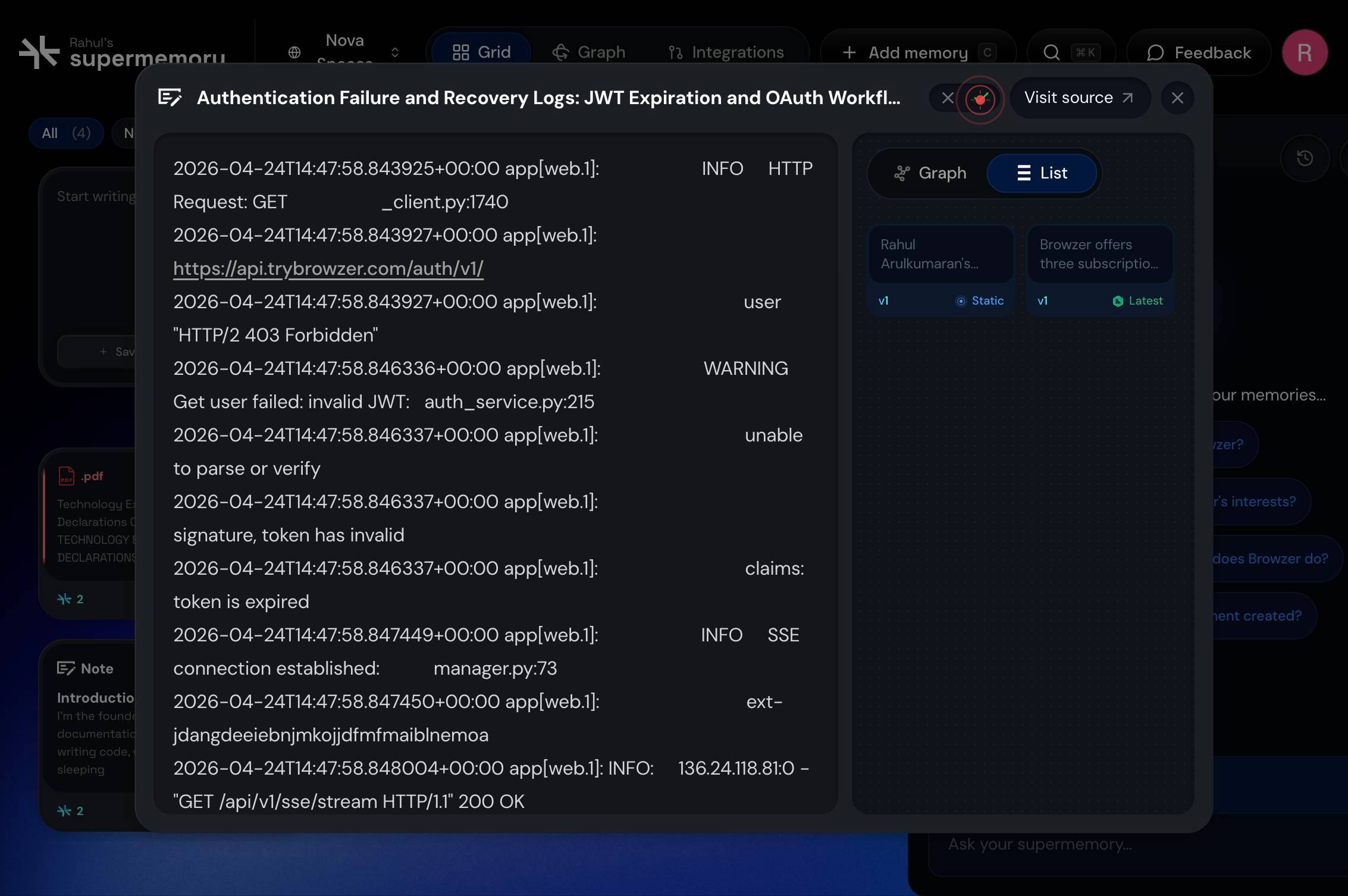
Confirm it worked
- 1The file is no longer visible in your memory list after deletion completes
- 2You see a confirmation message indicating the document has been deleted
- 3Attempting to search for or retrieve the deleted memory returns no results
Common issues
Keep reading
Delete Memory - Mem0
> ## Documentation Index > > Fetch the complete documentation index at: https://docs.mem0.ai/llms.txt > Use this file to discover all available pages before exploring further. # Delete Memory > Rem
mem0.mintlify.appStep-by-Step Guide: Delete Object From Memory in Python - Codingdeeply
Step-by-Step Guide: Delete Object From Memory in Python - Codingdeeply Python deletes an object from memory” – a phrase that might seem daunting but holds the key to efficient programming. Understand
codingdeeply.comHow to Delete Variables & Objects from Memory - Be on the Right Side of Change
How to Delete Variables & Objects from Memory - Be on the Right Side of Change ## Problem Formulation and Solution Overview This article will show you how to delete variables and objects from memory
blog.finxter.com