Guide
Create Full Access Supermemory API Key
Overview
Supermemory is a memory layer for AI agents that powers enterprise APIs and developer plugins. To use the Supermemory API programmatically—whether for adding memories, retrieving context, or integrating with your LLM—you must first generate an API key from the Supermemory console. This workflow creates a production-ready API key with full access permissions, allowing your application to make any authenticated request to the Supermemory platform. Full-access keys are suitable for trusted backend environments where you control the entire codebase and request logic.
Before you begin
- An active Supermemory account with console access at console.supermemory.ai
- Admin or owner role in your Supermemory workspace (required to create API keys)
- A descriptive name or identifier for the API key (e.g., 'Production API Key', 'Backend Service Key')
Step by step
CREATE KEYNavigate to the API Keys section in the Supermemory console and initiate the key creation workflow by clicking the 'CREATE KEY' button. This opens the API key creation form where you will configure your new key.
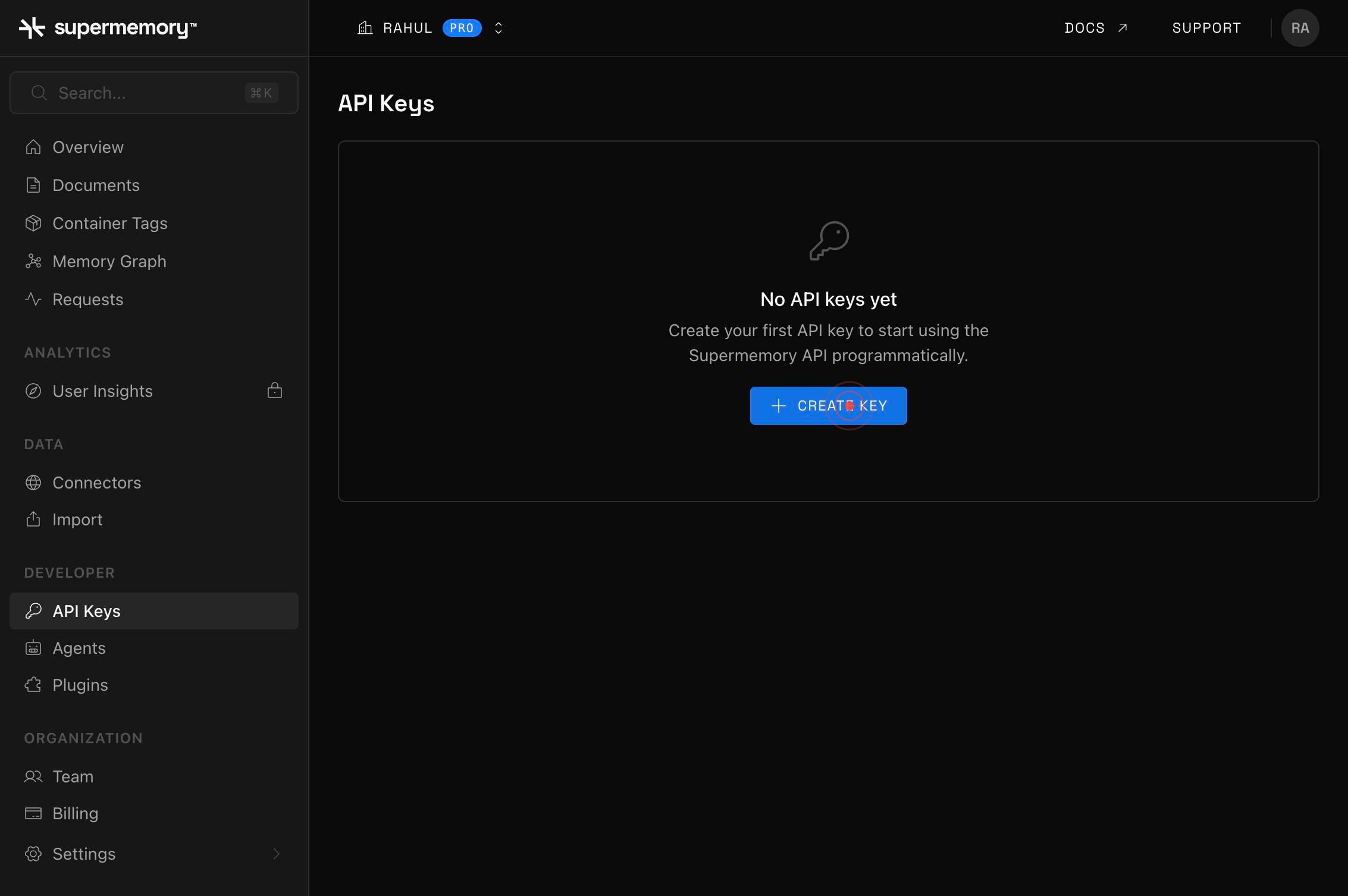
Key NameClick into the 'Key Name' text field to activate it and prepare to enter a descriptive name for your API key. This name helps you identify the key's purpose in your workspace.
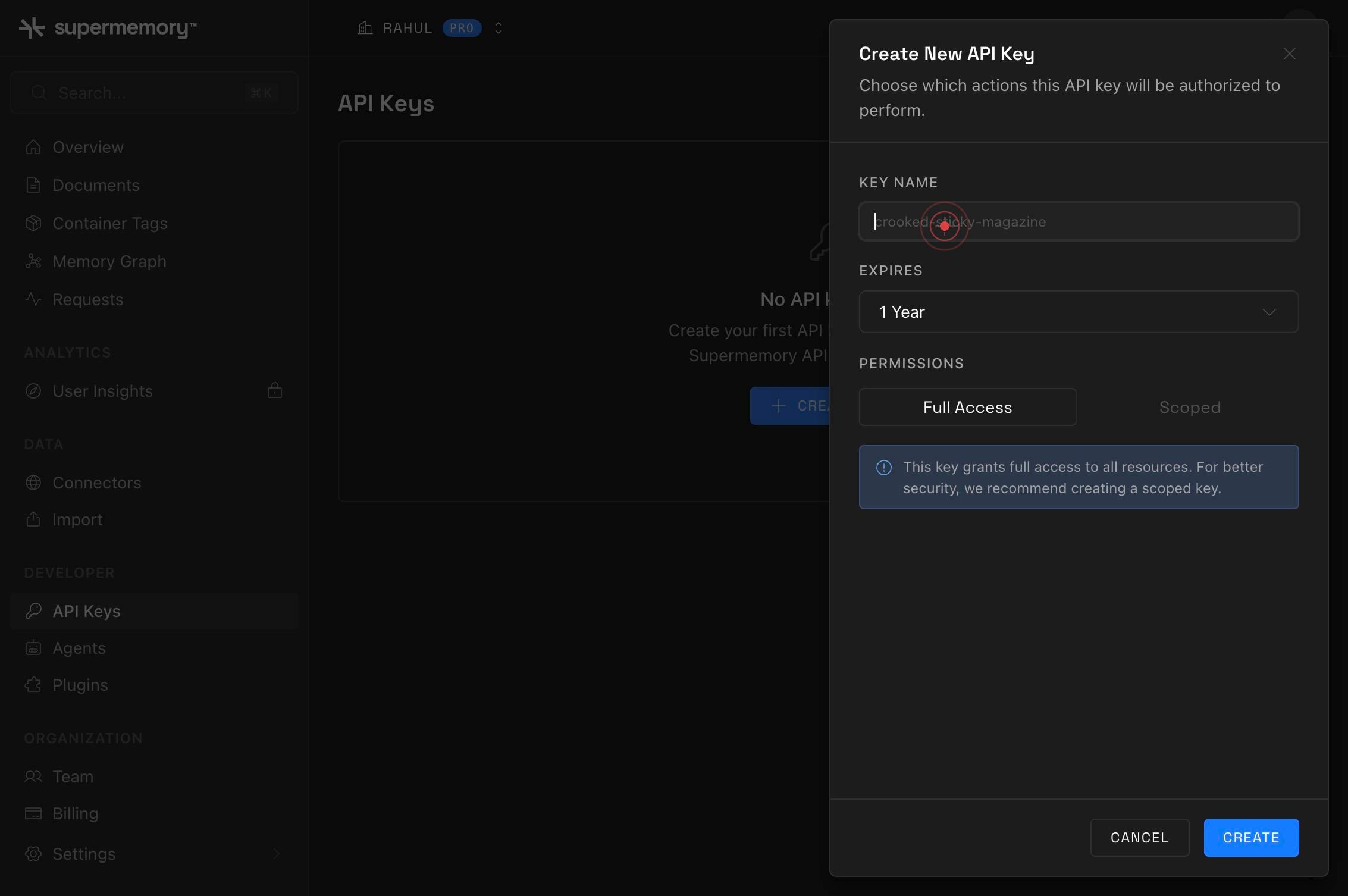
Key NameType a descriptive name for your API key into the active text field. Choose a name that clearly identifies the key's intended use or environment.
API Keys No API keys yet Create your first API key to start using the Supermemory API programmatically. CREATE KEY Create New API Key Choose which actions this API key will be authorized to perform. KEY NAME EXPIRES 1 Year PERMISSIONS Full Access ScoReview the API key creation form to confirm that the permissions are set to 'Full Access' and the expiration is set to '1 Year'. The full-access permission level grants unrestricted authorization for all Supermemory API operations.
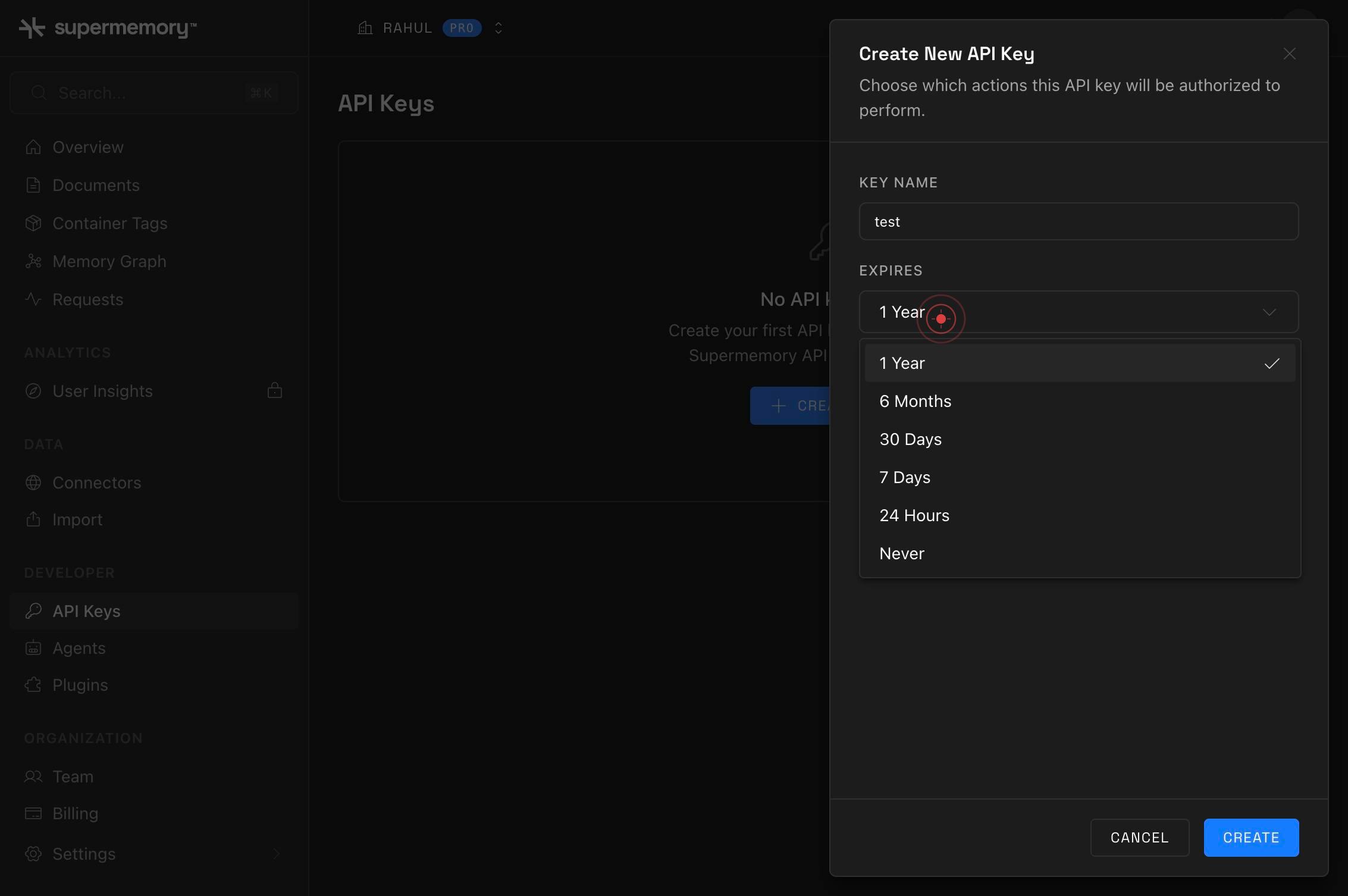
CREATEClick the 'CREATE' button to generate your API key with full access permissions and a one-year expiration date. The system will immediately display your new key on screen.
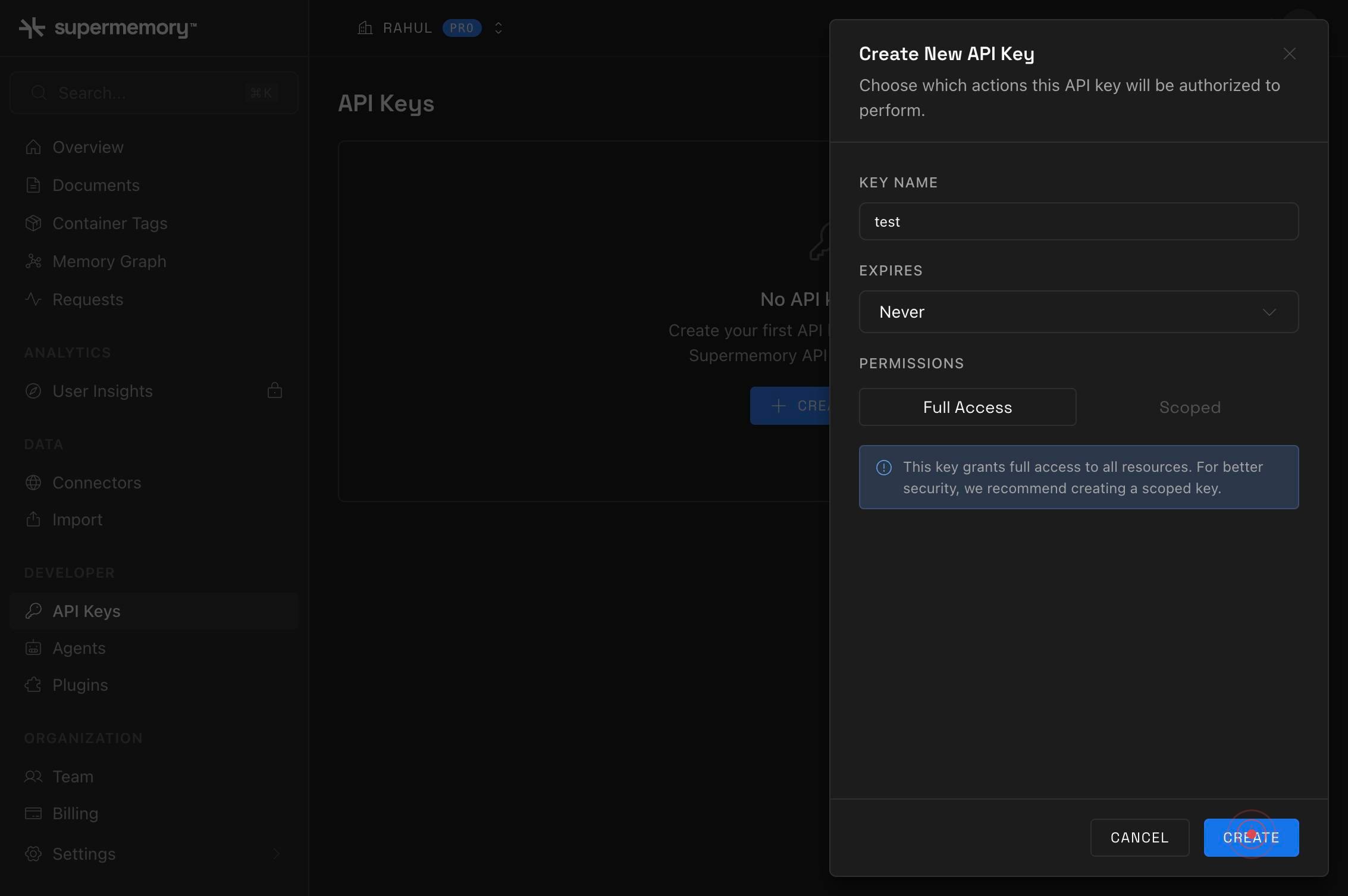
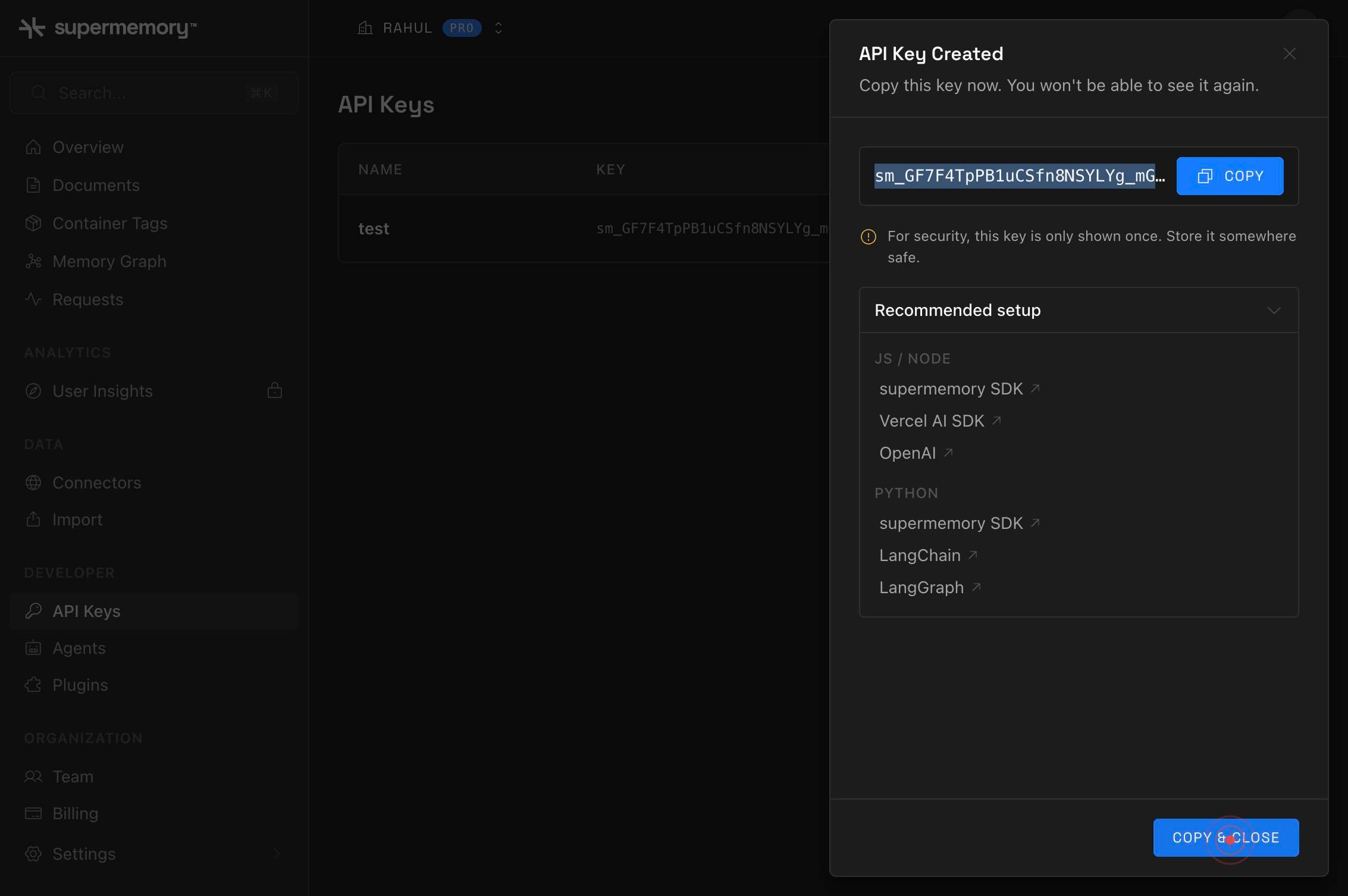
COPY & CLOSEClick the 'COPY & CLOSE' button to copy the generated API key to your clipboard and close the key creation modal. After copying, securely store the key in your application's environment variables or secure vault.
Confirm it worked
- 1After clicking 'CREATE', a modal or confirmation screen displays your generated API key in full
- 2The API key is a long alphanumeric string ready for secure storage
- 3The key shows expiration date as exactly 1 year from creation
- 4After copying and closing, you return to the API Keys dashboard showing your newly created key listed with 'Full Access' permissions
Common issues
Keep reading
Authentication - supermemory | Memory API for the AI era
> ## Documentation Index > > Fetch the complete documentation index at: https://supermemory.ai/docs/llms.txt > Use this file to discover all available pages before exploring further. # Authenticatio
supermemory.aiQuickstart - supermemory | Memory API for the AI era
> ## Documentation Index > > Fetch the complete documentation index at: https://supermemory.ai/docs/llms.txt > Use this file to discover all available pages before exploring further. # Quickstart >
supermemory.aiGetting Started with Model Enhancement - supermemory | Memory API for the AI era
> ## Documentation Index > > Fetch the complete documentation index at: https://supermemory.ai/docs/llms.txt > Use this file to discover all available pages before exploring further. # Getting Start
docs.supermemory.ai