Guide
Add Member to Org
Overview
Composio organizations require explicit member management to control who can access projects, APIs, and configuration settings. Adding members to your organization grants them role-based access (such as Developer or Admin) to collaborate on integrations and AI agent workflows. This workflow walks you through the invitation process using Composio's dashboard, which ensures members are properly provisioned and notified of their new access.
Before you begin
- You must be logged into dashboard.composio.dev with an account that has organization admin or owner permissions.
- You must have the email address of the person you want to invite.
- The person being invited should not already be a member of your organization.
Step by step
MembersNavigate to the Members section of your organization by clicking the 'Members' link in the left sidebar or top navigation of the Composio dashboard. This page displays all current members of your organization and provides controls to manage membership.
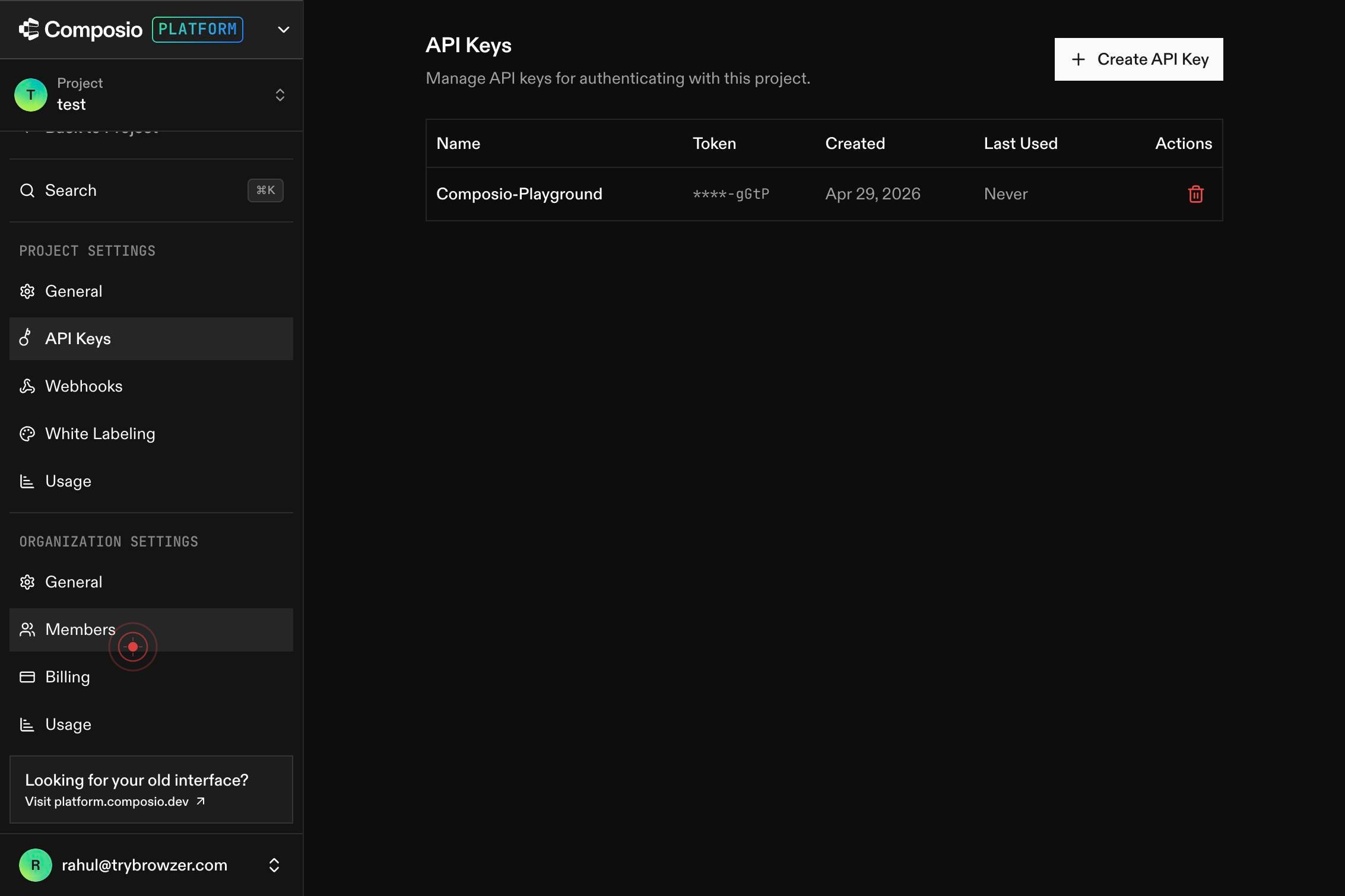
Members Team Members 2 Members Invite Member Member Role Joined Actions abhinandan@trybrowzer.com abhinandan@trybrowzer.com Developer Mar 7, 2026 rahul@trybrowzer.com rahul@trybrowzer.com Admin Mar 7, 2026Review the Members list to see existing team members, their roles (Developer, Admin, etc.), and join dates. This helps you verify that the person you are about to invite is not already a member and allows you to understand your current team composition.
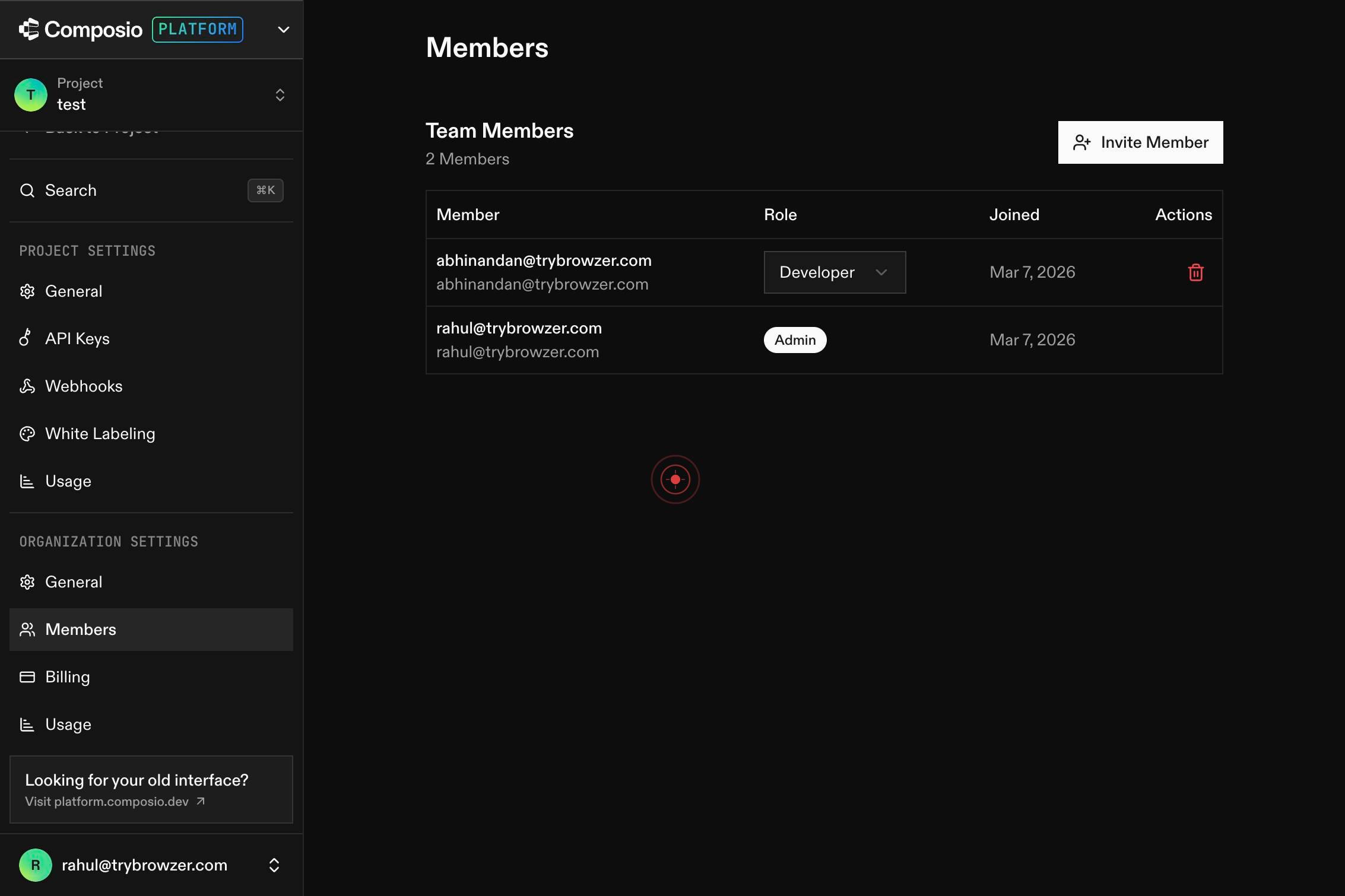
Invite MemberClick the 'Invite Member' button on the Members page to open the invitation dialog or form. This action prepares the system to accept a new member's email address.
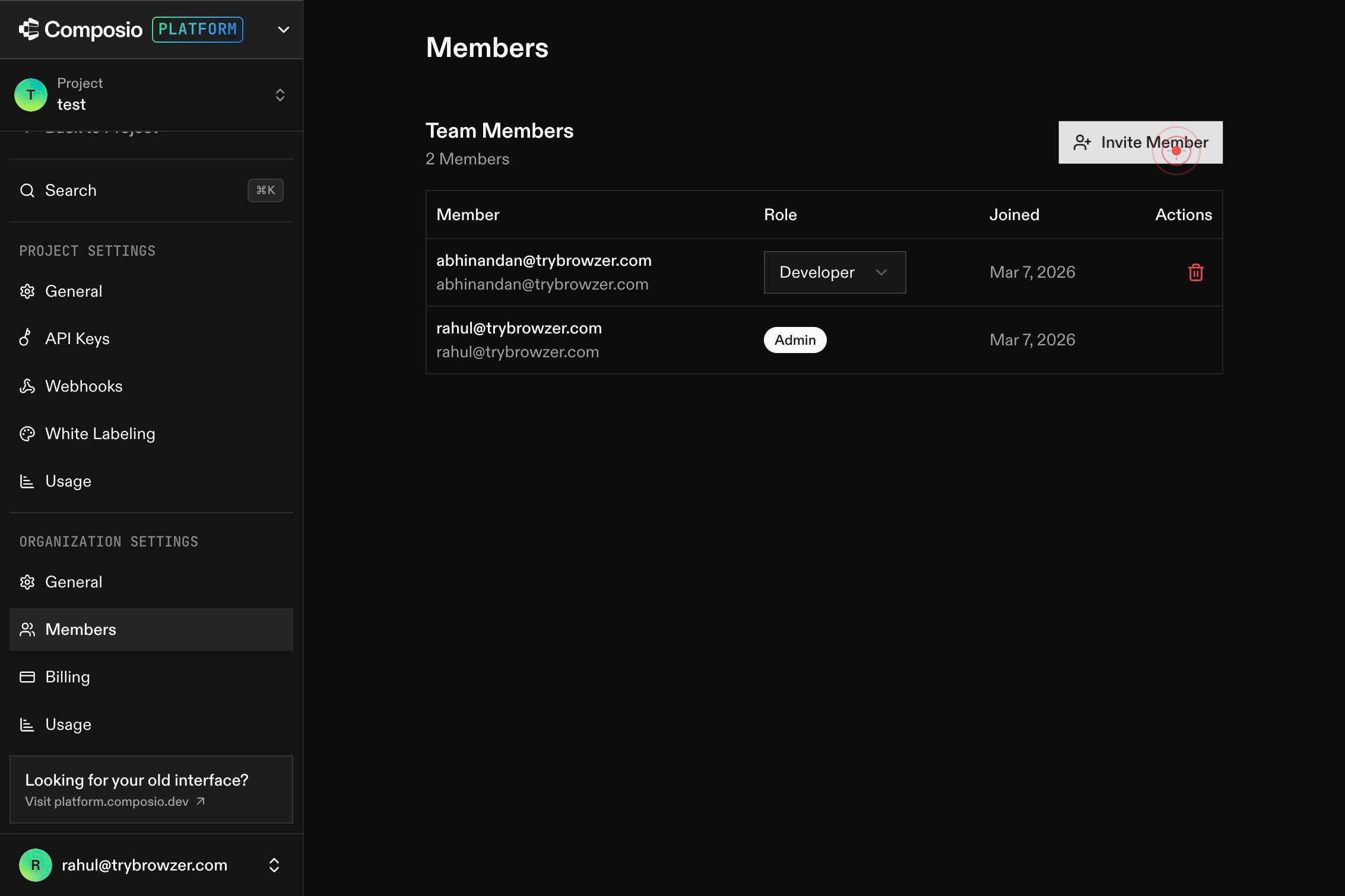
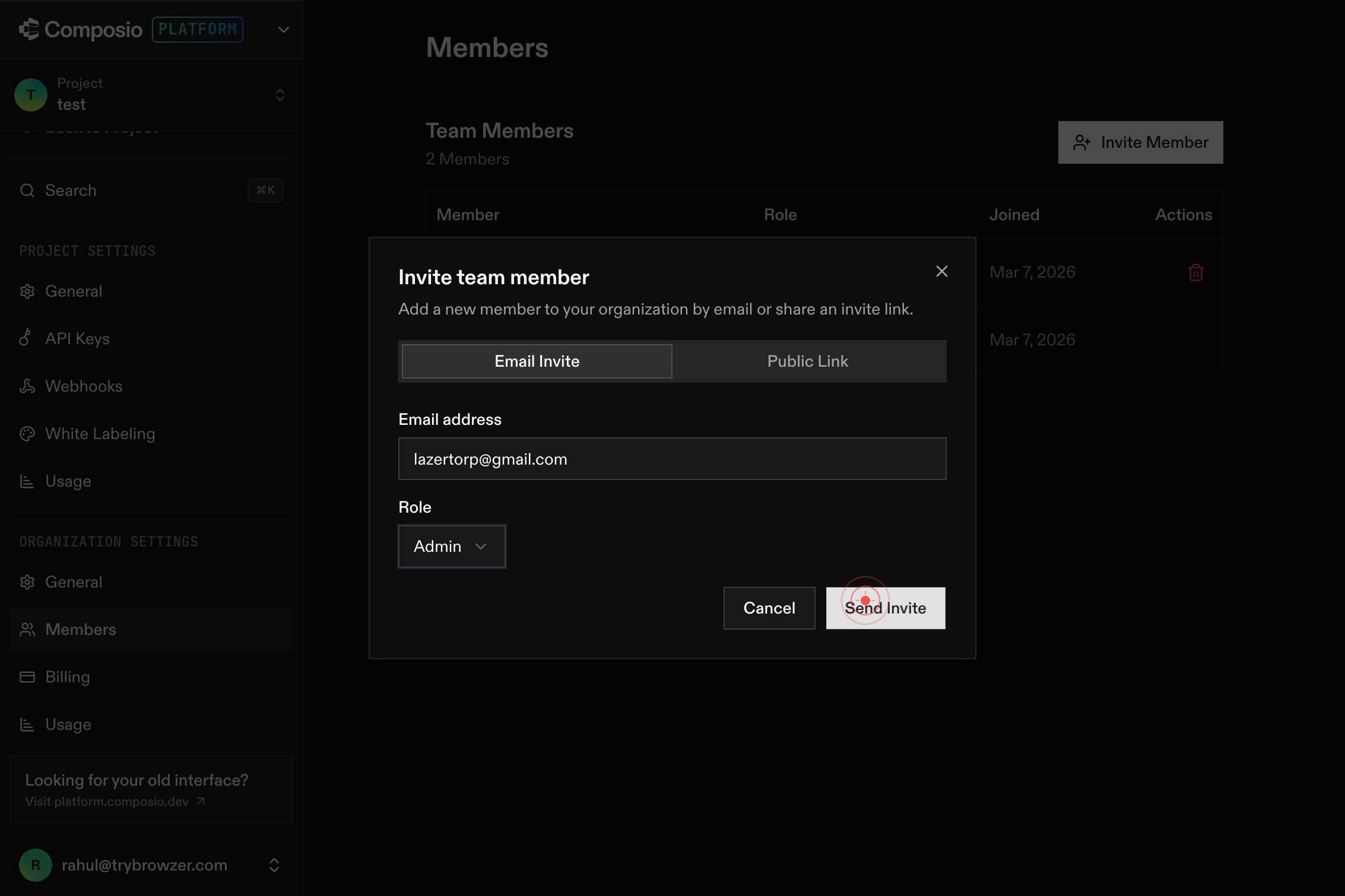
Email addressEnter the email address of the person you want to invite in the 'Email address' text field. Type their full, valid email address (e.g., newmember@company.com) exactly as it appears in their email account.
PLATFORM T Project test Search ⌘K Getting Started Playground Toolkits Users Sessions Auth Configs Triggers Logs Support Documentation Settings Back to Project Search ⌘K PROJECT SETTINGS General API Keys Webhooks White Labeling Usage ORGANIZATION SETTClick anywhere on the page background or wait for the form to complete processing. This step ensures the email address is registered in the system and the form is ready to send the invitation.
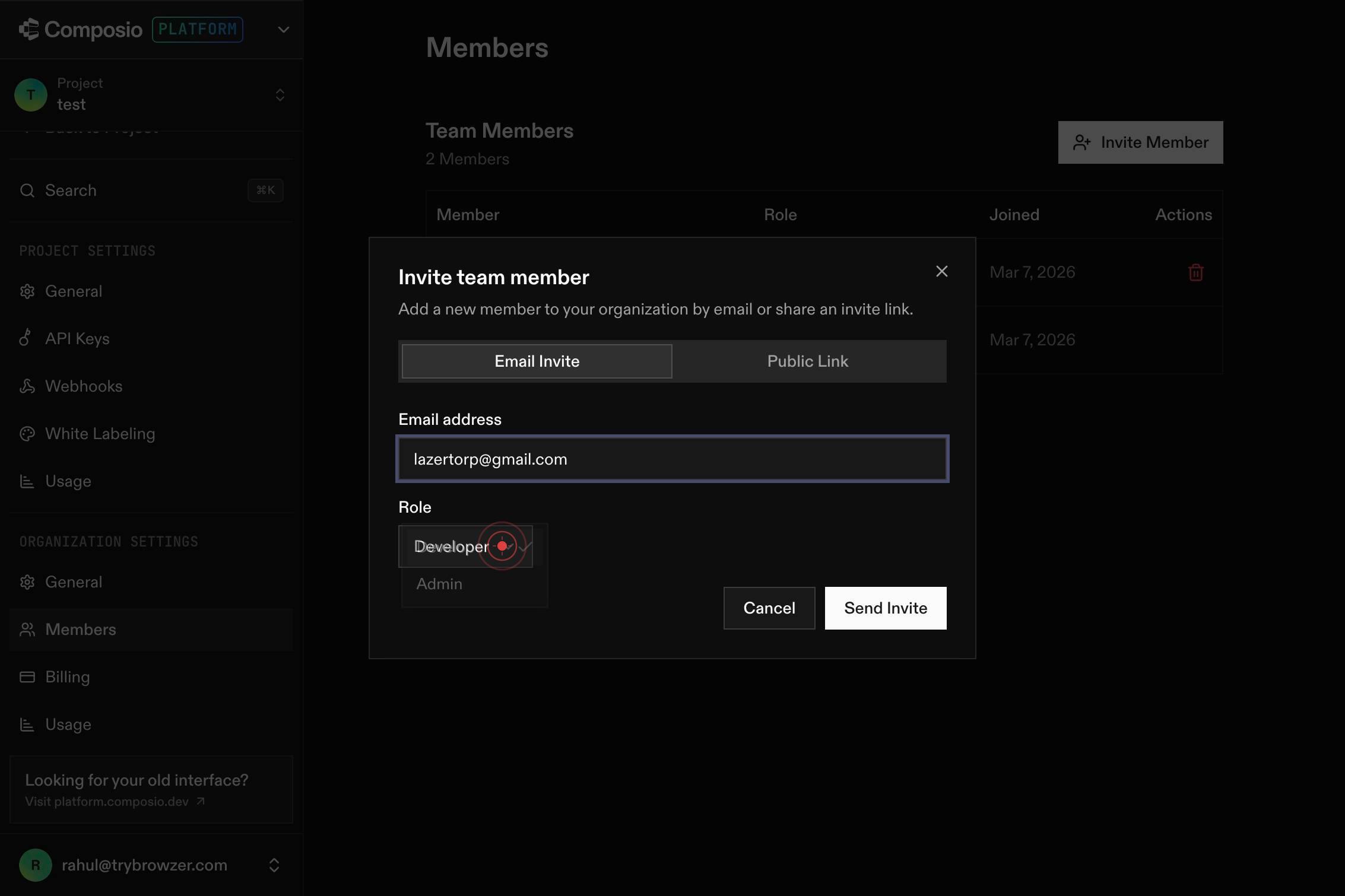
Send InviteClick the 'Send Invite' button to dispatch the invitation email to the address you entered. This notifies the recipient that they have been invited to join your organization and provides them with a link or code to accept the invitation.
Confirm it worked
- 1You should see the Members page displaying the current members table with columns for Name, Role, Joined date, and Actions.
- 2After clicking 'Invite Member', an invite dialog or form should appear with an 'Email address' field and 'Send Invite' button.
- 3After sending the invitation, you should see a success confirmation message (such as 'Invitation sent' or the new member appearing in the members list with a pending status).
- 4The invited user should receive an email invitation to join the organization (verify by checking the recipient's inbox or email logs).
Common issues
Keep reading
Adding organization members to a team - GitHub Docs
# Adding organization members to a team People with owner or team maintainer permissions can add organization members to teams. People with owner permissions can also add non-members to a team and th
docs.github.comManaging membership in your organization - GitHub Docs
# Managing membership in your organization After you create your organization, you can add people as members of the organization. You can also remove members of the organization, and reinstate former
docs.github.comAdding members to your organization | npm Docs
Adding members to your organization | npm Docs Skip to searchSkip to content # Adding members to your organization Table of contents As an organization owner, you can add other npm users to your o
docs.npmjs.com