Guide
Create Composio API Key
Overview
Composio API keys are essential credentials that enable your applications to authenticate with Composio's platform and access its 1000+ integrated toolkits for AI agent development. By creating an API key through the dashboard, you generate a unique token that authorizes your application to make authenticated requests to Composio's services. This is a foundational step in setting up production applications that leverage Composio's tool search, context management, authentication, and sandboxed workbench capabilities. API keys should be treated as sensitive credentials—store them securely (e.g., in environment variables) and never commit them to version control.
Before you begin
- Active Composio account with access to dashboard.composio.dev
- Project created in Composio (navigate to your project first if multiple projects exist)
- Administrator or Project Owner role to create API keys
- Secure location prepared to store the API key (e.g., environment variable file, secrets manager)
Step by step
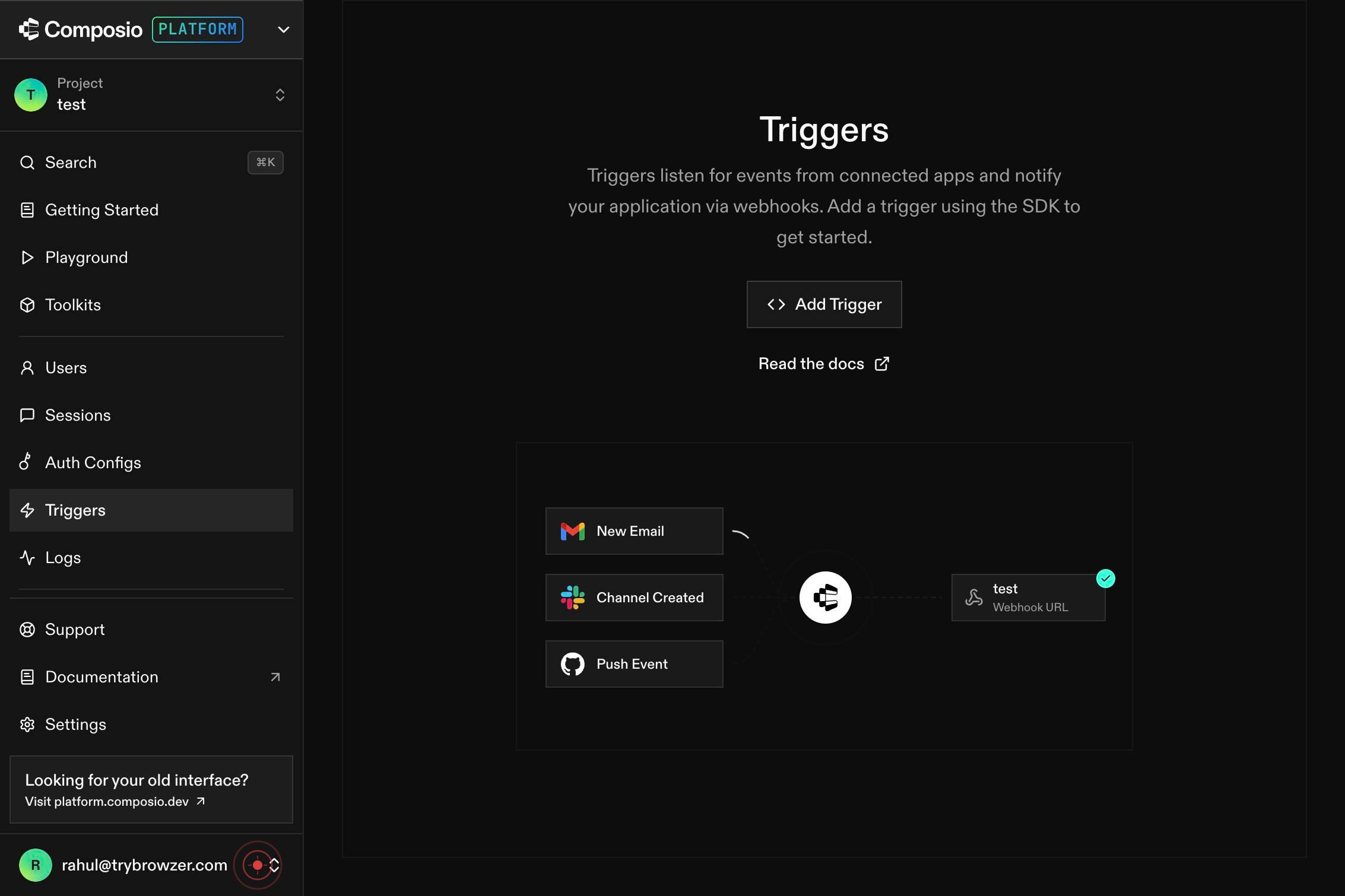
PLATFORM T Project test Search ⌘K Getting Started Playground Toolkits Users Sessions Auth Configs Triggers Logs Support Documentation Settings Back to Project Search ⌘K PROJECT SETTINGS General API Keys Webhooks White Labeling Usage ORGANIZATION SETTClick on the Settings section in the left sidebar navigation to access your project configuration options.
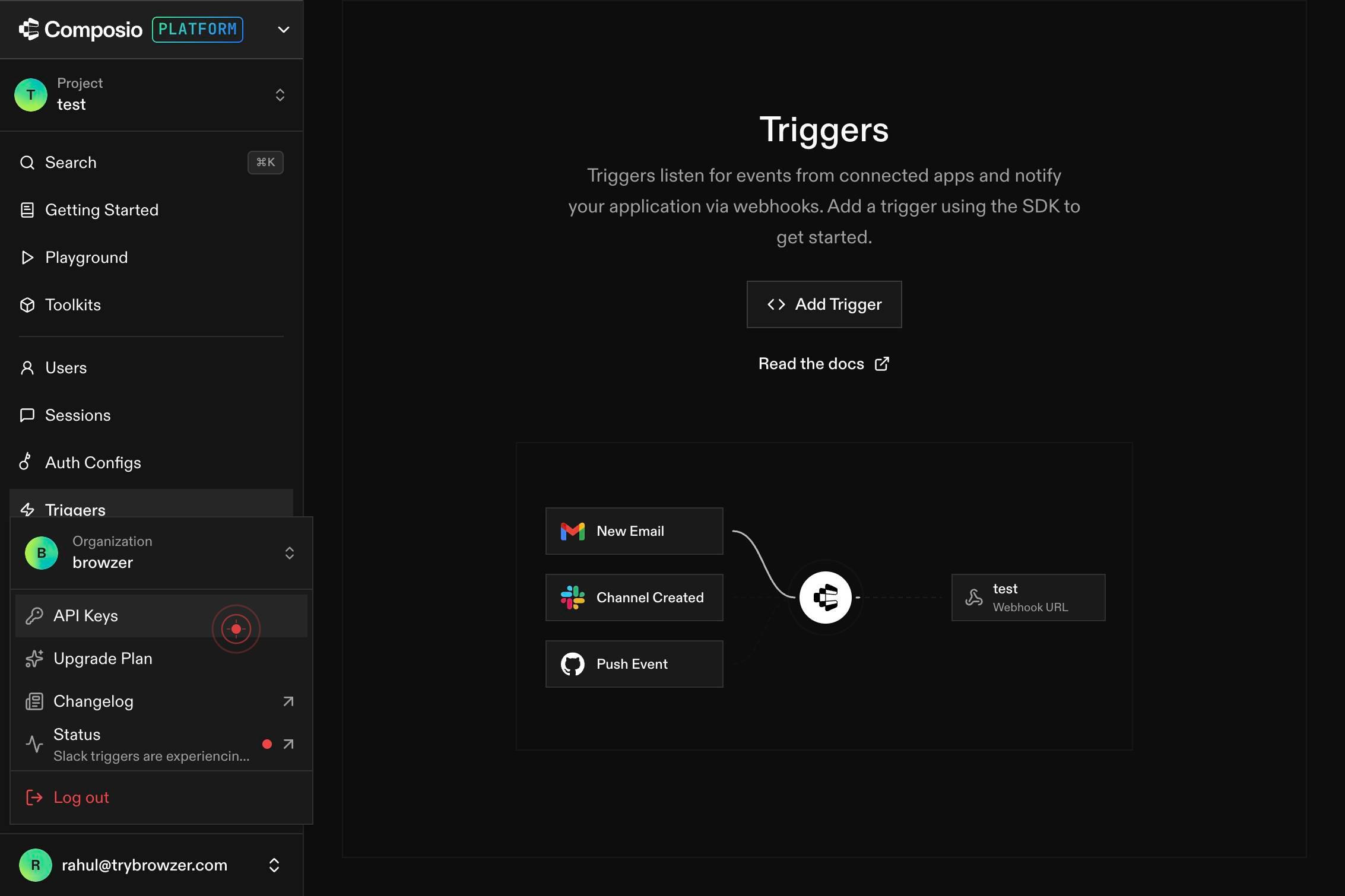
API KeysClick on 'API Keys' from the settings submenu to navigate to the API key management page where you can create and manage your project's API keys.
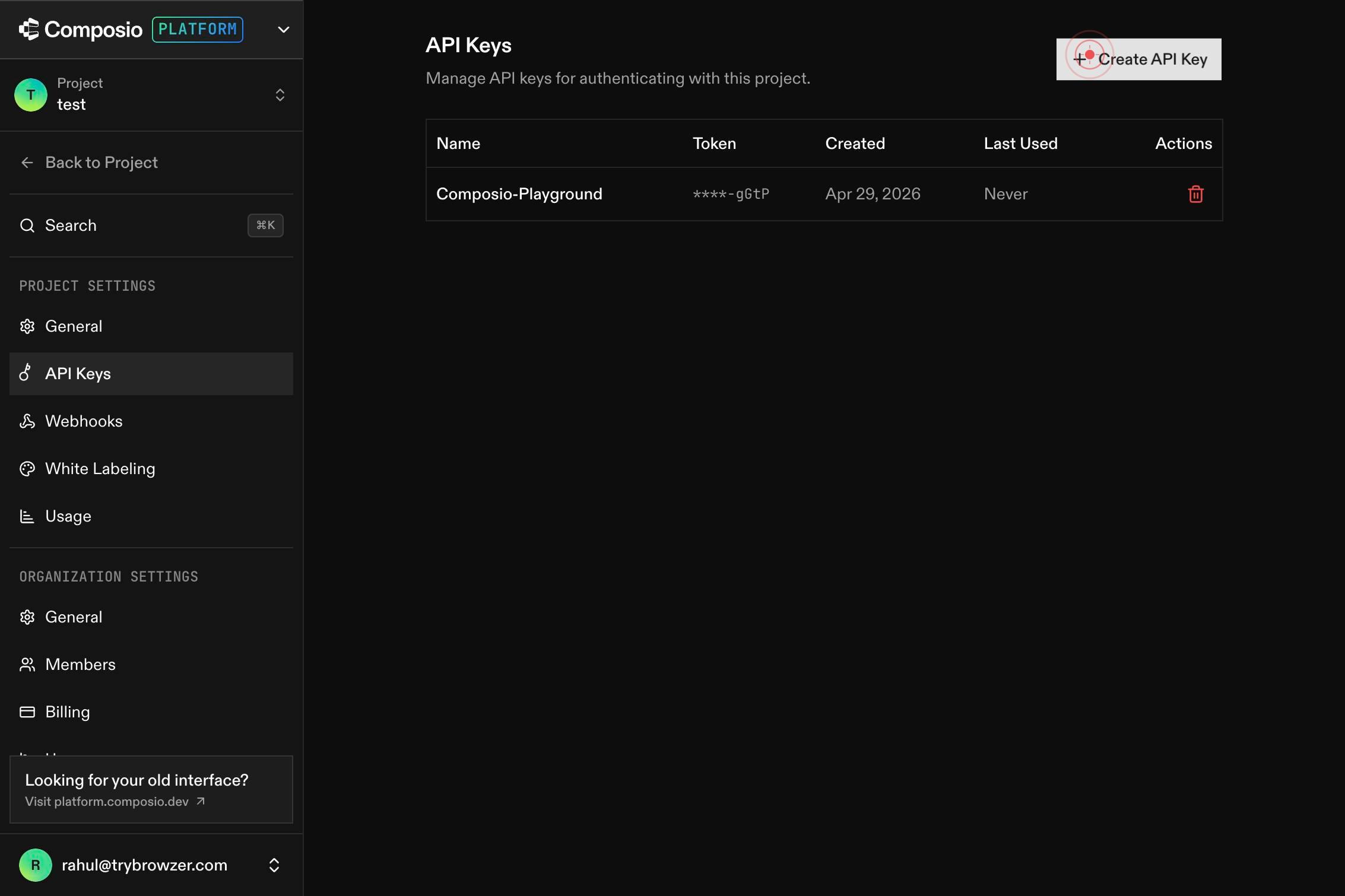
Create API KeyClick the 'Create API Key' button to initiate the creation of a new API key.
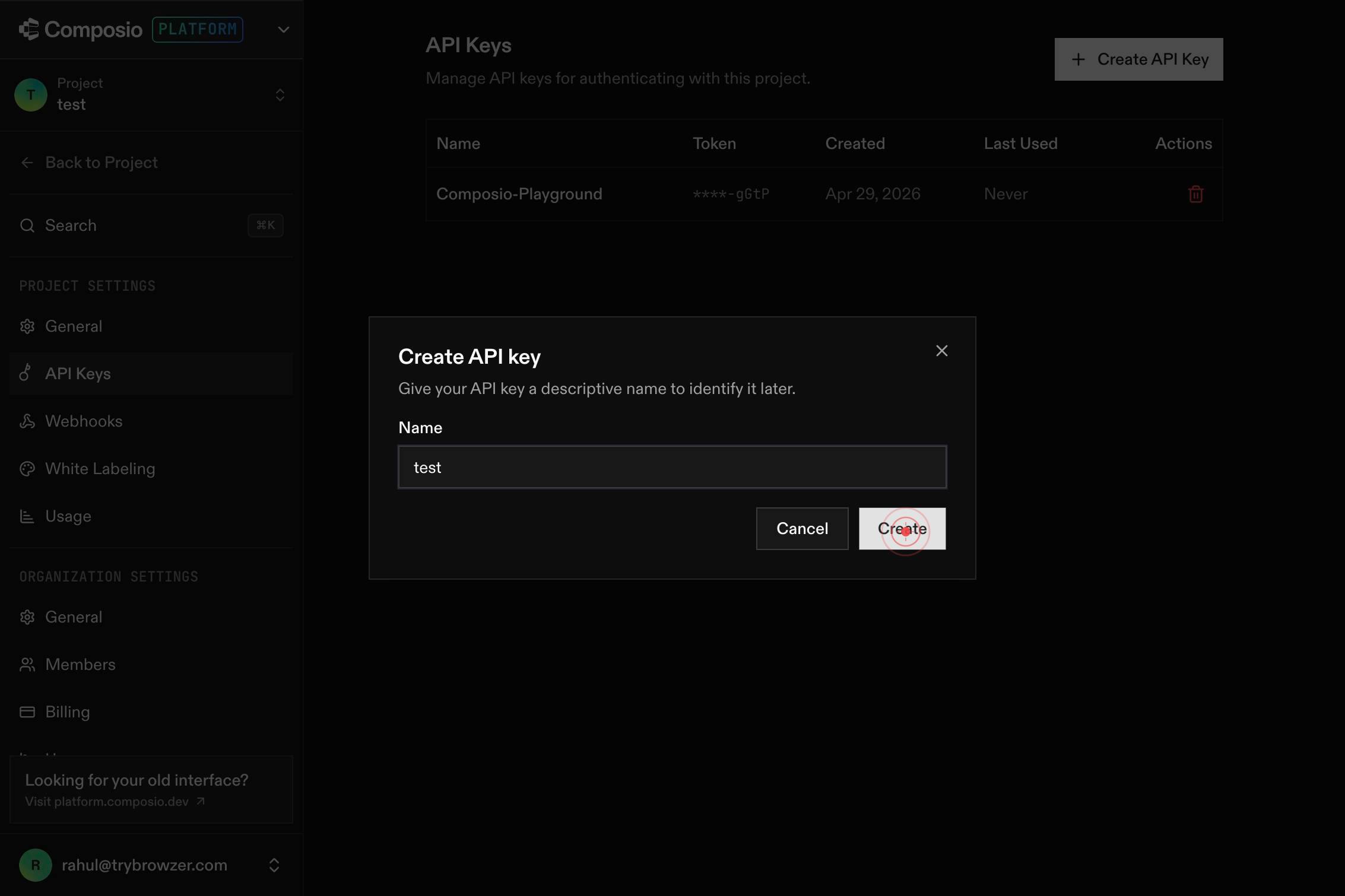
NameEnter a descriptive name for your API key in the 'Name' text field to identify its purpose (e.g., 'Production API Key', 'Development Key', 'Chat App Integration').
CreateClick the 'Create' button to generate the new API key.
Copy API keyClick the 'Copy API key' button to copy your newly generated API key to your clipboard for immediate use in your application.
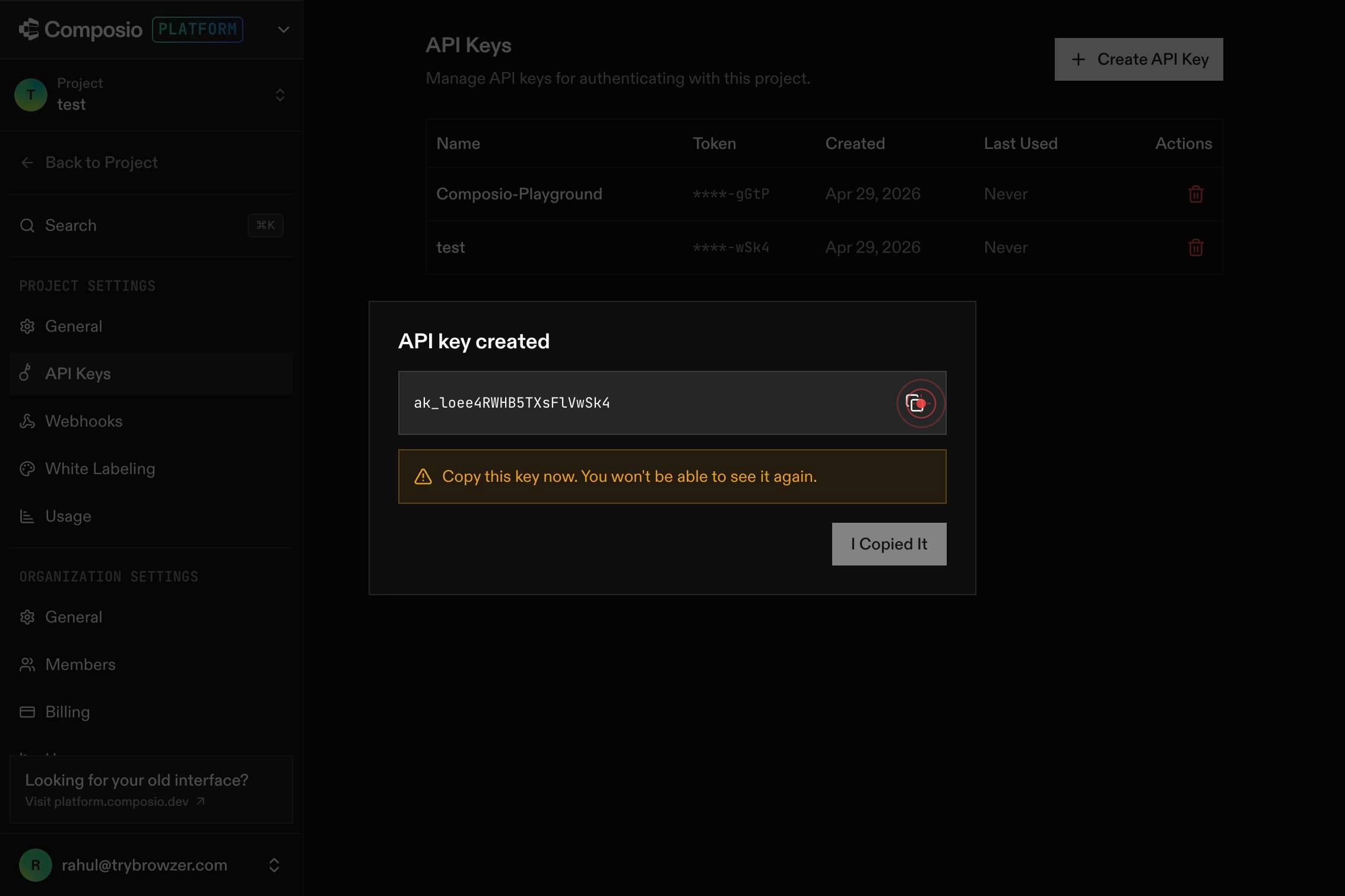
I Copied ItClick the 'I Copied It' button to confirm that you have successfully copied the API key and to dismiss the creation dialog.
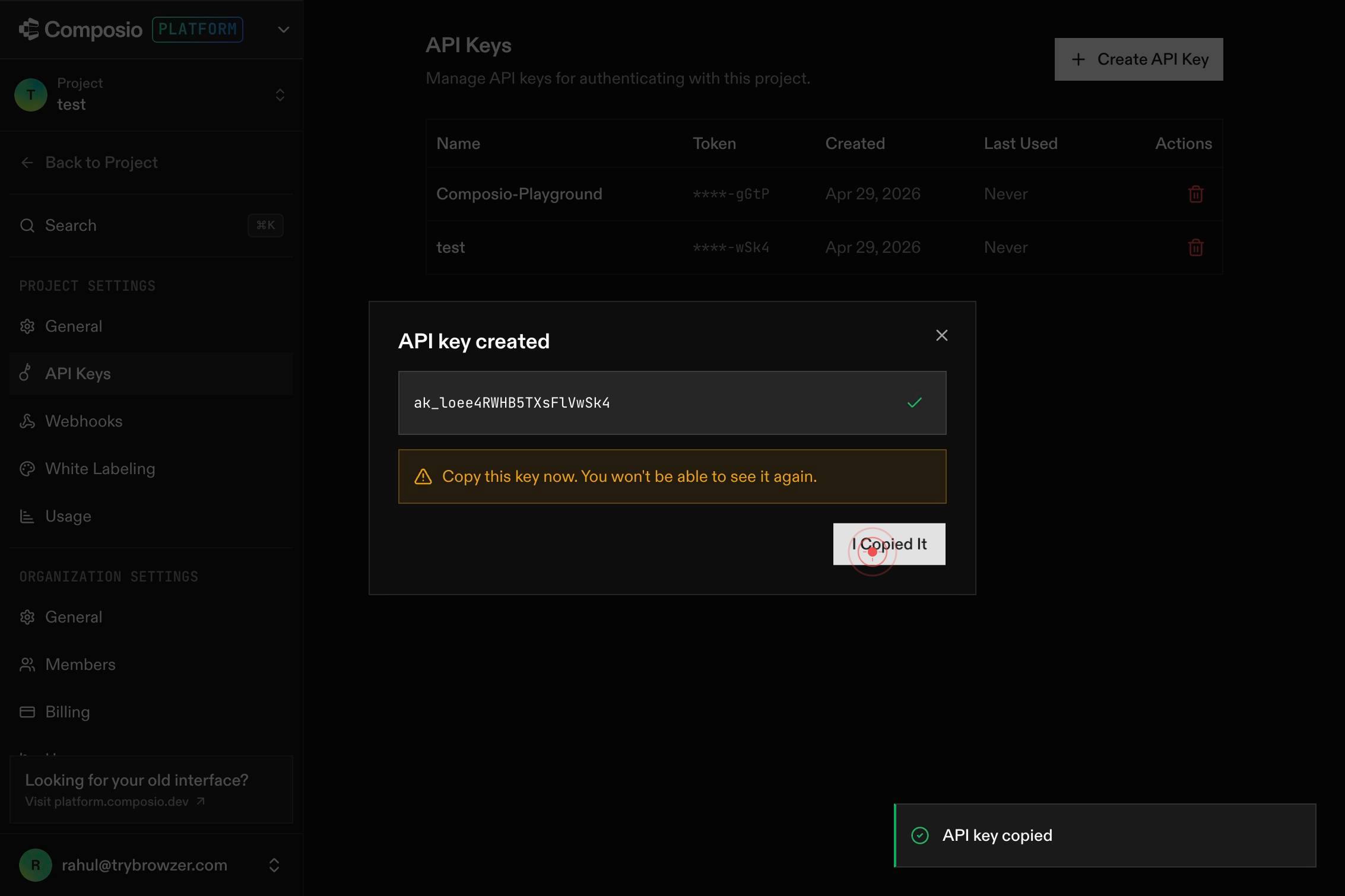
NameIf you need to create additional API keys, enter a name for the next key in the 'Name' text field and repeat the creation process (steps 3–7), or save your current key and finish by securely storing it in your application's configuration or secrets manager.
Confirm it worked
- 1API key is displayed in the dashboard with a 'Copy API key' button available
- 2You successfully copied the key to your clipboard (confirmed by 'I Copied It' button interaction)
- 3The new API key appears in your API Keys list on the dashboard
- 4You can retrieve the key later from the API Keys settings page (keys can be regenerated but not viewed again after initial creation)
Common issues
Keep reading
Create project API key
Create project API key | Composio Docs [ All Composio API endpoints require authentication via API key. # API Key Authentication Include your API key in the `x-api-key` header. ## Getting Your
docs.composio.devDelete and generate new API key for project | Composio
# Delete and generate new API key for project Documentation: /reference/api-reference/projects/postOrgOwnerProjectByNanoIdRegenerateApiKey Generates a new API key for the specified project, invalida
docs.composio.dev