Guide
Update Org Name
Overview
Composio's dashboard allows you to manage your organization's core information through the Settings page. The organization name is your primary identifier within the Composio platform and appears in team invitations, API credentials, and account-related communications. Updating it ensures your team and integrations reference your organization by its current, correct name. This workflow guides you through accessing the General settings section and modifying your organization name in just a few steps.
Before you begin
- You have an active Composio account and are logged into dashboard.composio.dev
- You have Organization Admin or Owner permissions to modify settings
- You know the new name you want to assign to your organization
Step by step
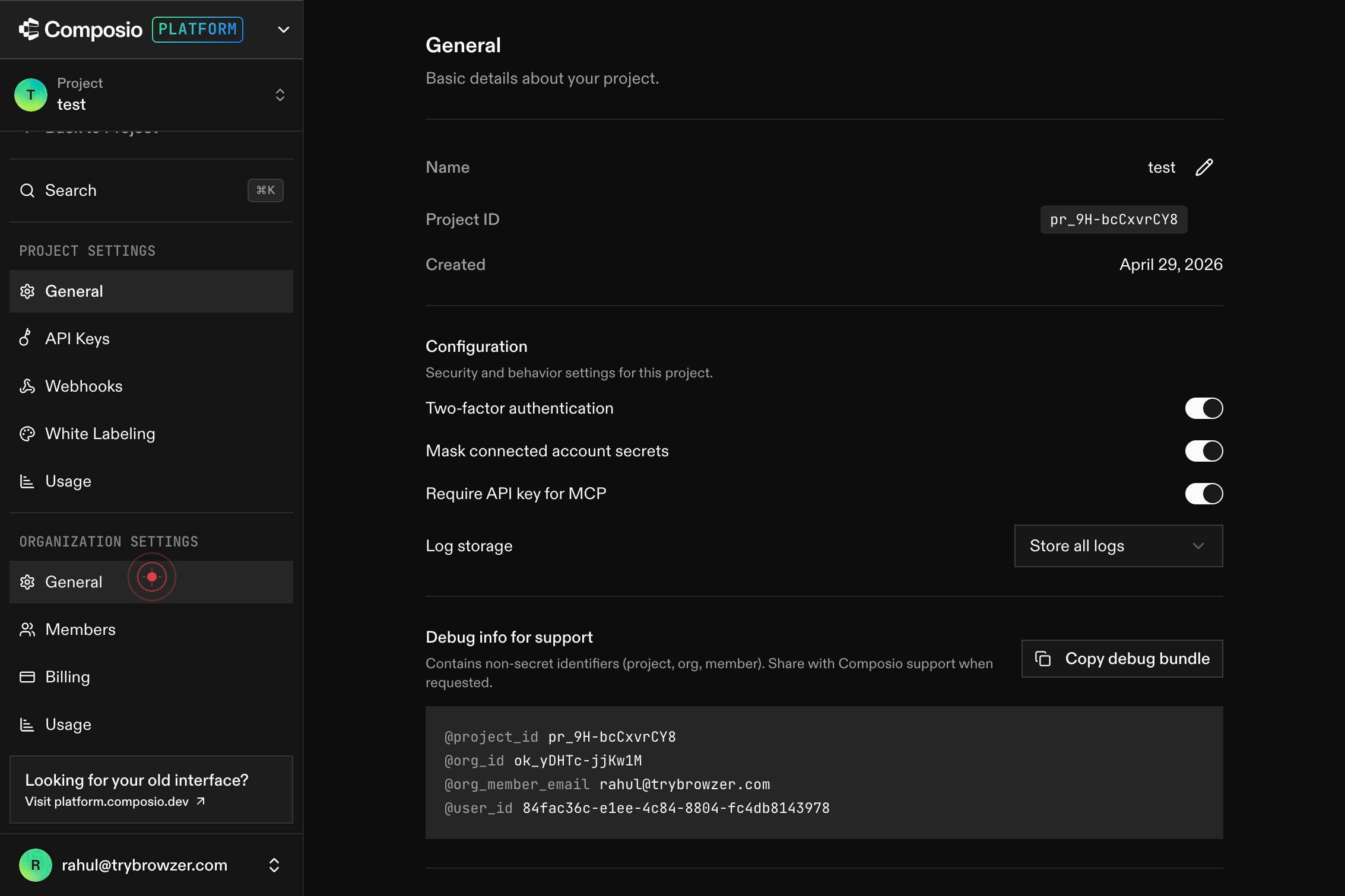
GeneralNavigate to your organization's General settings by clicking the 'General' link in the dashboard navigation. This opens the primary settings page where organization-level details like name and branding are managed.
buttonClick the edit or update button next to the organization name field to enable editing mode. This button may be labeled 'Edit', 'Update', or show a pencil icon, depending on your dashboard version.
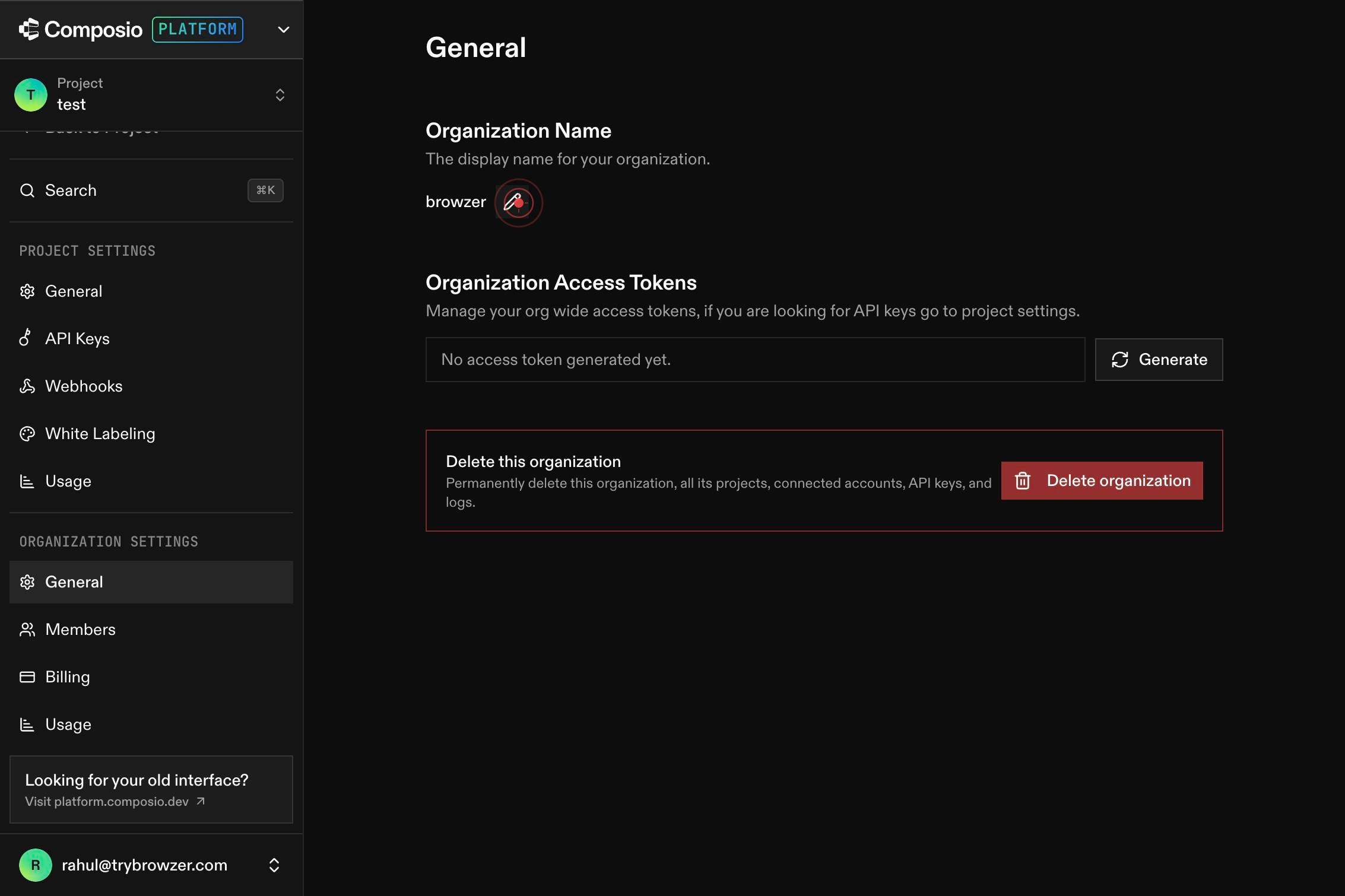
nameClear the existing organization name and type your new organization name into the text field. Enter the desired name exactly as you want it to appear across the platform.
Confirm it worked
- 1After saving, your new organization name appears in the General settings page
- 2The updated name is reflected in the top-left corner or header area of the dashboard
- 3Team members see the updated organization name in shared invitations and workspace references
Common issues
Keep reading
Renaming an organization - GitHub Docs
# Renaming an organization If your project or company has changed names, you can update the name of your organization to match. > [!TIP] > Only organization owners can rename an organization. For mo
docs.github.comHow to Change Salesforce Organization Name?
How to Change Salesforce Organization Name?
salesforcedebugger.comCan You Change Org Name on GitHub? Simple Guide
Can You Change Org Name on GitHub? Simple Guide Save Changing the name of a GitHub organization may seem like a straightforward task at first glance, but it involves several important considerat
anyteamnames.com