Guide
Delete Auth Config
Overview
The Composio dashboard manages authentication configurations that control how your AI agents and applications authenticate with external tools and services. Deleting an auth config is a straightforward process for removing credentials you no longer use. This is useful when cleaning up your project, deprecating old integrations, or removing test configurations before moving to production. The deletion is permanent and cannot be undone, so ensure you no longer need the configuration before proceeding.
Before you begin
- Access to the Composio dashboard at dashboard.composio.dev with appropriate project permissions
- An existing authentication configuration in your project that you intend to delete
- Confirmation that no active agents, sessions, or integrations are currently using the auth config you plan to delete
Step by step
PLATFORM T Project testproj Search ⌘K Getting Started Playground Toolkits Users Sessions Auth Configs Triggers Logs Support Documentation Settings Back to Project Search ⌘K PROJECT SETTINGS General API Keys Webhooks White Labeling Usage ORGANIZATION Navigate to the Auth Configs section of your Composio project by clicking on 'Auth Configs' in the left sidebar menu. This displays all authentication configurations currently set up for your project.
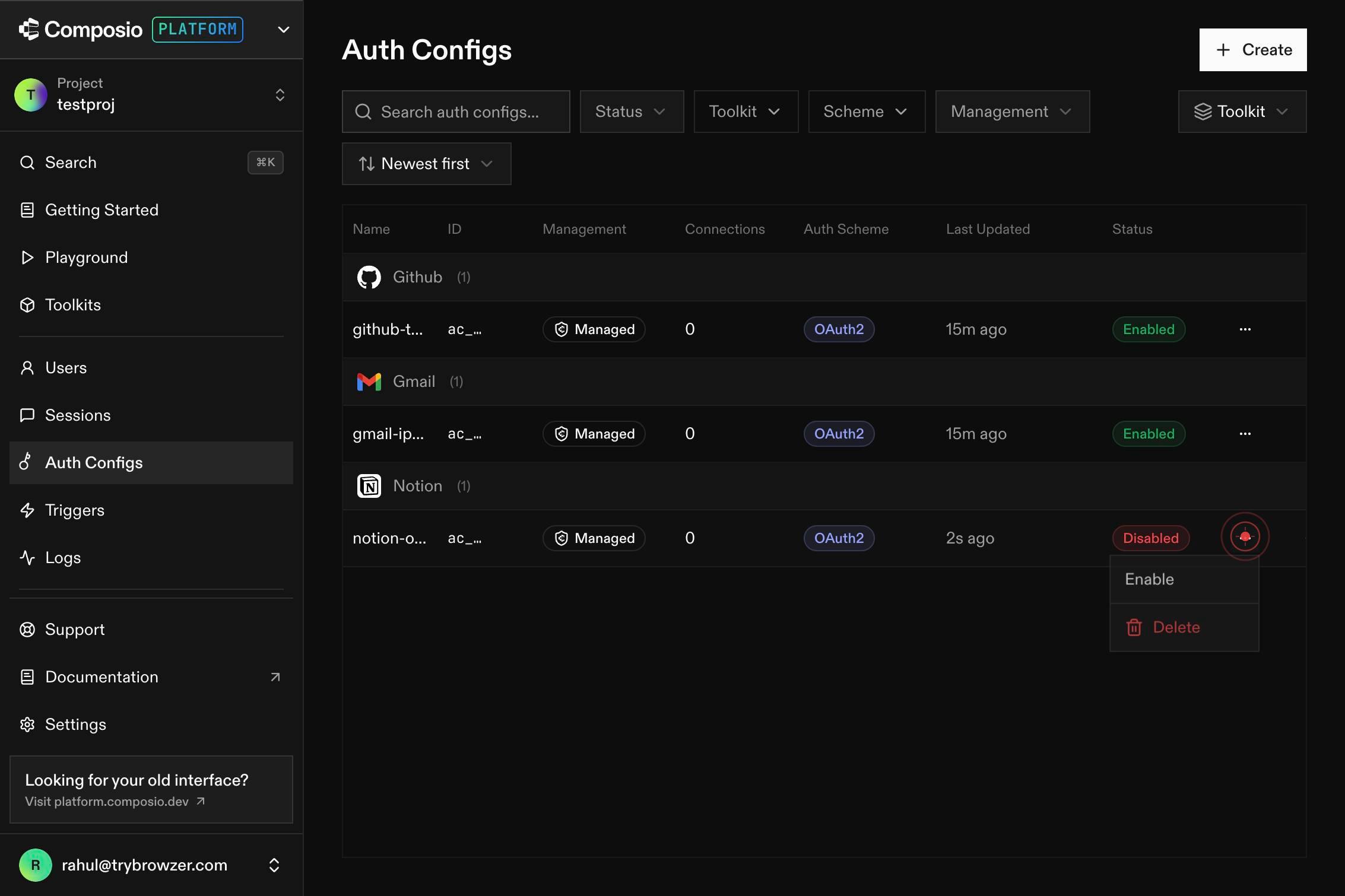
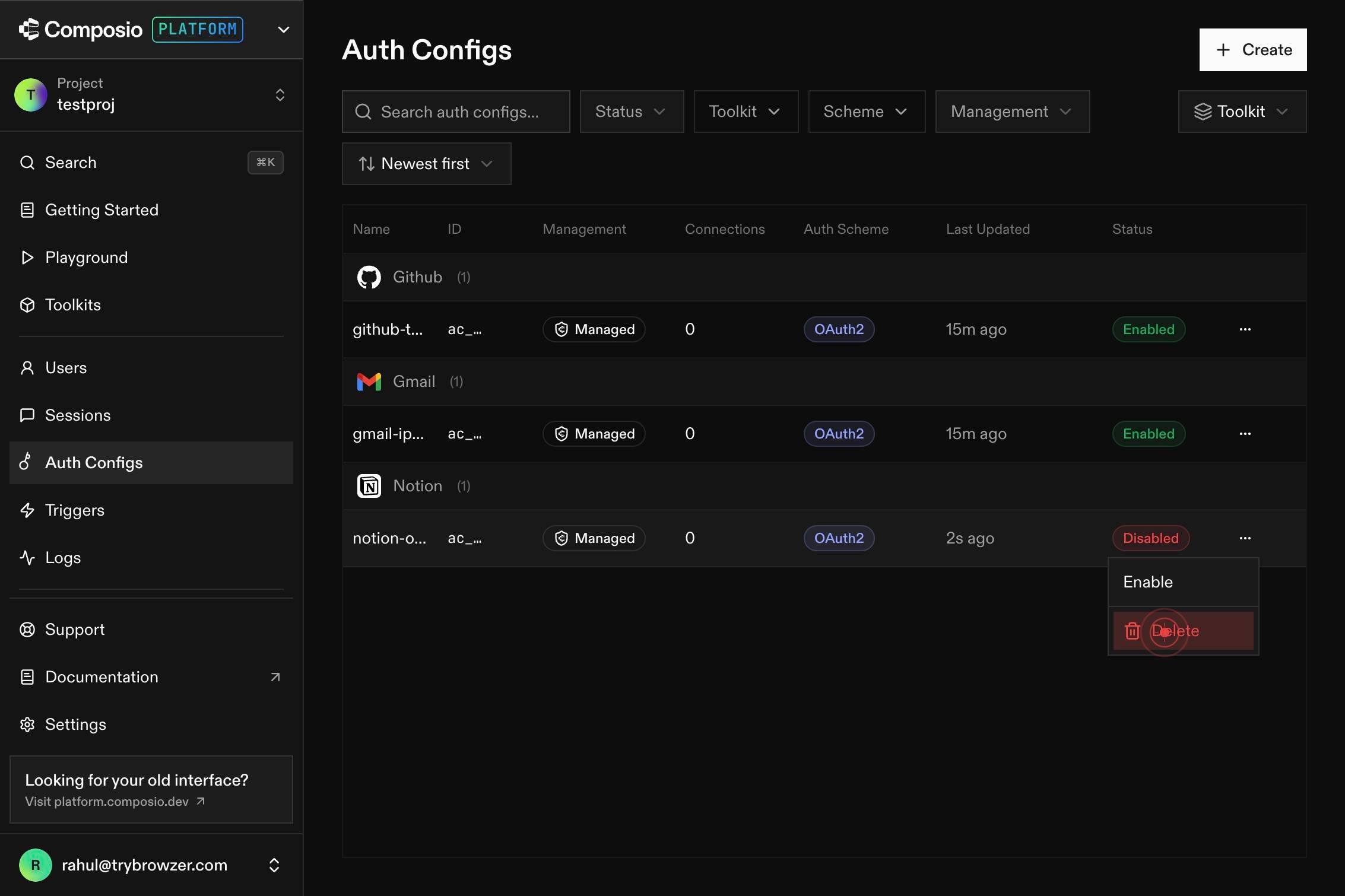
DeleteClick the 'Delete' menu item next to the authentication configuration you want to remove. This opens the deletion confirmation dialog to prevent accidental deletion.
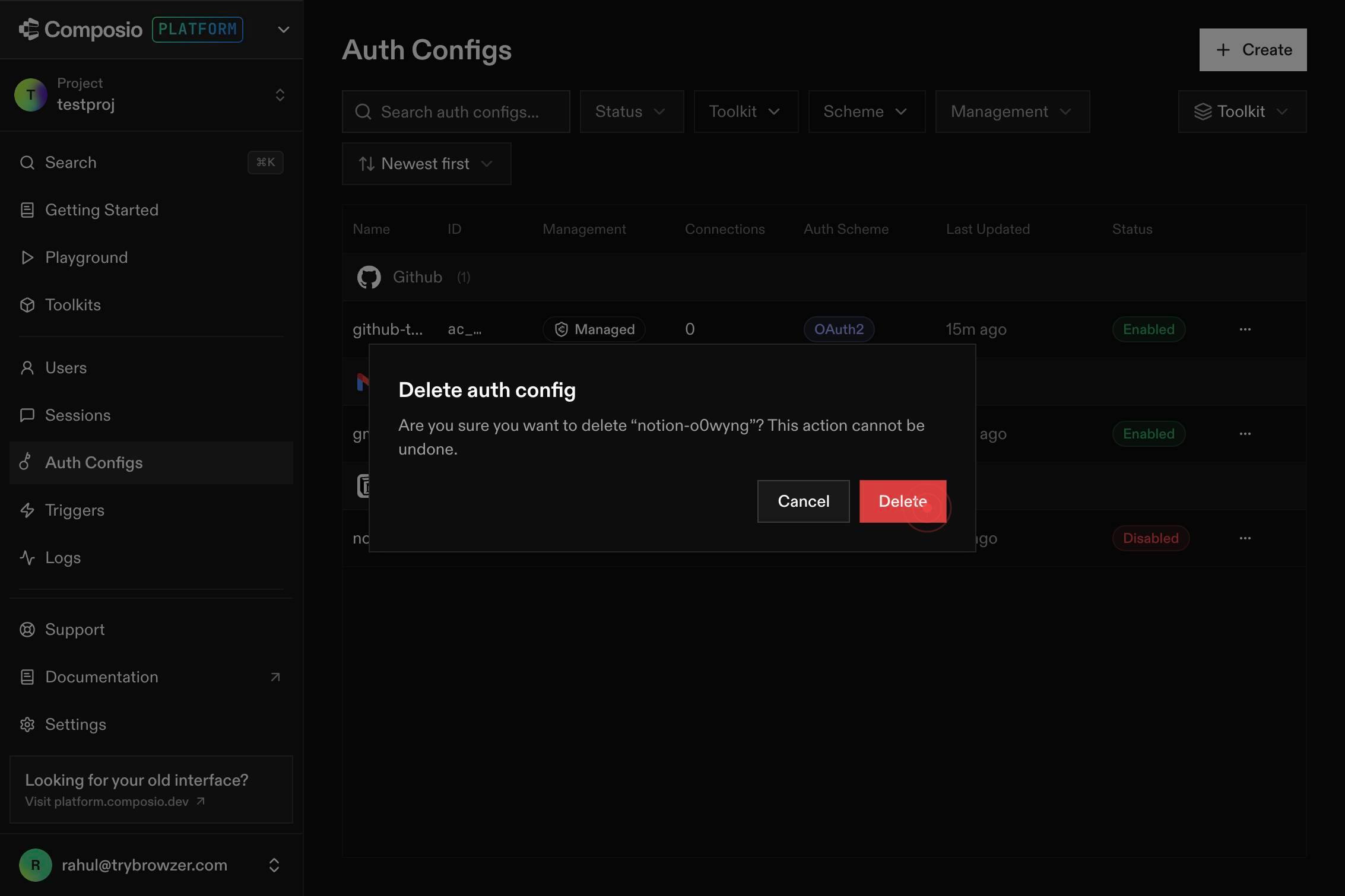
DeleteClick the 'Delete' confirmation button in the dialog to finalize the removal of the authentication configuration. This action is irreversible.
Confirm it worked
- 1The auth configuration no longer appears in the Auth Configs list on the dashboard
- 2The deletion confirmation dialog has closed and you are returned to the Auth Configs view
- 3No error messages appear after the deletion action completes
Common issues
Keep reading
Remove Auth | NextJS | Able Pro
# Remove Auth ## Disable Authentication Temporary Disabling authentication temporarily is generally not recommended due to security risks. However, if you have a specific scenario where you need to
phoenixcoded.gitbook.ioRemove Auth | React | Able Pro
# Remove Auth ## Disable Authentication Temporary Disabling authentication temporarily is generally not recommended due to security risks. However, if you have a specific scenario where you need to
phoenixcoded.gitbook.ioDelete API Permissions
Delete API Permissions Articles Quickstarts Auth0 APIs SDKs Events Catalog Contact sales Log In Sign Up ###### Get Started Auth0 Onboarding Start Building Learn the Basics Configure Auth0 Pla
dev.auth0.com