Guide
Create Auth Config - Github
Overview
Composio simplifies agent authentication by managing OAuth integrations across 1000+ toolkits. This workflow creates a GitHub OAuth 2.0 authentication configuration using Composio's secure, managed credentials—the recommended approach for getting started quickly. Once created, this auth config can be reused across multiple sessions and agents, eliminating the need to manage GitHub API keys directly. Composio handles credential security and token refresh automatically, allowing you to focus on agent logic rather than authentication infrastructure.
Before you begin
- Access to dashboard.composio.dev with an active Composio account
- GitHub account (not required to create the config, but will be needed when users authenticate through the OAuth flow later)
- No custom GitHub OAuth app credentials required—Composio provides managed defaults
Step by step
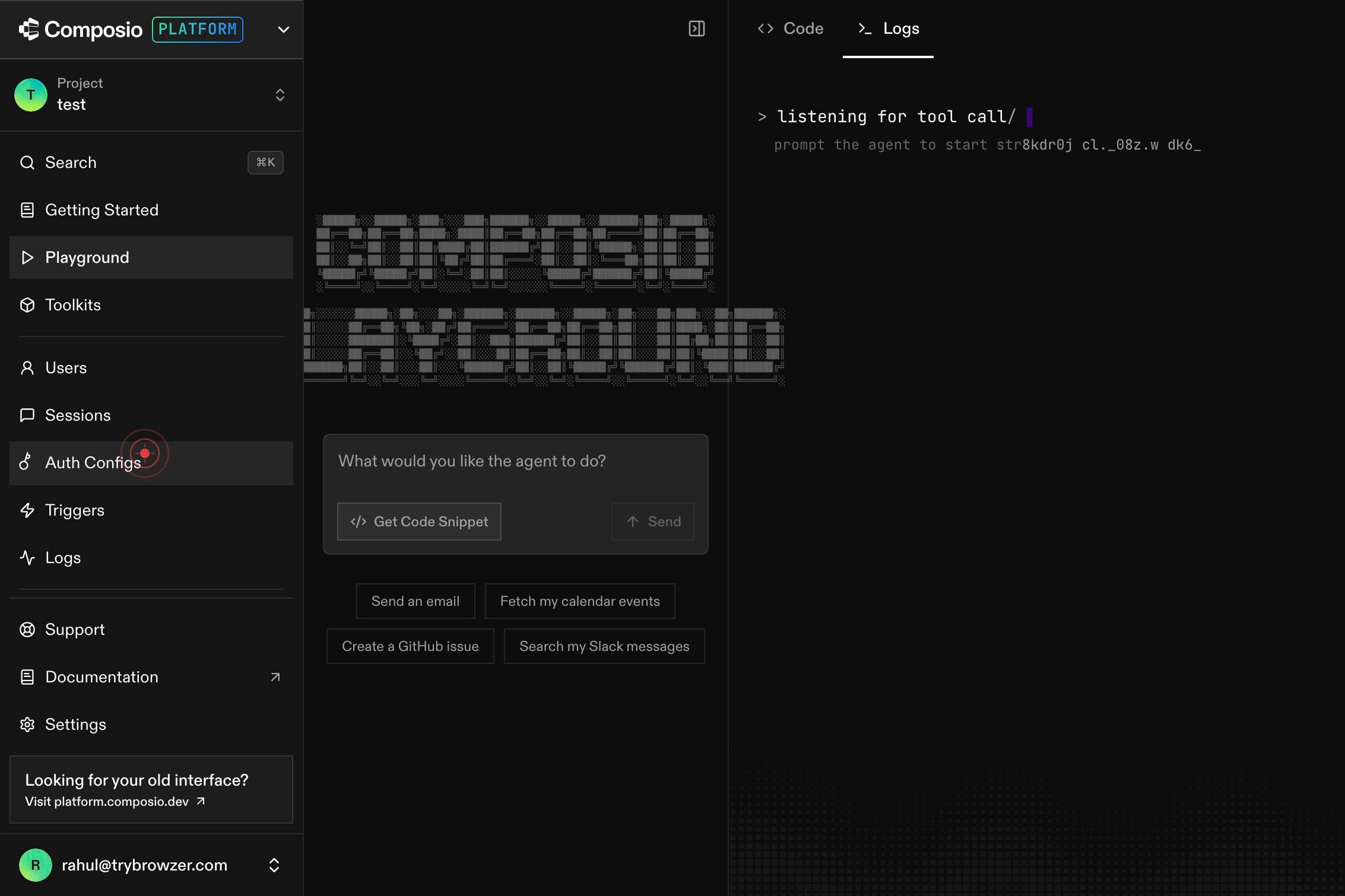
Auth ConfigsNavigate to the Auth Configs section by clicking the 'Auth Configs' link in the dashboard navigation. This is where all authentication configurations for your agents are created and managed.
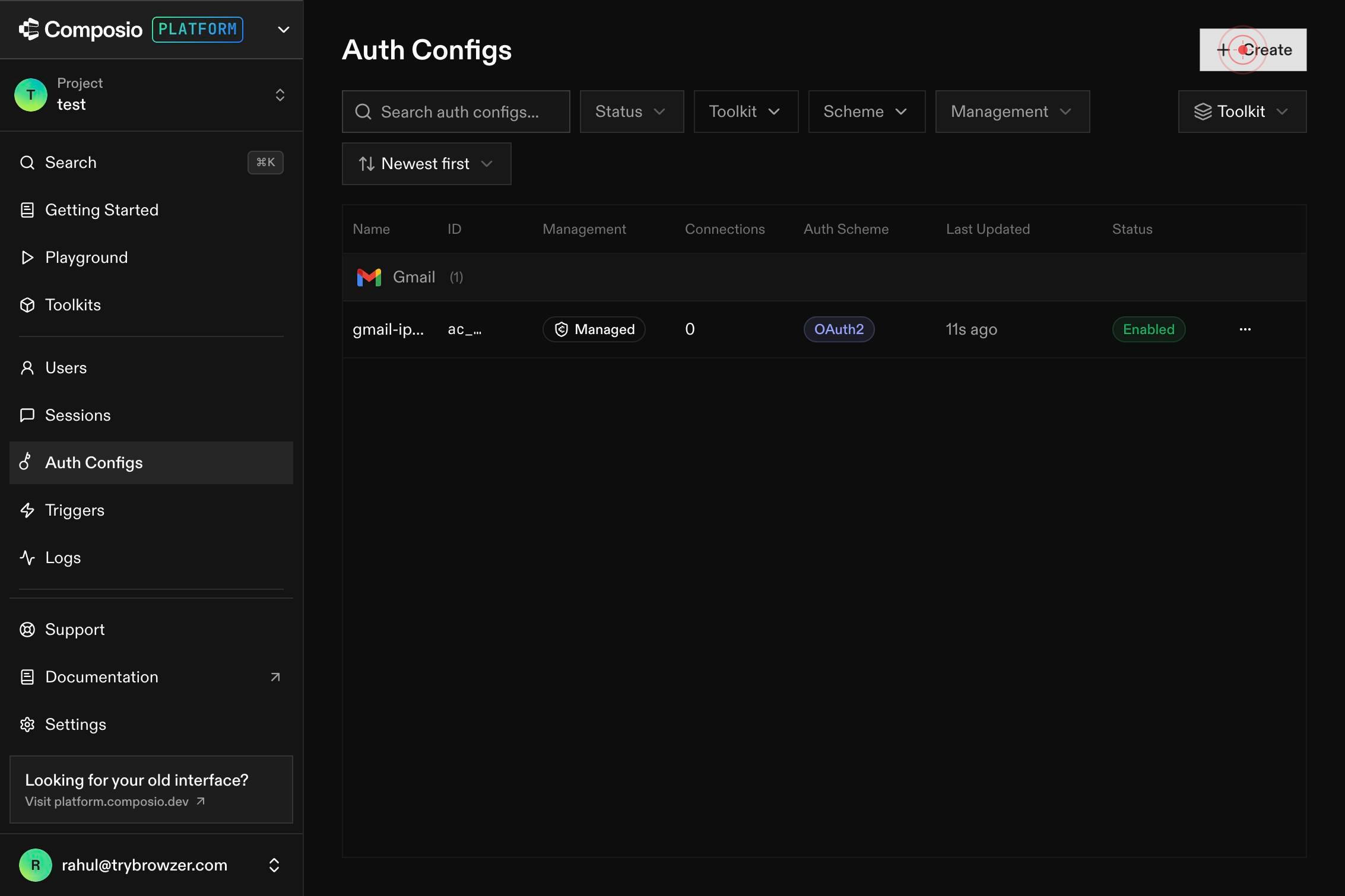
CreateClick the 'Create' button to begin setting up a new authentication configuration.
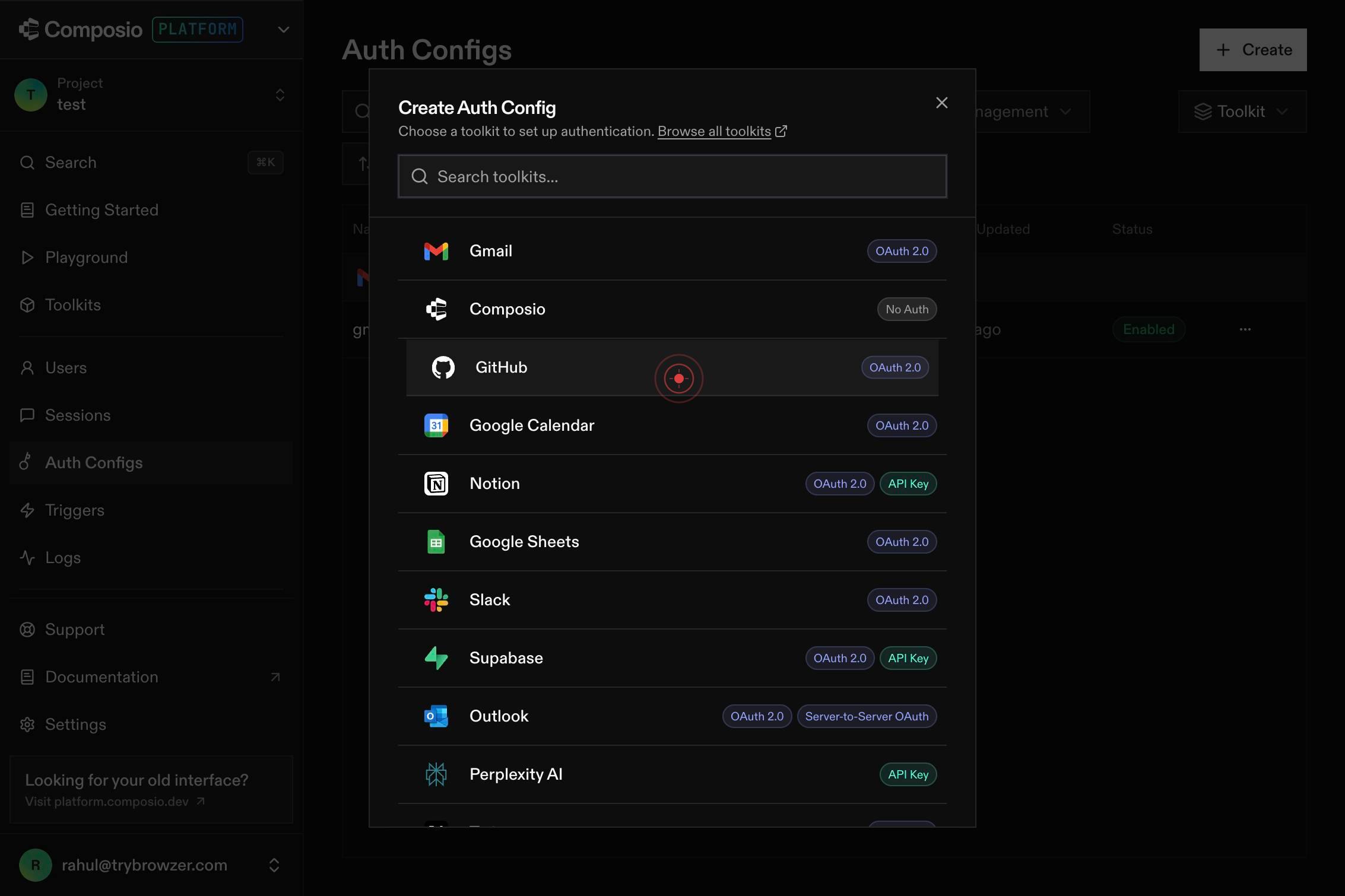
Search toolkits...In the toolkit search field, type 'GitHub' to filter the available authentication options and locate the GitHub OAuth integration.
GGitHubOAuth 2.0Select 'GitHub OAuth 2.0' from the filtered results by clicking on it. This option enables secure OAuth 2.0-based login for your agents when they need to authenticate with GitHub.
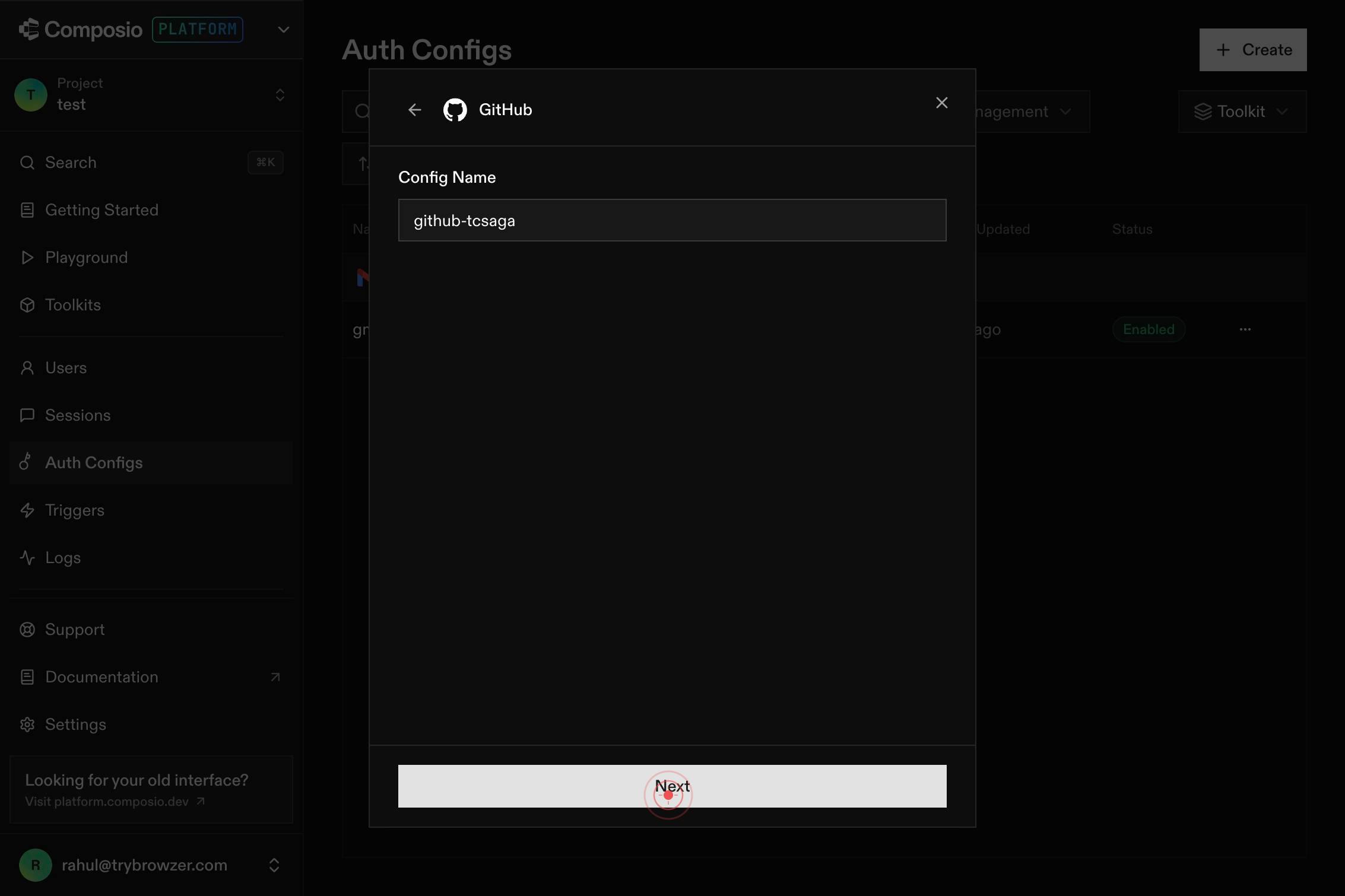
NextClick the 'Next' button to proceed to the authentication method selection screen.
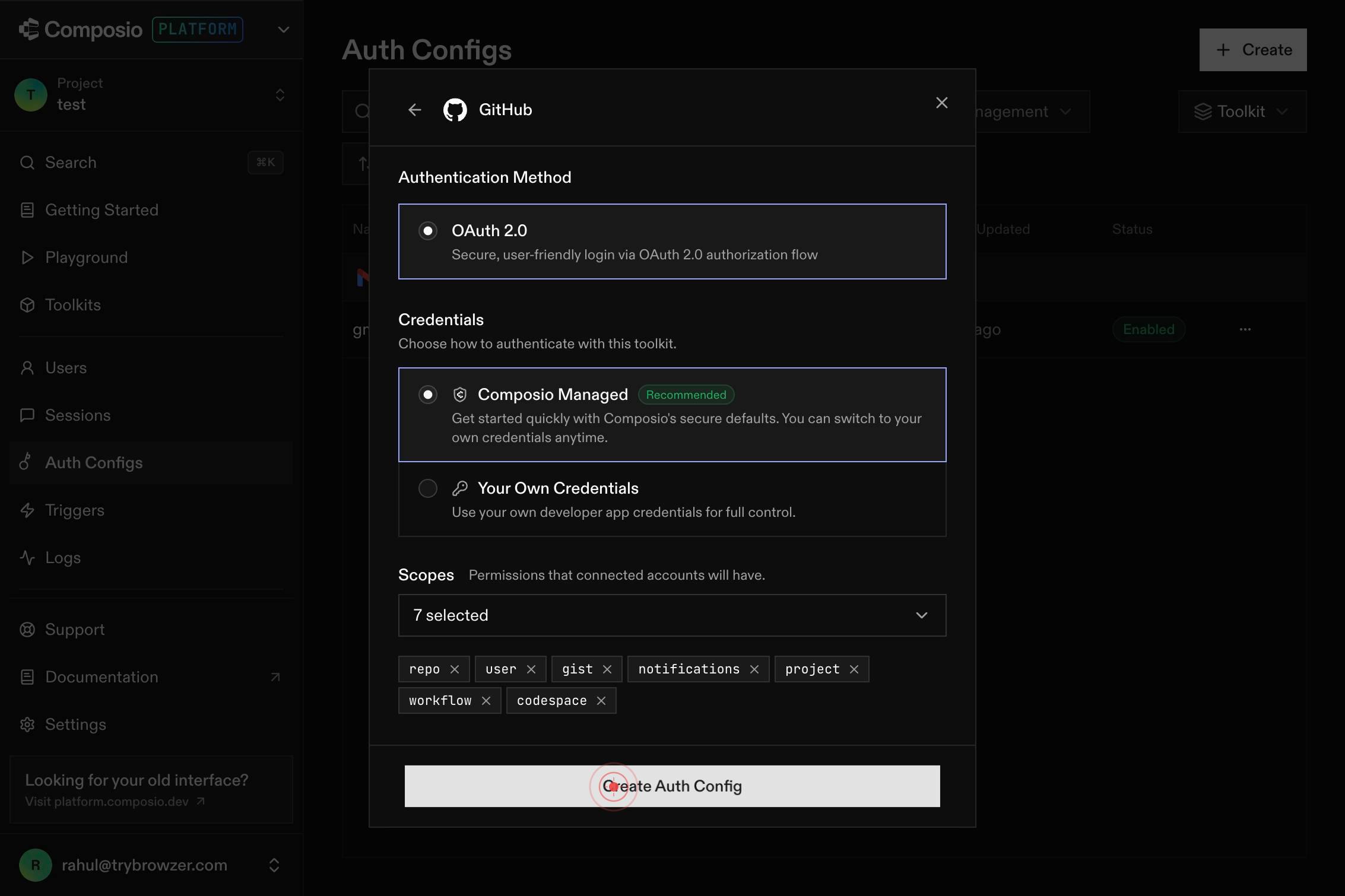
Secure, user-friendly login via OAuth 2.0 authorization flowReview the OAuth 2.0 authentication method description ('Secure, user-friendly login via OAuth 2.0 authorization flow'). This confirms you are configuring the correct authentication flow type.
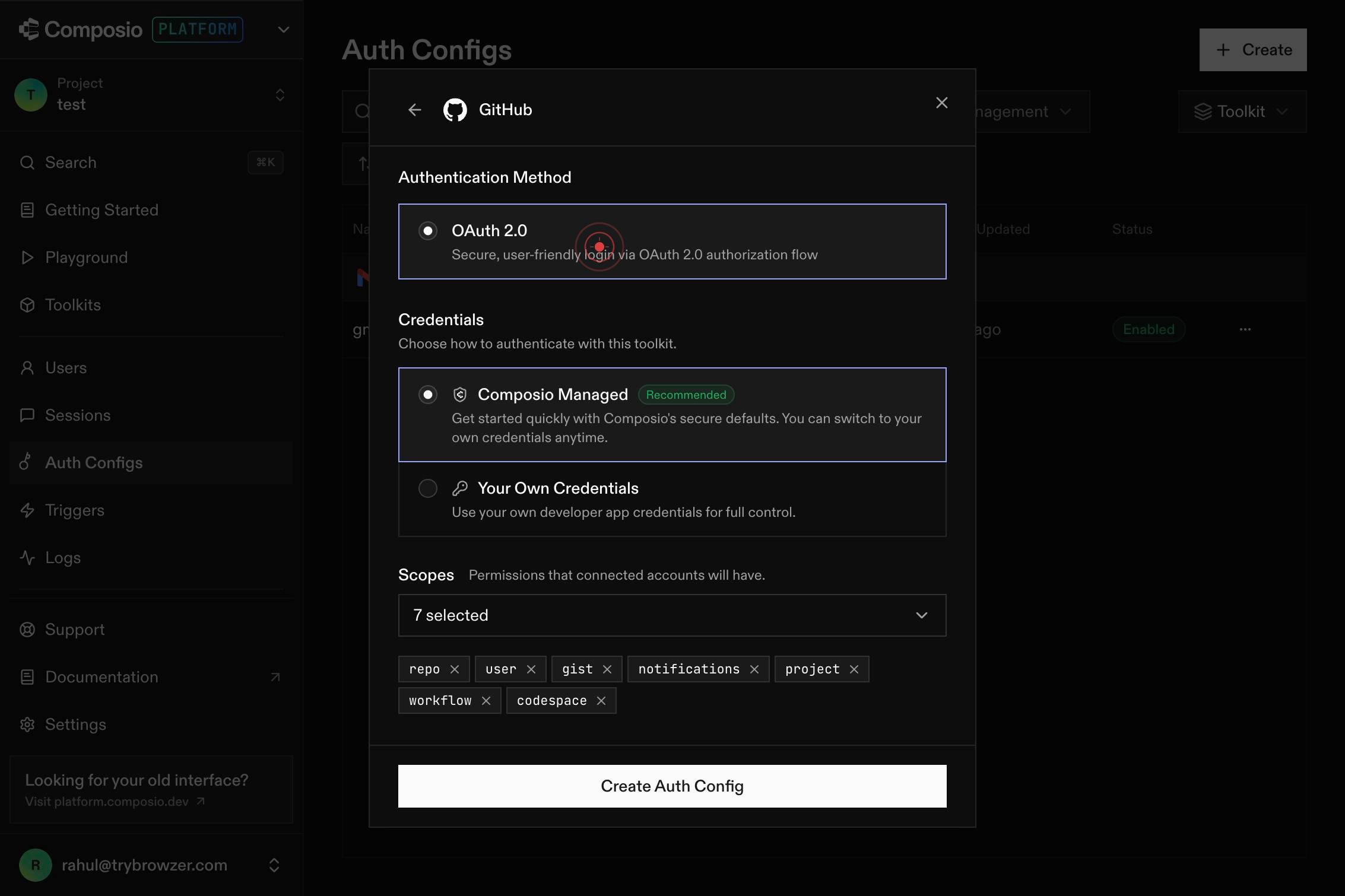
OAuth 2.0Secure, user-friendly login via OAuth 2.0 authorization flowSelect the OAuth 2.0 radio button to confirm this is the authentication flow method you want to use for GitHub authentication.
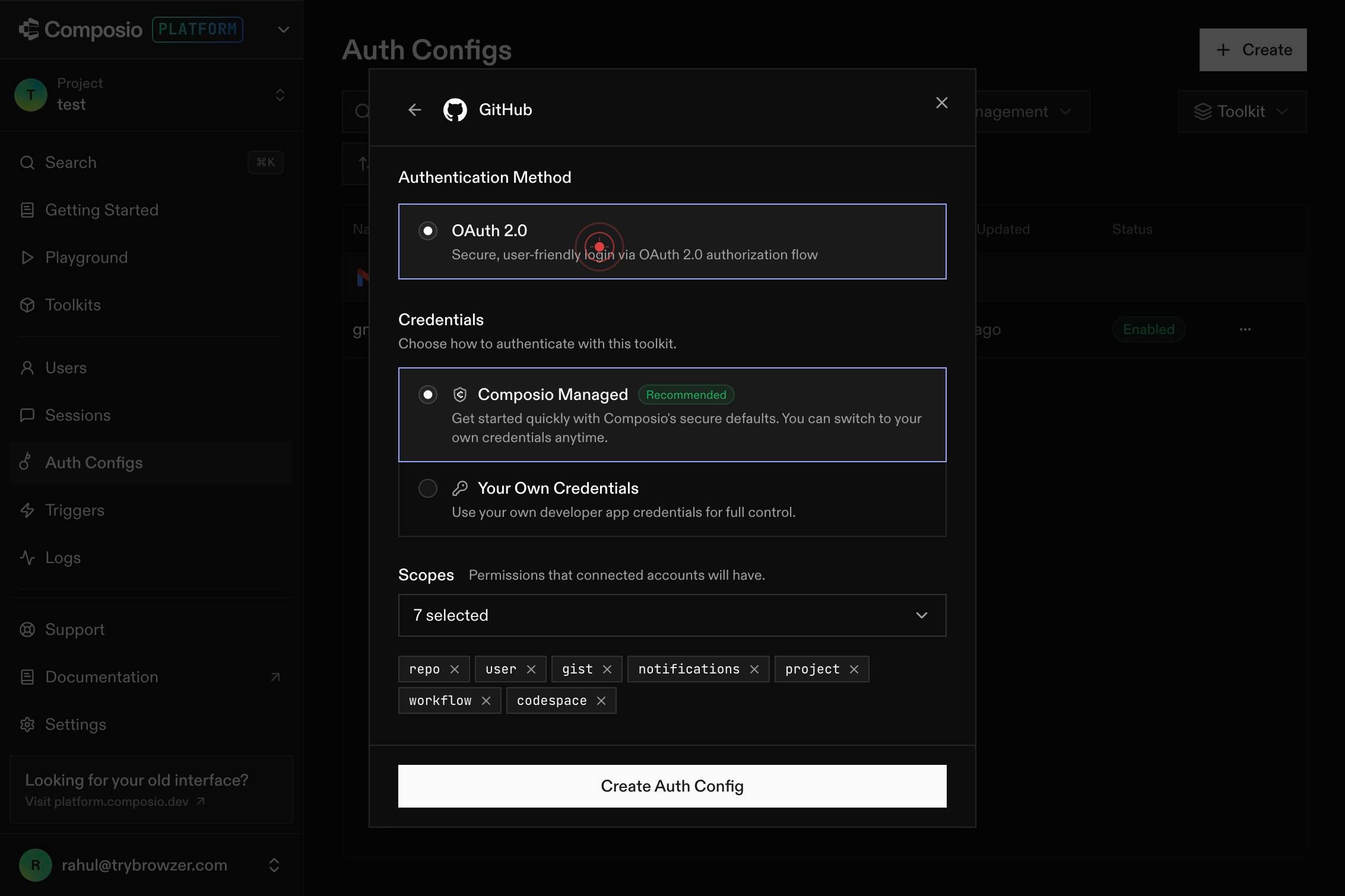
Composio Managed Recommended Get started quickly with Composio's secure defaults. You can switch to your own credentials anytime.Review the Composio Managed credentials option, which is recommended for getting started. This option uses Composio's secure defaults and allows you to switch to custom credentials later if needed.
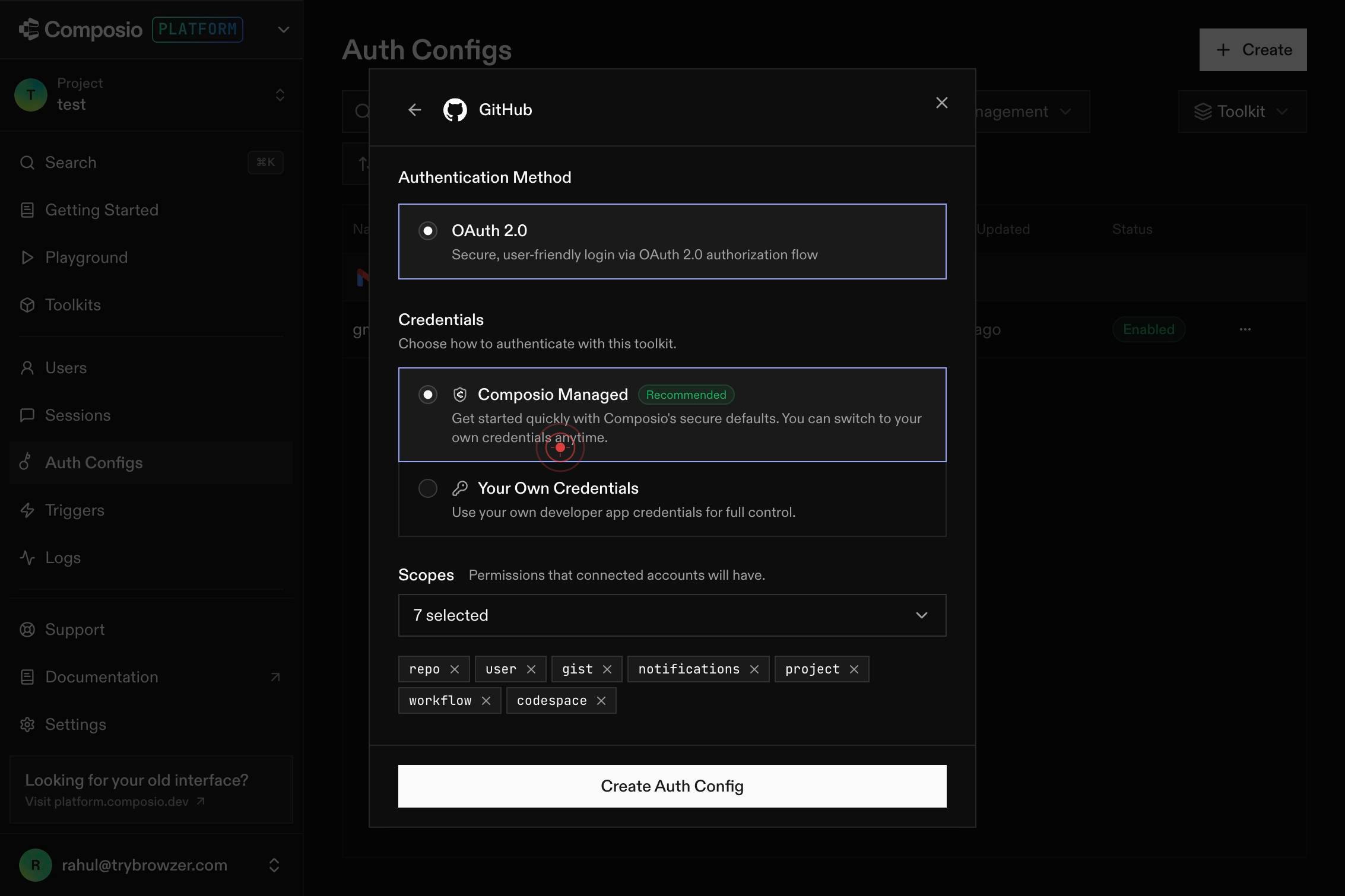
Composio ManagedRecommendedGet started quickly with Composio's secure defaults. You can switch to your own credentials anytime.Select the Composio Managed radio button to use Composio's managed credentials for this GitHub OAuth 2.0 configuration. This is the fastest way to get your agents authenticating with GitHub.
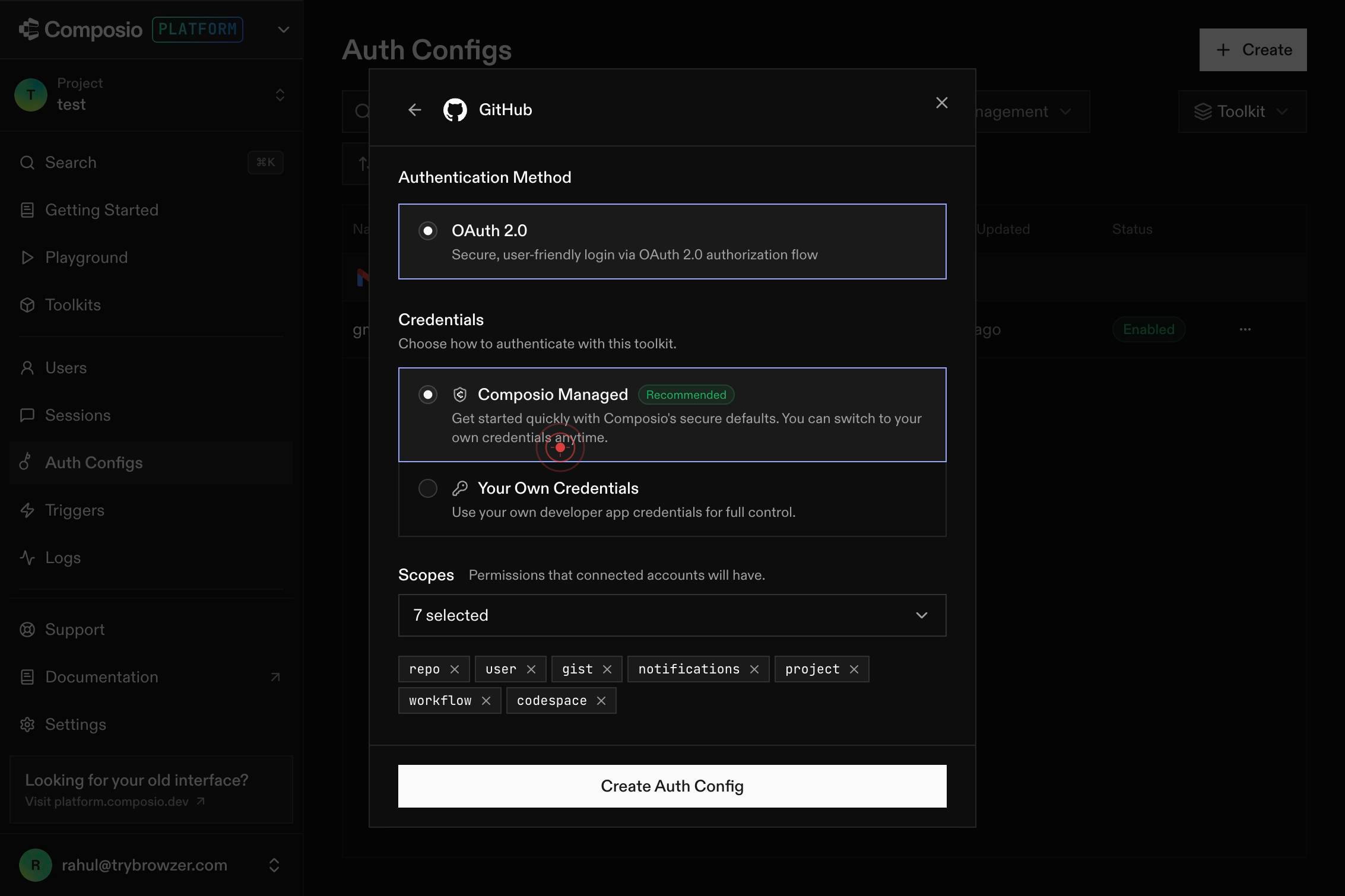
Create Auth ConfigClick the 'Create Auth Config' button to finalize and save your GitHub OAuth 2.0 authentication configuration with Composio-managed credentials.
Search toolkits...The toolkit search field may clear or remain visible on the confirmation screen. You can now use this field to search for other toolkits or auth configs, or navigate away from this screen to use your new GitHub OAuth 2.0 config.
Confirm it worked
- 1You see the auth config listed in the Auth Configs section of the dashboard
- 2The GitHub OAuth 2.0 config displays with 'Composio Managed' badge indicating managed credentials are in use
- 3The config status shows as active and ready to use with agents and sessions
Common issues
Keep reading
Auth.js | Configuring Github
Auth.js | Configuring GithubSkip to content The Auth.js project is now part of Better Auth. Guides Configuring GitHub for OAuth # OAuth with GitHub In this tutorial, we’ll be setting up Auth.js in
authjs.devNext.js + Auth.js v5 - React SME Cookbook
Next.js + Auth.js v5 - React SME Cookbook authauthjsnextauthoauthgithubmiddlewaresession # Next.js + Auth.js v5 Add authentication to a Next.js 15 app with Auth.js v5 (formerly NextAuth), including
reactdevelopers.orgBasic GitHub OAuth Authentication with Next.js and next-auth | GoGrow Blog
Basic GitHub OAuth Authentication with Next.js and next-auth | GoGrow Blog # Basic GitHub OAuth Authentication with Next.js and next-auth Learn to set up GitHub OAuth in Next.js with next-auth, cove
gogrow.dev