Guide
Disable Auth Config
Overview
Authentication configurations in Composio define how end-users authenticate with connected toolkits and services. Disabling an auth config prevents new authentication attempts using that configuration, while existing authenticated sessions may continue to function depending on your setup. This is useful when you need to revoke access, deprecate an integration method, or pause a custom OAuth app without permanently deleting the configuration. The Composio dashboard provides a straightforward way to manage auth config lifecycle from your project settings.
Before you begin
- Access to the Composio dashboard at dashboard.composio.dev with an account that has project admin or settings permissions
- An existing project with at least one authentication configuration already created
- Knowledge of which auth config you want to disable (e.g., custom OAuth app name, toolkit name, or default config)
Step by step
PLATFORM T Project testproj Search ⌘K Getting Started Playground Toolkits Users Sessions Auth Configs Triggers Logs Support Documentation Settings Back to Project Search ⌘K PROJECT SETTINGS General API Keys Webhooks White Labeling Usage ORGANIZATION Navigate to your project settings by clicking on the Settings option in the Composio dashboard sidebar. This opens the project configuration panel where you can manage API keys, webhooks, authentication, and other project-level settings.
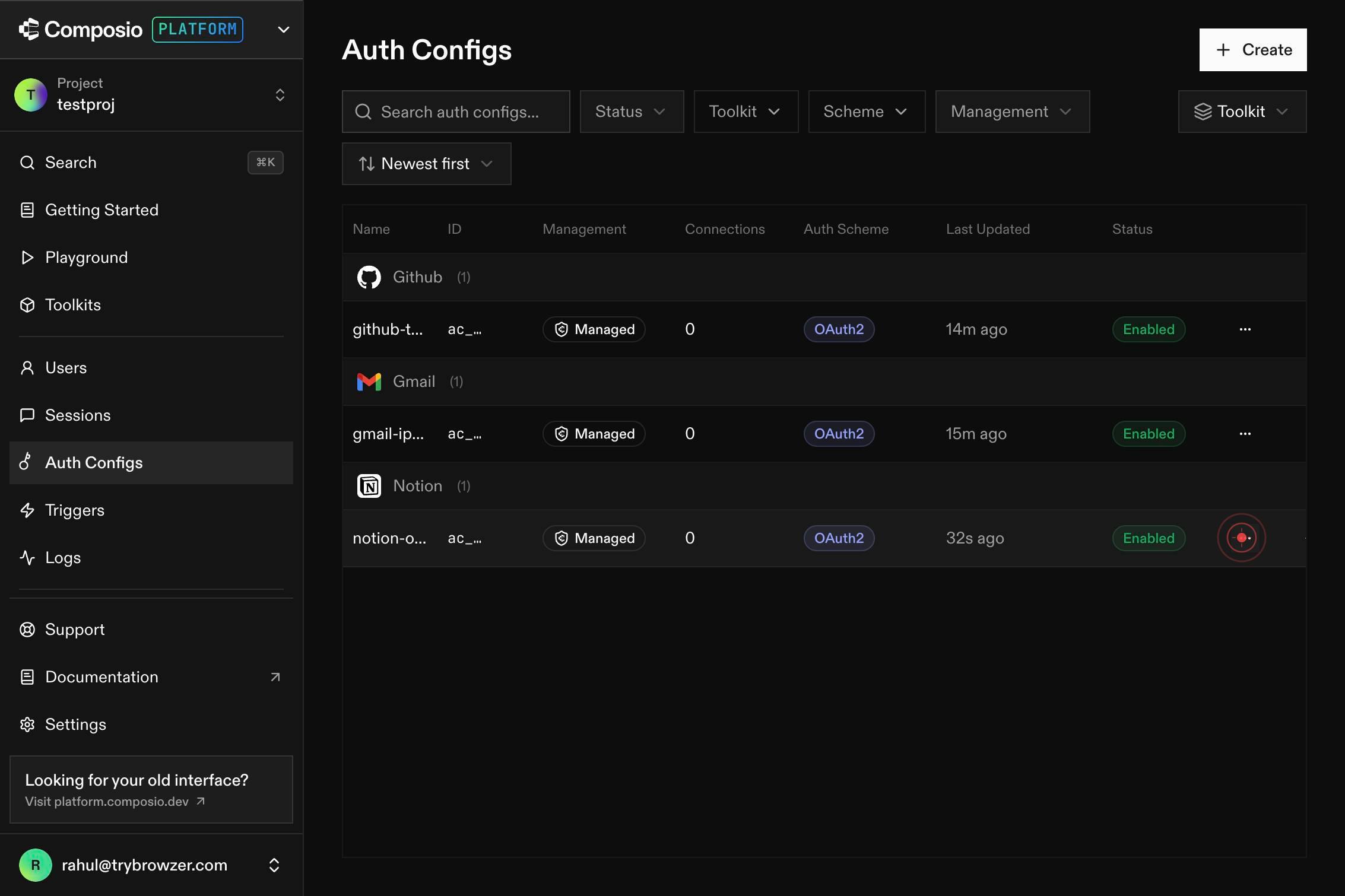
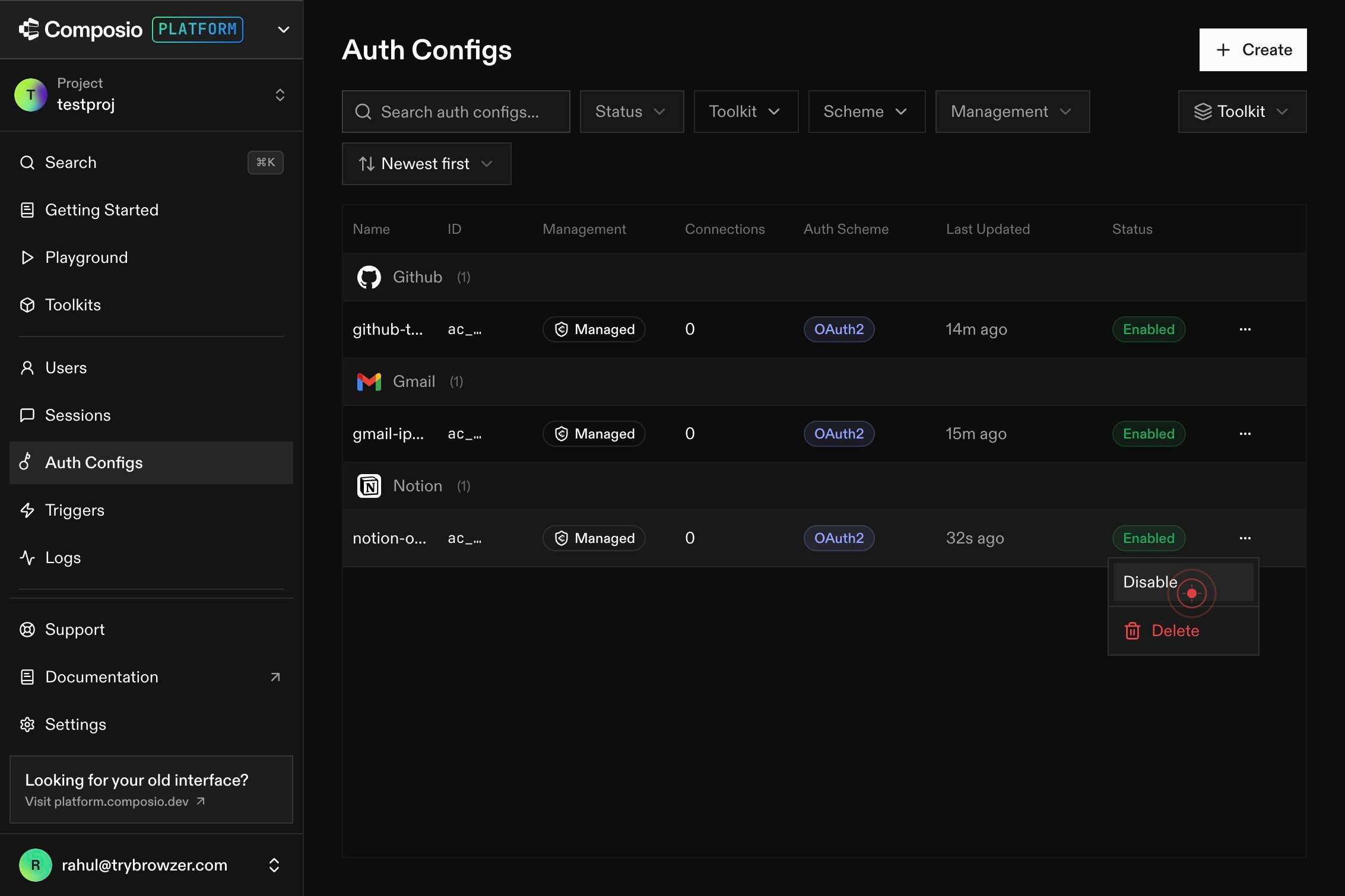
DisableClick the 'Disable' menu item to disable the selected authentication configuration. This action removes the auth config from active use, preventing new user authentications while preserving the config record for potential future re-enablement.
Confirm it worked
- 1The auth config status changes to 'Disabled' in the Auth Configs list in project settings
- 2The disabled config no longer appears as an active option when users attempt new authentication flows
- 3A confirmation message or visual indicator (such as a disabled state or greyed-out appearance) appears next to the auth config name
Common issues
Keep reading
Remove Auth | NextJS | Able Pro
# Remove Auth ## Disable Authentication Temporary Disabling authentication temporarily is generally not recommended due to security risks. However, if you have a specific scenario where you need to
phoenixcoded.gitbook.ioRemove Auth | React | Able Pro
# Remove Auth ## Disable Authentication Temporary Disabling authentication temporarily is generally not recommended due to security risks. However, if you have a specific scenario where you need to
phoenixcoded.gitbook.ioDisable authentication - Percona Operator for MongoDB
Disable authentication - Percona Operator for MongoDB Skip to content Download PDF Rate this page ☆ ☆ ☆ ☆ ☆ Thanks for your feedback Thank you! The feedback has been submitted. × Email (o
docs.percona.com