Guide
Add User to Team
Overview
Adding team members to your Supabase project enables collaborative development and streamlines access management across your organization. Supabase projects often require multiple developers, designers, and stakeholders to work together on database design, API configuration, and deployment. By inviting users directly through the team management interface, you grant them project-level access while maintaining security through role-based permissions (Developer, Owner, or Administrator). This process is essential when scaling your team and ensuring everyone has the appropriate access to your Postgres database and backend services.
Before you begin
- A Supabase account with an active project (visit supabase.com and log in)
- Owner or Administrator role on the Supabase project or organization (required to invite new members)
- Email addresses of the team members you wish to invite
- Team members must have valid email accounts (they will receive an invitation link)
Step by step
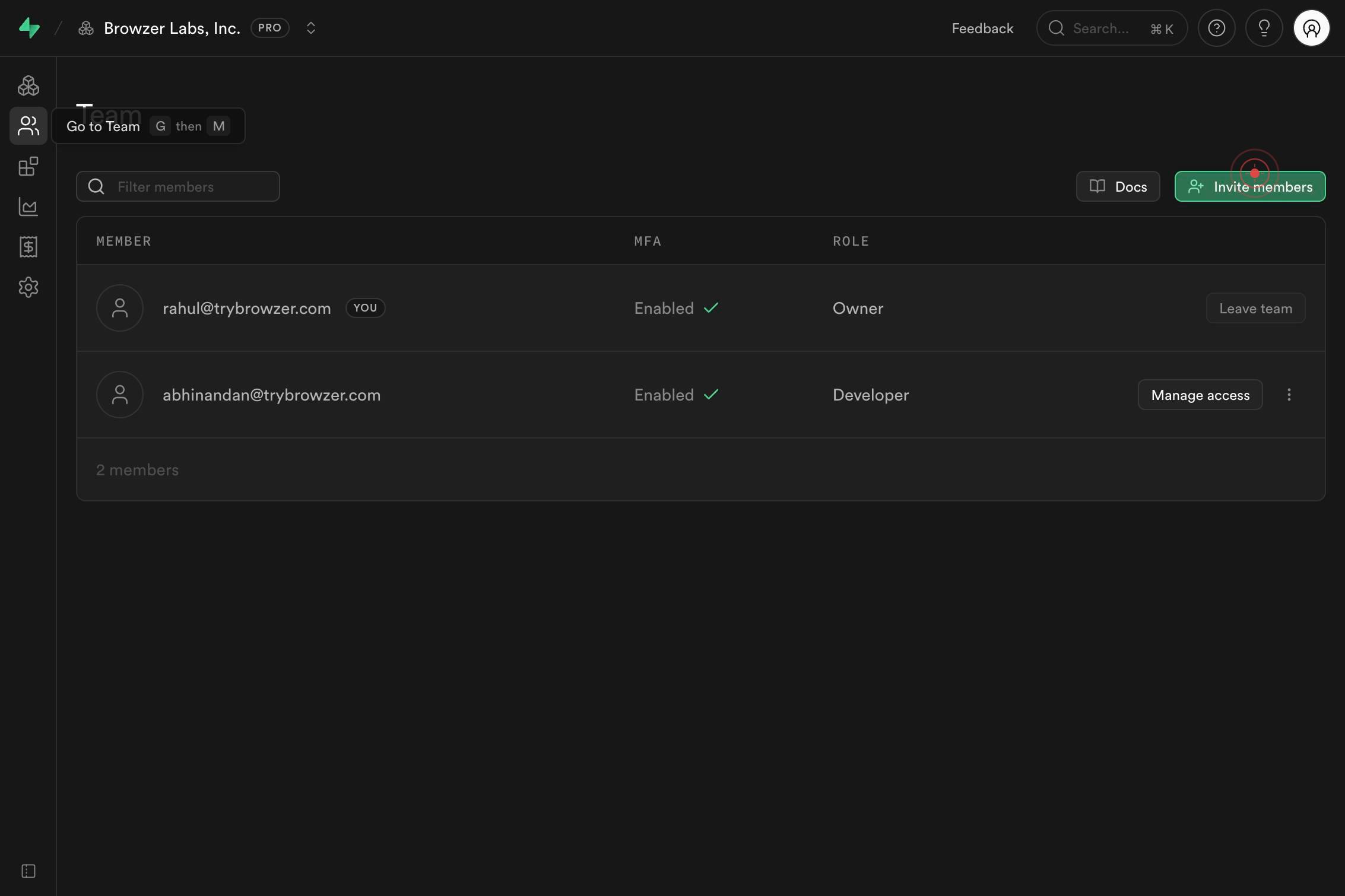
Invite membersOpen the team member invitation dialog by clicking the 'Invite members' button in your Supabase project settings. This button typically appears in the Members, Team, or Access Control section of your project dashboard.
name@example.com, name2@example.com, ...Enter the email addresses of the team members you want to invite in the text field. Separate multiple email addresses with commas and spaces (e.g., 'user1@example.com, user2@example.com, user3@example.com').
Invite team members Single Sign-On (SSO) available Enforce login via your company identity provider for added security and access control. Available on Team plan and above. Docs Upgrade to Team Role Developer Owner Administrator Developer Email addreClick the 'Invite team members' button to send invitations to all entered email addresses. This action triggers Supabase to dispatch invitation emails to each recipient, granting them access to your project once they accept.

Confirm it worked
- 1Invitation confirmation message appears on screen after clicking 'Invite team members'
- 2Invited team members receive an email invitation with a link to join the project
- 3New team members appear in the Members or Team section of your project settings with a pending or active status
- 4Each invited user can log in and access the project according to their assigned role
Common issues
Keep reading
Adding Users to an Existing Team
Adding Users to an Existing Team Previous Next JavaScript must be enabled to correctly display this content ## Adding Users to an Existing Team To add users to teams: In Select Users, enter the pa
docs.oracle.comAdd-TeamUser (MicrosoftTeams) | Microsoft Learn
Add-TeamUser (MicrosoftTeams) | Microsoft Learn Ask Learn Ask Learn # Add-TeamUser Module: MicrosoftTeams PowerShell module The`Add-TeamUser` adds an owner or member to the team, and to the unifie
learn.microsoft.comAdding a User to a Team
Adding a User to a Team Previous Next JavaScript must be enabled to correctly display this content To add a user to a team: In your application, click Manage, and then Users. The Manage Users wind
docs.oracle.com