Guide
Get Org Name and Slug
Overview
Supabase organizations are the top-level containers for your projects and team members. Each organization has a unique name and slug — the slug is a URL-friendly identifier used in API endpoints, CLI commands, and configuration files. This workflow navigates to your organization settings and copies the slug, which is essential when configuring external integrations, setting up CI/CD pipelines, or documenting your setup for team members. The slug is often needed by tools and services that communicate with Supabase on your behalf.
Before you begin
- A Supabase account (free or paid) at supabase.com
- Access to at least one organization (created automatically when you sign up)
- Permission to view organization settings (typically available to organization owners and members with appropriate roles)
Step by step
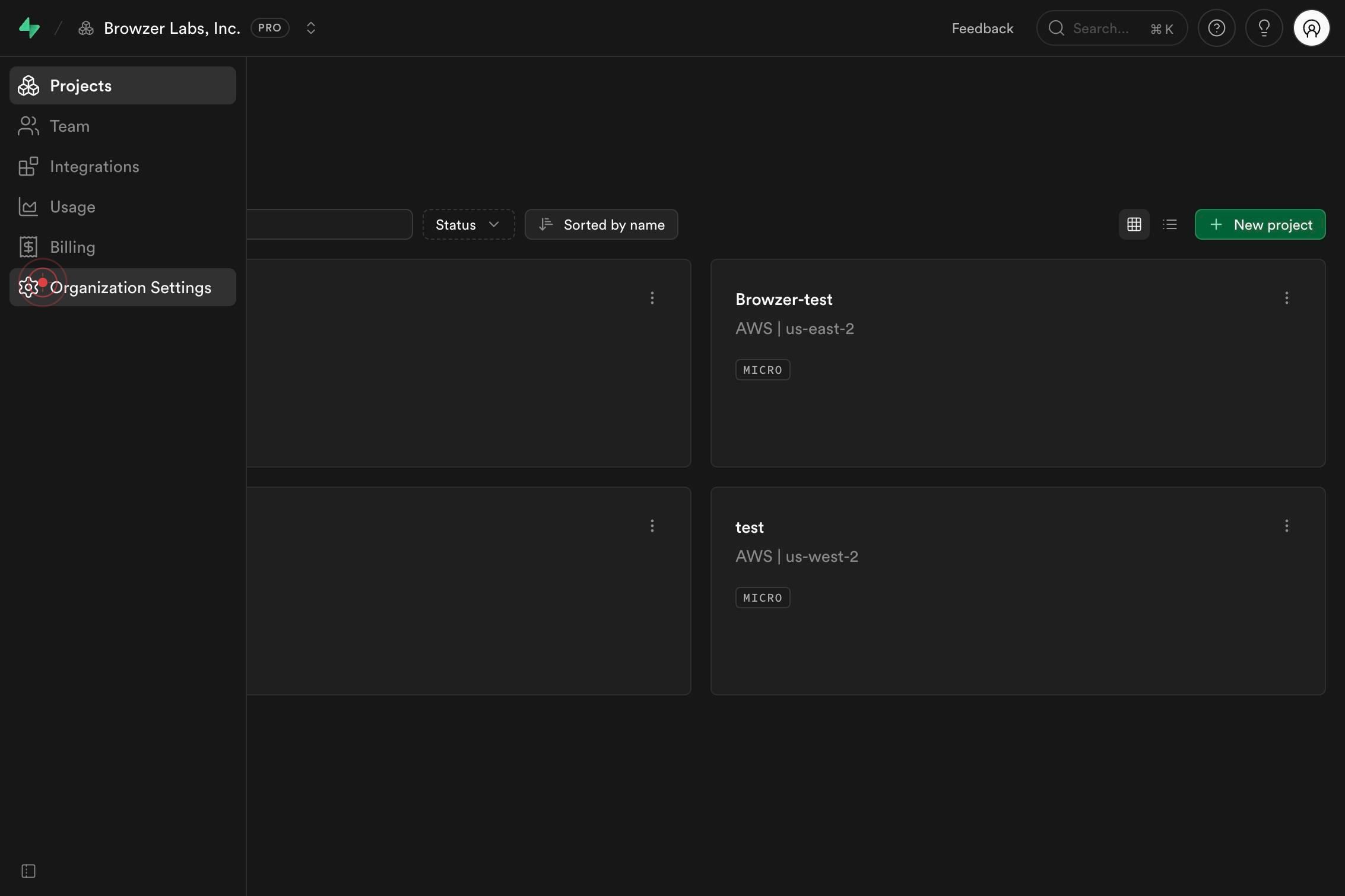
Organization SettingsNavigate to your organization settings by clicking the Organization Settings link in the Supabase dashboard navigation. This page displays your organization's details, including the name and slug.
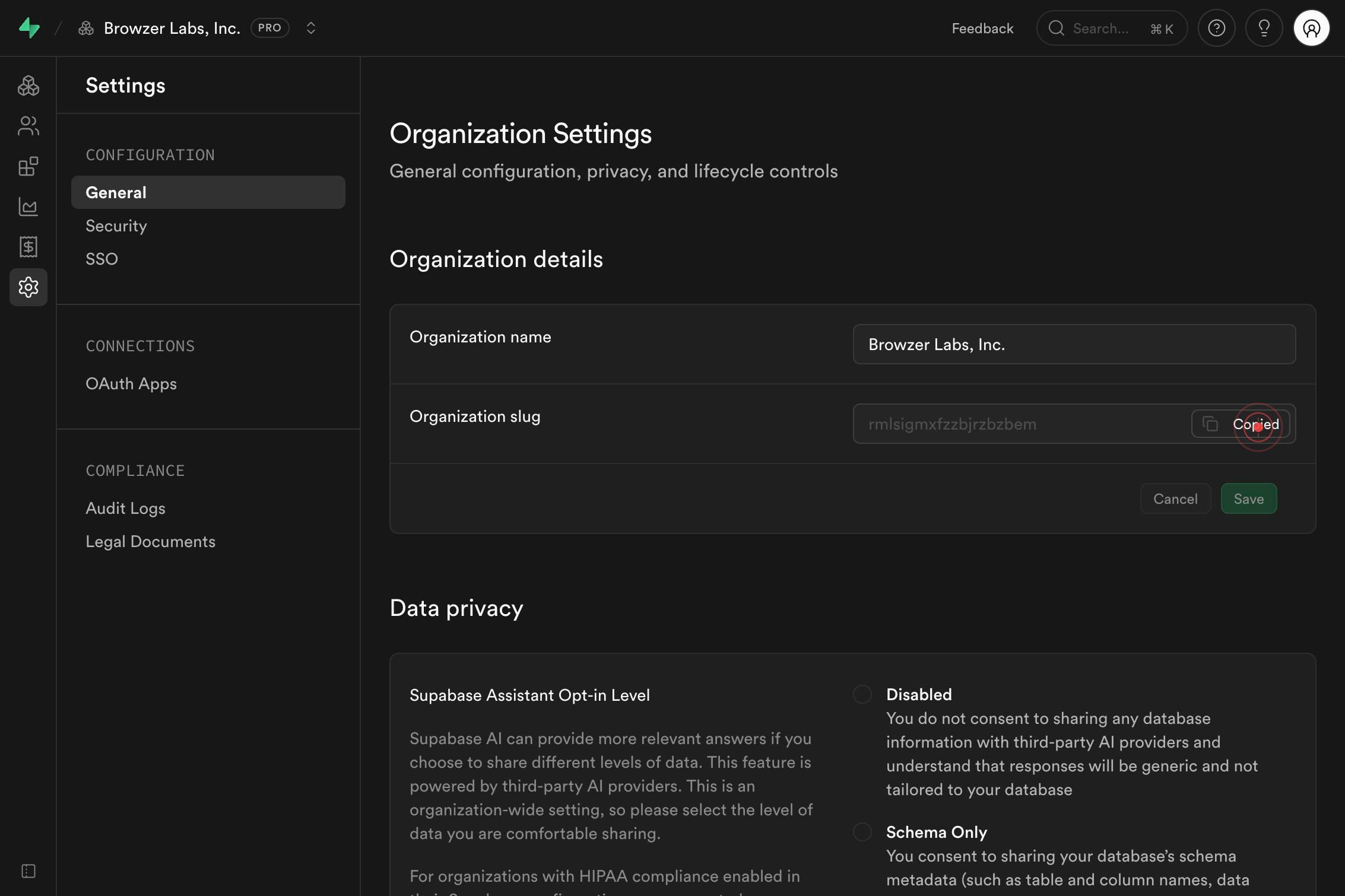
CopyCopy your organization slug to your clipboard by clicking the Copy button next to the slug field. The slug is now ready to paste into external tools, documentation, or configuration files.
Confirm it worked
- 1You are on the Organization Settings page, which displays your organization's name at the top
- 2The organization slug is visible as a copyable input field on the settings page
- 3The slug has been copied to your clipboard (you can paste it to verify, e.g., Ctrl+V or Cmd+V)
Common issues
Keep reading
Get Organization by Slug - Stytch Docs
> Fetch the complete documentation index at: https://stytch.com/docs/llms.txt > Use this file to discover all available pages before exploring further. > > ## Documentation Index # Get Organization
stytch.comGet product by slug - Orgo Documentation
> ## Documentation Index > > Fetch the complete documentation index at: https://orgo.space/docs/llms.txt > Use this file to discover all available pages before exploring further. IMPORTANT: these in
orgo.spaceUse Organization slugs in URLs for tenant-specific auth flows - Organization management | Clerk Docs
# Use Organization slugs in URLs Example Repository - Demo app Before you start - Set up a Next.js + Clerk app - Enable Organizations for your instance - Enable Organization slugs for your applica
clerk.dev