Guide
Get Project Name & ID
Overview
When working with Supabase, you frequently need your project ID and name for authentication, API configuration, and integration setup. Supabase Studio stores this information in your project settings, where you can quickly access and copy the ID without manual transcription. This is especially useful when setting up client libraries, configuring environment variables, or troubleshooting API requests that reference your project identifier.
Before you begin
- A Supabase account (free or paid) at supabase.com
- At least one active Supabase project already created
- Access to the Supabase Dashboard (you must be logged in to your account)
Step by step
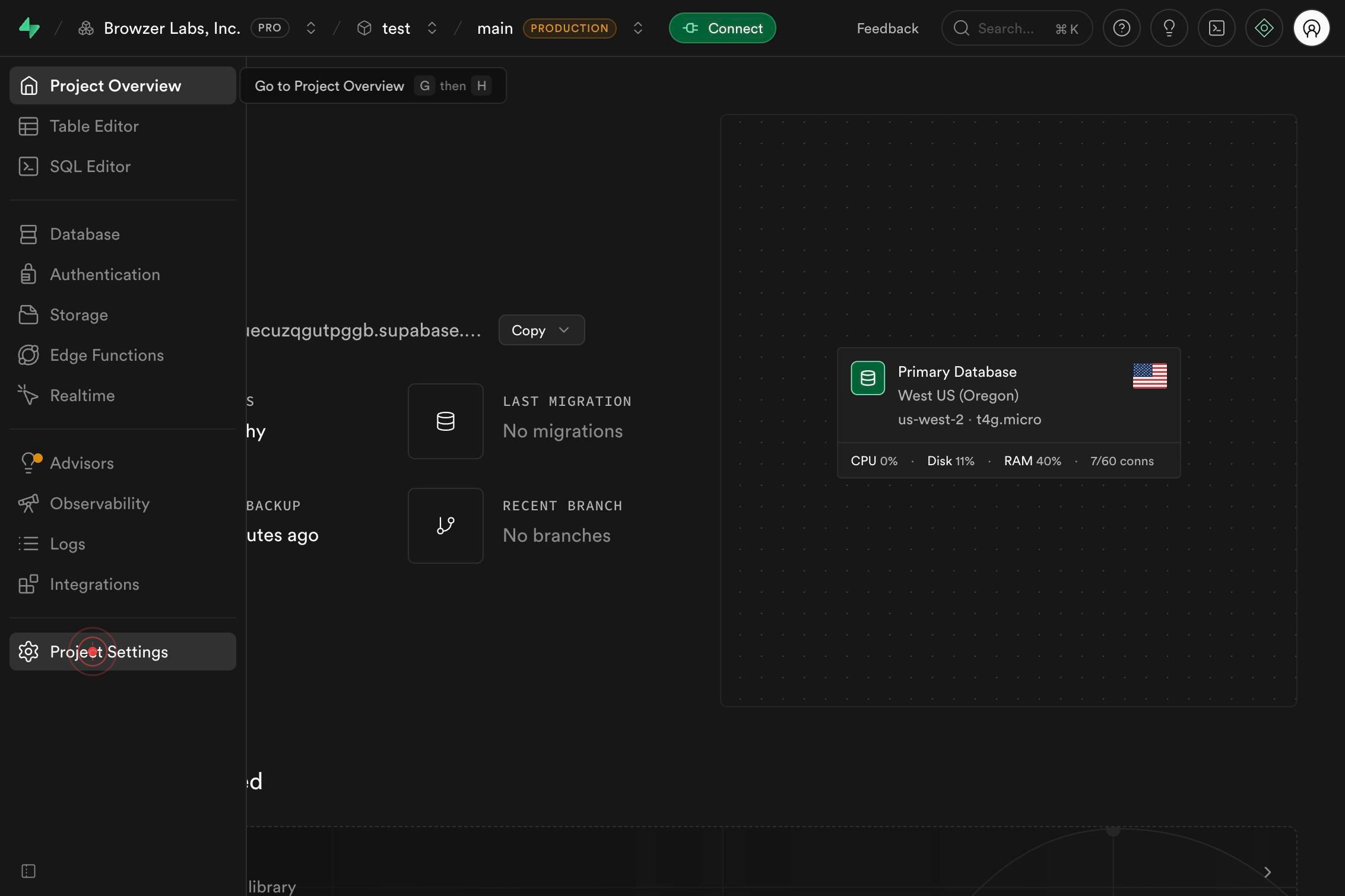
Project SettingsNavigate to your project settings by clicking the Project Settings link in the Supabase Dashboard. This page displays all configuration details for your project, including the project name and unique project ID that you need for API authentication and integration setup.
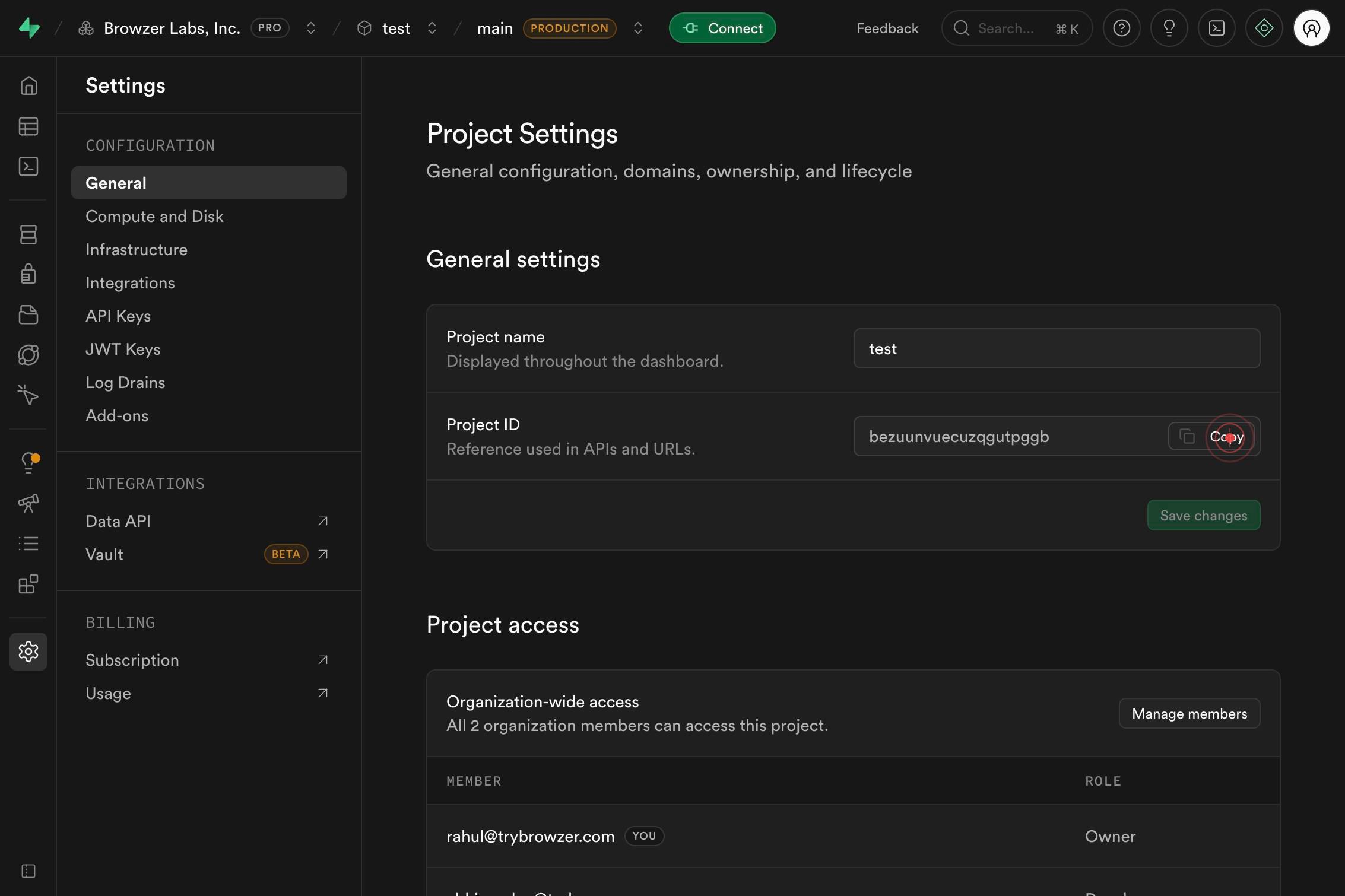
CopyClick the Copy button next to your project ID to copy it to your clipboard. This eliminates manual transcription errors and allows you to quickly paste the ID into configuration files, environment variables, or API calls.
Confirm it worked
- 1The Project Settings page is displayed, showing your project name at the top
- 2You can see your project ID listed on the settings page (typically a unique alphanumeric identifier)
- 3The project ID has been successfully copied to your clipboard (indicated by a visual confirmation or tooltip after clicking Copy)
- 4You can paste the ID elsewhere (e.g., in a text editor or terminal) to confirm it was captured correctly
Common issues
Keep reading
How To Get Project ID In Azure DevOps - Azure Lessons
How To Get Project ID In Azure DevOps - Azure Lessons Whether you’re a developer, a project manager, or an IT professional, this guide is just for you. We’ll explore several methods, discuss their pr
azurelessons.comGet the project ID in an add-in part on a Project Details Page | Microsoft Learn
# Get the project ID in an add-in part on a Project Details Page | Microsoft Learn Add-in parts are hosted in iframe elements that are fully isolated from the hosting page. To get information about t
learn.microsoft.comHow to Find Numeric Project Id from Project Name in JIRA 5.0.1 for Direct Links — tutorialpedia.org
How to Find Numeric Project Id from Project Name in JIRA 5.0.1 for Direct Links — tutorialpedia.org ## Table of Contents# 1. Why the Numeric Project ID Matters 2. Prerequisites 3. Method 1: From the
tutorialpedia.org