Guide
Create Publishable API Key
Overview
Supabase provides fine-grained API key management to control which application components can access your project's data. Publishable API keys are specifically designed for client-side and frontend applications, offering a secure way to authenticate requests without exposing your service role key. This workflow guides you through creating a new publishable key in your Supabase project settings, allowing you to assign descriptive names and maintain multiple keys for different applications or environments.
Before you begin
- Active Supabase account (free or paid) at supabase.com
- At least one Supabase project already created
- Owner or Administrator role in the target project
- Access to Project Settings (typically available to project owners and administrators)
Step by step
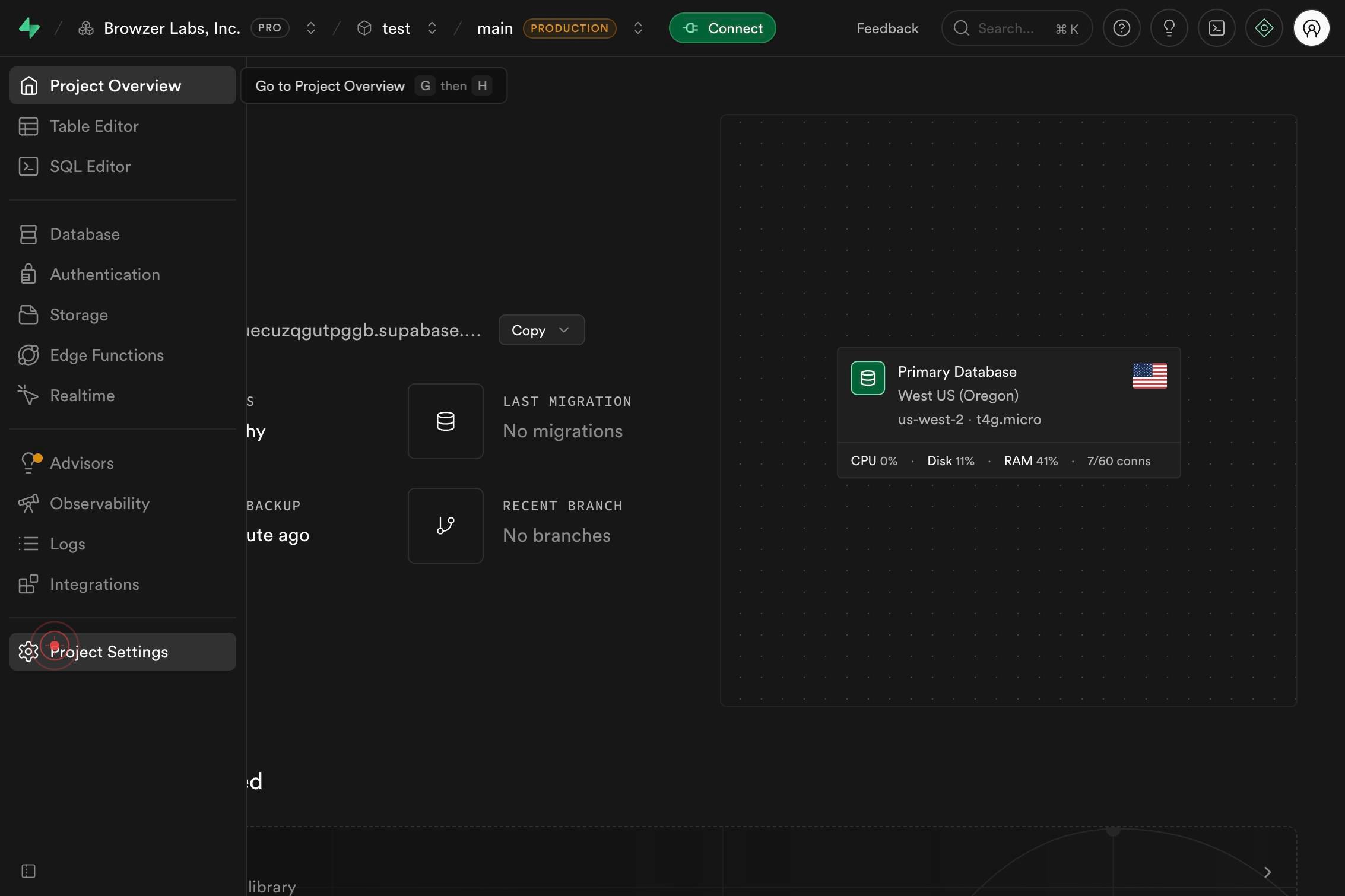
Project SettingsNavigate to your project's settings by clicking the Project Settings link in the Supabase navigation. This opens the main settings panel where you can manage API keys and other project configuration.
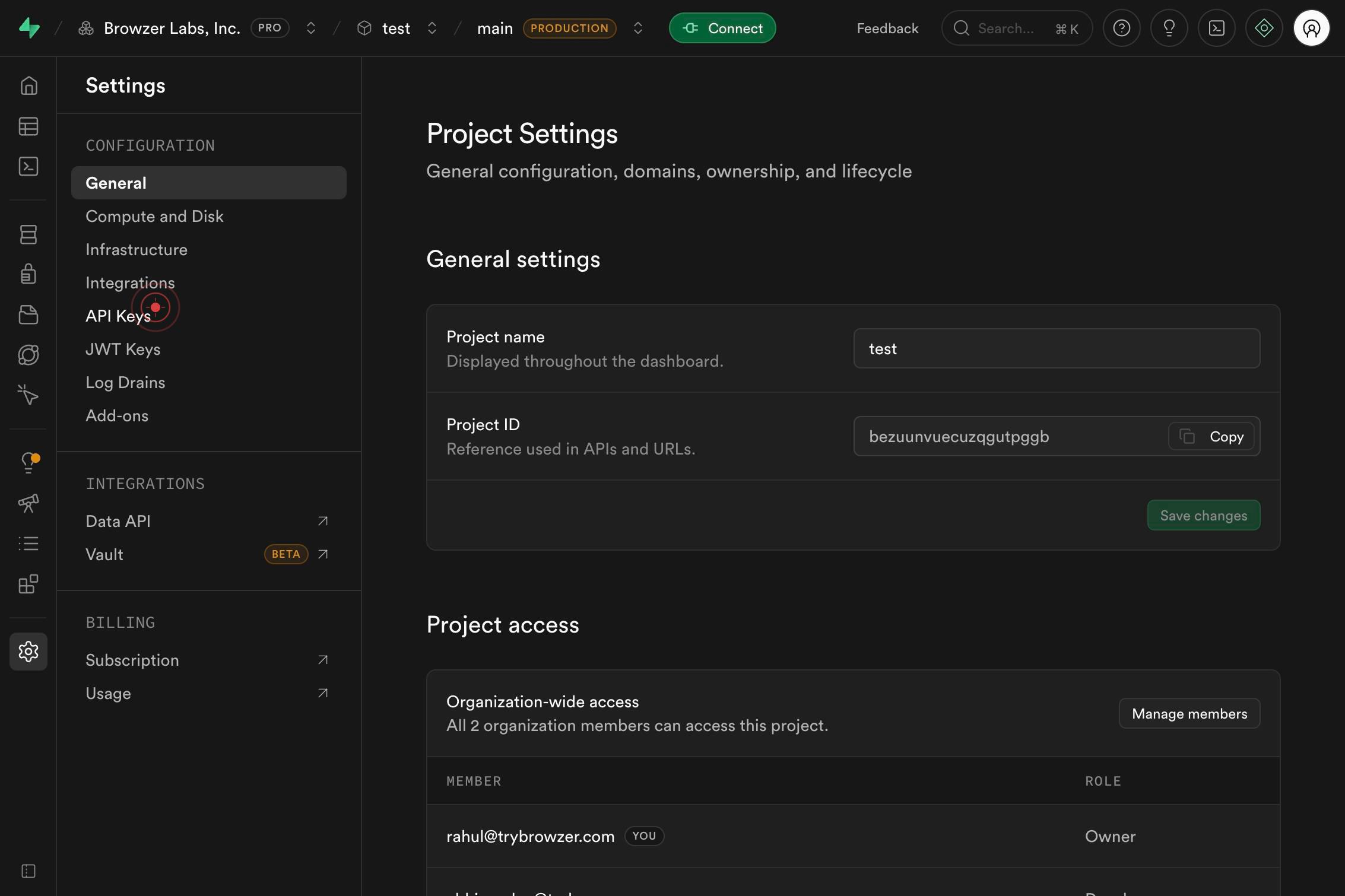
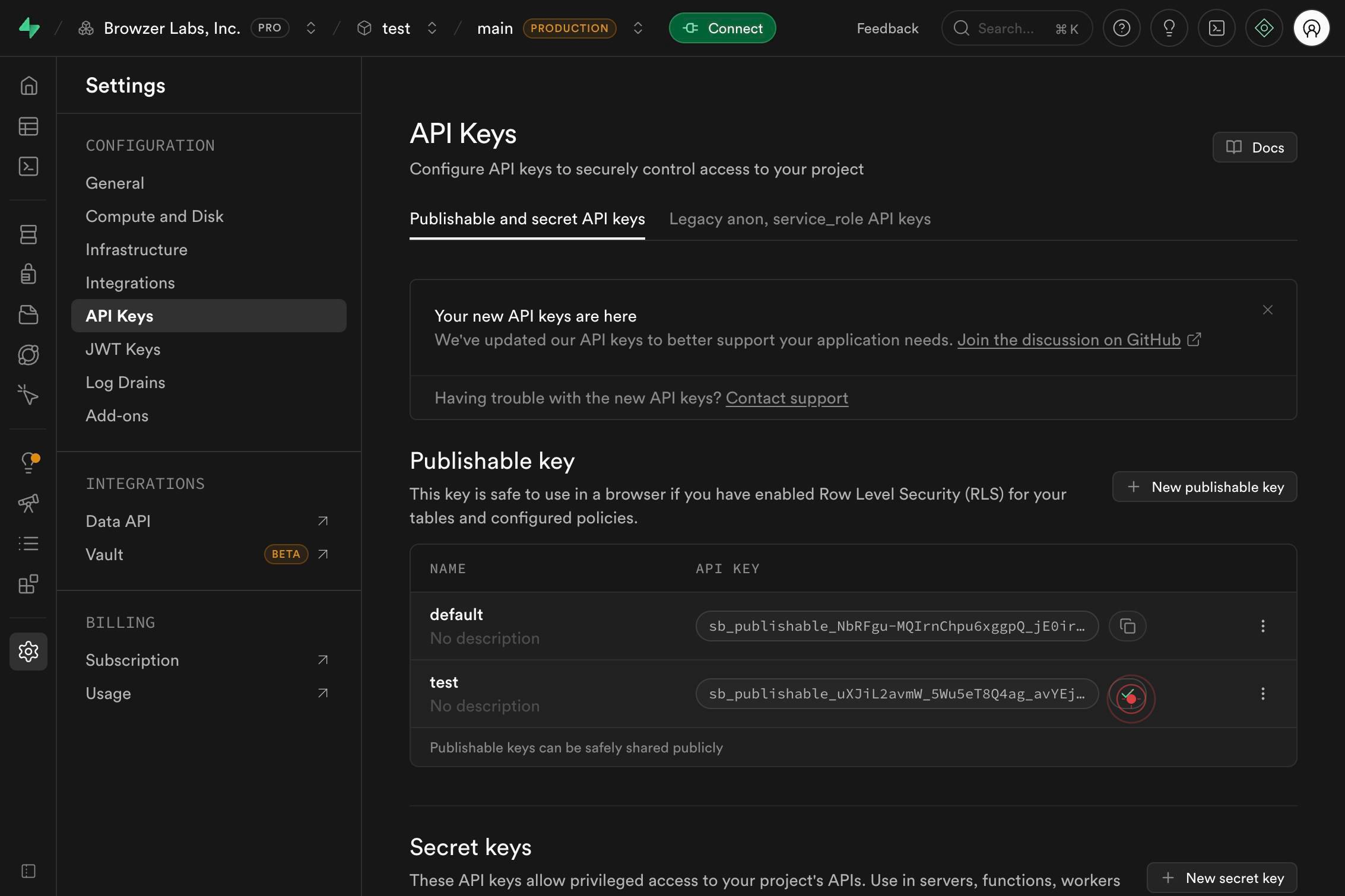
API KeysSelect API Keys from the settings menu. This displays the API Keys management page where all your project's keys are listed and new keys can be created.
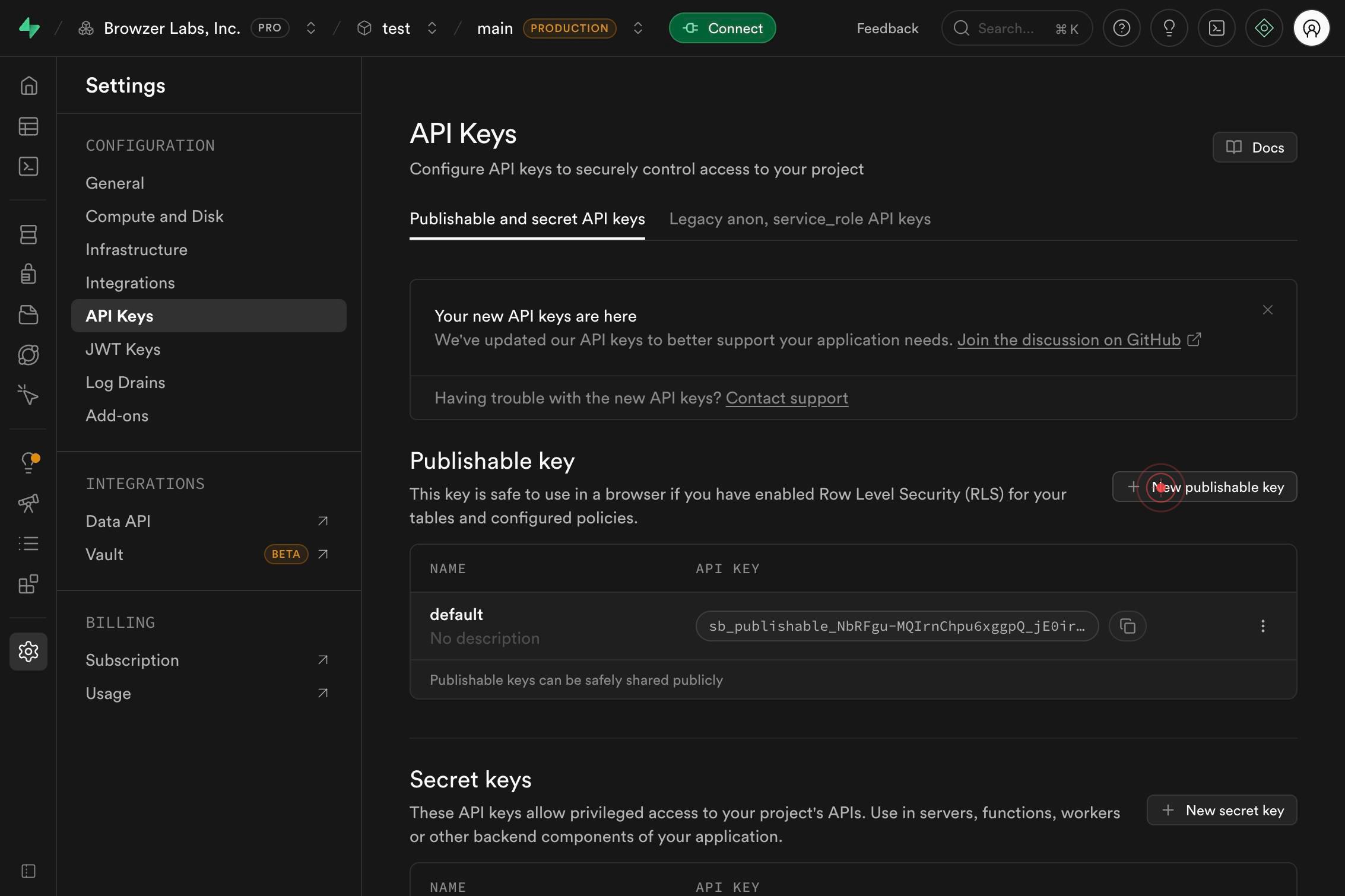
New publishable keyClick the 'New publishable key' button to initiate creation of a new publishable API key. A form or dialog will appear where you can enter details for the new key.
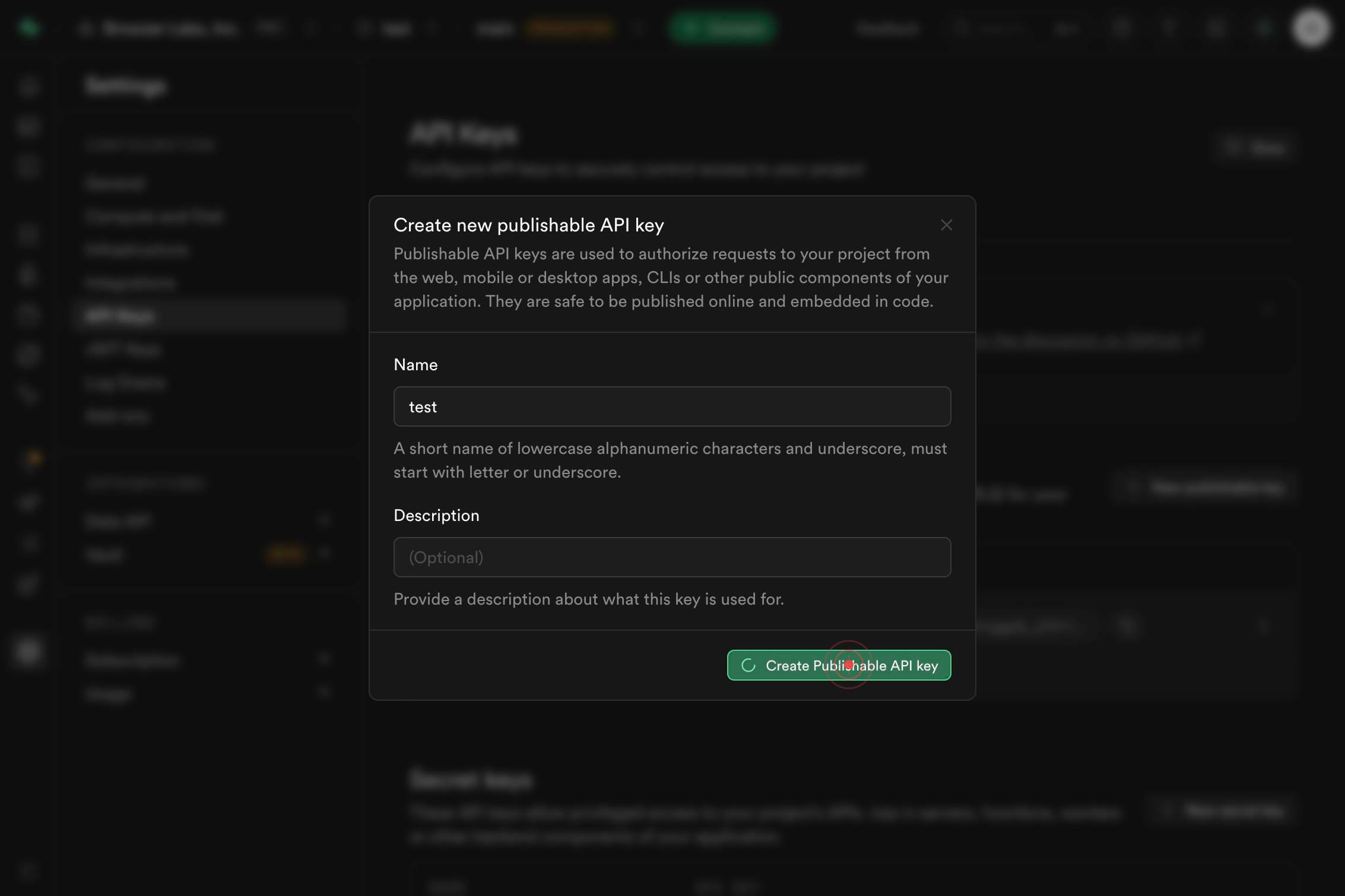
nameEnter a descriptive name for the publishable API key in the name field. Use a clear name that identifies the application, environment, or purpose (e.g., 'web-app-production' or 'mobile-client-v1').
Create Publishable API keyClick the 'Create Publishable API key' button to complete the creation process. Supabase will generate the key and display it for you to copy.
buttonClick the confirm or close button to finish and return to the API Keys list. The new publishable key will now appear in your keys table and be available for use in your applications.
Confirm it worked
- 1The new publishable API key appears in the API Keys list with the name you specified
- 2The key is marked as 'Publishable' type in the keys table
- 3A confirmation message or success notification displays after creation
- 4You can copy the key value to use in your client-side application
Common issues
Keep reading
How to Manage Publishable API Keys | Medusa
How to Manage Publishable API Keys | Medusa You're viewing the documentation for v1, which isn't the latest Medusa version. Latest documentation On this page In this document, you’ll learn how to m
docs.medusajs.comManaged API keys | Stripe Documentation
# Managed API keys Programmatically create and manage API keys on behalf of your app's users. An approved Stripe App can programmatically create and manage API keys on behalf of your app’s users. Ap
docs.stripe.comManage Publishable API Keys in Medusa Admin - Medusa Admin User Guide
# Manage Publishable API Keys in Medusa Admin In this guide, you'll learn how to create and manage publishable API keys in the Medusa Admin. This guide is mainly useful for developers and technical
docs.medusajs.com