Guide
Create Secret Key
Overview
Supabase provides fine-grained API key management to control which application components can access your project's data and services. Secret API keys are intended for server-side use and provide first-layer protection for your project. Creating a new secret key allows you to generate additional credentials for different applications, environments, or team members while maintaining security and auditability. This is essential when you need to authenticate requests from backend services, microservices, or third-party integrations that require exclusive access credentials.
Before you begin
- Active Supabase account at supabase.com (free tier or paid)
- Access to a Supabase project (you must have owner or admin role)
- Logged into the Supabase dashboard
Step by step
New secret keyNavigate to the API keys section of your Supabase project and click the 'New secret key' button to initiate the creation of a new secret API key.
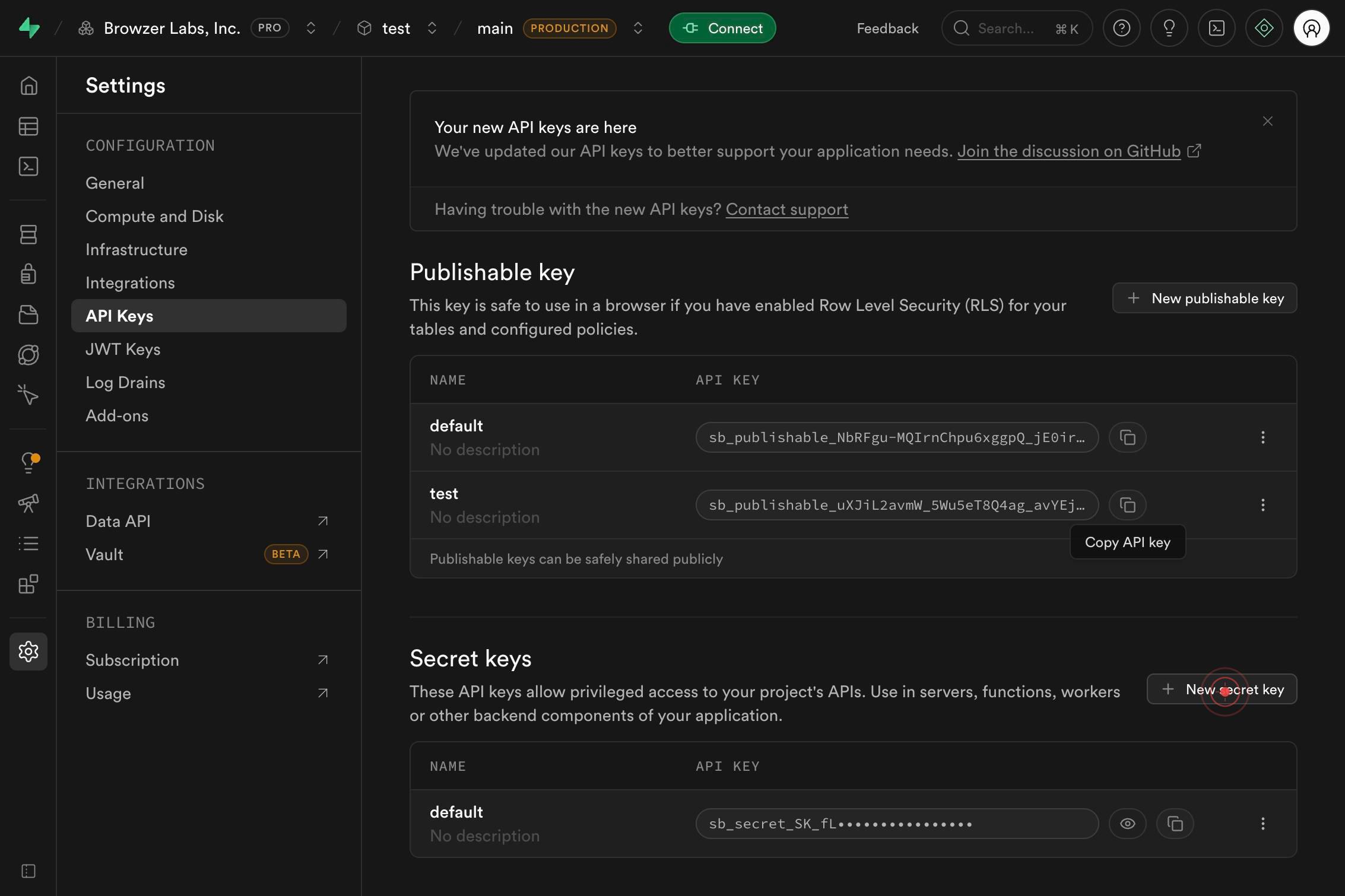
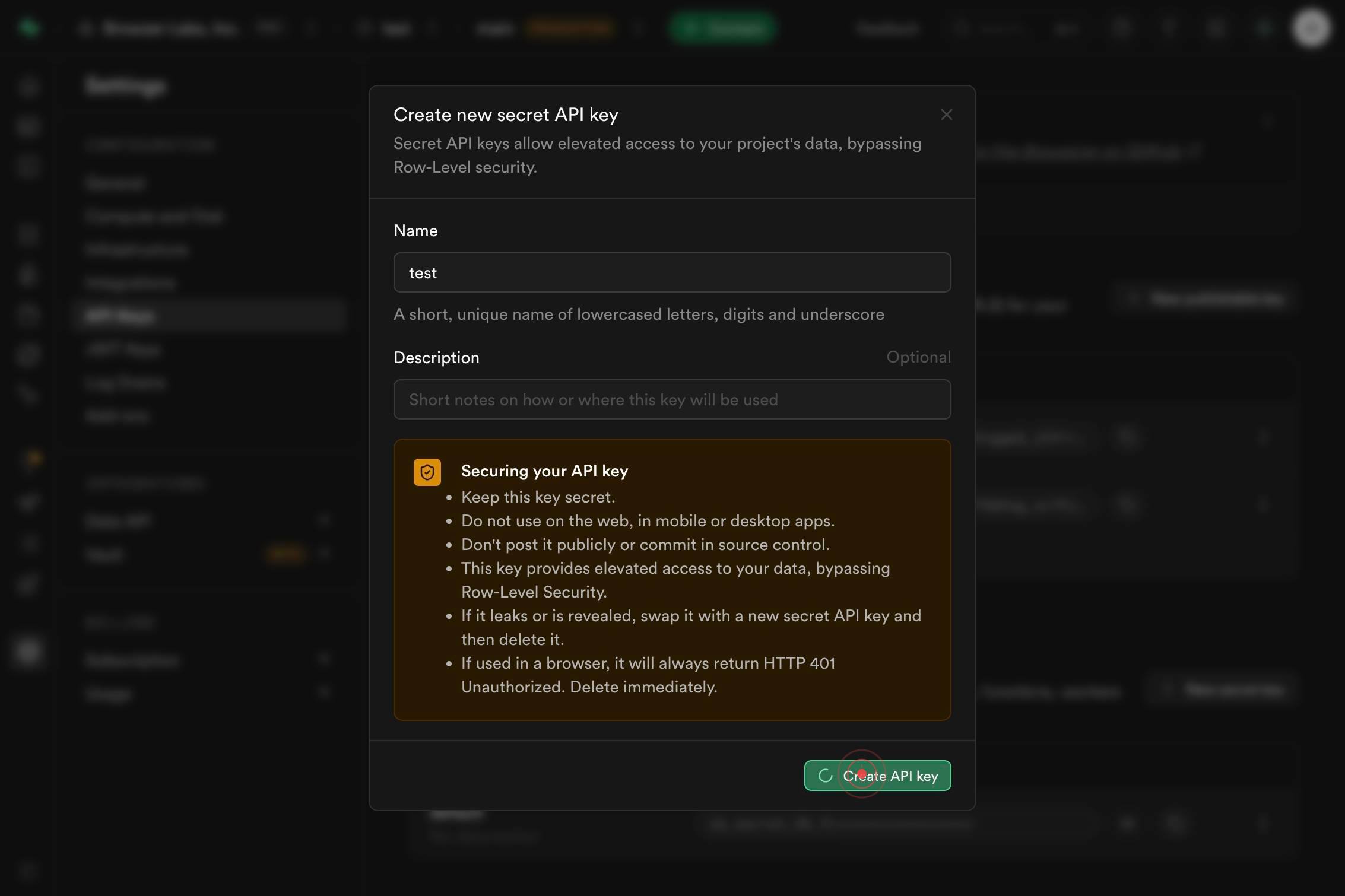
Example: my_super_secret_key_123Enter a descriptive name for your new secret key in the text input field. Use a name that clearly identifies the key's purpose and environment (e.g., 'production_backend_key' or 'mobile_service_key').
Create API keyClick the 'Create API key' button to generate the new secret key.
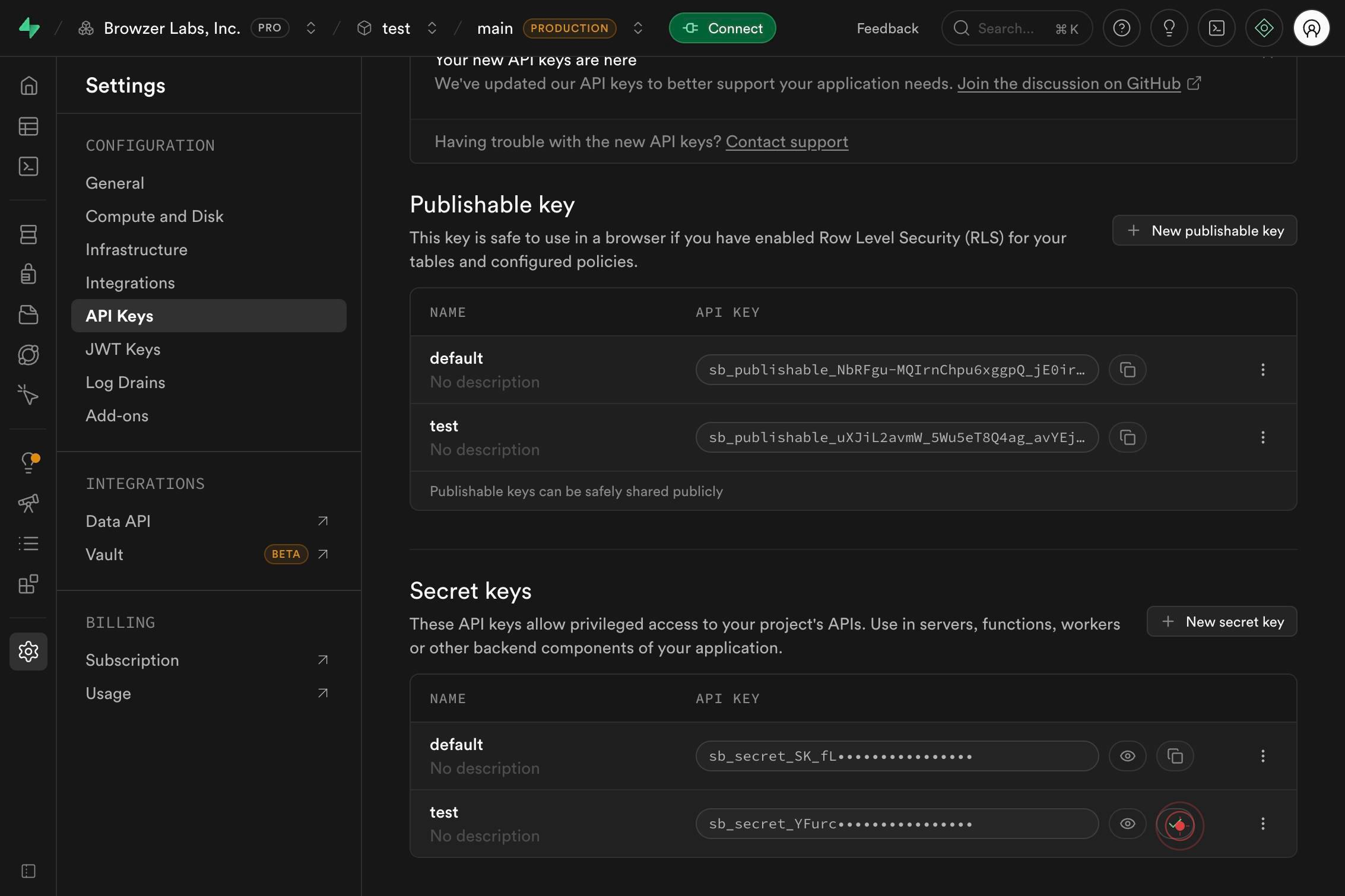
buttonConfirm or close the success dialog by clicking the displayed button to complete the key creation process.
Confirm it worked
- 1A confirmation dialog or success message appears after clicking 'Create API key'
- 2The new secret key is displayed on screen (typically shown once for copy/paste)
- 3The new key appears in your project's API Keys list or settings page
- 4You can see the key name you entered in the list of active API keys
Common issues
Keep reading
How to Generate a Secure JWT Secret Key in Node.js | by Ayesha Iftikhar | Medium
How to Generate a Secure JWT Secret Key in Node.js | by Ayesha Iftikhar | Medium Sitemap Open in app Sign up Sign in Medium Logo Get app Write Search Sign up Sign in Mastodon # How to Gene
building.theatlantic.comCreating a Customer Secret Key
Creating a Customer Secret Key You're viewing OCI IAM documentation for new tenancies in regions that have been updated to use identity domains. Was my region updated? ### Oracle Cloud Infrastructu
docs.oracle.comQuick JWT Key Generation Guide | JWT Secrets Blog
Quick JWT Key Generation Guide | JWT Secrets Blog FuntranslatorCreate Fun Language Translations Free 2024-01-158 min read # Quick JWT Key Generation Guide Learn how to quickly generate secure JWT
jwtsecrets.com