Guide
Get DB Connection String
Overview
Supabase provides multiple connection methods for your Postgres database depending on your use case—frontend, backend, or serverless functions. The Direct Connection String is the most straightforward approach for backend applications, server-side scripts, and ORM configurations (such as Prisma, SQLAlchemy, or Node-postgres). This workflow guides you to locate and copy your connection string from the Supabase dashboard, which you'll use to authenticate your application to the database. Having your connection string readily available ensures you can quickly integrate your database into your development and production environments.
Before you begin
- An active Supabase account at supabase.com
- At least one Supabase project created and initialized
- Owner or admin permissions on the project (to access connection credentials)
Step by step
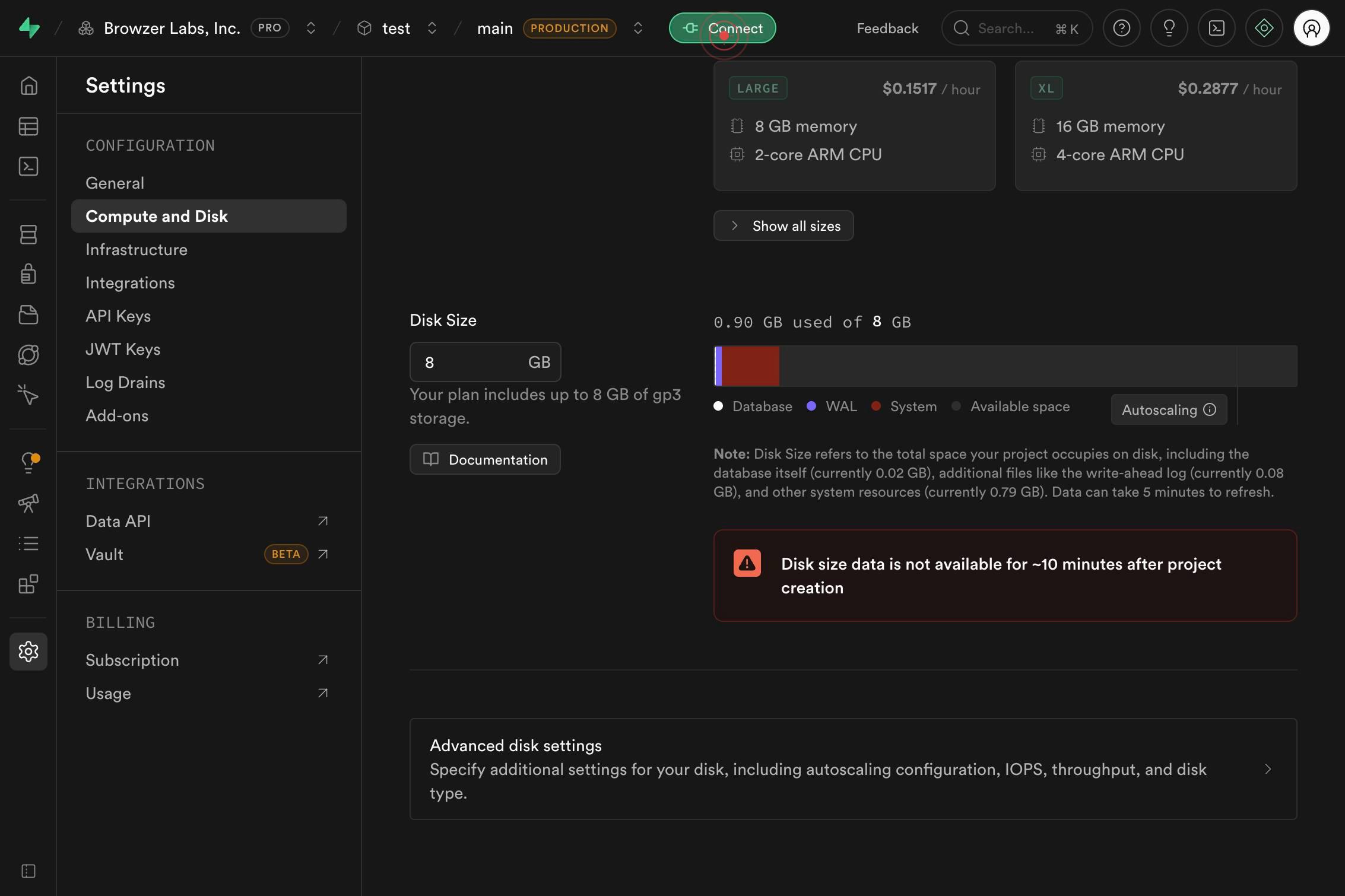
ConnectNavigate to the Connect section of your Supabase project by clicking the Connect button in the dashboard. This section centralizes all available methods for connecting to your Postgres database.
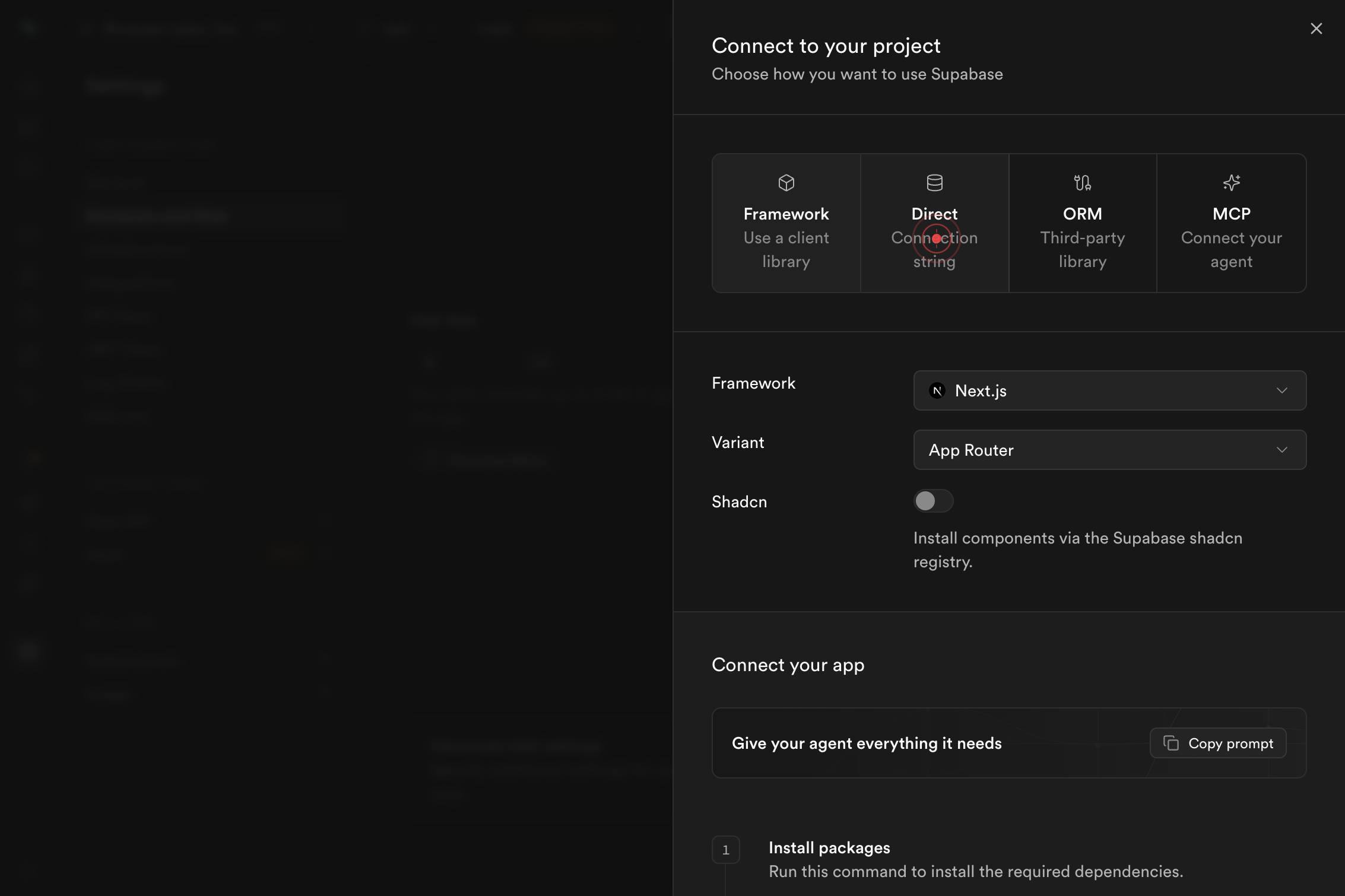
Direct Connection stringClick on the Direct Connection String option to retrieve the full connection string for your database. This string contains all the credentials and connection parameters needed to connect backend applications and database clients directly to your Postgres instance.
Confirm it worked
- 1The Supabase dashboard displays the Connect section with connection method options
- 2The Direct Connection String option is visible and clickable in the Connect menu
- 3A connection string in the format `postgresql://user:password@host:port/database` is displayed and ready to copy
- 4The connection string includes your project's unique host, port, database name, and authentication credentials
Common issues
Keep reading
Obtain the JDBC Connection String for Your Database
Obtain the JDBC Connection String for Your Database [Previous](common-tasks.html)[Next](access-virtual-machine-ssh.html)JavaScript must be enabled to correctly display this content 1. [Using Oracle We
docs.oracle.comManage DB Connection String in EF Core
Manage DB Connection String in EF Core #### Want to reduce your saving time by 94%? Entity Framework Extensions allow to insert 14x faster, update 4x faster and more! # Database Connection String i
entityframeworktutorial.netConnecting to your Prisma Postgres database | Prisma Documentation
Connecting to your Prisma Postgres database | Prisma Documentation # Connecting to your database Copy MarkdownOpen Choose the right Prisma Postgres connection string for your runtime, tool, a
prisma.io