Guide
Run Query in SQL Editor
Overview
Supabase's SQL Editor is a browser-based interface that allows you to write and execute SQL queries directly against your Postgres database without leaving the Supabase Studio dashboard. This is essential for testing queries, debugging data issues, and exploring your database structure during development. The SQL Editor supports full SQL syntax and provides real-time query execution, making it ideal for ad hoc data retrieval and validation tasks. This workflow demonstrates how to run a query that fetches up to 100 rows from a test table, a common operation for data inspection and verification.
Before you begin
- A Supabase account (free or paid) with an active project
- Access to a Supabase project dashboard at supabase.com
- An existing table in your Postgres database (in this case, a table named 'test-table')
- At least read permissions on the target table
Step by step
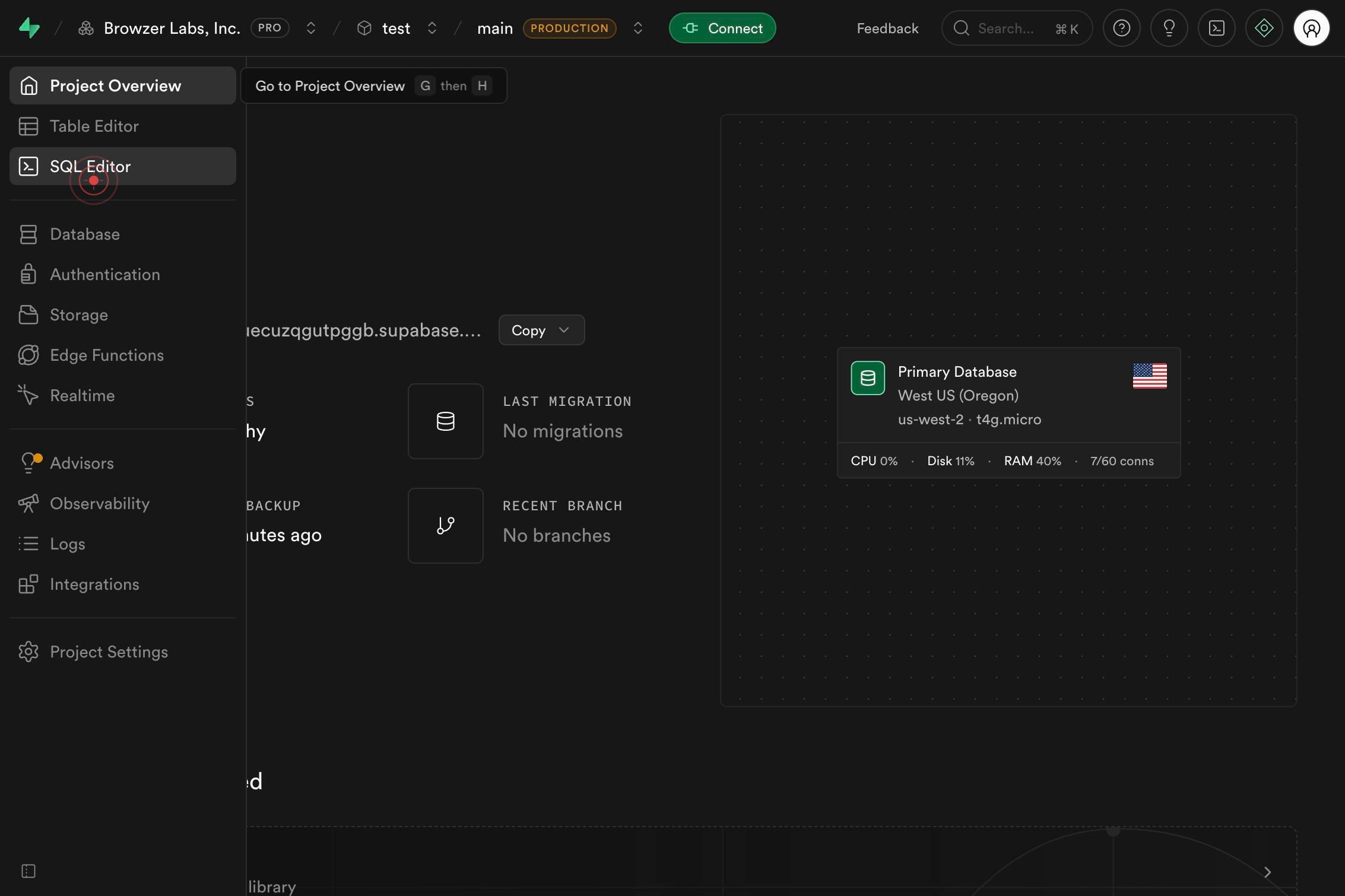
SQL EditorNavigate to the SQL Editor by clicking the 'SQL Editor' link in the left sidebar of your Supabase project dashboard. This opens the query interface where you can write and execute SQL commands.
Select * FROM test-table limit 100Click on the query template or example that displays 'Select * FROM test-table limit 100' to either select it as a starting point or to populate the editor with this query structure. This pre-written template saves time and ensures correct syntax.
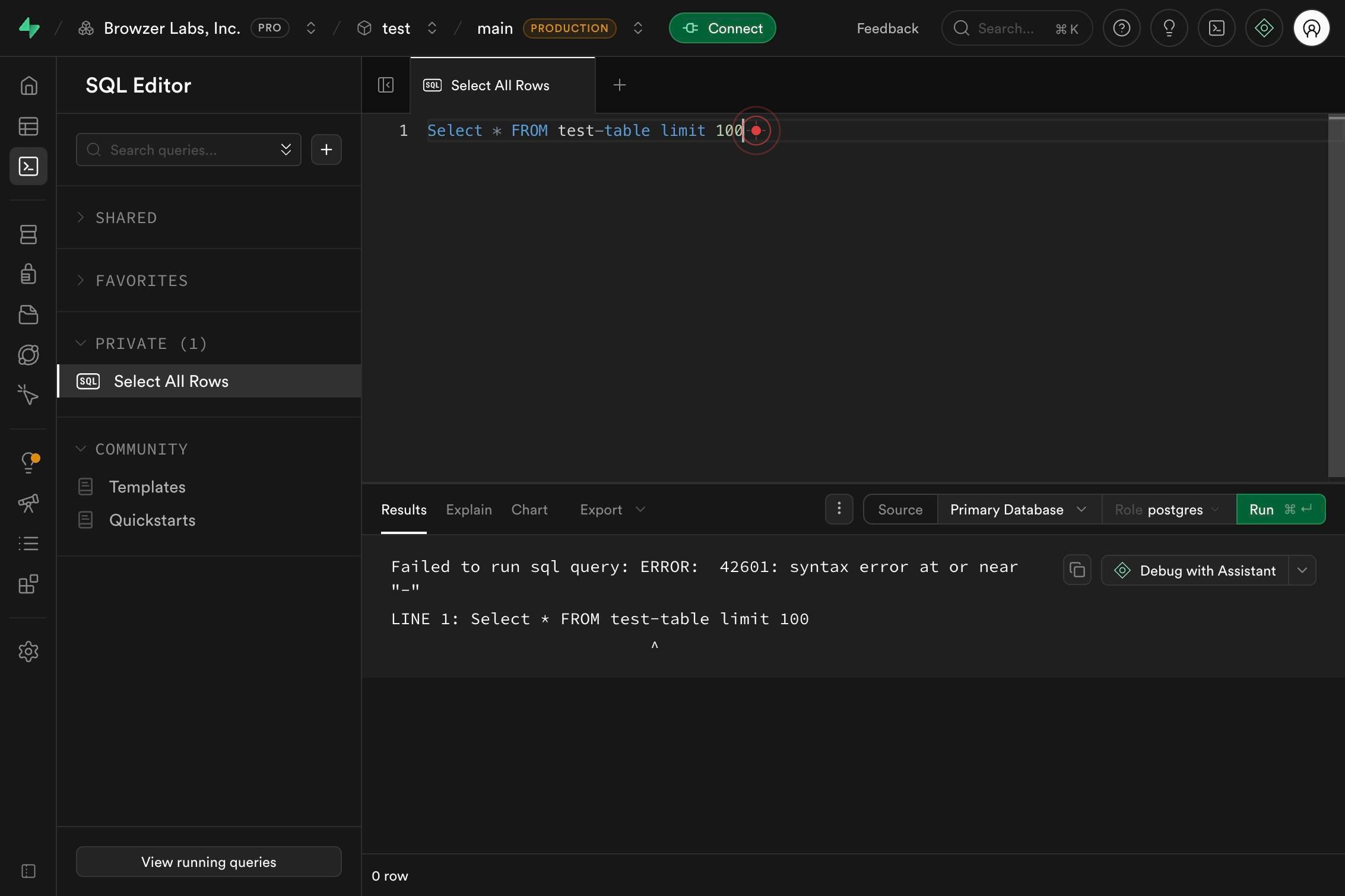
Editor contentType or paste your SQL query into the editor content area. If you're using the template from the previous step, you can modify it here to adjust the table name, add WHERE clauses, or change the LIMIT value as needed.
Run ⌘ ↵Execute your query by clicking the 'Run' button (displayed with a keyboard shortcut icon ⌘ ↵). The SQL Editor will send your query to the Postgres database and display results in the panel below.
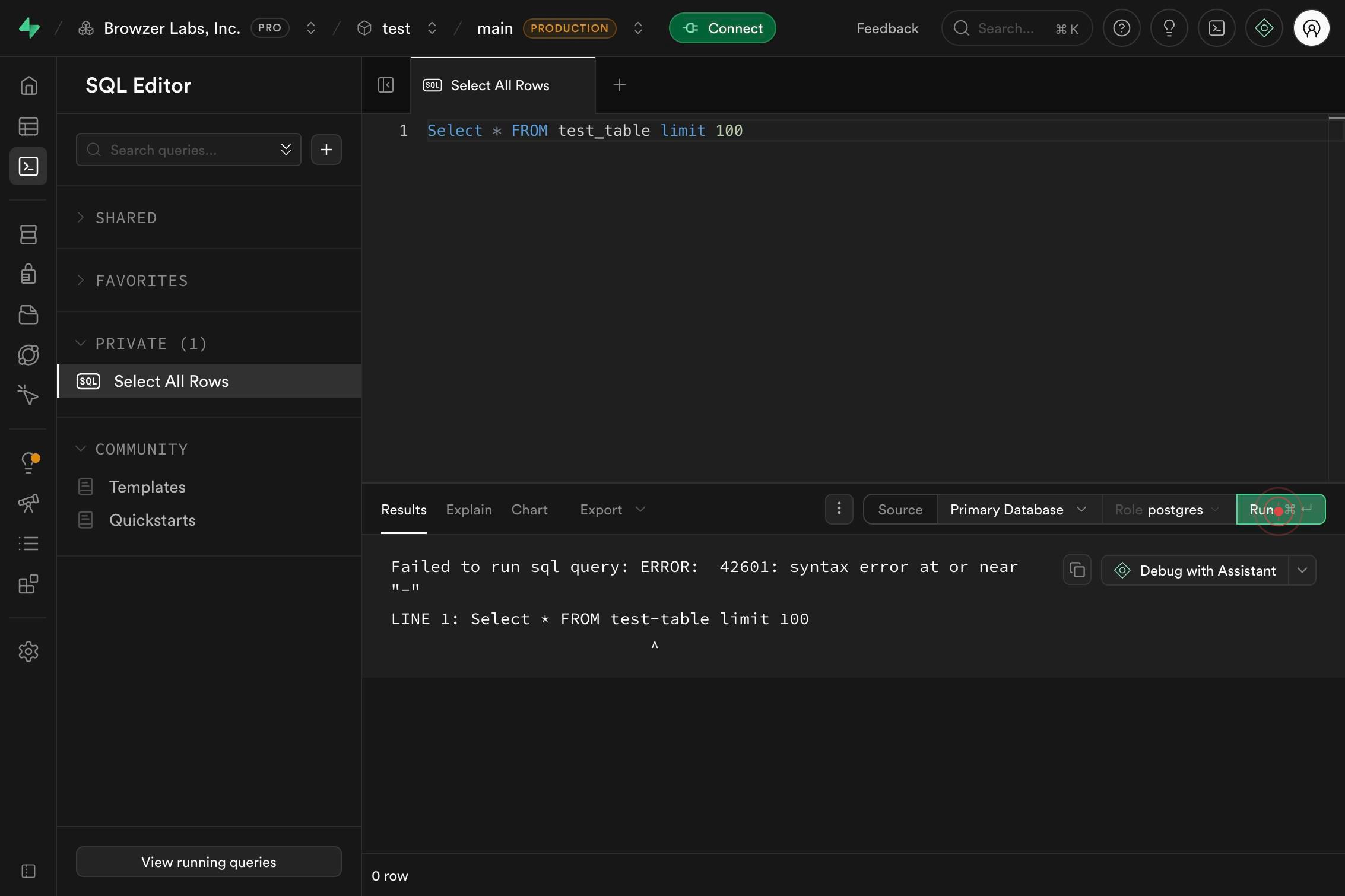
Editor contentReview or modify your query further by typing additional SQL commands or adjustments into the editor content area. This allows you to refine your query, add filters, or test variations without clearing previous results.
Confirm it worked
- 1The SQL Editor tab is visible and active in the Supabase Studio interface
- 2Your query appears in the editor window with proper syntax highlighting
- 3A results panel appears below the query editor showing returned rows (up to 100 rows displayed)
- 4The query execution status shows 'Success' or displays the number of rows returned
Common issues
Keep reading
Write queries and explore data in the new SQL editor | Databricks on Google Cloud
Write queries and explore data in the new SQL editor | Databricks on Google Cloud On this page Last updated on Mar 10, 2026 The Databricks UI includes a SQL editor that you can use to author querie
docs.databricks.comSSMS Query Editor | Microsoft Learn
SSMS Query Editor | Microsoft Learn Ask Learn Ask Learn # Query Editor (SQL Server Management Studio) Applies to: SQL Server Azure SQL Database Azure SQL Managed Instance Azure Synapse Analytics An
learn.microsoft.comRunning Queries - SQL Editor Guide
Running Queries - SQL Editor Guide # Running Queries in SaturnSQL The query editor is where you'll spend most of your time. Here's how to write and execute SQL queries effectively. ## Writing queri
saturnsql.com